How to Delete Save Data (works as of Jan 2024)
Notes & Disclaimers
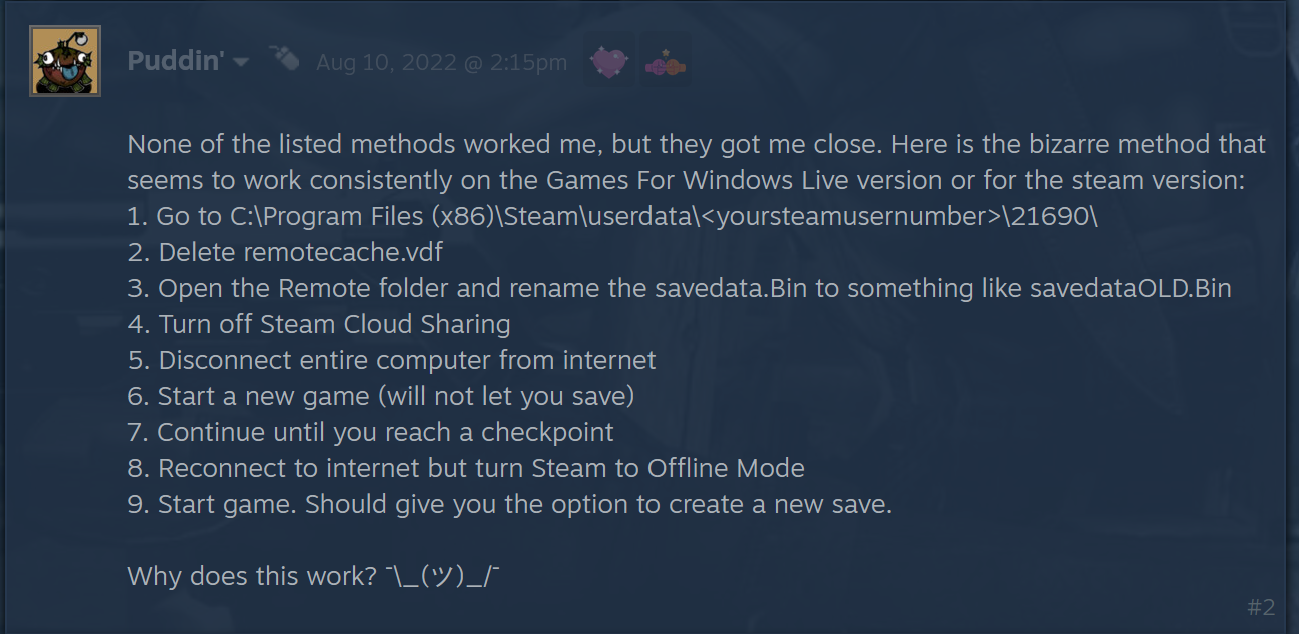
- Full credit for this method goes to Steam User Puddin', who posted his solution to an old thread back in August 2022. Here is a link to the original thread if you'd like to access it or show Puddin' some love. Throw him some Points Rewards or something (not like there's much else to use them on): https://steamcommunity.com/app/21690/discussions/0/1474221865197544031/
- I should preface that I did this on Windows; if you are a Linux/Steam Deck user, you may have to do some investigation work to find the applicable folders/files, or switch to a Windows PC to do this, then enable Cloud Saves and transfer to your Linux device/Steam Deck.
- This method will delete *all* of your saved data for RE5, including your in-game stats, BSAA Emblems, and access to extra modes like Mercenaries, Lost in Nightmares, and Desperate Escape (you must complete the story to unlock them again).
Step 1: Install RE5, make sure Cloud Saves are *enabled*
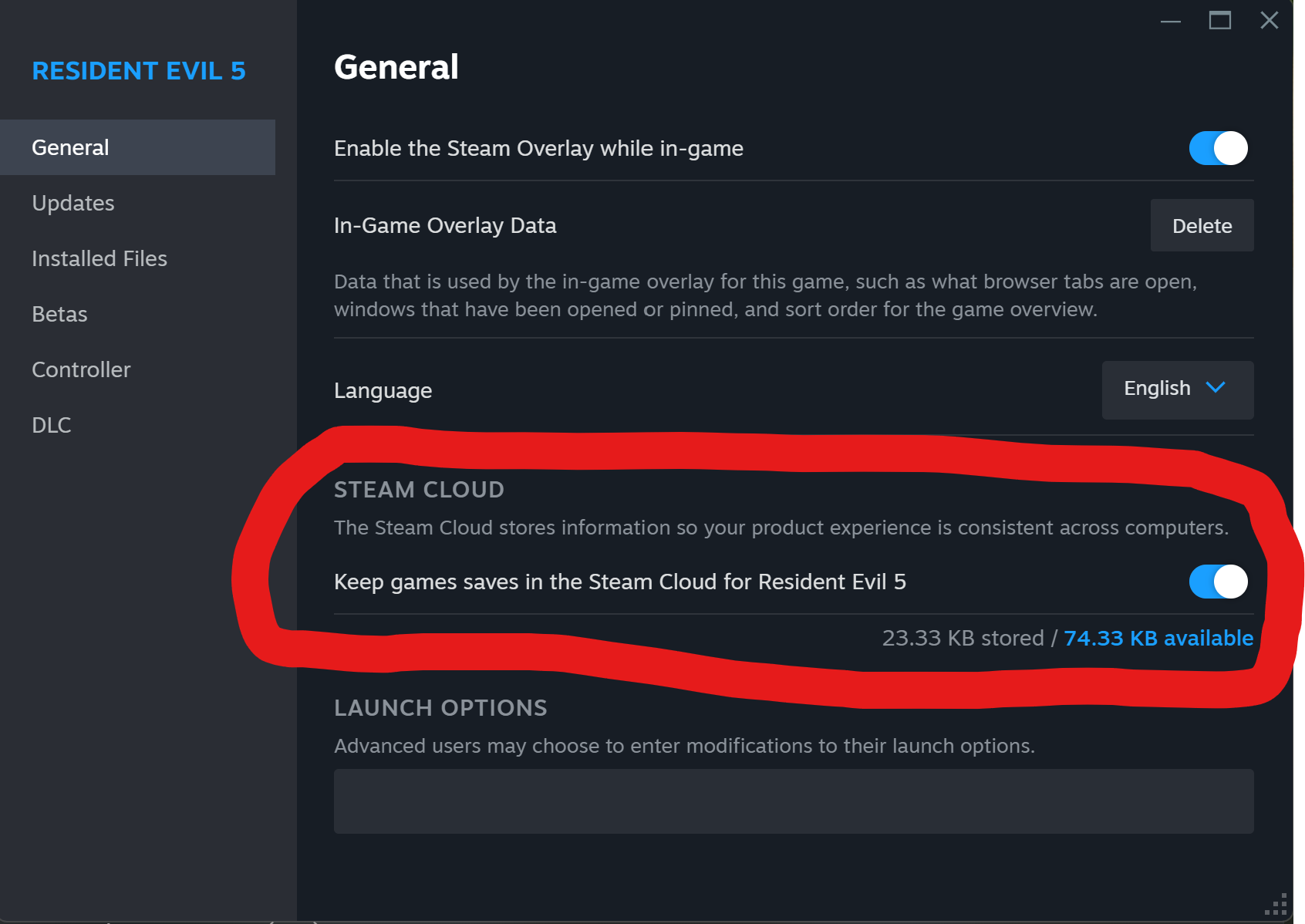
Before you download and install RE5, make sure that Steam Cloud Saves are turned on before you install the game. We want to make sure that Steam downloads the "remote" folder and "savedata.bin" file for later in this guide.
Steam Cloud Saves are almost always enabled by default, but if you want to make sure, then Right-click on RE5, click "Properties", then in "General", make sure the "Keep games saves in the cloud for Resident Evil 5" is turned on.
Once you've verified that, download the game.
Step 2: Delete "remotecache.vdf" and rename "savedata.bin"
Note: Ignore the "local" folder in this screenshot, I took these screenshots after completing the entire process.
Go to the following file directory...
C:\Program Files (x86)\Steam\userdata\<yoursteamusernumber>\21690\
...and delete the "remotecache.vdf" file.

Then go into the "remote" folder and rename "savedata.bin" to something else, I.e. "savedataOLD.bin"
Step 3: Disable Steam Cloud Saves, disconnect from the internet
Disconnect your PC from the internet. Most devices (including Windows PCs) have Airplane Mode, which will be enough to disable internet access temporarily.
Step 4: Start RE5, continue w/o data, reach a Checkpoint
Now that you're disconnected from the internet (or in Airplane Mode), start RE5.
At the main menu, once you click on "START", you'll receive an in-game error message, telling you that it failed to load save data, then prompt you to either re-try loading data or continue without saving. Click "No" to continue without saving.
Start a new game and play until you reach a checkpoint. By "checkpoint", I mean play until you go through a loading zone. In this case, start Chapter 1-1, run through the initial "market" area, pick up your guns from the butcher, kill the first enemy, escape from the mob, kick the red door down, run through the small tunnel, and go through the door that requires both players and loads in a new area. At this point, you should be right outside of the big village fight.
After you've hit the checkpoint, exit to the main menu and close the game out.
Step 5: Reconnect to the internet, go into Steam Offline mode
Set Steam to Offline mode by clicking the "Steam" button at the top-left of the Steam client, and click "Go Offline..."
Step 6: Start RE5 again, create new save data
Now that you're reconnected to the internet and in Steam Offline mode, start up RE5 again. After clicking "START", you should receive another in-game message telling you that no save data exists, prompting you to create a new file. Click "Yes".
At this point, you can exit the game and re-enable Steam Cloud Saves if you wish to transfer your fresh save to another device like the Steam Deck.
On the PC/device you did this process on: Click on the "File Conflict" button next to the "Play" button and choose the "Local Save" option, not the "Cloud Save" option, otherwise all of your hard work will be erased and overwritten.
On the PC/device you want to transfer a new save to: Click on the "File Conflict" button next to "Play" and chose "Cloud Save" option to transfer the new data over.
General advice for Steam Cloud transferring at this point: Just keep track of which device you used to reset your progress (use Local Save), whether or not the new data has been uploaded, and which device you want to transfer the new data to (use Cloud Save).
Now you should be able to play RE5 from a fresh save file! Enjoy!
- Resident Evil 5 - Fixes★ 5 (2k)119k views2.4k ♥9 minUpdated Aug 2, 2025
- Resident Evil 5 Quality of Life Fixes★ 5 (1.5k)78k views2.1k ♥4 minUpdated Mar 9
- Resident Evil 5: Gold Edition 100% Achievement Guide★ 5 (1.3k)42k views2.6k ♥24 min
- getting multiplayer achievements with bots★ 5 (876)33k views1.7k ♥11 minBulgarianUpdated Aug 27, 2023
- Farming Gold (15K), ammo and eggs★ 5 (459)33k views423 ♥1 minBulgarianUpdated Sep 24, 2018
- Полный русификатор (текст+звук) {1C} Gold Edition★ 5 (674)30k views778 ♥1 minRussianUpdated Feb 3, 2024



- Upgrading to PremiumTeam Fortress 2★ 5 (20k)1441k views11k ♥6 minUpdated May 11, 2022
- No More Room in Hell Official ManualNo More Room in Hell★ 5 (2.8k)569k views2.1k ♥29 minUpdated Apr 22, 2019
- NMRiH Community Hosting GuidesNo More Room in Hell★ 5 (526)351k views653 ♥1 minUpdated Aug 10, 2022
- ULTIMATE GUIDE FOR GAME DEV TYCOONGame Dev Tycoon★ 5 (5.8k)326k views10k ♥4 minUpdated 23 Jan, 2014
- How to 'Git Gud' Soon™MORDHAU★ 5 (2k)318k views3k ♥68 minUpdated Nov 16, 2024
- Лучшие кооперативные игры SteamPAYDAY 2★ 5 (1.5k)315k views2.1k ♥56 minRussianUpdated Apr 27, 2025






This guide was created by its original author on the Steam Community. Are you the author and want it removed? Request removal.