How to play Command & Conquer Red Alert 3™ Online
Step 1: Getting Started
Let's get us registered!
Before we get to installing anything, will we have to make an account on https://cnc-online.net/en/ which you can find HERE[cnc-online.net]
This is an Example Account and E-Mail
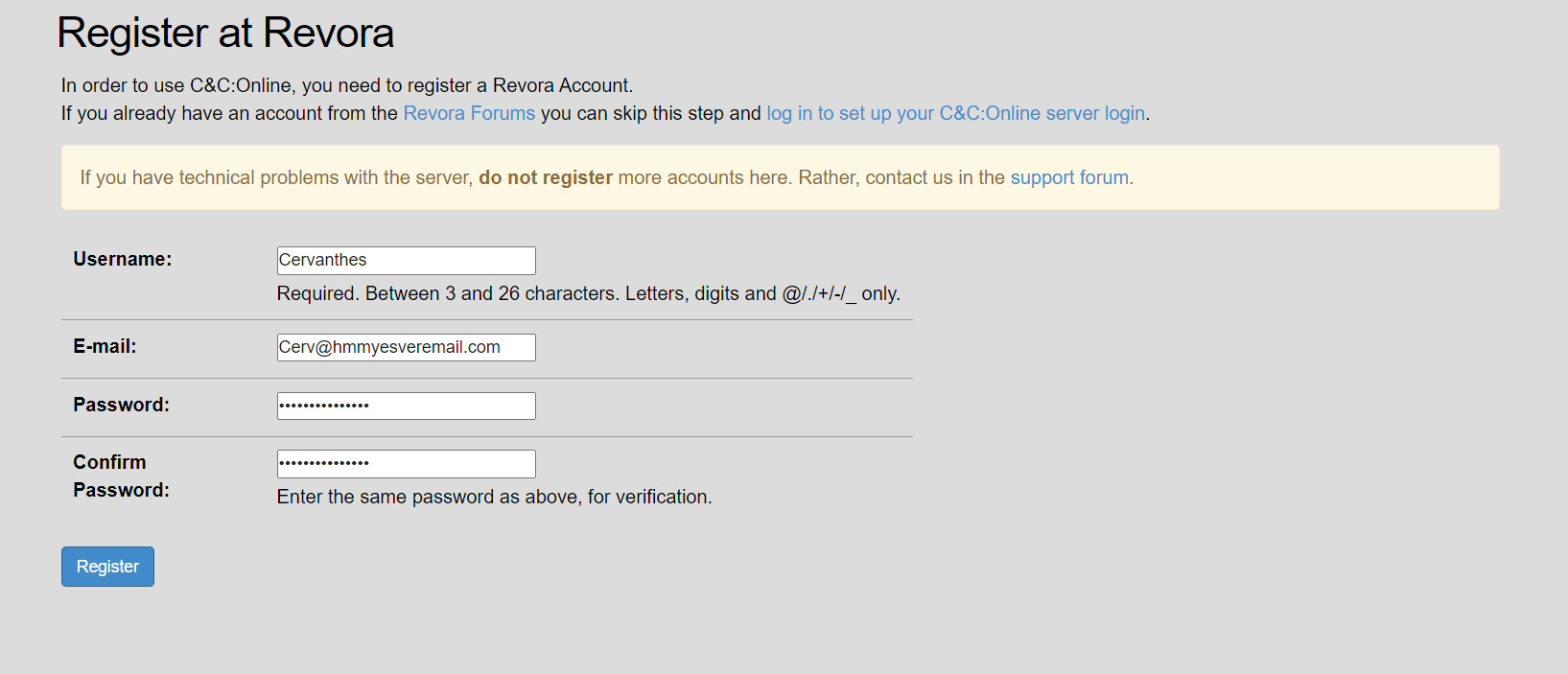
Activation
After you hit Register You will need to activate your account using the E-Mail that Revora has sent to your E-Mail Address.
Server Account
Once you are Activated and log back into the C&C:Online Website, you will see that the website is asking you to create a Server Account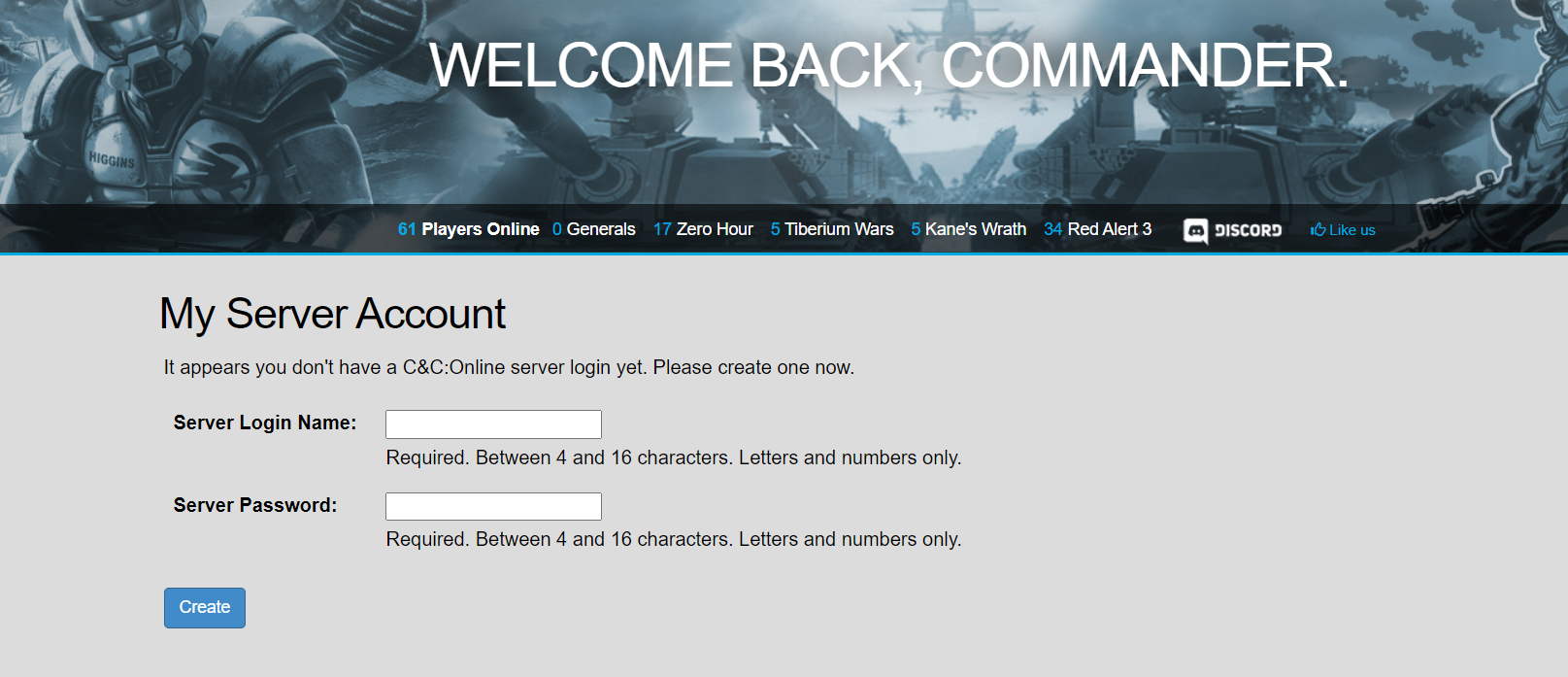 The server account is DIFFERENT from your Website Log in credentials, please do not reuse the same password here
Once you are logged in and have created your server account, you are greeted by this
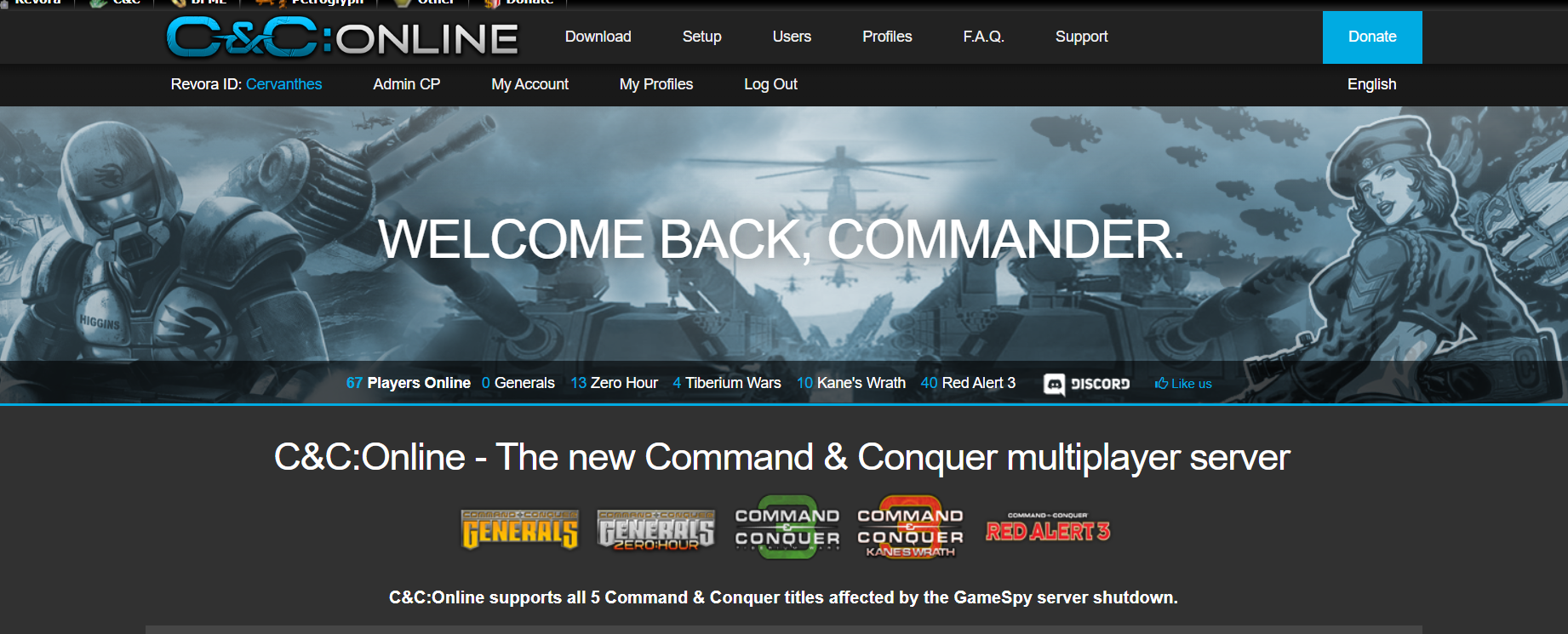 If everything worked out here, go to Step 2 if smth didn't work, please check the table below.
Issues that you may have encountered in Step 1 and their solutions
I'm not getting a verification email, and I am confident that I have checked my Spam folder and Junk folder
A: As of 2nd of October 2024 C&C:Online is undergoing a rework which can lead to issues with the registration and activation system should you have not gotten an Activation E-Mail try to manually resend your activation HERE[cnc-online.net] Should that not work please join our discord[discord.com] and message the Bot EvilToxic the bot will take care of your problem.
I clicked my Activation email and got HTTP ERR 500 or "The Activation failed" or the account still seems to be not activated even after clicking the link.
A: try to manually resend your activation HERE[cnc-online.net]Should that not work please join our discord[discord.com] and message the Bot EvilToxic the bot will take care of your problem
Step 2: Download and Setup C&C:Online [Launcher]
Now that we made our C&C:Online account and created our server log in, we are Ready to set up Tacitus
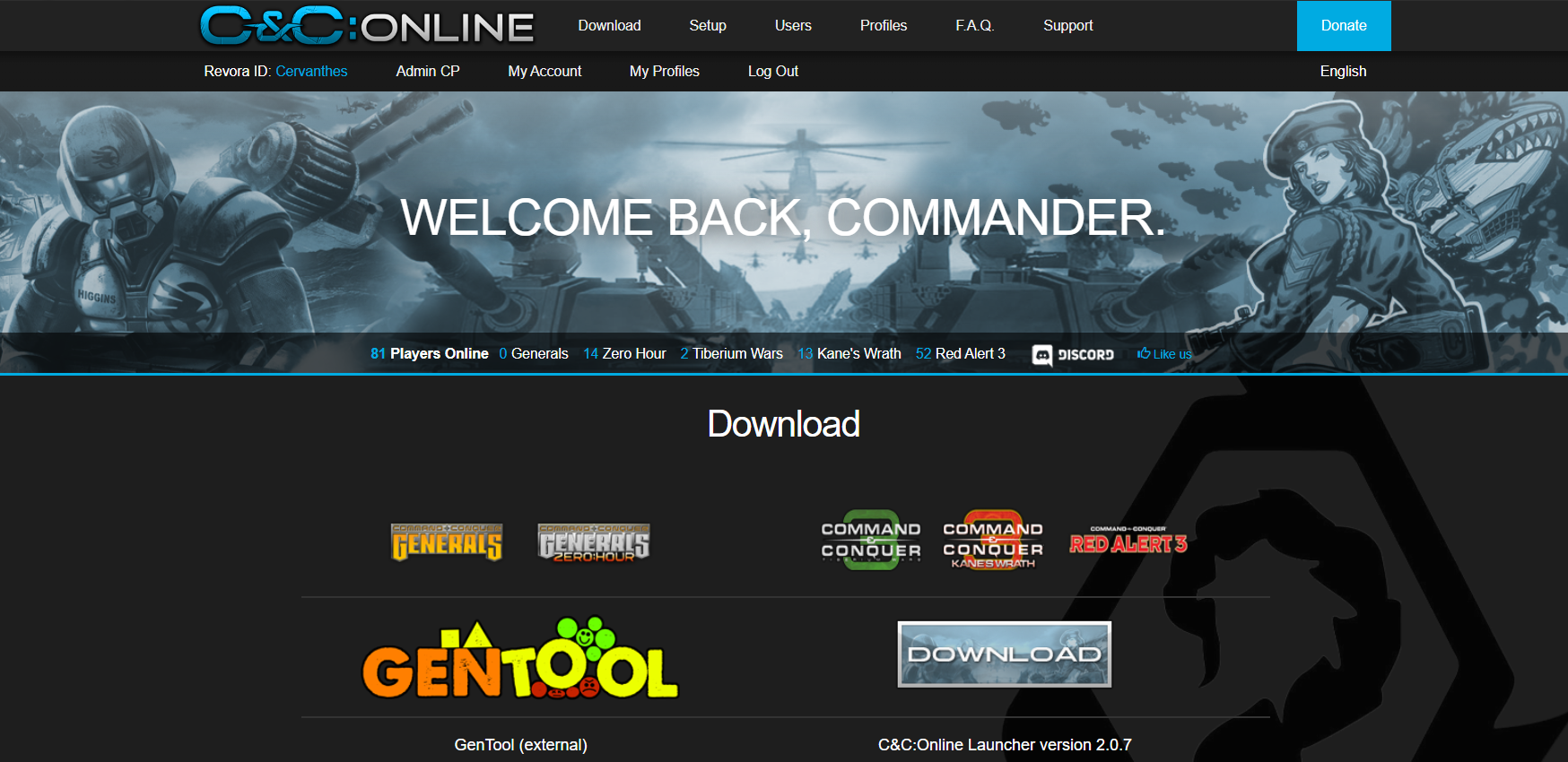
Should the Download link not open/be blocked by your browser copy the link and open it in a incognito tab
We are now going to through the Setup together, so we start with double-clicking the file CCO_TacitusInstaller_v1.exe.
After double-clicking the installer and clicking "next" you will be greeted by this window here
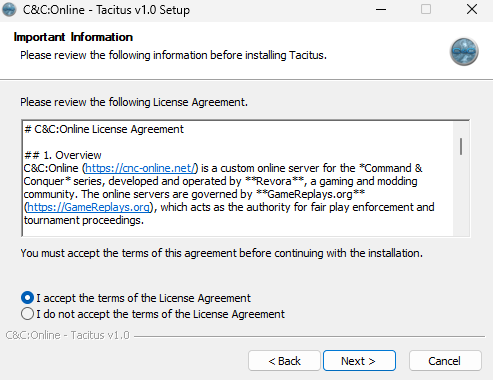
Here you can read the License agreement and accept it or deny it (denying it will not allow you to continue with the installation).
Then you are going to click the button "next"
You are now seeing the installation selection screen where you can specify what games you want to apply Tacitus to.
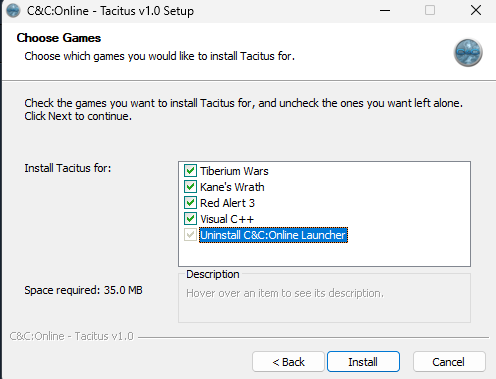
The games will have to be run at least once before tacitus can actually see them this will be changed in the next update
Now you will see the installer report first this
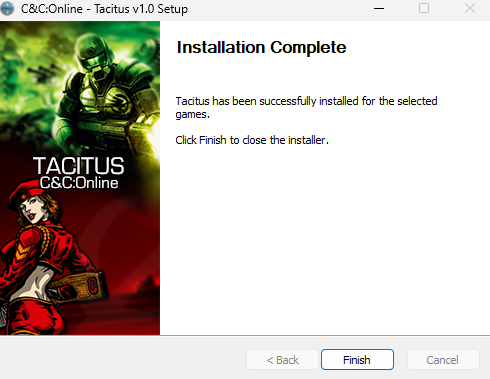
Tacitus does not have a icon your desktop, your start menu folder or a .exe in your game.
It is directly baked into your game and you can just launch your game from steam and follow the steps on how to connect in this guide.
Let's get it Downloaded
Since you are still logged into the C&C:Online Website, head to the Download[cnc-online.net] page and click the Download Button Should the Download link not open/be blocked by your browser copy the link and open it in a incognito tab
The Setup
You now have the file CCO_TacitusInstaller_v1.exe on your system. We are now going to through the Setup together, so we start with double-clicking the file CCO_TacitusInstaller_v1.exe.
Following is a Step by Step on the entire Set Up process if you want to skip it you are free to do so
After double-clicking the installer and clicking "next" you will be greeted by this window here
Here you can read the License agreement and accept it or deny it (denying it will not allow you to continue with the installation).
Then you are going to click the button "next"
You are now seeing the installation selection screen where you can specify what games you want to apply Tacitus to.
The games will have to be run at least once before tacitus can actually see them this will be changed in the next update
Should UAC [User Account Control] ask you if you want to allow C&C:Online to make changes to your System, click "Allow/Yes"
Now you will see the installer report first this
Everything's Installed, and we are good to go
Tacitus does not have a icon your desktop, your start menu folder or a .exe in your game.
It is directly baked into your game and you can just launch your game from steam and follow the steps on how to connect in this guide.
Step 3: Time to get Online!
Now that we have everything set up and working so far, let's get ourselves into the game and into the action.
Go and click on the big old Multiplayer and then Online Buttons
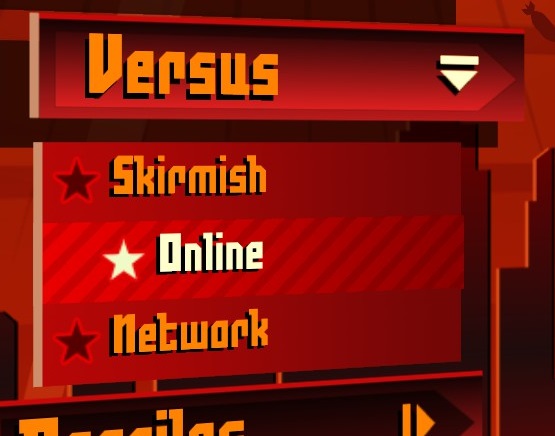
Once you are in the online window, you are going to log in with the Server Account you created earlier and enter it in the fields.
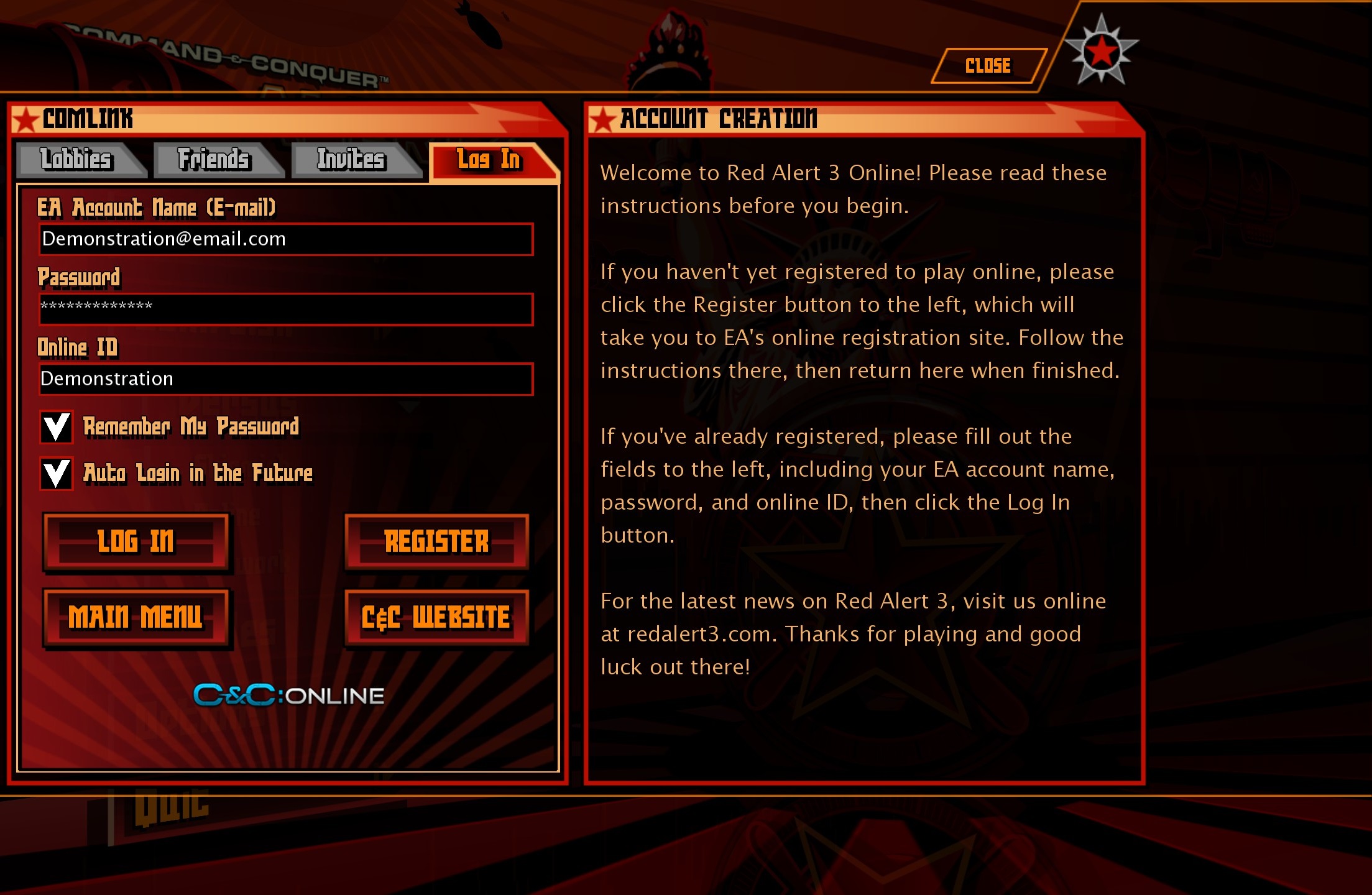
Important to know is that Your Online ID is a Nickname you can have 16 of those, and they do not have to match your login or display name.
should you want to manage your profiles/Online IDs, you can do so here][cnc-online.net]
If everything worked out you will now see this:
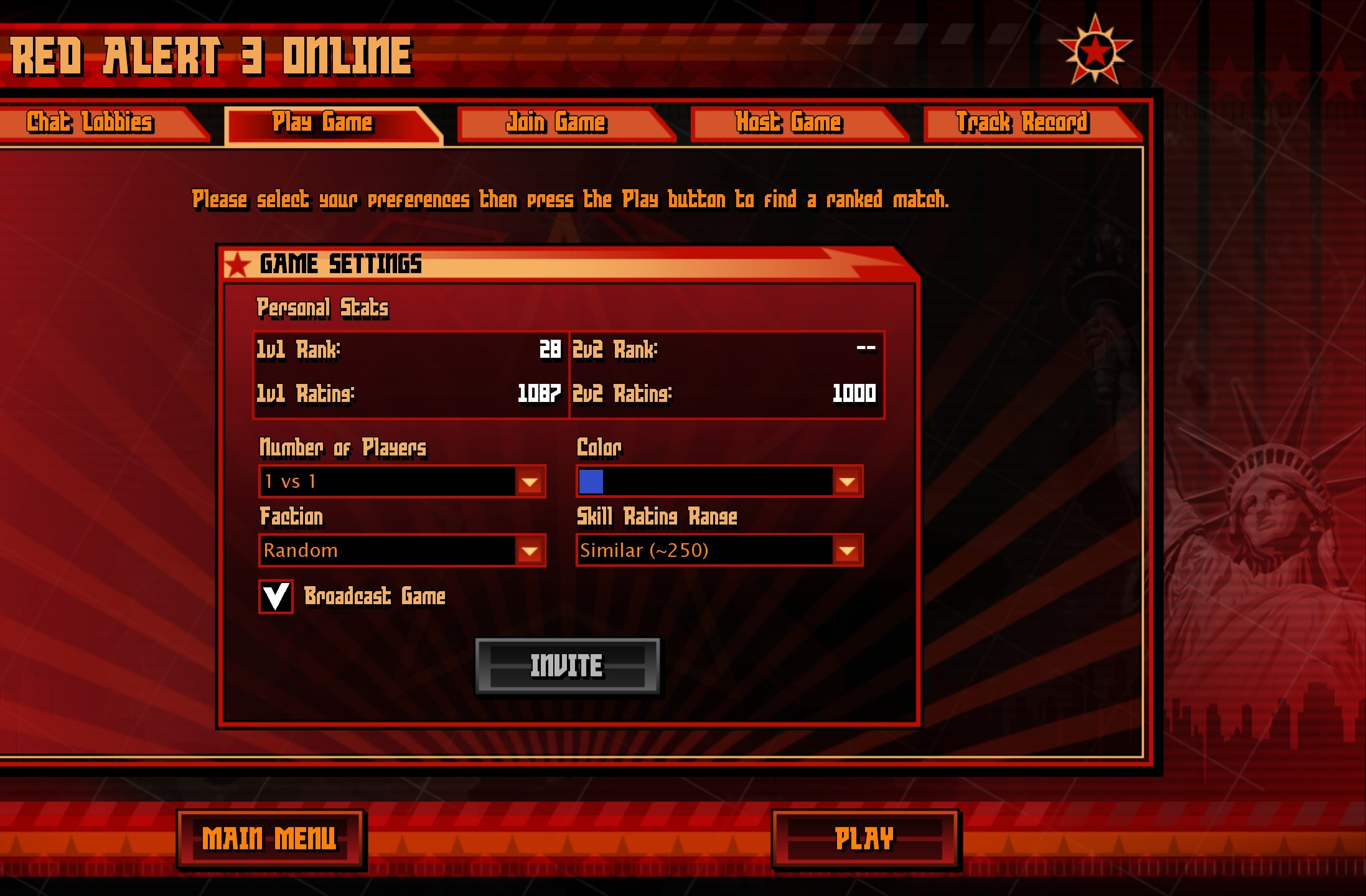 From here you will navigate to Custom match and are able to join public hosted games and lobbies!!
Logging into Red Alert 3 Online
Assuming that everything until now has worked, and your game is running, and you are seeing the beautiful main menu of Red Alert 3.Go and click on the big old Multiplayer and then Online Buttons
Once you are in the online window, you are going to log in with the Server Account you created earlier and enter it in the fields.
Important to know is that Your Online ID is a Nickname you can have 16 of those, and they do not have to match your login or display name.
should you want to manage your profiles/Online IDs, you can do so here][cnc-online.net]
If everything worked out you will now see this:
From here you will navigate to Custom match and are able to join public hosted games and lobbies!!Should everything be working and you are able to join lobbies and play RA3 can you now go to Step 4: Optional Content to get to community Standards. Should you have any connection issues or issues with online play please consult our Support staff on our Discord[discord.com]
Step 4: Additional content
Before we get into the Additional Content, we would like to thank the creator of this Guide
It has helped a lot of people to get online and we apricate everyone who has helped others over the years. Thank you everyone for everything you have done to help others get online.
Best Regards C&C online team
Some of these fixes have been made into a map pack known as
This map pack is both fixing visual bugs and game breaking bugs.
You can read about the 1.12.8 fixes and find the download link here: Download 1.12.8[www.gamereplays.org]
1.12.8 is really easy to install and modify. You simply download the exe program, run the program, and let it place itself correctly. Once it's done installing, you may play the game with all maps included, or modify the installation if you need to; other than that, you are done.
NOTE: 1.12.8 CANNOT BE TRANSFERED INGAME, EVERY PLAYER HAS TO MANUALLY DOWNLOAD THIS.
It has helped a lot of people to get online and we apricate everyone who has helped others over the years. Thank you everyone for everything you have done to help others get online.
Best Regards C&C online team
The Red alert 3 Community,
has made a lot of fixes for the game. Some of these fixes have been made into a map pack known as
1.12.8
This map pack is both fixing visual bugs and game breaking bugs.
You can read about the 1.12.8 fixes and find the download link here: Download 1.12.8[www.gamereplays.org]
1.12.8 is really easy to install and modify. You simply download the exe program, run the program, and let it place itself correctly. Once it's done installing, you may play the game with all maps included, or modify the installation if you need to; other than that, you are done.
NOTE: 1.12.8 CANNOT BE TRANSFERED INGAME, EVERY PLAYER HAS TO MANUALLY DOWNLOAD THIS.
More Command & Conquer™ Red Alert™ 3 guides
- 【汉化】=链接永不失效= 红3原版+起义时刻STEAM专用汉化补丁★ 5 (640)43k views894 ♥1 minSimplified ChineseUpdated Jan 6, 2022
- how to play coop (multiplayer)★ 5 (256)27k views349 ♥3 minBulgarianUpdated Oct 4, 2021
- Unit Guide : The Soviets★ 5 (239)18k views271 ♥37 minUpdated Dec 30, 2013
- Подробное руководство по подключению мультиплеера Red Alert 3★ 5 (244)14k views353 ♥1 minRussianUpdated Dec 19, 2016
- Руководство по игре Red Alert 3: СССР★ 4 (187)13k views223 ♥21 minRussianUpdated Jan 14, 2023
- Common problem/issue fixes for C&C games★ 4 (76)13k views146 ♥8 minUpdated Mar 12, 2024





This guide was created by its original author on the Steam Community. Are you the author and want it removed? Request removal.