RESIDENT EVIL 5 SPECIAL K HDR REMASTERING GUIDE
1. Introduction
 While writing this guide, I try to be as brief as possible.
This guide assumes that you at least have an idea what HDR is and own a HDR-capable monitor/TV, have intermediate level of knowledge of the Windows operating system, know how to utilize various applications and manage files.
You may need administrative rights to perform certain actions.
There is some modding involved, proceed at your own risk.
Since I don't own an AMD GPU, I cannot guarantee the outcome for Radeon users.
Please let me know if you run into issues so I can update this guide to include possible solutions.
▶ Watch Resident Evil 5 Special K HDR showcase below:
2. Preparation
Before we get started, ensure that you have the following ready:
Resident Evil 5 will not work out of the box for the things we want to achieve, some preparation must be done in order to make HDR remastering happen in the best possible way.
They are as follows:
3. The Procedure
For me, that would be:
It is a good idea to keep a backup copy of your RE5 installation folder just in case.
Alternatively, you can use Steam's integrity check for the game.
The pre-configured files were made to minimize tinkering with the configs as much as possible so you get close to out-of-the-box results.
- /nativePC_MT
- Launcher.exe
- maluc.dll
- re5dx9.exe
- steam_api.dll
Grab DX9Settings.ini from my GitHub and put it here, overwriting the existing one, as well. The next step is done to make use of a proxy .DLL since we cannot use two d3d9.dll files at the same time:
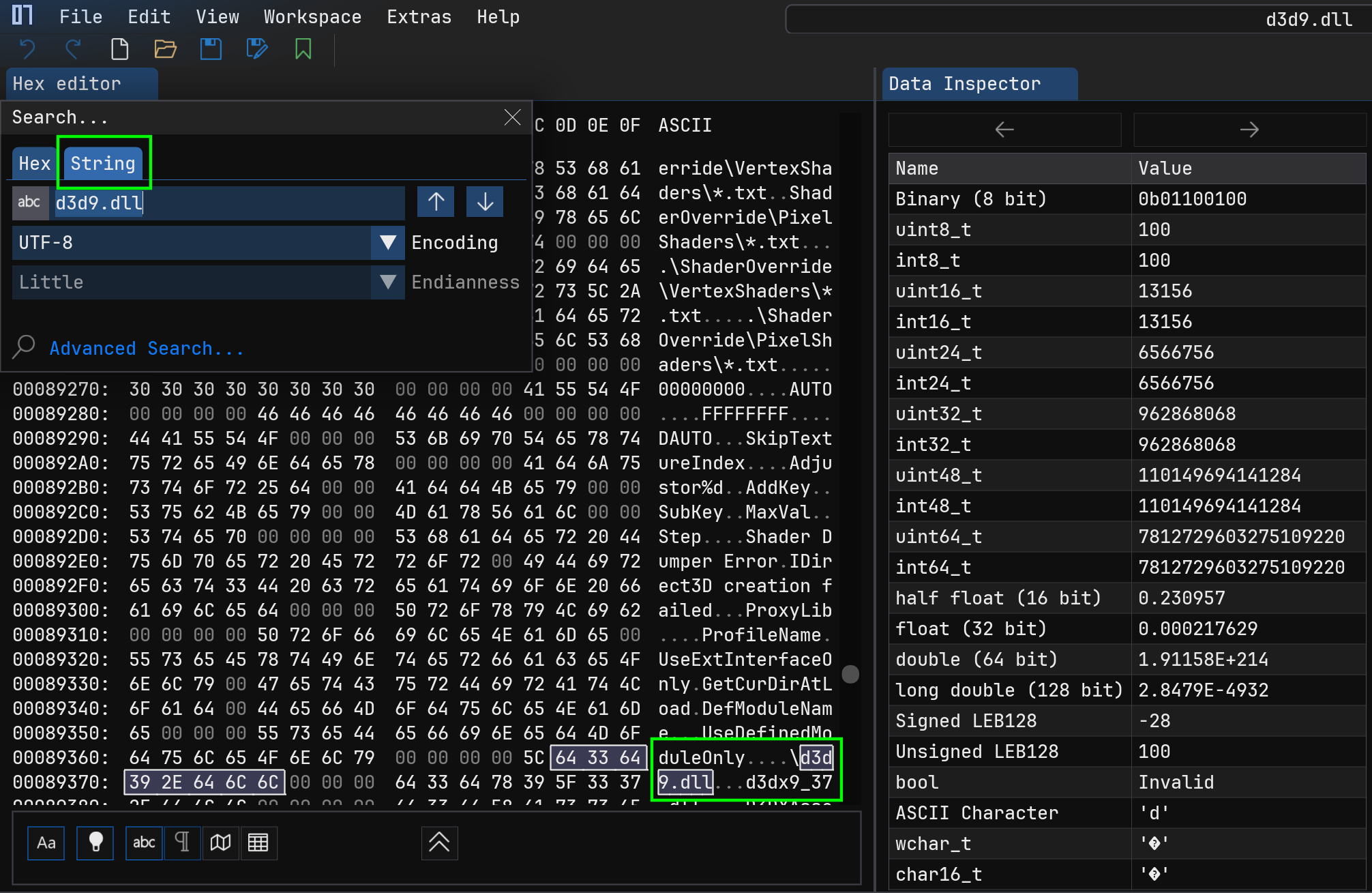
Grab dxvk.conf from my GitHub and put this in the root of your RE5 directory.
Then,
open the following file in Notepad:
Add the line
Note: Note: This configuration is set to a resolution of 3840x2160 and refresh rate of 120hz, adjust values with a text editor if needed.
Load up NVIDIA Profile Inspector and check if the official NVIDIA profile for Resident Evil 5 exists. If so, delete it. After that, import the RE5 profile from my Github
4. Playstation Button Prompts (optional)
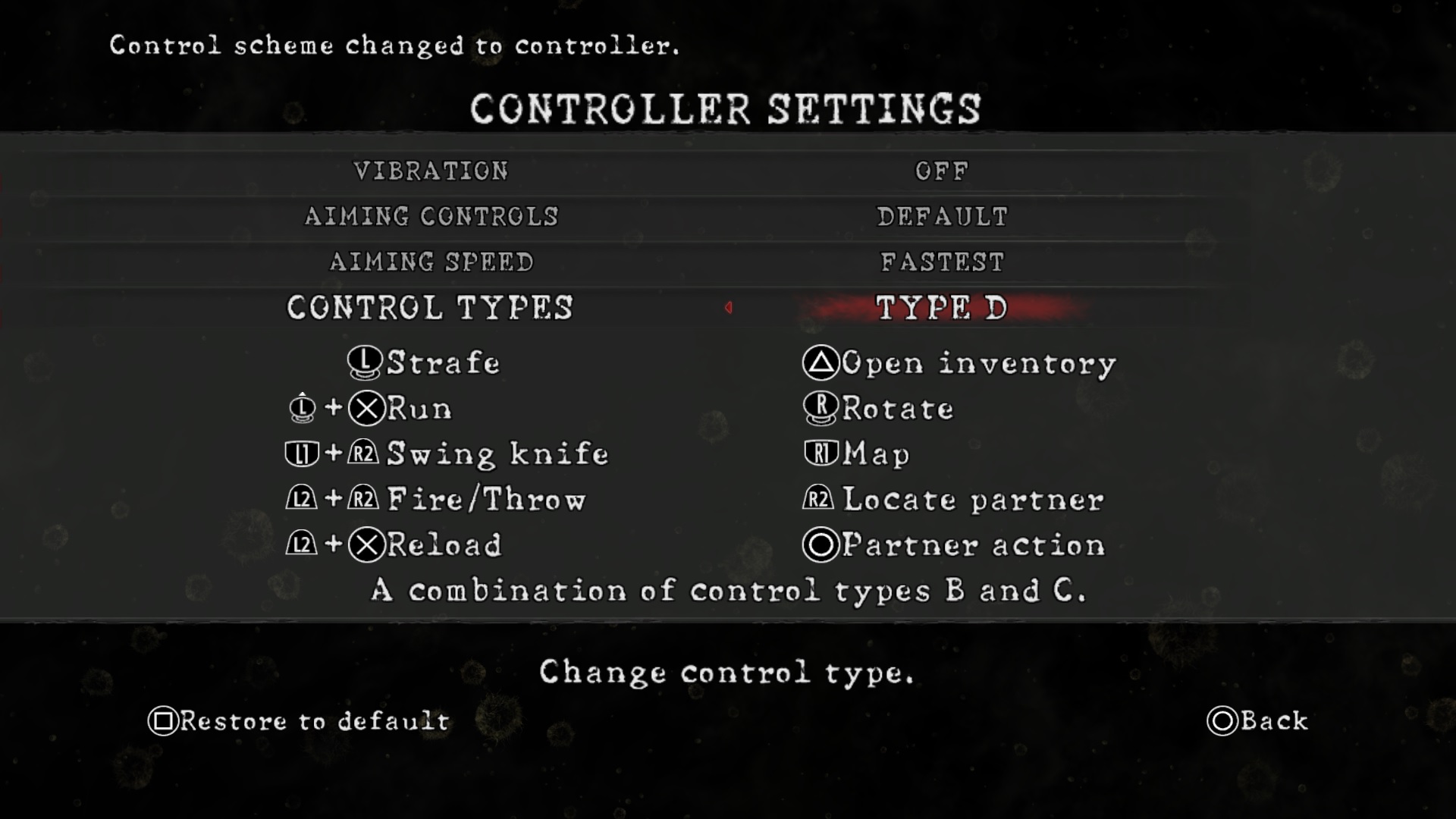
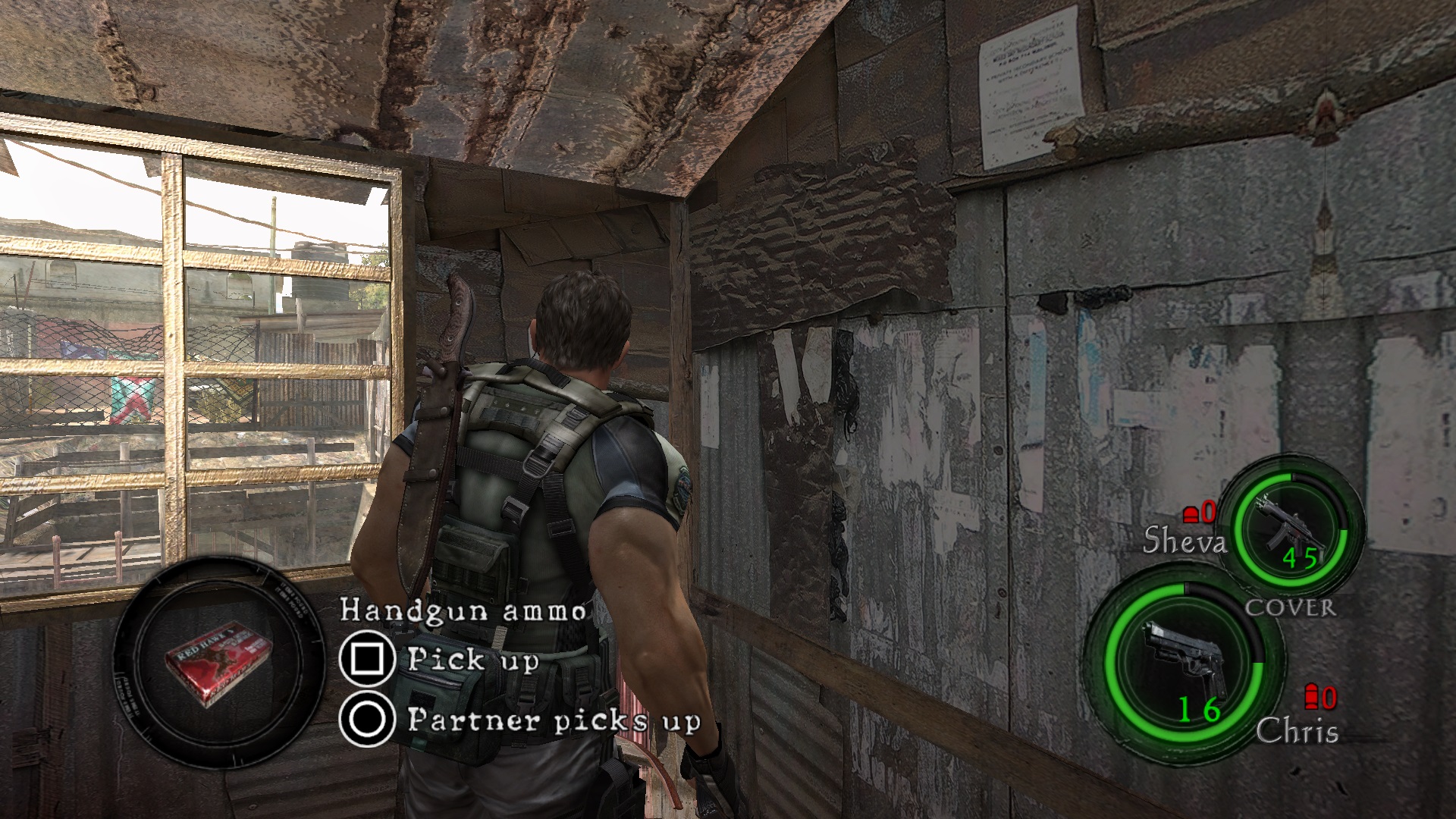
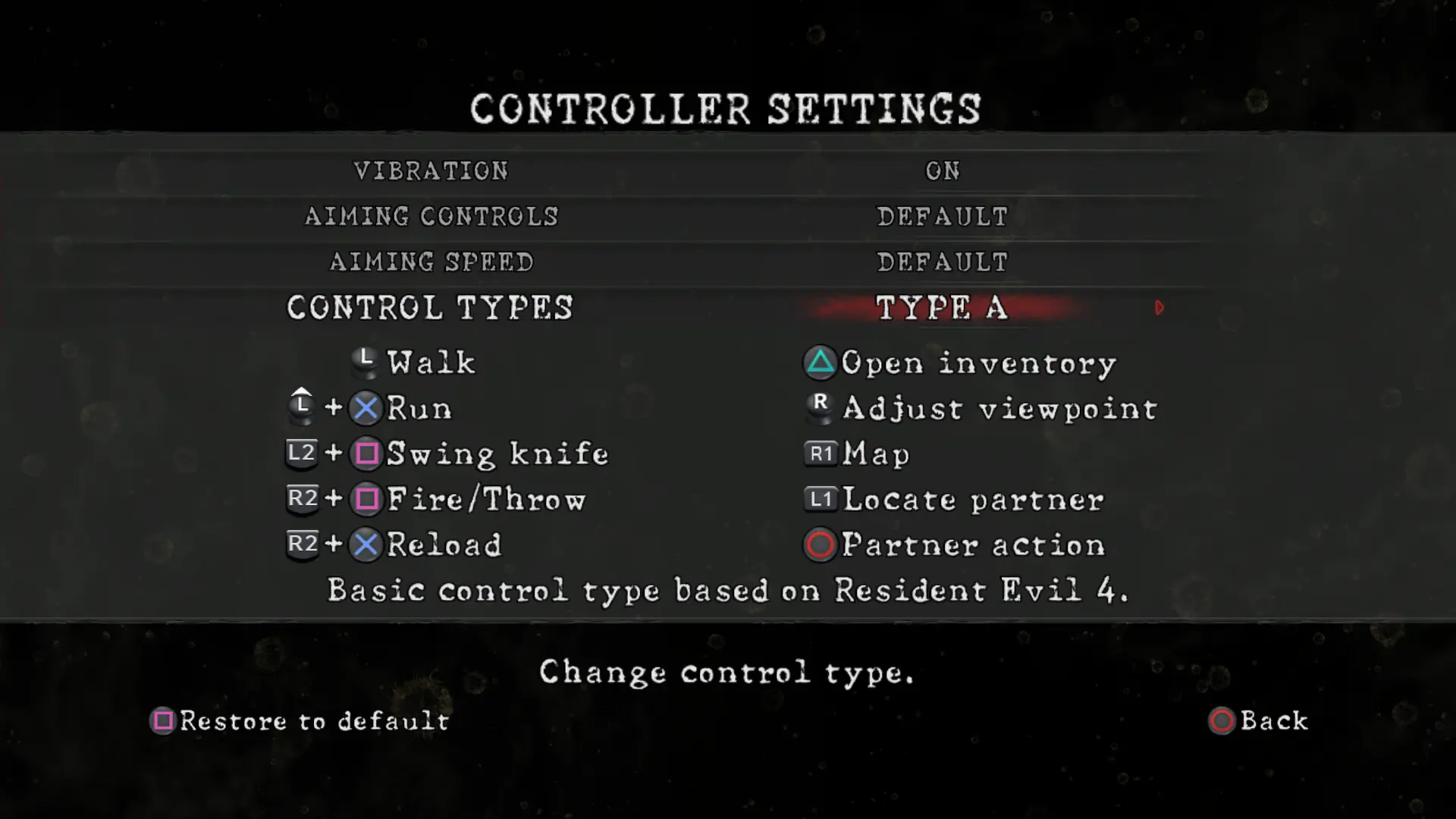
When using a controller, Resident Evil 5 only has button prompts for XBox controllers natively.
For Playstation controller users, a few mods exist to replace them for DualShock/DualSense users. I've used the first one during an entire playthrough without problems.
To apply these, simply copy nativePC_MT from the mod file to the RE5 root, overwriting the existing files.
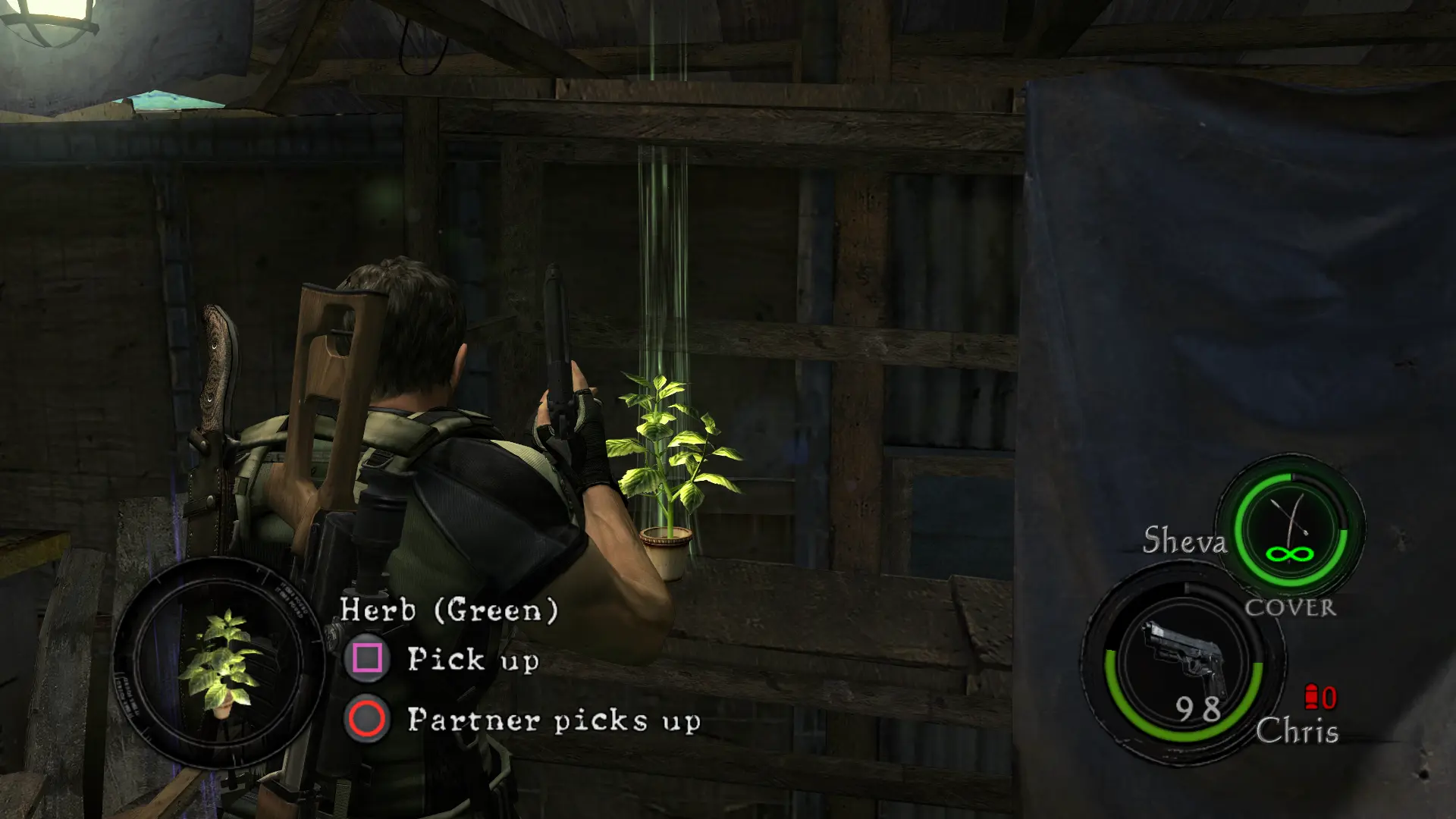
5. Launching
With the procedures done, a few more things to check are:

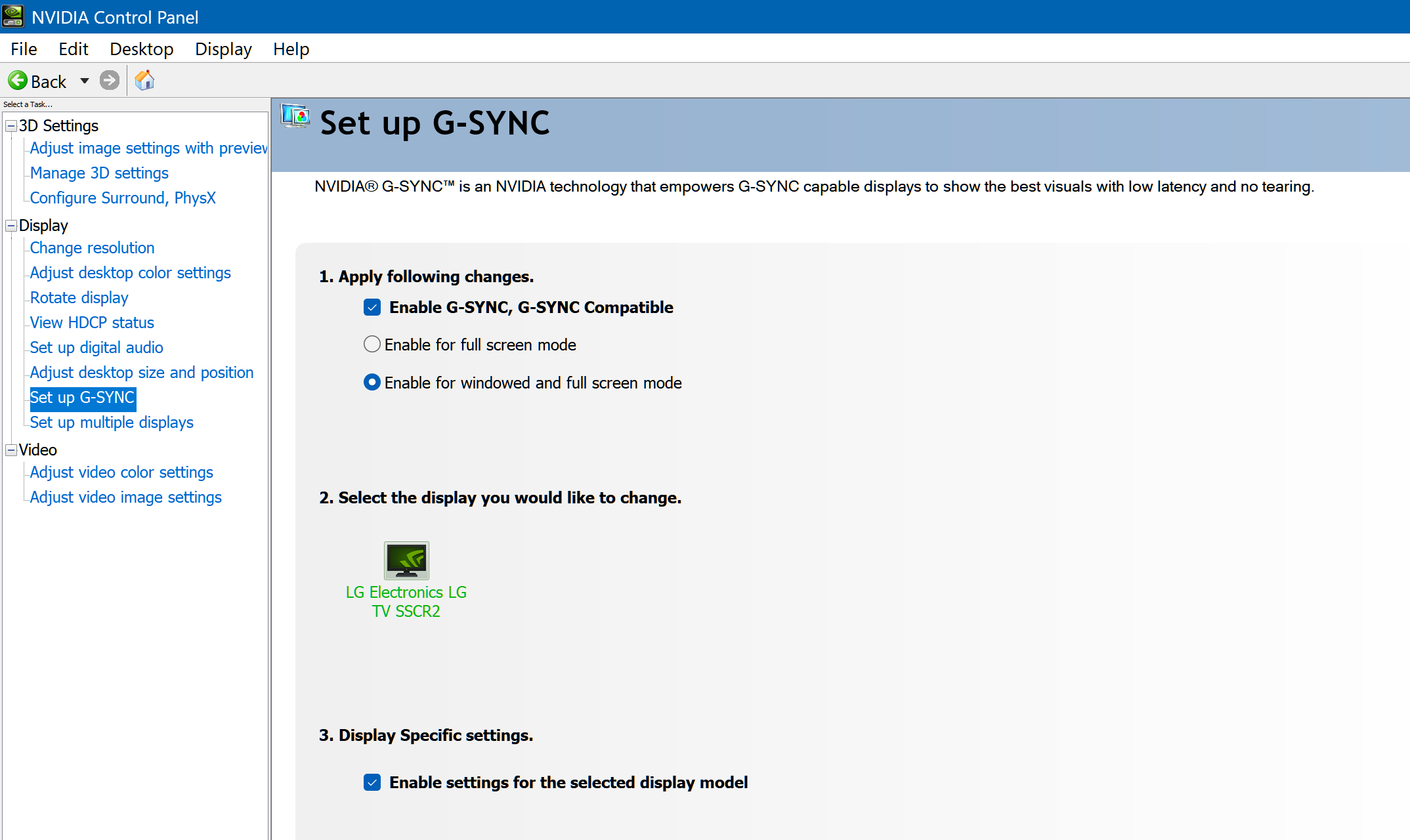
NVIDIA G-Sync & Display settings
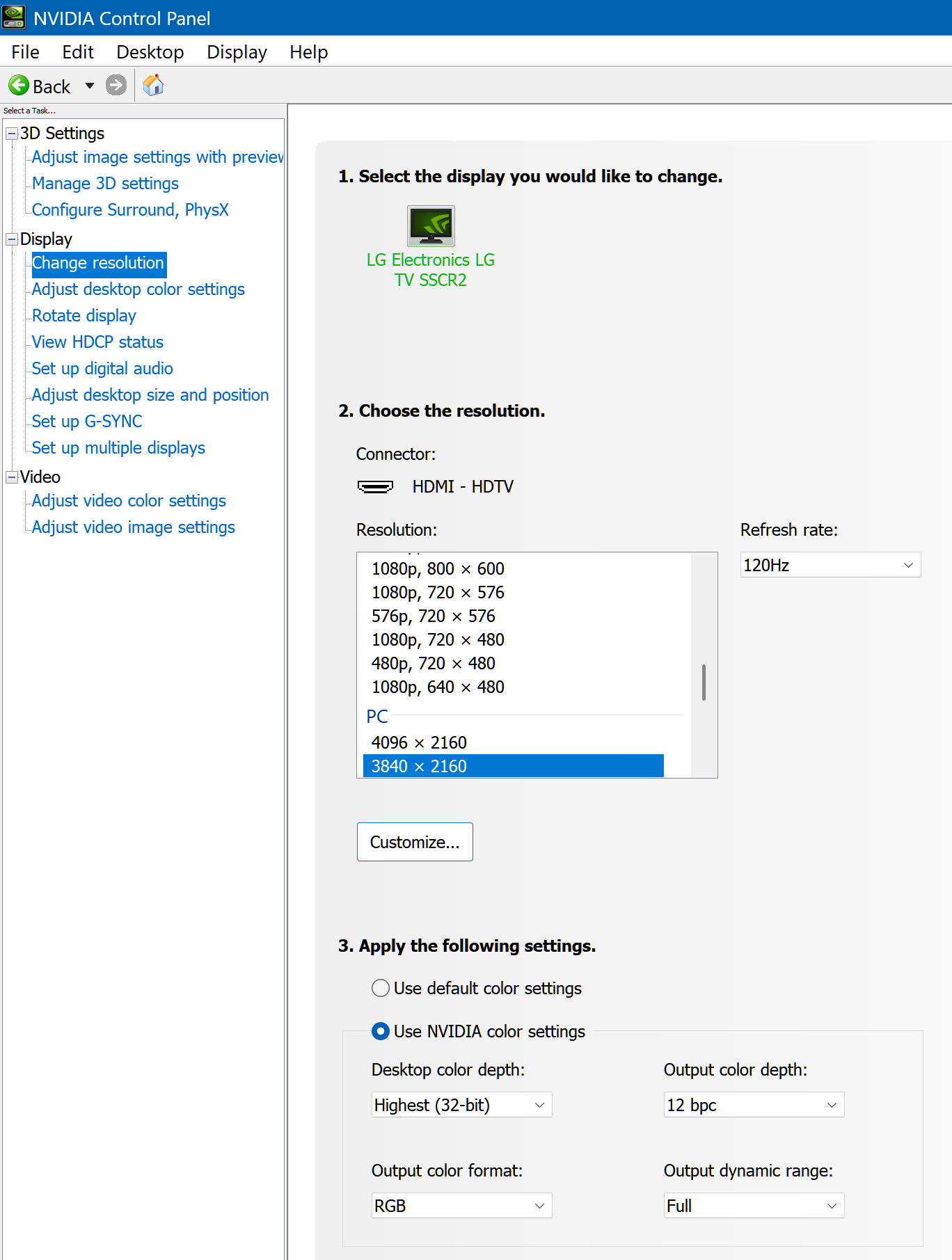
Your display settings should be properly set to ensure your display device has proper color output.

Once the game boots, Special K will be injected.
Note: you may have to start the game again after the initial boot.
The Auto Low Latency message should popup, meaning that VRR is working properly.
If pressing Ctrl + Shift + Backspace opens the Special K control panel, then all went well and you are now in HDR mode with remastering functionality.
From the SK control panel, go to the HDR setup page, click on the Profile Display Capabilities button and set your dispay's maximum nits. Go as high as possible until the checkers pattern becomes invisible. When done, click Okay.
- Resident Evil 5 - Fixes★ 5 (2k)119k views2.4k ♥9 minUpdated Aug 2, 2025
- Resident Evil 5 Quality of Life Fixes★ 5 (1.5k)78k views2.1k ♥4 minUpdated Mar 9
- Resident Evil 5: Gold Edition 100% Achievement Guide★ 5 (1.3k)42k views2.6k ♥24 min
- getting multiplayer achievements with bots★ 5 (876)33k views1.7k ♥11 minBulgarianUpdated Aug 27, 2023
- Farming Gold (15K), ammo and eggs★ 5 (459)33k views423 ♥1 minBulgarianUpdated Sep 24, 2018
- Полный русификатор (текст+звук) {1C} Gold Edition★ 5 (674)30k views778 ♥1 minRussianUpdated Feb 3, 2024



- Upgrading to PremiumTeam Fortress 2★ 5 (20k)1441k views11k ♥6 minUpdated May 11, 2022
- No More Room in Hell Official ManualNo More Room in Hell★ 5 (2.8k)569k views2.1k ♥29 minUpdated Apr 22, 2019
- NMRiH Community Hosting GuidesNo More Room in Hell★ 5 (526)351k views653 ♥1 minUpdated Aug 10, 2022
- ULTIMATE GUIDE FOR GAME DEV TYCOONGame Dev Tycoon★ 5 (5.8k)326k views10k ♥4 minUpdated 23 Jan, 2014
- How to 'Git Gud' Soon™MORDHAU★ 5 (2k)318k views3k ♥68 minUpdated Nov 16, 2024
- Лучшие кооперативные игры SteamPAYDAY 2★ 5 (1.5k)315k views2.1k ♥56 minRussianUpdated Apr 27, 2025






This guide was created by its original author on the Steam Community. Are you the author and want it removed? Request removal.