A way to change resolution on widescreen monitors
Quick solution for 16:9, 16:10, 21:9 monitors
If you have a monitor with an aspect ratio of 16:9, 16:10 and 21:9 , then using the links below you can download ready-made files for a specific screen resolution.
Download the archive and unpack it into the main game folder with replacement:
- Unpack to: Local disk (yours)-> steam-> steamapps-> common-> Dawn of War Gold
- Or in the Steam library, in the game section, click gear -> control -> local files and copy it manually.
- After replacement, in the game folder we find the file “Local”, open the properties and check the “read only” box, click apply.
1920x1080 (16:9)
drive.google.com/drive/folders/1yY6BOOYUQS-3EBDJTfN7iZqlSCu5f-cZ?usp=sharing
1680x1050 (16:10)
drive.google.com/drive/folders/1EKdeNvh2RPBtG_h7AotAyiFO8VO7XDZY?usp=sharing
2560×1080 (21:9)
https://drive.google.com/drive/folders/1087WBnHNnMEh8vqW9ZZW_rTf5F9zJlyS?usp=sharing
3440 ×1440 (21.9)
https://drive.google.com/drive/folders/1578jA3qRJ6PH6mCpe5g-i--Iup_EzlcU?usp=sharing
By default all settings set to maximum, but -
If after embedding the files you for some reason go into the settings and click the apply button, the resolution you need will disappear and you will need to change it manually in the local file in game folder.
If you need a different resolution for 16:9, 16:10 or 21:9 and it is also not in the game settings then:
1)download the archive above with the desired ratio,
2) and then in the game folder we find the file “Local”, open it with notepad, and look for the screenheight (height) and screenwidth (width) parameters, then change the value to the resolution you need.
3) save the changes, open the properties and check the “read only” box, click apply.
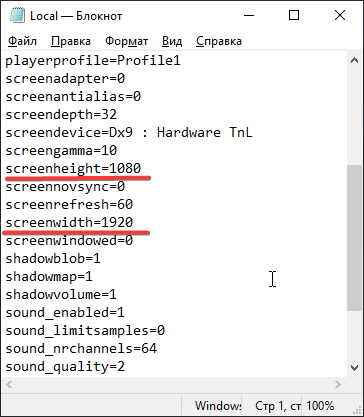
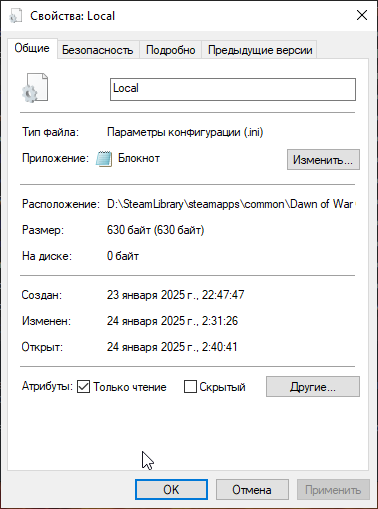
It is important to warn that after transferring files, your "correct" resolution will not be displayed in the game settings. Just because he is not there).
Download the archive and unpack it into the main game folder with replacement:
- Unpack to: Local disk (yours)-> steam-> steamapps-> common-> Dawn of War Gold
- Or in the Steam library, in the game section, click gear -> control -> local files and copy it manually.
- After replacement, in the game folder we find the file “Local”, open the properties and check the “read only” box, click apply.
1920x1080 (16:9)
drive.google.com/drive/folders/1yY6BOOYUQS-3EBDJTfN7iZqlSCu5f-cZ?usp=sharing
1680x1050 (16:10)
drive.google.com/drive/folders/1EKdeNvh2RPBtG_h7AotAyiFO8VO7XDZY?usp=sharing
2560×1080 (21:9)
https://drive.google.com/drive/folders/1087WBnHNnMEh8vqW9ZZW_rTf5F9zJlyS?usp=sharing
3440 ×1440 (21.9)
https://drive.google.com/drive/folders/1578jA3qRJ6PH6mCpe5g-i--Iup_EzlcU?usp=sharing
By default all settings set to maximum, but -
If after embedding the files you for some reason go into the settings and click the apply button, the resolution you need will disappear and you will need to change it manually in the local file in game folder.
If you need a different resolution for 16:9, 16:10 or 21:9 and it is also not in the game settings then:
1)download the archive above with the desired ratio,
2) and then in the game folder we find the file “Local”, open it with notepad, and look for the screenheight (height) and screenwidth (width) parameters, then change the value to the resolution you need.
3) save the changes, open the properties and check the “read only” box, click apply.
It is important to warn that after transferring files, your "correct" resolution will not be displayed in the game settings. Just because he is not there).
Detailed solution for the all of aspect ratios
If, when entering the game, you have black bars on the sides of the screen or the image is stretched, and your screen resolution is not in the settings, follow the steps below:
1) Launch the game and set the game settings as you need (the resolution is not important), save and close the game ( just if you change the settings later, the resolution will go down and you will have to edit the "Local" file again, which will be discussed later).
Don't change the Resolution in the Options after you do all work from guide.
2) In the main folder with the game
(in the Steam library, in the game section, click gear-> control-> local files | Or go to: Local disk (yours)-> steam-> steamapps-> common-> Dawn of War Gold) .
We look for the "Local" file, open it with notepad and look for the screenheight and screenwidth parameters,
change the value to the resolution of your screen or the one you need.
(Example: screenheight=1080 , screenwidth=1920 ; save the changes).
Then open the properties of this file, check the “read-only” box, and click apply.
3) Download HxD - (version 2.5.0.0 at the time of writing) from the Internet, install, run, open the file W40k.exe. (original) or W40kWA.exe (addon) from the game folder.
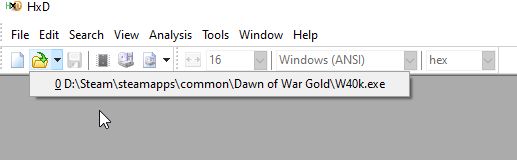
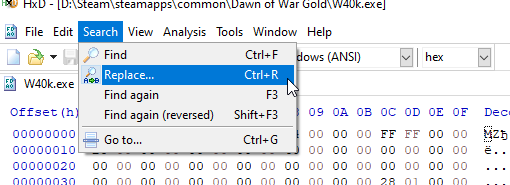
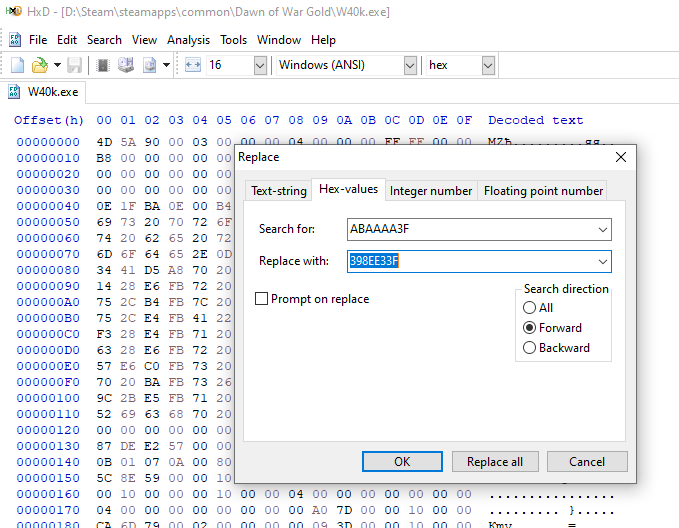
4) In the search tab, select replace
in the window that opens, select the “Hex values” tab,
in the “Find” line write ABAAAA3F
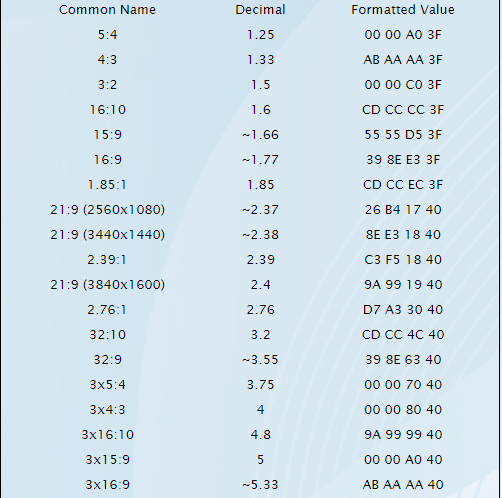
In the Line “Replace with” we indicate the value from the table below - Values for “Other Monitors”
(Example: 398EE33F - for 16:9, CCCCCD3F - for 16:10 monitors):
Values for "other monitors ratio" (type value without gaps) :
This action is repeated with just a few files:
- W40kWA.exe (if you instal only have the Winter Assault addon)
- W40k.exe (Only if you have installed ELSE or ONLY the original game)
-Platform.dll
- spDx9.dll
- UserInterface.dll (there are two search matches in this file that require replacement, just click “Replace All” instead of OK)
1) Launch the game and set the game settings as you need (the resolution is not important), save and close the game ( just if you change the settings later, the resolution will go down and you will have to edit the "Local" file again, which will be discussed later).
Don't change the Resolution in the Options after you do all work from guide.
2) In the main folder with the game
(in the Steam library, in the game section, click gear-> control-> local files | Or go to: Local disk (yours)-> steam-> steamapps-> common-> Dawn of War Gold) .
We look for the "Local" file, open it with notepad and look for the screenheight and screenwidth parameters,
change the value to the resolution of your screen or the one you need.
(Example: screenheight=1080 , screenwidth=1920 ; save the changes).
Then open the properties of this file, check the “read-only” box, and click apply.
3) Download HxD - (version 2.5.0.0 at the time of writing) from the Internet, install, run, open the file W40k.exe. (original) or W40kWA.exe (addon) from the game folder.
4) In the search tab, select replace
in the window that opens, select the “Hex values” tab,
in the “Find” line write ABAAAA3F
In the Line “Replace with” we indicate the value from the table below - Values for “Other Monitors”
(Example: 398EE33F - for 16:9, CCCCCD3F - for 16:10 monitors):
Values for "other monitors ratio" (type value without gaps) :
This action is repeated with just a few files:
- W40kWA.exe (if you instal only have the Winter Assault addon)
- W40k.exe (Only if you have installed ELSE or ONLY the original game)
-Platform.dll
- spDx9.dll
- UserInterface.dll (there are two search matches in this file that require replacement, just click “Replace All” instead of OK)
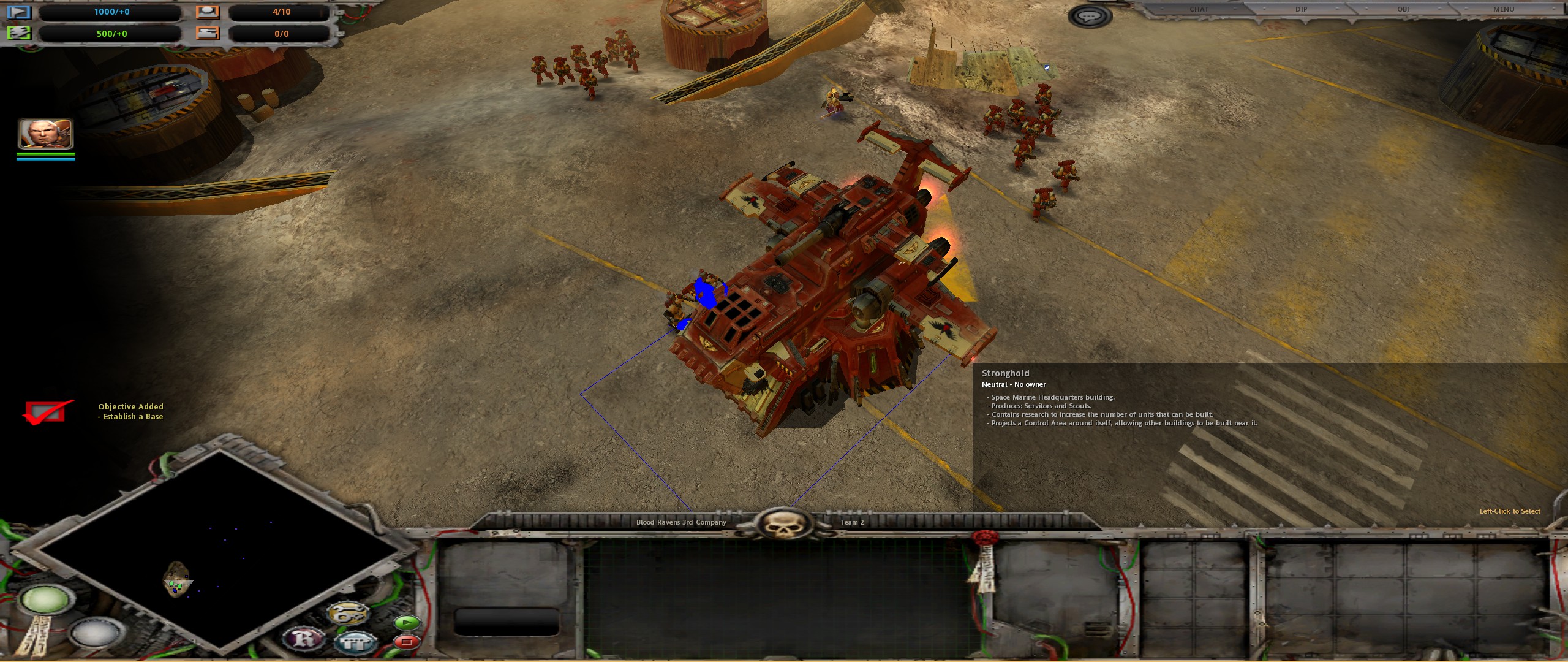
Result
That's all. The mini-map will be a little “cut off”, but there doesn’t seem to be anything that can be done about it. In fact, the devil is not as scary as he is painted, so this whole action will only take a couple of minutes.
Btw I also recommend that you read the guide on camera distance and key binds:
https://steamcommunity.com/sharedfiles/filedetails/?id=3413189803
https://steamcommunity.com/sharedfiles/filedetails/?id=3466660082
Btw I also recommend that you read the guide on camera distance and key binds:
https://steamcommunity.com/sharedfiles/filedetails/?id=3413189803
https://steamcommunity.com/sharedfiles/filedetails/?id=3466660082
More Warhammer 40,000: Dawn of War - Anniversary Edition guides
- Dawn of War Widescreen Fix★ 5 (1.1k)102k views1.2k ♥3 minUpdated Dec 20, 2025
- A better 16:9 widescreen fix.★ 4 (162)30k views331 ♥1 minUpdated May 20, 2024
- Warhammer 40,000: Dawn Of War изменение разрешения экрана.★ 5 (462)30k views528 ♥1 minRussianUpdated Aug 29, 2020
- How to Play Good in Skirmish with Every Race★ 5 (459)28k views944 ♥38 minUpdated Jun 6, 2017
- Warhammer 40,000: Dawn of War - All Campaign Missions★ 4 (158)25k views201 ♥1 minBulgarianUpdated Feb 5, 2016
- Ultra widescreen Fix 21:9★ 4 (54)21k views102 ♥1 minUpdated Sep 10, 2017


This guide was created by its original author on the Steam Community. Are you the author and want it removed? Request removal.