Squeezing out those fps - Graphics Optimization for BL3
Intro
First off, much of the information contained in this guide is sourced from this amazing video by Hardware Unboxed (HUB):
They've done all the work of testing each setting individually and measuring the impact it has on performance, so credit goes to them. I wanted to have all the information in the video in an easy to access form (instead of jumping from timestamp to timestamp), and where I didn't have to Alt+Tab to view it but rather be able to view it from the Steam overlay. Hence this guide.
Please, go take a look at the video, since they delve into great detail on how the settings differ from each other. Feel free to show them some support!
Additionally, although this guide is meant to be a quick reference, I will put down some personal experience tips and explanations, but remember that there is a wide variety in hardware and software specs, so YMMV.
All the tweaks in this guide are done in-game. There are plenty of guides out there that explain additional tweaks that can be done to your operating system as well as the use of third-party software to enhance the performance of this game (or any game). These more advanced and less documented changes are outside the scope of this guide.
Quick Reference
HUB Optimized Settings
General Performance Settings
Here I'll discuss general graphics settings found in the Options -> Visuals -> Basic Settings menu.
Fullscreen
It is always a good idea to run your game in Fullscreen mode (not windowed or borderless). While borderless has its utility to be able to Alt+Tab easily, you may lose certain benefits (framerate may get locked to desktop settings).
Resolution
Lowering the resolution will always result in an increase in performance, since the game needs to render less pixels every frame. Not only that, but the result is exponential. For example, going from 1920x1080 to 1600x900 represents a decrease of ~31% of pixels per frame, while going up to 2560x1440 would mean an increase of ~78% of pixels needing to be rendered. Every frame.
Obviously, the best option would be to play at your monitor's native resolution, but if that proves too taxing, don't be afraid to decrease the resolution a notch for significant gains. The main downside is pixelation of the output image.
Resolution Scaling
This setting enables the game to render at a set fraction of the selected resolution, but to output at whatever resolution was selected above. This means you can render at a higher resolution (with a scaled down output) effectively increasing the quality of the image (much like super-sampling), or render at a lower resolution (with a scaled up output).
An advantage to using this is that you can keep your monitor's native resolution as output (thus eliminating resizing of the screen every time you launch the game or Alt+Tab), but reduce the load on your system by decreasing the rendering resolution, thus increasing framerate.
The disadvantage is that the resolution scaling slider is set to specific ratios (like 50% and 75% of the resolution), so if you want to select a resolution that falls between them you're better served with the Resolution option.
Individual Settings
Note that the gain/loss in performance with each setting are measured in percentage increase/decrease of average frames per second when compared to the highest (usually) option for that particular setting. I will specify what the reference value is for each component.
Keep in mind that since we're talking about percentage changes in performance, the actual change in frames per second will depend on what your baseline fps is. For example, a combination of settings that would give us 50% increased performance would mean an additional 15 fps if the baseline is 30 fps (or 30 --> 45 fps), or an additional 30 fps if the baseline is 60 fps (or 60 --> 90 fps).
To DX12, or not to DX12, that is the question.
If there was ever anything that was arbitrarily divisive and misunderstood, it's whether to use the DirectX 12 API setting. Due to the varied nature of the hardware that every gamer has, each person's experience with using this setting will vary.
Most people with nVidia graphics cards report a mild drop in framerate... while others say it runs smoother than ever, with a 30+ fps increase! AMD users also have varied results, but usually favoring DX12... slightly.
This is one of those settings for which the game engine has not been optimized, and realistically, only players with very high end graphics cards will make use of (although ray-tracing isn't even implemented).
My personal experience with it is that I lose around 2-3 fps by using DX12 instead of DX11. On the other hand, CPU frametime is lower, which means that it's less likely the CPU will bottleneck the performance. One of the bigger downsides I've seen myself (and mentioned by others) is the increased variability in framerate, leading to stuttering. Another big disadvantage comes in the form of increased game launching time. The very first time you turn this feature on will result in a close to 5 minute game startup time (the game optimizes the shaders for DX12). You would think this is a one-time thing (and for some players it is), but my experience has been that every subsequent startup of the game leads to a 30 seconds to 1 minute startup time due to the game optimizing the shaders. Load times within the game are largely unaffected.
All in all, I would recommend you stick with DX11. Using DX12 has no appreciable graphical impact, and your fps may or may not improve.
Once again, the number of players that would benefit from this setting seems to be low. There are bigger gains to be had from the individual graphics settings, and that's what we will tackle primarily.
Anti-Aliasing
Anti-Aliasing
FidelityFX Sharpening
FidelityFX
Motion Blur
Motion Blur
Texture Streaming
Texture Streaming
Anisotropic Filtering
Anisotropic Filtering
Material Complexity
Material Complexity
Shadows
Shadows
Draw Distance
Draw Distance
Environment Detail
Environment Detail
Terrain Detail
Terrain Detail
Foliage
Foliage
Character Detail
Character Detail
Ambient Occlusion
Ambient Occlusion
Volumetric Fog
The Volumentric Fog setting also comes down to personal preference. While it can give a sense of realism to certain areas (particularly the swamp), and it has some nice interactions with God Rays and Shadows, it can also give everything a washed out appearance. Comparing screenshots of this setting turned On (medium) and Off, makes the Off option appear much darker.
Volumetric Fog
Screen Space Reflections
Screen Space Reflections
Performance Impact At-A-Glance
Material Complexity
Draw Distance
Foliage
Screen Space Reflections
Environment Detail
Ambient Occlusion
Shadows
Anti-Aliasing
Anisotropic Filtering
Texture Streaming
Terrain Detail
Character Detail
Further Reducing Stuttering (Launch Options)
There is another option to consider to further reduce stuttering, which is the use of the following Launch Option:
-NOTEXTURESTREAMING
You can set this launch option by right clicking on the game in your Steam Library list (alternatively, left click on the gear icon on the right side). Select "Properties", and then click on "Set Launch Options..." In the menu that comes up, type in the command as shown above (with the initial hyphen included).
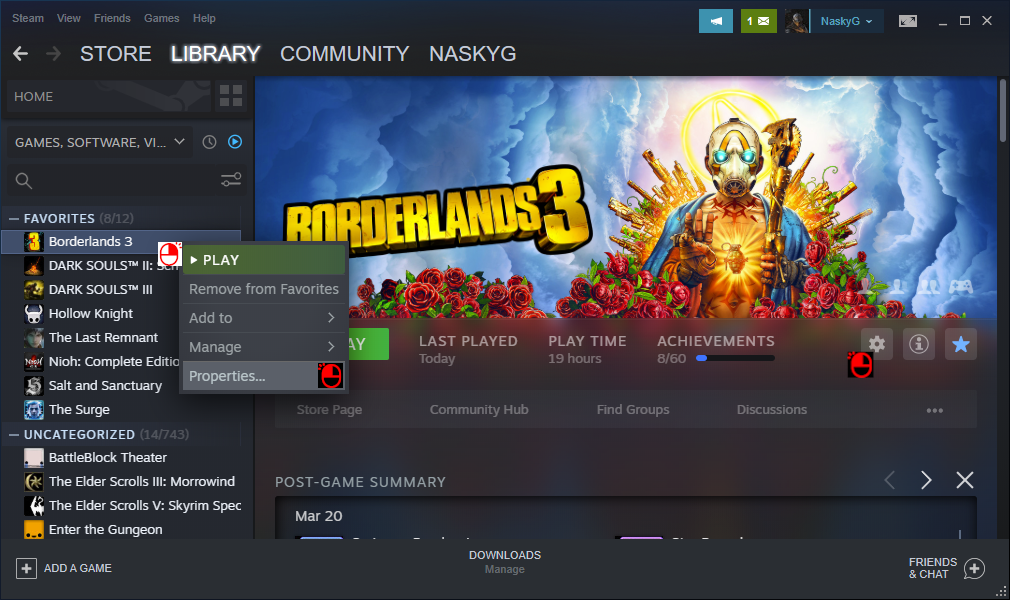
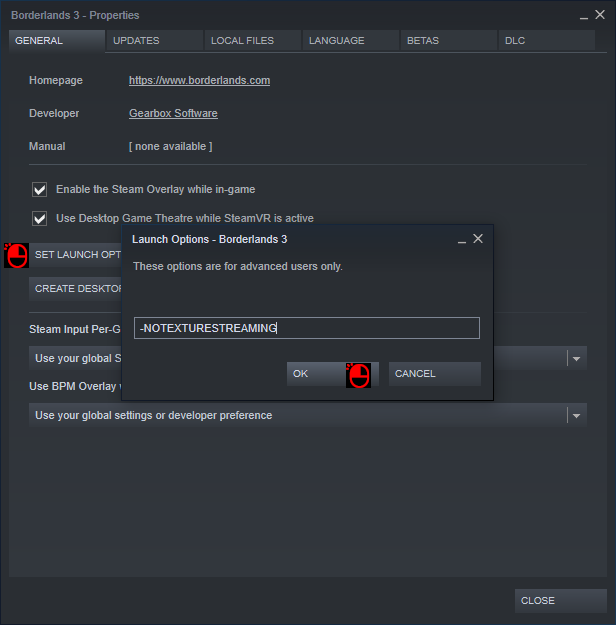
This essentially disables the texture streaming function, reducing stuttering when loading new assets, but prolonging load times (since all the assets need to be loaded in upfront), and it requires more RAM.
Normally, the game will load in textures as needed. Say you start up the game, continue where you left off. When you swap weapons, the game needs to load the weapon's textures to display it correctly. This will cause a small drop in fps. The game tries to mitigate this by loading low resolution versions of the textures, and then loading in the higher resolution versions as needed (instead of all at once). You can also notice the impact this has when opening the skills tree menu (I experience a brief but noticeable delay in displaying the mech when playing Moze).
The advanced visual option for texture streaming only controls how fast the high resolution textures are pulled in. Setting it to low does not seem to turn off texture streaming, but it does affect the overall quality of the textures.
By setting -NOTEXTURESTREAMING in the launch options, you will force the game to load all necessary assets when the savefile/map is loaded. This will prolong your load times and will be dependent on your HDD/SSD speed (not recommended if you're rocking an HDD) and RAM. Graphics card VRAM may play a factor, since it may limit how many assets can be held in the video memory.
In my testing, I noticed a drop of about 5 fps (100 down to 95) by using this launch option. But that was a rock solid 95 fps. Without this option, my framerate tanked down to 45 fps until all the assets finished loading, causing significant stuttering. Afterwards, it held around 100 fps, but swapping weapons or loading skill tree menu (or any menu), caused a noticeable drop in fps with stuttering. My load times were increased, but not by much. My testing was done with DX11.
Shoutout to FrozenStar for making me aware of this option.
Conclusion
I'd like to give thanks to the people at Hardware Unboxed for their extensive testing of the graphics settings, and for sharing that knowledge. Much of the information in this guide is thanks to their work.
I hope this guide has helped you tweak the performance of your Borderlands 3 experience on PC! This game has been around for a year now, but with this new release on Steam, there's a lot of new players coming to the Borderlands. I'm one of those. I wanted to tweak my graphics settings to improve the game's performance, but there are no guides on Steam right now for this. Thus, I put myself to the task (first guide, BTW).
Feel free to comment below on how I can improve this guide. Also, please share what kind of fps improvements you're getting after tweaking the settings.
Good luck, Vault Hunters!
- SHiFT Codes (updated: September 5, 2025)★ 5 (1.4k)56k views2k ♥3 minUpdated 5 Sep, 2025
- БЕСПЛАТНЫЕ SHIFT-КОДЫ, ЗОЛОТЫЕ и БРИЛЛИАНТОВЫЕ КЛЮЧИ!★ 5 (551)45k views990 ♥18 minUpdated 31 Dec, 2024
- Borderlands 3 - 100% Achievements Guide★ 5 (1.7k)43k views3.3k ♥17 minUpdated 4 Jul, 2022
- SHIFT Codes Golden Keys 2026★ 5 (1k)40k views1.6k ♥1 minBulgarianUpdated 30 Jan
- Безлимитные золотые ключи (つ◕_◕)つ🔑🔑🔑★ 5 (396)26k views579 ♥1 minRussianUpdated 31 Aug, 2025
- Golden Keys SHiFT Codes 2025★ 5 (416)25k views469 ♥1 minUpdated 15 Sep, 2025



- Upgrading to PremiumTeam Fortress 2★ 5 (20k)1441k views11k ♥6 minUpdated May 11, 2022
- No More Room in Hell Official ManualNo More Room in Hell★ 5 (2.8k)569k views2.1k ♥29 minUpdated Apr 22, 2019
- NMRiH Community Hosting GuidesNo More Room in Hell★ 5 (526)351k views653 ♥1 minUpdated Aug 10, 2022
- ULTIMATE GUIDE FOR GAME DEV TYCOONGame Dev Tycoon★ 5 (5.8k)326k views10k ♥4 minUpdated 23 Jan, 2014
- How to 'Git Gud' Soon™MORDHAU★ 5 (2k)318k views3k ♥68 minUpdated Nov 16, 2024
- Лучшие кооперативные игры SteamPAYDAY 2★ 5 (1.5k)315k views2.1k ♥56 minRussianUpdated Apr 27, 2025






This guide was created by its original author on the Steam Community. Are you the author and want it removed? Request removal.