GTA: San Andreas – In Depth Setup Guide
Downgrading
To start, we must downgrade San Andreas to version 1.0. Other versions are severely limited in modifying game files preventing us from restoring PS2 features. The recovery package linked below is the purest method of downgrading and is highly recommended to prevent any issues.
Note: The Rockstar Games Launcher and Windows Store versions of San Andreas are unable to use this recovery package.
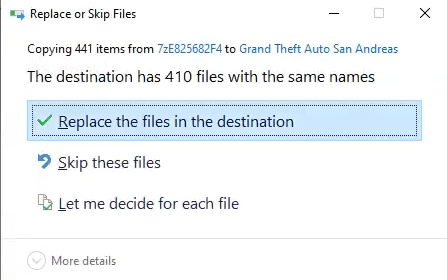 Download and extract the Recovery Package to the game directory. When prompted, replace all existing files.
SilentPatch
This small plugin from Silent's thread[gtaforums.com] addresses several of the issues in San Andreas. It focuses mainly on fixing bugs present on PC, but not on the PS2 version of the game.
Widescreen Support
These small plugins from ThirteenAG[thirteenag.github.io] improve widescreen support in San Andreas.
Widescreen Frontend Textures - Adds widescreen loading screens replacing the standard ones[github.com]
PS2 Features
A convenient bundle that includes all the modifications from the PS2 Features to PC thread.[gtaforums.com]
Framerate Vigilante
A plugin from Junior_Djjr's thread[www.mixmods.com.br] that solves many of the frame rate related issues in San Andreas. However, it is recommended to run this modification at 60 frames per second as not everything is fixed by this modification.
Do not use the in game FPS cap tool, it has a lot of input delay. You can easily cap your frames per second with a tool such as:
MSI Afterburner[download.msi.com] or NVIDIA Profile Inspector[github.com]
- Vehicle handling is worse and makes vehicles not turn as well. Because of this, 30 frames per second is required to complete 100% in driving school.
- Vehicles appear to be shaking visually.
- The mission, Fender Ketchup, has a bug where you can not leave the garage. Simply press the sprint key to exit the garage.
*.ini Edits (Optional)
Making changes to some of the *.ini files included with the modifications installed, we can enhance the visual settings in San Andreas and restore some options to behave like the original PS2 version.
Open SkyGfx.ini, and edit the following lines from 8 to 0 to have less blur:
Open GTASA.WidescreenFix.ini, and edit the following lines frmo their default values to 0 to have the HUD moved to the side but not decreased in size:
Open GTASA.WidescreenFix.ini, and edit the following line from 2 to 0 to have the text shadow as it originally appeared.
Controller Support (Optional)
You will need the Ginput mod from Silent in order to get the best controller support on par to the console versions.
In-Game Settings
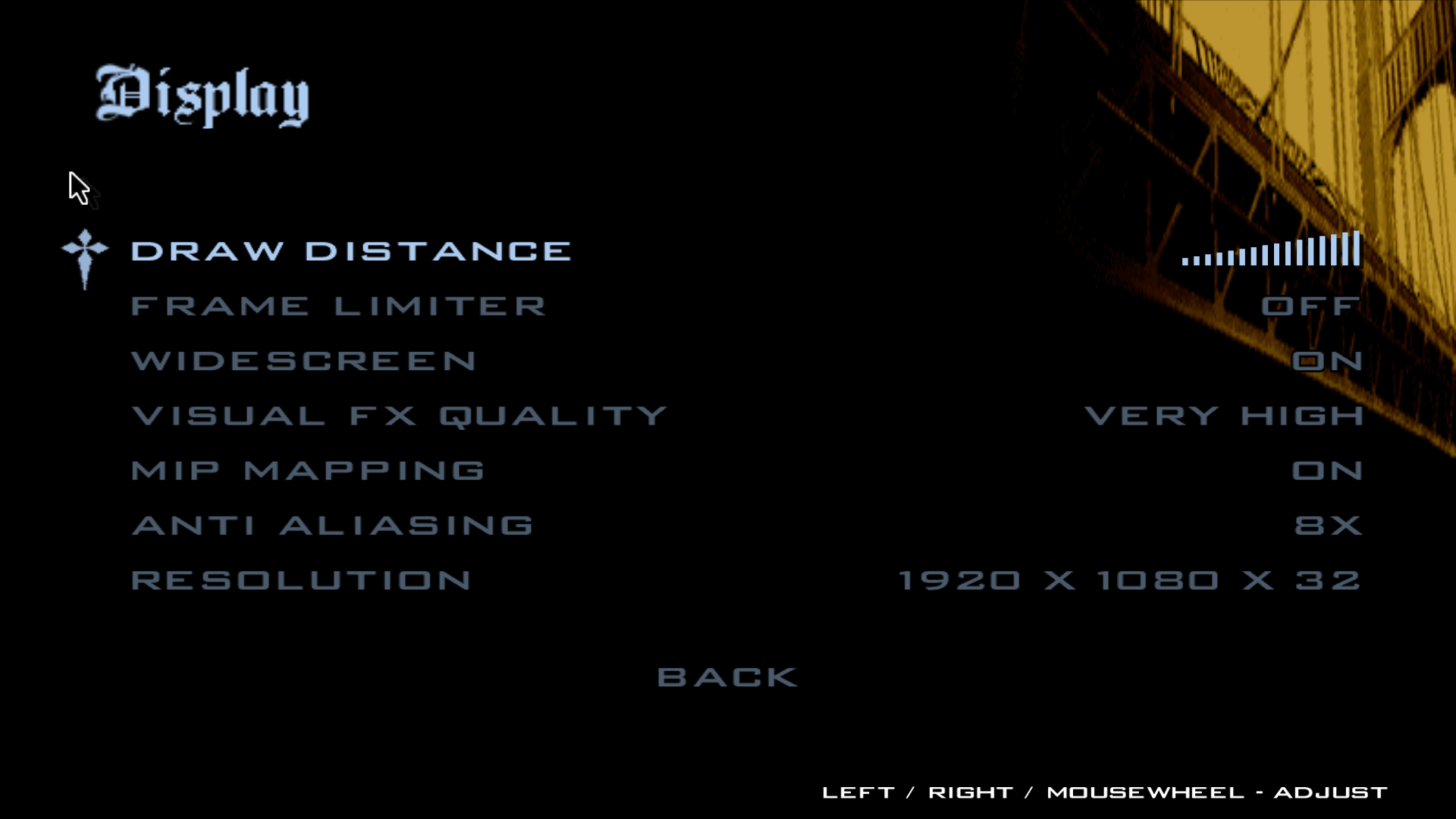
- As mentioned in Framerate Vigilante, avoid using the in-game frame limiter, it has much more input lag.
- Mip Mapping only works on some textures on this game. However, it is recommend having it enabled as in theory it should make jaggies less noticeable.
- Anti Aliasing[imgur.com] should be set to 8x as it drastically reduces jaggies and has a very minimal blur effect.
Final Comparison
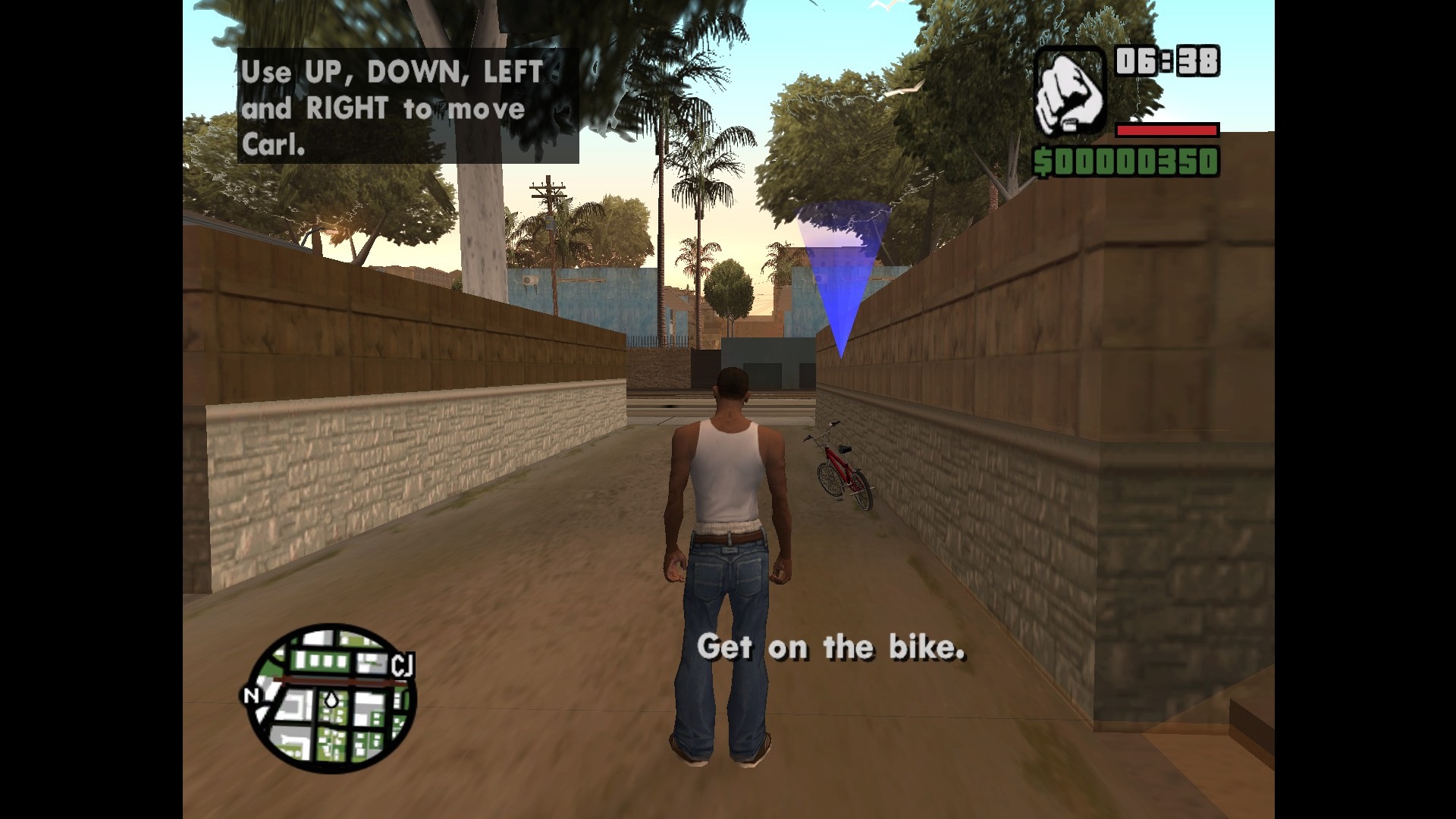
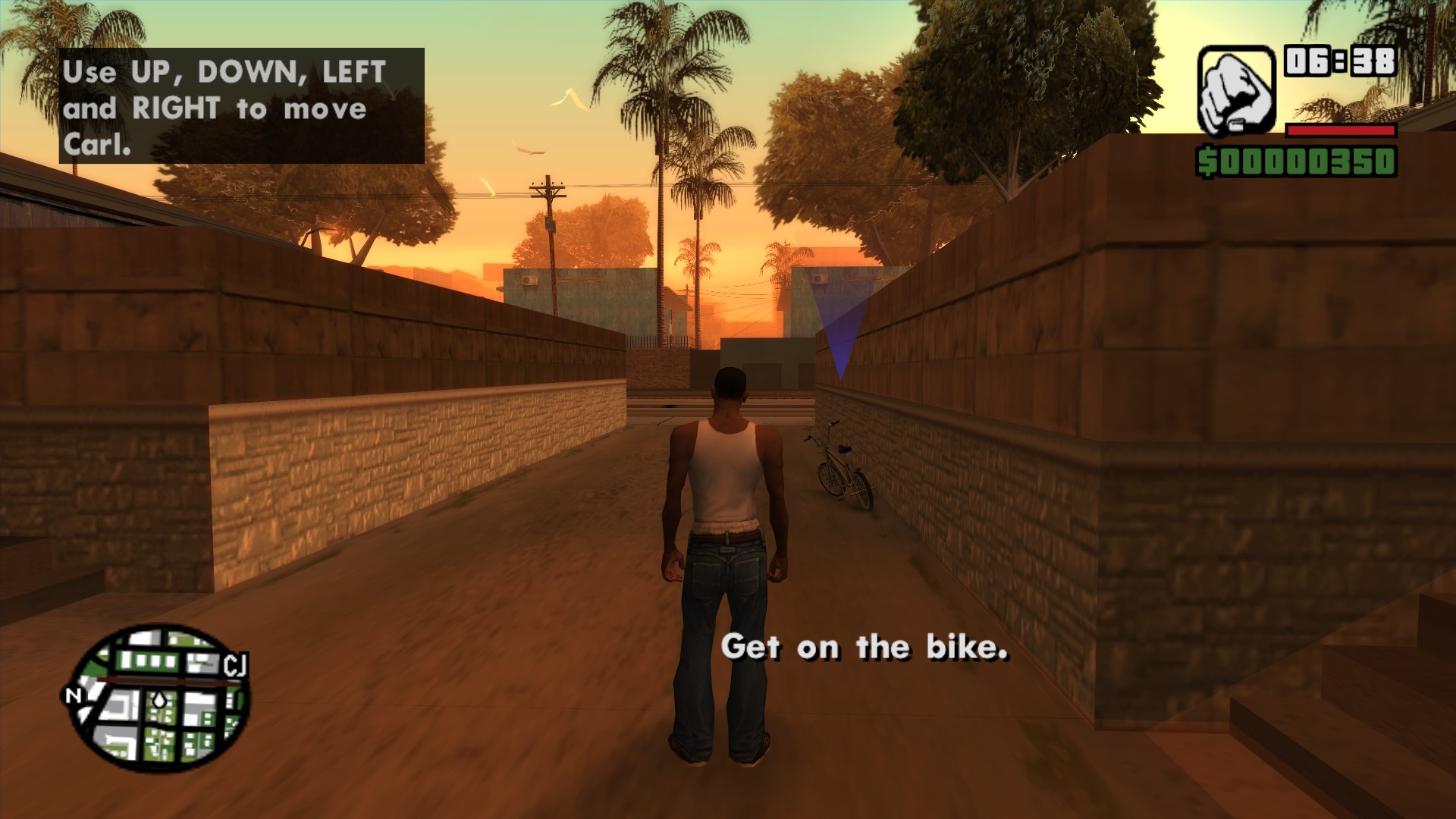
- Улучшаем GTA San Andreas★ 5 (3.9k)72k views4.6k ♥7 minRussianUpdated Jul 20, 2021
- Grand Theft Auto: San Andreas - The Improved Classic★ 5 (1.4k)56k views3.1k ♥5 minUpdated Oct 30, 2025
- Grand Theft Auto: San Andreas - Enhanced Edition★ 5 (1.6k)51k views2.2k ♥5 minUpdated Jun 28, 2020
- Grand Theft Auto San Andreas: Classic Edition★ 5 (1.5k)42k views3k ♥14 minRussianUpdated Jul 17
- GTA - San Andreas CHEATS★ 5 (1.5k)41k views2.4k ♥2 minUpdated Jan 4, 2024
- Silent Patch + Downgraders (SA)★ 5 (493)33k views861 ♥17 minUpdated Jan 3, 2020





- Upgrading to PremiumTeam Fortress 2★ 5 (20k)1441k views11k ♥6 minUpdated May 11, 2022
- No More Room in Hell Official ManualNo More Room in Hell★ 5 (2.8k)569k views2.1k ♥29 minUpdated Apr 22, 2019
- NMRiH Community Hosting GuidesNo More Room in Hell★ 5 (526)351k views653 ♥1 minUpdated Aug 10, 2022
- Лучшие кооперативные игры SteamPAYDAY 2★ 5 (1.5k)315k views2.1k ♥56 minRussianUpdated Apr 27, 2025
- Desert Eagle Heat Treated | Blue GemCounter-Strike 2★ 5 (1.6k)292k views1.5k ♥2 minUpdated Jan 16
- Treasure Hunt Puzzle SolutionsTotal War: WARHAMMER II★ 5 (6.9k)281k views15k ♥3 minUpdated Aug 19, 2021






This guide was created by its original author on the Steam Community. Are you the author and want it removed? Request removal.