Modding GTA San Andreas on Linux
Introduction
Hello, there! I hope you are all doing well.
I won't give you many details nor teach everything about Linux. If there's anything I didn't teach in this guide, I expect you to be able to Google or Duck it in order to find it out for yourself.
Please, feel free to post any questions about any steps or explanations that hasn't been done clear for you. I will be glad to answer and help however (whenever) I can. I will just ask you please not to ask things that aren't really related to this guide in specific or GTA SA's modding.
I really hope this guide come to be useful and helpful for any Linux user that had difficulties or frustrations trying to mod GTA, or even gave up. That happened to me, and I've decided to try again and I've managed to find out how to do it. And, like many other Linux users, I've decided to help other people possibly having the same issue as I had.
And finally, this guide is also available in Brazilian Portuguese in this link[forum.mixmods.com.br].
The link above is from a Brazilian GTA SA's modding forum and community. In that same website[www.mixmods.com.br], you might find various mods for GTA SA and other GTA games.
Dependencies
- Steam (obviously);
- Grand Theft Auto: San Andreas (again, obviously, installed through Steam);
- Wine;
- A GTA SA 1.0 downgrader executable. It might work with any downgrader in that style, but I'd recommend this one[drive.google.com].
And, well... I guess we want to install mods in our GTA, so... mods. Have mods. Many of them.
Installing Wine
Launch the terminal...
This step may vary between distros. Although you are in fact able to use other distros' package managers, this is not that common and practical, so I will consider you didn't install APT on Arch Linux or something like that.
For every single one of them, unless you are logged in as *root*, which is definitely not recommended, you will need sudo and will be prompted to type in your password.
Downgrading GTA San Andreas to 1.0
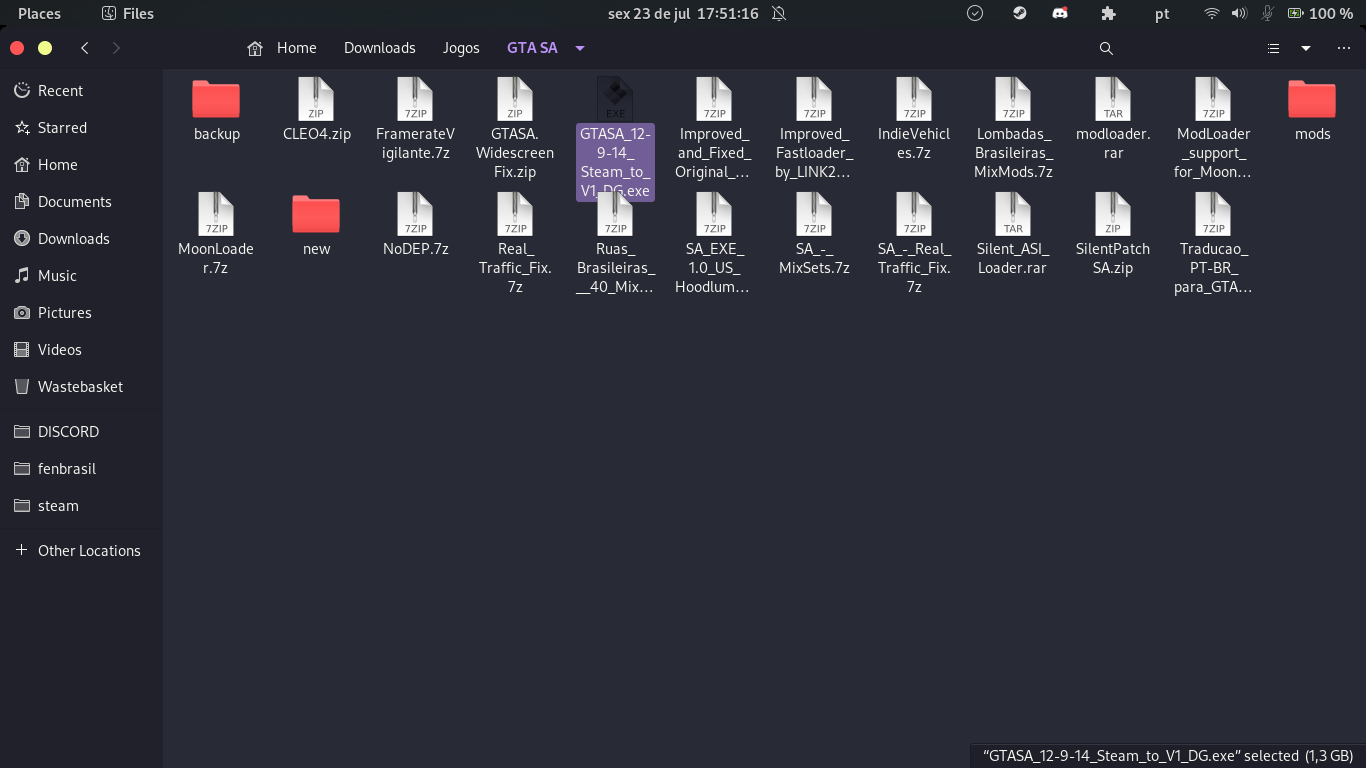
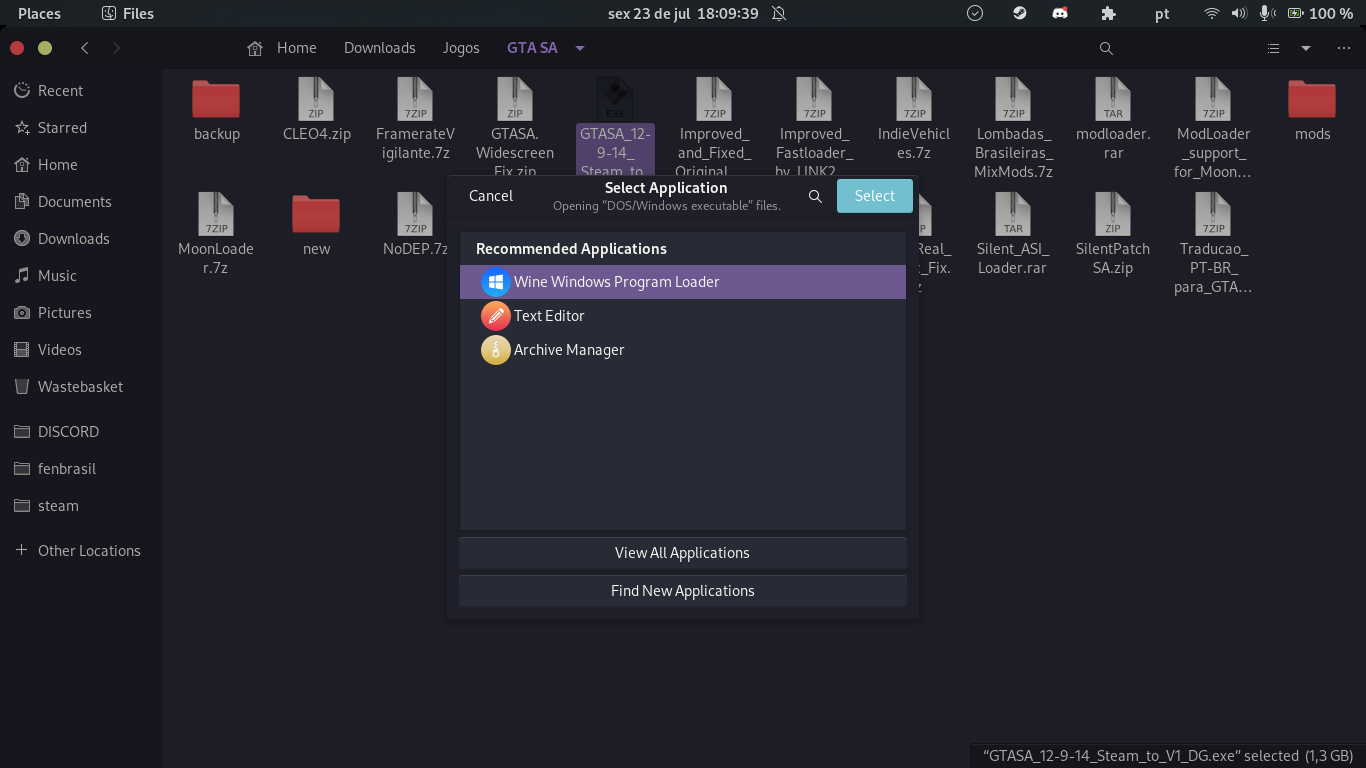
To do so, you can either right-click the executable and launch it through Wine, as follows:
or, again, you will need the terminal. So, simply launch your terminal in the same directory as the executable file, to make things easier.
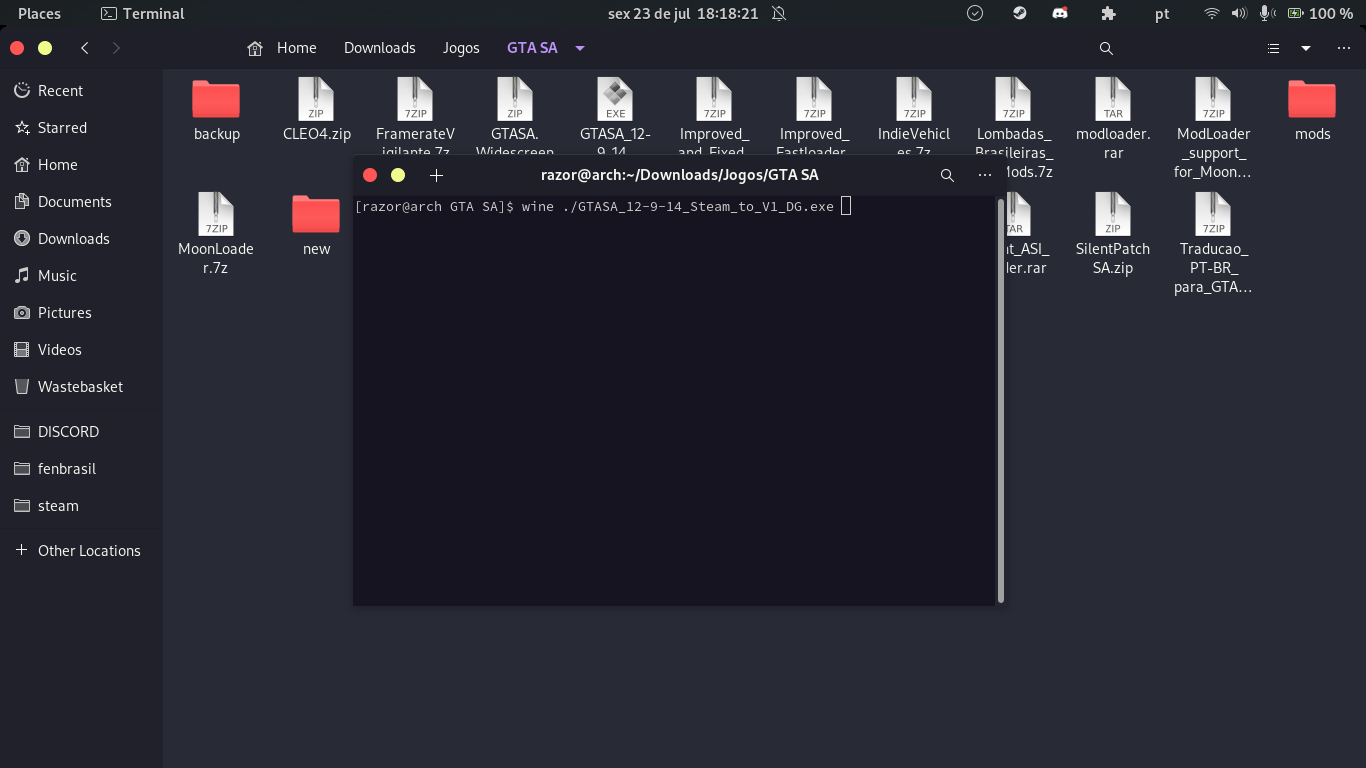 Then, type in the following:
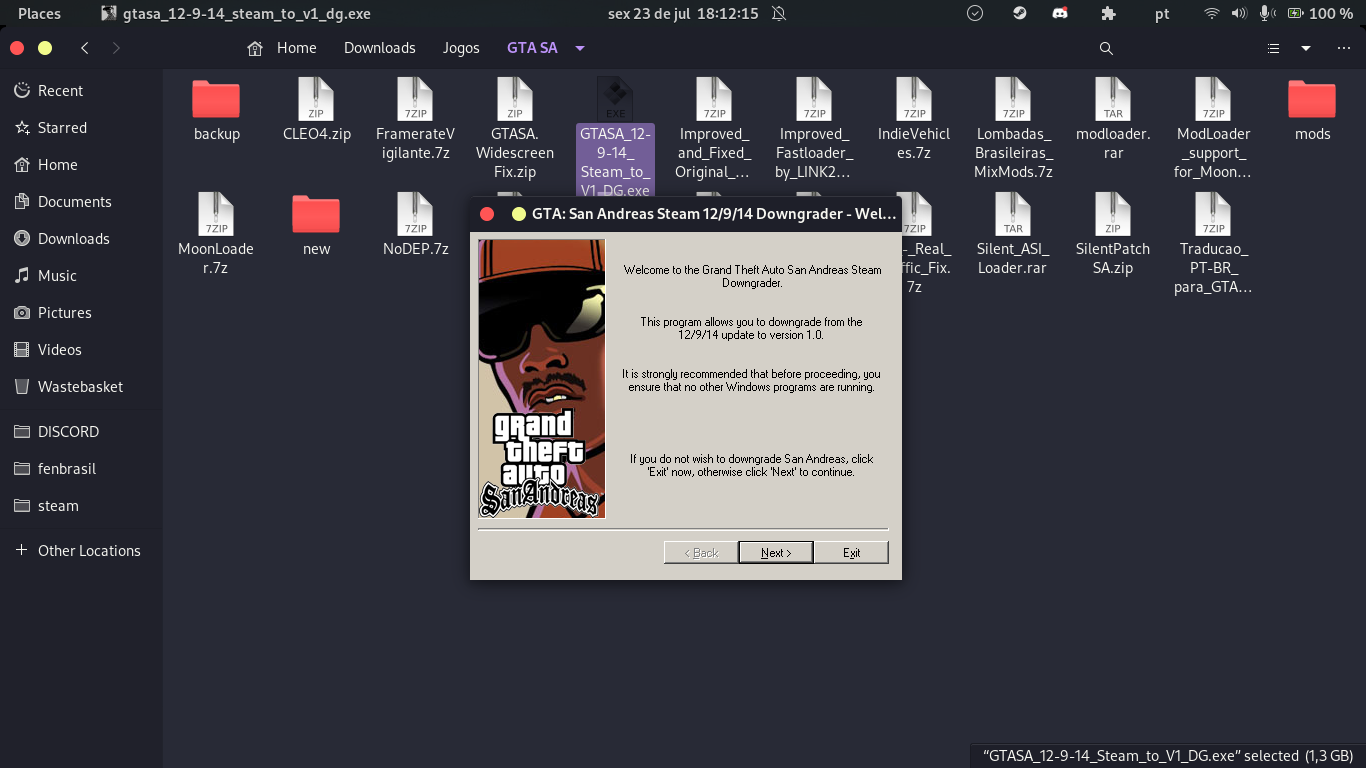 It is a ordinary setup wizard, just like in Windows, and you will also proceed like you would in Windows...
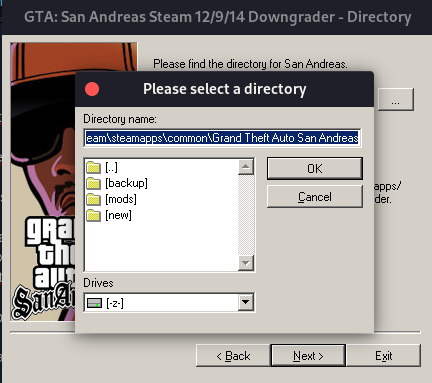 Please, don't just click next. I beg you. It won't work.
For this matter, I recommend you to do so through your Steam library.
You can simply right-click GTA San Andreas > Manage > Browse local files
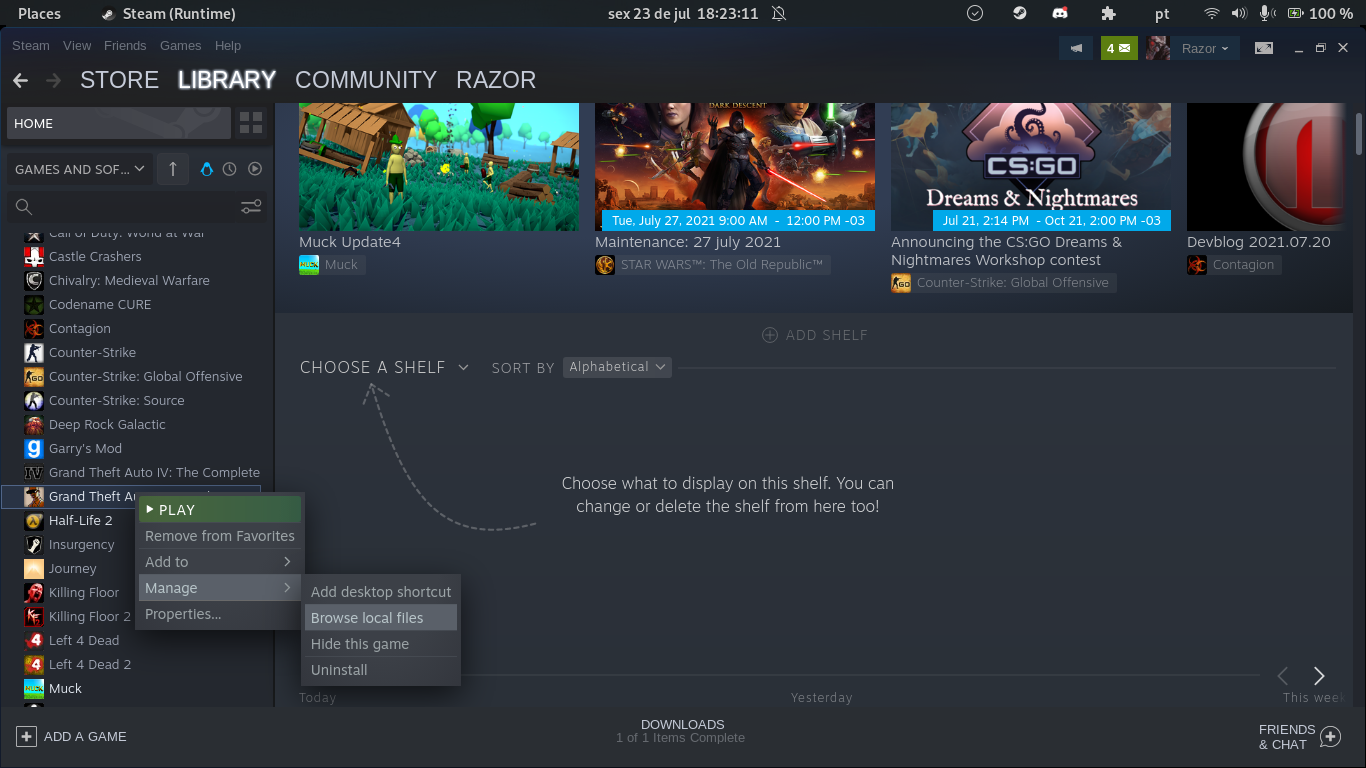
Next, you should do the same in the setup wizard.
And I will give you one shortcut:
NASA doesn't want you to know this, but, don't worry, your secret is safe with me.
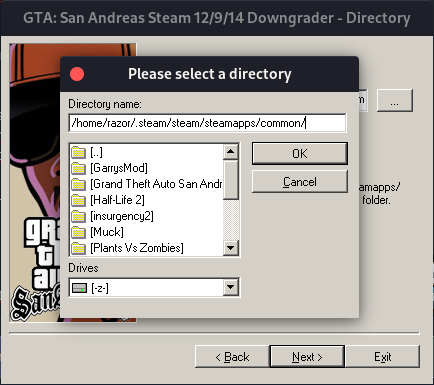 You see that text box showing you the current directory? Yes, that one; you can simply copy-paste the following in there (please, put in your actual username in "your_user_name")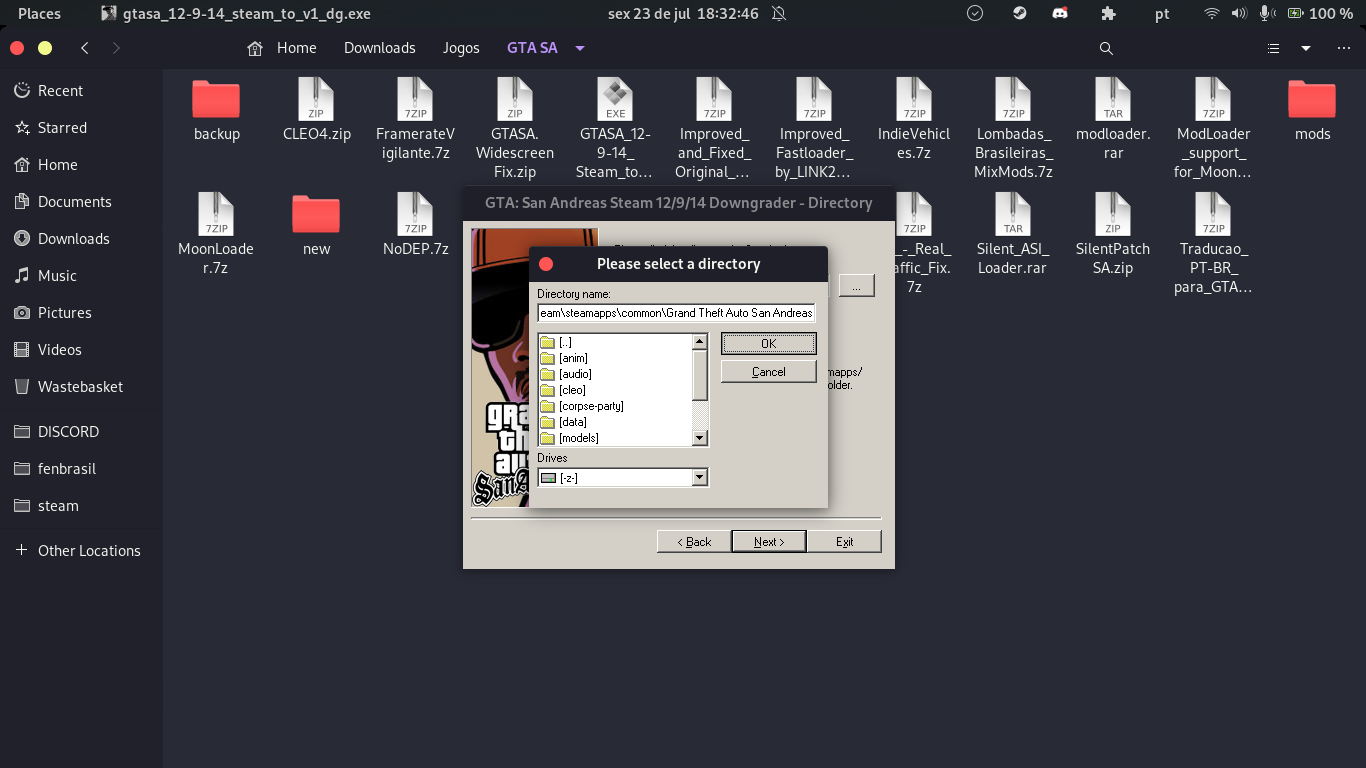
Yep, that's it. After selecting GTA SA's directory, simply click ok, and then, it will definitely be like in Windows. Next, next, next, next... You got the point.
Then, just wait until it is done downgrading.
Launching the downgraded version directly from Steam
Remember this?
Yes, do it again.In your GTA SA's directory, you might have something like this:
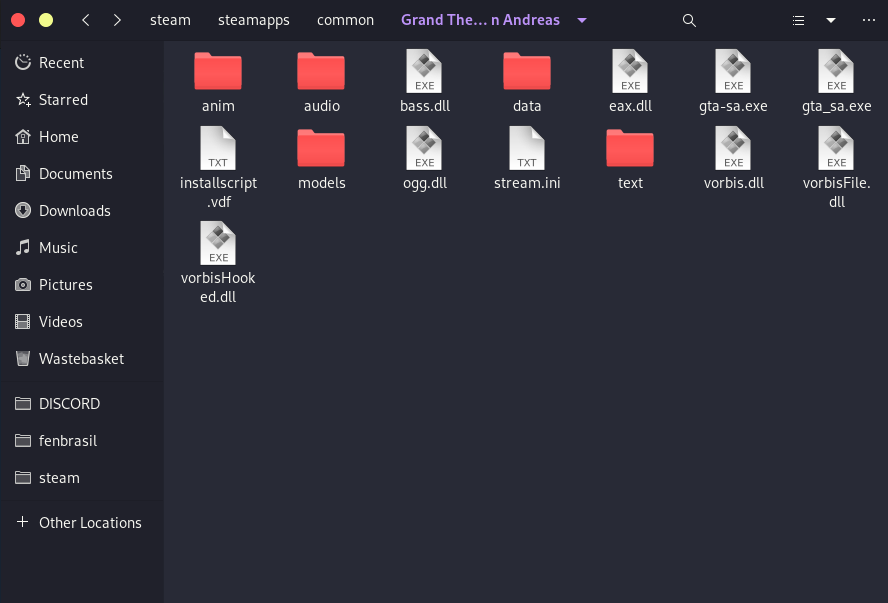 A fresh and clean GTA 1.0 installation...
So, to finish the process:
A fresh and clean GTA 1.0 installation...
So, to finish the process:In the following order, you will:
- Delete the file gta-sa.exe;
- rename the file gta_sa.exe to... You guessed it right, gta-sa.exe;
- optionally, you can also delete the folders ReadMe and Movies.
And you might finish with something like this:
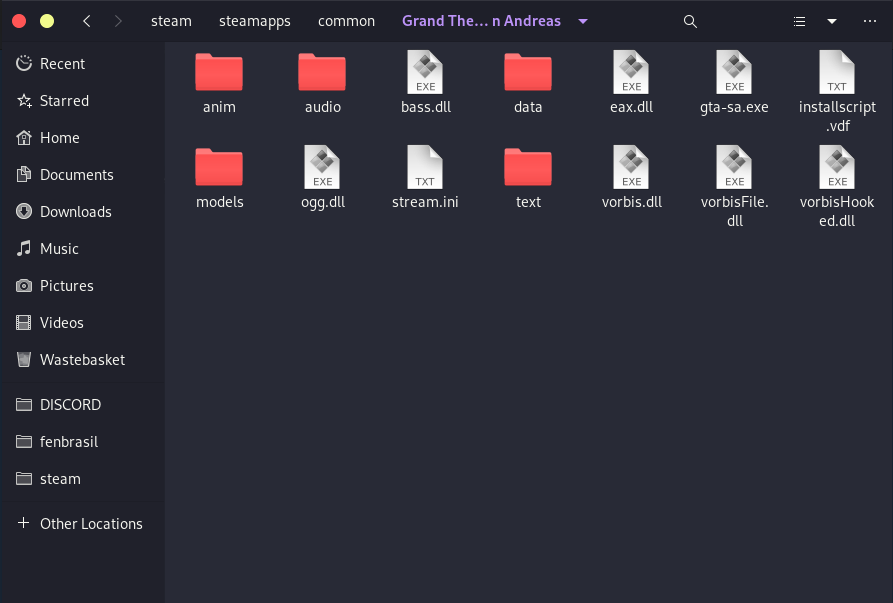
Yes, now your GTA San Andreas is ready to be modded. Install in CLEO, ModLoader, MoonLoader or whatever you want, and they should pretty much work as expected. In my case, that's how my directory is after finishing everything up:
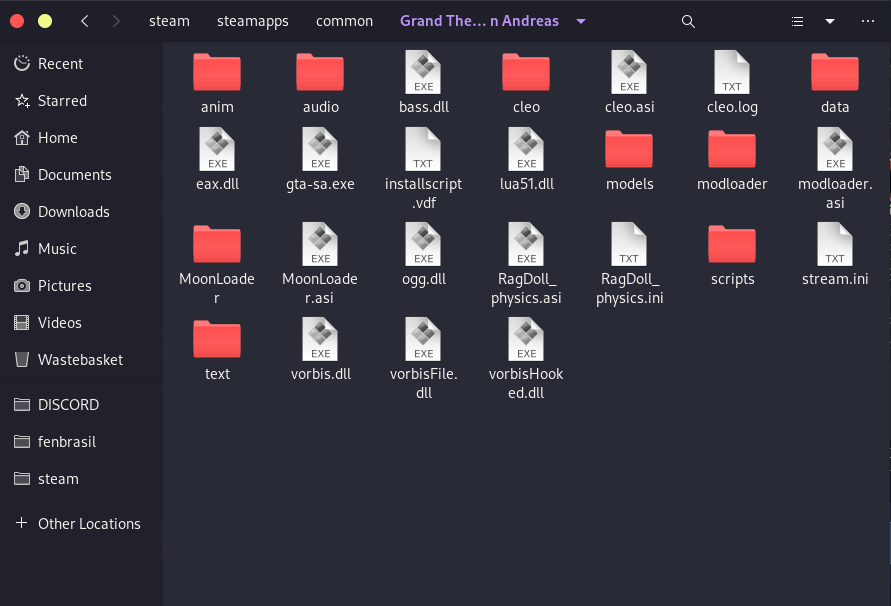
Now, guess what?
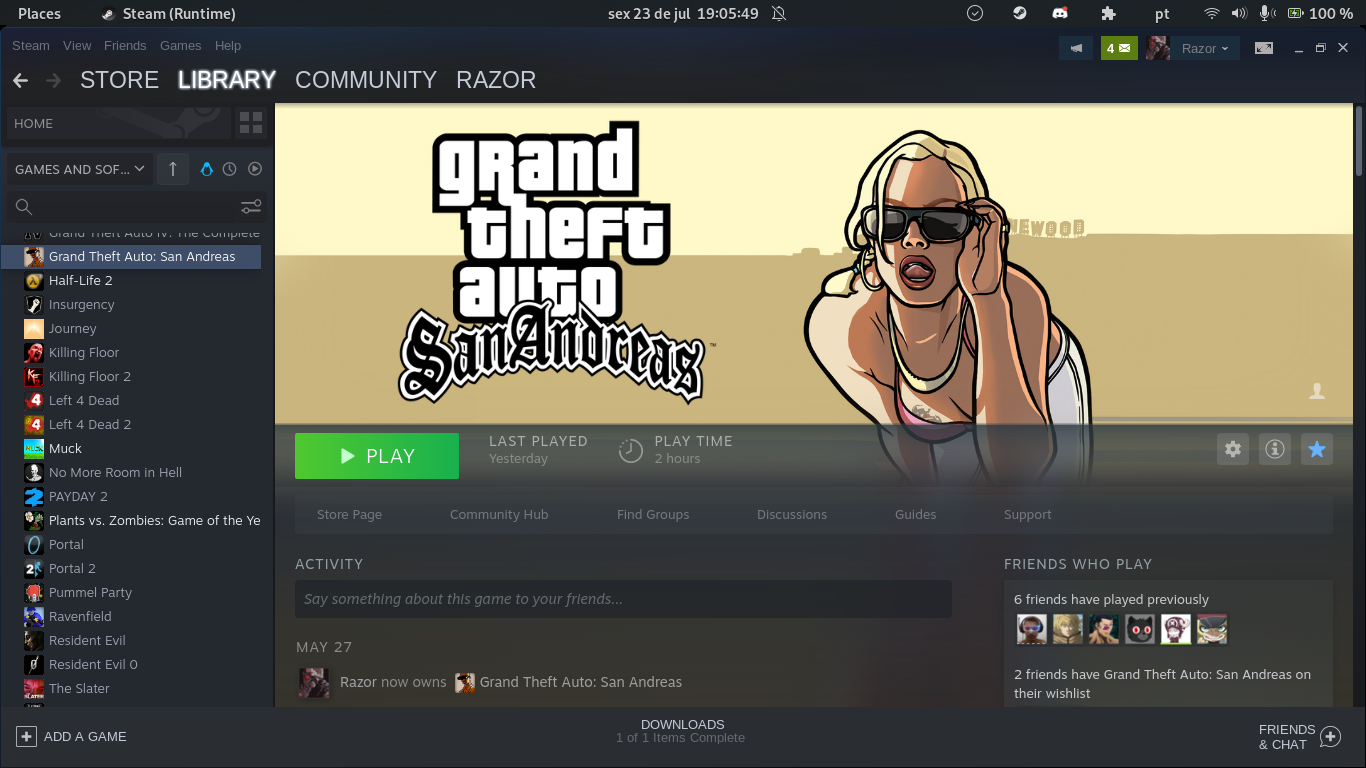 Yes, you are now able to hit that JUICY, GREEN PLAY BUTTON!
Conclusion
If it didn't work, I'd ask you please to try doing the process all over again. Yes, it is a bit annoying, but you've probably messed something up.
In case you redid it, and it still doesn't work, I am always available to talk or answer questions, doubts or related stuff in the comments. So, feel free to ask!
- Улучшаем GTA San Andreas★ 5 (3.9k)72k views4.6k ♥7 minRussianUpdated Jul 20, 2021
- Grand Theft Auto: San Andreas - The Improved Classic★ 5 (1.4k)56k views3.1k ♥5 minUpdated Oct 30, 2025
- Grand Theft Auto: San Andreas - Enhanced Edition★ 5 (1.6k)51k views2.2k ♥5 minUpdated Jun 28, 2020
- Grand Theft Auto San Andreas: Classic Edition★ 5 (1.5k)42k views3k ♥14 minRussianUpdated Jul 17
- GTA - San Andreas CHEATS★ 5 (1.5k)41k views2.4k ♥2 minUpdated Jan 4, 2024
- Silent Patch + Downgraders (SA)★ 5 (493)33k views861 ♥17 minUpdated Jan 3, 2020




- Upgrading to PremiumTeam Fortress 2★ 5 (20k)1441k views11k ♥6 minUpdated May 11, 2022
- No More Room in Hell Official ManualNo More Room in Hell★ 5 (2.8k)569k views2.1k ♥29 minUpdated Apr 22, 2019
- NMRiH Community Hosting GuidesNo More Room in Hell★ 5 (526)351k views653 ♥1 minUpdated Aug 10, 2022
- Лучшие кооперативные игры SteamPAYDAY 2★ 5 (1.5k)315k views2.1k ♥56 minRussianUpdated Apr 27, 2025
- Desert Eagle Heat Treated | Blue GemCounter-Strike 2★ 5 (1.6k)292k views1.5k ♥2 minUpdated Jan 16
- Treasure Hunt Puzzle SolutionsTotal War: WARHAMMER II★ 5 (6.9k)281k views15k ♥3 minUpdated Aug 19, 2021






This guide was created by its original author on the Steam Community. Are you the author and want it removed? Request removal.