How to open the game. The most complete and affordable guide.
Read carefully. Don't get nervous.

- Physical and Mental Preparation

Sit comfortably: back straight, feet on the ground. Don’t slouch like a zombie.
Make sure your mouse works: USB plugged in properly or Bluetooth charged.
If using a touchpad, place your right hand near the pad. If using a mouse, keep the cable free of tension.
Take one deep breath. You’re ready.
- Open Steam and Find the Game

Launch Steam: double-click the desktop icon, click the taskbar shortcut, or search “Steam” in the Start menu.
If login is required, enter your username/password and click Sign In (or use Steam Guard).
Once inside, click Library at the top left.
On the left panel, scroll or search for the game using the search bar.
Single-click the game’s name to open its detail page. (This selects the game, but it’s not the Play yet.)
- Locate the Play Button
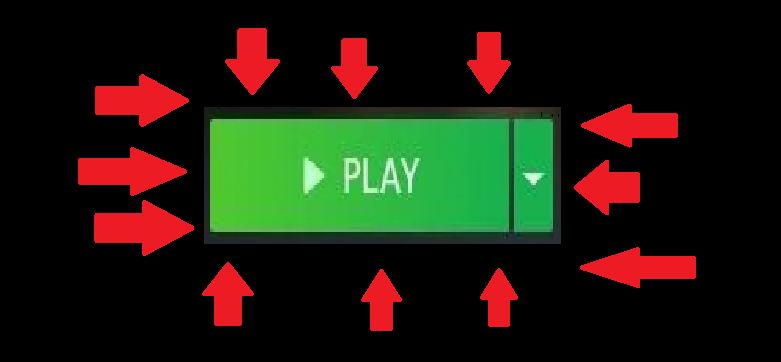
On the game’s page, look to the right (or center-right): you’ll see a big green button labeled “Play,” “Launch,” “Jugar,” or similar.
If it says Play, that’s the target. If it says Install or Update, you need to install or update first.
- Hand and Cursor Positioning (Micro-Instructions)

Hold the mouse properly:
Palm grip: full palm over mouse.
Claw grip: fingertips curved, base of palm resting lightly.
Place your index finger on the left mouse button, middle finger on the right, thumb on the side.
Keep your wrist relaxed.
Move the cursor: glide the mouse gently until the arrow (cursor) is exactly on the center of the Play button.
With a touchpad: move one finger across the pad until the cursor aligns with Play.
- The Click — Physical Action Explained

With the cursor directly over Play, confirm that the button highlights or changes color (hover effect).
Press the left mouse button once with your index finger:
Push down about 3–5 mm until you hear/feel the “click.”
Immediately release — that’s a single click (press + release).
On a touchpad: tap once with one finger or press the built-in button once.
On a controller: select the game and press A (Xbox) or X (PlayStation).
- What Happens After the Click

Steam reacts instantly: the button changes to “Running” or “Loading,” and the game window begins to open.
If it’s the first launch, you may see:
Install/setup windows.
License agreements (EULA).
A Windows permission pop-up (UAC). Click Yes or accept.
Once the game launches, Steam may minimize and the game takes over your screen.
- If Nothing Happens — Quick Troubleshooting

Button says “Install” → You need to install the game first. Click it and follow the installer.
Button is greyed out → Check if Steam is offline, family restrictions, or licensing issues. Switch to online mode (Steam → Go Online).
Game loads but doesn’t start → Restart Steam, verify game files (Right click game → Properties → Local files → Verify integrity).
Steam requires update → Update Steam and restart.
Blocked by antivirus/UAC → Allow access or run Steam as administrator.
Permissions issue → Right-click Steam shortcut → Run as administrator.
- Useful Shortcuts

Highlight the game and press Enter — also launches the game.
With keyboard only: use arrow keys to select the game, press Enter.
In Big Picture Mode (with a controller): highlight the game and press A.
If Steam is syncing cloud saves, wait until it finishes before pressing Play.
- Enjoy.
Now you can enjoy!!!

- 100% Achievement Guide for Red Dead Redemption II (including 100% game completion and Red Dead Online)★ 5 (1.9k)61k views4.6k ♥16 minUpdated Apr 12, 2020
- Карты для поиска животных в Red Dead Redemption 2 +Легендарные животные★ 5 (1.2k)52k views3.7k ♥1 minRussianUpdated May 25, 2021
- Полный гайд по испытаниям (Сюжетный режим)★ 5 (1.2k)52k views3.3k ♥33 minRussianUpdated Jun 27, 2020
- Карты сокровищ и тайники★ 5 (1.1k)42k views3.1k ♥7 minRussianUpdated May 17, 2020
- Hunting, Fishing, Perfect Pelts, Legendaries★ 5 (1.5k)39k views3.6k ♥16 minBulgarianUpdated Nov 25, 2025
- Достижения | Коллекции | Рецепты | Советы★ 5 (2.3k)38k views5.2k ♥46 minRussianUpdated Jun 29


- Upgrading to PremiumTeam Fortress 2★ 5 (20k)1441k views11k ♥6 minUpdated May 11, 2022
- No More Room in Hell Official ManualNo More Room in Hell★ 5 (2.8k)569k views2.1k ♥29 minUpdated Apr 22, 2019
- NMRiH Community Hosting GuidesNo More Room in Hell★ 5 (526)351k views653 ♥1 minUpdated Aug 10, 2022
- Лучшие кооперативные игры SteamPAYDAY 2★ 5 (1.5k)315k views2.1k ♥56 minRussianUpdated Apr 27, 2025
- Desert Eagle Heat Treated | Blue GemCounter-Strike 2★ 5 (1.6k)292k views1.5k ♥2 minUpdated Jan 16
- Treasure Hunt Puzzle SolutionsTotal War: WARHAMMER II★ 5 (6.9k)281k views15k ♥3 minUpdated Aug 19, 2021






This guide was created by its original author on the Steam Community. Are you the author and want it removed? Request removal.