How to set any controller to use the original PS2 controls
Enabling Controller Support in Steam
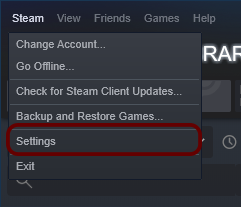
In the top left of the main Steam application window, click the Steam menu button and click Settings from the menu.
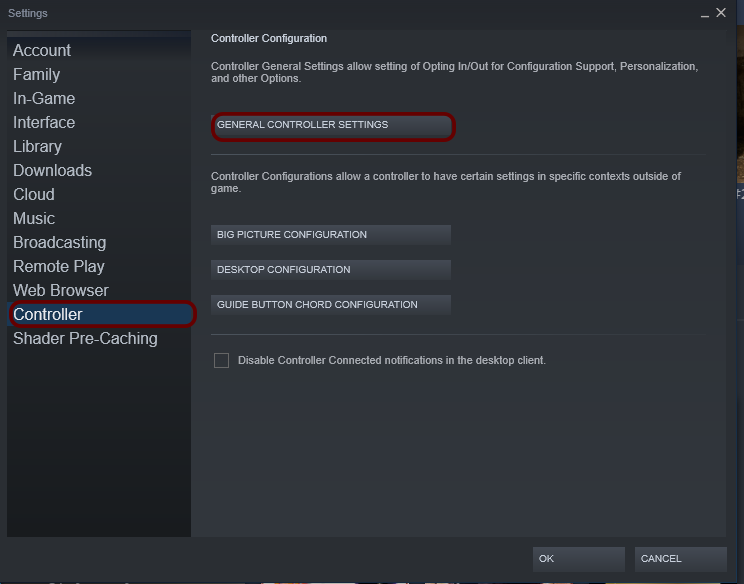
In the Settings menu window, click Controller and then General Controller Settings
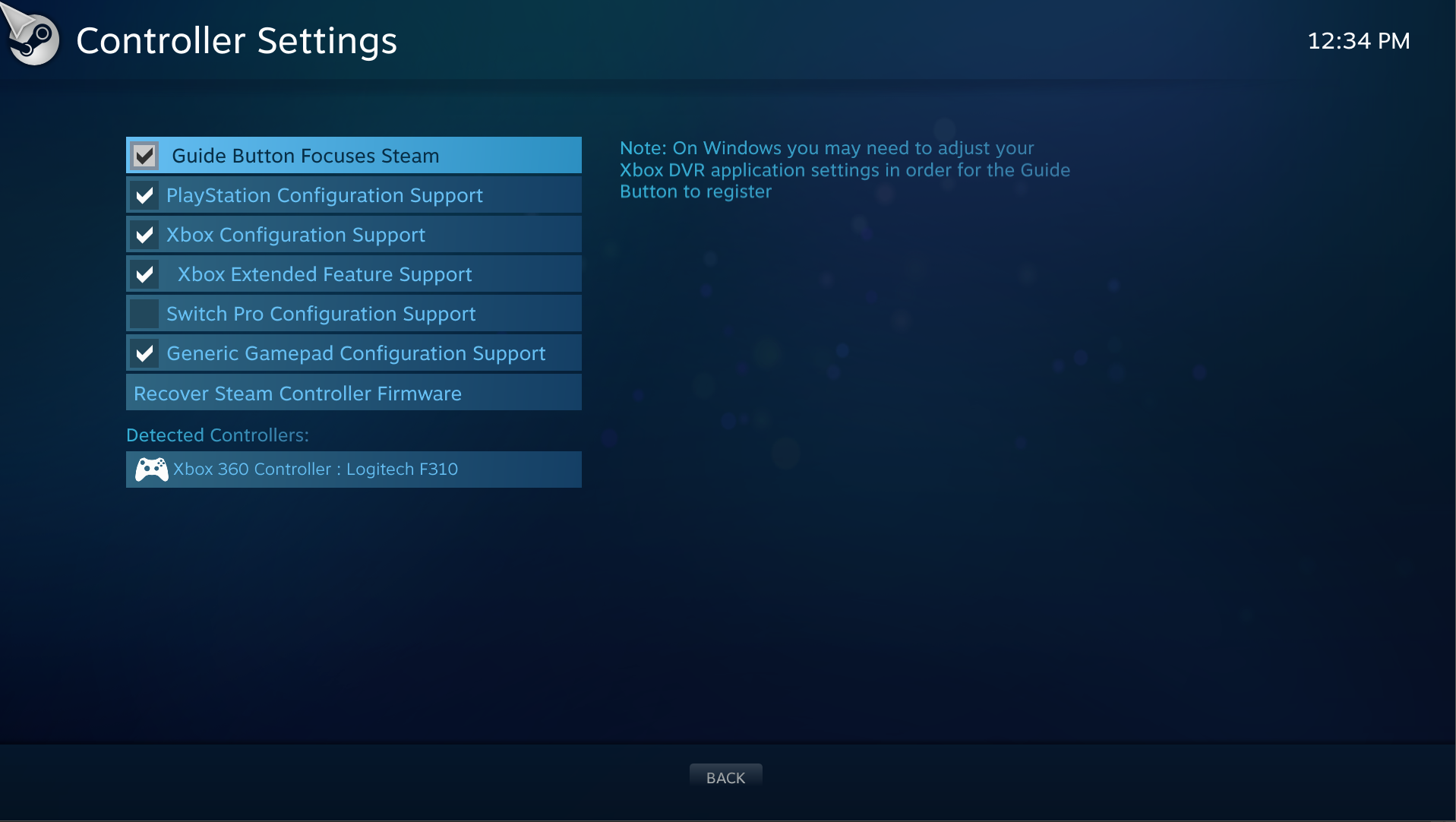
Doing so will open a separate window with the Big Picture interface. Steam has built in support for the big 3 controller manufacturers - Nintendo, Microsoft, and Sony, as well as Generic gamepad configuration (which covers things like Logitechs or 8bitdos) You can enable them all without it causing any issues, but at the very least, make sure to enable every relevant option for the type of controller you are using.
Enabling or specifying support for specific games
In addition to universally enabling or disabling controller support altogether, and enabling or disabling specific manufacturer support, you can customize controller configurations for each individual game.
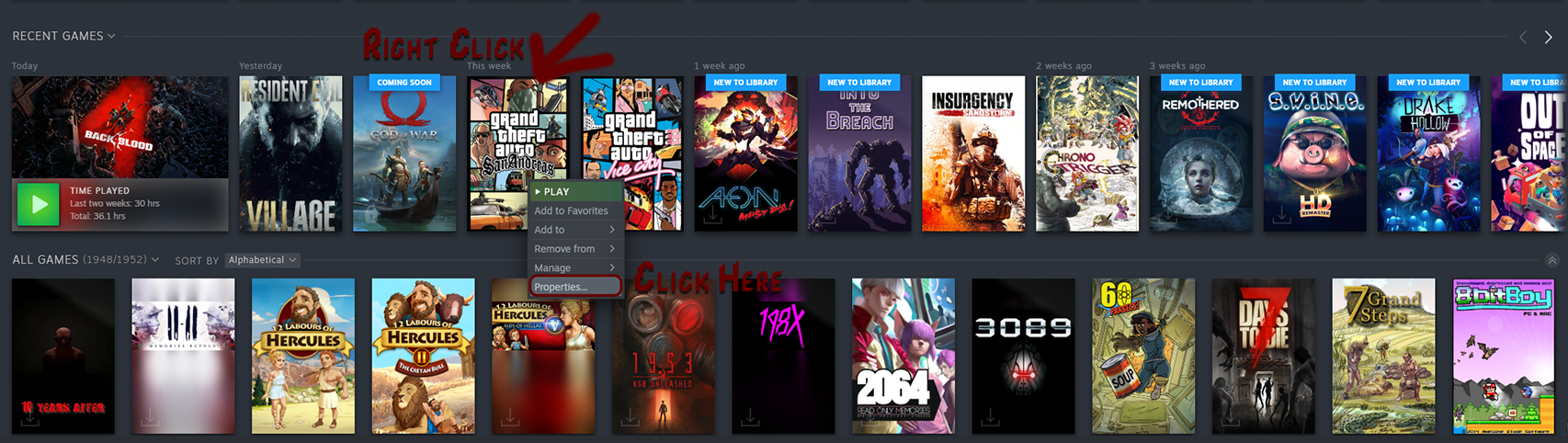
To edit the controller settings for GTA: San Andreas specifically, right click on the thumbnail in your library for GTA San Andreas and click Properties on the context menu.
Click on Controller along the left side.
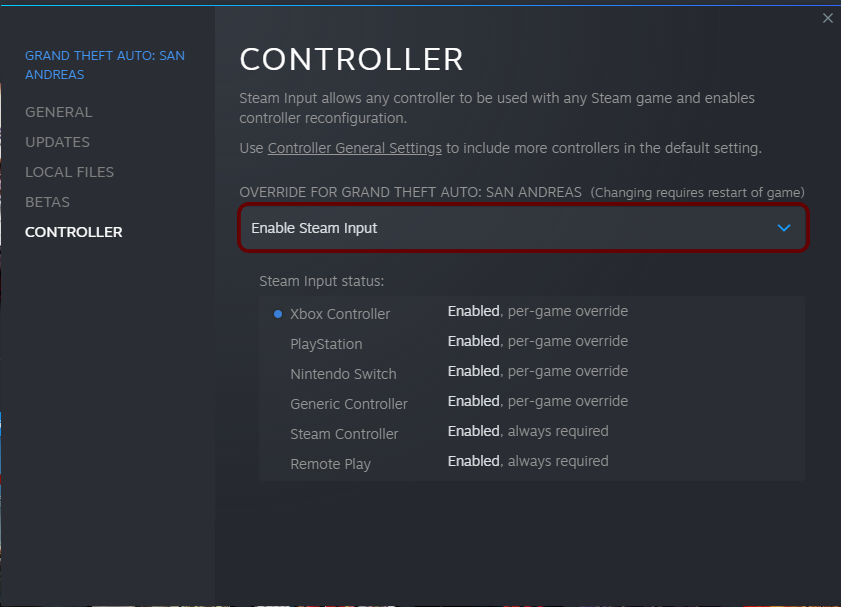
If it is not already selected, click on Enable Steam Input in the dropdown box. Underneath the drop-down, all of the enabled controller support methods will be displayed from the previous section of the guide.
Next you'll have to actually go in to Big Picture mode for further customization
Customizing the actual controls
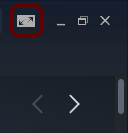
Open big picture mode using the icon in the upper right of your Steam desktop application.
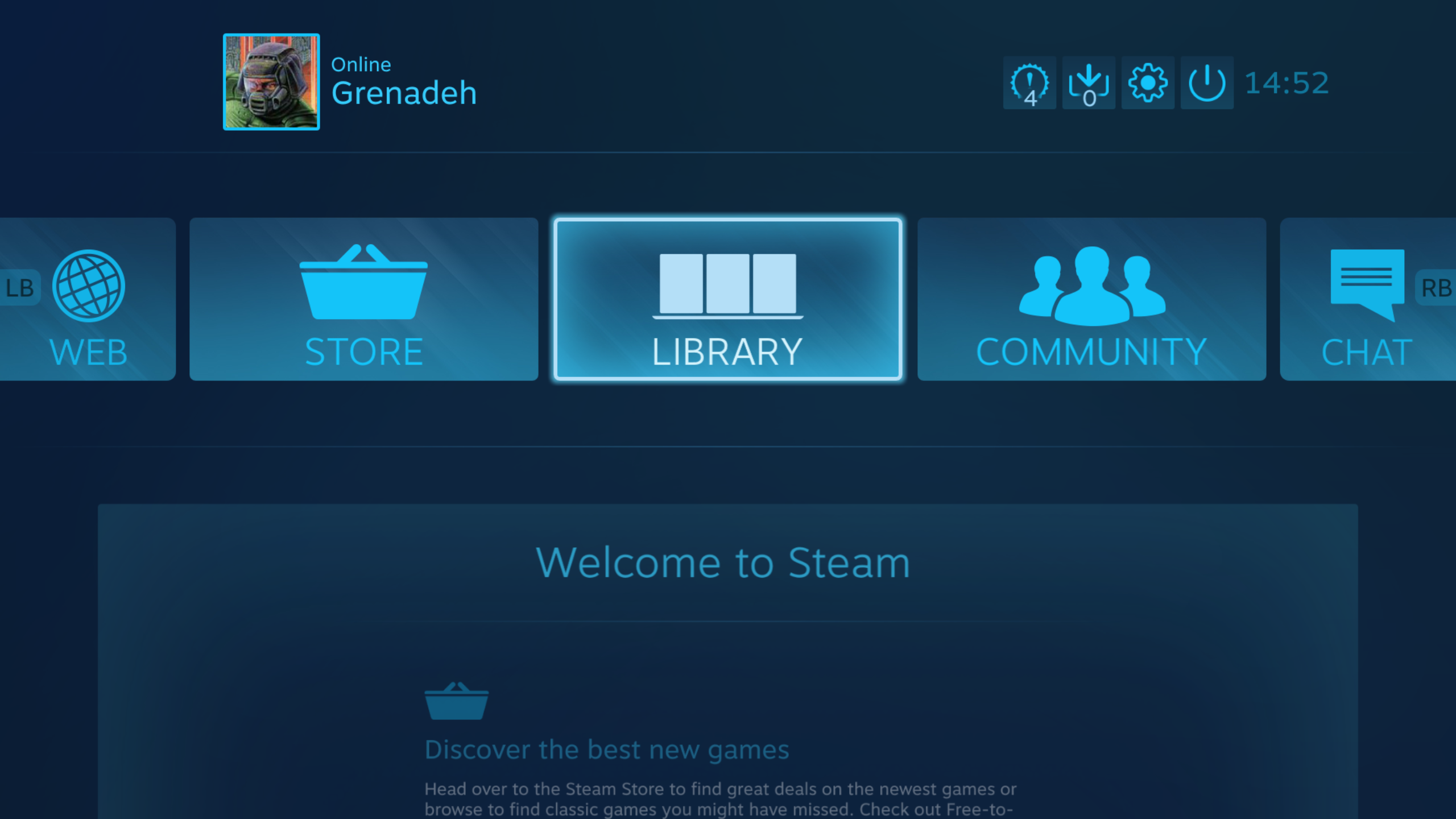
Navigate to the Library section.
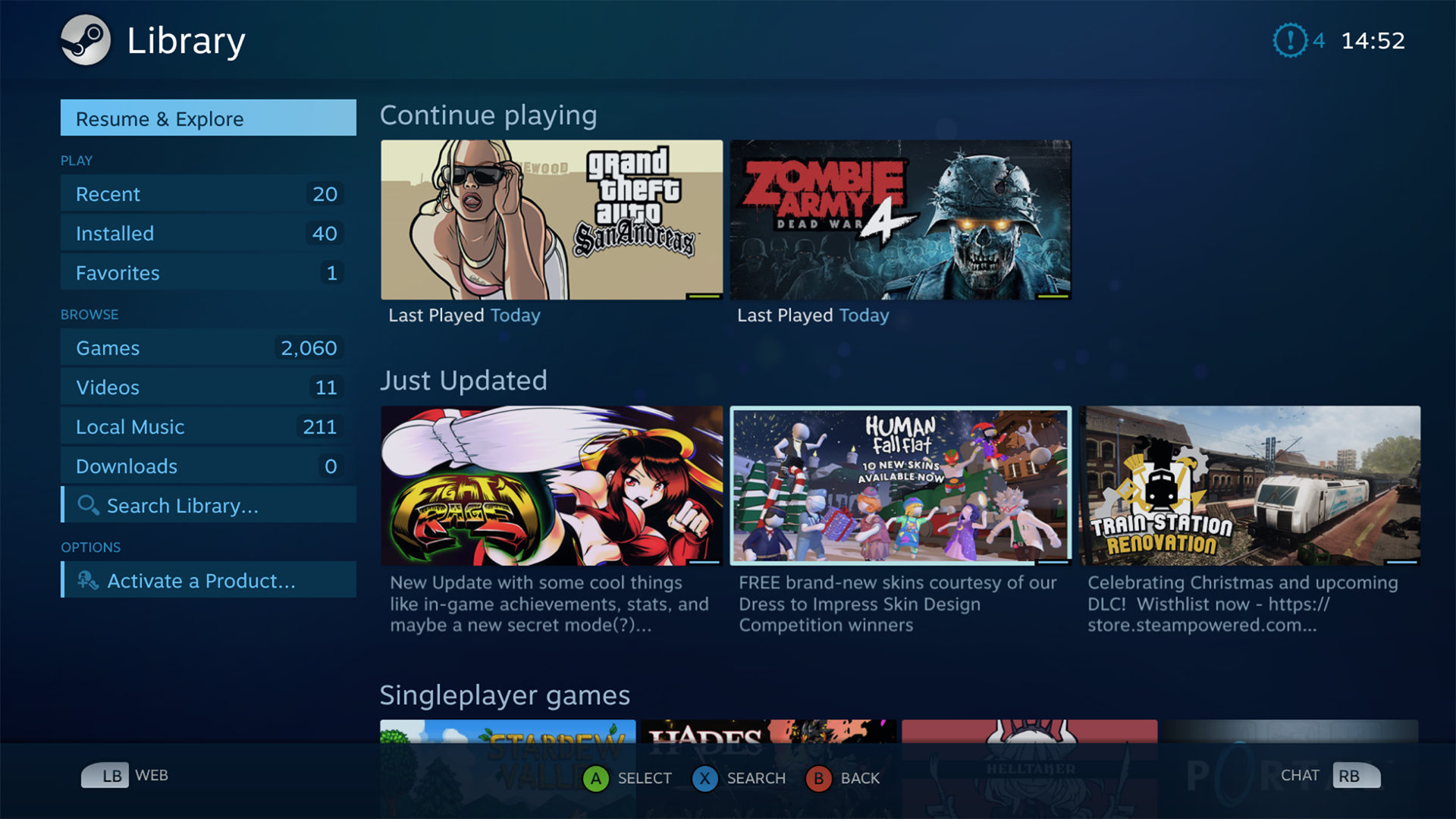
Select San Andreas.
Click Manage Game.
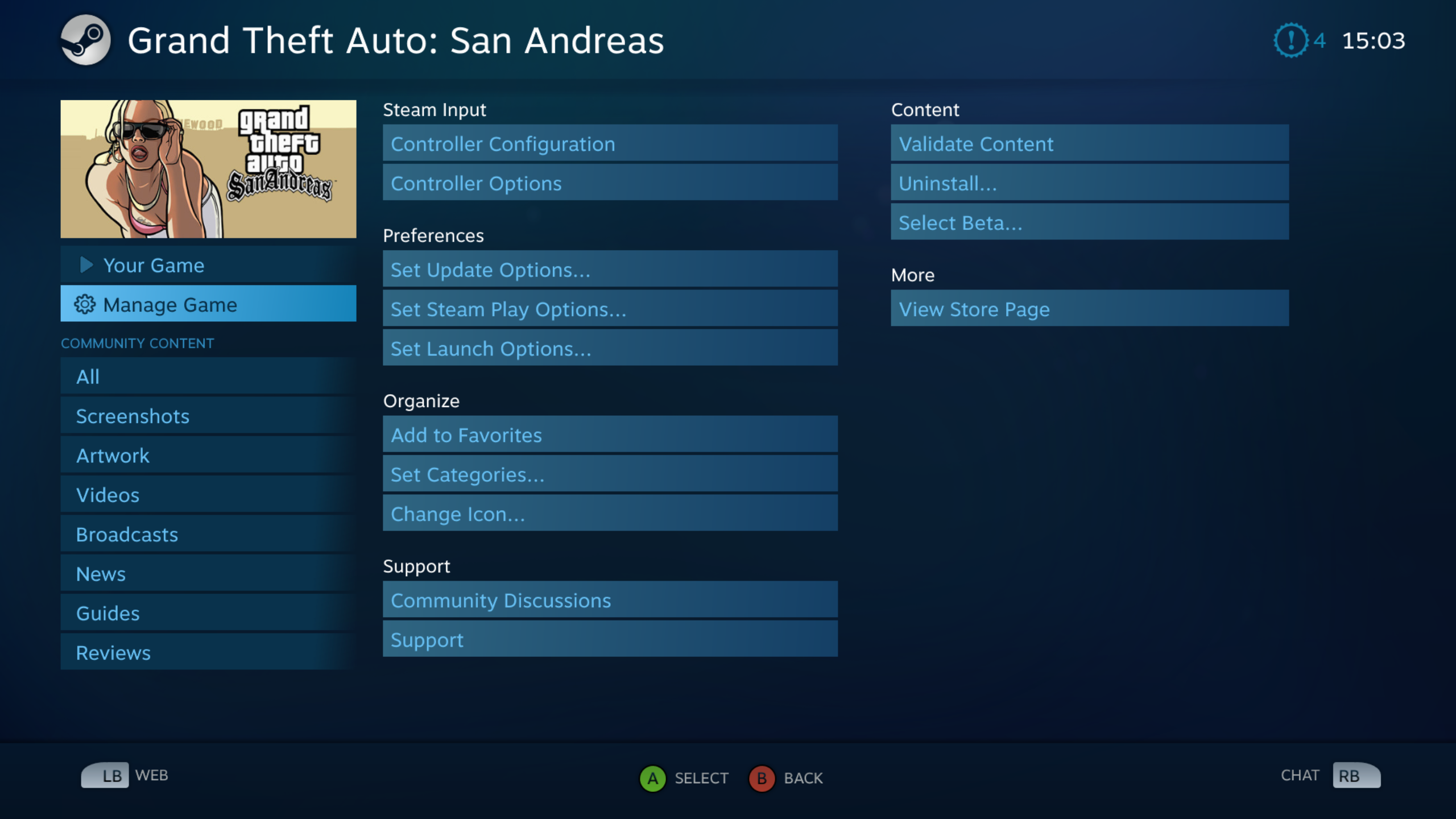 Click on Controller Configuration to access the Configurator utility.
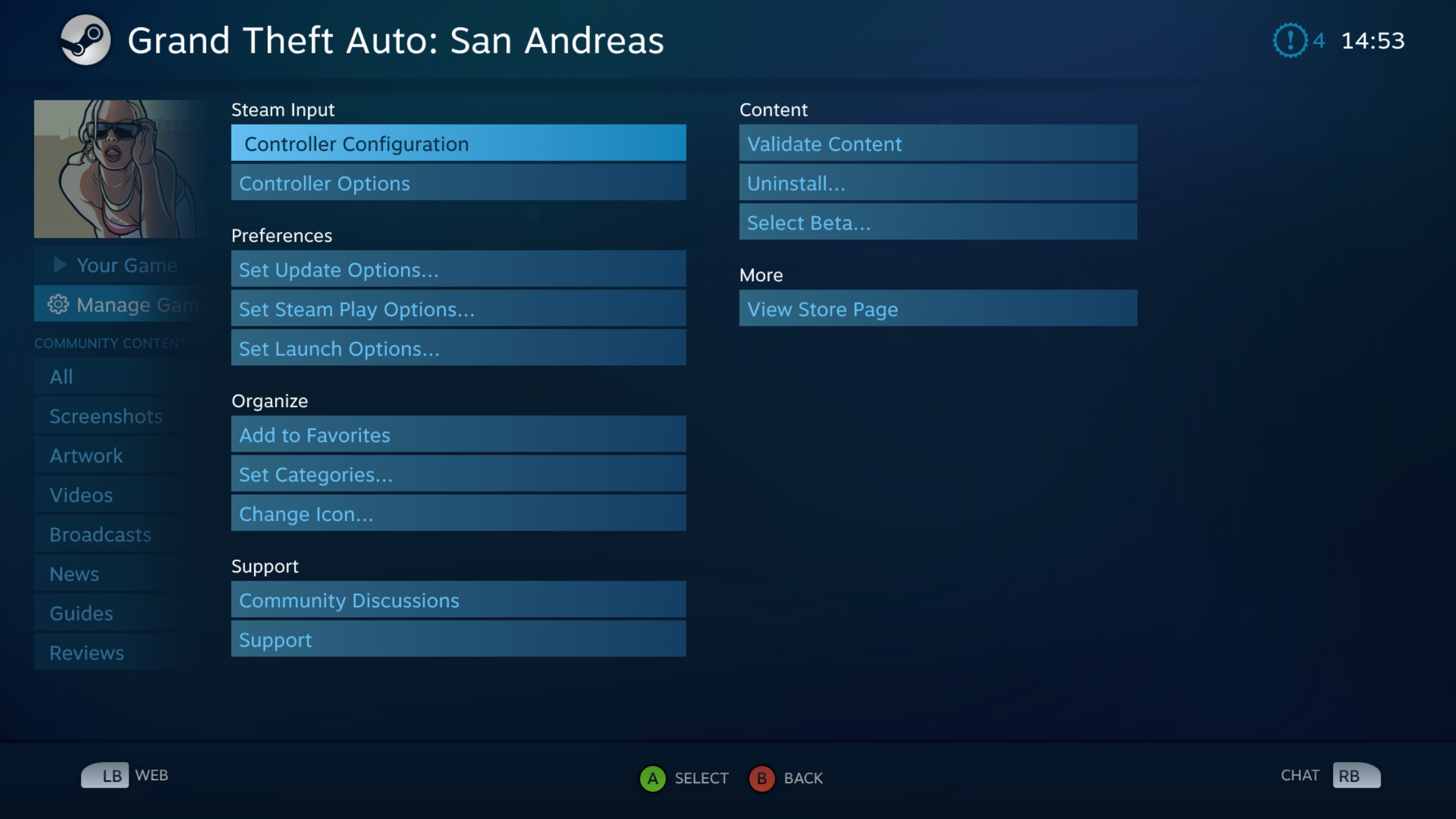 Click on Browse Configs.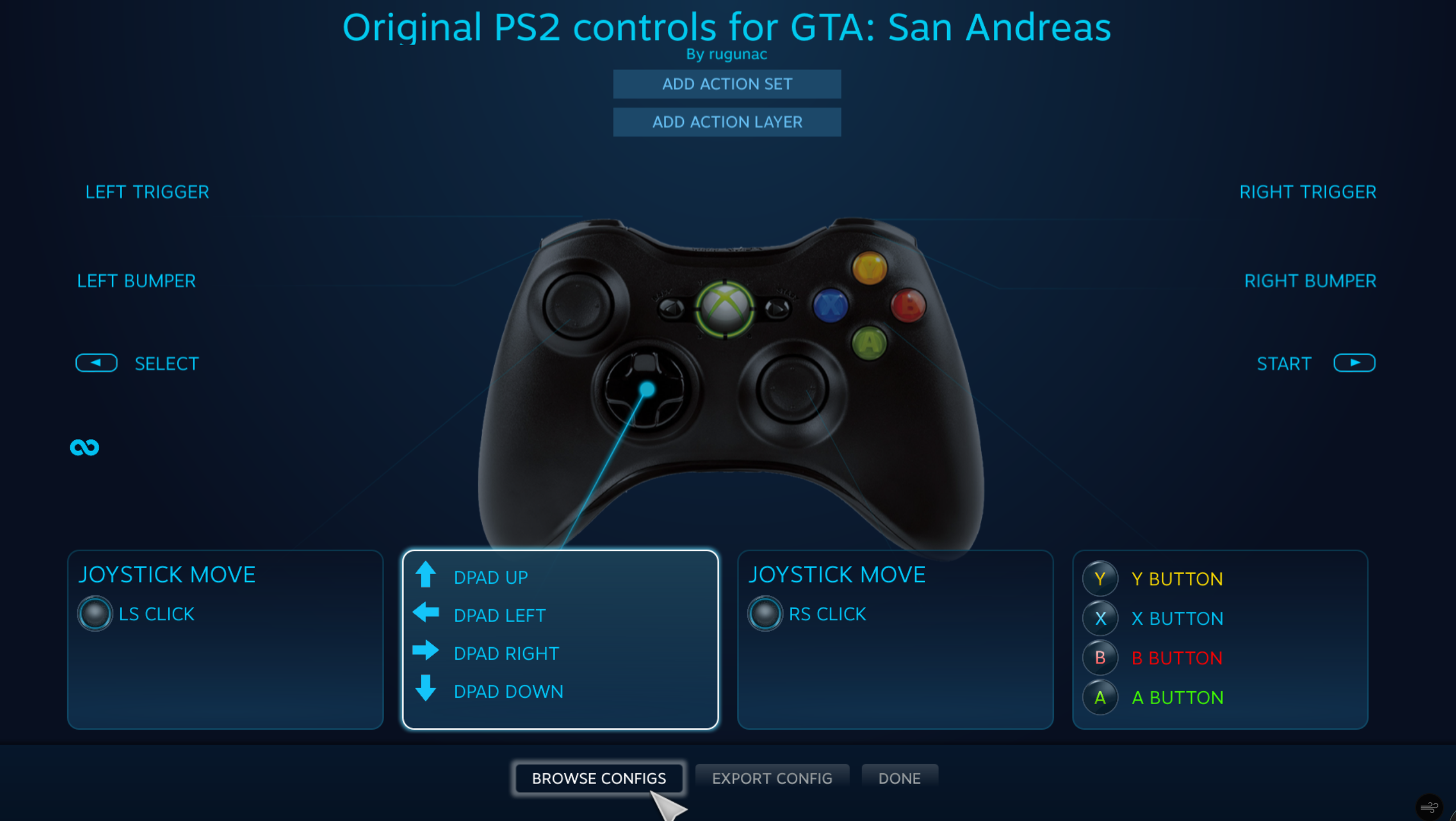
Generally people are going to name their config something logical. We're looking for the PS2 controls.
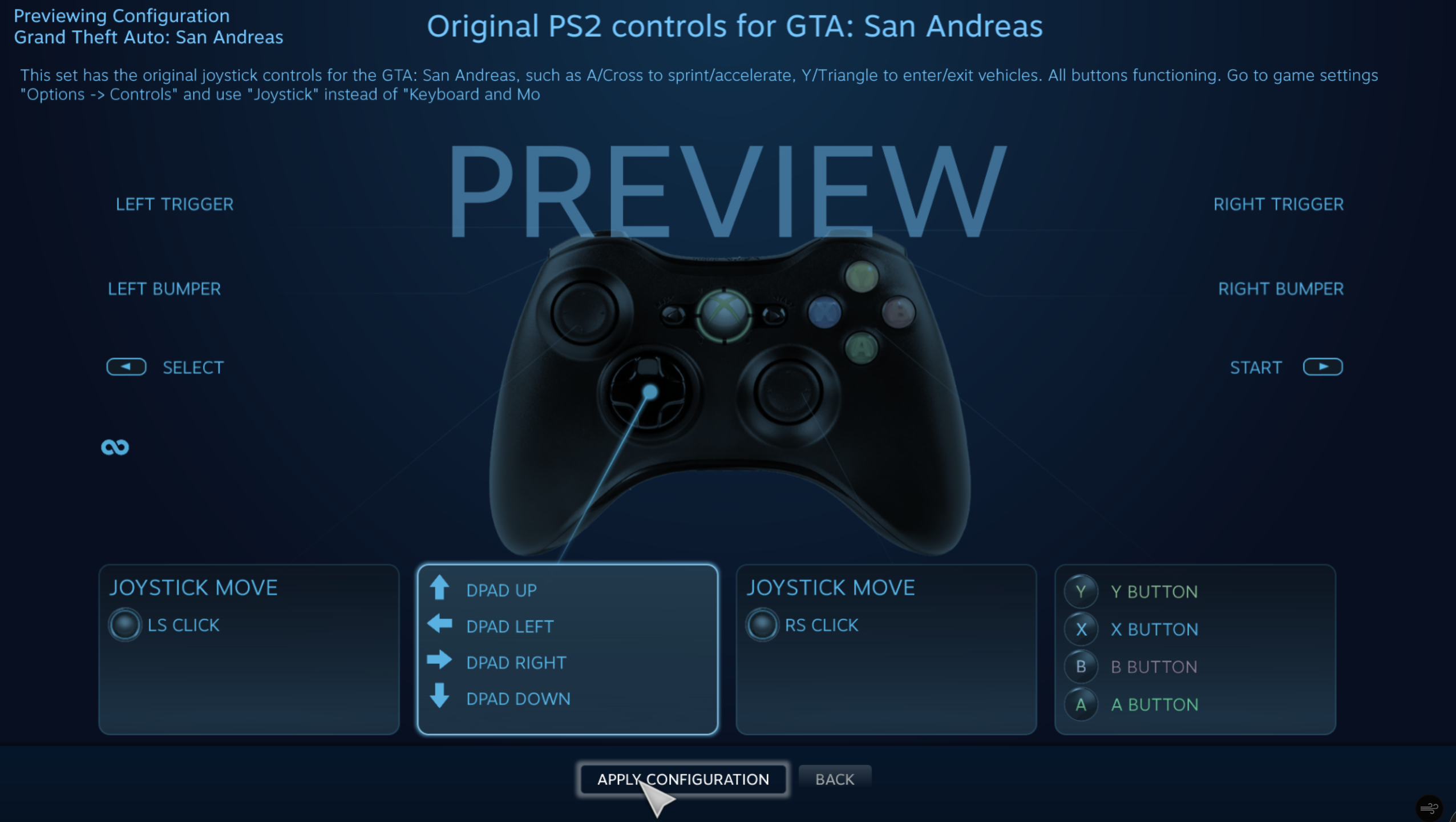
Click on "Original PS2 Controls for GTA: San Andreas.
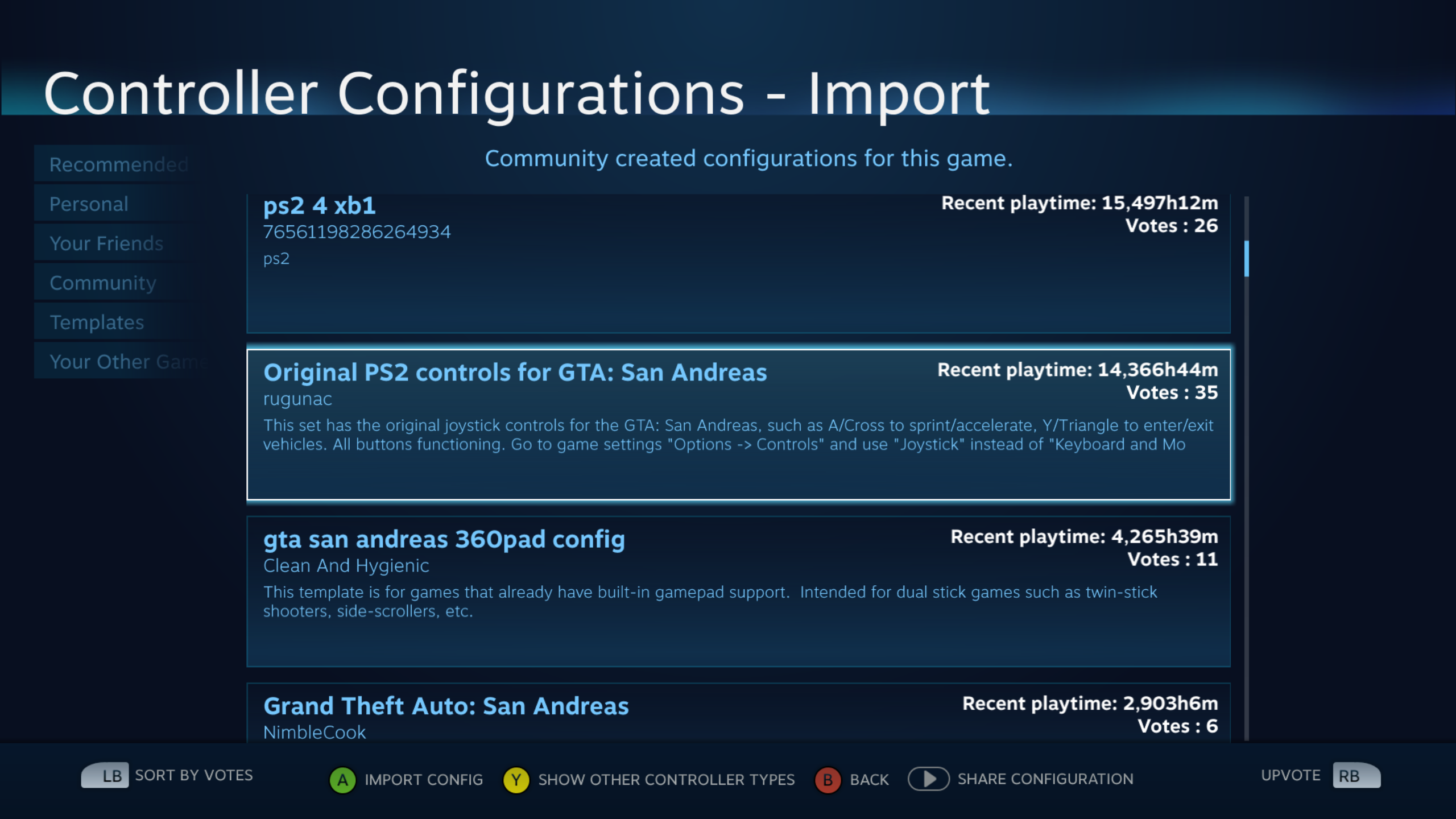
Click on Apply Configuration and enjoy the game the way it was meant to be played.
- Улучшаем GTA San Andreas★ 5 (3.9k)72k views4.6k ♥7 minRussianUpdated Jul 20, 2021
- Grand Theft Auto: San Andreas - The Improved Classic★ 5 (1.4k)56k views3.1k ♥5 minUpdated Oct 30, 2025
- Grand Theft Auto: San Andreas - Enhanced Edition★ 5 (1.6k)51k views2.2k ♥5 minUpdated Jun 28, 2020
- Grand Theft Auto San Andreas: Classic Edition★ 5 (1.5k)42k views3k ♥14 minRussianUpdated Jul 17
- GTA - San Andreas CHEATS★ 5 (1.5k)41k views2.4k ♥2 minUpdated Jan 4, 2024
- Silent Patch + Downgraders (SA)★ 5 (493)33k views861 ♥17 minUpdated Jan 3, 2020





- Upgrading to PremiumTeam Fortress 2★ 5 (20k)1441k views11k ♥6 minUpdated May 11, 2022
- No More Room in Hell Official ManualNo More Room in Hell★ 5 (2.8k)569k views2.1k ♥29 minUpdated Apr 22, 2019
- NMRiH Community Hosting GuidesNo More Room in Hell★ 5 (526)351k views653 ♥1 minUpdated Aug 10, 2022
- Лучшие кооперативные игры SteamPAYDAY 2★ 5 (1.5k)315k views2.1k ♥56 minRussianUpdated Apr 27, 2025
- Desert Eagle Heat Treated | Blue GemCounter-Strike 2★ 5 (1.6k)292k views1.5k ♥2 minUpdated Jan 16
- Treasure Hunt Puzzle SolutionsTotal War: WARHAMMER II★ 5 (6.9k)281k views15k ♥3 minUpdated Aug 19, 2021






This guide was created by its original author on the Steam Community. Are you the author and want it removed? Request removal.