OptiScaler Setup for AMD and Linux*Might work on Windows*
This is a simple step-by-step to getting OptiScaler working for RDR2 as of 1/3/26 using FSR 3.1.5 on a Linux PC.
Setup Derived from OptiScaler Wiki Compatibility for RDR2 [github.com]
- Remove any existing OptiScaler, nvapi spoofs, asi loader and dll files.(Or just clean install)
- Launch RDR2 and make sure you are on DX12 if you want the latest FSR. Vulkan also works just on FSR 3.1.4 instead of 5, also, it seems to be more stable and functional compared to DX12 from my testing.
- Extract OptiScaler files to game directory.(I used v0.7.9 [github.com]) and install for Optiscaler.asi with nvidia inputs.
- Download and extract fakenvapidll [github.com]to directory.
- Create a plugins folder in game directory then download and extract OptiPatcherasi [github.com]to that plugins folder.
- Download and extract dinput8dll [github.com]underneath Win64 to game directory.
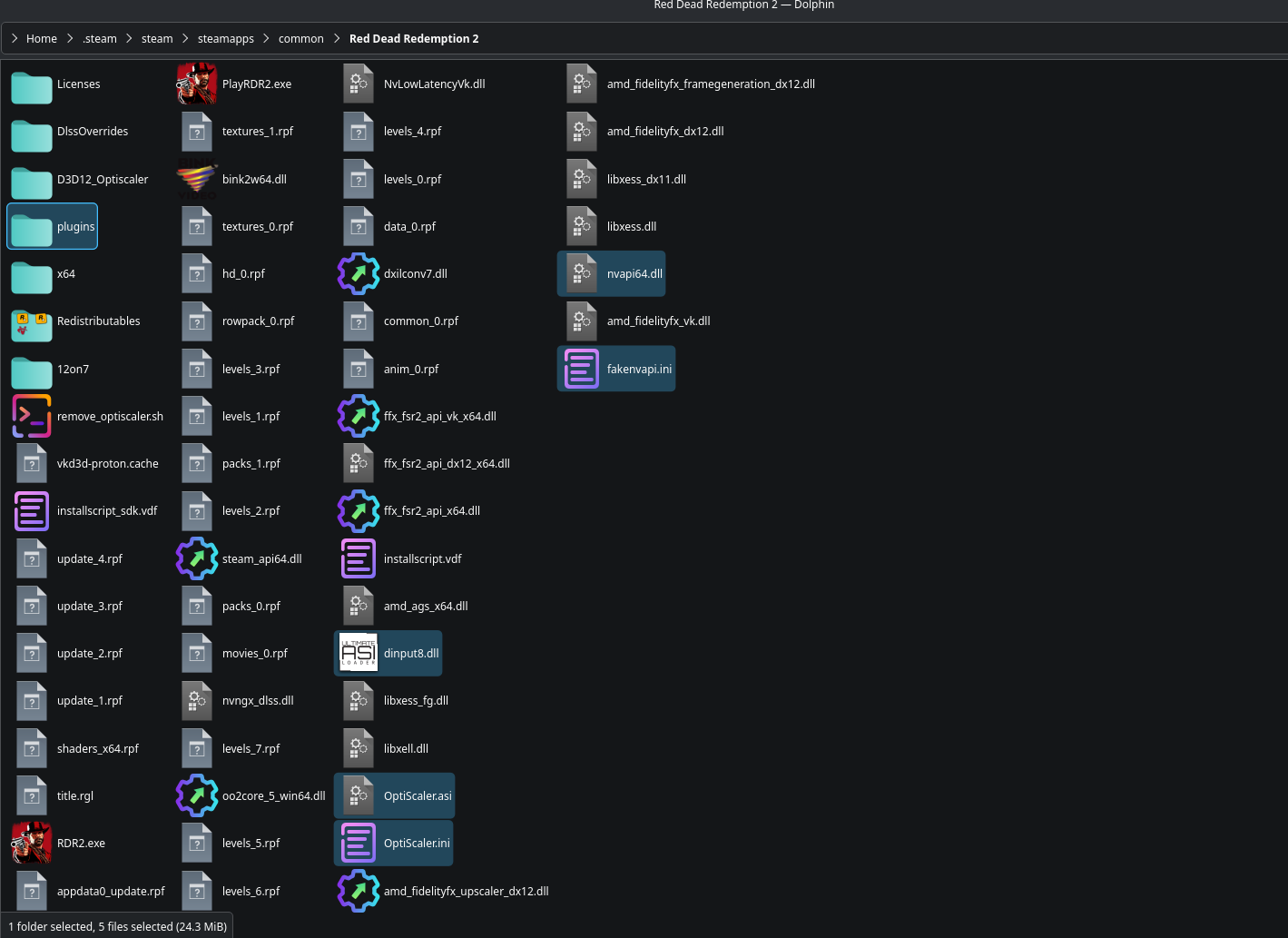
- At this point this is what your directory should look like:
- You should have your OptiScaler files, fakenvapi files and dinput8.dll inside the main directory
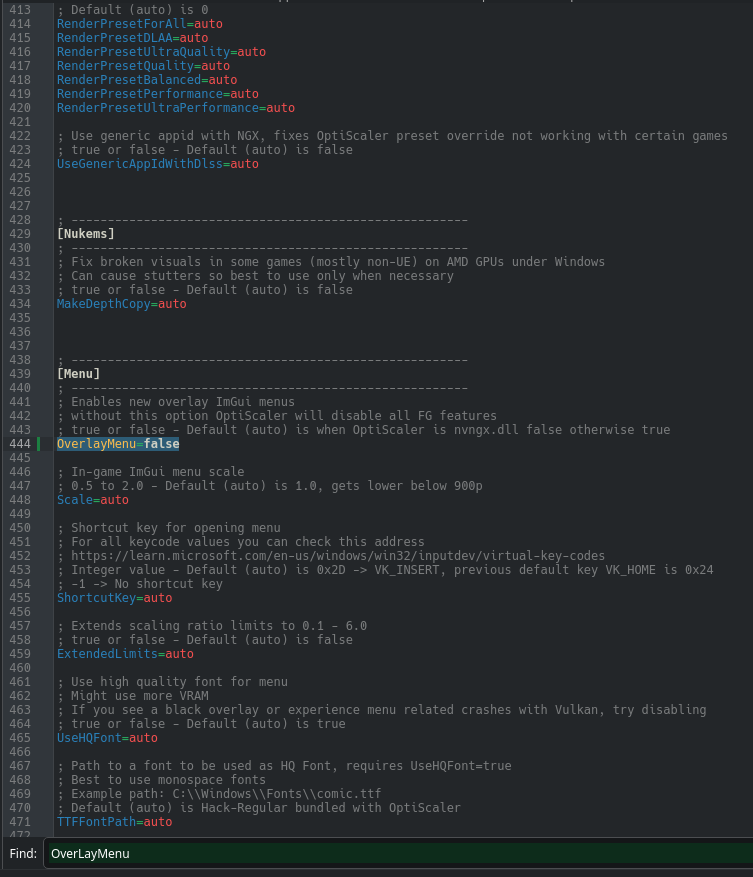
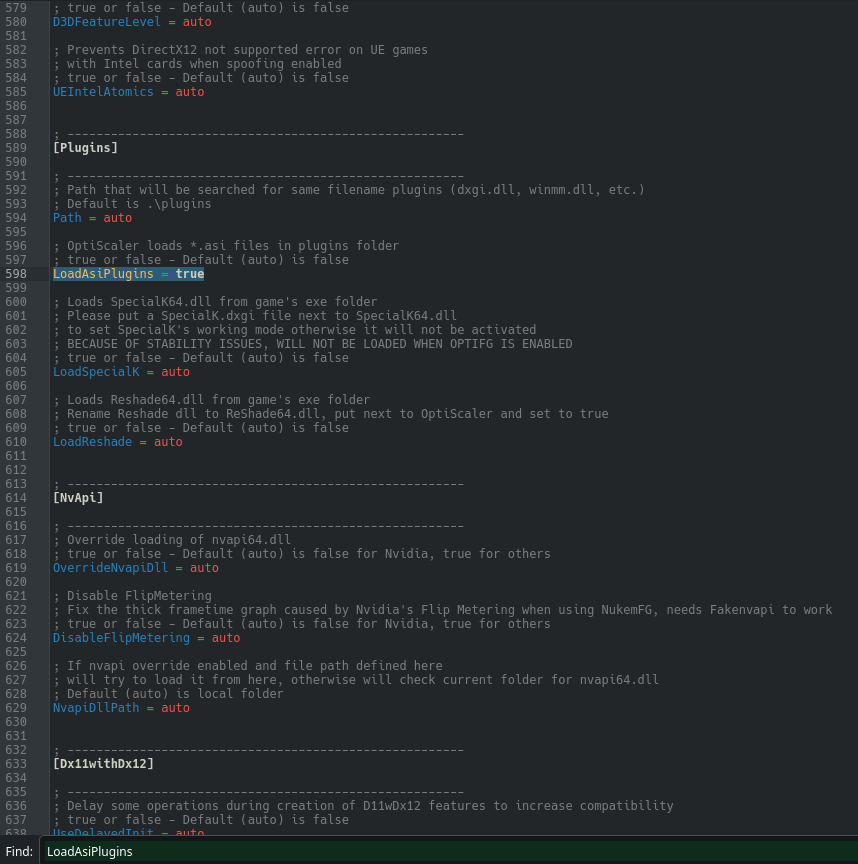
where RDR2.exe is and a plugins folder which includes the OptiPatcher asi file. - If you are running DX12, in your OptiScaler.ini find OverlayMenu and change its value from auto to false. You don't have to do this if you are using Vulkan.
Then find LoadAsiPlugins and change its value to true. - Now add this command to your launch option for RDR2: WINEDLLOVERRIDES="OptiScaler.asi,dinput8.dll,OptiPatcher_v0.38.asi=n,b" %command%
If you are on Windows, you can skip this step! - Launch the game, check and see if dlss is available in settings. ENABLE DLSS (Ultra Quality, Balanced, etc.), DO NOT USE FSR! ALSO, DISABLE V-SYNC AND TRIPLE BUFFERING! If you are running Vulkan, you should be able to open up the GUI in menu, albeit its useless without being in-game. Start story mode and when you load in, OptiScaler should be working by pressing the Insert key and you should be able to change your upscaler.
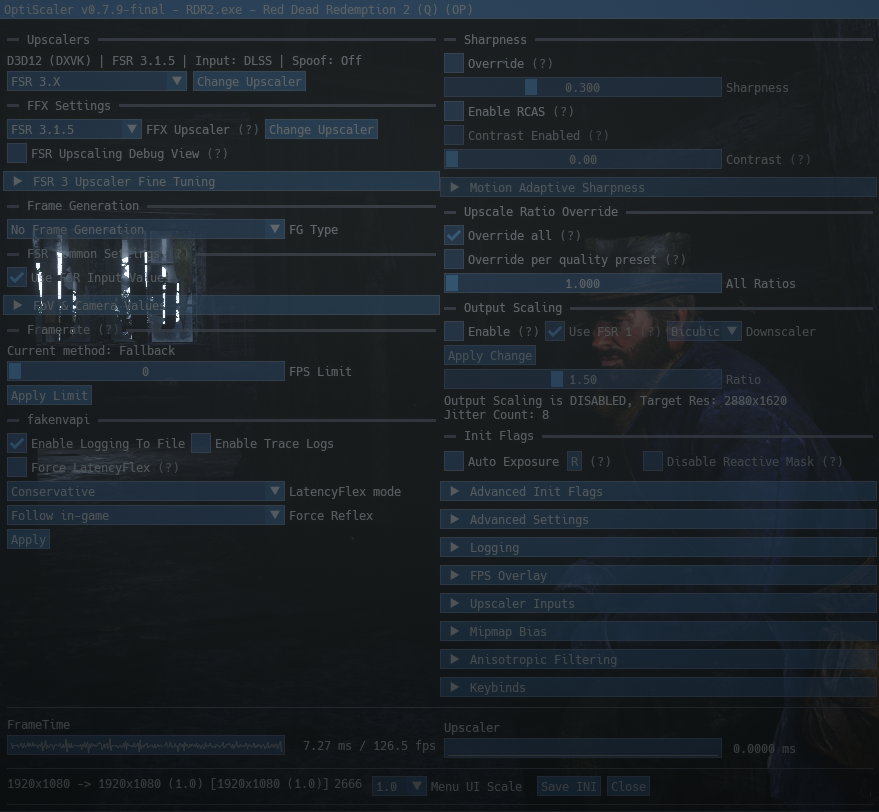
- DX12 currently does not render the GUI fully so you have to change the OverlayMenu=false. This results in a faded GUI which looks like this but is still fully functional:If done correctly you should see an (OP) at the top of the GUI, It should also say Spoof: OffThis is crucial, if you don't have an (OP) at the top of the GUI, you will come across lighting bugs and crashes in specific areas of the game. More on that is shown and discussed here. [github.com]Note:I didn't test this thoroughly meaning I didn't playthrough the game enough to see if its stable or not. I haven't been paying attention if OptiPatcher truly fixes this [github.com] or not. Testing and playing with OptiScaler/OptiPatcher would be much obliged. If you have any artifacts/bugs/crashes please open up a issue at OptiScaler [github.com] and OptiPatcher [github.com]

More Red Dead Redemption 2 guides
- 100% Achievement Guide for Red Dead Redemption II (including 100% game completion and Red Dead Online)★ 5 (1.9k)61k views4.6k ♥16 minUpdated Apr 12, 2020
- Карты для поиска животных в Red Dead Redemption 2 +Легендарные животные★ 5 (1.2k)52k views3.7k ♥1 minRussianUpdated May 25, 2021
- Полный гайд по испытаниям (Сюжетный режим)★ 5 (1.2k)52k views3.3k ♥33 minRussianUpdated Jun 27, 2020
- Карты сокровищ и тайники★ 5 (1.1k)42k views3.1k ♥7 minRussianUpdated May 17, 2020
- Hunting, Fishing, Perfect Pelts, Legendaries★ 5 (1.5k)39k views3.6k ♥16 minBulgarianUpdated Nov 25, 2025
- Достижения | Коллекции | Рецепты | Советы★ 5 (2.3k)38k views5.2k ♥46 minRussianUpdated Jun 29


🔥 Popular guides
- Upgrading to PremiumTeam Fortress 2★ 5 (20k)1441k views11k ♥6 minUpdated May 11, 2022
- No More Room in Hell Official ManualNo More Room in Hell★ 5 (2.8k)569k views2.1k ♥29 minUpdated Apr 22, 2019
- NMRiH Community Hosting GuidesNo More Room in Hell★ 5 (526)351k views653 ♥1 minUpdated Aug 10, 2022
- Лучшие кооперативные игры SteamPAYDAY 2★ 5 (1.5k)315k views2.1k ♥56 minRussianUpdated Apr 27, 2025
- Desert Eagle Heat Treated | Blue GemCounter-Strike 2★ 5 (1.6k)292k views1.5k ♥2 minUpdated Jan 16
- Treasure Hunt Puzzle SolutionsTotal War: WARHAMMER II★ 5 (6.9k)281k views15k ♥3 minUpdated Aug 19, 2021






This guide was created by its original author on the Steam Community. Are you the author and want it removed? Request removal.