PS3 Controller SCP Toolkit Driver - how to install properly
SCP Toolkit Driver selection
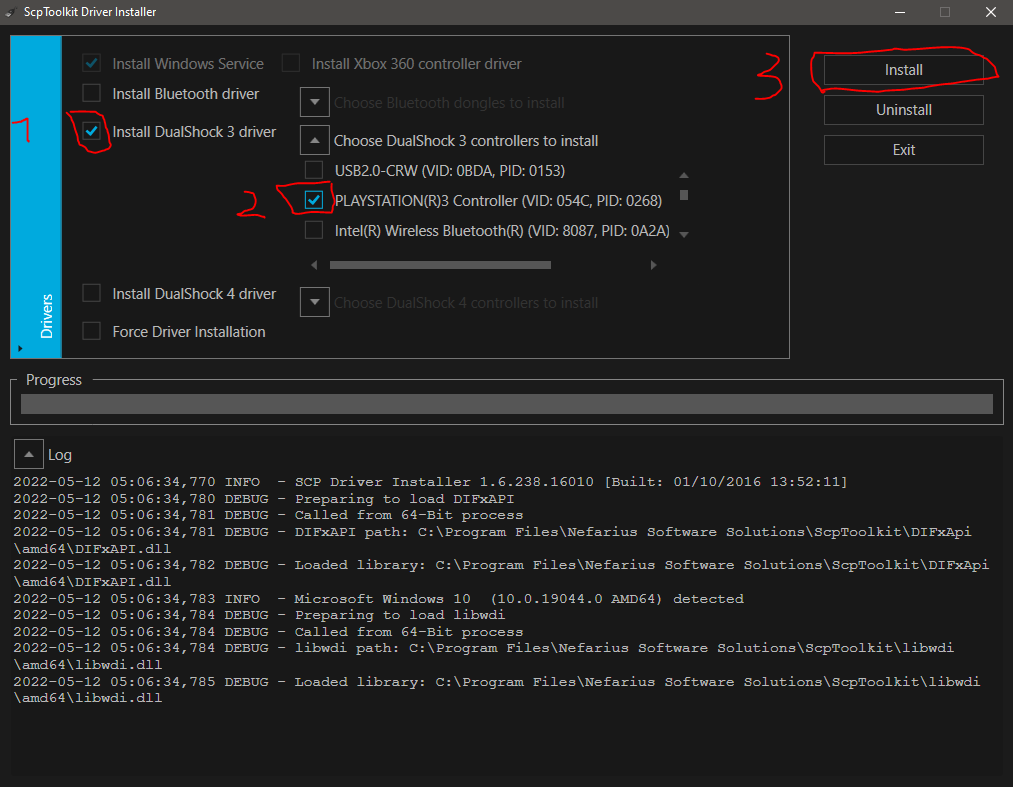
Do not forget to unplug the controller once, after you have successfully installed the driver like shown here. I replicated this step to make sure.
You can unplug it even while running Grim Dawn. After playing a short sound it should start working immediately. I recommend restarting the computer after any driver installation, but it does not seem necessary for the controller software to connect.
Once the controller gets connected you will notice the red bulbs numbering 1 to 4 on your controller will stop blinking as well.
You do never need to install the dualshock 4 driver (unless you have one), or the bluetooth driver if you plan to play with the cord.
As I mentioned, I haven't looked into how to make bluetooth work. As far as I know you would need to install the driver for bluetooth, as well as some physical bluetooth dongle on your computer. If you have any advice on this and want to share, I can give credit and link it to my guide.
Activate controller support under Grim Dawn keybinding options
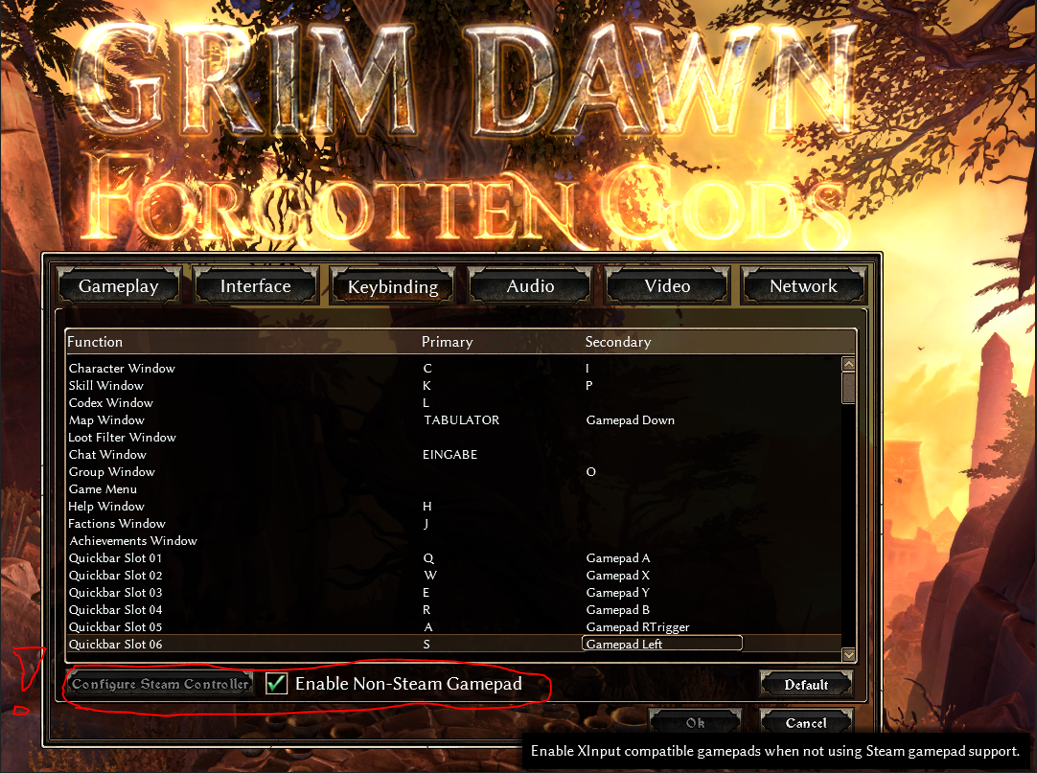
Even if it is greyed out as you are not using a steam controller, if you click on the button "configure steam controller", it will push you to desktop and bring up the steam controller settings like shown in the next picture below.
You can change some controls with the Grim Dawn keybindings, but some buttons will only be recognized through the steam controller settings.
Steam Controller Configuraton
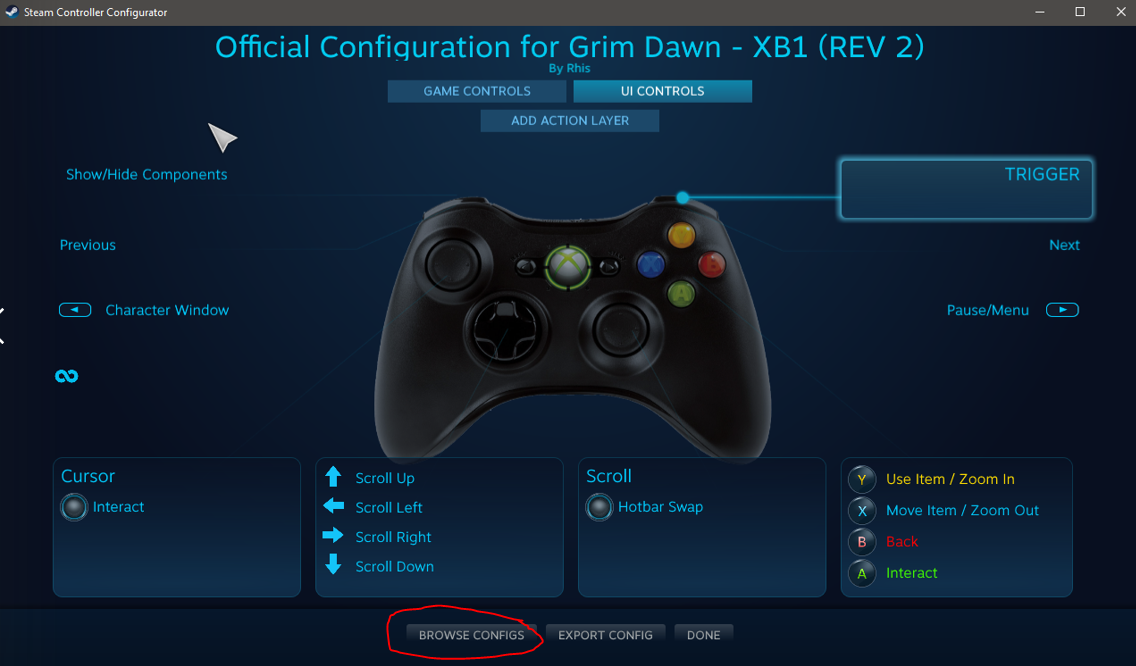
If you want to make personal changes, you can swap here between game and UI (user interface) controls to make changes. I do not think it is necessary. Just make sure to click the button I highlighted to import the preset as seen in the picture below.
Import Official Configuration for Grim Dawn - XB1 (REV 2)
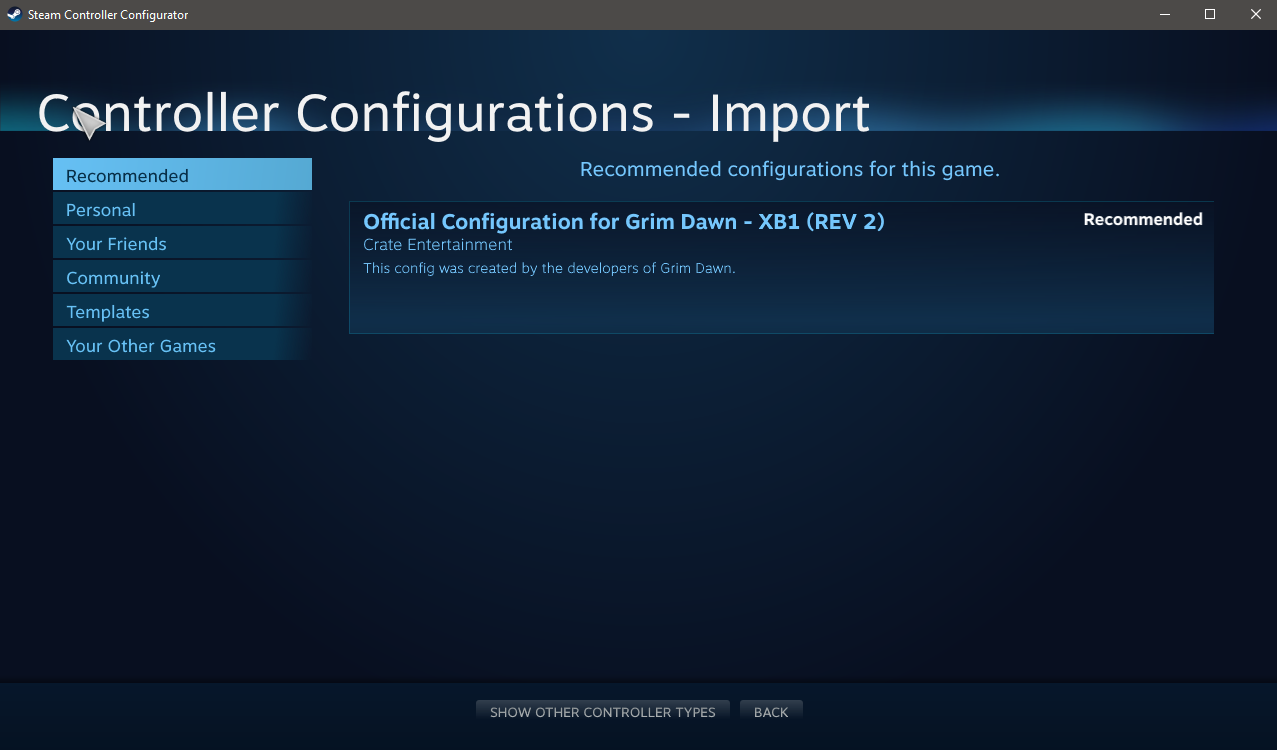
How to assign skills to your controller buttons
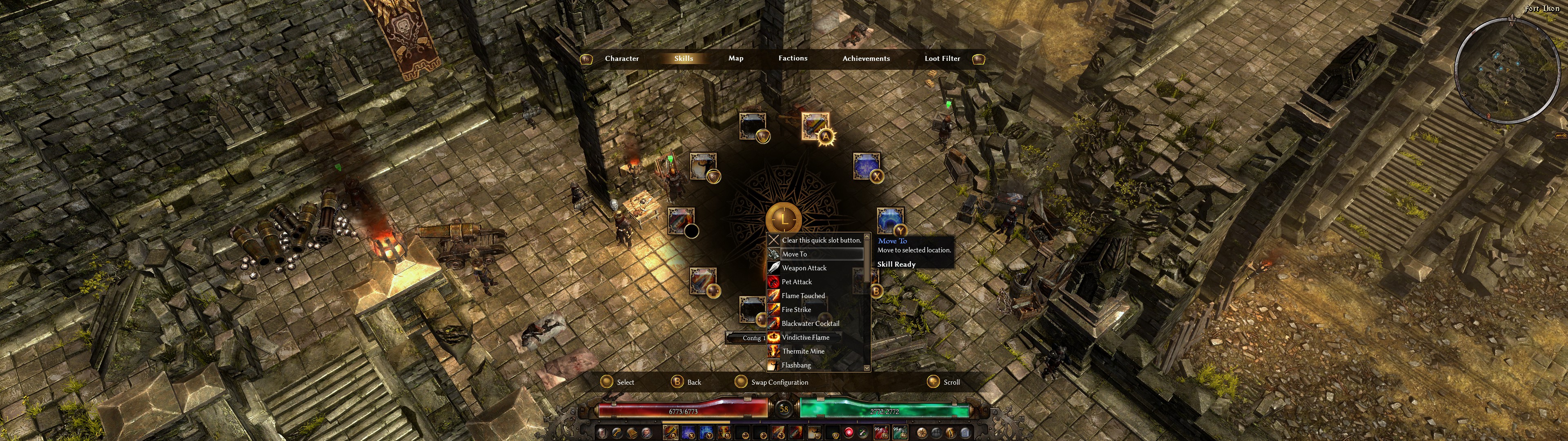
CLICK ON THE SCREENSHOT TO ENHANCE!
After you have loaded the mentioned steam controller preset for Grim Dawn above, you want to be able to individually assign your skills for each character quickly within the game.
To do this, press the select button on your PS3 controller to bring up your character screen.
Use your forefinger/pointer on the R1 button to navigate from the character screen to the skills tab. Then you just need to press your triangle button to bring up the menu.
It looks like a wheel menu to assign your skills for each button.
You can navigate this wheel menu with your arrow cross on the left side of your controller, or the game auxiliary function key L1 on the left (joystick rotation).
To bring up a list of all skills, navigate to the button you want to assign the skill to, then press the X button and scroll through the menu with your cross up and down keys to select your skill choice. Then confirm your selection by pressing X once more.
In the list of skills is also a selection marked with "X" >clear this quickslot button<, to remove any aciton from said key. You can always close the wheel menu or any other menu with your O button.
Final mention, you may feel confused when trying to assign buttons to your square and X button:
The square button on your controller is named X in the game, while the X button on your controller is named A. Either get used to it or try to change it through the steam controller configuration.
- Beginner's Guide to Skills★ 5 (1.1k)53k views2.3k ♥167 minUpdated Nov 4, 2021
- Devotion Shrines★ 5 (2.1k)43k views3.7k ♥5 minUpdated Nov 22, 2023
- How to start new games at level 15+★ 4 (161)30k views341 ♥6 minUpdated Jul 6, 2019
- Секретные Локации★ 5 (1.1k)27k views1.9k ♥8 minRussianUpdated Apr 20, 2017
- Lokarr - Secret Quest (AoM)★ 5 (549)26k views1k ♥10 minUpdated Oct 5, 2018
- Все возможные комбинации в Grim Dawn + Все DLC★ 4 (230)26k views359 ♥3 minRussianUpdated Dec 10, 2021




- Upgrading to PremiumTeam Fortress 2★ 5 (20k)1441k views11k ♥6 minUpdated May 11, 2022
- No More Room in Hell Official ManualNo More Room in Hell★ 5 (2.8k)569k views2.1k ♥29 minUpdated Apr 22, 2019
- NMRiH Community Hosting GuidesNo More Room in Hell★ 5 (526)351k views653 ♥1 minUpdated Aug 10, 2022
- Лучшие кооперативные игры SteamPAYDAY 2★ 5 (1.5k)315k views2.1k ♥56 minRussianUpdated Apr 27, 2025
- Desert Eagle Heat Treated | Blue GemCounter-Strike 2★ 5 (1.6k)292k views1.5k ♥2 minUpdated Jan 16
- Treasure Hunt Puzzle SolutionsTotal War: WARHAMMER II★ 5 (6.9k)281k views15k ♥3 minUpdated Aug 19, 2021






This guide was created by its original author on the Steam Community. Are you the author and want it removed? Request removal.