FF7 PC 2013 Steam Version - Xbox Controller Fix
Requirements
This section allows you to fully use the controller's DPad and X keyboard key.
- Steam Controller Configurator (Steam Input must be enabled)
Disable Steam Input when using these alternatives:
- AntiMicroX[github.com]
- JoyToKey[joytokey.net]
Instructions - Steam Controller Configurator
- Open the Run dialog (⊞ Win+R) then enter "joy.cpl" and click "OK".
- Click "Advanced..." > set Preferred Device > select the "Controller (Xbox 360 For Windows)" or any XInput equivalent device.
- Launch Steam.
- Right Click the game on Steam Library > Properties > Controller > Enable Steam Input > Controller Configurator.
- Select Template > Gamepad > Apply Template > Edit Layout then follow these button mappings in order:[Buttons] B: X [DPad] DPad Up: Up Arrow DPad Right: Right Arrow DPad Left: Left Arrow DPad Down: Down Arrow [Triggers] R Trigger: End L Trigger: Home
NOTE: This configuration uses the default Keyboard settings in the Launcher. - Click "Back" and it will save the configuration then head back to the Steam Library.
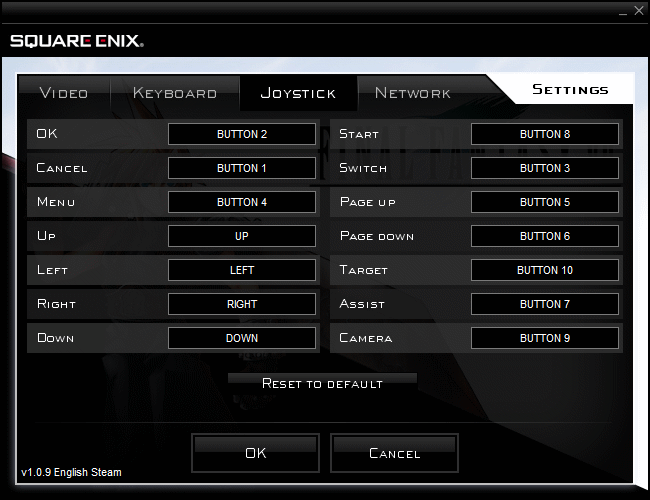
- Launch the game > Settings > Joystick and set the following keybinds for the controller:OK = B CANCEL = A MENU = Y START = Start SWITCH = X PAGE UP = LB PAGE DOWN = RB TARGET = RT ASSIST = Back CAMERA = LT
NOTE:
- This configuration uses the PlayStation 1 controls including the Steam Layout used for the Buttons.
- The Launcher doesn't detect the Trigger inputs, only the Thumbstick buttons. - Click "OK" to save the configuration.
- Click "Play" on the launcher to test the game.
- Press Circle to proceed to the "Keyboard" blue prompt since it is now bound to the Keyboard key "X".
Optional: AntiMicroX
- Run AntiMicroX as Administrator and connect your controller.
- Click Options > Settings and enable "Attach the numeric keyboard".
- Set the corresponding buttons:DPad Up: Up Arrow DPad Down: Down Arrow DPad Left: Left Arrow DPad Right: Right Arrow L Trigger: Home R Trigger: End B: X
NOTE: This configuration uses the default Keyboard settings in the Launcher. - Save the profile and keep the program running.
- Proceed to Step 1, 2 and 7 onwards of "Instructions - Main"
NOTE: Only close the program when not playing the game.
Optional: JoyToKey
- Run JoyToKey as Administrator and connect your controller.
- Click File > New and enter a profile name.
- Set the corresponding buttons:POV Up: Up Arrow POV Down: Down Arrow POV Left: Left Arrow POV Right: Right Arrow Button[2]: X Button[11]: Home Button[12]: End
NOTE: This configuration uses the default Keyboard settings in the Launcher. - Save the profile and keep the program running.
- Proceed to Step 1, 2 and 7 onwards of "Instructions - Main"
NOTE: Only close the program when not playing the game.
Hope this guide helped you out
More FINAL FANTASY VII (2013) guides
- Final Fantasy 7 Full Guide★ 5 (2.7k)51k views7k ♥137 minUpdated Jul 10, 2018
- Permanent Missable Content related to Achievements★ 5 (1.3k)39k views3.3k ♥15 minUpdated 3 Mar, 2019
- Remaster your FF7 - Essential Modding Guide★ 5 (623)38k views1.7k ♥23 minUpdated 24 Feb
- Materia Overlord Achievement Guide★ 5 (1.3k)35k views2.4k ♥18 minUpdated Jan 7, 2017
- Final Fantasy 7: Enemy Skill Guide★ 5 (690)34k views1.7k ♥17 minUpdated 12 May, 2016
- FINAL FANTASY VII STEAM 100% ACHIEVEMENT★ 5 (701)28k views1.8k ♥18 minUpdated 3 Jul, 2023


🔥 Popular guides
- Upgrading to PremiumTeam Fortress 2★ 5 (20k)1441k views11k ♥6 minUpdated May 11, 2022
- No More Room in Hell Official ManualNo More Room in Hell★ 5 (2.8k)569k views2.1k ♥29 minUpdated Apr 22, 2019
- NMRiH Community Hosting GuidesNo More Room in Hell★ 5 (526)351k views653 ♥1 minUpdated Aug 10, 2022
- ULTIMATE GUIDE FOR GAME DEV TYCOONGame Dev Tycoon★ 5 (5.8k)326k views10k ♥4 minUpdated 23 Jan, 2014
- How to 'Git Gud' Soon™MORDHAU★ 5 (2k)318k views3k ♥68 minUpdated Nov 16, 2024
- Лучшие кооперативные игры SteamPAYDAY 2★ 5 (1.5k)315k views2.1k ♥56 minRussianUpdated Apr 27, 2025






This guide was created by its original author on the Steam Community. Are you the author and want it removed? Request removal.