XInput (Xbox Controller) Support Fix
Introduction
Both problems are derived from the game just being a very lazy "remaster" from the original 98 PC release for Windows 95 and the support for DInput Controllers (An API used many years ago, usually found on old controllers) but not for the new standard, XInput(The API the Xbox Controllers use).
Controller Fix
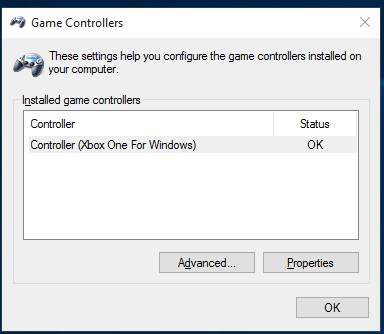
Open the Windows search box and write "Game Controllers", once there just click "Advanced..." and select "Xbox 360 for Windows (Controller)" or "Controller (Xbox One for Windows)" depending on the model you have, the click "Ok" and the game should recognize your controller the next time you open it.
Xinput Layout Fix
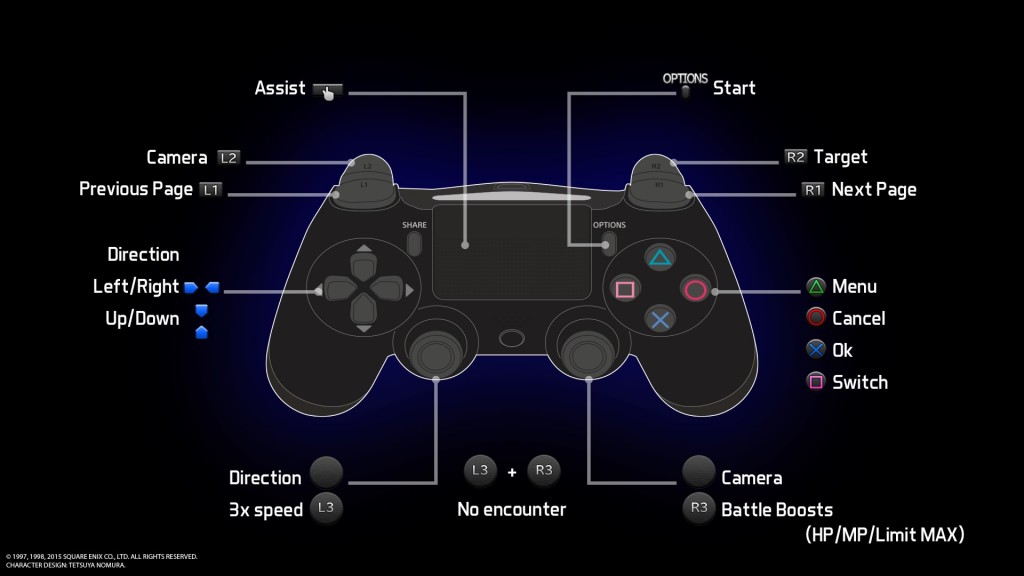
Manual XInput Layout Fix
If the file link is down, you just don't want trust this guide enough to download it, or just want to configure some options by yourself you can just follow these steps:
First of all download XInputPlus[sites.google.com], the page is in Japanese, but the program is in english, just click on the latest version of XinputPlus to download ti.
Then extract the program and run it as Administrator and select the Final Fantasy VII executable found in "C:/Program FIles(x86)/Steam/SteamApps/Common/FINAL FANTASY VII/ff7.exe".
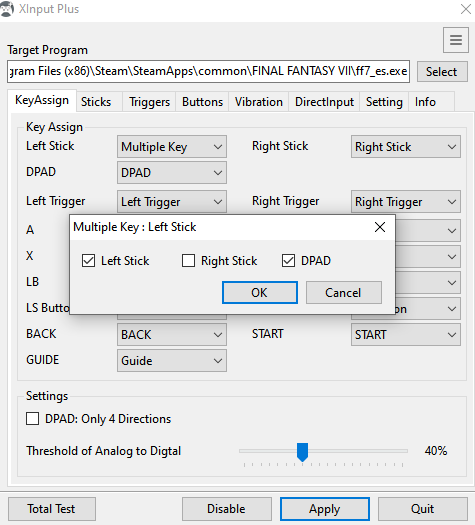
To make the D-Pad work go to the first tab of XInputPlus, "KeyAssing" and in the "Left Stick" box select "Multiple Key", then tick "Left Stick" and "DPAD" and click "Ok". This will make the D-Pad work as the Left Stick, that way you can move and navigate the menus with both the D-Pad and the Left Stick.
As for the triggers, go to the "DirectInput" tab and tick "Enable DirectInput Output", then click on "Customize" and we would make the next changes:
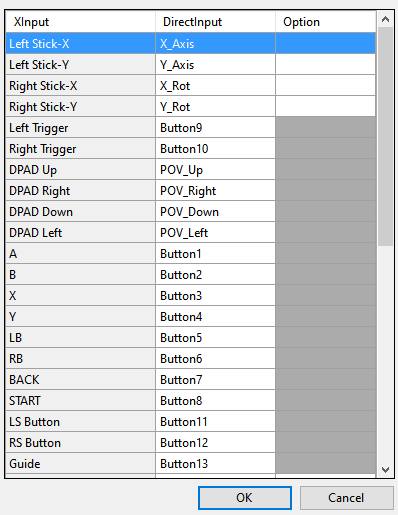
Left Trigger -> Button9
Right Trigger -> Button10
LS -> Button11
RS -> Button12
Something you should to take into account that Final Fantasy VII only accepts DInput controllers with up to 10 buttons, which means that with this configuration we will lose the ability to use LS and RS(L3 and R3) in this game, the original layout didn't use them anyways thoght.
Finally just click "Apply" and the changes should be effective the next time you boot the game.
The last step is to configure the controller controls on the launcher the same way as the rest of versions of the game:
PD: Remember that the first screen of the game, the blue one with the controls, have to be skipped with the keyboard "X", then you can play the entire game with the controller.
- Final Fantasy 7 Full Guide★ 5 (2.7k)51k views7k ♥137 minUpdated Jul 10, 2018
- Permanent Missable Content related to Achievements★ 5 (1.3k)39k views3.3k ♥15 minUpdated 3 Mar, 2019
- Remaster your FF7 - Essential Modding Guide★ 5 (623)38k views1.7k ♥23 minUpdated 24 Feb
- Materia Overlord Achievement Guide★ 5 (1.3k)35k views2.4k ♥18 minUpdated Jan 7, 2017
- Final Fantasy 7: Enemy Skill Guide★ 5 (690)34k views1.7k ♥17 minUpdated 12 May, 2016
- FINAL FANTASY VII STEAM 100% ACHIEVEMENT★ 5 (701)28k views1.8k ♥18 minUpdated 3 Jul, 2023


- Upgrading to PremiumTeam Fortress 2★ 5 (20k)1441k views11k ♥6 minUpdated May 11, 2022
- No More Room in Hell Official ManualNo More Room in Hell★ 5 (2.8k)569k views2.1k ♥29 minUpdated Apr 22, 2019
- NMRiH Community Hosting GuidesNo More Room in Hell★ 5 (526)351k views653 ♥1 minUpdated Aug 10, 2022
- ULTIMATE GUIDE FOR GAME DEV TYCOONGame Dev Tycoon★ 5 (5.8k)326k views10k ♥4 minUpdated 23 Jan, 2014
- How to 'Git Gud' Soon™MORDHAU★ 5 (2k)318k views3k ♥68 minUpdated Nov 16, 2024
- Лучшие кооперативные игры SteamPAYDAY 2★ 5 (1.5k)315k views2.1k ♥56 minRussianUpdated Apr 27, 2025






This guide was created by its original author on the Steam Community. Are you the author and want it removed? Request removal.