Fix all the issues that come with AC1, all in one guide
Disclaimer
Hi
My story
After about 70 minutes (spread over 24 hours!) of trying to play the game, i did a bunch of research and tried a few different settings etc and finally got the game running. As I put so much work into getting it to run, I thought I would post my findings here to see if it helps anyone else out.
Disclaimer - I am not trying to steal anyone else's guides!
I believe some of these issues are already posted here on the steam guides page, but I found that some of the content in other guides were either incomplete or straight-up didn't work for me. If there are any similarities between this guide and another, it is only because the same issue someone else had was fixed the same way. I promise all the text here is typed by myself and by my own research, and I am sorry if it looks similar to anyone else's information
For the safety bit:
While I did used to be employed as an IT Analyst, I am in no way an expert at advising others how to change their devices settings. If you ever feel unsure about doing something, please do some of your own research before taking other peoples advice!. There is a myriad of information available out there which is designed to help people when they feel lost doing something! Anything you do below can very easily be reverted to original settings if you are unsure/unhappy
My story
After about 70 minutes (spread over 24 hours!) of trying to play the game, i did a bunch of research and tried a few different settings etc and finally got the game running. As I put so much work into getting it to run, I thought I would post my findings here to see if it helps anyone else out.
Disclaimer - I am not trying to steal anyone else's guides!
I believe some of these issues are already posted here on the steam guides page, but I found that some of the content in other guides were either incomplete or straight-up didn't work for me. If there are any similarities between this guide and another, it is only because the same issue someone else had was fixed the same way. I promise all the text here is typed by myself and by my own research, and I am sorry if it looks similar to anyone else's information
For the safety bit:
While I did used to be employed as an IT Analyst, I am in no way an expert at advising others how to change their devices settings. If you ever feel unsure about doing something, please do some of your own research before taking other peoples advice!. There is a myriad of information available out there which is designed to help people when they feel lost doing something! Anything you do below can very easily be reverted to original settings if you are unsure/unhappy
Disable start-up videos
The problem
The start-up sequence (mainly, the Ubisoft logo video) has caused many people to crash. In the twelve times i booted the game up while experimenting with settings, my game crashed twice loading the Ubi logo!
The fix
Go to your game's video folder. It will be in your steam directory. My path is below, but yours may differ depending on where you have configured it to be:
D:\Steam\steamapps\common\Assassins Creed\Videos
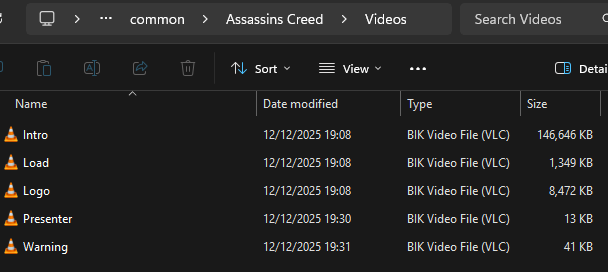
In here, simply rename the videos to whatever you want. For example, i just changed them to "Intro", "Load", "Logo", "Presenter", "Warning", as in the below screenshot (you can probably delete them instead, but i left them there in case it causes other files to act badly).
What this does
When you boot the game up, the start-up code for the game tries to read the variables so it knows what videos to load, and in what order. With the names of the video files changed, the code cannot read the variables so skips the process and goes directly to the main menu screen. Not only does this save you about 50 seconds of loading time, but it also prevents the possibility of the "UBI_LOGO" video crashing the game and stuttering so badly, which multiple users have reported
The start-up sequence (mainly, the Ubisoft logo video) has caused many people to crash. In the twelve times i booted the game up while experimenting with settings, my game crashed twice loading the Ubi logo!
The fix
Go to your game's video folder. It will be in your steam directory. My path is below, but yours may differ depending on where you have configured it to be:
D:\Steam\steamapps\common\Assassins Creed\Videos
In here, simply rename the videos to whatever you want. For example, i just changed them to "Intro", "Load", "Logo", "Presenter", "Warning", as in the below screenshot (you can probably delete them instead, but i left them there in case it causes other files to act badly).
What this does
When you boot the game up, the start-up code for the game tries to read the variables so it knows what videos to load, and in what order. With the names of the video files changed, the code cannot read the variables so skips the process and goes directly to the main menu screen. Not only does this save you about 50 seconds of loading time, but it also prevents the possibility of the "UBI_LOGO" video crashing the game and stuttering so badly, which multiple users have reported
Fix for pausing every 2-3 minutes for 1.5-3 seconds
The problem
The game was set up by the developers to send player statistics to a server. This server has been out of commission for... I don't even know how long. I would guess like 10-15 years! Unfortunately, the developers never removed the part of the code that forces your game to try and connect to these servers for sending your statistics. As a result, the game will quickly freeze every couple of minutes while it attempts to connect. Not a game killer, but extremely annoying!
The disclaimer
This can seem like a lot to someone who has no experience of adjusting computer files. While i can assure you that the process is safe and worked (for me), I can also understand if you are unsure and/or nervous about something like this. Please do your own research if you are not confident! I completely understand that not everyone wants to go around adjusting computer files because someone on Steam said it would be fine! For those of you familiar with adjusting permission settings, AD or other bits, this will take you about 2 minutes to do.
IMPORTANT NOTE I have not tested running any later AC games since I have done this. It is possible, however unlikely, that adding these addresses to your host file could stop other AC titles connecting to the server, whether for good or for bad. If i test that in the future and realise this does affect it, I will update this guide. If it does not do anything, all should be good.
If you do notice issues with server connections on other AC titles, simply put a # before every line of IP address that we add below. This turns the lines of codes into comments without removing them from the file, so you can simply "turn the feature on and off" as you will.
The fix - Part 1
Firstly, there are technically two fixes for this - the first fix will take you about 5 seconds - disable your internet on your device! Simply turn off your wi-fi or unplug your network cable, and the game will not attempt to connect to the servers that no longer exist.
For everyone who doesn't want to have to turn off their internet to play an offline, single player game, read on.
As you are about to change a system folder, you will likely need to change your permission to edit files here (even if you are already the admin for your device). System files do not usually fall under the same settings as a basic admin account, to protect your system from accidental adjustments.
The way I did this was to open up the properties window of the "etc" folder, which you should find in path as below:
C:\Windows\System32\drivers\etc
Open up the properties window of the page (Right Click > Properties or press your Alt key and the Enter key together), click the Security tab at the top of the window, and then click "Advanced" near the bottom. Next, click "Change" next to the current Owner.
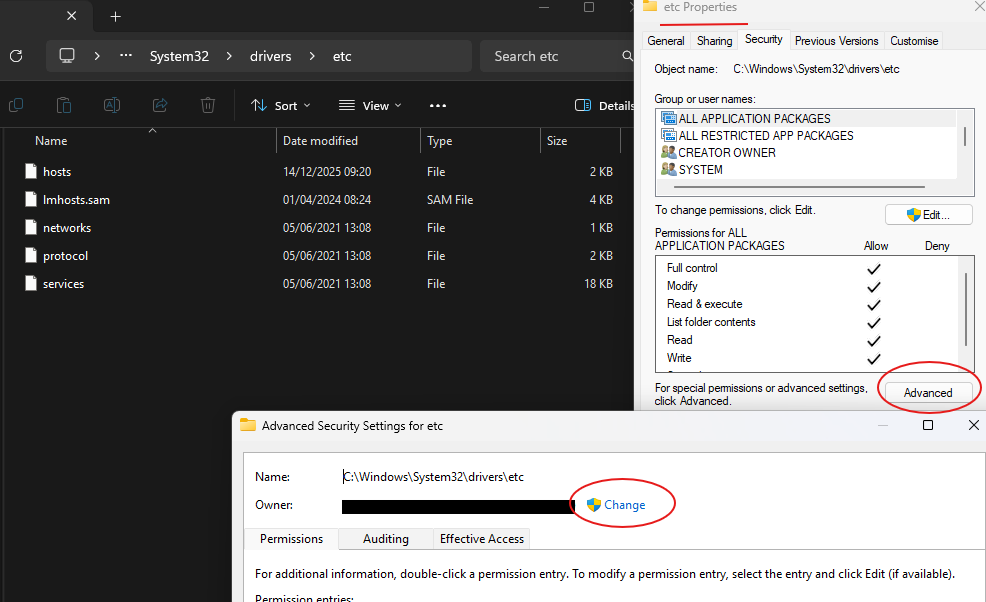
In the small window that pops up, start typing in your admin or user account and click Check Names. If you are unsure, or it doesn't seem to find anything, click the "Advanced" button on the bottom left of the small window, and then click Find Now in the middle-right of the next window. A bunch of users, groups etc will appear in the list at the bottom and you can select which ever you need. I just used my 'Administrators" account I think,
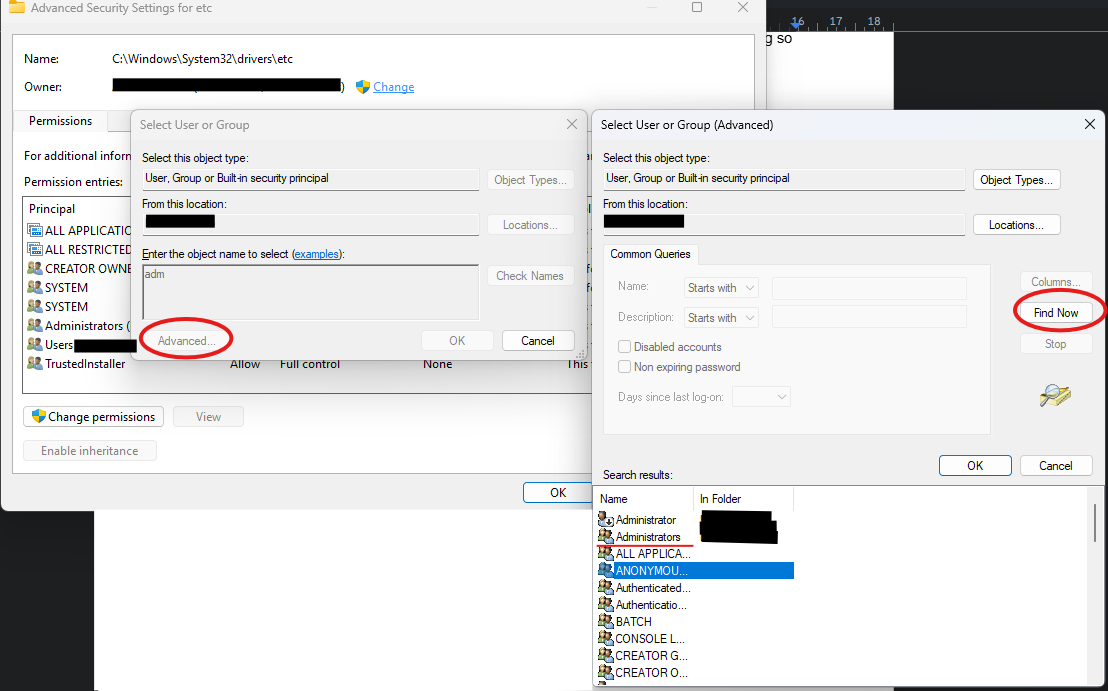
Once done, click OK to go back to the Advanced Security Settings window where the Owner is, and click Apply at the bottom of the page. In theory, this should be all you need to do in order to open the file as an administrator, but I adjusting the settings to make sure I have Full Control As the first time i did this, it didn't seem to take and i still had the freezing glitch every now and then (although i did also add some more IP addresses at the same time!), To do this, you need to close and reopen the properties window by clicking OK, closing the properties window and reopening the properties window for the 'etc' folder. Now click the security tab as before, click Advanced again and you should be back on the page with the Owner.
Find the Admin or user account you changed the owner to in the list, click it then click Edit,
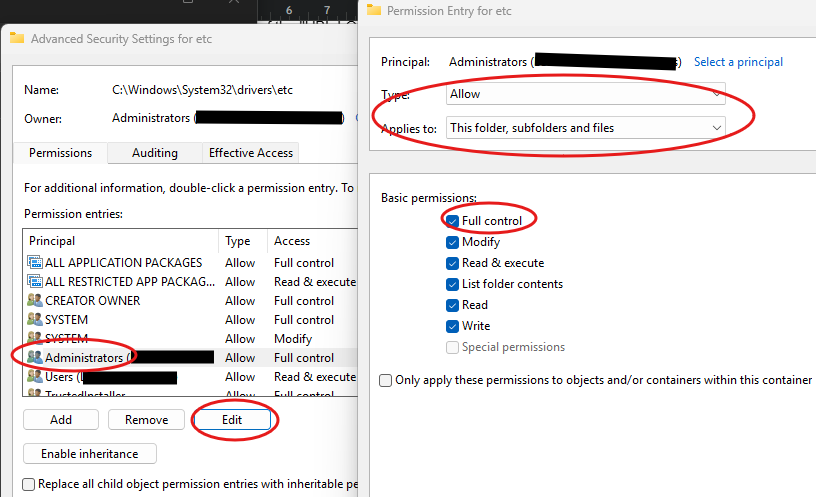
Double check you are adjusting the permission to allow for all subfiles in etc, tick "Full Control" and then click OK. Click Apply (you'll get a warning about changing system files, click yes). Click OK, close the properties window and you can finally edit the hosts file! It seems like a lot - if you are at all familiar with adjusting computer files, you'll fly through it in 2 minutes. Note that this will only give you the ability to adjust files in your "etc" folder, not the rest of your device.
The fix - Part 2
Open your hosts file with your preferred editor - I used "Visual Studio Code" as I have that installed for other things, but "Notepad" is fine for adjusting a small file like this. You want to add the below lines into the bottom of the text file. A little info if you are curious - The # symbol and everything else following it on the same line is classed as a "comment". this means any text on that same line will not be read as code. You will notice that the # symbol is on all the lines currently in the file; that means it is currently doing nothing :) This just helps you identify areas that you add to code, so you know what you have done, where you have done it and what the code does. You can either add the comment (or just addresses) that i have put below at the end, or completely remove all the text currently in the file. up to you!
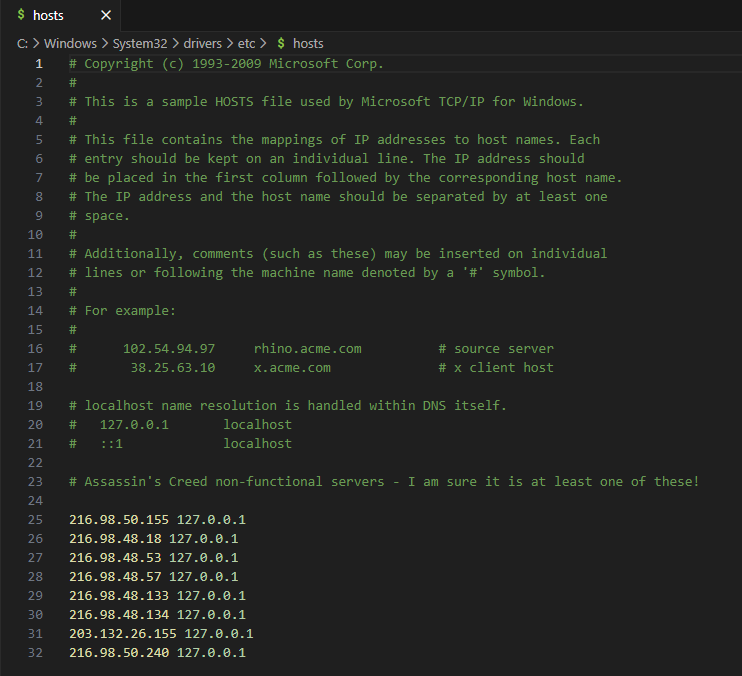
With that said, the only thing that needs to remain correct in the below information are the numbers and dots, with a space between the end of the IP address and the beginning of the 127.0.0.1. Also, ensure all the addresses are on separate lines as below. Literally just copy and paste the below as you see fit, and it should match my below screenshot (your appearance will differ depending on the tool you used to edit the file).
# Assassin's Creed non-functional servers - I am sure it is at least one of these!
203.132.26.155 127.0.0.1
216.98.48.18 127.0.0.1
216.98.48.53 127.0.0.1
216.98.48.57 127.0.0.1
216.98.48.133 127.0.0.1
216.98.48.134 127.0.0.1
216.98.50.155 127.0.0.1
216.98.50.240 127.0.0.1
Once done, click File > Save and you are done!
What this does
What I have guided you through is how to adjust settings so that you can adjust a system file in your windows folder. Once you enter those addresses, you are essentially telling your PC to ignore any attempts to connect to those IP addresses. Instead of the game trying to connect to a disused server, windows will just say "Oi, no, stop it" no more pausing every couple of minutes! I suspect only one or two of those addresses are actually required, but i kept trying one at a time and it wasn't working, so I added every address i could find that seems to relate the old AC servers. As I mentioned up top, I am unsure if this will affect other AC titles for better or worse. You will need to comment out the addresses with a # symbol at the beginning of each line if you have negative affects on other titles (or delete the lines entirely if you prefer).
The game was set up by the developers to send player statistics to a server. This server has been out of commission for... I don't even know how long. I would guess like 10-15 years! Unfortunately, the developers never removed the part of the code that forces your game to try and connect to these servers for sending your statistics. As a result, the game will quickly freeze every couple of minutes while it attempts to connect. Not a game killer, but extremely annoying!
The disclaimer
This can seem like a lot to someone who has no experience of adjusting computer files. While i can assure you that the process is safe and worked (for me), I can also understand if you are unsure and/or nervous about something like this. Please do your own research if you are not confident! I completely understand that not everyone wants to go around adjusting computer files because someone on Steam said it would be fine! For those of you familiar with adjusting permission settings, AD or other bits, this will take you about 2 minutes to do.
IMPORTANT NOTE I have not tested running any later AC games since I have done this. It is possible, however unlikely, that adding these addresses to your host file could stop other AC titles connecting to the server, whether for good or for bad. If i test that in the future and realise this does affect it, I will update this guide. If it does not do anything, all should be good.
If you do notice issues with server connections on other AC titles, simply put a # before every line of IP address that we add below. This turns the lines of codes into comments without removing them from the file, so you can simply "turn the feature on and off" as you will.
The fix - Part 1
Firstly, there are technically two fixes for this - the first fix will take you about 5 seconds - disable your internet on your device! Simply turn off your wi-fi or unplug your network cable, and the game will not attempt to connect to the servers that no longer exist.
For everyone who doesn't want to have to turn off their internet to play an offline, single player game, read on.
As you are about to change a system folder, you will likely need to change your permission to edit files here (even if you are already the admin for your device). System files do not usually fall under the same settings as a basic admin account, to protect your system from accidental adjustments.
The way I did this was to open up the properties window of the "etc" folder, which you should find in path as below:
C:\Windows\System32\drivers\etc
Open up the properties window of the page (Right Click > Properties or press your Alt key and the Enter key together), click the Security tab at the top of the window, and then click "Advanced" near the bottom. Next, click "Change" next to the current Owner.
In the small window that pops up, start typing in your admin or user account and click Check Names. If you are unsure, or it doesn't seem to find anything, click the "Advanced" button on the bottom left of the small window, and then click Find Now in the middle-right of the next window. A bunch of users, groups etc will appear in the list at the bottom and you can select which ever you need. I just used my 'Administrators" account I think,
Once done, click OK to go back to the Advanced Security Settings window where the Owner is, and click Apply at the bottom of the page. In theory, this should be all you need to do in order to open the file as an administrator, but I adjusting the settings to make sure I have Full Control As the first time i did this, it didn't seem to take and i still had the freezing glitch every now and then (although i did also add some more IP addresses at the same time!), To do this, you need to close and reopen the properties window by clicking OK, closing the properties window and reopening the properties window for the 'etc' folder. Now click the security tab as before, click Advanced again and you should be back on the page with the Owner.
Find the Admin or user account you changed the owner to in the list, click it then click Edit,
Double check you are adjusting the permission to allow for all subfiles in etc, tick "Full Control" and then click OK. Click Apply (you'll get a warning about changing system files, click yes). Click OK, close the properties window and you can finally edit the hosts file! It seems like a lot - if you are at all familiar with adjusting computer files, you'll fly through it in 2 minutes. Note that this will only give you the ability to adjust files in your "etc" folder, not the rest of your device.
The fix - Part 2
Open your hosts file with your preferred editor - I used "Visual Studio Code" as I have that installed for other things, but "Notepad" is fine for adjusting a small file like this. You want to add the below lines into the bottom of the text file. A little info if you are curious - The # symbol and everything else following it on the same line is classed as a "comment". this means any text on that same line will not be read as code. You will notice that the # symbol is on all the lines currently in the file; that means it is currently doing nothing :) This just helps you identify areas that you add to code, so you know what you have done, where you have done it and what the code does. You can either add the comment (or just addresses) that i have put below at the end, or completely remove all the text currently in the file. up to you!
With that said, the only thing that needs to remain correct in the below information are the numbers and dots, with a space between the end of the IP address and the beginning of the 127.0.0.1. Also, ensure all the addresses are on separate lines as below. Literally just copy and paste the below as you see fit, and it should match my below screenshot (your appearance will differ depending on the tool you used to edit the file).
# Assassin's Creed non-functional servers - I am sure it is at least one of these!
203.132.26.155 127.0.0.1
216.98.48.18 127.0.0.1
216.98.48.53 127.0.0.1
216.98.48.57 127.0.0.1
216.98.48.133 127.0.0.1
216.98.48.134 127.0.0.1
216.98.50.155 127.0.0.1
216.98.50.240 127.0.0.1
Once done, click File > Save and you are done!
What this does
What I have guided you through is how to adjust settings so that you can adjust a system file in your windows folder. Once you enter those addresses, you are essentially telling your PC to ignore any attempts to connect to those IP addresses. Instead of the game trying to connect to a disused server, windows will just say "Oi, no, stop it" no more pausing every couple of minutes! I suspect only one or two of those addresses are actually required, but i kept trying one at a time and it wasn't working, so I added every address i could find that seems to relate the old AC servers. As I mentioned up top, I am unsure if this will affect other AC titles for better or worse. You will need to comment out the addresses with a # symbol at the beginning of each line if you have negative affects on other titles (or delete the lines entirely if you prefer).
Controller Settings are weird
The problem
I wanted to play the game on my X-Box controller, rather than on KB/M. Normally, I prefer my keyboard when gaming. For AC games though (particularly these early titles) I have always felt a little uncomfortable with the control on a keyboard. Maybe because that's how I used to play them when they were released? Anyway...
The Fix
The layout for the mapping in the game is bizarre. I have set them to the below - you may wish to adjust for your own preference, but this layout makes the most sense to me.
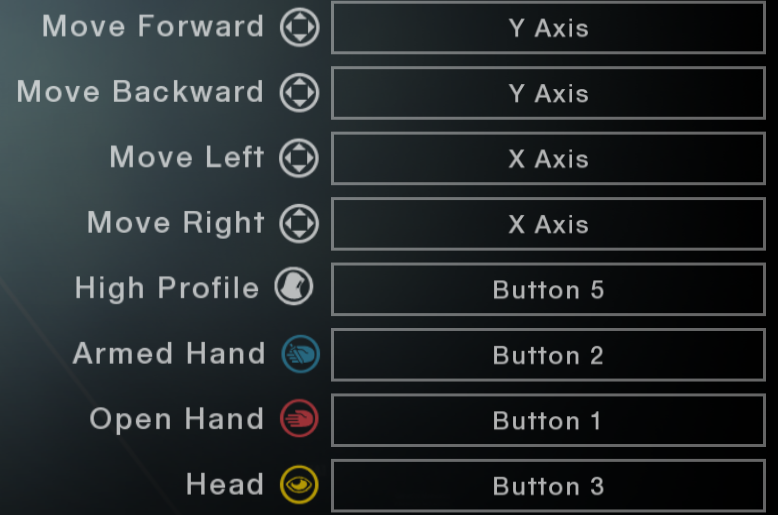
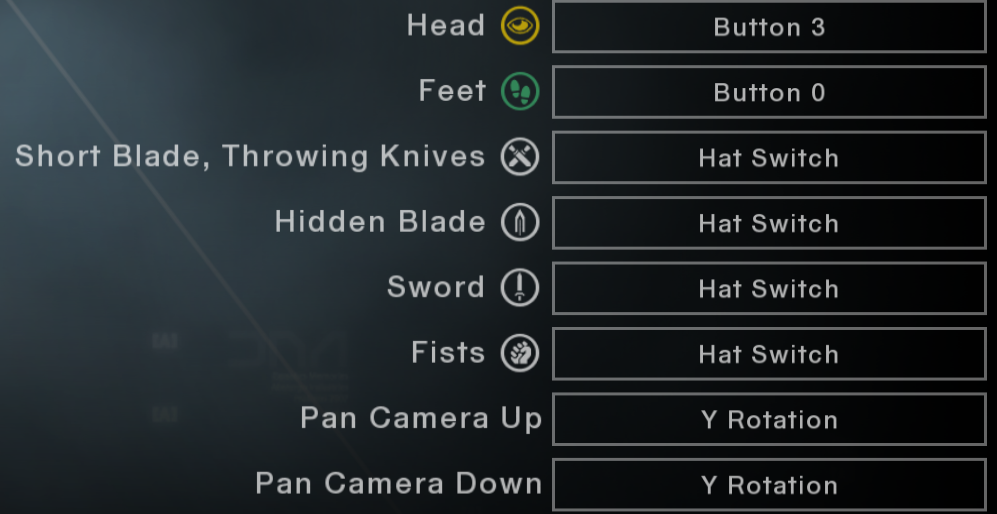
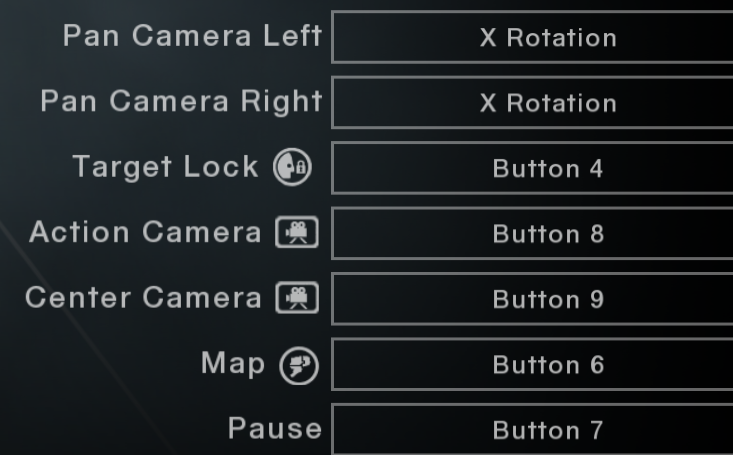
Button numbers are below, with numbers next to actual button so you can see what each refers to and adjust accordingly (in order of on screenshots):
Move Forward/Backward - Y Axis - Left stick up/down
Move Left/Right - X Axis - left stick left/right
High Profile - Button 5 - RB
Armed Hand - Button 2 - X
Open Hand - Button 1 - B
Head - Button 3 - Y
Feet - Button 0 - A
Short Blade/Throwing Knives - Left directional
Hidden Blade - Up Directional
Sword - Right directional
Fists - Down Directional
Pan Camera Up/Down - Right stick up/down
Pan Camera Left/Right - Right stick left/right
Target Lock - Button 4 - LB
Action Camera - Button 8 - Left stick button
Centre Camera - Button 9 - Right stick button
Map - Button 6 - View button (the button with two squares on it)
Pause - Button 7 - Menu button (the button with three lines on it)
I wanted to play the game on my X-Box controller, rather than on KB/M. Normally, I prefer my keyboard when gaming. For AC games though (particularly these early titles) I have always felt a little uncomfortable with the control on a keyboard. Maybe because that's how I used to play them when they were released? Anyway...
The Fix
The layout for the mapping in the game is bizarre. I have set them to the below - you may wish to adjust for your own preference, but this layout makes the most sense to me.
Button numbers are below, with numbers next to actual button so you can see what each refers to and adjust accordingly (in order of on screenshots):
Move Forward/Backward - Y Axis - Left stick up/down
Move Left/Right - X Axis - left stick left/right
High Profile - Button 5 - RB
Armed Hand - Button 2 - X
Open Hand - Button 1 - B
Head - Button 3 - Y
Feet - Button 0 - A
Short Blade/Throwing Knives - Left directional
Hidden Blade - Up Directional
Sword - Right directional
Fists - Down Directional
Pan Camera Up/Down - Right stick up/down
Pan Camera Left/Right - Right stick left/right
Target Lock - Button 4 - LB
Action Camera - Button 8 - Left stick button
Centre Camera - Button 9 - Right stick button
Map - Button 6 - View button (the button with two squares on it)
Pause - Button 7 - Menu button (the button with three lines on it)
Make the concrete hay bales squishy
The problem
I noticed while running around Masyaf that when i jumped down into a haybale, i was taking a point of damage. It didn't click until my first Synchronise point that this was due to templars sneaking concrete blocks into the hay baskets, in order to thwart would-be assassins. Either that, or the graphics settings for the game were trying to run too fast for its processing power so that, although you get the dive animation and the eagle sound, you get pizza'd when you hit the pile of hay (which in my opinion is probably legit, but we are talking game physics here and not real life!).
The fix is pretty simple. I saw loads of people mentioning adjusting your 3D settings in the NVIDIA console etc but this didn't work for me. When running the game with the FPS overlay, i noticed i was still hitting 200 FPS (on a screen that doesnt go that high), in a game that cannot handle above 60 FPS, which meant you were turning into mush when hitting the hay before the game could recognise you were hitting a safe zone
The fix
A bit of a novelty, but the fix for me was changing the in-game graphics settings
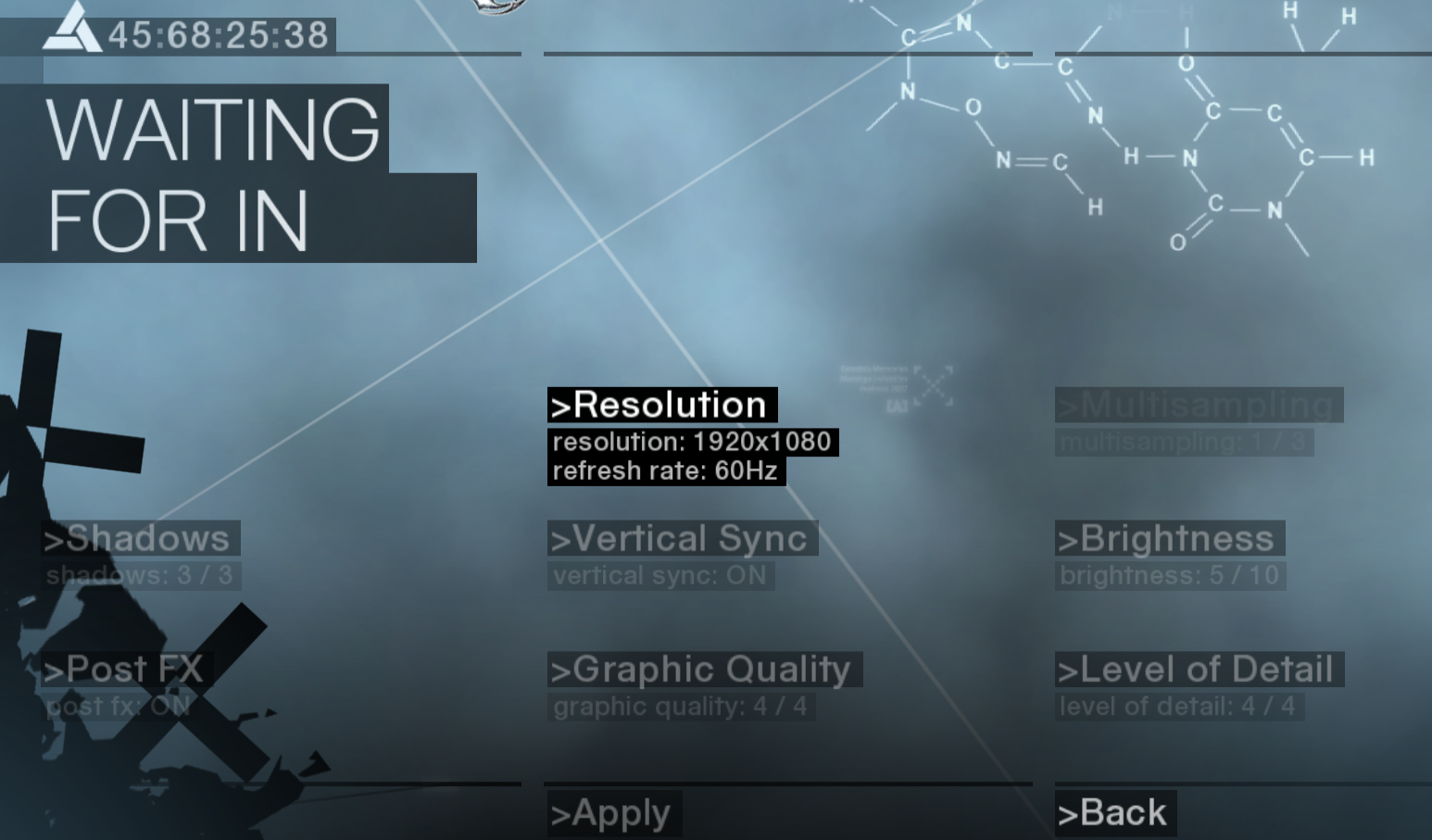
Simply open your Graphics Options, Enable Vertical Sync, and set the Resolution to 60Hz. My settings are below. The game runs great after this (and the other fixes).
I noticed while running around Masyaf that when i jumped down into a haybale, i was taking a point of damage. It didn't click until my first Synchronise point that this was due to templars sneaking concrete blocks into the hay baskets, in order to thwart would-be assassins. Either that, or the graphics settings for the game were trying to run too fast for its processing power so that, although you get the dive animation and the eagle sound, you get pizza'd when you hit the pile of hay (which in my opinion is probably legit, but we are talking game physics here and not real life!).
The fix is pretty simple. I saw loads of people mentioning adjusting your 3D settings in the NVIDIA console etc but this didn't work for me. When running the game with the FPS overlay, i noticed i was still hitting 200 FPS (on a screen that doesnt go that high), in a game that cannot handle above 60 FPS, which meant you were turning into mush when hitting the hay before the game could recognise you were hitting a safe zone
The fix
A bit of a novelty, but the fix for me was changing the in-game graphics settings
Simply open your Graphics Options, Enable Vertical Sync, and set the Resolution to 60Hz. My settings are below. The game runs great after this (and the other fixes).
Conclusion
So there you have it. Hopefully, doing this will only take you about 15 minutes and then you will be able to run the game smoothly and without any issues. If this guide has helped, let me know. If there are any issues with anything i have put up, also let me know so I can edit it.
Ciao for now
Ciao for now
More Assassin's Creed guides
- Русификатор [Полная локализация]★ 5 (1.3k)55k views1.9k ♥1 minRussianUpdated Dec 28, 2023
- Flag & Templar Maps★ 5 (1.5k)32k views2.4k ♥31 minUpdated Mar 30, 2014
- Моды улучшающие графику Assassin's Creed★ 4 (144)18k views299 ♥14 minRussianUpdated Oct 19, 2023
- ASSASSIN'S CREED CONTROLLER FIX [XBOX & PLAYSTATION CONTROLLERS]★ 5 (250)18k views541 ♥2 minUpdated Jan 9, 2025
- Как убрать лаги + Русификатор и Озвучка + Оформление + Геймпад★ 5 (264)15k views599 ♥1 minRussianUpdated Oct 4, 2025
- HOW TO FULL SCREEN★ 5 (524)15k views153 ♥1 minBulgarian





This guide was created by its original author on the Steam Community. Are you the author and want it removed? Request removal.