[Update] Freeze Fix [ENG/GER]
Einleitung
Hallöle,
vielen von Euch ist bereits Aufgefallen oder haben mitbekommen, dass Assassin’s Creed gerade ein kleines Problem mit kurzen „Freezes“ von ca. 2 Sekunden hat, was das Spiel zwar nicht unbedingt unspielbar macht, aber einfach viel zu nervig ist um das Spiel vernünftig spielen zu können. Es gibt zwei recht simple Lösung um dies zu fixen (Auf meiner Suche nach einer Lösung für dieses Problem habe ich selbstverständlich versucht, die ausführbaren Daeien (.exe) in der Firewall zu blockieren, dies hat aber nicht geholfen, zumindest nicht für mich).
vielen von Euch ist bereits Aufgefallen oder haben mitbekommen, dass Assassin’s Creed gerade ein kleines Problem mit kurzen „Freezes“ von ca. 2 Sekunden hat, was das Spiel zwar nicht unbedingt unspielbar macht, aber einfach viel zu nervig ist um das Spiel vernünftig spielen zu können. Es gibt zwei recht simple Lösung um dies zu fixen (Auf meiner Suche nach einer Lösung für dieses Problem habe ich selbstverständlich versucht, die ausführbaren Daeien (.exe) in der Firewall zu blockieren, dies hat aber nicht geholfen, zumindest nicht für mich).
Lösung 1
- Trennt euren Computer vom Internet.
Lösung 2
Wir editieren die „hosts“-Datei
# Assassin's Creed non-functional server
216.98.50.240 127.0.0.1
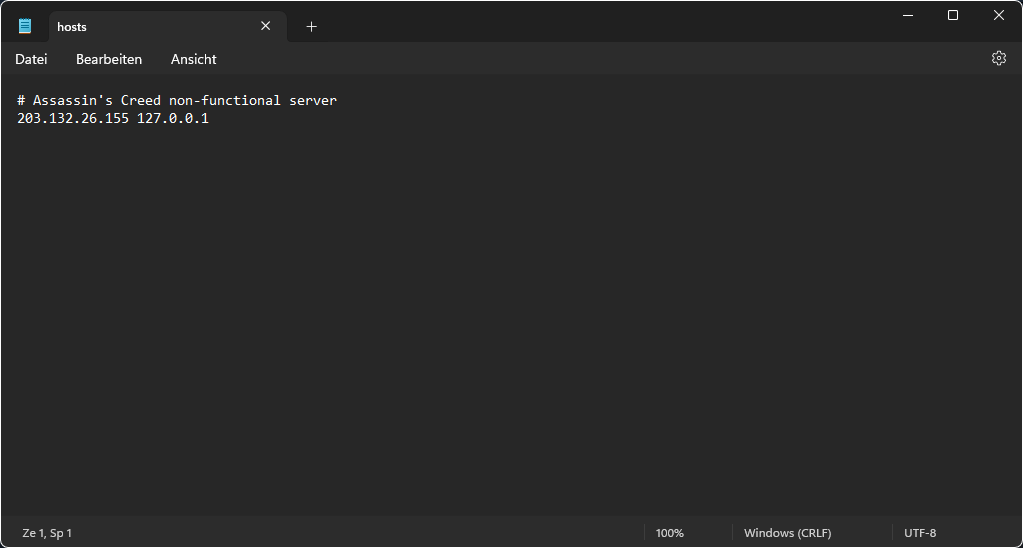 Wichtig! Benutzt NICHT mehr 203.132.26.155 127.0.0.1! Diese IP Adresse zu blockieren funktioniert nicht mehr, da Ubisoft, warum auch immer, die Adresse geändert hat. Danke an FlareTheFolf, der dieses Problem hier angesprochen hat, und direkt die neue Lösung vorgeführt hat.
(Alle Zeilen die mit einer # versehen sind, gelten als auskommentiert und werden von Windows nicht berücksichtigt, theoretisch gesehen könnt ihr alle Zeilen mit einer # löschen, ich behalte sie aber gerne um die Übersicht zu behalten)
Fertig.
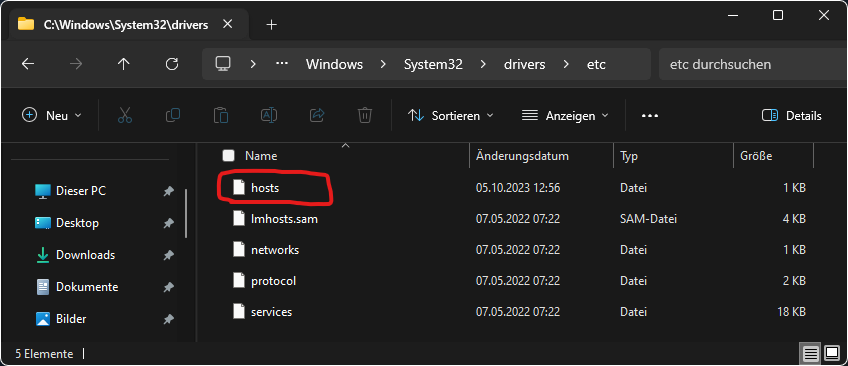
- Dazu öffnet ihr euren Explorer und wechselt in folgendes Verzeichnis: „C:\Windows\System32\drivers\etc“
- Nehmt die Datei „hosts“ und kopiert sie am besten auf euren Desktop
- Macht nun einen Rechtsklick auf die Datei und wählt „Öffnen mit“ und öffnet die Datei mit einem Texteditor eurer Wahl (der normale Editor der mit Windows mitgeliefert wird reicht hier vollkommen)
- tragt nun folgenden Wert in die Datei ein:
# Assassin's Creed non-functional server
216.98.50.240 127.0.0.1
Wichtig! Benutzt NICHT mehr 203.132.26.155 127.0.0.1! Diese IP Adresse zu blockieren funktioniert nicht mehr, da Ubisoft, warum auch immer, die Adresse geändert hat. Danke an FlareTheFolf, der dieses Problem hier angesprochen hat, und direkt die neue Lösung vorgeführt hat.(Alle Zeilen die mit einer # versehen sind, gelten als auskommentiert und werden von Windows nicht berücksichtigt, theoretisch gesehen könnt ihr alle Zeilen mit einer # löschen, ich behalte sie aber gerne um die Übersicht zu behalten)
- Speichert die Datei ab.
- Nun zieht ihr die Datei wieder zurück in den Ordner und überschreibt die vorhandene Datei.
Fertig.
Zusatzinfos zu Lösung 2
Wer sich bei der hosts Datei nicht ganz sicher ist, weil er Angst hat, hier einen Fehler zu machen der sein System zerschießt, den kann ich hier Beruhigen. Diese Datei kann auf verschiedene Arten und weisen verwendet werden. Wer genaueres dazu wissen möchte, klickt hier[de.wikipedia.org]und scrollt runter bis zu dem Abschnitt "Verwendungsmöglichkeiten". Im Rahmen dieses Guides beschränken wir uns auf das Filtern und Blockieren.
Man trägt hier einen Webserver ein (216.98.50.240 - Der Server zum Spiel) und sagt dann, wohin Windows die Verbindung umleiten soll. Die Adresse 127.0.0.1 (funktioniert auch mit 0.0.0.0) besagt, dass die Verbindung gefiltert und strickt blockiert wird.
Man trägt hier einen Webserver ein (216.98.50.240 - Der Server zum Spiel) und sagt dann, wohin Windows die Verbindung umleiten soll. Die Adresse 127.0.0.1 (funktioniert auch mit 0.0.0.0) besagt, dass die Verbindung gefiltert und strickt blockiert wird.
Wie kommt es zu dem Problem?
Das Spiel benutzt eure Verbindung zum Internet um eure Spieler Statisiken zu sammeln. Da das Spiel aus dem Jahre 2007 kommt ist es klar, dass Ubisoft dieses Spiel nicht mehr wirklich supportet. Dementsprechend hat Ubisoft ihre Server mit einem Update versehen, welches die Anfrage der Verbindung vom Spiel ablehnt. Hier entsteht dann der „Freeze“, weil das Spiel andauernd versucht, sich mit dem Server zu verbinden. Deswegen muss man hier mit den oben genannten Lösungen arbeiten. Das Spiel merkt nämlich, wenn eine Verbindung besteht, deswegen funktioniert es nicht, sämtliche ausführbaren Dateien von Assassin's Creed in der Windows Firewall zu blockieren. Wird Lösungsweg 1 angewandt, so merkt das Spiel das und versucht gar nicht erst, eine Verbindung zu besagten Servern herzustellen. Mit dem 2. Lösungsweg, gaukeln wir dem Spiel quasi genau das vor. Sämtliche Verbindungen die in dieser Datei eingetragen werden von Windows konsequent blockiert, also versucht das Spiel es auch hier gar nicht erst (korrigiert mich hier ruhig, wenn ich etwas falsches beschrieben habe).
English Translation
Hi there,
Many of you have already noticed that Assassin's Creed has a small problem with short "freezes" of about 2 seconds, which does not necessarily make the game unplayable, but is just too annoying to play the game properly. There are two quite simple solutions to fix this (Of course, in my search for a solution to this problem, I tried blocking the executable files (.exe) in the firewall, but this didn't help, at least not for me).
Many of you have already noticed that Assassin's Creed has a small problem with short "freezes" of about 2 seconds, which does not necessarily make the game unplayable, but is just too annoying to play the game properly. There are two quite simple solutions to fix this (Of course, in my search for a solution to this problem, I tried blocking the executable files (.exe) in the firewall, but this didn't help, at least not for me).
Solution 1
- Disconnect your computer from the Internet.
Solution 2
We edit the "hosts" file
# Assassin's Creed non-functional server
216.98.50.240 127.0.0.1
Important! Do NOT use 203.132.26.155 127.0.0.1 anymore! Blocking this IP address no longer works, as Ubisoft has changed the address for whatever reason.Thanks to FlareTheFolf, who addressed this problem here, and directly demonstrated the new solution.
(All lines with a # are considered commented out and will not be taken into account by Windows, theoretically you can delete all lines with a #, but I like to keep them to keep the overview)
Done.
- To do this, open your Explorer and change to the following directory:„C:\Windows\System32\drivers\etc“
- Take the file "hosts" and copy it to your desktop
- Now right click on the file and select "Open with" and open the file with a text editor of your choice (the normal editor that comes with Windows is perfectly sufficient)
- Now enter the following value into the file:
# Assassin's Creed non-functional server
216.98.50.240 127.0.0.1
Important! Do NOT use 203.132.26.155 127.0.0.1 anymore! Blocking this IP address no longer works, as Ubisoft has changed the address for whatever reason.Thanks to FlareTheFolf, who addressed this problem here, and directly demonstrated the new solution.(All lines with a # are considered commented out and will not be taken into account by Windows, theoretically you can delete all lines with a #, but I like to keep them to keep the overview)
- Saves the file.
- Now drag the file back into the folder and overwrite the existing file.
Done.
Additional info for solution 2
If you are not sure about the hosts file, because you are afraid of making a mistake that will destroy your system, I can reassure you. This file can be used in different ways. If you want to know more about it, click here[en.wikipedia.org]and scroll down to the section "Extended applications". For the purposes of this guide, we will limit ourselves to filtering and blocking.
You enter a web server here (216.98.50.240 - The server to the game) and then tell Windows where to redirect the connection. The address 127.0.0.1 (also works with 0.0.0.0) means that the connection is filtered and strictly blocked.
You enter a web server here (216.98.50.240 - The server to the game) and then tell Windows where to redirect the connection. The address 127.0.0.1 (also works with 0.0.0.0) means that the connection is filtered and strictly blocked.
How does the problem arise?
The game uses your connection to the Internet to collect your player stats. Since the game is from 2007, it is clear that Ubisoft does not really support this game anymore. Accordingly, Ubisoft has updated their servers with an update that rejects the connection request from the game. This is where the "freeze" comes in, because the game keeps trying to connect to the server. That's why you have to work with the solutions mentioned above. The game notices when it is connected, so blocking all Assassin's Creed executables in the Windows firewall does not work. If solution 1 is used, the game notices this and does not even try to connect to said servers. With the 2nd solution, we fool the game into thinking that it does. All connections that are entered in this file are consistently blocked by Windows, so the game does not even try here (feel free to correct me here if I have described something wrong).
More Assassin's Creed guides
- Русификатор [Полная локализация]★ 5 (1.3k)55k views1.9k ♥1 minRussianUpdated Dec 28, 2023
- Flag & Templar Maps★ 5 (1.5k)32k views2.4k ♥31 minUpdated Mar 30, 2014
- Моды улучшающие графику Assassin's Creed★ 4 (144)18k views299 ♥14 minRussianUpdated Oct 19, 2023
- ASSASSIN'S CREED CONTROLLER FIX [XBOX & PLAYSTATION CONTROLLERS]★ 5 (250)18k views541 ♥2 minUpdated Jan 9, 2025
- Как убрать лаги + Русификатор и Озвучка + Оформление + Геймпад★ 5 (264)15k views599 ♥1 minRussianUpdated Oct 4, 2025
- HOW TO FULL SCREEN★ 5 (524)15k views153 ♥1 minBulgarian





This guide was created by its original author on the Steam Community. Are you the author and want it removed? Request removal.