Smuggle materia between save files (Steam version)
REQUIREMENTS
- You will need a save file with a larger number of group members than both the file providing the materia and the file receiving it. A good point in the game to create this file is after receiving the Tiny Bronco but before entering the Temple of the Ancients. Preferably, this file should also have Yuffie and Vincent in the group, because this is the only point in the game when the group can be at its maximum size of nine members.
- Both the providing file and the receiving file need to have access to the “Materia” menu option. It becomes available after the tutorial sequence with Barret after spending the night at Seventh Heaven.
STEP 1 - LOAD A FILE WITH A LARGE GROUP
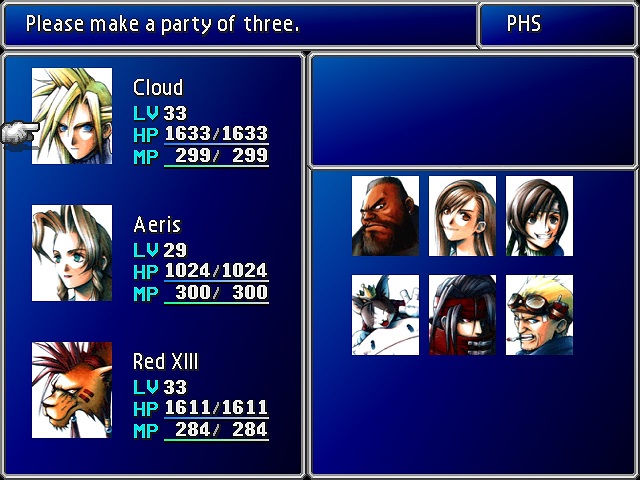 (Above image shows an example group of 9 party members. No need to go to the PHS menu.)
STEP 2 - SELECT LAST CHARACTER IN EXCHANGE
Open the main menu and select “Materia”. Scroll down to the armor slots and then left to select “Arrange”. Press [OK] for additional options. Select “Exchange” and press [OK]. In the Exchange menu scroll down to the last character. Press [Cancel] repeatedly to exit completely out of the menu system.
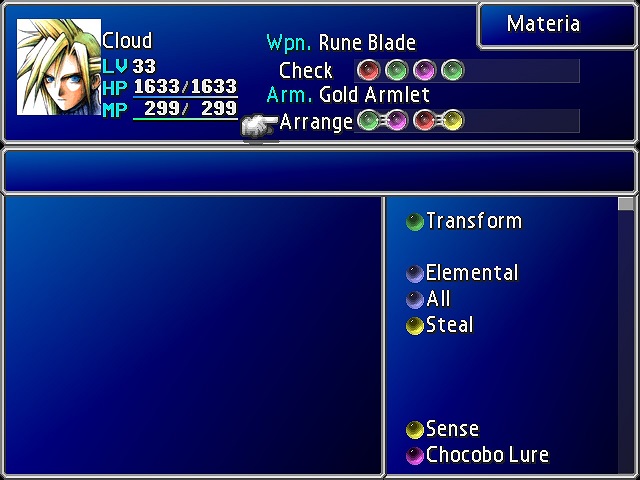 (Selecting “Arrange”.)
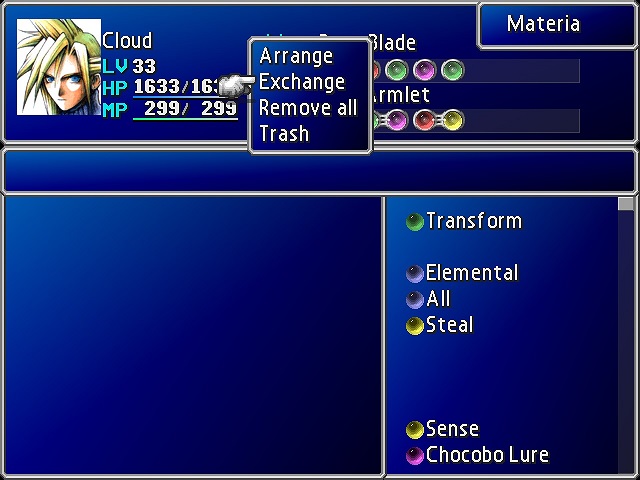 (Selecting “Exchange”.)
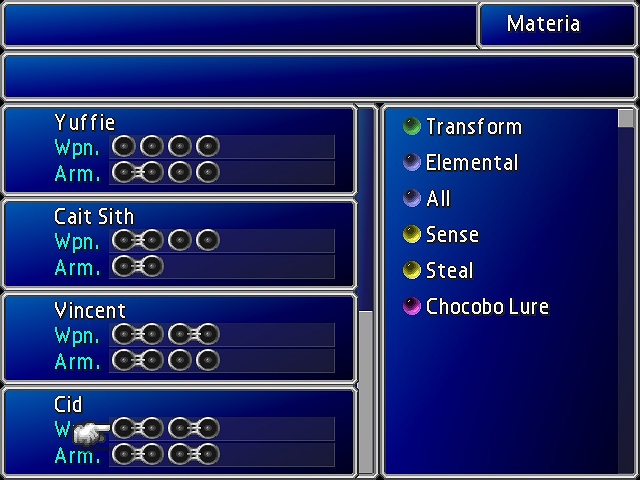 (Selecting the last character in the Exchange menu.)
STEP 3 - GAME OVER (1)
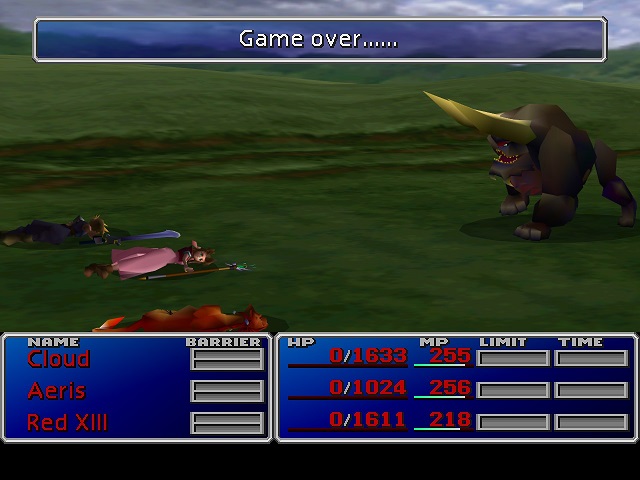 (The party falls in battle.)
STEP 4 - LOAD FILE TO PROVIDE MATERIA
STEP 5 - SELECT MATERIA TO TRANSFER
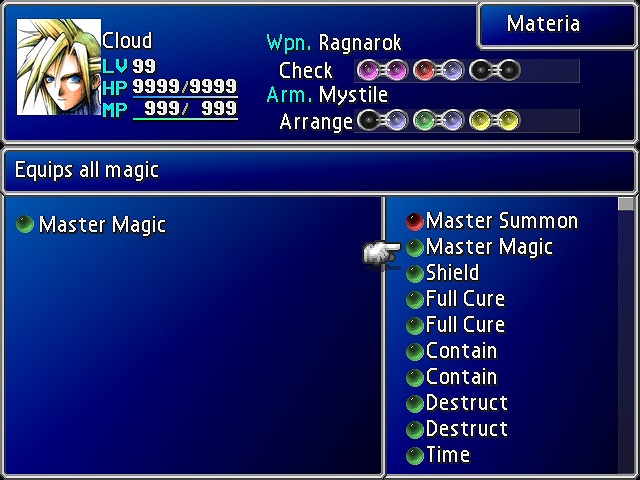 (Master Summon and Master Magic materia unequipped.)
STEP 6 - STORE MATERIA IN EXCHANGE
Open the Exchange menu using the method described in Step 2. The cursor should be pointing to a blank character slot with invisible materia slots. Remove the two MP Plus materia in the first two weapons slots and replace them with the materia that you wish to duplicate/transfer. While in the Exchange menu, you can quickly unequip materia from a slot by pressing [OK] (to select) followed by [Menu] (to remove). (see Note 1)
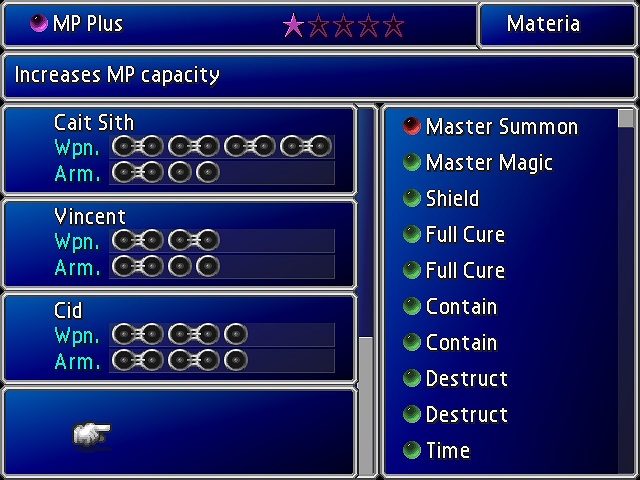 (Blank character slot.)
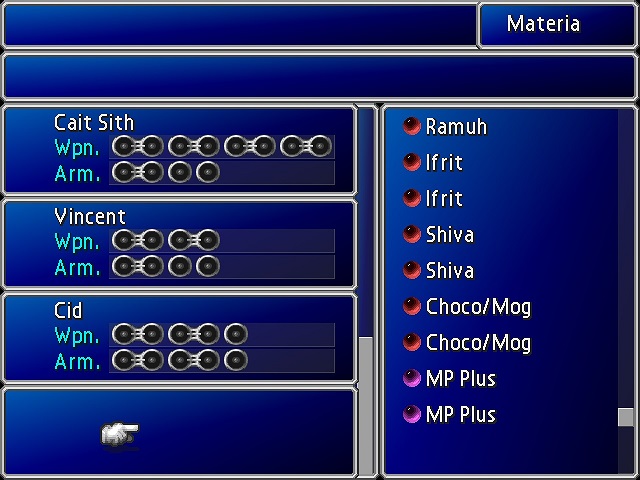 (Unequipped MP Plus materia.)
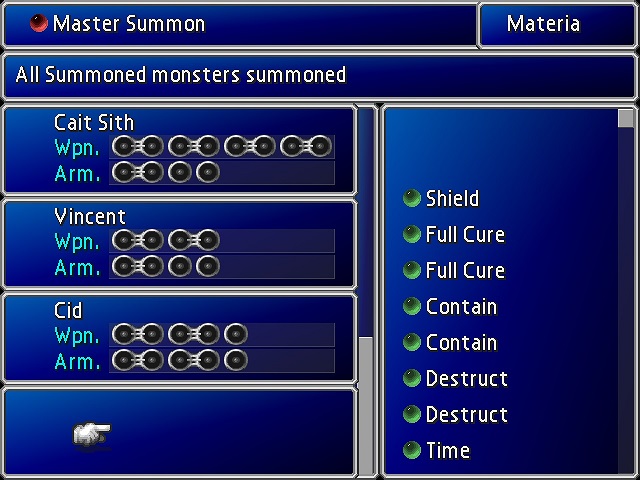 (Master Summon and Master Magic materia equipped to the blank character slot.)
STEP 7 - GAME OVER (2)
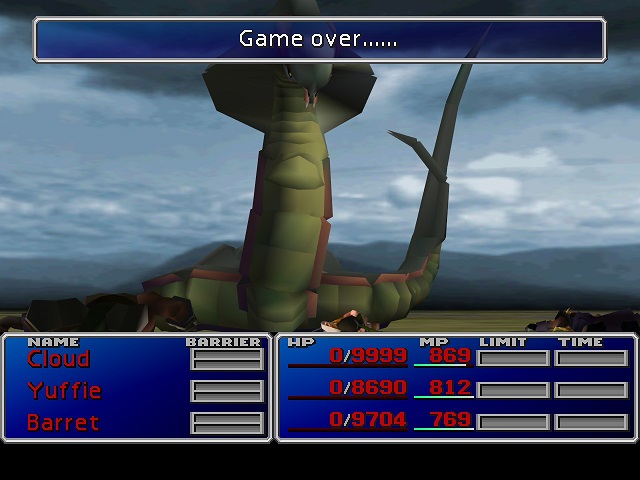 (Game over…… again.)
STEP 8 - LOAD FILE TO RECEIVE MATERIA
STEP 9 - RETRIEVE MATERIA FROM EXCHANGE
Open the Exchange menu using the method described in Step 2 and unequip the transferred materia from the blank character slot. Return to the Materia menu and equip the transferred materia. (see Note 3)
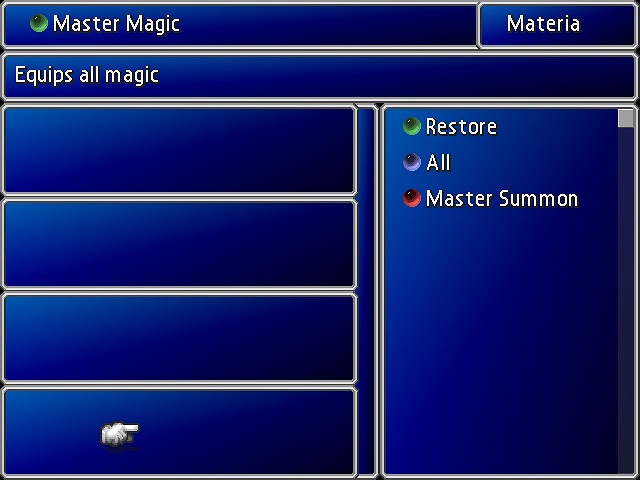 (Exchange menu of an early game save file.)
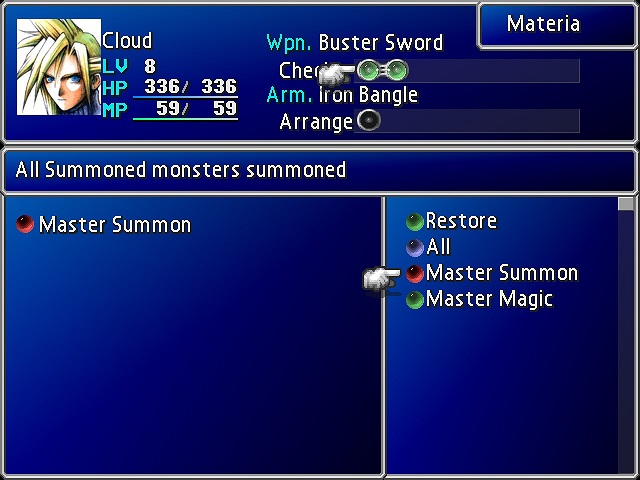 (Master Summon and Master Magic materia on an early game save file.)
STEP 10 - DUPLICATE MATERIA (optional)
NOTES
- If you scroll up from the blank character slot you might not be able to scroll back down to it. (Un)equip materia directly to the slots rather than from a group member. Only the first two weapon slots are accessible. The remaining weapon and armor slots are inaccessible. If there is more than one blank character slot present they will all share the same equipped materia.
- It is possible to keep the two MP Plus materia by saving, but if you save while the provided materia is in the blank character slot the providing save file will lose the materia. To not lose any materia, save after unequipping the MP Plus materia but before equipping the materia to be transferred.
- Any materia left in the blank character slots will be lost forever when the game closes. Make sure the transfer process is complete before closing the game. The slots are initialized with MP Plus materia when the game is loaded or a New Game is started.
SOURCES
Originally discovered by: death_unites_us of 4-8 Productions
https://www.youtube.com/watch?v=hosDrlVF6e4
- Final Fantasy 7 Full Guide★ 5 (2.7k)51k views7k ♥137 minUpdated Jul 10, 2018
- Permanent Missable Content related to Achievements★ 5 (1.3k)39k views3.3k ♥15 minUpdated 3 Mar, 2019
- Remaster your FF7 - Essential Modding Guide★ 5 (623)38k views1.7k ♥23 minUpdated 24 Feb
- Materia Overlord Achievement Guide★ 5 (1.3k)35k views2.4k ♥18 minUpdated Jan 7, 2017
- Final Fantasy 7: Enemy Skill Guide★ 5 (690)34k views1.7k ♥17 minUpdated 12 May, 2016
- FINAL FANTASY VII STEAM 100% ACHIEVEMENT★ 5 (701)28k views1.8k ♥18 minUpdated 3 Jul, 2023


- Upgrading to PremiumTeam Fortress 2★ 5 (20k)1441k views11k ♥6 minUpdated May 11, 2022
- No More Room in Hell Official ManualNo More Room in Hell★ 5 (2.8k)569k views2.1k ♥29 minUpdated Apr 22, 2019
- NMRiH Community Hosting GuidesNo More Room in Hell★ 5 (526)351k views653 ♥1 minUpdated Aug 10, 2022
- ULTIMATE GUIDE FOR GAME DEV TYCOONGame Dev Tycoon★ 5 (5.8k)326k views10k ♥4 minUpdated 23 Jan, 2014
- How to 'Git Gud' Soon™MORDHAU★ 5 (2k)318k views3k ♥68 minUpdated Nov 16, 2024
- Лучшие кооперативные игры SteamPAYDAY 2★ 5 (1.5k)315k views2.1k ♥56 minRussianUpdated Apr 27, 2025






This guide was created by its original author on the Steam Community. Are you the author and want it removed? Request removal.