Beam Eye Tracker + OpenTrack + X4 Foundations on Bazzite
Tested setup
- Bazzite 44 Silverblue
- GNOME
- Native Steam installation
- Beam Eye Tracker Demo installed from Steam
- OpenTrack 2024.1.1 for Windows
- X4: Foundations running as the native Linux version
- OpenTrack input: Eyeware Beam
- OpenTrack output: UDP over network
No compatibility option was manually forced for Beam in Steam.
What was tested
The Windows version of OpenTrack was installed into the Proton prefix used by Beam Eye Tracker Demo.
OpenTrack 2026.1.0 installed successfully, but did not start.
The important error was:
Library icuuc.dll (which is needed by Qt6Core.dll) not found
Importing dlls for opentrack.exe failed, status c0000135
Microsoft Visual C++ Redistributable 2015–2022 was installed in both x86 and x64 versions, but this did not solve the OpenTrack 2026.1.0 startup problem.
OpenTrack 2026.1.0 was then removed.
OpenTrack 2024.1.1 was installed into the same Beam Proton prefix and started successfully.
1. Install Beam Eye Tracker Demo
Install Beam Eye Tracker Demo from Steam.
Start Beam at least once so that Steam creates its Proton prefix.
Complete the initial Beam setup:
position your camera correctly,
complete the calibration,
verify that head tracking is working inside Beam.
After calibration, open:
Immersive Camera
and choose one of the profile for OpenTrack (see the picture). Tracke ON after confirming that the OpenTrack profile is active.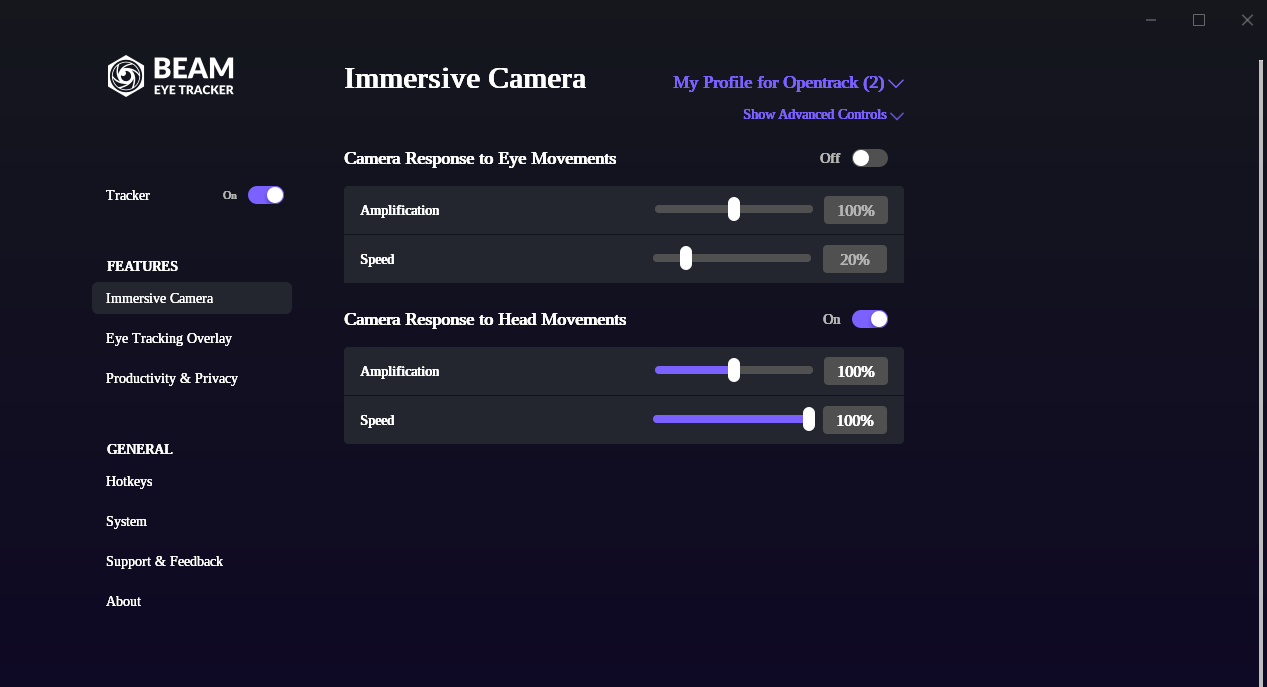
Do not change the Steam compatibility setting unless your own setup requires it.
2. Install Protontricks
The commands below assume that the protontricks command works in the terminal.
3. Download OpenTrack 2024.1.1
Download this Windows installer:
opentrack-2024.1.1-win64-setup.exe
OpenTrack release page:
https://github.com/opentrack/opentrack/releases/tag/opentrack-2024.1.1
This guide assumes that the installer is saved in:
~/Downloads
4. Install OpenTrack into the Beam Proton prefix
Beam Eye Tracker Demo uses Steam AppID:
2582050
Run:
protontricks -c 'wine "$HOME/Downloads/opentrack-2024.1.1-win64-setup.exe"' 2582050
Complete the normal Windows installer.
5. Start OpenTrack
Run:
protontricks -c 'wine "C:\Program Files (x86)\opentrack\opentrack.exe"' 2582050
OpenTrack 2024.1.1 should start.
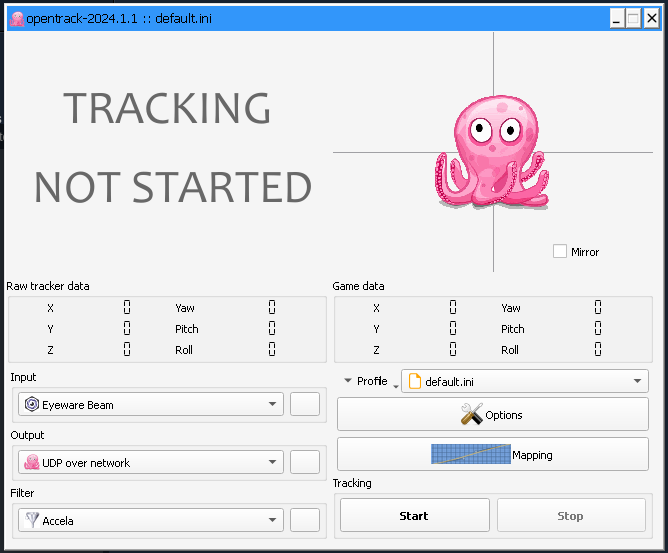
Set:
Input: Eyeware Beam
Set:
Output: UDP over network (set IP 127.0.0.1 port 424
Click:
Start
Move your head and confirm that the pink tracking model moves. That confirms that Beam is sending tracking data to OpenTrack.
Start X4: Foundations
Keep these applications running:
Beam Eye Tracker Demo
OpenTrack
Then start X4: Foundations.
In the tested setup, X4 was running as the native Linux version and head tracking worked correctly.
Desktop launcher
The direct Exec= command with nested quoting did not work reliably in the .desktop file, so a helper script was used.
1. Create the script
mkdir -p ~/bin
cat > ~/bin/opentrack-beam <<'EOF'
#!/bin/bash
exec protontricks -c 'wine "C:\Program Files (x86)\opentrack\opentrack.exe"' 2582050
EOF
chmod +x ~/bin/opentrack-beam
Test it:
~/bin/opentrack-beam
If OpenTrack starts, create the desktop entry.
2. Create the desktop entry
Replace YOUR_USERNAME with your Linux username.
mkdir -p ~/.local/share/applications
cat > ~/.local/share/applications/opentrack-beam.desktop <<'EOF'
[Desktop Entry]
Version=1.0
Type=Application
Name=OpenTrack (Beam)
Comment=Launch OpenTrack inside Beam's Proton prefix
Exec=/home/YOUR_USERNAME/bin/opentrack-beam
Icon=applications-games
Terminal=false
Categories=Game;
StartupNotify=true
EOF
Then run:
chmod +x ~/.local/share/applications/opentrack-beam.desktop
update-desktop-database ~/.local/share/applications
The application should appear in the GNOME menu as:
OpenTrack (Beam)
- X4 Full Map [Timelines][7.0]★ 5 (579)46k views1.2k ♥1 minUpdated 22 Jun, 2024
- A Guide to Game Starts★ 5 (209)28k views437 ♥27 minUpdated 7 Jan
- X4 Beginner Guide 5.1★ 5 (393)27k views1.2k ♥22 minUpdated 7 Mar, 2023
- All Ownerless Ships in X4: Foundations (9.00 Base Game + All DLCs)★ 5 (453)27k views1.1k ♥10 minUpdated 10 Jun
- X4 Ultimate Weapons Guide. [NOW ON THE WIKI]★ 5 (343)23k views768 ♥104 minUpdated 8 Jul, 2024
- X4 sector map★ 4 (146)22k views207 ♥1 minUpdated 6 Dec, 2018


- Upgrading to PremiumTeam Fortress 2★ 5 (20k)1441k views11k ♥6 minUpdated May 11, 2022
- No More Room in Hell Official ManualNo More Room in Hell★ 5 (2.8k)569k views2.1k ♥29 minUpdated Apr 22, 2019
- NMRiH Community Hosting GuidesNo More Room in Hell★ 5 (526)351k views653 ♥1 minUpdated Aug 10, 2022
- ULTIMATE GUIDE FOR GAME DEV TYCOONGame Dev Tycoon★ 5 (5.8k)326k views10k ♥4 minUpdated 23 Jan, 2014
- How to 'Git Gud' Soon™MORDHAU★ 5 (2k)318k views3k ♥68 minUpdated Nov 16, 2024
- Лучшие кооперативные игры SteamPAYDAY 2★ 5 (1.5k)315k views2.1k ♥56 minRussianUpdated Apr 27, 2025






This guide was created by its original author on the Steam Community. Are you the author and want it removed? Request removal.