Complete control with only Gamepad
Introduction
Playing X4 with a controller can be quite enjoyable, but I found it tiring to keep switching between my gamepad and keyboard/mouse.
Fortunately, it is possible to use Steam to completely play X4 with a gamepad, without the need for other input devices.
I've prepared a control setup, which I find practical and intuitive.
It may seem slightly complex at first, but I think that it's not that hard to get used to.
Fortunately, it is possible to use Steam to completely play X4 with a gamepad, without the need for other input devices.
I've prepared a control setup, which I find practical and intuitive.
It may seem slightly complex at first, but I think that it's not that hard to get used to.
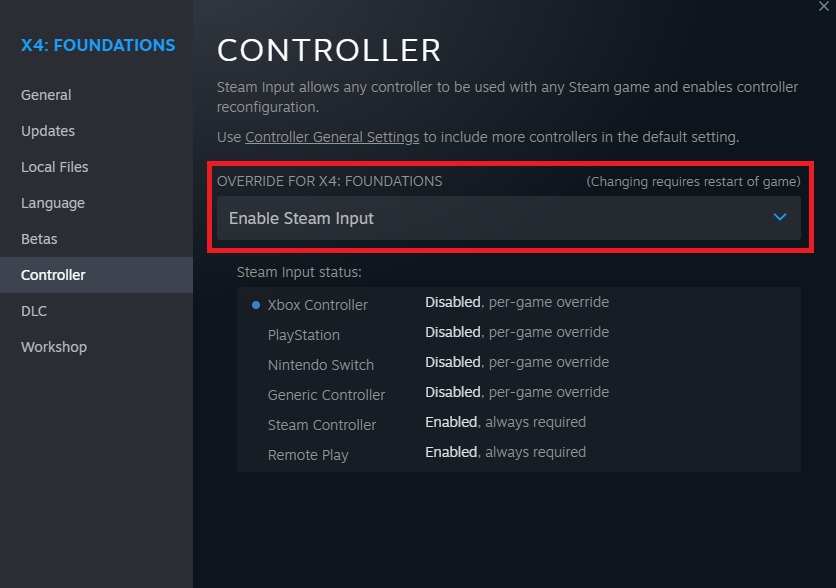
1. Enable Steam input
- Right click X4 in your library and go into Properties.
.
 .
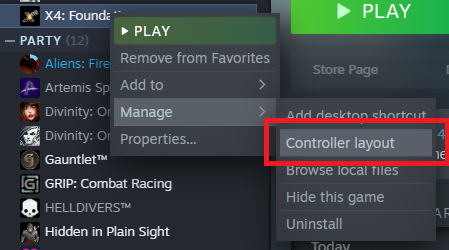
3. Right click X4 in your library and select "Controller Layout".
.
3. Right click X4 in your library and select "Controller Layout".WARNING: This option may not be visible if your controller is not connected to your PC.
2. Controller buttons configuration
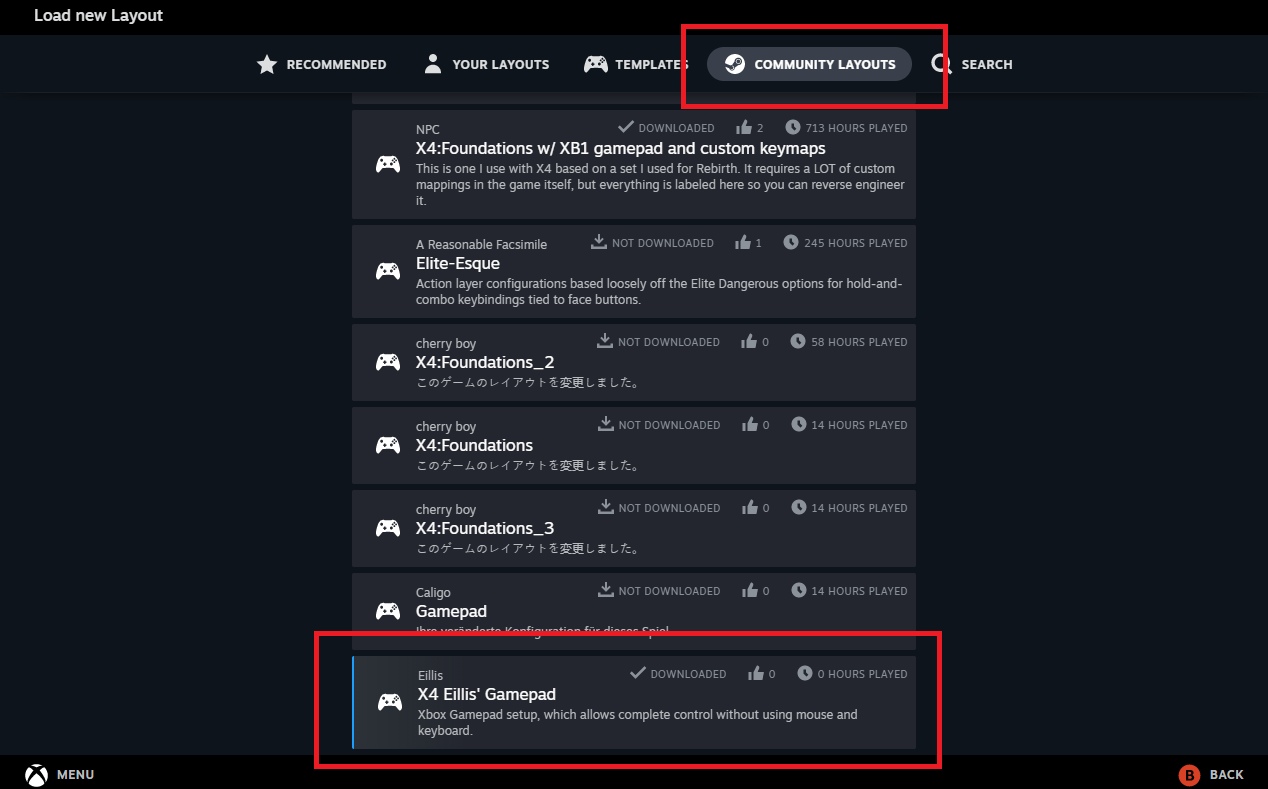
You can make your own controller configuration if you wish, but I recommend you to try my settings. They will spare you quite a lot of work, while providing you with sufficient number of buttons to play X4 entirely with gamepad.
If you preffer to make your own settings, feel free to skip this guide section.
 .
.
 .
.
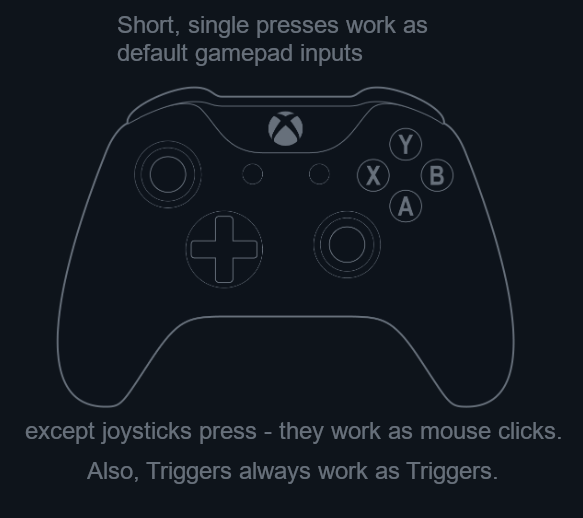
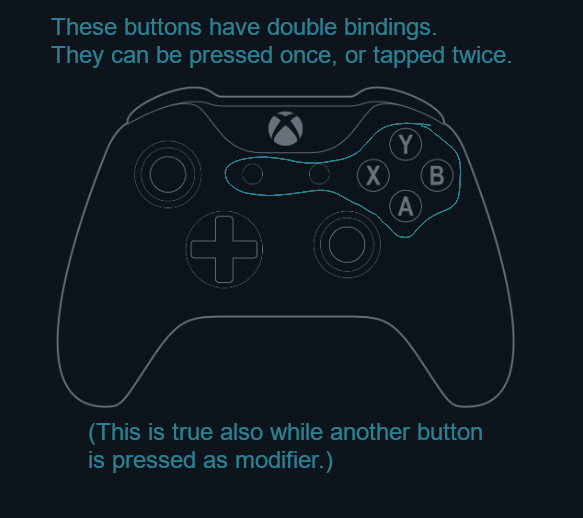
Some buttons can act as "modifiers". This means, that while you hold them pressed down, some other buttons will change their input.
.
When no modifier buttons are held:
 .
.
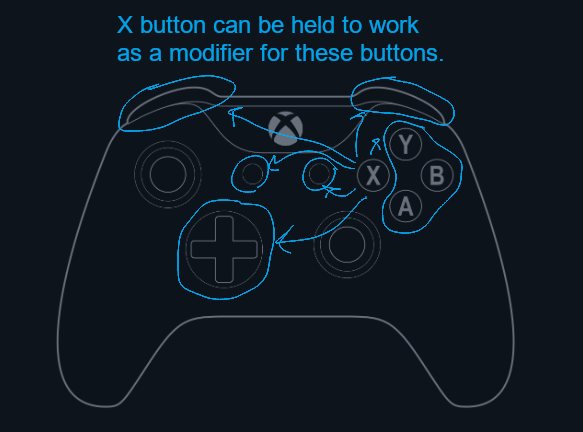
Holding X button generally works like holding Ctrl on keyboard.
 .
.
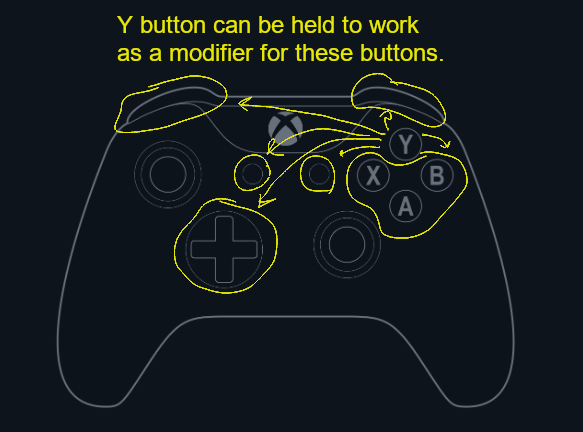
Holding Y button generally works like holding Shift on keyboard.
 .
.
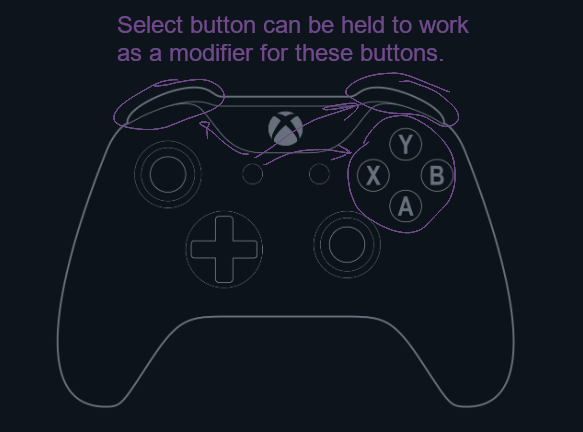
Holding Back turns some buttons into numbers, with double presses being numpads.
 .
.
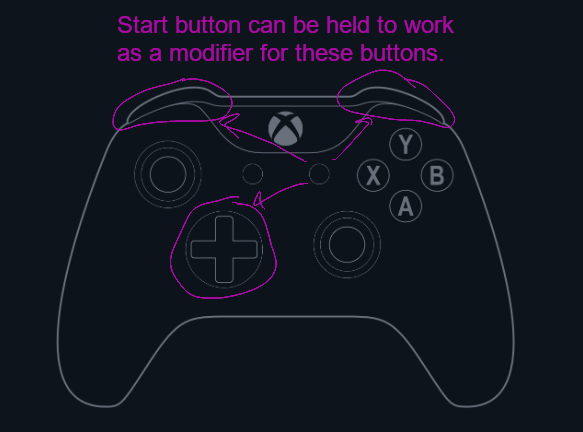
Holding Start turns DPad into F keys.
If you preffer to make your own settings, feel free to skip this guide section.
..Some buttons can act as "modifiers". This means, that while you hold them pressed down, some other buttons will change their input.
.
When no modifier buttons are held:
- A = A button as single press, W key as double press.
- B = B button as single press, S key as double press.
- X = X button as single press, Z key as double press.
- Y = Y button as single press, U key as double press.
- Back = Back as single press, C as double press.
- Start = Start as single press, N as double press.
- Left bumper = Left bumper.
- Right bumper = Right bumper.
.Holding X button generally works like holding Ctrl on keyboard.
- A = Ctrl+A keys as single press, Ctrl+W keys as double press.
- B = Ctrl+B keys as single press, Ctrl+S keys as double press.
- X = (Held as modifier.)
- Y = Ctrl+Y keys as single press, Ctrl+U keys as double press.
- Back = Ctrl+V keys as single press, Ctrl+C keys as double press.
- Start = Ctrl+M keys as single press, Ctrl+N keys as double press.
- Left bumper = Ctrl+L key.
- Right bumper = Ctrl+R key.
.Holding Y button generally works like holding Shift on keyboard.
- A = Shift+A keys as single press, Shift+W keys as double press.
- B = Shift+B keys as single press, Shift+S keys as double press.
- X = Shift+X keys as single press, Shift+Z keys as double press.
- Y = (Held as modifier.)
- Back = Shift+V keys as single press, Shift+C keys as double press.
- Start = Shift+M keys as single press, Shift+N keys as double press.
- Left bumper = Shift+L keys.
- Right bumper = Shift+R keys.
.Holding Back turns some buttons into numbers, with double presses being numpads.
- A = 1 key as single press, Num 1 as double press.
- B = 2 key as single press, Num 2 as double press.
- X = 3 key as single press, Num 3 as double press.
- Y = 4 key as single press, Num 4 as double press.
- Left bumper = 5 key.
- Right bumper = 6 key.
.Holding Start turns DPad into F keys.
- DPad Up = F1
- DPad Left = F2
- DPad Right = F3
- DPad Down = F4
- Left bumper = plus key.
- Right bumper = minus key.
3. In-game controller settings
Below is a general description how I bind all these gamepad buttons in X4.
You can import them automatically with a file linked at the bottom of this guide.
- Triggers/Joysticks = flying axes.
- A = Acceleration, double press for Boost.
- B = Deceleration, double press for Full Stop.
- X = Deploy Countermeasure.
- Y = Target Hostile, double press for Target Object.
- LB = Primary weapon fire.
- RB = Secondary weapon fire.
- DPad Up = Switch ammunition.
- DPad Left = Scan.
- DPaw Down = Magnet.
- Back = Interact, double press for Quick Action Menu.
- Start = Map, double press for Options Menu.
- X + LB = Next primary weapon.
- X + RB = Next secondary weapon.
- X + DPad Up = Aim assist.
- X + DPad Left = Turrets.
- X + DPad Right = Drones.
- X + DPad Down = Flight assis.
- X + Start = Missions.
- Y + B = Match target speed.
- Y + X = Target lock.
- Y + Start = Property owned.
- Y + DPad = Change target/subsystem.
- Back + A = Travel mode, double press for Autopilot.
- Back + B = Dock, double press for Get Up From Chair.
- Back + X = Comm, double press for Object Info.
- Back + Y = Scanner mode, double press for Long Range Scanner mode.
- Start + DPad = Camera Up/Down/Left/Right.
- Start + LB = Cycle camera.
- Start + RB = Target camera.
- Start + LT = Zoom in.
- Start + RT = Zoom out.
- When in map/menu mode, I usually use joystick to control cursor and joystick presses as mouse clicks.
If you'd like to import these settings into X4:
1. Download this file inputmap xml[drive.google.com]
2. Copy it into folder <Your documents>/Egosoft/X4/<numbers>/
WARNING: Replacing your existing inputmap.xml will completely remove your current keybindings.Also, settings in this file have most keyboard/mouse bindings removed. (Except for those emulated by gamepad.)
More X4: Foundations guides
- X4 Full Map [Timelines][7.0]★ 5 (579)46k views1.2k ♥1 minUpdated 22 Jun, 2024
- A Guide to Game Starts★ 5 (209)28k views437 ♥27 minUpdated 7 Jan
- X4 Beginner Guide 5.1★ 5 (393)27k views1.2k ♥22 minUpdated 7 Mar, 2023
- All Ownerless Ships in X4: Foundations (9.00 Base Game + All DLCs)★ 5 (453)27k views1.1k ♥10 minUpdated 10 Jun
- X4 Ultimate Weapons Guide. [NOW ON THE WIKI]★ 5 (343)23k views768 ♥104 minUpdated 8 Jul, 2024
- X4 sector map★ 4 (146)22k views207 ♥1 minUpdated 6 Dec, 2018


🔥 Popular guides
- Upgrading to PremiumTeam Fortress 2★ 5 (20k)1441k views11k ♥6 minUpdated May 11, 2022
- No More Room in Hell Official ManualNo More Room in Hell★ 5 (2.8k)569k views2.1k ♥29 minUpdated Apr 22, 2019
- NMRiH Community Hosting GuidesNo More Room in Hell★ 5 (526)351k views653 ♥1 minUpdated Aug 10, 2022
- ULTIMATE GUIDE FOR GAME DEV TYCOONGame Dev Tycoon★ 5 (5.8k)326k views10k ♥4 minUpdated 23 Jan, 2014
- How to 'Git Gud' Soon™MORDHAU★ 5 (2k)318k views3k ♥68 minUpdated Nov 16, 2024
- Лучшие кооперативные игры SteamPAYDAY 2★ 5 (1.5k)315k views2.1k ♥56 minRussianUpdated Apr 27, 2025






This guide was created by its original author on the Steam Community. Are you the author and want it removed? Request removal.