CHEAPLE'S OPTIMIZATIONS FOR BUCK
Quick aside
your flesh was delicious
If you have any questions I'll probably be in chat and be able to help.
File edits
If you don't want to use the following mod, skip this section and go to File edits without using mod.
This section revolves around the ProjectZomboid64.json file I had you edit the other night. I'll include some extra stuff that might help (these helped me personally).
If you can't remember how to get to said file go to Zomboid on steam, right click it in your library, browse local files, then find and open the ProjectZomboid64.json as a text file or whatever works.
You mentioned you had a backup file already so if you want to look that one over or create another backup in case these optimizations don't work for you then be my guest.
IMPORTANT: If you are doing this, this section's optimizations require a mod that you must add:
https://steamcommunity.com/sharedfiles/filedetails/?id=3459875383
Make sure to add it to your mod list and the server you use (also add it to your chaos mod preset)
NOW THEN
With this file open, copy and paste the everything below this into there, this includes everything that should be in the entire text file so just copy and paste over everything that's in there already.
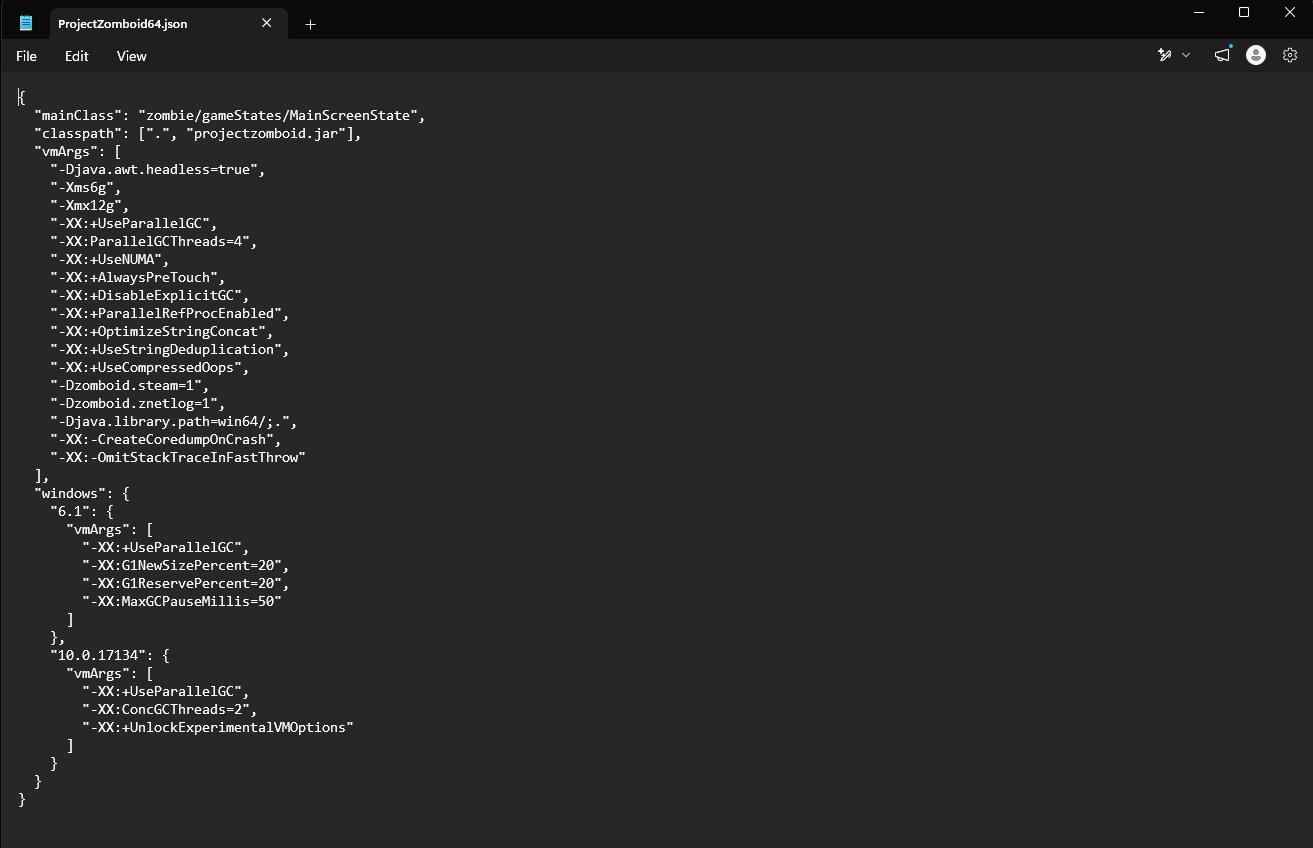
Remember to save the file!
Copy the whole thing and replace everything in that ProjectZomboid64.json, make a backup of the original incase you decide to undo this.
IMPORTANT: I'm assuming you have 32gb of RAM on your pc but incase you only have 16gb of RAM, go ahead and replace the -Xms and -Xmx commands with these:
-Xms4g
-Xmx8g
These will give Zomboid less ram (but still more than default) so your other applications like OBS can still run well, feel free to tinker with giving more or less as needed.
It's also wise to keep a seperate copy of your config file exactly the way it is now, so if these changes somehow affect the chaos mod or your game negatively you can go back to how it way before (just make sure the RAM is still set to more than 3gb as increasing that above the game default value shouldn't cause any conflicts).
Helpful mods
Some other mods that help that I use, make sure to add them to your preset and the save you plan on using:
https://steamcommunity.com/sharedfiles/filedetails/?id=3119788162
You can choose between optimal or performance mode for textures in the main menu, honestly just set it to optimal, performance is for potato PCs and I doubt your GPU is where the bottleneck is happening.
https://steamcommunity.com/sharedfiles/filedetails/?id=3423660713
The default project Zomboid mod load order just sorts your mods alphabetically when choosing auto which can actually break some mods, this one should set this in the correct order automatically 99% of the time. Not needed but I would recommend.
My performance using these methods
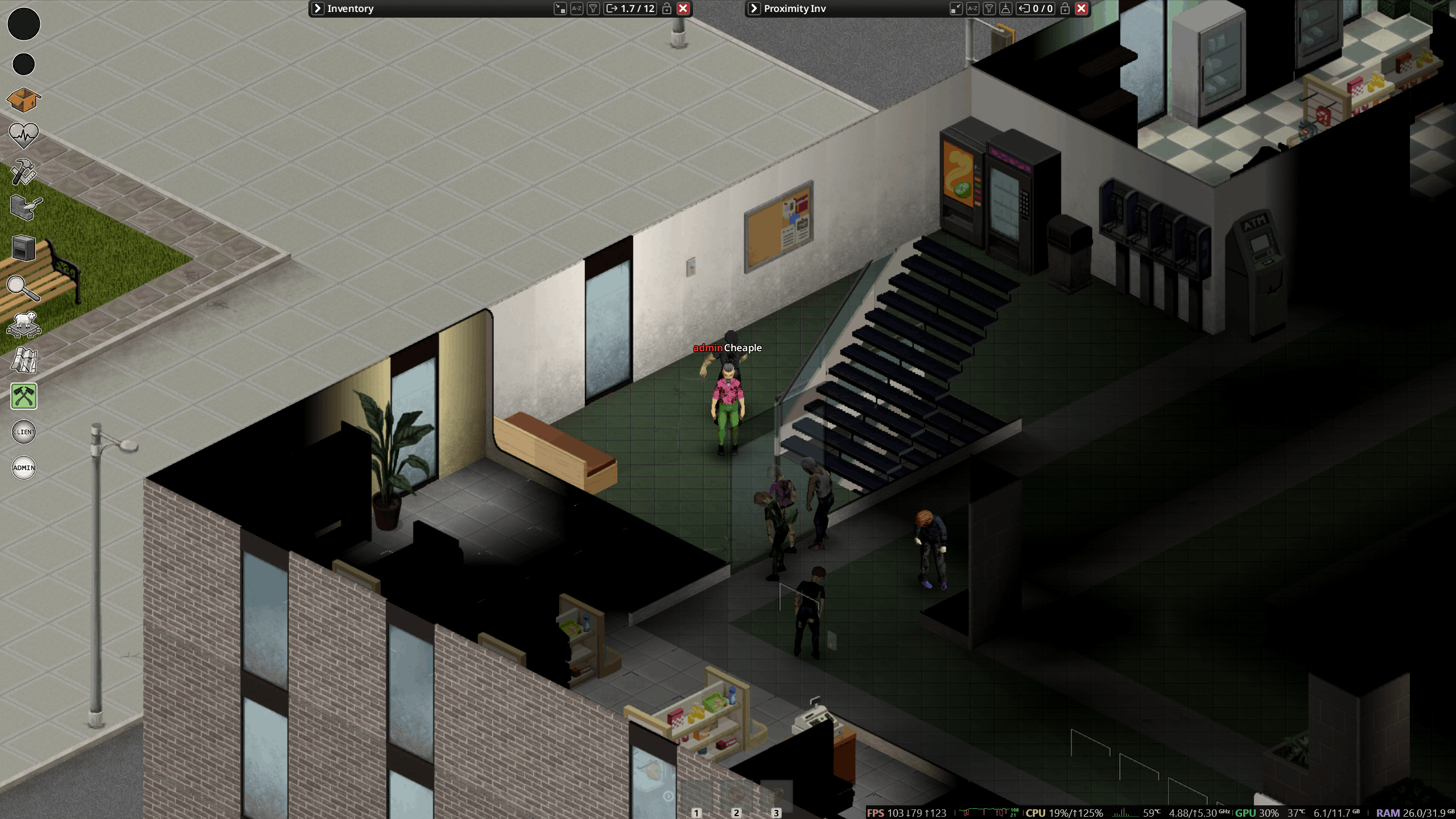 Here's a comparison in a location I'm sure you remember well. Standing in the heart of Louisville with a very large number of zombies loaded I'm getting around 60-100 fps as you can see in the bottom left. My PC is very good so I'm sure mileage may vary but hopefully after following my guide you too see a noticeable jump in performance that will make all future streams more enjoyable and lead to fewer deaths!
My specs for comparison:
GPU: Rtx 4070
CPU: i7-13700KF
Ram: 32gb DDR5
Hard drive: SSD ----> (Using an SSD over an HDD is recommended for any game since it improves load times and increases FPS when new assets are loaded midgame)
File edits without using mod
Skip this section if you decided to use the mod and file edits from first part.
If you don't want to use the Multicpu mod and/or forgot to make a backup of your original files before completing part 1, here they are.
The initial code you had with RAM edits:
It should look like this if done correctly:
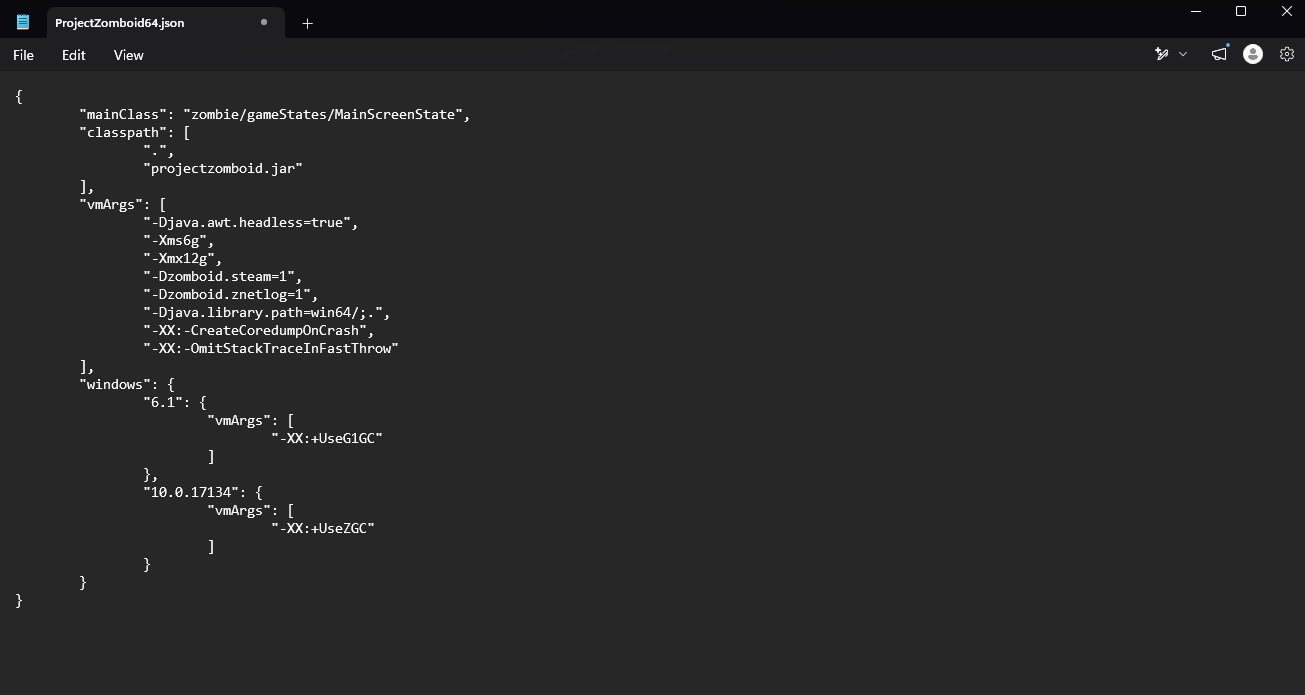
Remember to change the RAM amount to min: 4g and max: 8g if your computer only has 16gb of RAM in it.
GOOD LUCK BUCK!

- Modding Policy★ 5 (397)133k views208 ♥9 minUpdated Nov 8, 2022
- 80 tips and tricks for Project Zomboid (If you have over 100 hours in this game some of these will probably be new to you too)★ 5 (1.6k)82k views3.1k ♥28 minUpdated Aug 29, 2021
- Топ 100 лучших модов на "project zomboid"★ 5 (415)68k views1.1k ♥10 minRussianUpdated Jul 28, 2024
- [B41] Лучшие места для базы★ 5 (477)61k views1.3k ♥6 minRussianUpdated Nov 30, 2025
- Первая помощь ❤★ 5 (628)49k views1.4k ♥5 minRussianUpdated Jan 20, 2025
- The Basics of Base Building★ 5 (704)48k views1.5k ♥17 minUpdated Dec 24, 2021





- Upgrading to PremiumTeam Fortress 2★ 5 (20k)1441k views11k ♥6 minUpdated May 11, 2022
- No More Room in Hell Official ManualNo More Room in Hell★ 5 (2.8k)569k views2.1k ♥29 minUpdated Apr 22, 2019
- NMRiH Community Hosting GuidesNo More Room in Hell★ 5 (526)351k views653 ♥1 minUpdated Aug 10, 2022
- ULTIMATE GUIDE FOR GAME DEV TYCOONGame Dev Tycoon★ 5 (5.8k)326k views10k ♥4 minUpdated 23 Jan, 2014
- How to 'Git Gud' Soon™MORDHAU★ 5 (2k)318k views3k ♥68 minUpdated Nov 16, 2024
- Лучшие кооперативные игры SteamPAYDAY 2★ 5 (1.5k)315k views2.1k ♥56 minRussianUpdated Apr 27, 2025






This guide was created by its original author on the Steam Community. Are you the author and want it removed? Request removal.