Removing broken maps from your save file WITHOUT LOSSING PROGRESS
It won't load because "no maps found"
It won't load because "no maps found"
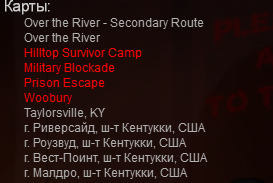
As you can see, the save file can't be loaded because the mod that created these extra maps was removed. In my case, the problem was SuperbSurvivors.
https://steamcommunity.com/workshop/filedetails/?id=1905148104
Now we need to clean up the maps somehow. But from the information I could find... they usually suggest extracting the Map_ver.bin file from a new save created without the mod activated. The problem is that doing so resets the world to the state of the new save, except for the character, vehicles, and anything else unrelated to the map and zombies (meaning all bases, dismantled furniture, felled trees, garden beds, and other similar changes to the game world are lost. The distribution and number of zombies, by the way, are also lost. So, when you launch your old save that "seems to be working," you could end up inside textures or in the middle of horde that's just trying to bite you).
However, there's an option for masochists: dig into the mod files at "C:\Program Files (x86)\Steam\steamapps\workshop\content\108600" where you can find the mod folder by ID and look for anything related to the coordinates/chunks of these "new maps." and then go into the saves folder along the path "C:\Users\<youruser>\Zomboid\Saves\<YourDifficulty>\<YourSaveName>" for the fun of deleting the corresponding "map_###_###.bin". But the trick is that you still need to replace Map_var.bin
Let's begin the technical wizardry.
It's simpler than it seems, but the task requires attention.
We need a program that opens HEX. In my case, I used Hex Editor Neo.
NATURALLY, MAKE A BACKUP OF YOUR SAVE.
Create a new save, making sure that mods that add those "red maps" are disabled. Run a few circles around the original and adjacent chunks to generate all the necessary files, then, without closing the game, exit to the main menu.
ONCE AGAIN, CHECK THAT THERE IS A BACKUP OF THE SAVE THAT NEEDS TO BE REPAIRED
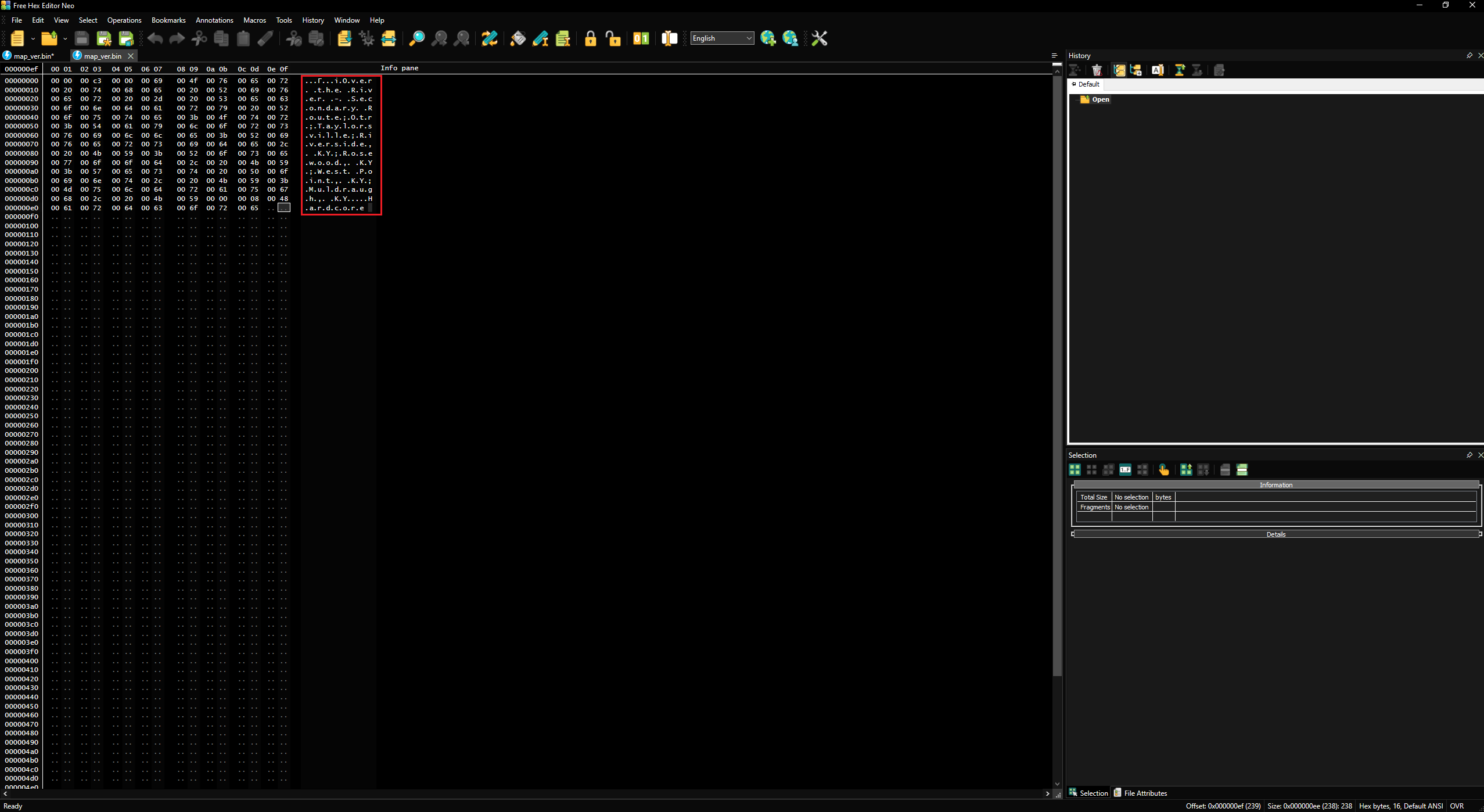
Next, open Hex Editor Neo and open Map_var.bin (the folder icon with an arrow in the upper left corner) at C:\Users\YourUserName\Zomboid\Saves. Find the save file by difficulty level (Builder/Sandbox, etc.) and name. The file you need will be in the folder near the very bottom. Look at the right side of the code (marked with a red rectangle).
Open our second save (freshly created earlier and working) by following the same path to Saves and finding Map_var.bin
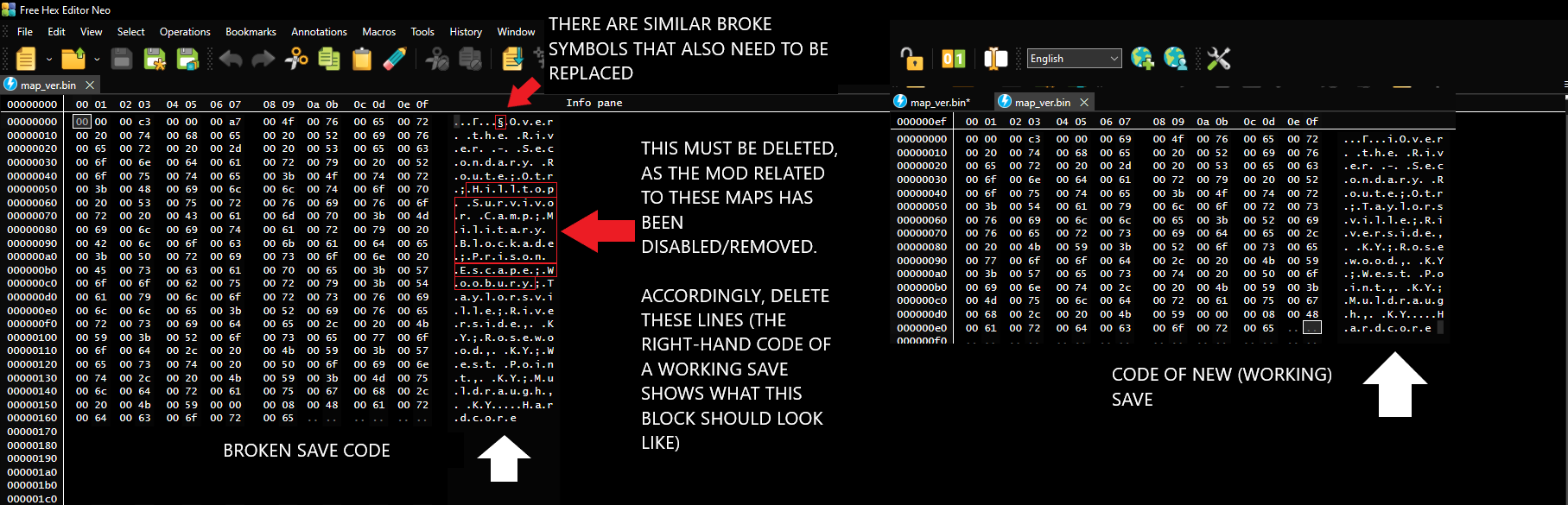
In the end, it's simple. We compare the differences between a "broken" and a "working" save, then edit the "broken" code to match the "working" one (yes, we manually edit it, deleting everything unnecessary map names, which will automatically delete the HEX addresses). NO, THIS WILL NOT WIPE THE WORLD. We're editing the list of maps for broken save specified on the right side of the code as letters and symbols, not the HEX addresses themselves, which are unique to each world as you progress. Editing is simple: left-click the desired symbol and press delete if you want to delete an entire line. If you only need to replace one symbol, as in the screenshot, the broken § symbol is marked, simply left-click it and then type the desired letter on the keyboard (in my case, I needed to replace § with i).
That's it. Don't forget to save your changes (the floppy disk icon is also in the upper left corner of the editor window) and close. The save must be alive and progress FULLY saved.
Bugs?
- Modding Policy★ 5 (397)133k views208 ♥9 minUpdated Nov 8, 2022
- 80 tips and tricks for Project Zomboid (If you have over 100 hours in this game some of these will probably be new to you too)★ 5 (1.6k)82k views3.1k ♥28 minUpdated Aug 29, 2021
- Топ 100 лучших модов на "project zomboid"★ 5 (415)68k views1.1k ♥10 minRussianUpdated Jul 28, 2024
- [B41] Лучшие места для базы★ 5 (477)61k views1.3k ♥6 minRussianUpdated Nov 30, 2025
- Первая помощь ❤★ 5 (628)49k views1.4k ♥5 minRussianUpdated Jan 20, 2025
- The Basics of Base Building★ 5 (704)48k views1.5k ♥17 minUpdated Dec 24, 2021





- Upgrading to PremiumTeam Fortress 2★ 5 (20k)1441k views11k ♥6 minUpdated May 11, 2022
- No More Room in Hell Official ManualNo More Room in Hell★ 5 (2.8k)569k views2.1k ♥29 minUpdated Apr 22, 2019
- NMRiH Community Hosting GuidesNo More Room in Hell★ 5 (526)351k views653 ♥1 minUpdated Aug 10, 2022
- ULTIMATE GUIDE FOR GAME DEV TYCOONGame Dev Tycoon★ 5 (5.8k)326k views10k ♥4 minUpdated 23 Jan, 2014
- How to 'Git Gud' Soon™MORDHAU★ 5 (2k)318k views3k ♥68 minUpdated Nov 16, 2024
- Лучшие кооперативные игры SteamPAYDAY 2★ 5 (1.5k)315k views2.1k ♥56 minRussianUpdated Apr 27, 2025






This guide was created by its original author on the Steam Community. Are you the author and want it removed? Request removal.