Geld / Money & Ansehen / Reputation manipulation !! NEW, ALL PAINTS !!
Warnung / Warning
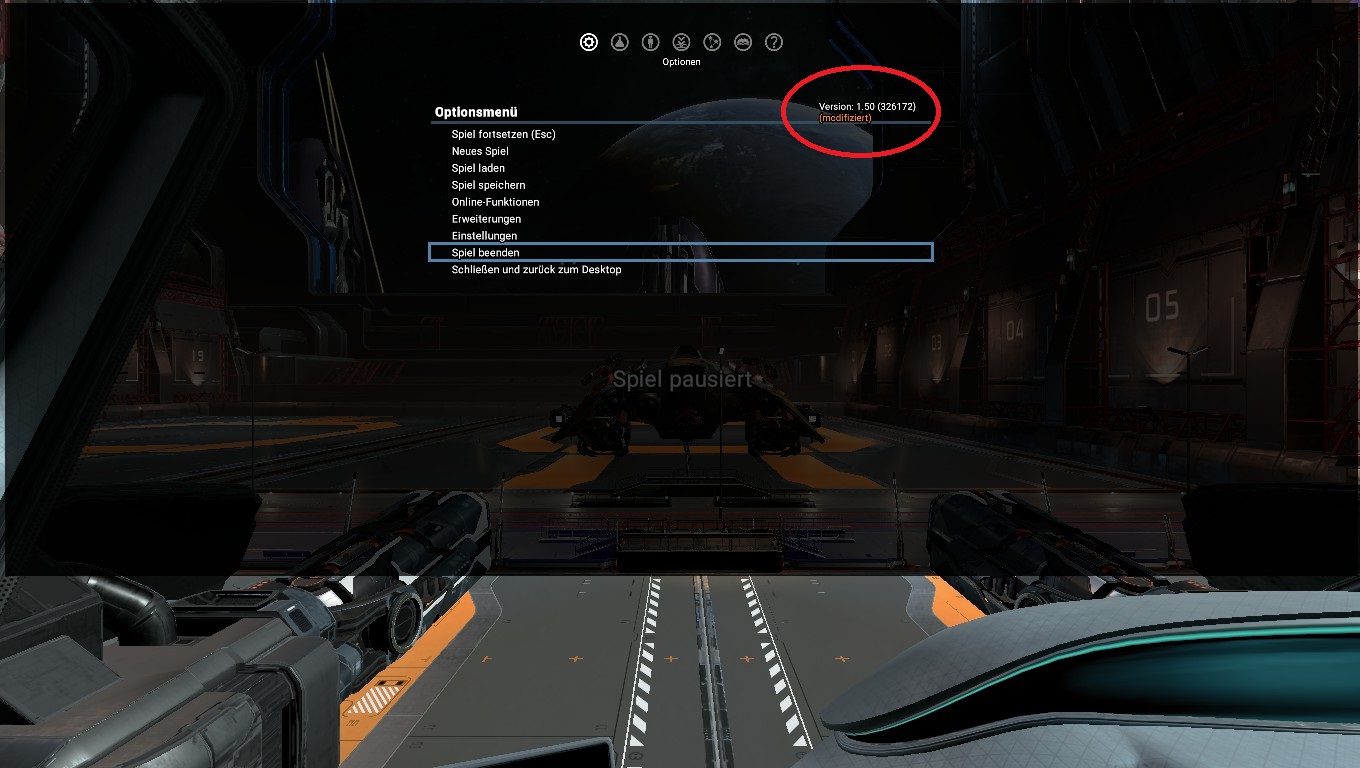
Wird irgendeine dieser Modifikationen angewand bekommt man einen kleinen orangenen Eintrag im Game das man eine Modifizierte Version nutzt!!!
Es ändert sich dadurch absolut nichts außer diesem Eintrag.
Wer also seinen Freunden zeigen will was er schon alles erreicht hat wird also Enttäuscht sein wenn diese ihn als Cheater entlarven :-)
P.s.: Expeditionen werden hierdurch ebenfalls gesperrt, also nutzt die Funktion nur wenn ihr diese ohnehin nicht machen wollt!!!
________________________________________________________________________________
If u use any of this modifications the game will know and give you a little orange string in Game that u using a modificated version!!!
Nothing else will change, just that string.
But if you wanna show to your friends what you done so fast in this game they will see and call you a cheater later :-)
Don´t loose this: Expeditions will get blocked with this. So make sure before modify anything written here that you don´t want to do those Expeditions!!!
Vorbereitung / Prepare
Um die gewünschten Änderungen vornehmen zu können Bedarf es einer kurzen Vorbereitung.
Dazu startet ihr das Spiel und ladet zunächst euren Spielstand.
Neustarter brauchen dies natürlich nicht.
- Zunächst öffnet ihr mit der ESC Taste das Optionsmenü
- Hier wählt ihr den Reiter "Einstellungen"
- Im neuen Untermenü öffnet ihr wiederum den Reiter "Spieleinstellungen"
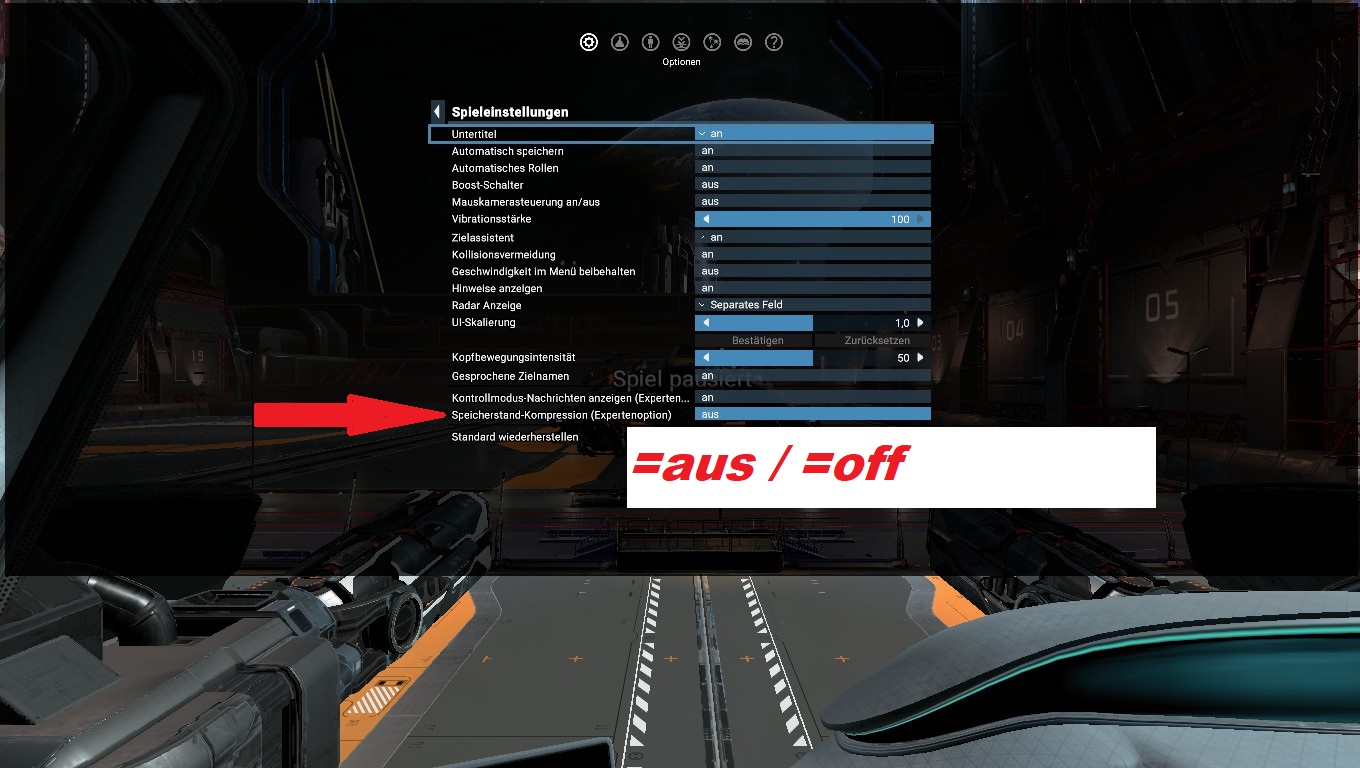
- Sucht hier (weit unten) nach der Option "Speicherstand-Kompression (Expertenoption)"
- Diese ist vom Standard auf "an", stellt hier um auf "aus"
- Menü verlassen und abspeichern (es empfiehlt sich immer 2 mal zu speichern falls etwas schief gehen sollte. Ich persönlich nutze Slot 1 zum Backup speichern und dann das 2te mal in Slot 10 zum bearbeiten) ...keine Sorge wenn ihr nichts falsches ändert passiert auch nichts^^
- Beendet das Spiel oder springt zum Desktop
______________________________________________________________________________
Before you can change those things you have to prepare shortly first.
For this start your game and load your Savegame.
Of course, anyone starting fresh game won´t need to do this.
- hit escape button to open options menu
- choose the folder called "settings"
- in the new menu point the folder named "game settings"
- Search at the Bottom for the option called "savegame-compression (Expert option)"
- standard its turned "on", so change it to "off"
- Leave the Menu and save your game ( I prefer to save it twice to have a backup if something goes wrong later. For example I save in slot 1 first for backup and after in slot 10 for changes) but no worries, if you do all as called nothing goes wrong^^
öffnen des savegames / open savegame
Ich empfehle unbedingt für das weitere Vorgehen das Kostenlose Textprogramm Notepad++
_________________________________________________________________________
I absolutely prefer for next steps the use of free editor programm called notepad++
https://notepad-plus-plus.org/download/v7.2.html
Zum beginnen öffnet folgenden Dateipfad auf eurem Computer / to begin open following path on your machine:
C:\Users\"deinusername"\Documents\Egosoft\X4\29325220\save (es kann sein das die 29325220 bei euch anders heißt, es ist jedoch definitiv ein Ordner mit Ähnlichkeit hierzu) / (its possible that the folder called 29325220 is called somehow other at you, but if it should be very similar to this, just other numbers)
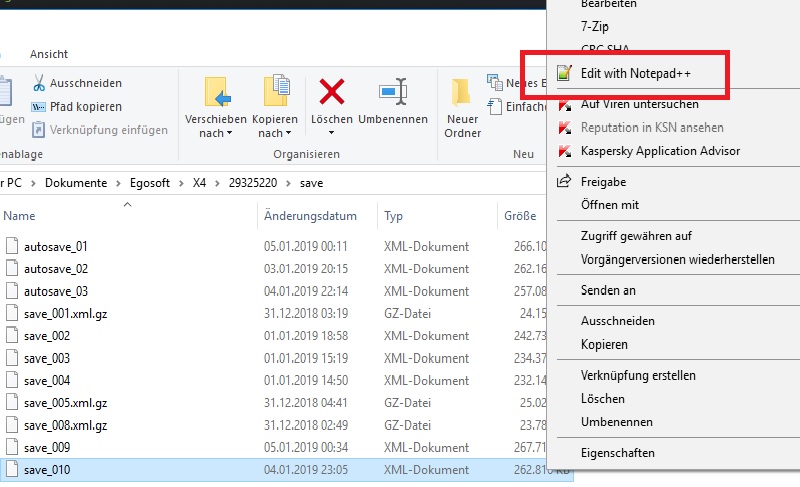
- Nachdem ihr eure savegames nun lokalisiert habt öffnet das savegame welches ihr zum bearbeiten vorgesehen habt (die .xml.gz endung ist durch das abschalten der kompression hier nicht mehr vorhanden, nun ist es ein reines .xml Dokument)
Zum öffnen mit notepad++ einfach rechtsklick auf die datei und im dropdown auswählen: "edit with notepad++" - jetzt hab ihr ein gigantisches textdokument vor augen in welchem die Änderungen vorgenommen werden können.
______________________________________________________________________________ - After you localised your savegame you prepared for modification open it (watch out, regular saves using the endings .xml.gz but yours which you saved after switching compression mode to off has just the ending .xml only)
To open with notepad++ simply click with right mouse on your savegame and choose in dropdown: "edit with notepad++" option - You just opened gigantic text document where you can make the changes.
die Änderungen / Deutsch
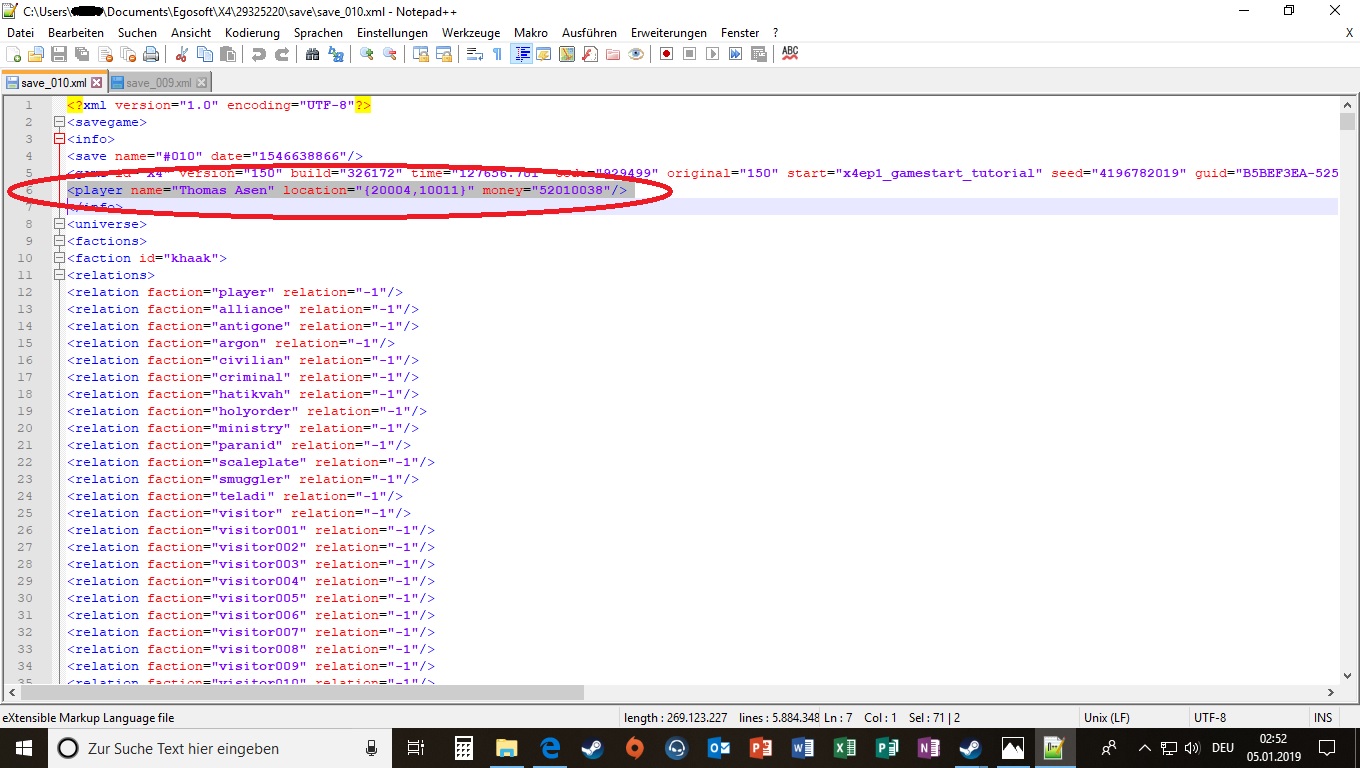
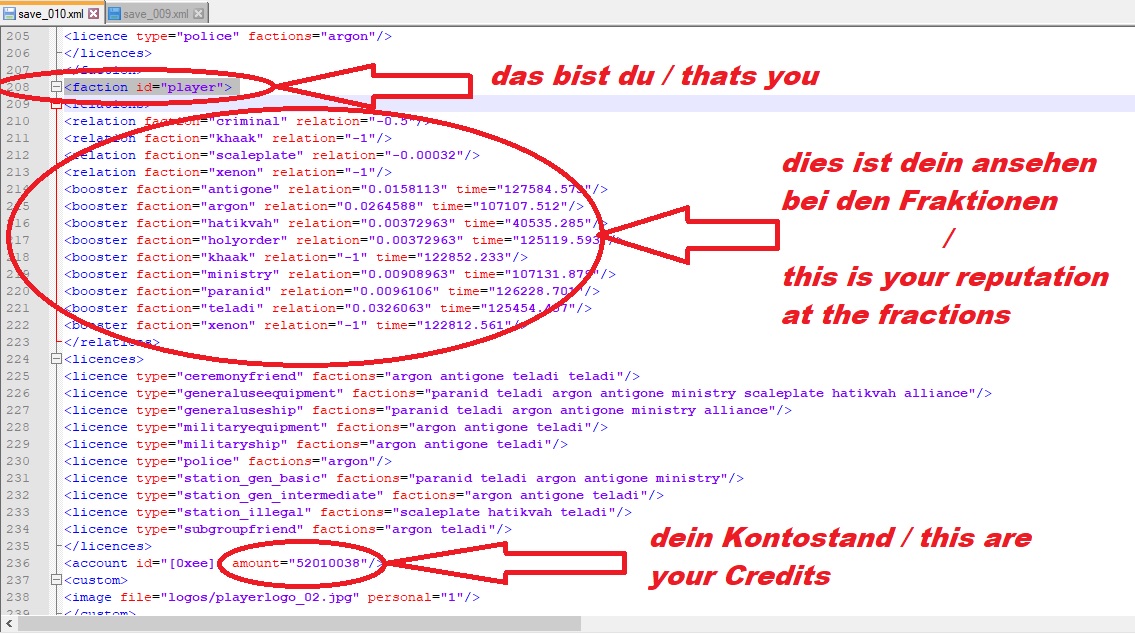
unten in den Bildern seht ihr welche Bereiche ihr ändern könnt bzw. müsst.
wird der Kontostand geändert sollte man das an beiden stellen gleichermaßen ändern. (Bild 1 + Bild 2 unten)
Der Wert aus Bild 1 ist jedoch nach meiner Feststellung lediglich zum Anzeigen des Kontostandes in der Kurzbeschreibung des Savegames wichtig, der im Bild 2 für die eigentliche Kontoänderung. Achtet beim Bild 2 Wert unbedingt darauf den richtigen Wert zu benutzen, diesen erkennt ihr daran das er in den Blöcken unterhalb der "faction ID = player" gelistet wird, wie auch euer Ansehen.
um euer Ansehen zu beeinflussen müssen die "booster" Werte im "relations" überordner direkt unter eurer faction ID geändert werden.
0 bedeutet hierbei natürlich 0 ; -1 ist im Spiel dann -30 und umgekehrt 1 im Spiel dann +30
Hierbei empfiehlt es sich zumindest eine fraktion bereits auf den gewünschten ingame Wert gespielt zu haben und diesen dann zu kopieren und einzufügen da hier für z.B. für +5 ingame ein Wert von 0.00372963 genutzt wird. Den Zeitstempel direkt hinter dem Wert braucht ihr nicht zu ändern.
Achtung!!!
ändert ihr das Ansehen wie beschrieben gilt das nur für eure Beziehung zur jeweiligen Fraktion, die Fraktion selbst hat aber dennoch eine eigene Meinung zu euch. Diese muss unbedingt ebenfalls geändert werden.
Dazu müsst ihr ein wenig bis viel je nach fraktion nach oben bzw. unten scrollen bis ihr auf den faction ID = "die fraktion die geändert wurde" Block stoßt und hier den selben Wert an der Stelle: booster faction = player eintragen.
2tes Achtung!!!
Ich habe das zu wenig getestet um sagen zu können ob auch die Einkaufsmöglichkeiten bei den Fraktionen dadurch mit aktiviert werden oder nur der Ansehens Wert an sich.
Es kann durchaus sein das ihr hier einen Wert 1 für ingame +30 eintragt ihr aber dennoch bei der Fraktion nicht einkaufen dürft.
Ich nutze das selbst lediglich um versehentlich verfeindete Fraktionen wieder friedlich zu stimmen.
Wer das notepad++ erstmalig nutzt:
Ihr müsst manuell im oberen reiter auf Datei und dann speichern klicken, x´t ihr das fenster lediglich bleiben die werte zwar in notepad++ erinnerung und werden beim erneuten öffnen genau so angezeigt, jedoch wird der spielstand selbst dadurch nicht geändert und somit ändert sich im Game nichts!!!
Nun wünsche ich viel Spaß und Erfolg und hoffe natürlich das ich euch mit diesem Guide helfen konnte. Wenn dem so ist lasst doch bitte einen Daumen nach oben da.
Man sieht sich bei der Expedition...
the changes / English
In the picures below you can see which parts can be changed.
if you wanna change amount of credits u have to change both parts equally. (See Picture 1 and picture 2 below)
Nevertheless, the value from picture 1 is just only important for the display of the account balance in the short description of the Savegames, in the picture 2 for the real account change. Make sure you change the correct value shown in pic 2. You can be sure you chosen right when you check that this value ist shown in the part below the callsign "faction id = player" as well as your reputation.
to influence your reputation the "booster" values must be changed in the "relations" sector directly under yours faction ID.
0 means here, of course 0 ;-1 is ingame then -30 and vice versa 1 in the play then +30.
On this occasion, it recommends to themselves to have played at least one faction already to the desired ingame value. Copy and paste the value then for the others you want to. There here for, e.g., for 5 ingame a value by 0.00372963 is used. You do not need to change the time stamp directly behind the value.
Attention!!
if you change the reputation as described is valid only for your respect with the respective faction, however, the faction itself still has own opinion to you. This must be also changed absolutely.
In addition you have to do a little to a lot scrolling to that faction upwards or below till you arrived on faction ID = "the faction you changed the value" and put the same value here:
booster "faction = player"
2nd attention!!
I have tested this not enough to be able to say if shopping possibilities are unlocked with this, too or even not..
It can absolutely be, however, that you put in a value 1 for ingame +30 reputation but you may still not be able to make purchases.
I use this even merely around mistakenly hostile groups again peacefully to be right.
For those using notepad first time:
You must save by hand in the upper Left Corner on "file" and then click save, if you close the window by the X it will merely remain values though but just only in notepad itself even after restart. The savegame itself is not changed, however, thereby and therefore nothing changes in the Game!!!
Now I wish a lot of fun and success and hope of course I could be able to help you with this guide. If you agree to this, nevertheless, leave me here a thumb upwards, pls.
We see use while the expedition...
Paint Mods Deutsch
Für alle die es nicht abwarten können ihren Schiffen einen neuen Look mit den Lackierungen zu verpassen...
Auch die könnt ihr euch in euren Spielstand aufnehmen. Das geht so:
Schritt 1: öffnet euer savegame wie vorab erklärt mit dem Notepad
Schritt 2: öffnet die notepad suche, entfernt die Häkchen vor "Rückwärtssuche", "nur ganze Wörter suchen" und Groß/ Kleinschreibung beachten"
Schritt 3: Tragt im Suchfeld exakt diesen Text ein : connection="player"
Schritt 4: Auf "weiter suchen" klicken und warten (das kann dauern, hier braucht ihr Geduld aber keine Sorge es kommt schon. Vermeidet nur multiples rumklicken sonst stürzt Notepad ab!!!)
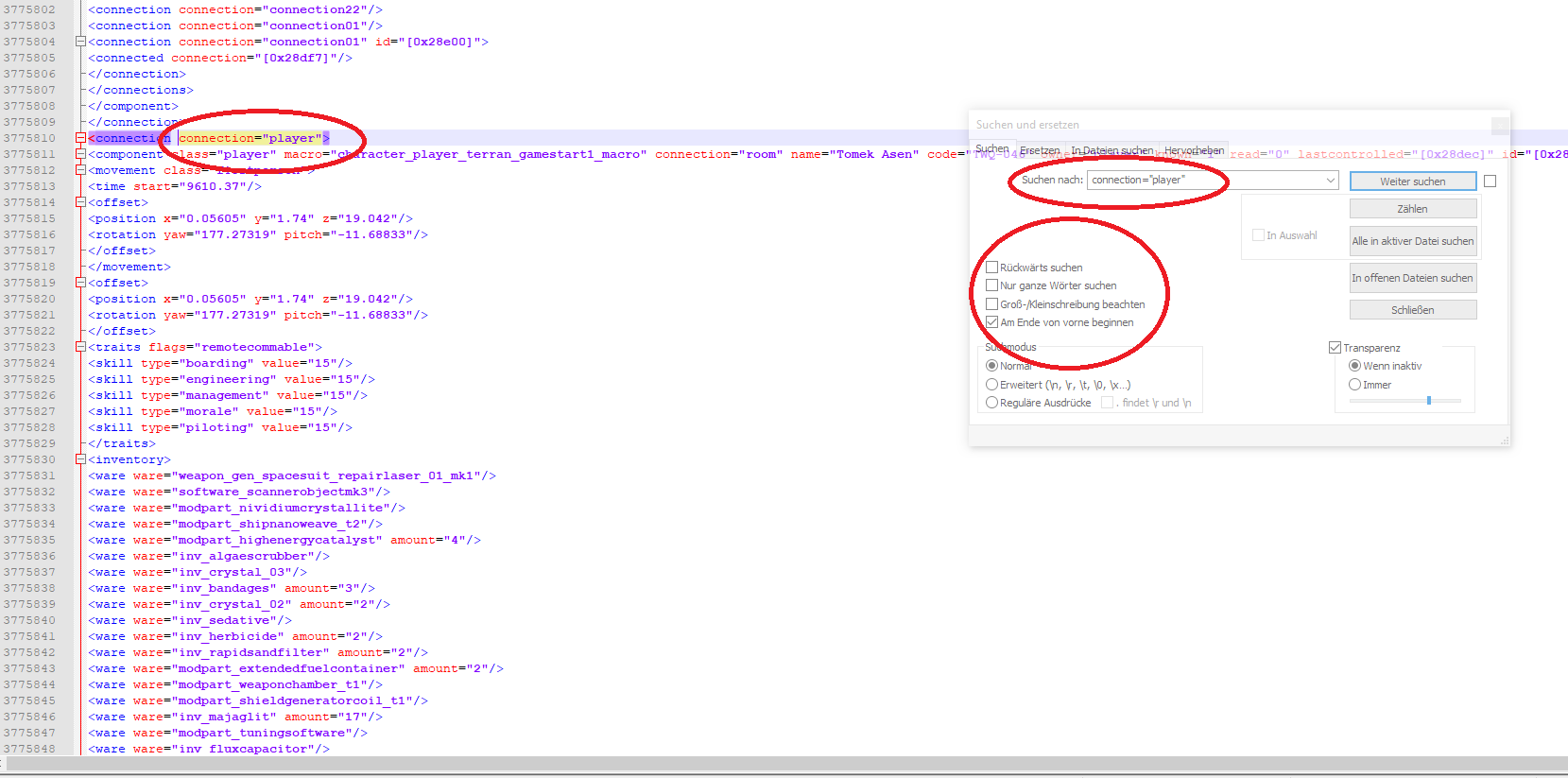
Schritt 5: Nach erfolgreicher Suche geht ihr vom Spot des Suchergebnisses etwas runter bis ihr den Eintrag <inventory> findet. Unter diesem sind diverse "ware" Einträge zu finden welche den Inhalt eures Inventars im Spiel wiederspiegeln.
Schritt 6: Setzt den Cursor hinter den letzen Eintrag der "ware" Einträge (vor dem Eintrag"</inventory>" ) und drückt ENTER um eine nächste Zeile zu erschaffen. Dort kopiert ihr nun folgende Werte ein um jeweils 10.000 Stück der Lackierungen zu haben.
<ware ware="paintmod_0001" amount="10000"/>
<ware ware="paintmod_0002" amount="10000"/>
<ware ware="paintmod_0003" amount="10000"/>
<ware ware="paintmod_0004" amount="10000"/>
<ware ware="paintmod_0005" amount="10000"/>
<ware ware="paintmod_0006" amount="10000"/>
<ware ware="paintmod_0007" amount="10000"/>
<ware ware="paintmod_0008" amount="10000"/>
<ware ware="paintmod_0009" amount="10000"/>
<ware ware="paintmod_0010" amount="10000"/>
<ware ware="paintmod_0011" amount="10000"/>
<ware ware="paintmod_0012" amount="10000"/>
<ware ware="paintmod_0013" amount="10000"/>
<ware ware="paintmod_0014" amount="10000"/>
<ware ware="paintmod_0015" amount="10000"/>
<ware ware="paintmod_0016" amount="10000"/>
<ware ware="paintmod_0017" amount="10000"/>
<ware ware="paintmod_0018" amount="10000"/>
<ware ware="paintmod_0019" amount="10000"/>
<ware ware="paintmod_0020" amount="10000"/>
<ware ware="paintmod_0021" amount="10000"/>
<ware ware="paintmod_0022" amount="10000"/>
<ware ware="paintmod_0023" amount="10000"/>
<ware ware="paintmod_0024" amount="10000"/>
<ware ware="paintmod_0025" amount="10000"/>
<ware ware="paintmod_0026" amount="10000"/>
<ware ware="paintmod_0027" amount="10000"/>
<ware ware="paintmod_0028" amount="10000"/>
<ware ware="paintmod_0029" amount="10000"/>
<ware ware="paintmod_0030" amount="10000"/>
<ware ware="paintmod_0031" amount="10000"/>
<ware ware="paintmod_0032" amount="10000"/>
<ware ware="paintmod_0033" amount="10000"/>
<ware ware="paintmod_0034" amount="10000"/>
<ware ware="paintmod_0035" amount="10000"/>
<ware ware="paintmod_0036" amount="10000"/>
<ware ware="paintmod_0037" amount="10000"/>
<ware ware="paintmod_0038" amount="10000"/>
<ware ware="paintmod_0039" amount="10000"/>
<ware ware="paintmod_0040" amount="10000"/>
<ware ware="paintmod_0041" amount="10000"/>
<ware ware="paintmod_0042" amount="10000"/>
<ware ware="paintmod_0043" amount="10000"/>
<ware ware="paintmod_0044" amount="10000"/>
<ware ware="paintmod_0045" amount="10000"/>
<ware ware="paintmod_0046" amount="10000"/>
<ware ware="paintmod_0047" amount="10000"/>
<ware ware="paintmod_0048" amount="10000"/>
<ware ware="paintmod_0049" amount="10000"/>
<ware ware="paintmod_0050" amount="10000"/>
<ware ware="paintmod_0051" amount="10000"/>
<ware ware="paintmod_0052" amount="10000"/>
<ware ware="paintmod_0053" amount="10000"/>
<ware ware="paintmod_0054" amount="10000"/>
<ware ware="paintmod_0055" amount="10000"/>
<ware ware="paintmod_0056" amount="10000"/>
<ware ware="paintmod_0057" amount="10000"/>
<ware ware="paintmod_0058" amount="10000"/>
<ware ware="paintmod_0059" amount="10000"/>
<ware ware="paintmod_0060" amount="10000"/>
<ware ware="paintmod_0061" amount="10000"/>
<ware ware="paintmod_0062" amount="10000"/>
<ware ware="paintmod_0063" amount="10000"/>
<ware ware="paintmod_0064" amount="10000"/>
<ware ware="paintmod_0065" amount="10000"/>
<ware ware="paintmod_0066" amount="10000"/>
<ware ware="paintmod_0067" amount="10000"/>
<ware ware="paintmod_0068" amount="10000"/>
<ware ware="paintmod_0069" amount="10000"/>
<ware ware="paintmod_0070" amount="10000"/>
<ware ware="paintmod_0071" amount="10000"/>
<ware ware="paintmod_0072" amount="10000"/>
<ware ware="paintmod_0073" amount="10000"/>
<ware ware="paintmod_0074" amount="10000"/>
<ware ware="paintmod_0075" amount="10000"/>
<ware ware="paintmod_0076" amount="10000"/>
<ware ware="paintmod_0077" amount="10000"/>
<ware ware="paintmod_0078" amount="10000"/>
<ware ware="paintmod_0079" amount="10000"/>
<ware ware="paintmod_0080" amount="10000"/>
<ware ware="paintmod_0081" amount="10000"/>
<ware ware="paintmod_0082" amount="10000"/>
<ware ware="paintmod_0083" amount="10000"/>
<ware ware="paintmod_0084" amount="10000"/>
<ware ware="paintmod_0085" amount="10000"/>
<ware ware="paintmod_0086" amount="10000"/>
<ware ware="paintmod_0087" amount="10000"/>
<ware ware="paintmod_0088" amount="10000"/>
<ware ware="paintmod_0089" amount="10000"/>
<ware ware="paintmod_0090" amount="10000"/>
<ware ware="paintmod_0091" amount="10000"/>
<ware ware="paintmod_0092" amount="10000"/>
<ware ware="paintmod_0093" amount="10000"/>
<ware ware="paintmod_0094" amount="10000"/>
<ware ware="paintmod_0095" amount="10000"/>
<ware ware="paintmod_0096" amount="10000"/>
<ware ware="paintmod_0097" amount="10000"/>
<ware ware="paintmod_0098" amount="10000"/>
<ware ware="paintmod_0099" amount="10000"/>
<ware ware="paintmod_0100" amount="10000"/>
<ware ware="paintmod_0101" amount="10000"/>
<ware ware="paintmod_0102" amount="10000"/>
<ware ware="paintmod_0103" amount="10000"/>
<ware ware="paintmod_0104" amount="10000"/>
<ware ware="paintmod_0115" amount="10000"/>
<ware ware="paintmod_0117" amount="10000"/>
<ware ware="paintmod_0118" amount="10000"/>
<ware ware="paintmod_0119" amount="10000"/>
<ware ware="paintmod_0120" amount="10000"/>
<ware ware="paintmod_0121" amount="10000"/>
<ware ware="paintmod_0122" amount="10000"/>
<ware ware="paintmod_0123" amount="10000"/>
<ware ware="paintmod_0124" amount="10000"/>
<ware ware="paintmod_0125" amount="10000"/>
<ware ware="paintmod_0126" amount="10000"/>
<ware ware="paintmod_0127" amount="10000"/>
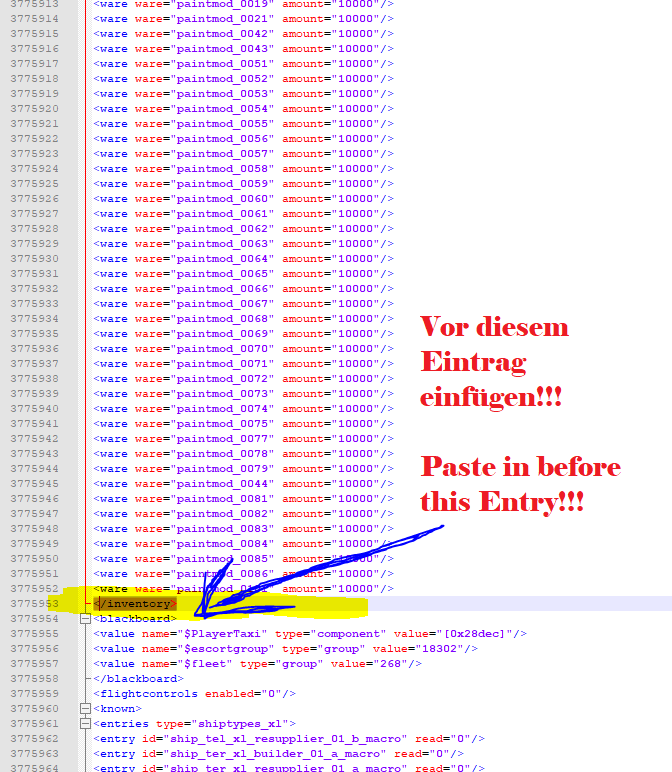
Schritt 7: Nur noch speichern und genießen. Beachtet das ihr die richtige Station ansteuern müsst um die Paints auszurüsten. Viel Spaß.
Paint Mods English
For all of you out there can´t wait for paintings anymore...
Cuz those we can add to your savegame,too. This is how it´s done:
Step 1: open your savegame as explained above using Notepad.
Step 2: open the notepad search and uncheck "backward direction", "match whole word only" and "Match case".
Step 3: Fill into the Search Input field exactly following text: connection="player"
Step 4: Start the search and wait (this needs some time, stay calm. Don´t click around while it is searching, otherwise Notepad will crash probably!!!)
Step 5: When it´s done scroll down a little bit until you find the Entry <inventory> . Under it you will find some Entrys called "ware" which shows your actual in Game inventory with amounts.
Step 6: Set the cursor to last place in the last "ware" entry there u can find (in a row) and press ENTER to activate a new line ( just above the Entry </inventory> ). Copy and paste following entries into it to get an amount of 10000 paints each.
<ware ware="paintmod_0001" amount="10000"/>
<ware ware="paintmod_0002" amount="10000"/>
<ware ware="paintmod_0003" amount="10000"/>
<ware ware="paintmod_0004" amount="10000"/>
<ware ware="paintmod_0005" amount="10000"/>
<ware ware="paintmod_0006" amount="10000"/>
<ware ware="paintmod_0007" amount="10000"/>
<ware ware="paintmod_0008" amount="10000"/>
<ware ware="paintmod_0009" amount="10000"/>
<ware ware="paintmod_0010" amount="10000"/>
<ware ware="paintmod_0011" amount="10000"/>
<ware ware="paintmod_0012" amount="10000"/>
<ware ware="paintmod_0013" amount="10000"/>
<ware ware="paintmod_0014" amount="10000"/>
<ware ware="paintmod_0015" amount="10000"/>
<ware ware="paintmod_0016" amount="10000"/>
<ware ware="paintmod_0017" amount="10000"/>
<ware ware="paintmod_0018" amount="10000"/>
<ware ware="paintmod_0019" amount="10000"/>
<ware ware="paintmod_0020" amount="10000"/>
<ware ware="paintmod_0021" amount="10000"/>
<ware ware="paintmod_0022" amount="10000"/>
<ware ware="paintmod_0023" amount="10000"/>
<ware ware="paintmod_0024" amount="10000"/>
<ware ware="paintmod_0025" amount="10000"/>
<ware ware="paintmod_0026" amount="10000"/>
<ware ware="paintmod_0027" amount="10000"/>
<ware ware="paintmod_0028" amount="10000"/>
<ware ware="paintmod_0029" amount="10000"/>
<ware ware="paintmod_0030" amount="10000"/>
<ware ware="paintmod_0031" amount="10000"/>
<ware ware="paintmod_0032" amount="10000"/>
<ware ware="paintmod_0033" amount="10000"/>
<ware ware="paintmod_0034" amount="10000"/>
<ware ware="paintmod_0035" amount="10000"/>
<ware ware="paintmod_0036" amount="10000"/>
<ware ware="paintmod_0037" amount="10000"/>
<ware ware="paintmod_0038" amount="10000"/>
<ware ware="paintmod_0039" amount="10000"/>
<ware ware="paintmod_0040" amount="10000"/>
<ware ware="paintmod_0041" amount="10000"/>
<ware ware="paintmod_0042" amount="10000"/>
<ware ware="paintmod_0043" amount="10000"/>
<ware ware="paintmod_0044" amount="10000"/>
<ware ware="paintmod_0045" amount="10000"/>
<ware ware="paintmod_0046" amount="10000"/>
<ware ware="paintmod_0047" amount="10000"/>
<ware ware="paintmod_0048" amount="10000"/>
<ware ware="paintmod_0049" amount="10000"/>
<ware ware="paintmod_0050" amount="10000"/>
<ware ware="paintmod_0051" amount="10000"/>
<ware ware="paintmod_0052" amount="10000"/>
<ware ware="paintmod_0053" amount="10000"/>
<ware ware="paintmod_0054" amount="10000"/>
<ware ware="paintmod_0055" amount="10000"/>
<ware ware="paintmod_0056" amount="10000"/>
<ware ware="paintmod_0057" amount="10000"/>
<ware ware="paintmod_0058" amount="10000"/>
<ware ware="paintmod_0059" amount="10000"/>
<ware ware="paintmod_0060" amount="10000"/>
<ware ware="paintmod_0061" amount="10000"/>
<ware ware="paintmod_0062" amount="10000"/>
<ware ware="paintmod_0063" amount="10000"/>
<ware ware="paintmod_0064" amount="10000"/>
<ware ware="paintmod_0065" amount="10000"/>
<ware ware="paintmod_0066" amount="10000"/>
<ware ware="paintmod_0067" amount="10000"/>
<ware ware="paintmod_0068" amount="10000"/>
<ware ware="paintmod_0069" amount="10000"/>
<ware ware="paintmod_0070" amount="10000"/>
<ware ware="paintmod_0071" amount="10000"/>
<ware ware="paintmod_0072" amount="10000"/>
<ware ware="paintmod_0073" amount="10000"/>
<ware ware="paintmod_0074" amount="10000"/>
<ware ware="paintmod_0075" amount="10000"/>
<ware ware="paintmod_0076" amount="10000"/>
<ware ware="paintmod_0077" amount="10000"/>
<ware ware="paintmod_0078" amount="10000"/>
<ware ware="paintmod_0079" amount="10000"/>
<ware ware="paintmod_0080" amount="10000"/>
<ware ware="paintmod_0081" amount="10000"/>
<ware ware="paintmod_0082" amount="10000"/>
<ware ware="paintmod_0083" amount="10000"/>
<ware ware="paintmod_0084" amount="10000"/>
<ware ware="paintmod_0085" amount="10000"/>
<ware ware="paintmod_0086" amount="10000"/>
<ware ware="paintmod_0087" amount="10000"/>
<ware ware="paintmod_0088" amount="10000"/>
<ware ware="paintmod_0089" amount="10000"/>
<ware ware="paintmod_0090" amount="10000"/>
<ware ware="paintmod_0091" amount="10000"/>
<ware ware="paintmod_0092" amount="10000"/>
<ware ware="paintmod_0093" amount="10000"/>
<ware ware="paintmod_0094" amount="10000"/>
<ware ware="paintmod_0095" amount="10000"/>
<ware ware="paintmod_0096" amount="10000"/>
<ware ware="paintmod_0097" amount="10000"/>
<ware ware="paintmod_0098" amount="10000"/>
<ware ware="paintmod_0099" amount="10000"/>
<ware ware="paintmod_0100" amount="10000"/>
<ware ware="paintmod_0101" amount="10000"/>
<ware ware="paintmod_0102" amount="10000"/>
<ware ware="paintmod_0103" amount="10000"/>
<ware ware="paintmod_0104" amount="10000"/>
<ware ware="paintmod_0115" amount="10000"/>
<ware ware="paintmod_0117" amount="10000"/>
<ware ware="paintmod_0118" amount="10000"/>
<ware ware="paintmod_0119" amount="10000"/>
<ware ware="paintmod_0120" amount="10000"/>
<ware ware="paintmod_0121" amount="10000"/>
<ware ware="paintmod_0122" amount="10000"/>
<ware ware="paintmod_0123" amount="10000"/>
<ware ware="paintmod_0124" amount="10000"/>
<ware ware="paintmod_0125" amount="10000"/>
<ware ware="paintmod_0126" amount="10000"/>
<ware ware="paintmod_0127" amount="10000"/>
Step 7: Save the file and have fun with it. As reminder, think about you have to visit the needet station to equip those paints. Have fun.
- X4 Full Map [Timelines][7.0]★ 5 (579)46k views1.2k ♥1 minUpdated 22 Jun, 2024
- A Guide to Game Starts★ 5 (209)28k views437 ♥27 minUpdated 7 Jan
- X4 Beginner Guide 5.1★ 5 (393)27k views1.2k ♥22 minUpdated 7 Mar, 2023
- All Ownerless Ships in X4: Foundations (9.00 Base Game + All DLCs)★ 5 (453)27k views1.1k ♥10 minUpdated 10 Jun
- X4 Ultimate Weapons Guide. [NOW ON THE WIKI]★ 5 (343)23k views768 ♥104 minUpdated 8 Jul, 2024
- X4 sector map★ 4 (146)22k views207 ♥1 minUpdated 6 Dec, 2018


- Upgrading to PremiumTeam Fortress 2★ 5 (20k)1441k views11k ♥6 minUpdated May 11, 2022
- No More Room in Hell Official ManualNo More Room in Hell★ 5 (2.8k)569k views2.1k ♥29 minUpdated Apr 22, 2019
- NMRiH Community Hosting GuidesNo More Room in Hell★ 5 (526)351k views653 ♥1 minUpdated Aug 10, 2022
- ULTIMATE GUIDE FOR GAME DEV TYCOONGame Dev Tycoon★ 5 (5.8k)326k views10k ♥4 minUpdated 23 Jan, 2014
- How to 'Git Gud' Soon™MORDHAU★ 5 (2k)318k views3k ♥68 minUpdated Nov 16, 2024
- Лучшие кооперативные игры SteamPAYDAY 2★ 5 (1.5k)315k views2.1k ♥56 minRussianUpdated Apr 27, 2025






This guide was created by its original author on the Steam Community. Are you the author and want it removed? Request removal.