Grim Dawn “Fonts.arc” File detailed description and make custom
1."Fonts.arc" file structure and related instructions
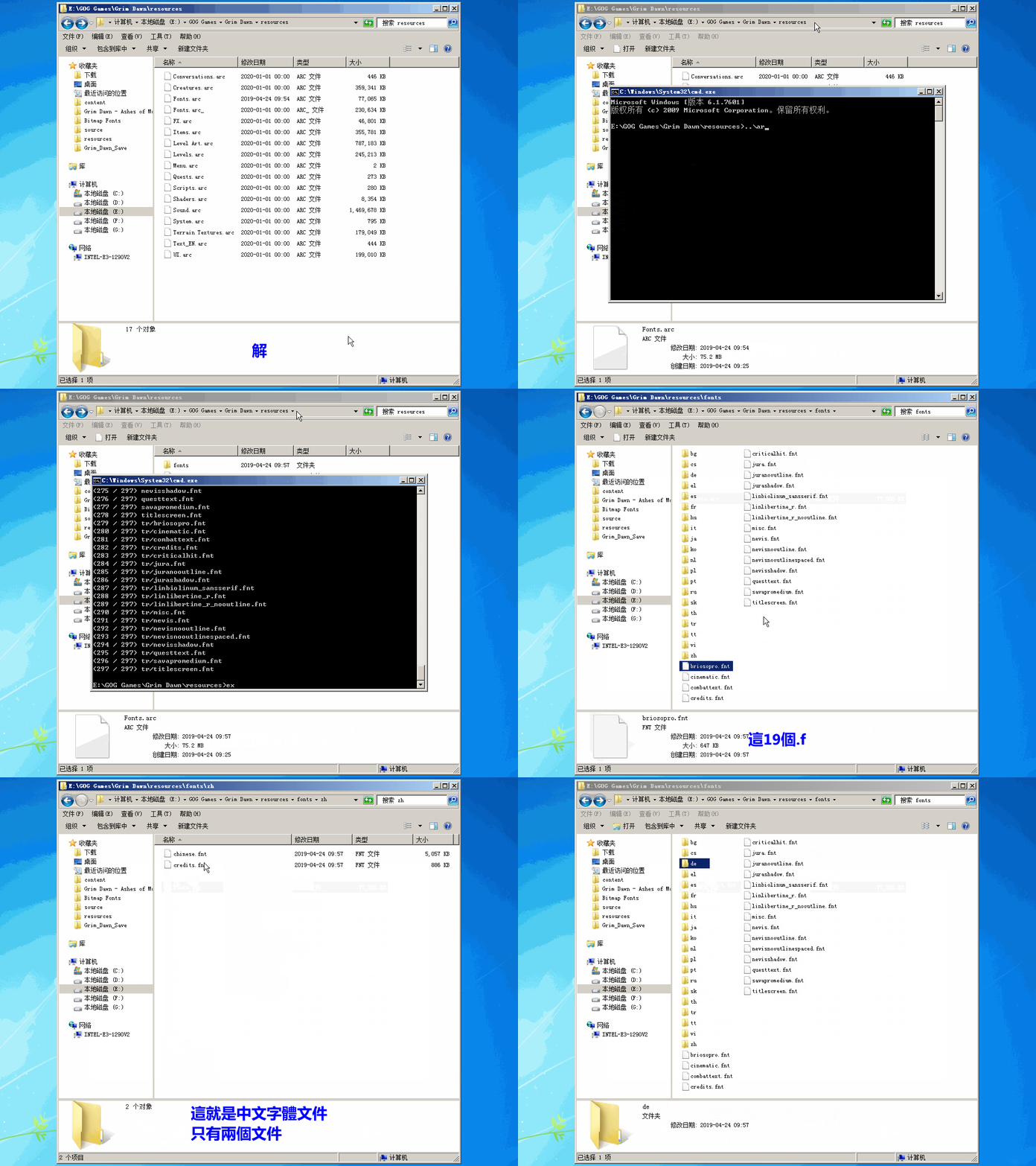
Fonts.arc is a special compression package file for Grim Dawn. It contains all special font files (the file extension is '.fnt') called by the game. The specific files for English version default fonts are as follows:
briosopro.fnt
cinematic.fnt
combattext.fnt
credits.fnt
criticalhit.fnt
jura.fnt
juranooutline.fnt
jurashadow.fnt
linbiolinum_sansserif.fnt
linlibertine_r.fnt
linlibertine_r_nooutline.fnt
misc.fnt
nevis.fnt
nevisnooutline.fnt
nevisnooutlinespaced.fnt
nevisshadow.fnt
questtext.fnt
savapromedium.fnt
titlescreen.fnt
cinematic.fnt
combattext.fnt
credits.fnt
criticalhit.fnt
jura.fnt
juranooutline.fnt
jurashadow.fnt
linbiolinum_sansserif.fnt
linlibertine_r.fnt
linlibertine_r_nooutline.fnt
misc.fnt
nevis.fnt
nevisnooutline.fnt
nevisnooutlinespaced.fnt
nevisshadow.fnt
questtext.fnt
savapromedium.fnt
titlescreen.fnt
Following is a demo of decompressing Fonts.arc compressed package and related instructions:
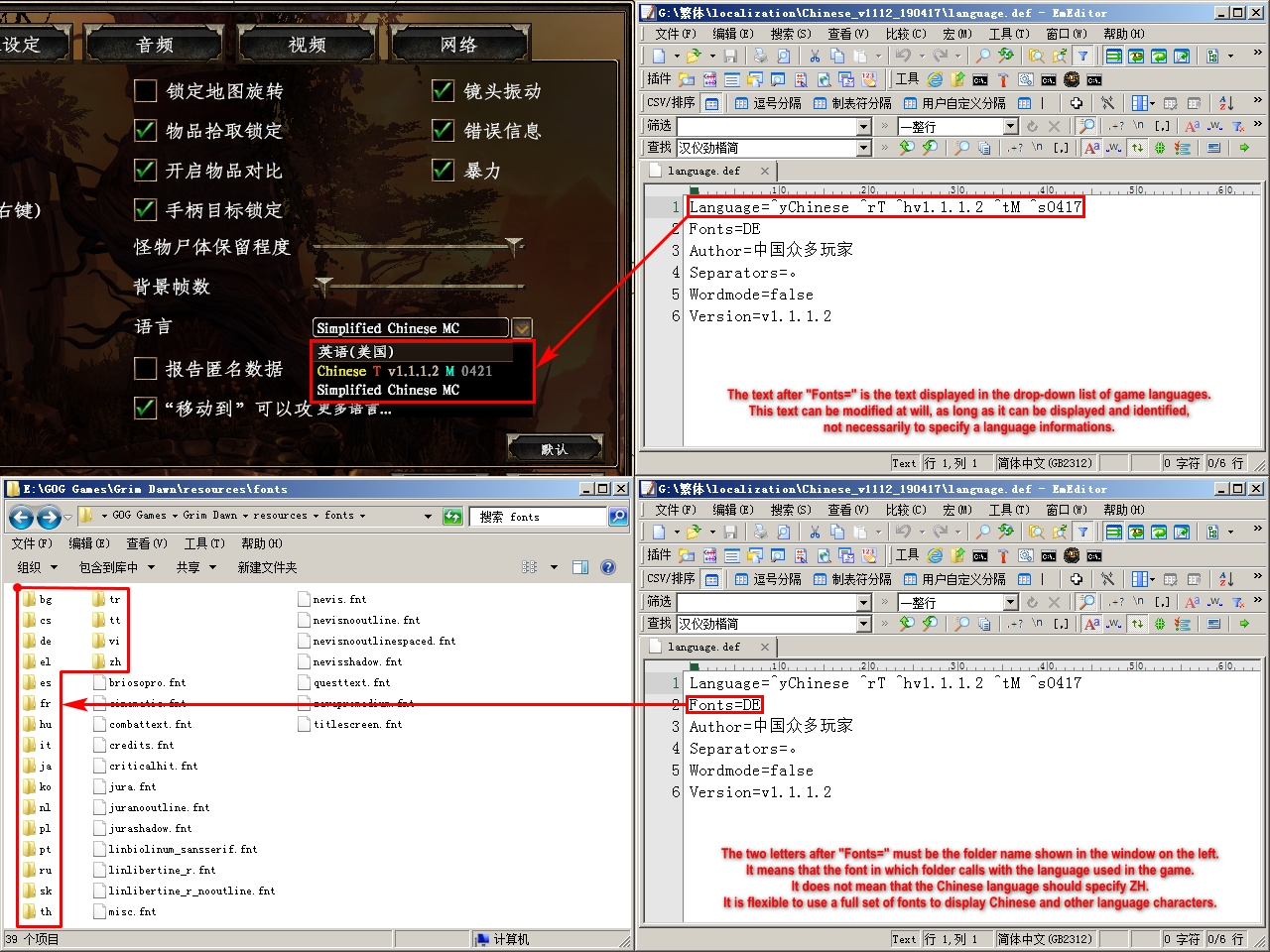
A graph illustrates the relationship between Fonts.arc and language.def
2-01."Briosopro. fnt" Font File Specific Definition
According to the data of the game database file database.arz, briosopro.fnt font file is defined as follows:
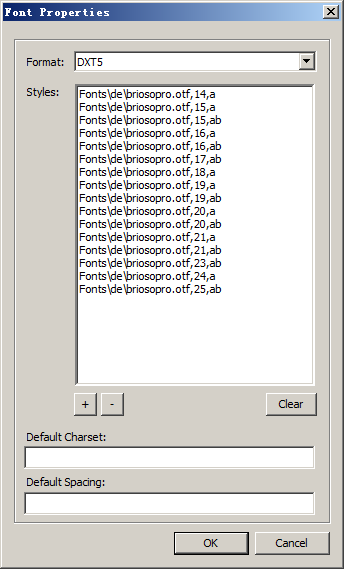
Font Use, Font Size, Font Type:
conversation window option, 20
conversation window text, 20
default, 15
default red size n, 16
default white size n, 16
default white size n bright, 16
default white size nl, 18
default white size ns, 14
drop title01, 16, Bold
drop title02, 15, Bold
effect name, 20, Bold
items artifact, 23, Bold
items artifact size s, 21, Bold
items blueprint, 23, Bold
items broken, 23, Bold
items common, 23, Bold
items consumable, 23, Bold
items crafting, 23, Bold
items enchantment, 23, Bold
items enchantment size s, 21, Bold
items lore, 23, Bold
items magical, 23, Bold
items potion, 23, Bold
items quest, 23, Bold
items rare, 23, Bold
items relic, 23, Bold
items relic gray, 21, Bold
items relic gray size t, 17, Bold
items relic size s, 21, Bold
items relic size t, 17, Bold
items set, 21, Bold
items unique a, 23, Bold
items unique b, 23, Bold
number attribute04 sizen, 16
number attribute05 sizen, 16
number blue size l bold, 17, Bold
skill description, 20, Bold
skill level text, 19, Bold
skill name, 20, Bold
skill name gray, 20, Bold
skill name size s, 15, Bold
special char stats dps, 16
special char stats player name, 20
special char stats rollover name, 17, Bold
special enemy lvl, 19
special enemy name, 21
special enemy race, 15
special rift map names, 14
special rift map names current, 14
special skill class button down, 21, Bold
special skill class button up, 21, Bold
special skill names, 25, Bold
tab text large gray, 20
tab text large white, 20, Bold
endless dungeon l, 24, [*gdx2]
endless dungeon level counter, 16, [*gdx2]
endless dungeon s, 16, [*gdx2]
*gdx2 means Grim Dawn - Forgotten Gods Expansion adding new font definition.
Asset Manager Integrated font size settings:
14, Antialiased, Outline, 1
15, Antialiased, Outline, 1
15, Antialiased, Bold, Outline, 1
16, Antialiased, Outline, 1
16, Antialiased, Bold, Outline, 1
17, Antialiased, Bold, Outline, 1
18, Antialiased, Outline, 1
19, Antialiased, Outline, 1
19, Antialiased, Bold, Outline, 1
20, Antialiased, Outline, 1
20, Antialiased, Bold, Outline, 1
21, Antialiased, Outline, 1
21, Antialiased, Bold, Outline, 1
23, Antialiased, Bold, Outline, 1
24, Antialiased, Outline, 1
25, Antialiased, Bold, Outline, 1
2-02."cinematic.fnt" Font File Specific Definition
According to the data of the game database file database.arz, cinematic.fnt font file is defined as follows:
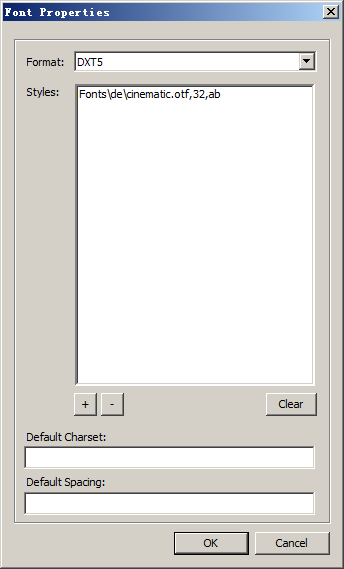
Font Use, Font Size, Font Type:
cinematic text, 32, Bold
video subtitle, 32, Bold
Asset Manager Integrated font size settings:
32, Antialiased, Bold
2-03."combattext.fnt" Font File Specific Definition
According to the data of the game database file database.arz, combattext.fnt font file is defined as follows:
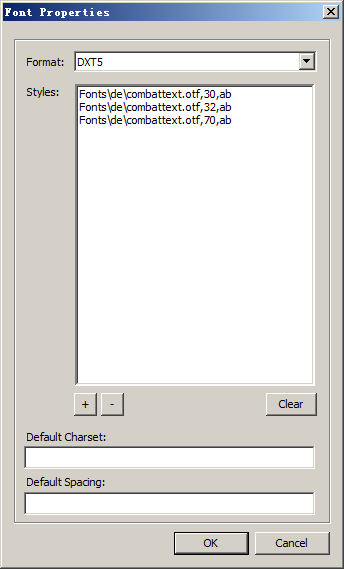
Font Use, Font Size, Font Type:
floating text combat enemy block, 30, Bold
floating text combat enemy critical, 30, Bold
floating text combat player block, 30, Bold
floating text combat player critical, 40, Bold
floating text combat player critical2, 45, Bold
floating text combat player critical3, 52, Bold
floating text combat player critical4, 60, Bold
floating text combat player critical5, 70, Bold
floating text combat player fumble, 30, Bold
floating text combat player hit, 30, Bold
floating text combat player miss, 30, Bold
floating text rewards faction, 32, Bold
Asset Manager Integrated font size settings:
30, Antialiased, Bold, Outline, 1
32, Antialiased, Bold, Outline, 1
40, Antialiased, Bold, Outline, 1
45, Antialiased, Bold, Outline, 1
52, Antialiased, Bold, Outline, 1
60, Antialiased, Bold, Outline, 1
70, Antialiased, Bold, Outline, 1
Note: For Chinese fonts, as the font size is too large, it is impossible to add all font sizes to the same file. There will be errors when compiling the file. So only the smallest and largest fonts are selected in the figure above, and other font size 40/45/52/60 are forcibly discarded.
2-04."credits.fnt" Font File Specific Definition
According to the data of the game database file database.arz, credits.fnt font file is defined as follows:
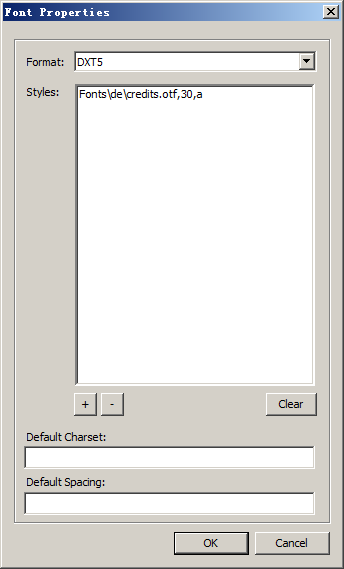
Font Use, Font Size, Font Type:
credits text, 30
Asset Manager Integrated font size settings:
30, Antialiased
2-05."criticalhit.fnt" Font File Specific Definition
According to the data of the game database file database.arz, criticalhit.fnt font file is defined as follows:
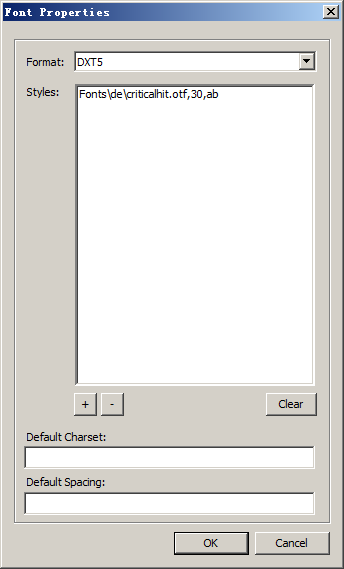
Font Use, Font Size, Font Type:
floating text combat enemy critical, 30, Bold
Asset Manager Integrated font size settings:
30, Antialiased, Bold, Outline, 1
2-06."jura.fnt" Font File Specific Definition
According to the data of the game database file database.arz, jura.fnt font file is defined as follows:
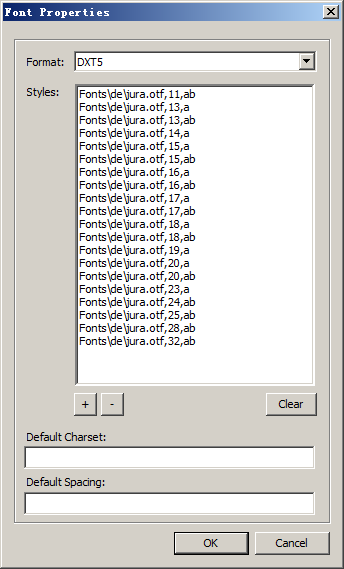
Font Use, Font Size, Font Type:
bar graph, 11, Bold
clock display, 25, Bold
debug, 13
error, 17, Bold
experience bar popup, 24, Bold
items set name, 16, Bold
number blue size n, 16
number gold bright size l bold, 18, Bold
number gold size l bold, 18, Bold
number gold size n, 13
number gold size n bold, 13, Bold
number gold size s bold, 11, Bold
number green size n, 13
number red size l bold, 18, Bold
number red size n, 13
number red size n bold, 13, Bold
number white size n, 13
number white size n bold, 13, Bold
number yellow size l bold, 18, Bold
special floating text default, 32, Bold
special health potion pickup, 28, Bold
special hud player level, 23
special mana potion pickup, 28, Bold
special money pickup, 28, Bold
special status bar energy, 19
special status bar health, 19
text black size n, 16
text black size n bold, 16, Bold
text blue size n, 16
text blue size n bold, 16, Bold
text blue size s, 14
text gold size l, 18
text gold size l bold, 20, Bold
text gold size n, 16
text gold size n bold, 16, Bold
text gold size s, 15
text gray size l, 20
text gray size l bold, 20, Bold
text gray size n, 17
text gray size n bold, 17, Bold
text gray size s, 15
text green size l bold, 20, Bold
text green size n, 18
text green size n bold, 18, Bold
text green size s, 15
text red size n, 18
text red size n bold, 18, Bold
text white size l, 20
text white size l bold, 20, Bold
text white size n, 18
text white size n bold+ds, 18, Bold
text white size n bold, 18, Bold
text white size s, 15
text white size s bold, 15, Bold
Asset Manager Integrated font size settings:
11, Antialiased, Bold, Outline, 1
13, Antialiased, Outline, 1
13, Antialiased, Bold, Outline, 1
14, Antialiased, Outline, 1
15, Antialiased, Outline, 1
15, Antialiased, Bold, Outline, 1
16, Antialiased, Outline, 1
16, Antialiased, Bold, Outline, 1
17, Antialiased, Outline, 1
17, Antialiased, Bold, Outline, 1
18, Antialiased, Outline, 1
18, Antialiased, Bold, Outline, 1
19, Antialiased, Outline, 1
20, Antialiased, Outline, 1
20, Antialiased, Bold, Outline, 1
23, Antialiased, Outline, 1
24, Antialiased, Bold, Outline, 1
25, Antialiased, Bold, Outline, 1
28, Antialiased, Bold, Outline, 1
32, Antialiased, Bold, Outline, 1
2-07."juranooutline.fnt" Font File Specific Definition
According to the data of the game database file database.arz, font file is defined as follows:
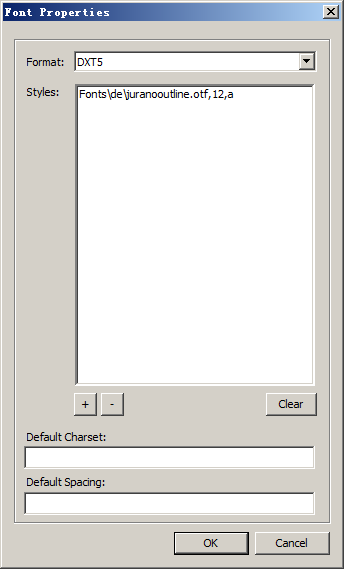
Font Use, Font Size, Font Type:
special party player level, 12
Asset Manager Integrated font size settings:
12, Antialiased
2-08."jurashadow.fnt" Font File Specific Definition
According to the data of the game database file database.arz, jurashadow.fnt font file is defined as follows:
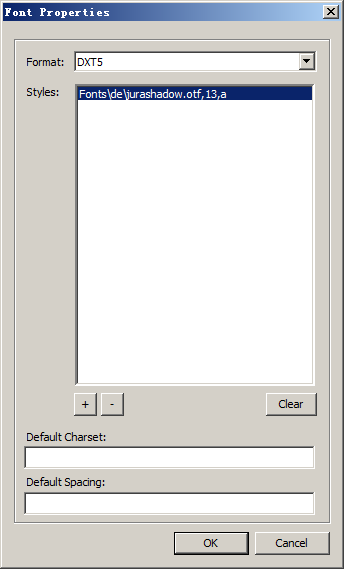
Font Use, Font Size, Font Type:
hot slot keys, 13
Asset Manager Integrated font size settings:
13, Antialiased, Shadow, 1
2-09."linbiolinum_sansserif.fnt" Font File Specific Definition
According to the data of the game database file database.arz, linbiolinum_sansserif.fnt font file is defined as follows:
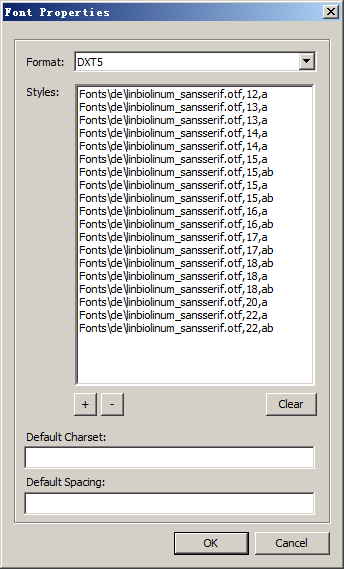
Font Use, Font Size, Font Type:
button gold lg 01, 18
button gold lg 01 bold, 18, Bold
button gold med 01, 16
button gold vlg 01 bold, 22, Bold
button gold vlg 02, 22
button gray gold lg 01, 18
button gray gold med 01, 16
button gray gold sm 01, 15
button gray gold vlg 01 bold, 22, Bold
button gray gold vlg 02, 22
button gray gold vsm 01, 14
button gray med 01, 16
no outline skill name, 17
no outline skill name size s, 13
no outline text brown size n, 17
no outline text gold size n, 17
no outline text gold size s, 15
no outline text gold size t, 12
no outline text gray 2 size t, 13
no outline text gray gold size l, 20
no outline text gray gold size n, 17
no outline text gray gold size s, 15
no outline text gray size n, 17
no outline text gray size s, 15
no outline text gray size t, 12
no outline text lightblue size n, 17
no outline text lightgold size n, 17
no outline text lightgold size t, 12
no outline text olive size n, 17
no outline text olive size t, 15
no outline text red size n, 17
no outline text red size n bold, 18, Bold
no outline text white 2 size s, 15
no outline text white size n, 17
no outline text white size n 02 bold, 17, Bold
no outline text white size n bold, 18, Bold
no outline text white size s, 14
no outline text white size s bold, 15, Bold
no outline text white size t, 13
quest log quest name, 16
quest log side quest name, 16
quest widget objective, 16
special char stats, 16
special char stats number, 18
special char stats number size s, 13
special char stats size s, 15
special skill class descriptions, 18
special skill tiers, 15, Bold
special tutorial content title, 16, Bold
window subtitle 01, 15
shrine window subtitle 01, 14, [*gdx2]
*gdx2 means Grim Dawn - Forgotten Gods Expansion adding new font definition.
Asset Manager Integrated font size settings:
12, Antialiased
13, Antialiased
13, Antialiased, Outline, 1
14, Antialiased
14, Antialiased, Outline, 1
15, Antialiased
15, Antialiased, Bold
15, Antialiased, Outline, 1
15, Antialiased, Bold, Outline, 1
16, Antialiased, Outline, 1
16, Antialiased, Bold, Outline, 1
17, Antialiased
17, Antialiased, Bold
18, Antialiased, Bold
18, Antialiased, Outline, 1
18, Antialiased, Bold, Outline, 1
20, Antialiased
22, Antialiased, Bold, Outline, 1
22, Antialiased, Outline, 1
2-10."linlibertine_r.fnt" Font File Specific Definition
According to the data of the game database file database.arz, linlibertine_r.fnt font file is defined as follows:
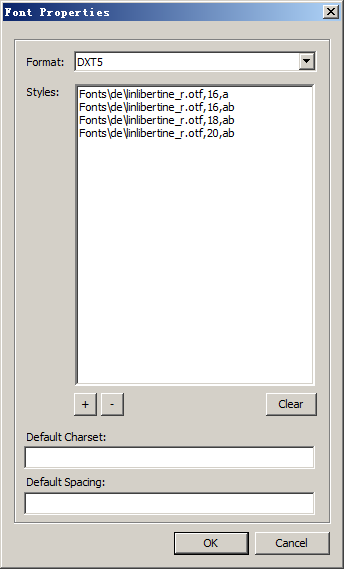
Font Use, Font Size, Font Type:
quest widget quest, 16, Bold
quest widget region, 16
quest widget title, 20, Bold
quest notification, 18, Bold
skill cool down text, 18, Bold
Asset Manager Integrated font size settings:
16, Antialiased, Outline, 1
16, Antialiased, Bold, Outline, 1
18, Antialiased, Bold, Outline, 1
20, Antialiased, Bold, Outline, 1
2-11."linlibertine_r_nooutline.fnt" Font File Specific Definition
According to the data of the game database file database.arz, linlibertine_r_nooutline.fnt font file is defined as follows:
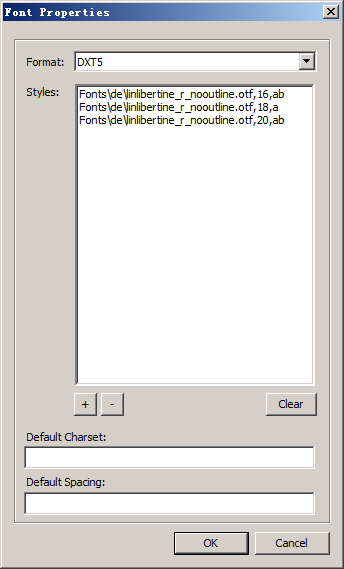
Font Use, Font Size, Font Type:
no outline text gold size l, 18
quest log group name, 20, Bold
special char stats class name, 16, Bold
special char stats header, 18
Asset Manager Integrated font size settings:
16, Antialiased, Bold
18, Antialiased
20, Antialiased, Bold
2-12."misc.fnt" Font File Specific Definition
According to the data of the game database file database.arz, misc.fnt font file is defined as follows:
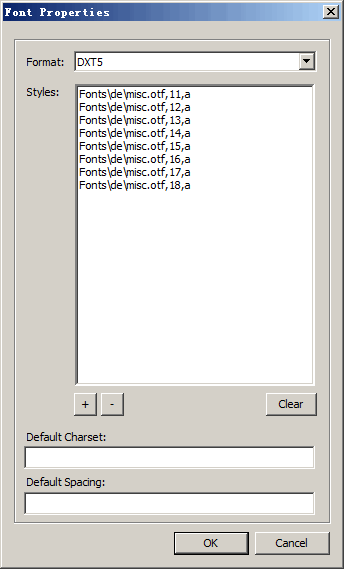
Font Use, Font Size, Font Type:
Misc.fnt is not defined in the game database, but it must be made. From the font naming, we may know that it is used to display other functions. Although it is miscellaneous, it is indispensable. Without this font, the list content in the download language window of the game cannot be displayed.
Asset Manager Integrated font size settings:
Because there is no specific definition of database, proper font size and font type can be set.
2-13."nevis.fnt" Font File Specific Definition
According to the data of the game database file database.arz, nevis.fnt font file is defined as follows:
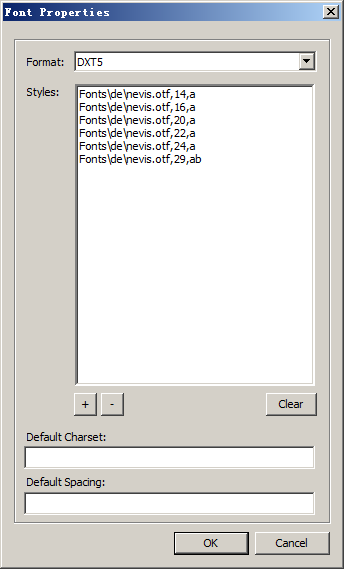
Font Use, Font Size, Font Type:
main menu large button, 20
main menu runner button, 24
main menu slide box, 16
main menu small button, 14
button gold vlg 01, 22
button gray gold vlg 01, 22
special rift destination, 29, Bold
window title 01, 20
shrine window title 01, 20, [*gdx2]
*gdx2 means Grim Dawn - Forgotten Gods Expansion adding new font definition.
Asset Manager Integrated font size settings:
14, Antialiased, Outline, 1
16, Antialiased, Outline, 1
20, Antialiased, Outline, 1
22, Antialiased, Outline, 1
24, Antialiased, Outline, 1
29, Antialiased, Bold, Outline, 1
2-14."nevisnooutline.fnt" Font File Specific Definition
According to the data of the game database file database.arz, nevisnooutline.fnt font file is defined as follows:
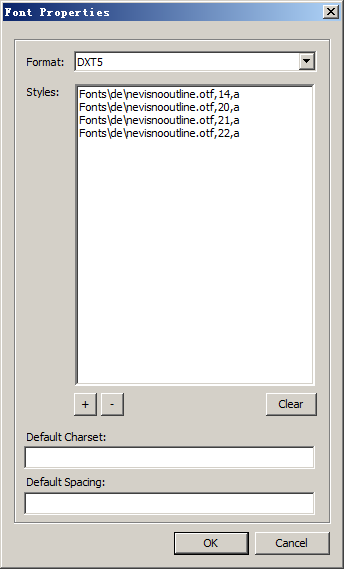
Font Use, Font Size, Font Type:
conversation window name, 20
help title, 22
quest quest title, 22
quest section headers, 21
special devotion tabs, 14, [*gdx1]
*gdx1 means Grim Dawn - Ashes of Malmouth Expansion adding new font definition.
Asset Manager Integrated font size settings:
14, Antialiased
20, Antialiased
21, Antialiased
22, Antialiased
2-15."nevisnooutlinespaced.fnt" Font File Specific Definition
According to the data of the game database file database.arz, nevisnooutlinespaced.fnt font file is defined as follows:
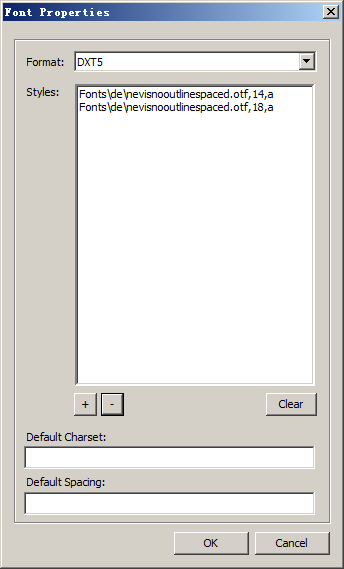
Font Use, Font Size, Font Type:
special class tabs, 14
special skill names, 18
Asset Manager Integrated font size settings:
14, Antialiased
18, Antialiased
nevisnooutlinespaced.fnt is Grim Dawn - Ashes of Malmouth Expansion new font.
2-16."nevisshadow.fnt" Font File Specific Definition
According to the data of the game database file database.arz, nevisshadow.fnt font file is defined as follows:
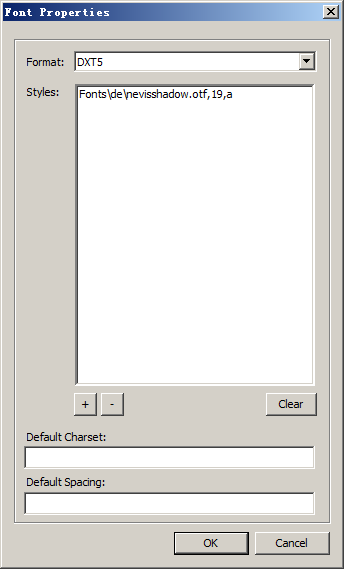
Font Use, Font Size, Font Type:
special compass region name, 19
Asset Manager Integrated font size settings:
19, Antialiased, Outline, 1
2-17."questtext.fnt" Font File Specific Definition
According to the data of the game database file database.arz, questtext.fnt font file is defined as follows:
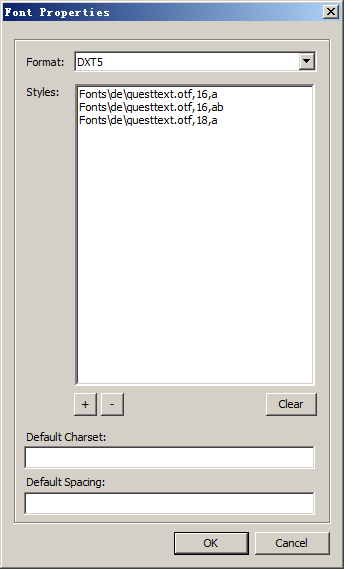
Font Use, Font Size, Font Type:
help subtitle, 16, Bold
quest description, 16
quest objective, 16
quest quest reward, 18
quick tip text, 16
quick tip title, 16, Bold
Asset Manager Integrated font size settings:
16, Antialiased
16, Antialiased, Bold
18, Antialiased
2-18."savapromedium.fnt" Font File Specific Definition
According to the data of the game database file database.arz, savapromedium.fnt font file is defined as follows:
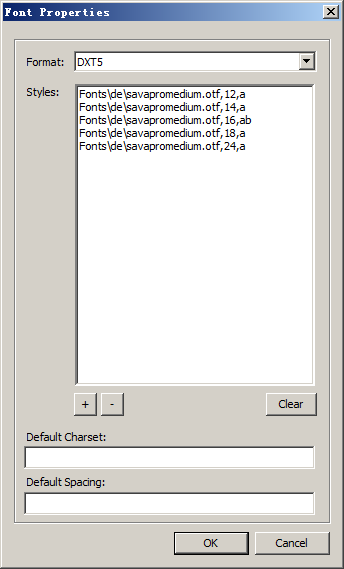
Font Use, Font Size, Font Type:
quest reward window continue button, 18
quest reward window quest name, 18
quest reward window quest title, 24
quest reward window xp, 18
special cool down, 16, Bold
special rift map primary labels, 14
special rift map secondary labels, 12
Asset Manager Integrated font size settings:
12, Antialiased, Outline, 1
14, Antialiased, Outline, 1
16, Antialiased, Bold, Outline, 1
18, Antialiased, Outline, 1
24, Antialiased, Outline, 1
2-19."titlescreen.fnt" Font File Specific Definition
According to the data of the game database file database.arz, titlescreen.fnt font file is defined as follows:
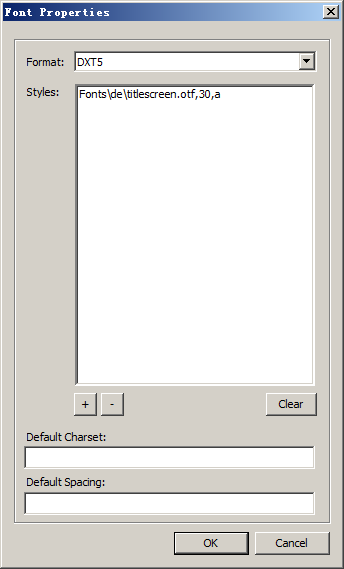
Font Use, Font Size, Font Type:
special title screen text, 30, Bold
Asset Manager Integrated font size settings:
30, Antialiased, Bold
3.Make custom fonts
Tools required: High-Logic Font Creator, Asset Manager, appropriate OpenType font.
(1) Generally under 5MB, stable strokes .TTF font file is more appropriate. Before using it, TrueType font file is exported to OpenType font file with High-Logic FontCreator:
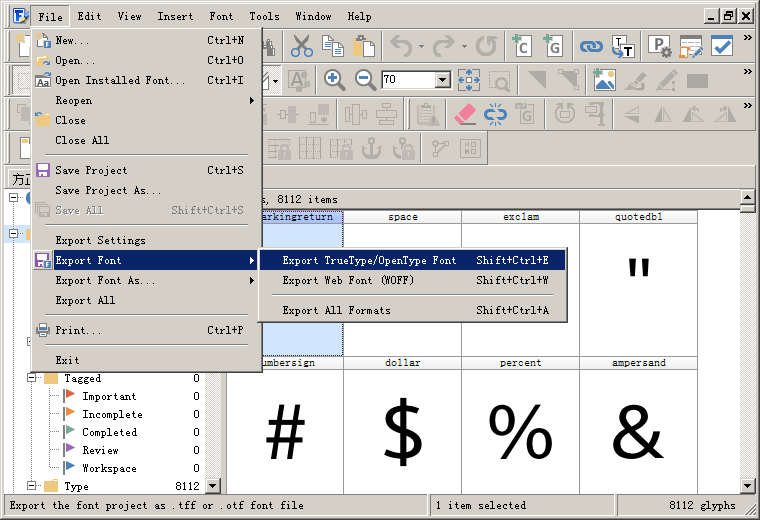
The exported OpenType font file extension is .otf, not .ttf, which is an operation to pay special attention to.
(2) Run the Asset Manager tool, which is in the game installation directory with the file name AssetManager.exe. Press the new MOD project name shown in the following figure and establish Sources and Assets entry structure respectively. Import OpenType font file with corresponding name in Sources file list, and create Bitmap Font font property settings file with corresponding name in Assets file list (property settings are defined according to each font shown above):
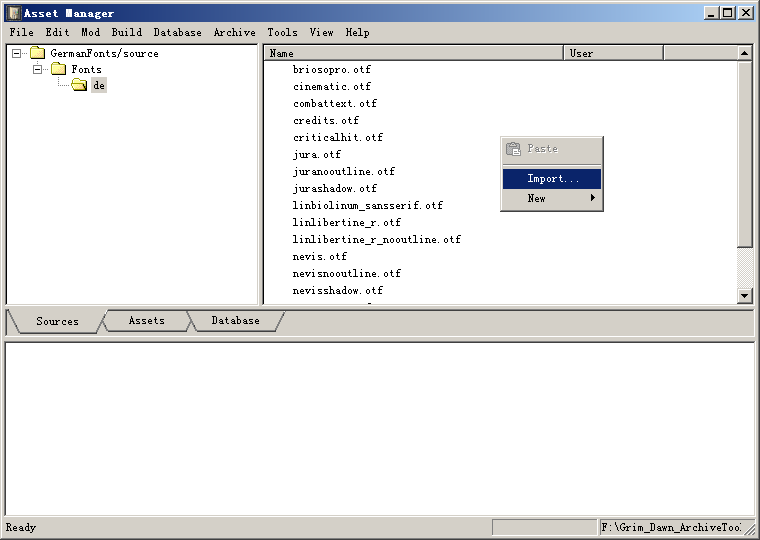
The above picture is the Sources directory structure and file list. The GermanFonts in the picture is the MOD project name, which can be named at will; the Fonts directory name is the only fixed; the de directory name is multiple-choice fixed, and the current options are: bg, cs, de, el, es, fr, hu, it, nl, pl, pt, ru, sk, either of the above names, meaning that only the Latin character set can supports all fonts defined by the game, and the East Asian language character set can only use a single font definition.
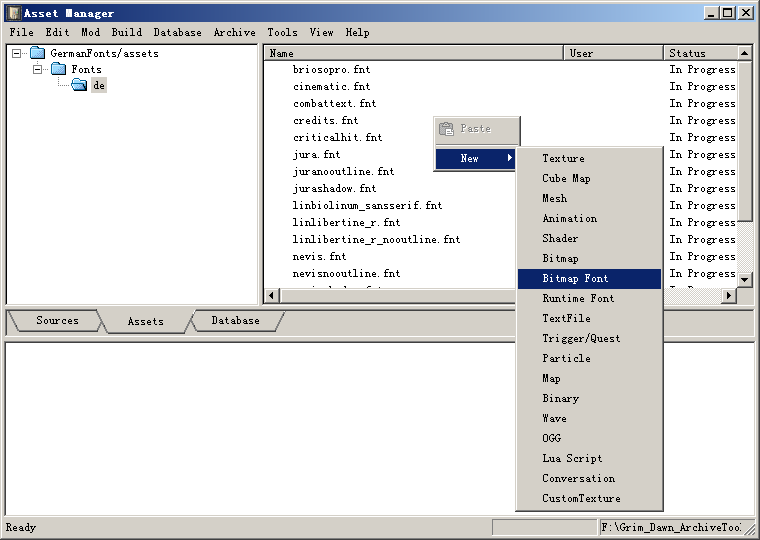
The above picture shows the structure of the Assets project directory and the list of files, which can be added one by one according to the font definition. After adding all the font attributes mentioned above, press F7 to start compiling and generating Fonts.arc files automatically.
The operation record output box under Asset Manager displays the compilation process in real time, if an error occurs and a red text line error prompt: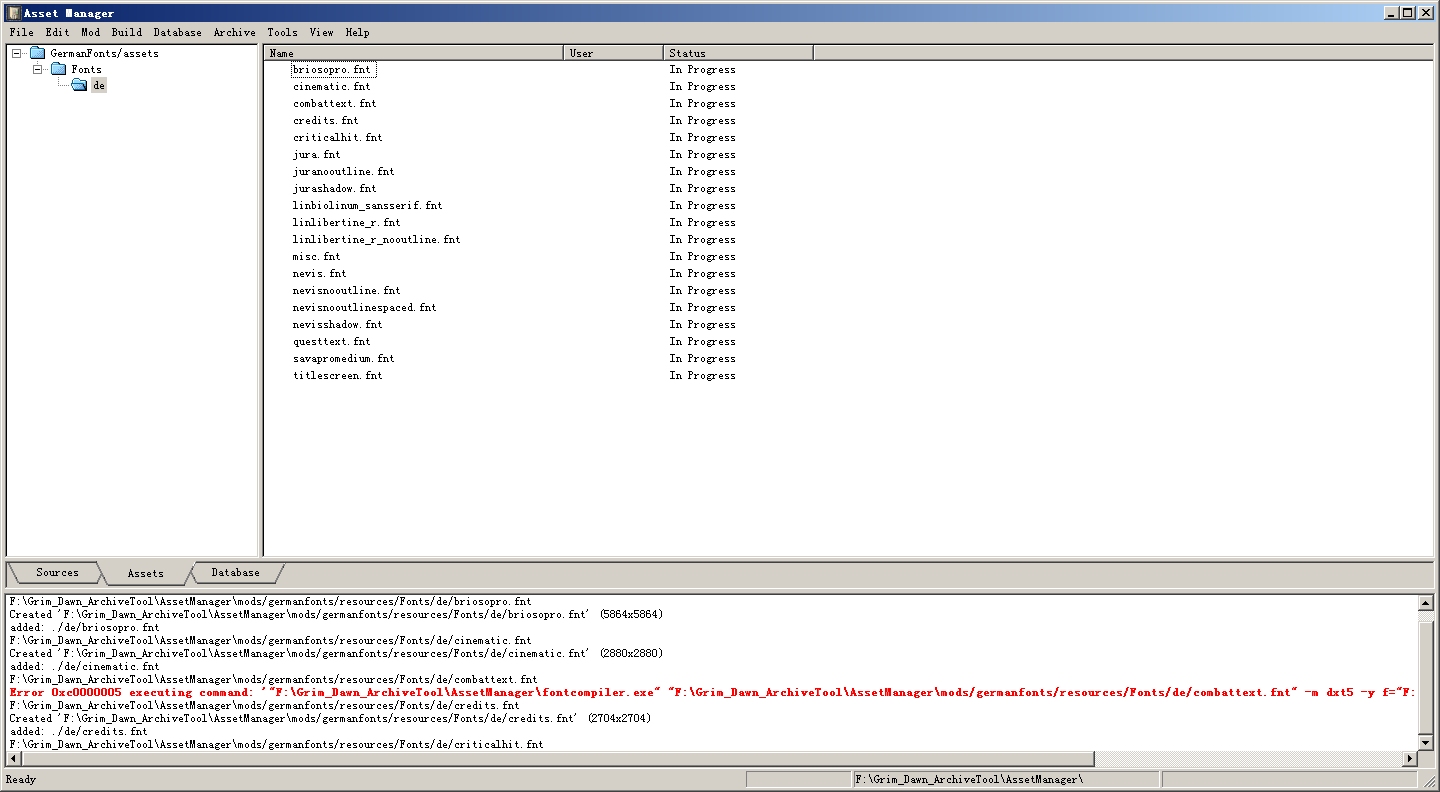 The font shown on the previous line of the red text line means has a problem. Specifically, the font file is too large to be compiled. At this time, while waiting for the compilation process to continue, we should find other similar fonts with smaller file sizes to replace the corresponding files in the Sources directory. In the Assets file list, double-click the compiled error font property to set the File name, and then click the "OK" button in the property window or press the Enter key directly. After compiling, press F7 to try to compile the wrong font again. So repetitive, until no more mistakes.
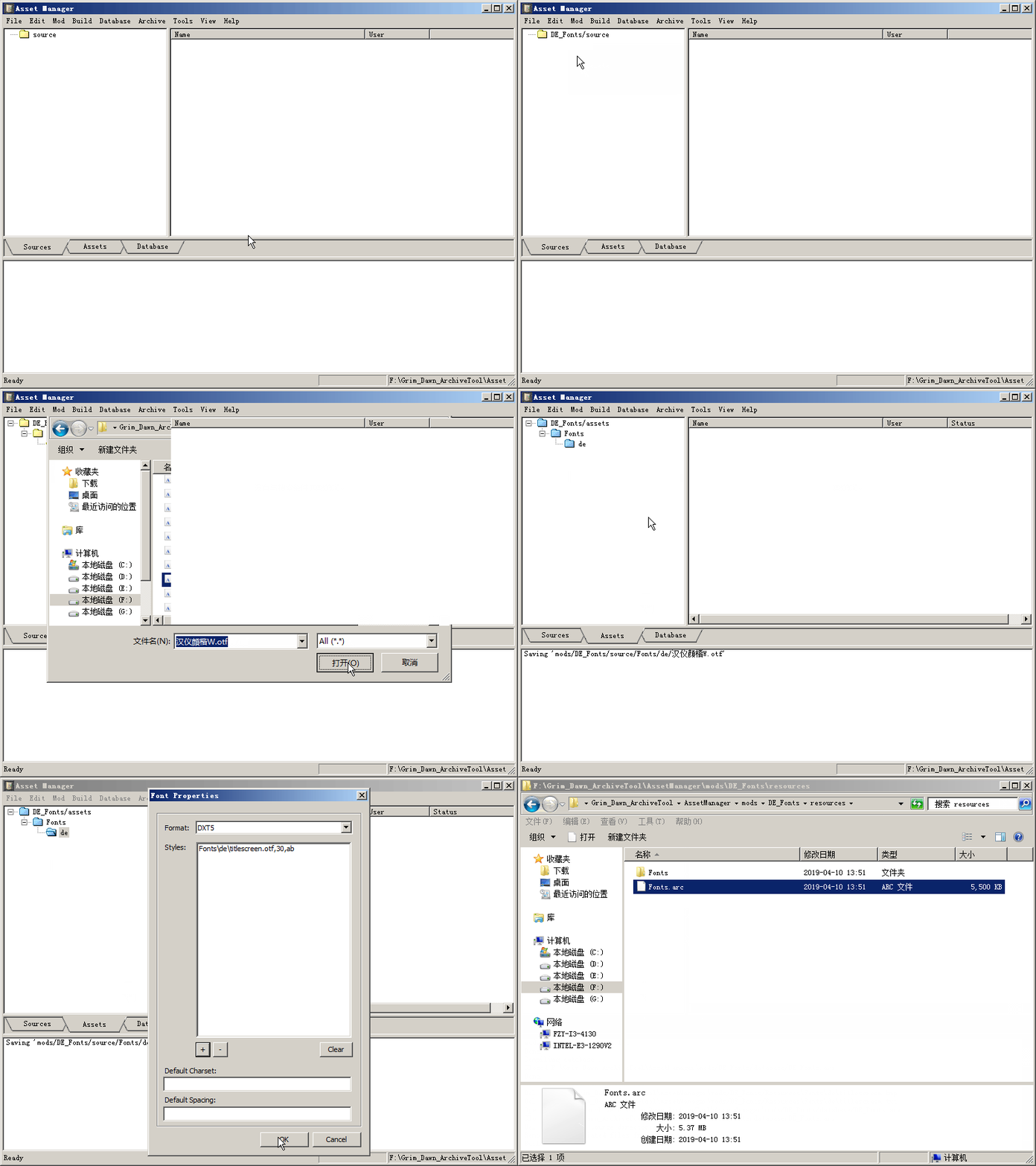
After all these operations are successfully completed, a file named "Fonts.arc" will be found in the resources subdirectory of the MOD project name directory, and the file will be copied to the game directory's resources subdirectory to replace the file with the same name (pay attention to backing up the original file before replacing).
4.Correct use of newly made Fonts.arc
Following the above steps, a new Fonts.arc font package file is created, but at this time the Fonts.arc file can not be used correctly. It is necessary to modify the language.def file, which is decompressed in the Community Localizations file, and edit with an editor supporting UNIX document format in plain text (e.g. EditPlus, EmEditor, etc.). Never use Notepad. Keep it in mind!!! Change XX in the line fonts=xx to the corresponding code in the MOD project, such as de in the picture above, then change to de, if other, change and save the file according to the actual situation, and finally drag the language.def file to the Community Localizations file to replace the original file.
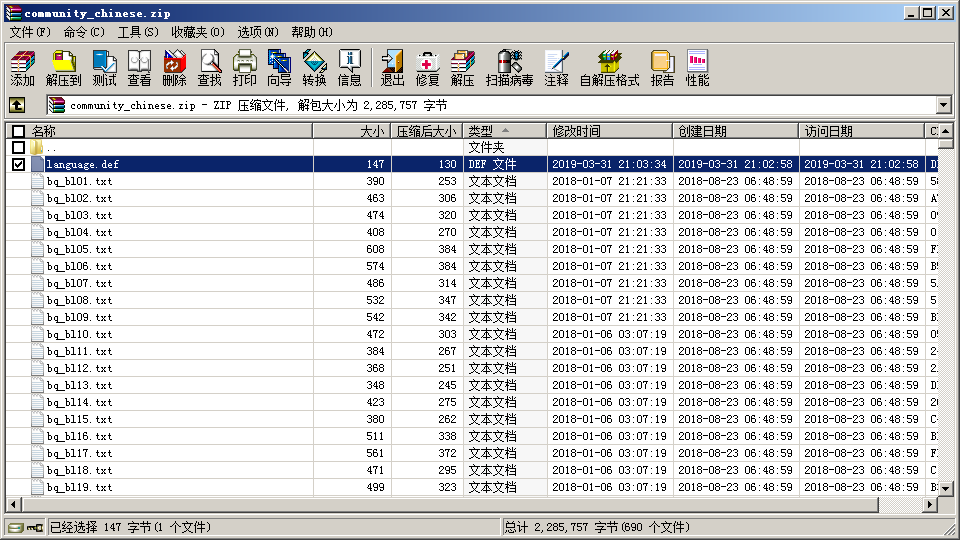
 The specific operation is as follows:
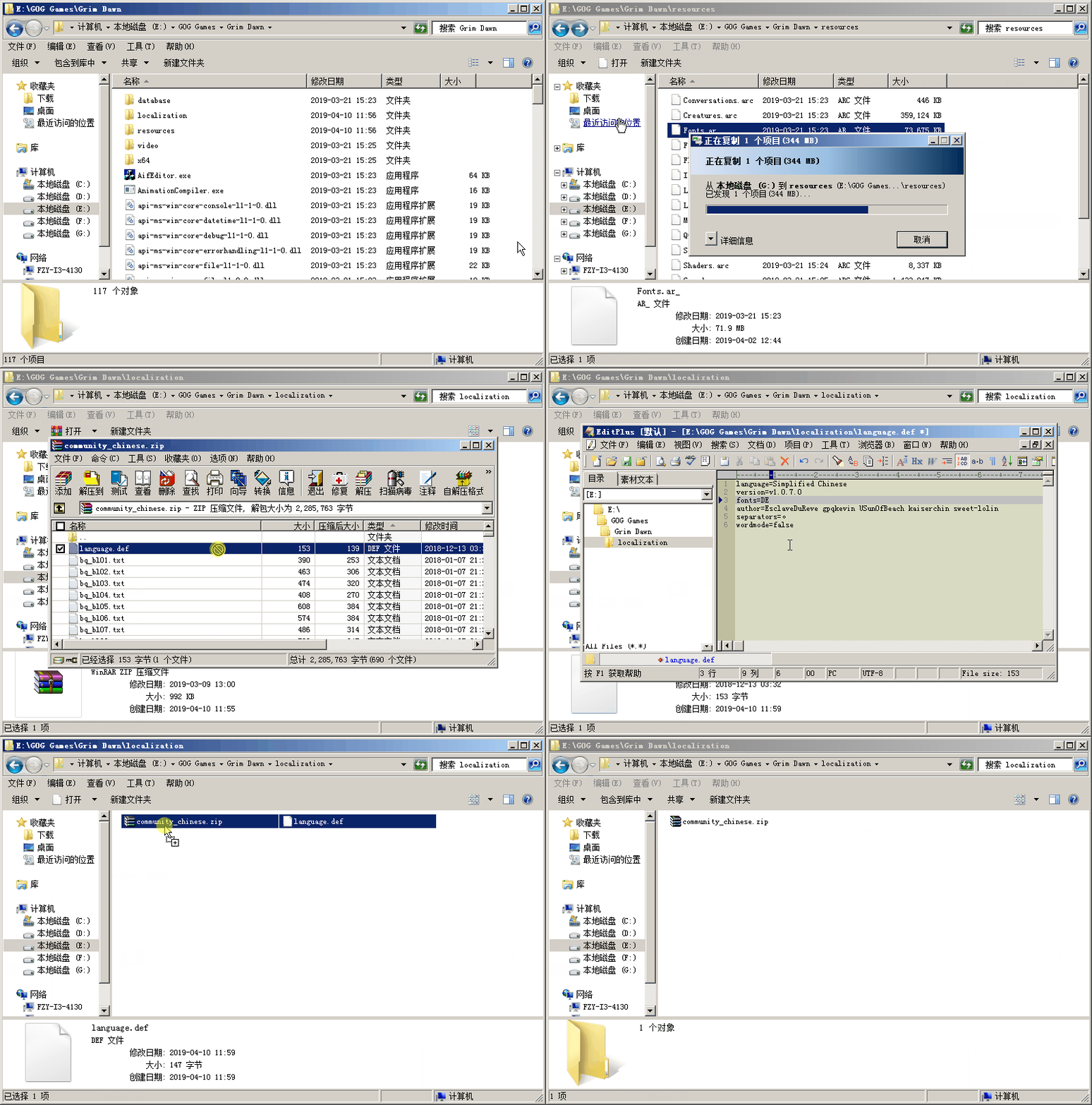
5.Sample pictures and notes
The above is a simple introduction and use of Grim Dawn game fonts. According to the above instructions, we can make fonts similar to the English version interface, which can jump out of the official relatively single fonts for East Asian character set, so that the game can use different styles of non-latin fonts at the same time, and the level of text displayed by the game is more clear, more better and more reasonable.
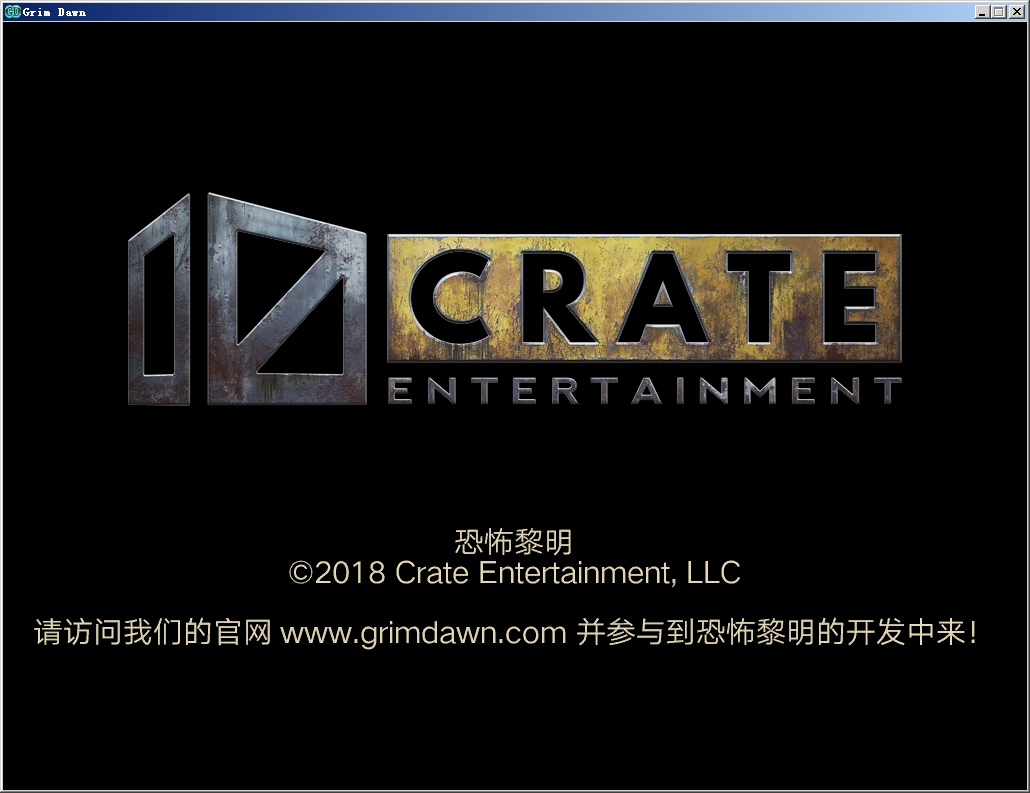
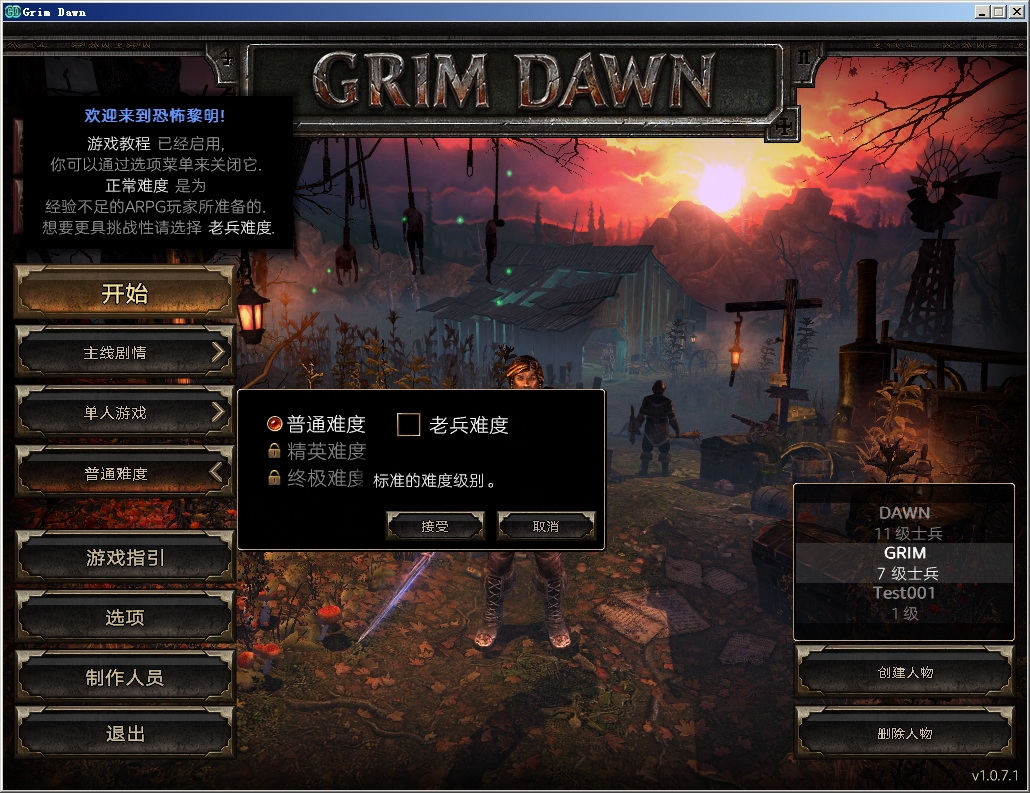
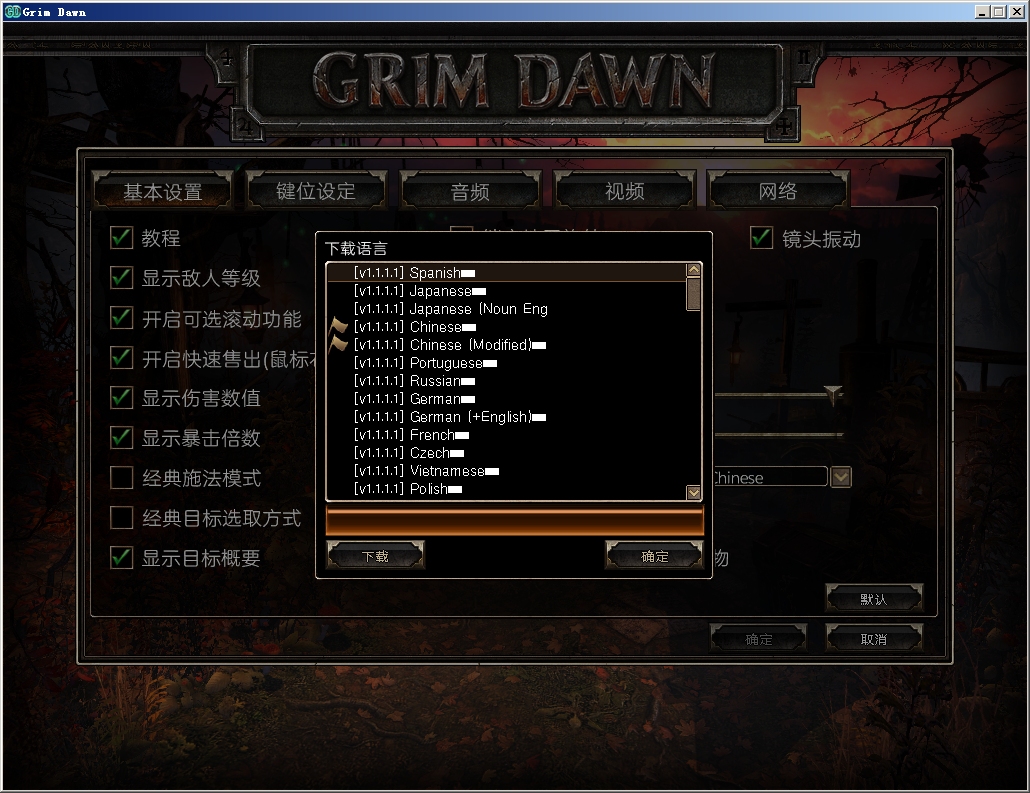
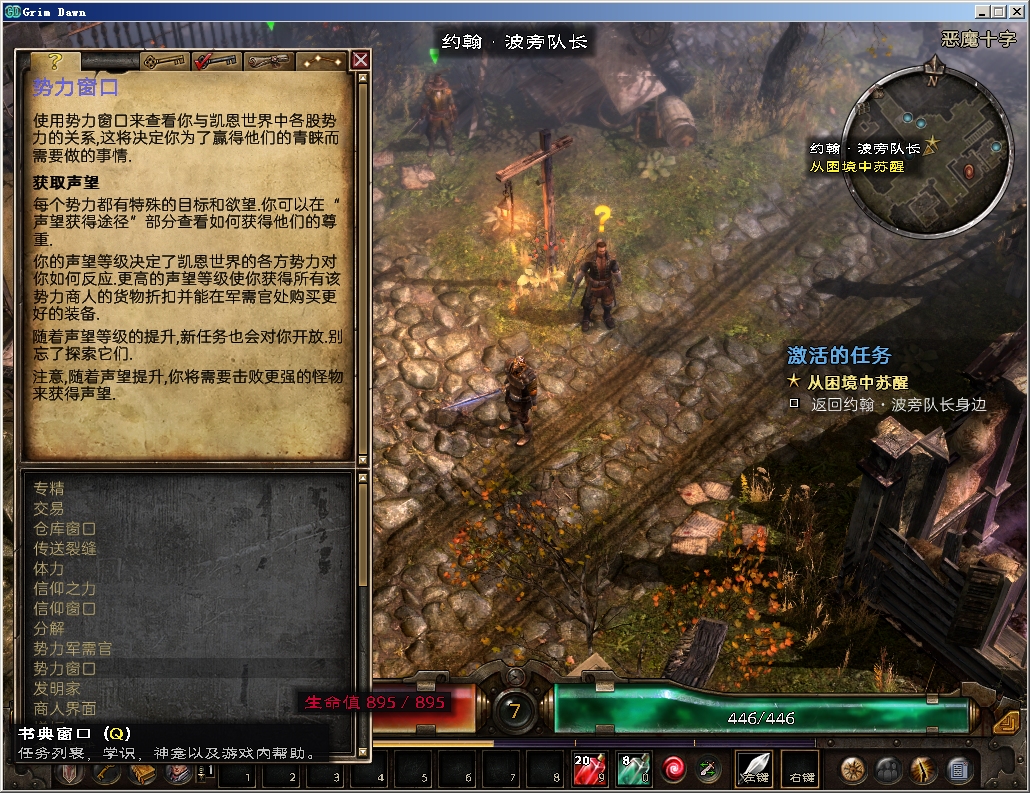
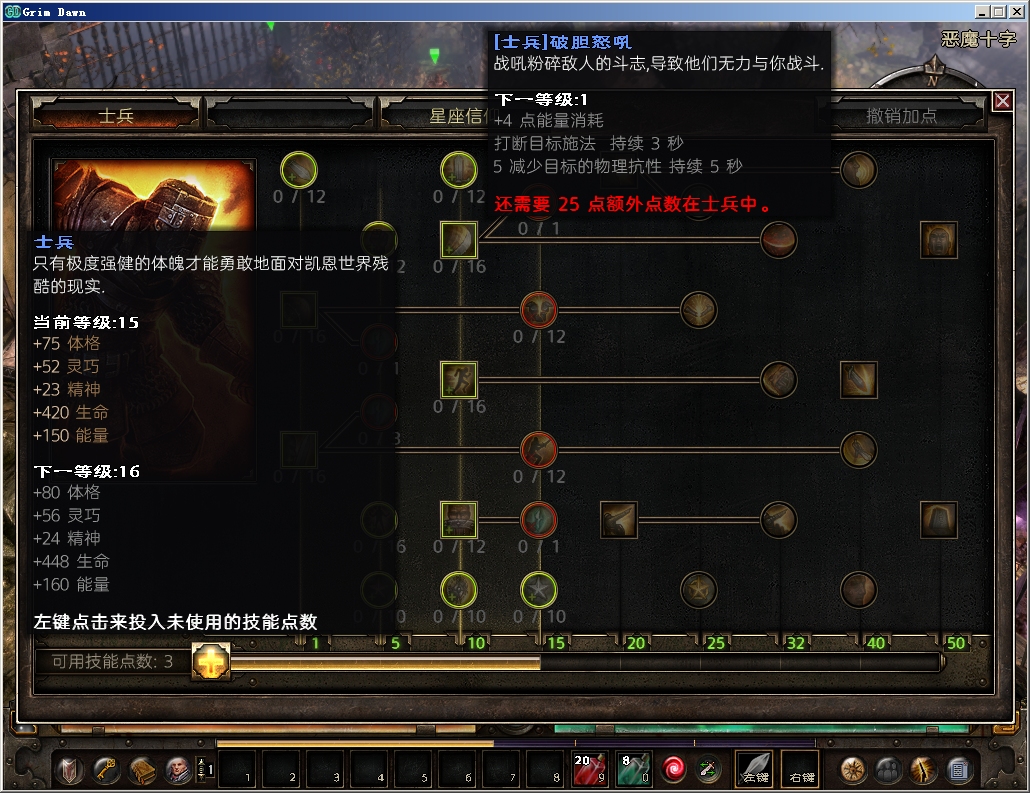
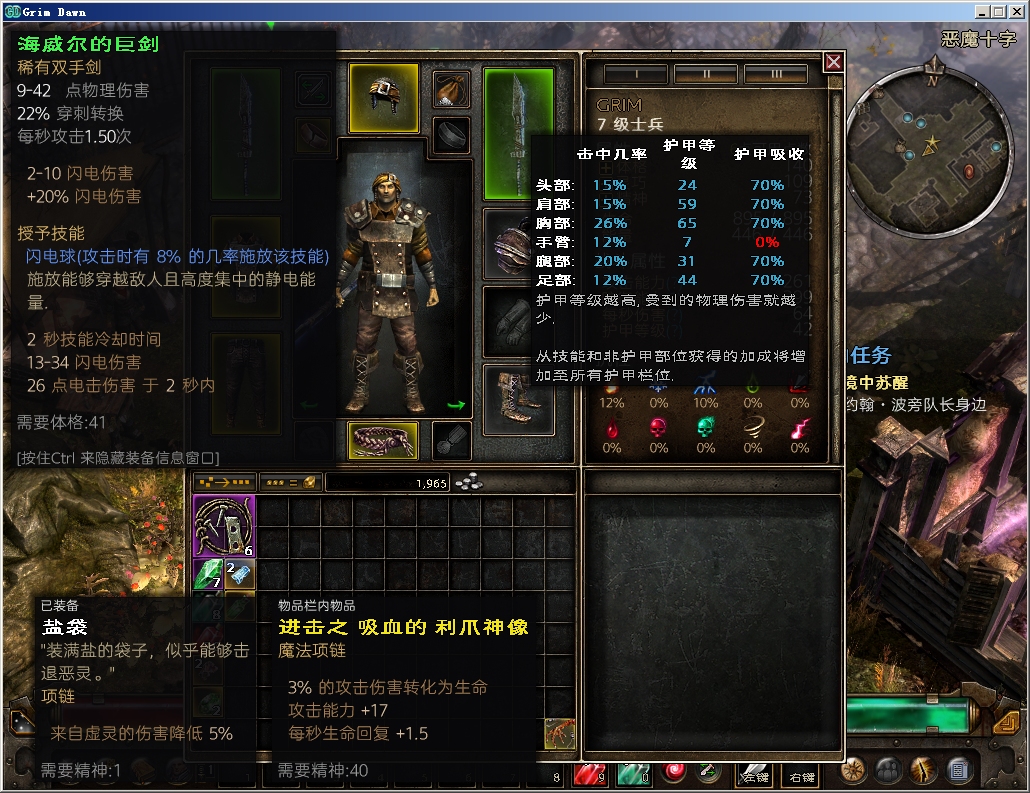
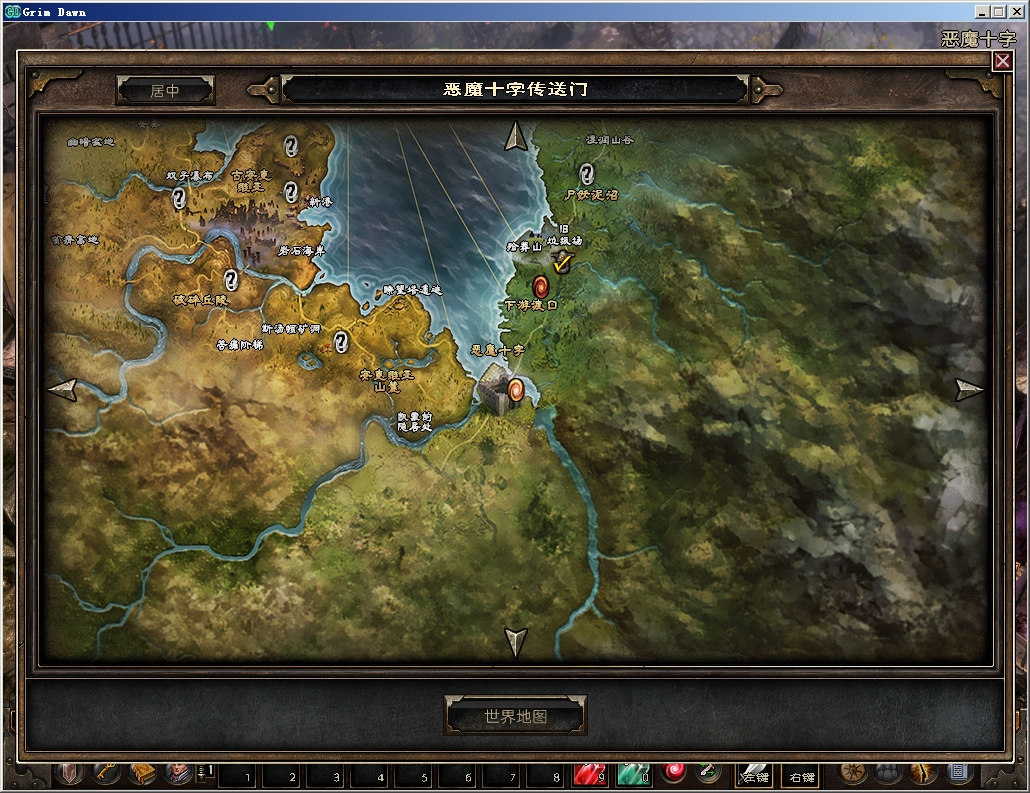
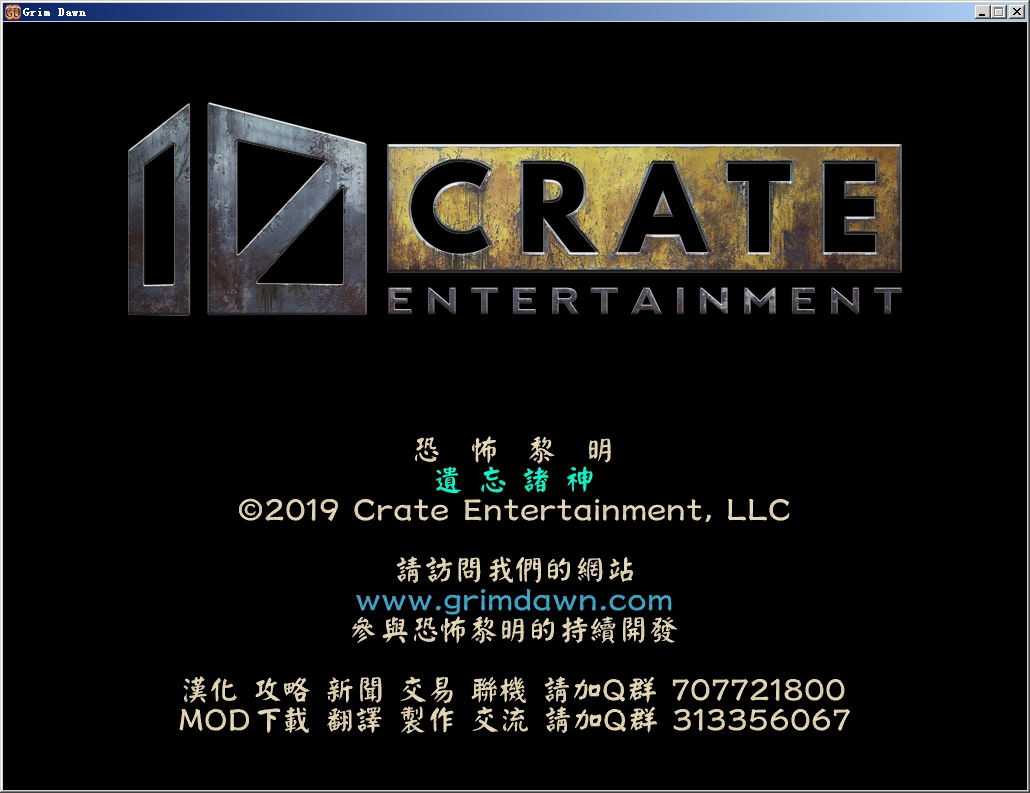
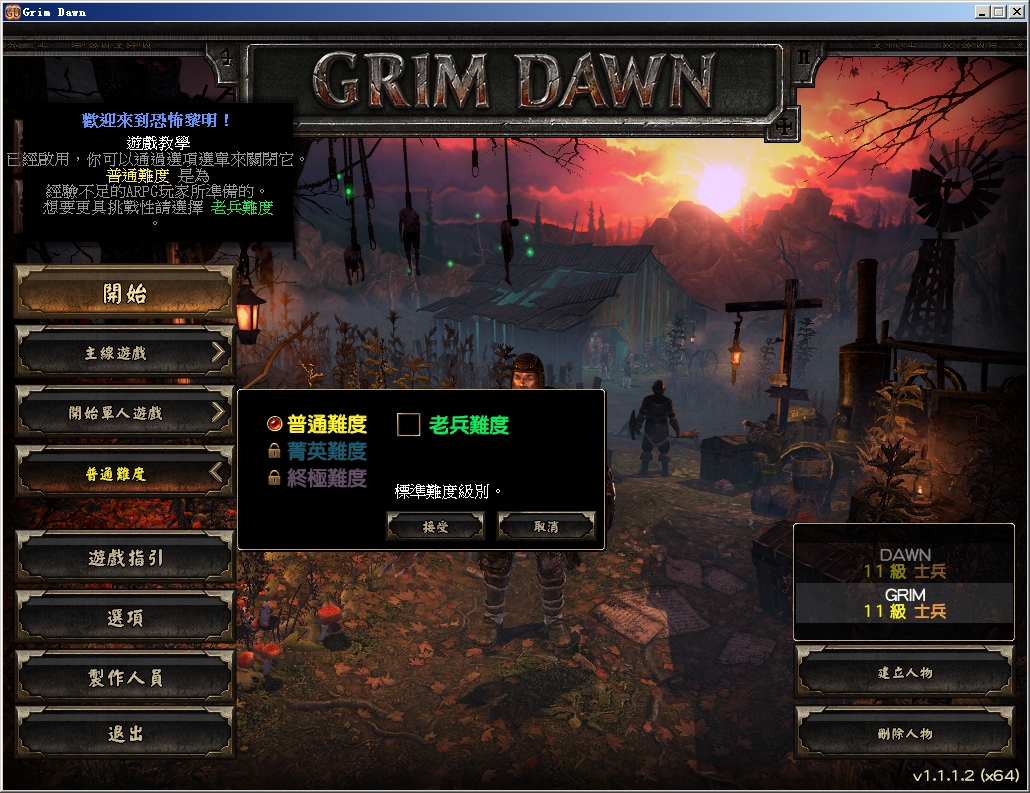
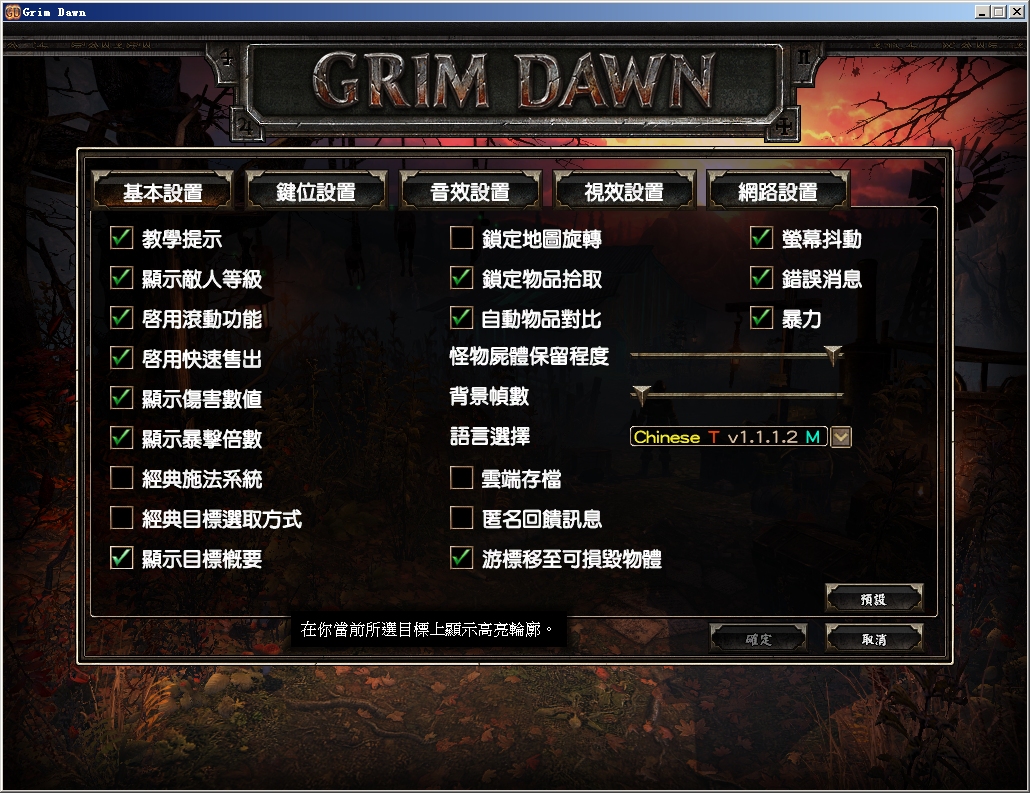
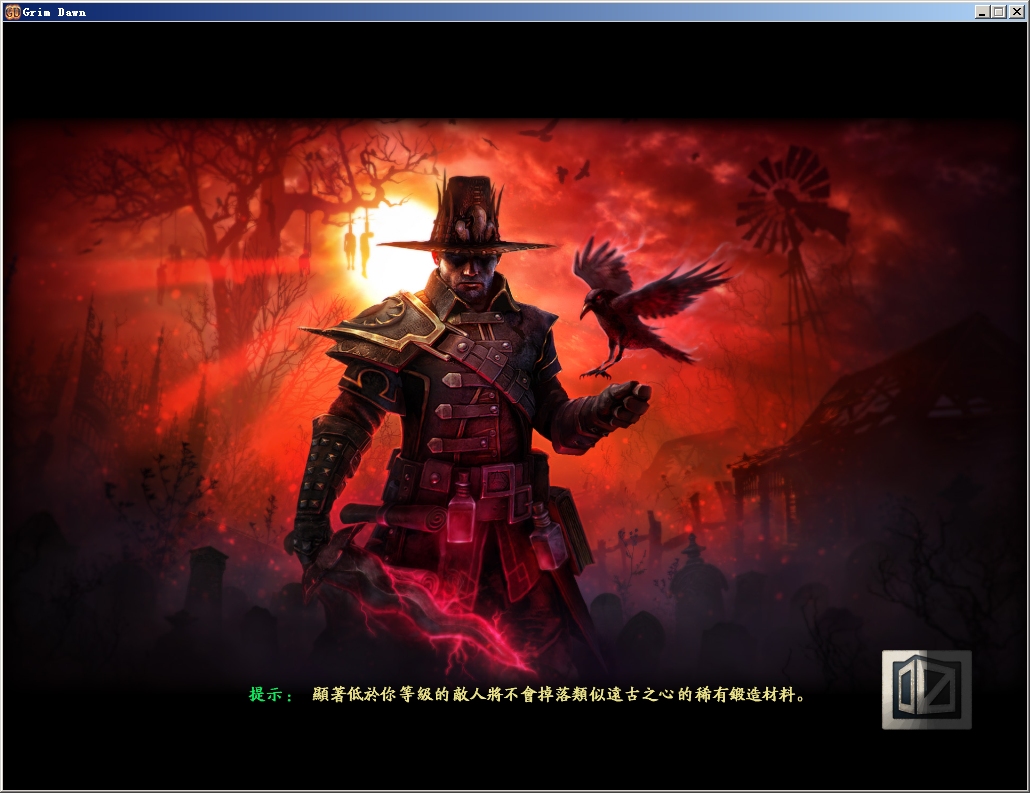
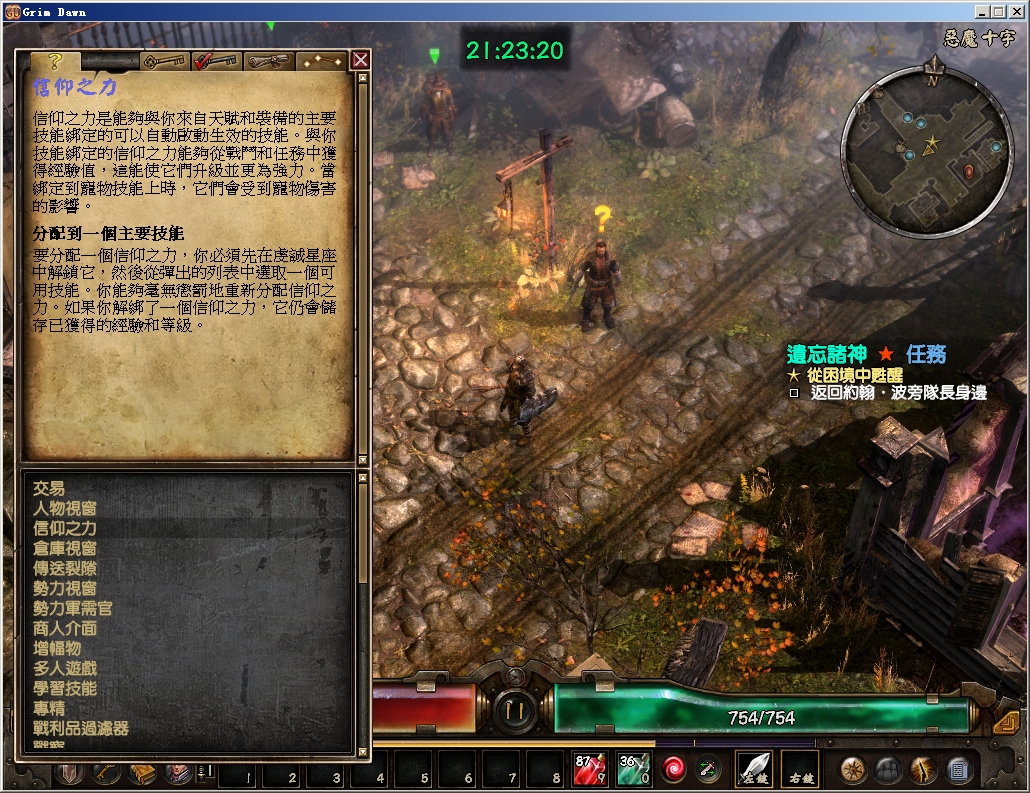
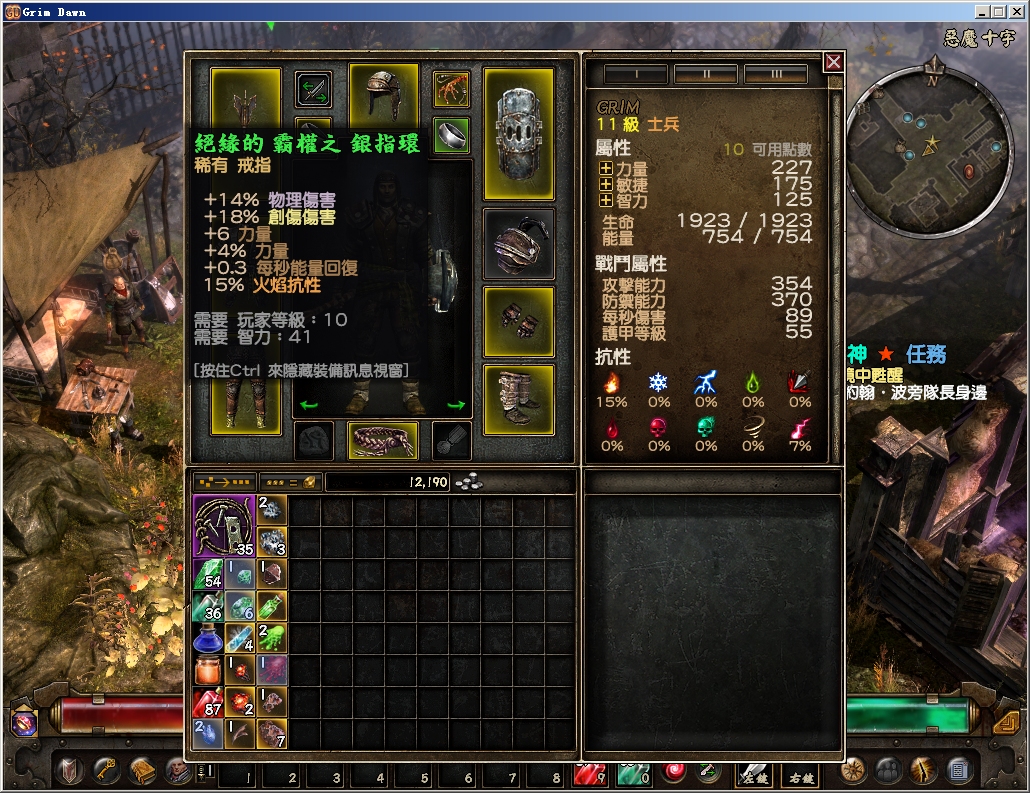
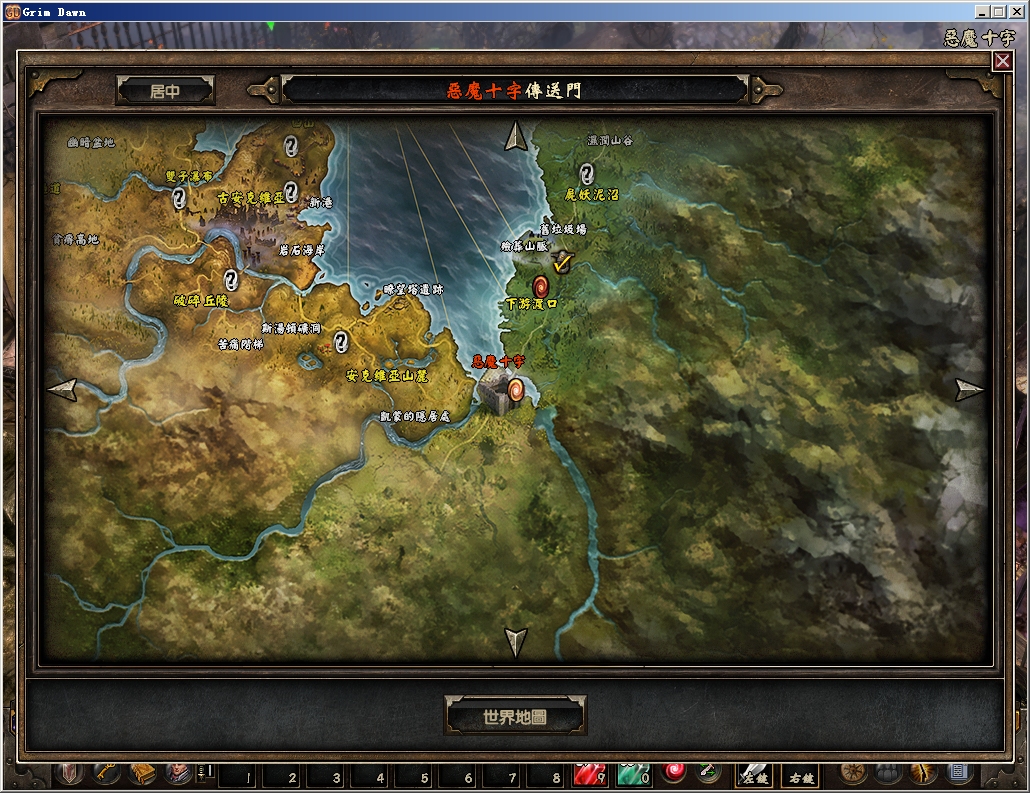
The resolution of all samples is 1024x768.
Simplified Chinese Style. titlescreen.fnt is only for this screen.
Simplified Chinese Style
Simplified Chinese Style. misc.fnt is for this download list tab.
Simplified Chinese Style
Simplified Chinese Style
Simplified Chinese Style
Simplified Chinese Style
Traditional Chinese Style
Traditional Chinese Style
Traditional Chinese Style
Traditional Chinese Style
Traditional Chinese Style
Traditional Chinese Style
Traditional Chinese Style. titlescreen.fnt is only for this screen.
More Grim Dawn guides
- Class Selection (EN)★ 5 (510)58k views841 ♥9 minUpdated Jul 6, 2017
- Beginner's Guide to Skills★ 5 (1.1k)53k views2.3k ♥167 minUpdated Nov 4, 2021
- Devotion Shrines★ 5 (2.1k)43k views3.7k ♥5 minUpdated Nov 22, 2023
- How to start new games at level 15+★ 4 (161)30k views341 ♥6 minUpdated Jul 6, 2019
- Секретные Локации★ 5 (1.1k)27k views1.9k ♥8 minRussianUpdated Apr 20, 2017
- Lokarr - Secret Quest (AoM)★ 5 (549)26k views1k ♥10 minUpdated Oct 5, 2018




🔥 Popular guides
- Upgrading to PremiumTeam Fortress 2★ 5 (20k)1441k views11k ♥6 minUpdated May 11, 2022
- No More Room in Hell Official ManualNo More Room in Hell★ 5 (2.8k)569k views2.1k ♥29 minUpdated Apr 22, 2019
- NMRiH Community Hosting GuidesNo More Room in Hell★ 5 (526)351k views653 ♥1 minUpdated Aug 10, 2022
- Лучшие кооперативные игры SteamPAYDAY 2★ 5 (1.5k)315k views2.1k ♥56 minRussianUpdated Apr 27, 2025
- Desert Eagle Heat Treated | Blue GemCounter-Strike 2★ 5 (1.6k)292k views1.5k ♥2 minUpdated Jan 16
- Treasure Hunt Puzzle SolutionsTotal War: WARHAMMER II★ 5 (6.9k)281k views15k ♥3 minUpdated Aug 19, 2021






This guide was created by its original author on the Steam Community. Are you the author and want it removed? Request removal.