How to delete and prevent unwanted mods
How to delete unwanted mods
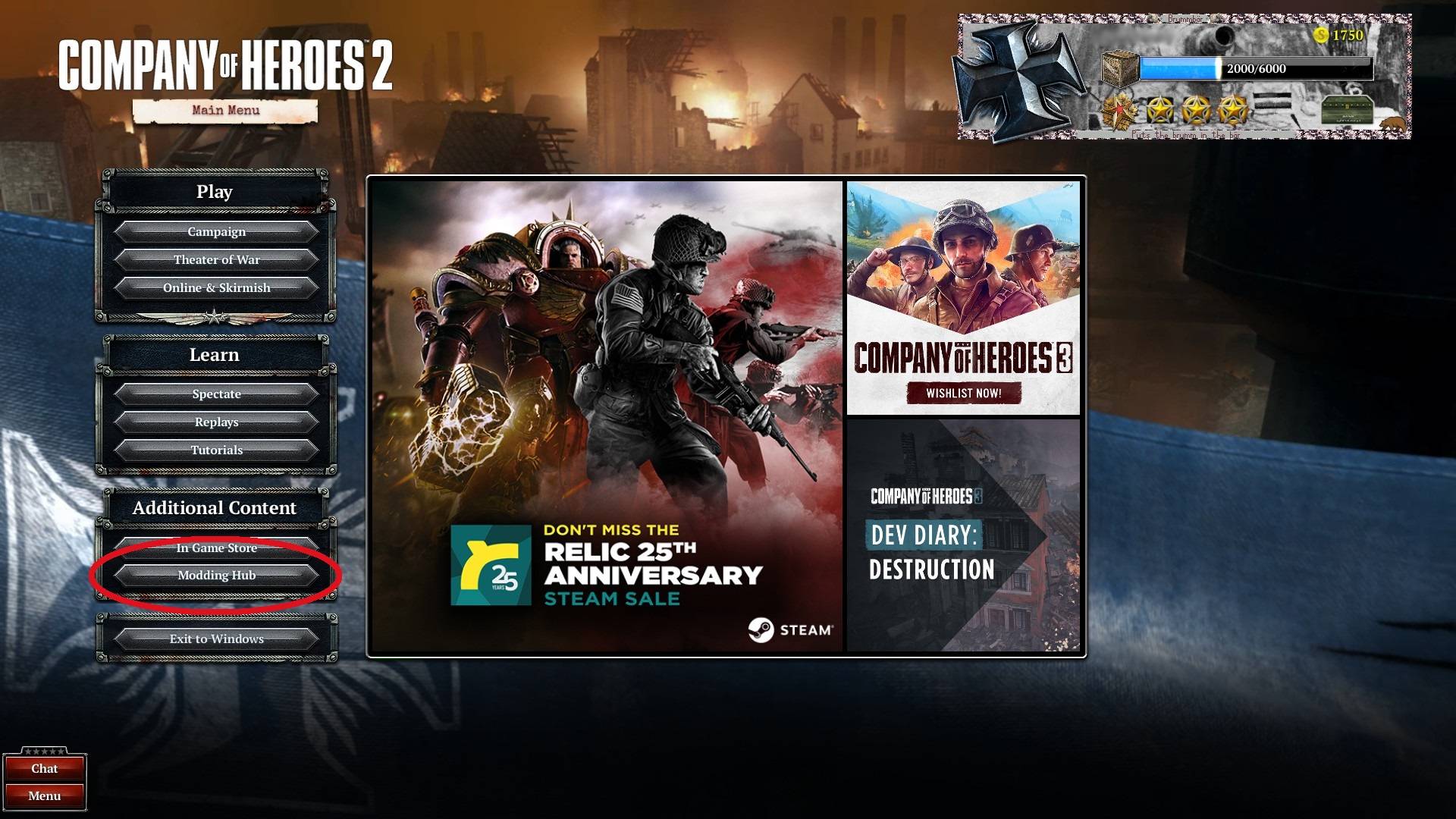
Start the game and go to the Modding hub, than click on 'manage' at the top right of the screen. Than click on 'Status' so that the mods that are 'unpublished', 'published' and/or 'unsubscribed' are showing at the top of the list.
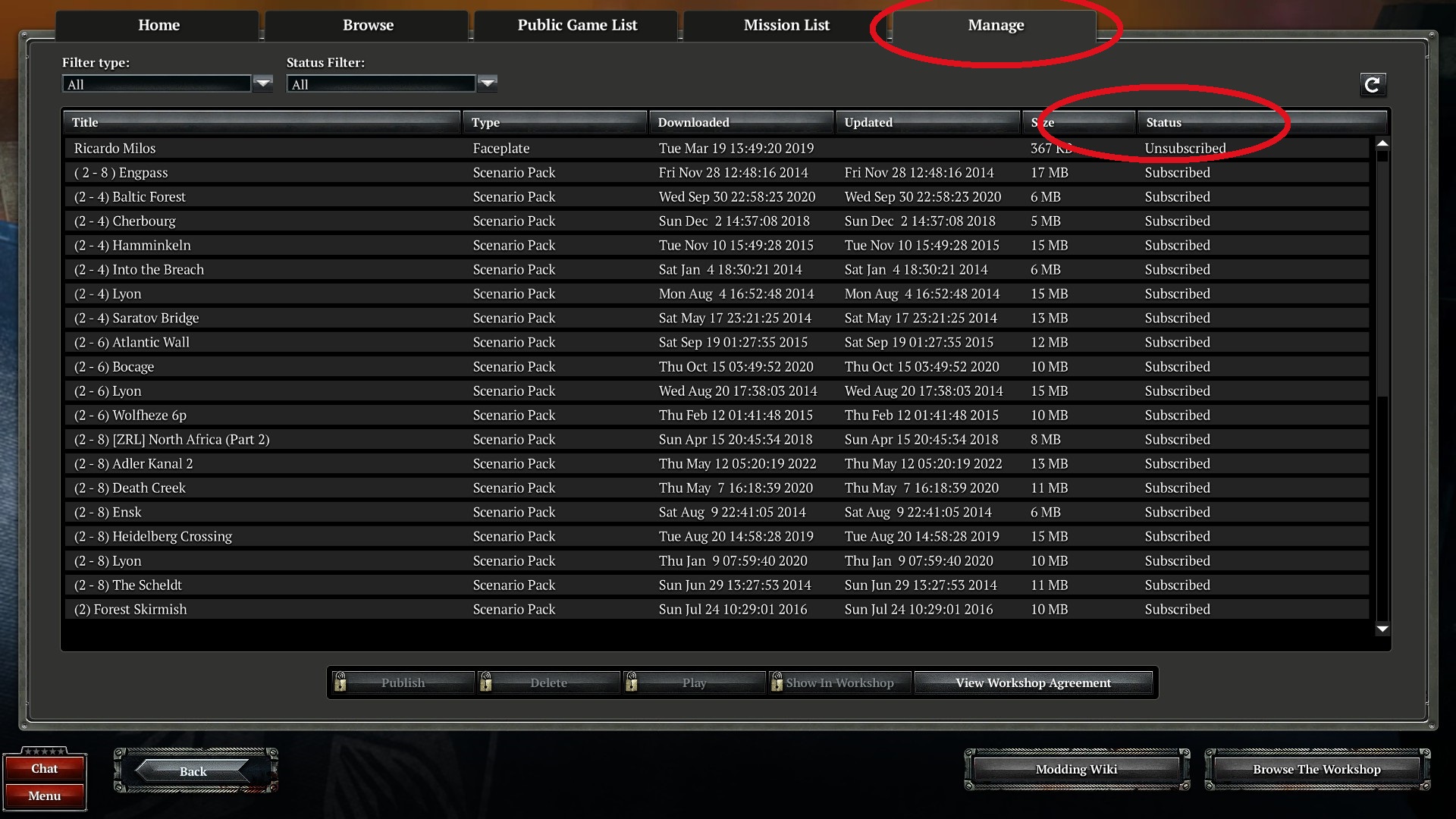
Wait for the game to do it's check-up on every mod you are subscribed too. The more mods you are subscribed too, the more time this takes. You can see when this is done when there are no more of your mods changing from the 'unsubscribed' status, to the 'subscribed' status. You can not download or delete any mods untill this is done.
Than simply find the mod(s) you want to delete, hit the 'unsubscribe' button if subscribed to the item and than press 'delete'. Poof, bye mod. Check your mods out in workshop or look at them in your inventory if you don’t know what they do.
Deleting excess mods will also increase game performance.
How to prevent mods from (re)downloading
Also make sure you have no copies of any of the .sga files from the company of heroes 2 mod folder on your computer. Otherwise it will resubscribe and re-install the mod(s) ascosiated to that/those .sga file(s) you have just deleted. For me this folder is located here: C:/users/owner/my documents/My games/company of heroes 2/mods
- How to increase FPS?★ 5 (1.2k)43k views1.1k ♥4 minUpdated Jun 20, 2015
- COH2 Console cheats/commands★ 4 (181)23k views412 ♥2 min
- Руководство по всем юнитам и постройкам Company of Heroes 2★ 5 (1.1k)23k views1.2k ♥77 minRussianUpdated Dec 15, 2024
- How to use and apply military strategy in COH2 (All factions/commanders) #REVISED EDITION# BASICS & EARLY GAME★ 5 (521)21k views742 ♥9 minDutchUpdated Jul 13, 2015
- Все, что вы хотели знать об этой игре, но боялись спросить★ 5 (331)13k views390 ♥14 minRussianUpdated Dec 10, 2021
- Compilation of broken achievements & solutions★ 5 (288)13k views471 ♥2 minUpdated Aug 8, 2022



- Upgrading to PremiumTeam Fortress 2★ 5 (20k)1441k views11k ♥6 minUpdated May 11, 2022
- No More Room in Hell Official ManualNo More Room in Hell★ 5 (2.8k)569k views2.1k ♥29 minUpdated Apr 22, 2019
- NMRiH Community Hosting GuidesNo More Room in Hell★ 5 (526)351k views653 ♥1 minUpdated Aug 10, 2022
- Лучшие кооперативные игры SteamPAYDAY 2★ 5 (1.5k)315k views2.1k ♥56 minRussianUpdated Apr 27, 2025
- Desert Eagle Heat Treated | Blue GemCounter-Strike 2★ 5 (1.6k)292k views1.5k ♥2 minUpdated Jan 16
- Treasure Hunt Puzzle SolutionsTotal War: WARHAMMER II★ 5 (6.9k)281k views15k ♥3 minUpdated Aug 19, 2021






This guide was created by its original author on the Steam Community. Are you the author and want it removed? Request removal.