Lost your Linux saves in the Steam Cloud merge? Here's how to recover them!
Getting started
If you already know where your saves are, feel free to skip this whole section and move on to the next! I figured too much info is better than too little.
If you are using the native Linux version of X4, your 'profile,' containing your game saves, input bindings, loadouts, etc., is saved under your user's home directory, under this path:
New to Linux? The ~ (tilde) symbol is shorthand for your user's home directory, in my case /home/autumn.
Specifically, your profile is named with a bunch of numbers, presumably derived from your Steam account (or Egosoft or other store account, but then this issue doesn't apply). I've blacked these out in my screenshots in case it's sensitive, but know that it'll just be a bunch of numbers, e.g.:
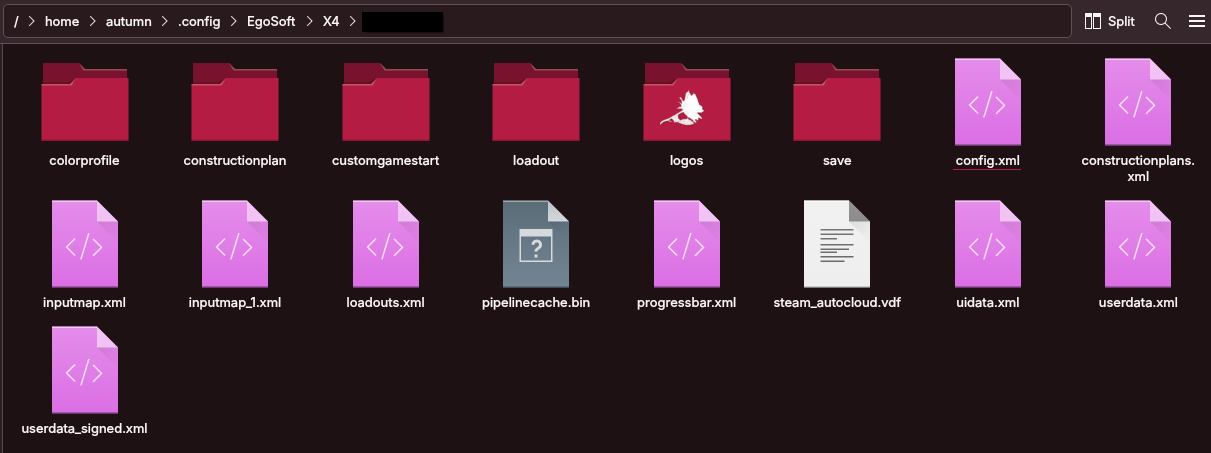
The contents of this folder should look something like this; X4 saves pretty much everything as either .xml (machine-readable plain text) or .xml.gz (compressed/gzipped XML):
In the past, the Steam client didn't support converting these Linux paths into Windows paths, and vice versa, on any game. Therefore, every game with a native Linux port simply couldn't save sync with Windows machines. As to why this wasn't changed before Valve released a very popular Linux-based game console, and is only just now being changed four years later, is beyond me.
Since I've seen a lot of complaints towards Egosoft for all this trouble, I'm adding that I have professional experience having to implement other vendors' half-baked cloud sync solutions for many angry users, so I feel for them. The fact Steam prioritizes cloud data over local data is almost certainly out of Egosoft's control, beyond them just yelling at their Valve rep about it. As to why the Steam client doesn't count this as a conflict and give an error instead of just silently overwriting the saves confounds me, but the code of the Steam client is definitely out of Egosoft's control.
Download your saves from the Steam Cloud
Thanks to a random discussion post, I discovered that Steam has a (very hidden, old, and barely functional) browser for your Steam Cloud data. In a web browser, go to https://store.steampowered.com/account/remotestorage (and log in if necessary).
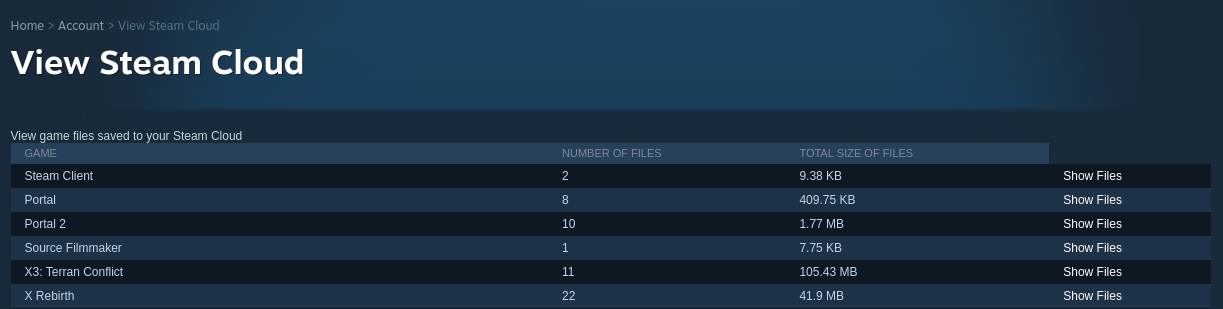
You should see a list of all your games with cloud sync, sorted in no useful order:
-
Either search for X4 Foundations in this list, or you may be able to go to https://store.steampowered.com/account/remotestorageapp/?appid=392160 to go straight to X4.
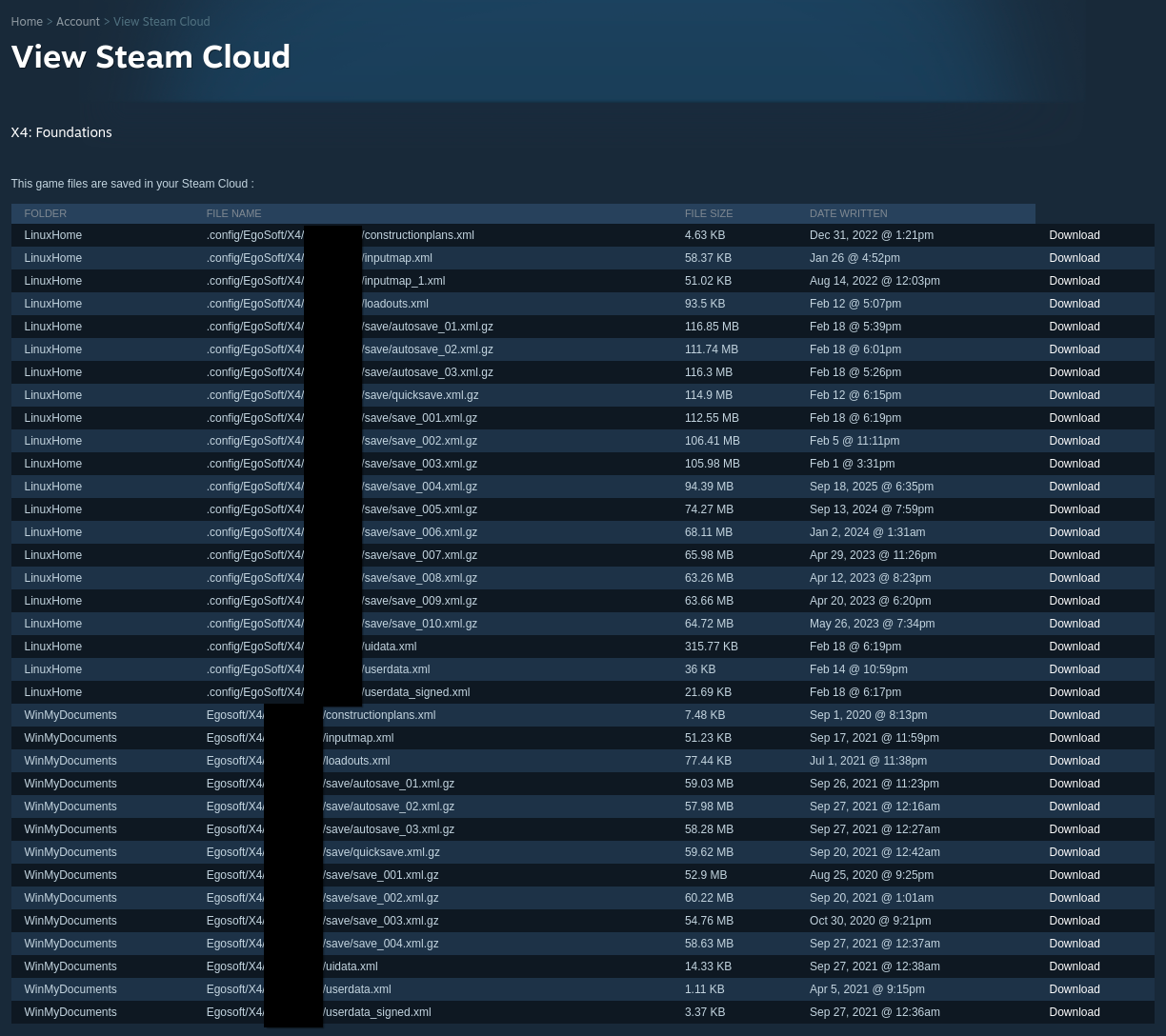
Here, you'll see a big list of both your Linux (LinuxHome) and Windows (WinMyDocuments) cloud saves, even if the Linux ones have been overwritten on your local machine! \o/
 -
-
Go ahead and download all the Linux files. Since X4 saves are massive, note that any save slots you weren't using on Windows won't be overwritten, so you shouldn't need to redownload those. In my case, my Windows machine only had save_001-004, so only those got overwritten. You will still need the 'meta' profile info, like your inputmap.xml (for keybinds), userdata.xml, loadouts.xml (if you keep saved loadouts), etc., so make sure to grab all of those.
Also, when downloading multiple files, this page seems to occasionally give you a 404 error. If this happens, just hit back and reload a couple of times, then try again. I had to do this about 5 or 6 times while downloading my saves, but YMMV… ¯\_(ツ)_/¯
Disable Steam Cloud syncing
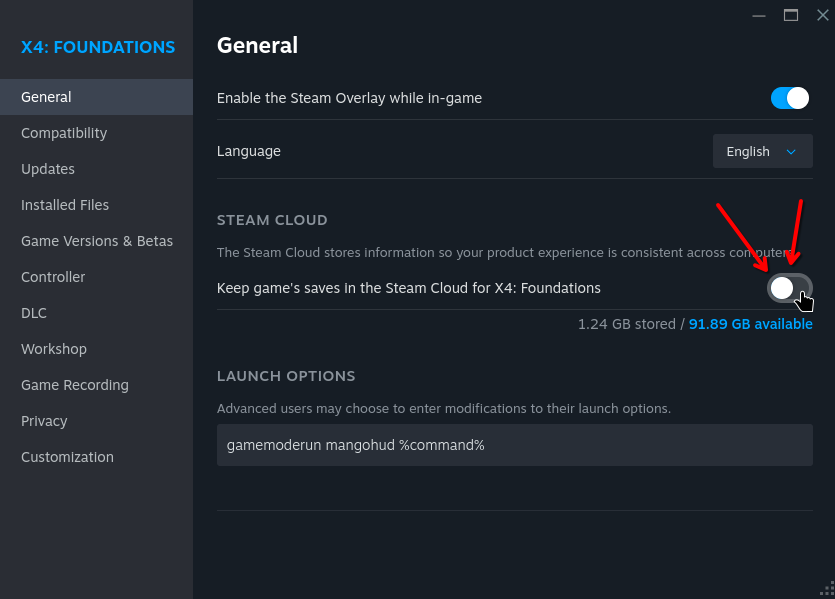
You can disable Steam Cloud syncing for an individual game in the game properties, so I highly recommend you do this while working on your saves. Go to the settings gear on the game page, then hit the toggle:
 -
-
I personally haven't re-enabled Cloud Sync, and Egosoft's directions are really confusing (presumably these are the directions from Valve, which is concerning...), but follow them if you want to re-enable Cloud Sync.
I presume the point of the whole restart Steam, launch and quit the game, etc., is to make sure the desired saves have a newer Date Modified / Date Created, so they overwrite the Windows saves.
Copy the downloaded saves
Now you've downloaded the files, you'll note that Steam has helpfully given them super long names with the full path in them, to give you the pleasure of renaming each one individually! \o/
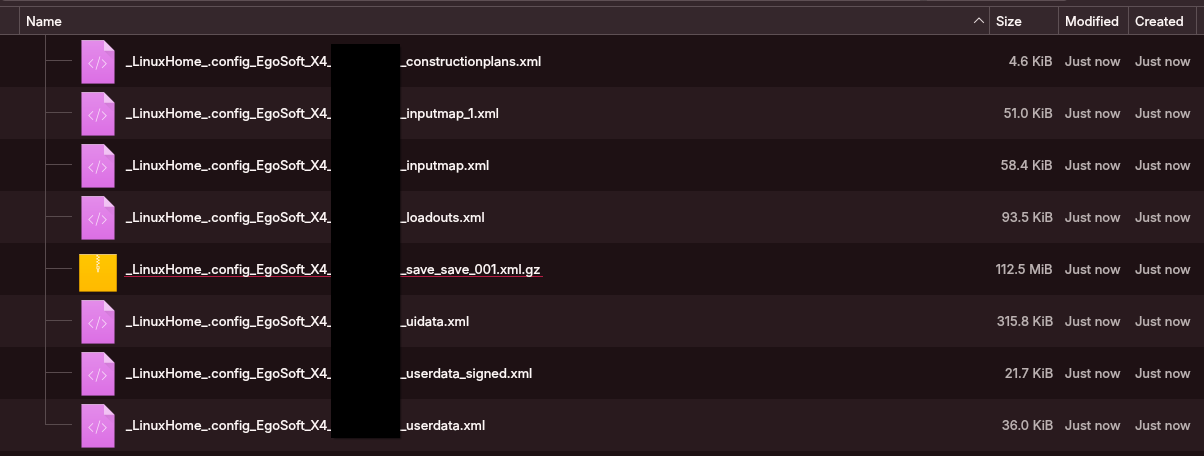 -
-You can go through and just clear out everything before the last underscore (or second last for some, like userdata_signed.xml and inputmaps_1.xml), then copy and overwrite these into your profile folder. If named properly, each one should overwrite an existing file. Note that the saves themselves sit in the saves subfolder. Once you've overwritten everything, launch the game and make sure your saves are back, and you're done!
Alternatively, if you're comfortable with a terminal, you can do what I did, which is copy all the files into your profile (since they all have dumb names, they won't overwrite anything):
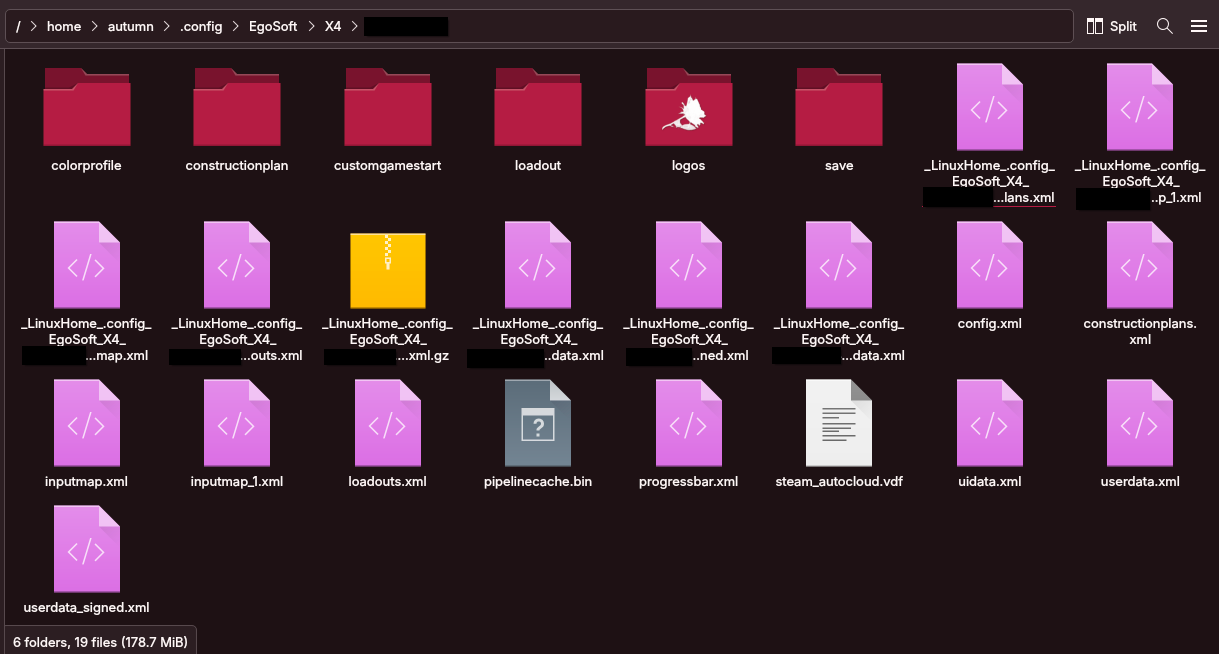 -
-Then, just mv (move) each one over the old one, making use of tab completion to fill each name. If you hit tab twice, it'll (typically) show you a list of every possibility, so you don't have to keep track of what you've done or not.
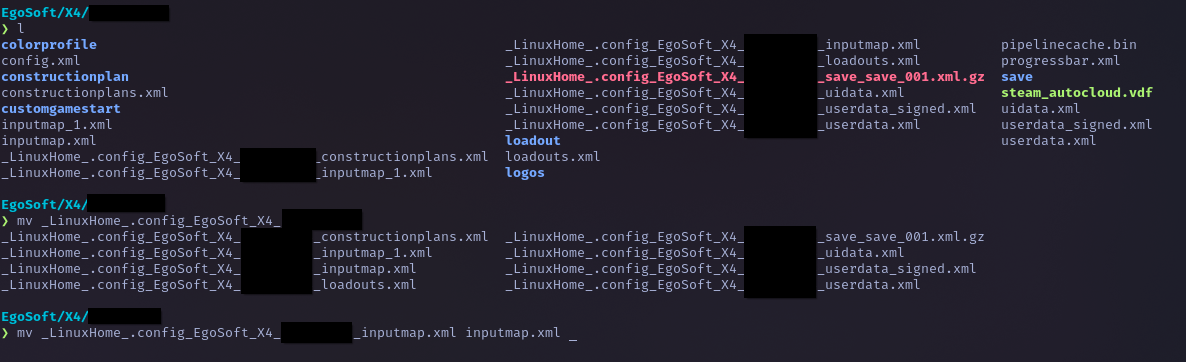 -
-The command in the screenshot is:
I'm sure you can create a better script for this if you care enough, but this worked well enough for me.
Now back up your saves!
This one goes without saying. If you're lazy like me, you can just copy your entire profile folder and just add a tilde, and then you can quickly copy it back over if Steam kerplodes your saves again:

You should properly back up important stuff (like thousand-hour saves) to either a cloud drive, another storage device, or both, but that's another topic, and this guide is already painfully long.
Anywho, I hope this helped!
- X4 Full Map [Timelines][7.0]★ 5 (579)46k views1.2k ♥1 minUpdated 22 Jun, 2024
- A Guide to Game Starts★ 5 (209)28k views437 ♥27 minUpdated 7 Jan
- X4 Beginner Guide 5.1★ 5 (393)27k views1.2k ♥22 minUpdated 7 Mar, 2023
- All Ownerless Ships in X4: Foundations (9.00 Base Game + All DLCs)★ 5 (453)27k views1.1k ♥10 minUpdated 10 Jun
- X4 Ultimate Weapons Guide. [NOW ON THE WIKI]★ 5 (343)23k views768 ♥104 minUpdated 8 Jul, 2024
- X4 sector map★ 4 (146)22k views207 ♥1 minUpdated 6 Dec, 2018


- Upgrading to PremiumTeam Fortress 2★ 5 (20k)1441k views11k ♥6 minUpdated May 11, 2022
- No More Room in Hell Official ManualNo More Room in Hell★ 5 (2.8k)569k views2.1k ♥29 minUpdated Apr 22, 2019
- NMRiH Community Hosting GuidesNo More Room in Hell★ 5 (526)351k views653 ♥1 minUpdated Aug 10, 2022
- ULTIMATE GUIDE FOR GAME DEV TYCOONGame Dev Tycoon★ 5 (5.8k)326k views10k ♥4 minUpdated 23 Jan, 2014
- How to 'Git Gud' Soon™MORDHAU★ 5 (2k)318k views3k ♥68 minUpdated Nov 16, 2024
- Лучшие кооперативные игры SteamPAYDAY 2★ 5 (1.5k)315k views2.1k ♥56 minRussianUpdated Apr 27, 2025






This guide was created by its original author on the Steam Community. Are you the author and want it removed? Request removal.