Quake Remastered (KEX Engine) - Useful Console Commands You Should Use
Recommended Commands
clear - Clears all console text.
g_showintromovie "1" - Skips(0/1) the intro videos and goes straight to the game menu.
ui_showquitmessage "1" - Enables(0/1) the classic quit prompt.
restart - Restarts video mode. Required when setting specific video settings.
con_showfps "1" - Displays(0/1) current FPS at the top right corner of the screen.
cl_engineFPS "<value>" - Sets a custom max fps value.
v_vsync "0" - Disables VSync.
r_brightness "<value>" - Changes the brightness of your screen from 0 to 2.
r_rhirenderfamily "<render>" - Changes the render of the game. Choose between "vulkan" or "d3d11"(DirectX 11).
snd_volume "<value>" - Changes the volume of the game from 0 to 1.
snd_musicvolume "<value> - Changes the volume music of the game from 0 to 1.
cl_sensitivity "<value>" - Changes the sensitivity of your mouse.
cl_skipCrosshair "0" - Disables(0/1) crosshair.
r_fov "<value>" - Changes the Field of View value from 1 to 141.
r_drawviewmodel "1" - Shows(0/1) the viewmodel.
cl_skipViewBob "'0/1" - Disables(0/1) the bob viewmodel animation. Preview[i.imgur.com]
r_renderwaterviewfx "0/1" - Enables(0/1) water screen effects when your underwater. Preview[i.imgur.com]
r_md5models "0/1" - Enables(0/1) new models for weapons, pickups and NPCs.
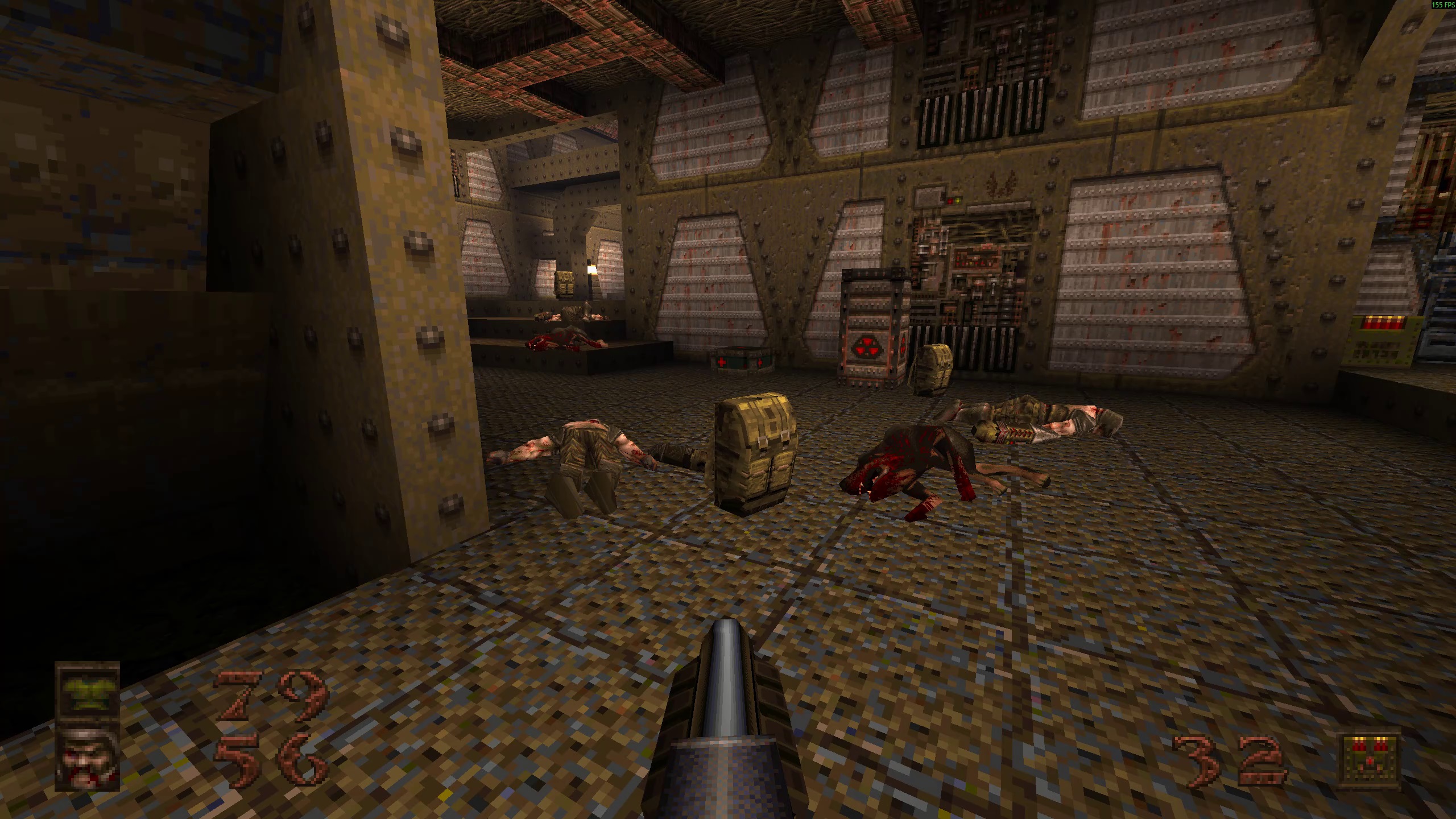
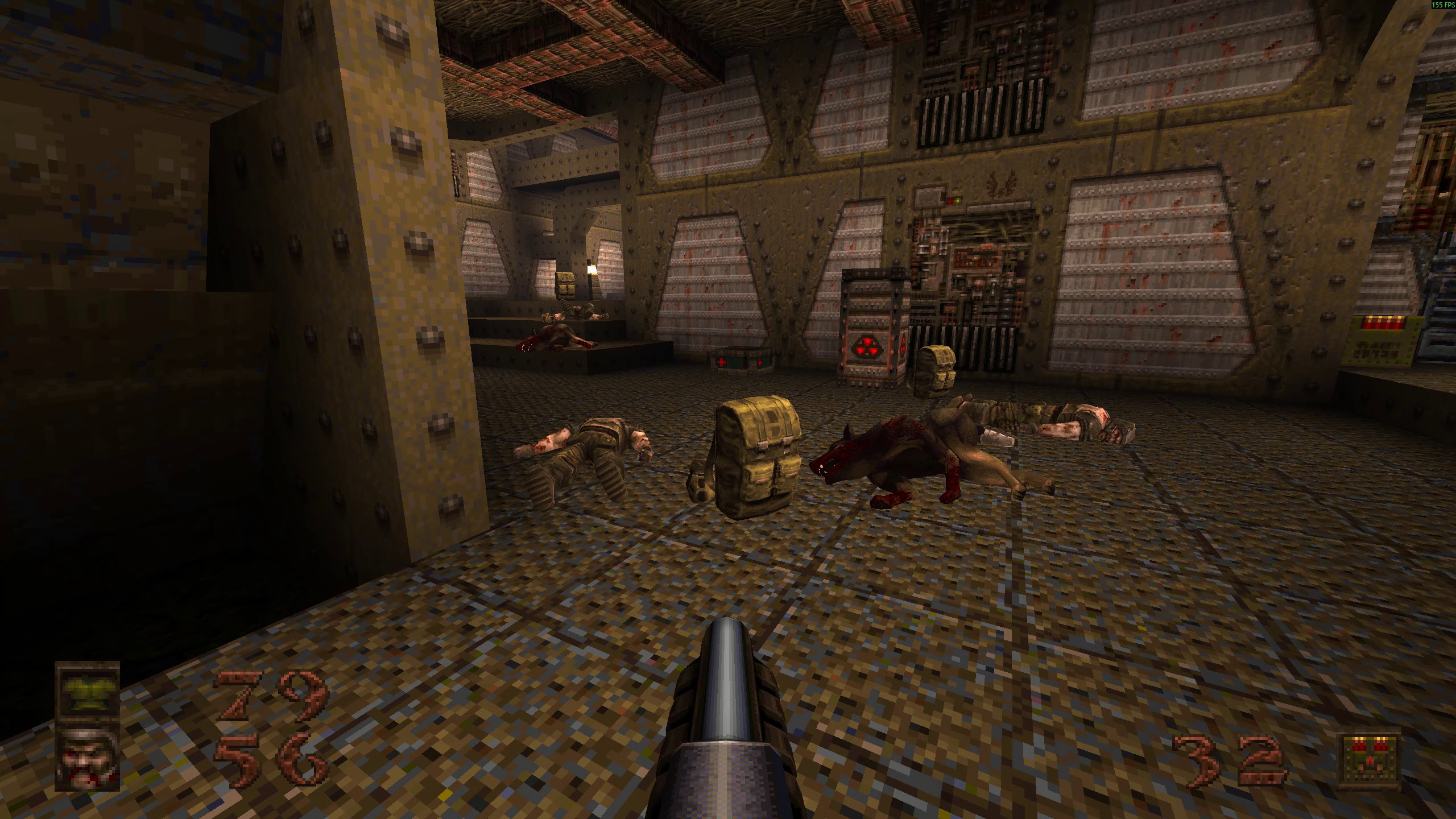
con_fontsize "<value>" - Changes the font size of console text and also some other text for example fps text(if you have con_showfps set to 1 of course). Default value: 14.
con_fontsize "16"
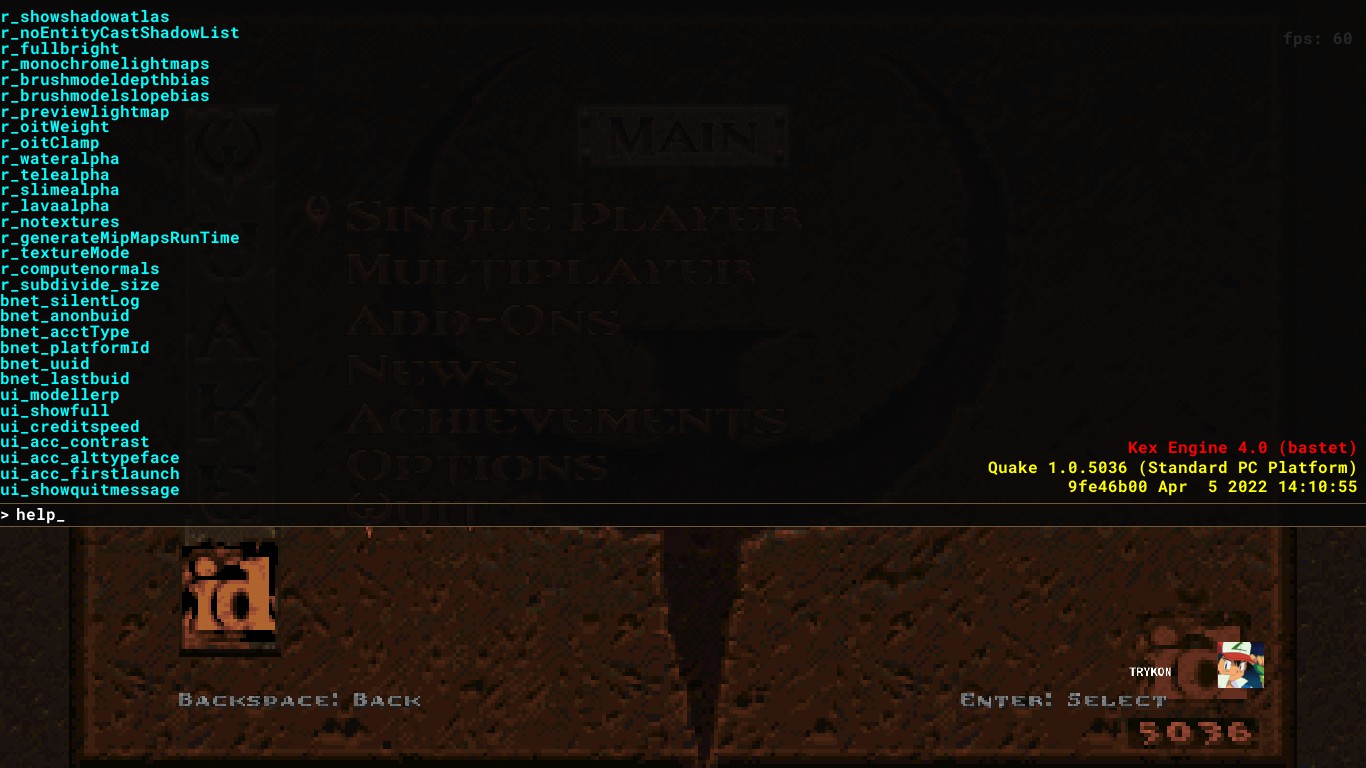
con_fontsize "12"
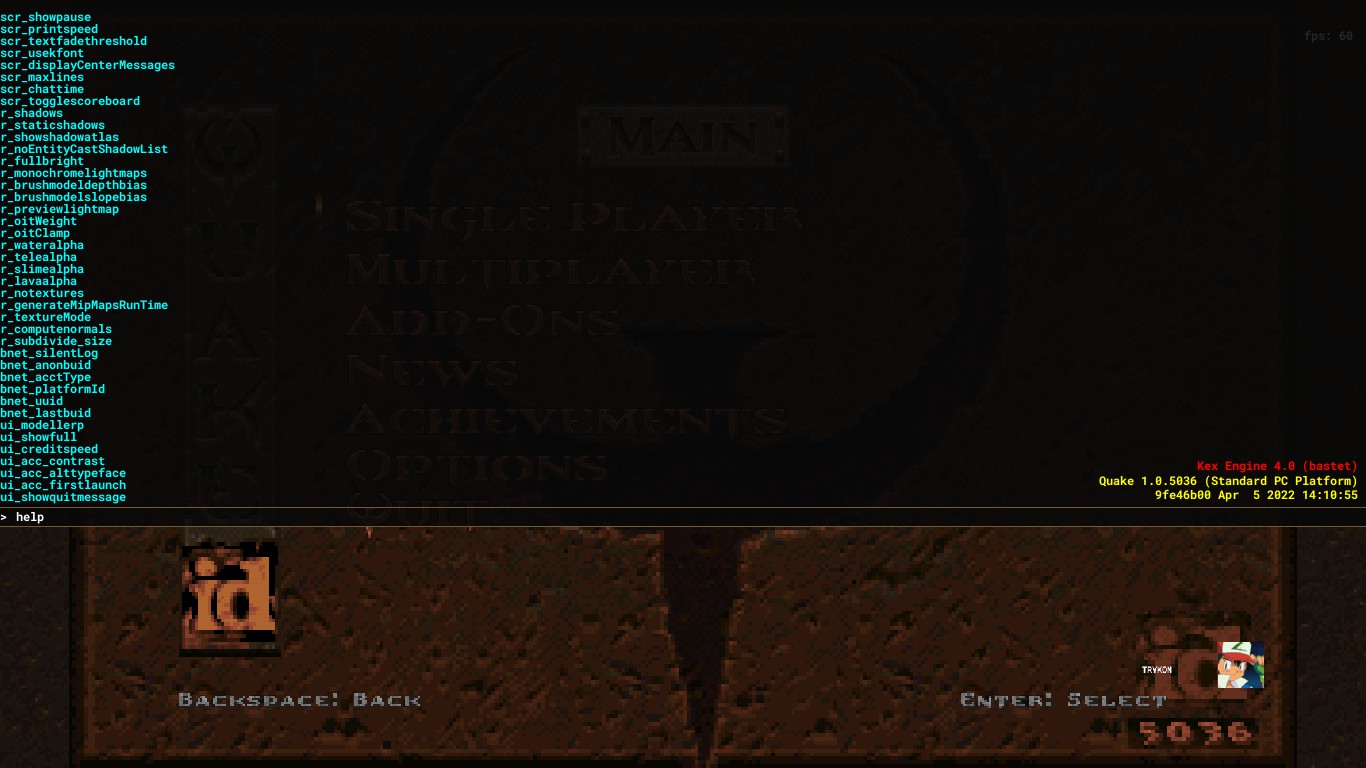
con_fontsize "8"
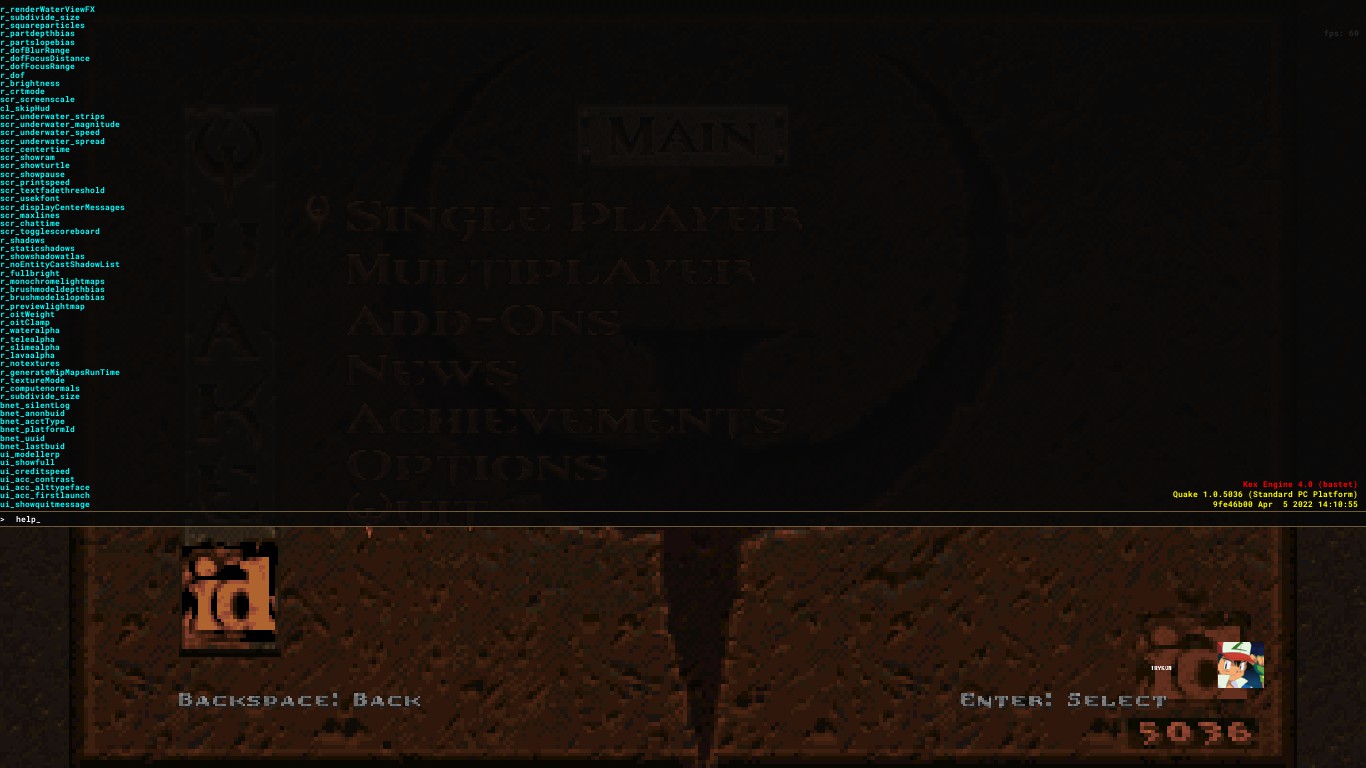
g_showintromovie "1" - Skips(0/1) the intro videos and goes straight to the game menu.
ui_showquitmessage "1" - Enables(0/1) the classic quit prompt.
restart - Restarts video mode. Required when setting specific video settings.
con_showfps "1" - Displays(0/1) current FPS at the top right corner of the screen.
cl_engineFPS "<value>" - Sets a custom max fps value.
v_vsync "0" - Disables VSync.
r_brightness "<value>" - Changes the brightness of your screen from 0 to 2.
r_rhirenderfamily "<render>" - Changes the render of the game. Choose between "vulkan" or "d3d11"(DirectX 11).
snd_volume "<value>" - Changes the volume of the game from 0 to 1.
snd_musicvolume "<value> - Changes the volume music of the game from 0 to 1.
cl_sensitivity "<value>" - Changes the sensitivity of your mouse.
cl_skipCrosshair "0" - Disables(0/1) crosshair.
r_fov "<value>" - Changes the Field of View value from 1 to 141.
r_drawviewmodel "1" - Shows(0/1) the viewmodel.
cl_skipViewBob "'0/1" - Disables(0/1) the bob viewmodel animation. Preview[i.imgur.com]
r_renderwaterviewfx "0/1" - Enables(0/1) water screen effects when your underwater. Preview[i.imgur.com]
r_md5models "0/1" - Enables(0/1) new models for weapons, pickups and NPCs.
con_fontsize "<value>" - Changes the font size of console text and also some other text for example fps text(if you have con_showfps set to 1 of course). Default value: 14.
con_fontsize "16"
con_fontsize "12"
con_fontsize "8"
Crosshair Commands
crosshairStyle "<letter>" - Crosshair is controlled by a letter of your choice. In the options you are limited by the ones the menu gives you. But with this command you can choose whatever you want.
Examples[i.imgur.com]
crosshair_red "255" - Changes the color red of the crosshair from 0 to 255.
crosshair_green "255" - Changes the color green of the crosshair from 0 to 255.
crosshair_blue "255" - Changes the color blue of the crosshair from 0 to 255.
Examples[i.imgur.com]
crosshair_red "255" - Changes the color red of the crosshair from 0 to 255.
crosshair_green "255" - Changes the color green of the crosshair from 0 to 255.
crosshair_blue "255" - Changes the color blue of the crosshair from 0 to 255.
Hud Commands
cl_hud "<value>" - This changes the type of the hud.
cl_hud "0" - Disabled
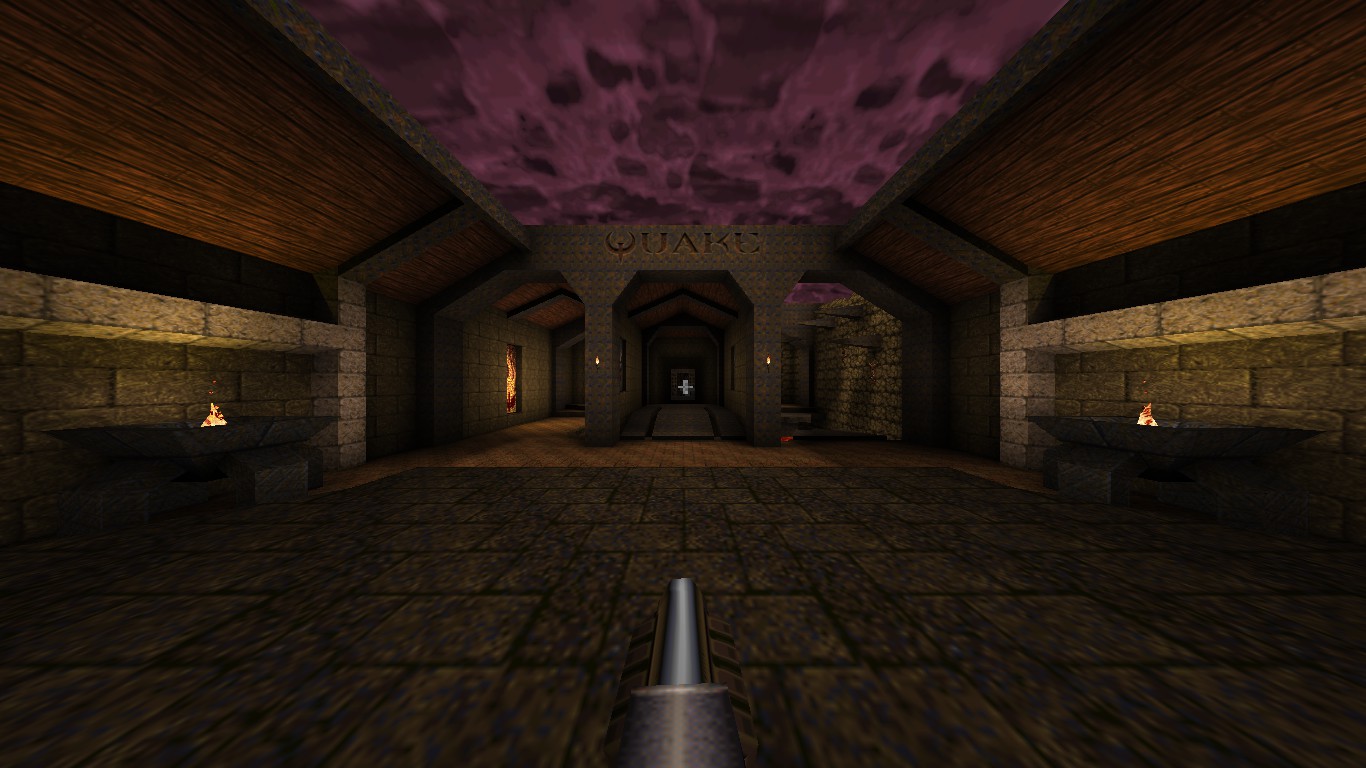
cl_hud "1" - Minimal
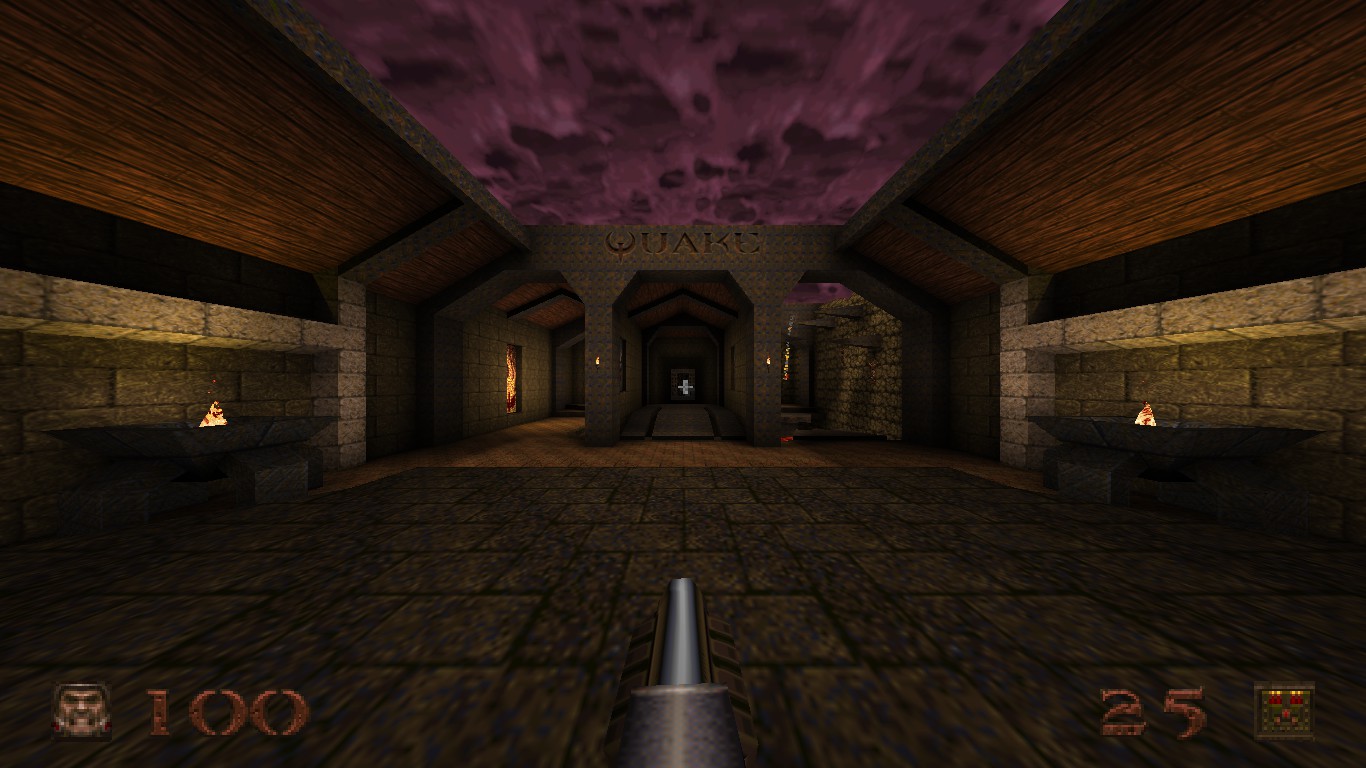
cl_hud "2" - Health and Ammo
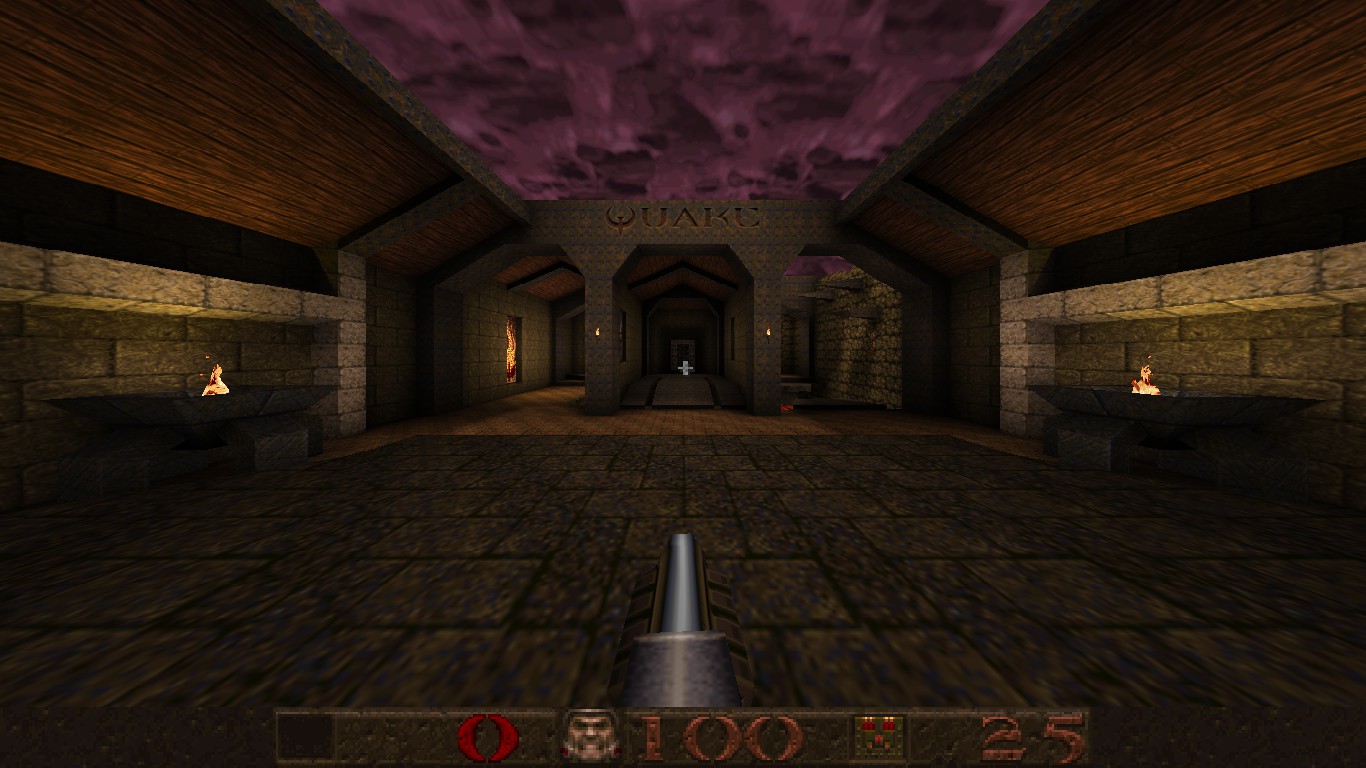
cl_hud "3" - Standard
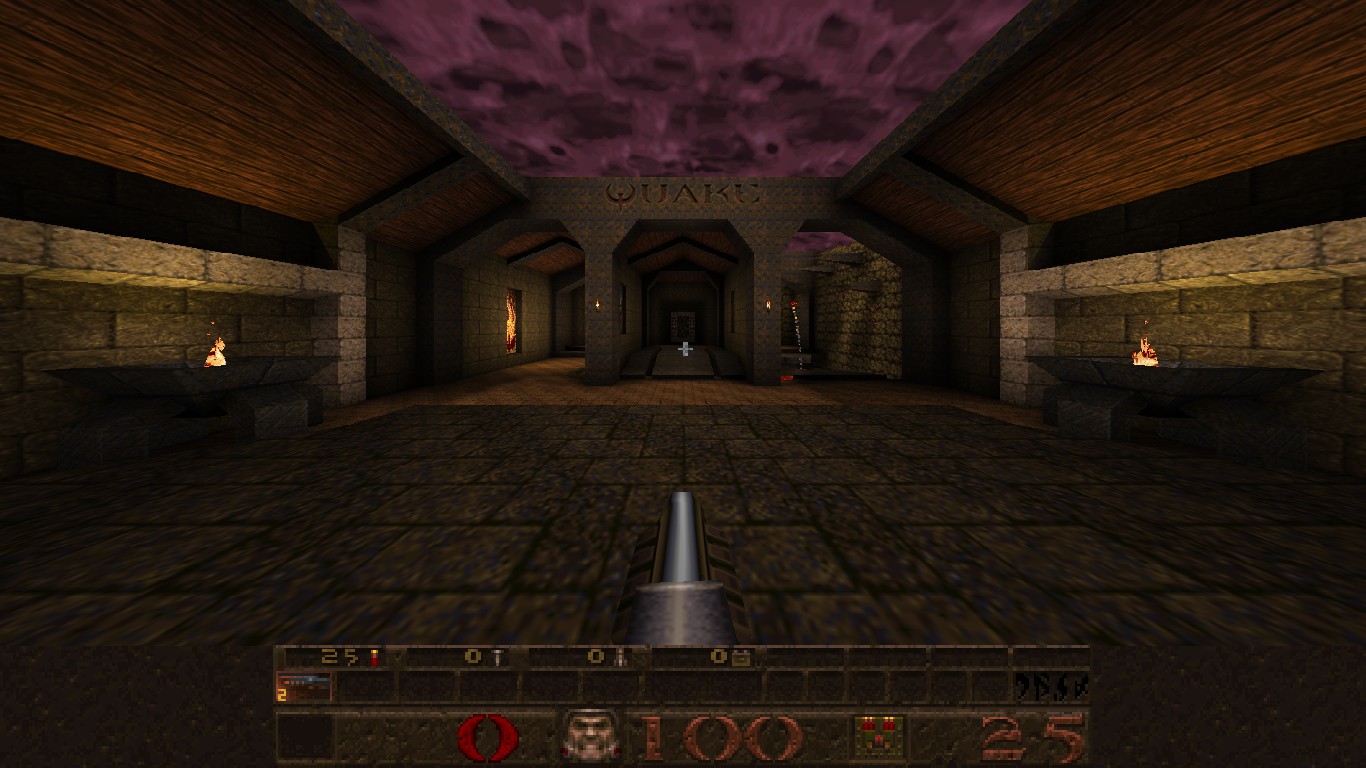
If you have cl_hud set to 1(Minimal) then you can make a custom hud of yours by changing the position of the icons, health, ammo, etc with this commands. Try to mess around with these to get something you like.
cl_hdhud_face_x
cl_hdhud_face_y
cl_hdhud_armor_x
cl_hdhud_armor_y
cl_hdhud_ammo_x
cl_hdhud_ammo_y
cl_hdhud_health_num_x
cl_hdhud_health_num_y
cl_hdhud_armor_num_x
cl_hdhud_armor_num_y
cl_hdhud_ammo_num_x
cl_hdhud_ammo_num_y
cl_hdhud_key_x
cl_hdhud_key_y
cl_hdhud_face_alignment
cl_hdhud_armor_alignment
cl_hdhud_ammo_alignment
cl_hdhud_healthnum_alignment
cl_hdhud_armornum_alignment
cl_hdhud_ammonum_alignment
cl_hdhud_key_alignment
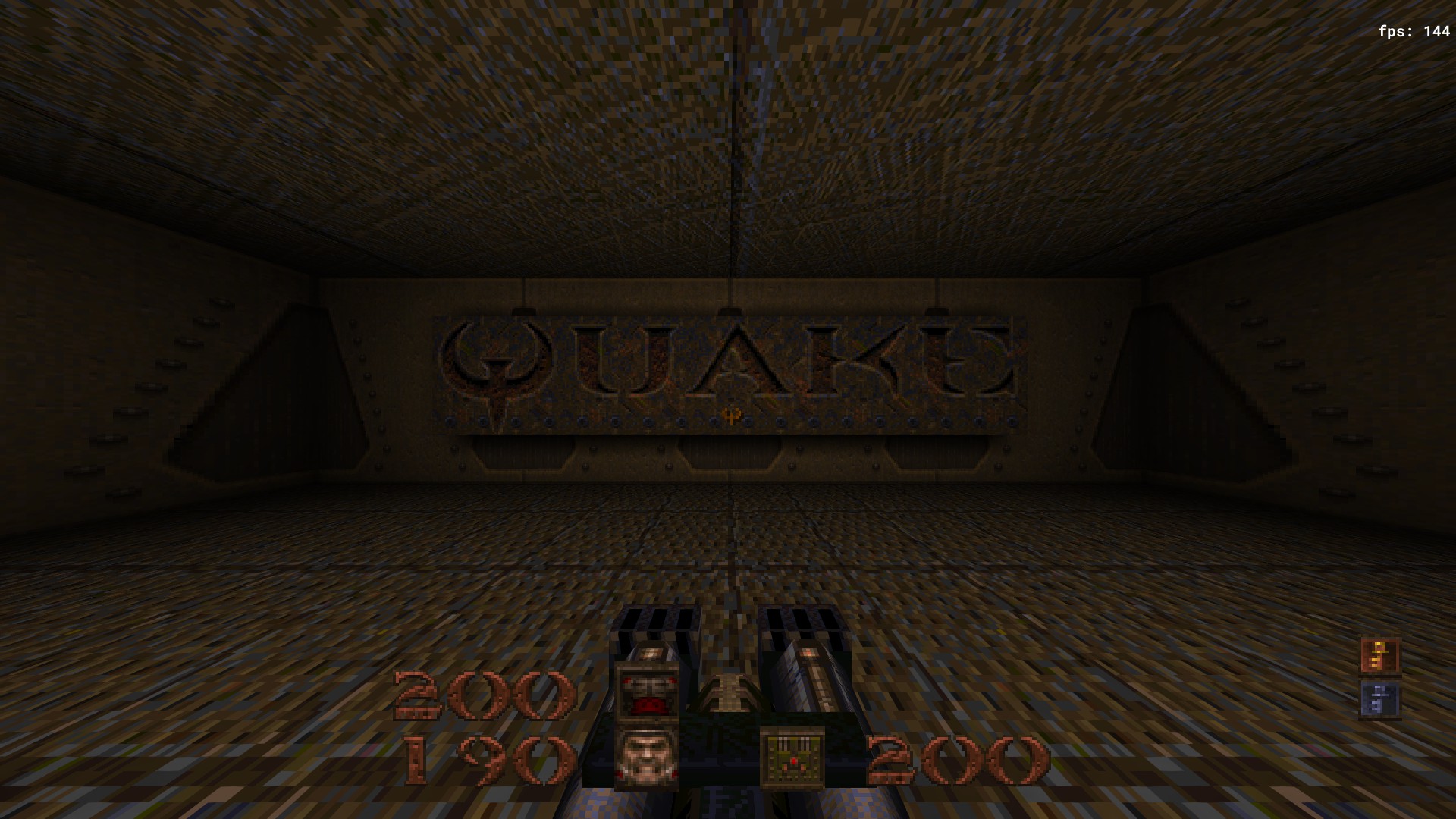
Here's an example:
cl_hud "0" - Disabled
cl_hud "1" - Minimal
cl_hud "2" - Health and Ammo
cl_hud "3" - Standard
If you have cl_hud set to 1(Minimal) then you can make a custom hud of yours by changing the position of the icons, health, ammo, etc with this commands. Try to mess around with these to get something you like.
cl_hdhud_face_x
cl_hdhud_face_y
cl_hdhud_armor_x
cl_hdhud_armor_y
cl_hdhud_ammo_x
cl_hdhud_ammo_y
cl_hdhud_health_num_x
cl_hdhud_health_num_y
cl_hdhud_armor_num_x
cl_hdhud_armor_num_y
cl_hdhud_ammo_num_x
cl_hdhud_ammo_num_y
cl_hdhud_key_x
cl_hdhud_key_y
cl_hdhud_face_alignment
cl_hdhud_armor_alignment
cl_hdhud_ammo_alignment
cl_hdhud_healthnum_alignment
cl_hdhud_armornum_alignment
cl_hdhud_ammonum_alignment
cl_hdhud_key_alignment
Here's an example:
End
If you want to more console commands there are a bunch of websites and steam guides that tell you all the commands and what they do. Or you can just type "help" in console and it will show you all console commands.
More Quake guides
- Quake Soundtrack Solutions★ 5 (822)34k views1.1k ♥15 minUpdated Apr 2, 2020
- How I play Quake in the Current Year (2023 update: Use Ironwail or Quakespasm-Spiked instead of Quakespasm)★ 5 (903)23k views1.3k ♥8 minUpdated Nov 12, 2023
- List of Quake 1 clones on the Steam store★ 5 (457)20k views854 ♥2 minUpdated May 20
- Quake Achievements★ 5 (1k)16k views1.5k ♥29 minUpdated Nov 4, 2025
- Quake Secrets★ 5 (1.1k)14k views1.8k ♥39 minUpdated Feb 23
- Quakespasm: How to activate CHUNKY MODE★ 5 (303)9.6k views357 ♥2 minUpdated Sep 23, 2023




This guide was created by its original author on the Steam Community. Are you the author and want it removed? Request removal.