Ultimate Bank Space!
Ultimate Bank Space Guide
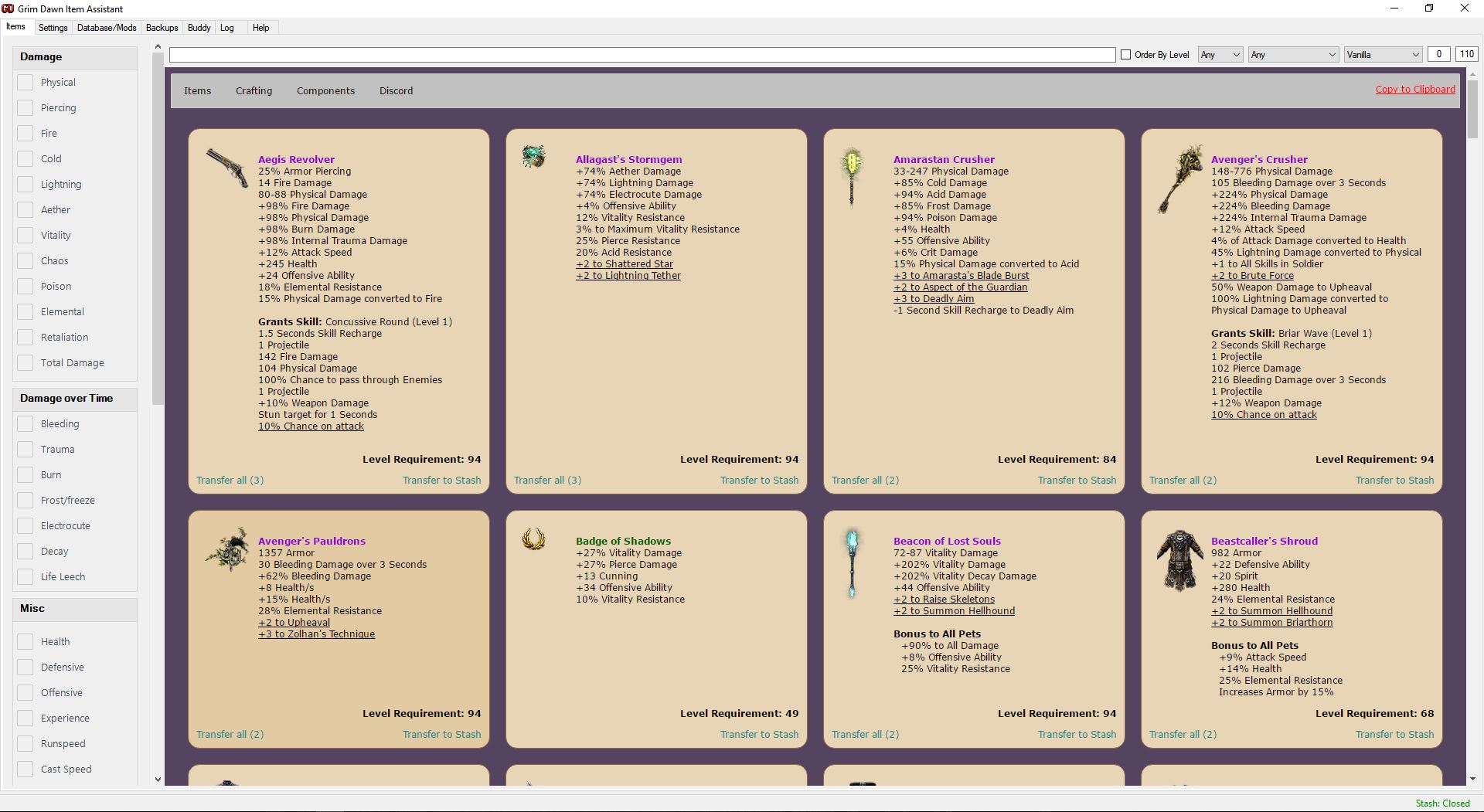
The following is a step by step guide to installing, and using the Grim Dawn Item Assistant application for infinite storage space.
NOTICE: Major Patches generally break most mods/software. The Grim Dawn Item Assistant team is gereally very persistent in updating their addons. Please be patient as the GDIA Team tries to get the GDIA updated whenever big patches break the assistant. I am not a part of the GDIA Dev Team, I am merely a fan of their work.
All links provided. If you find this guide useful, please give it a thumbs up!
This application relieves the player of having to create multiple useless level 1s, and wasting hundreds of thousands of iron bits on bank tabs for these useless toons in order to store all of their legendaries.
Step 1: Download and Install the Grim Dawn Item Assistant
GDIA Forum Thread[www.grimdawn.com]
Direct Download[grimdawn.dreamcrash.org]
Open Steam, right click on Grim Dawn and select "Properties", go to the "Updates" tab and un-tick the "cloud saving" option.
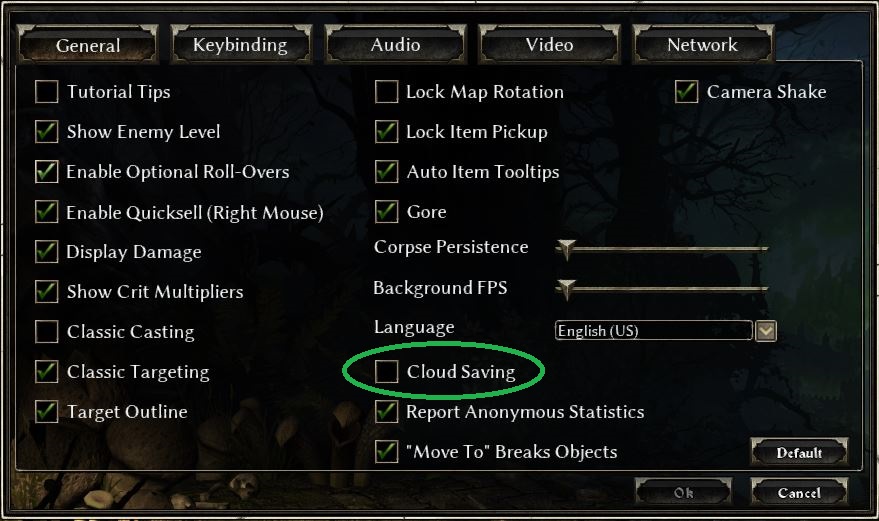
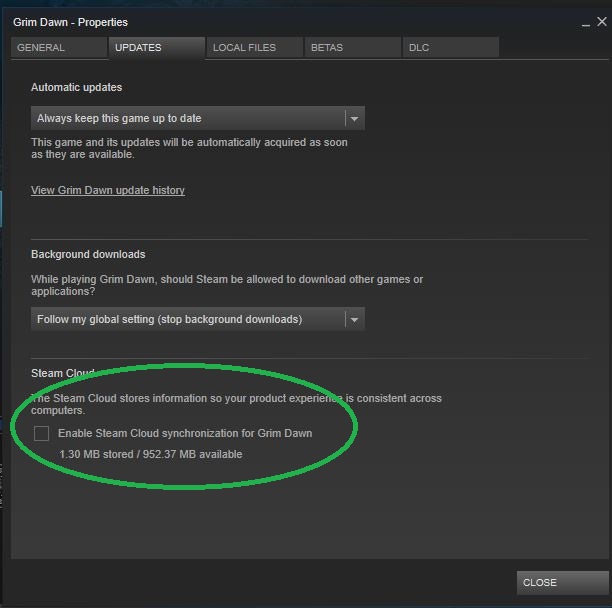 Step 3: Disable Cloud Saving within Grim Dawn
Launch Grim Dawn, and from the main menu click the "Options" button near the bottom. On the General Tab near the bottom right side of the options window un-tick the "Cloud Saving" option.
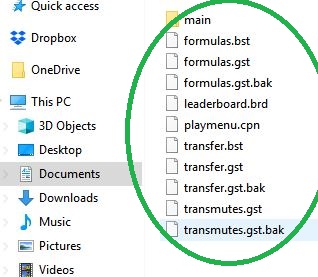
 Step 4: Copy your steam cloud save files to local.
 Navigate to "C:\Program Files\Steam\userdata\120141714\219990" and copy ALL of the files. Now navigate to "C:\Users\Name\Documents\My Games\Grim Dawn\save" and paste the copied files. (NOTE: If you do not have a "save" folder, create a new folder, name it "save" and proceed to paste the copied content into the new folder)
Step 5: Launch the GDIA
Launch the GDIA application and load the data base when promted to do so.
(OPTIONAL: Click the backup tab and log into your google drive, dropbox, or onedrive for cloud backup support)
Step 6: Launch Grim Dawn
Launch Grim Dawn and enter a world on your character of choice.
DEPOSIT ITEMS
To use the GDIA you simply place any item/s onto the 5th bank tab, close and walk away.
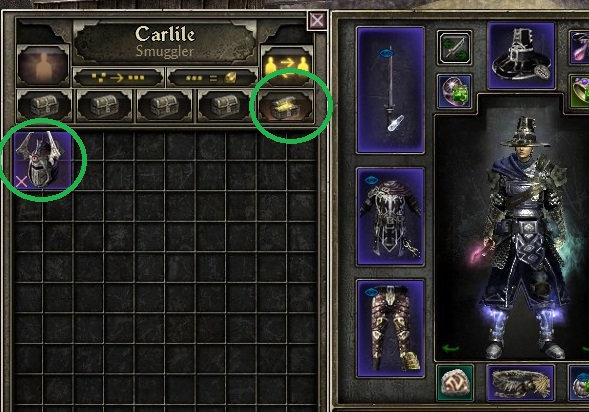 As long as the GDIA is open and running, it will loot the item which will now appear in the GDIA inventory. NOTE: Any and all items left on the 5th tab will be transfered to the Item Assistant.
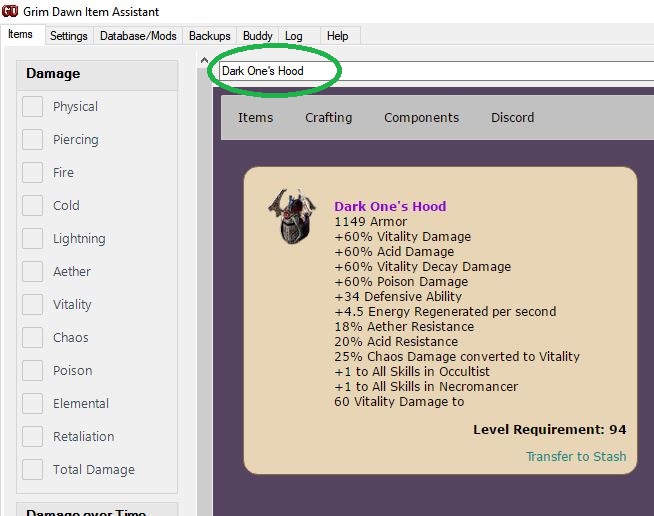
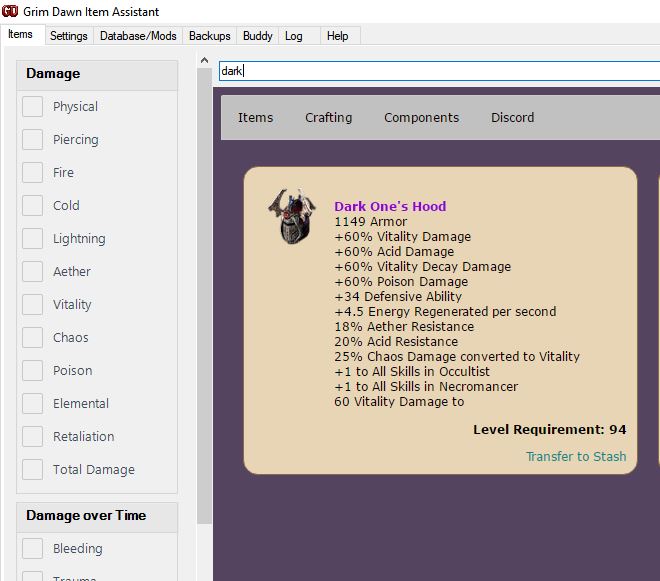 SEARCH BY NAME
You can search for specific items using the search bar if you know the name of the item that you seek.
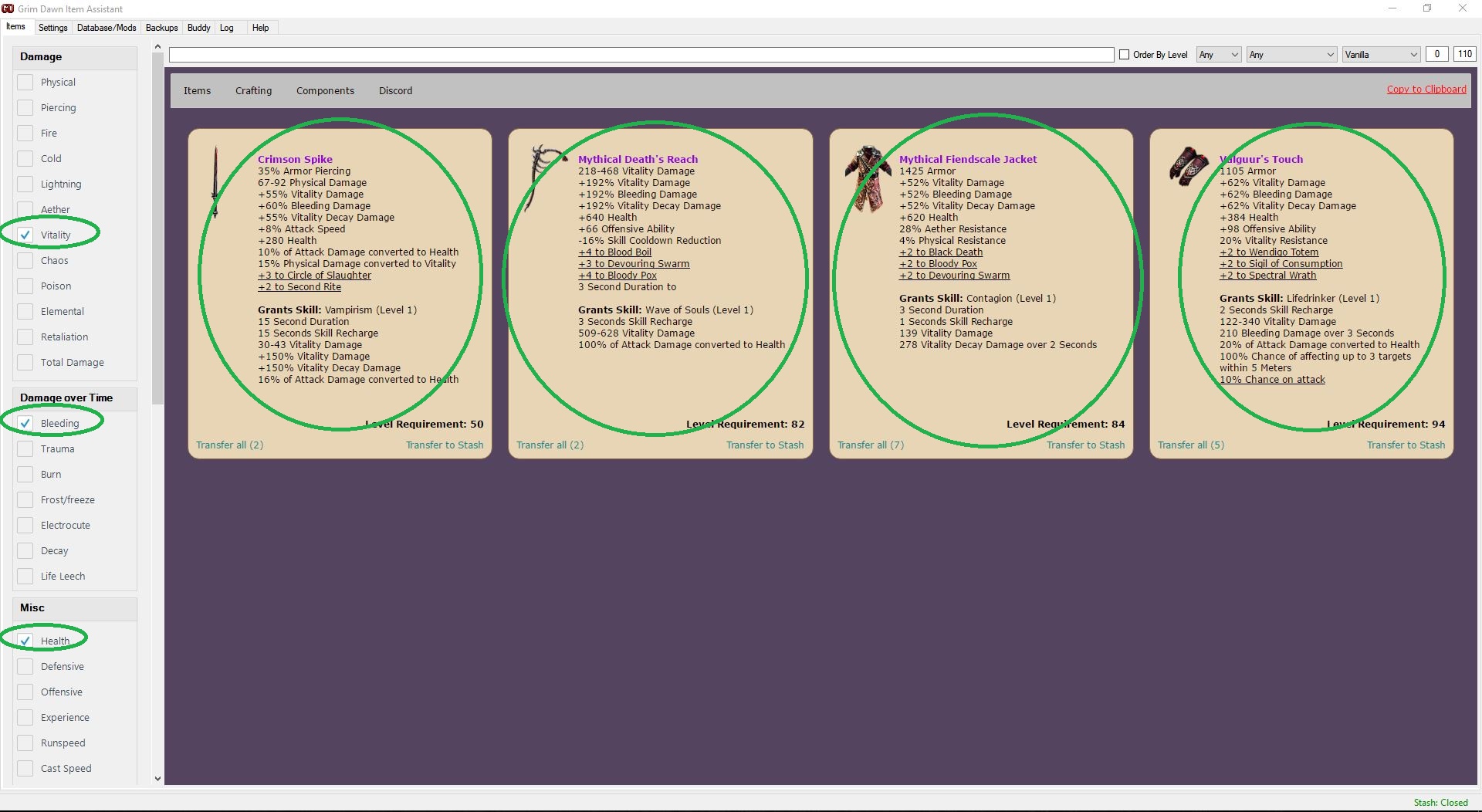
 SEARCH BY STAT
You can also look for items with certain damage types,DOTs, resistances, classes and misc stats. Ticking these boxes will filter items accordingly to help you find an item that best suits your needs.
 WITHDRAW ITEMS
To retrieve items from the GDIA tab over to the GDIA User Interface and locate your desired item, click on "Transfer to Stash". Items will now appear on the 4th Bank Tab..
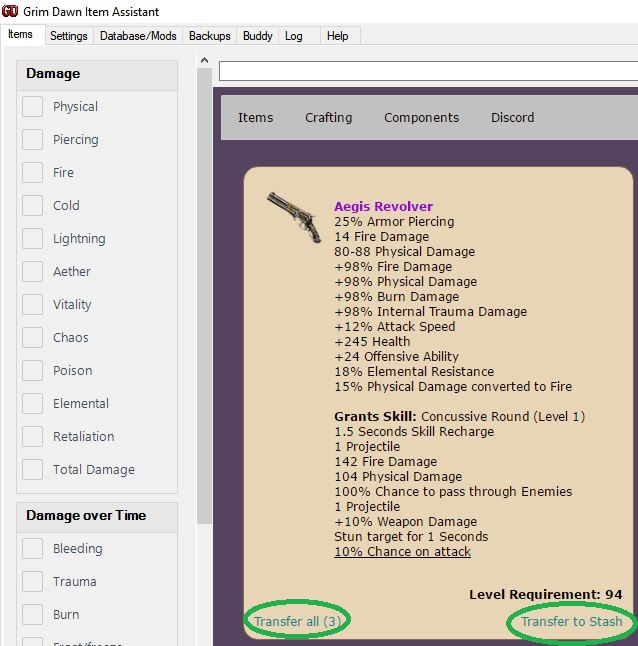 Your selected item will now appear on the 4th bank transfer stash tab.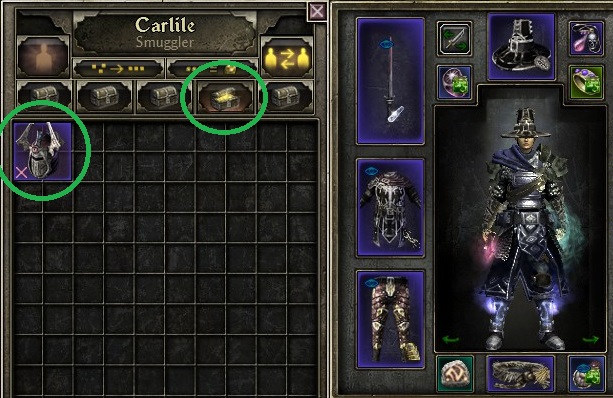
DISCLAIMER: If you lose items, I hate to say it but you've skipped a step. I am not responsible for the loss of any items. Follow this guide from start to finish and you'll have ZERO issues.
It is NOT required that you keep the 4th bank tab clear of items. Just make sure you have enough space on tab 4 to recieve items that you intend on transfering back to your in game stash from the GDIA.
If you have further questions, feel free to join us in (Discord)[discordapp.com] and I'd be glad to help you out. Trolls will be instantly permabanned. I'm trying to help people here, so don't ruin it with your obnoxious cry for attention.
Be sure to come say hi on Twitch for 4 to 8 hour Grim Dawn Live Streams =)
#NoPotential #DeliveryBoi
DeliveryBoi on Twitch[www.twitch.tv]
- Class Selection (EN)★ 5 (510)58k views841 ♥9 minUpdated Jul 6, 2017
- Beginner's Guide to Skills★ 5 (1.1k)53k views2.3k ♥167 minUpdated Nov 4, 2021
- Devotion Shrines★ 5 (2.1k)43k views3.7k ♥5 minUpdated Nov 22, 2023
- How to start new games at level 15+★ 4 (161)30k views341 ♥6 minUpdated Jul 6, 2019
- Секретные Локации★ 5 (1.1k)27k views1.9k ♥8 minRussianUpdated Apr 20, 2017
- Lokarr - Secret Quest (AoM)★ 5 (549)26k views1k ♥10 minUpdated Oct 5, 2018




- Upgrading to PremiumTeam Fortress 2★ 5 (20k)1441k views11k ♥6 minUpdated May 11, 2022
- No More Room in Hell Official ManualNo More Room in Hell★ 5 (2.8k)569k views2.1k ♥29 minUpdated Apr 22, 2019
- NMRiH Community Hosting GuidesNo More Room in Hell★ 5 (526)351k views653 ♥1 minUpdated Aug 10, 2022
- Лучшие кооперативные игры SteamPAYDAY 2★ 5 (1.5k)315k views2.1k ♥56 minRussianUpdated Apr 27, 2025
- Desert Eagle Heat Treated | Blue GemCounter-Strike 2★ 5 (1.6k)292k views1.5k ♥2 minUpdated Jan 16
- Treasure Hunt Puzzle SolutionsTotal War: WARHAMMER II★ 5 (6.9k)281k views15k ♥3 minUpdated Aug 19, 2021






This guide was created by its original author on the Steam Community. Are you the author and want it removed? Request removal.