x32 to x64 General Issues Solution
1. Preparations:
-- A. Get the latest updates for:
- i. CPU chipset drivers
- ii. GPU drivers
- iii. Windows
-- B. Requirements:
Go to
C:\Program Files (x86)\Steam\steamapps\common\Steamworks Common Redistributables\_CommonRedistThen make sure to have these installed on your computer:
- DirectX \ Jun2010
- PhysX \ 9.14.0702 or later versions
(AMD GPU users only - Nvidia GPU users receive it automatically through the graphics drivers package)
- vcredist \ 2010
- vcredist \ 2012
- vcredist \ 2015
- vcredist \ 2019
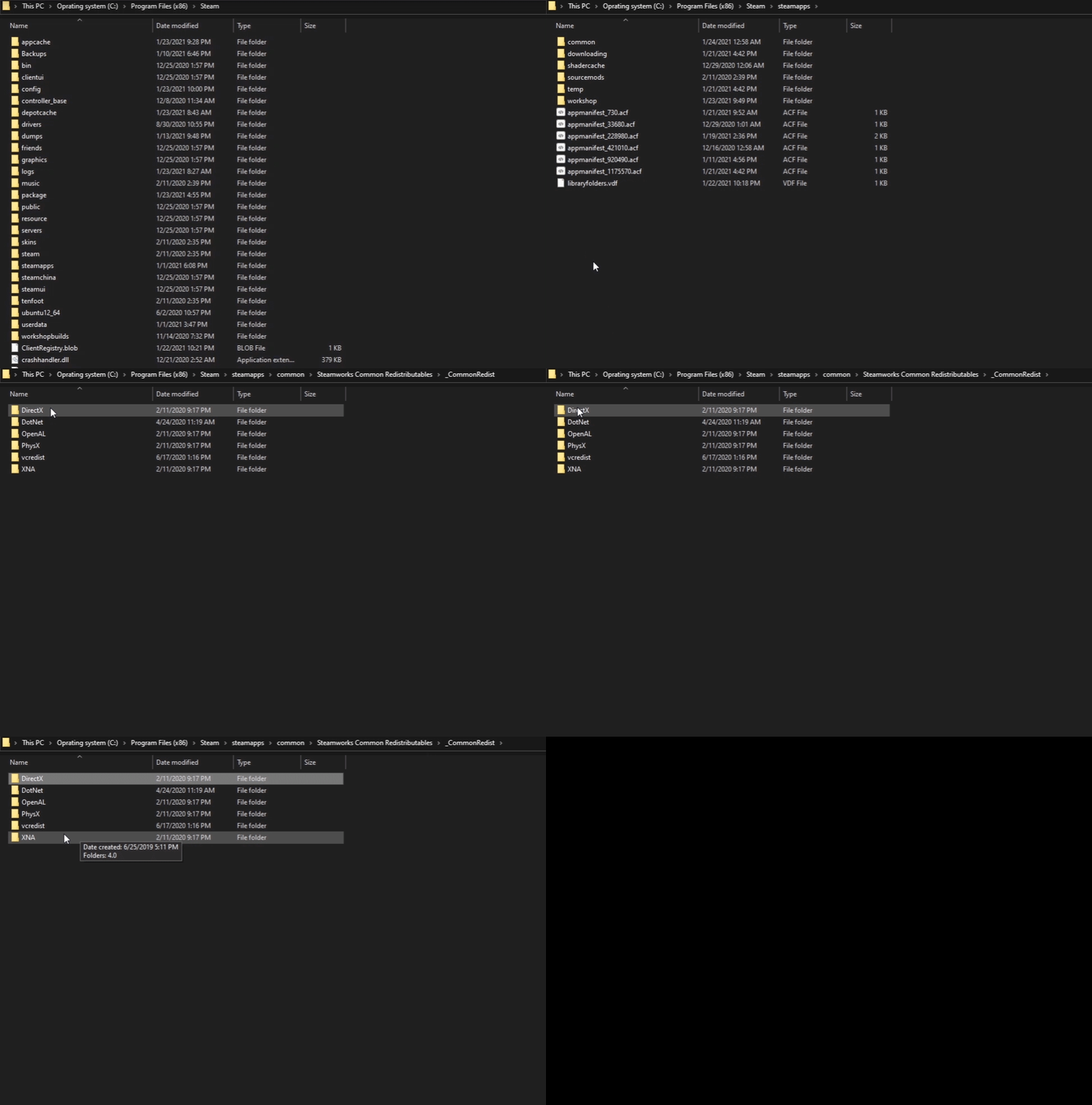
- If you don't have any of them, verify the "Steamworks Common Redistributables" files. You can find it on the Steam client library list.
- If you cannot find the "Steamworks Common Redistributables" folder, check other Steam library directories as well. It may happen if you have more than "one" game installation directory. There should be a "Steamworks Common Redistributables" folder in one of them under this directory in the Steam client library folder:
Steam\steamapps\common\Steamworks Common Redistributables\
-- C. Verify integrity of game files:
Open the Steam client. Navigate to "Library." Find and then right-click on Company of Heroes 2. Select "Properties" from the list.
or
Open the Steam client. Navigate to "Library." Find and click on Company of Heroes 2. On the client game page, on the right side of the screen, click on "Manage" (A gear icon) and then select "Properties" from the list.
A new window shows up in the middle of the screen. From the list of the tabs on the left, click on "Local Files." Hover your mouse over the "Verify integrity of game files" and click on on it.
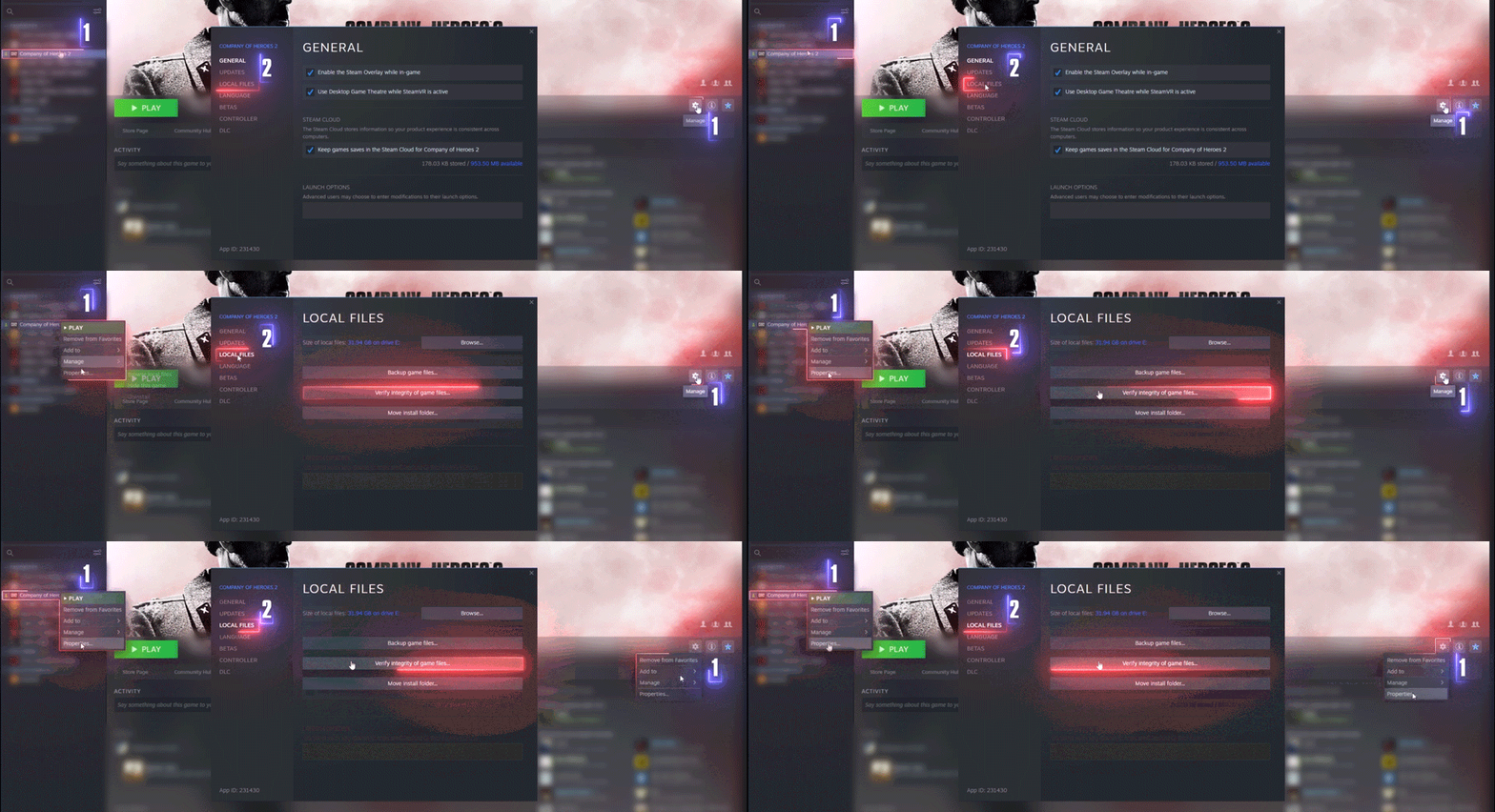
Now, wait until the end of the operation.
2. Unsubscribe from all workshop items:
Go to the Company of Heroes 2 workshop page:
https://steamcommunity.com/app/231430/workshop/On the top bar beneath the Company of Heroes 2 banner, click on "Browse," then select "Subscribed items" from the menu.
or
On the right side of the page, under the "Vote," next to the "Most Popular Ready-to-Use Items," you can see your avatar. This part is called "Your Workshop Files." Move your mouse to "Your Files" option, a new menu will appear. Select "Subscribed items" from the menu.
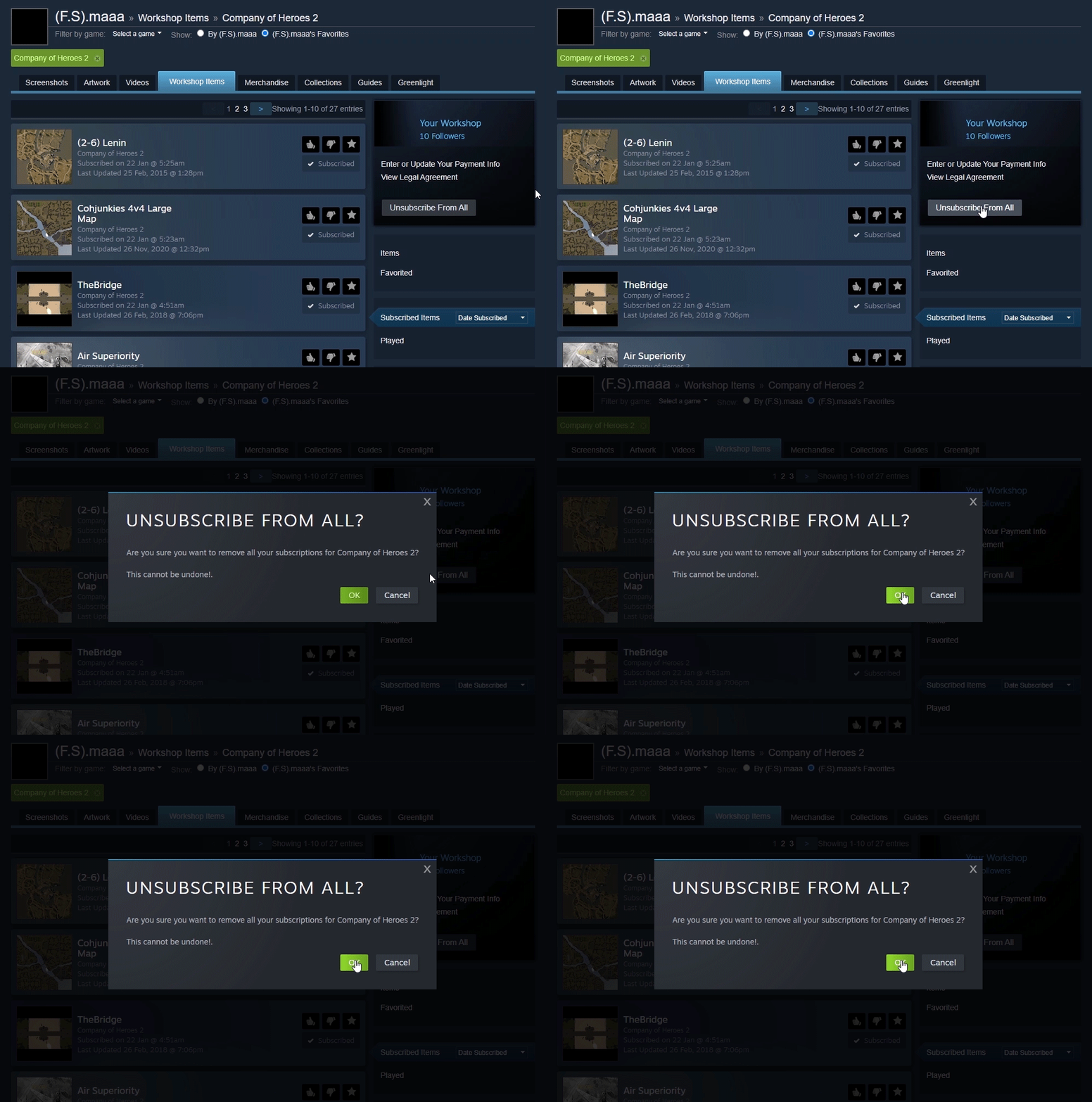
A new page will be loaded that shows your workshop subscribed items. On the right side of the screen, click on the "Unsubscribe From All" button.A message pops up that says:
Click on ok, and it's done.
"Are you sure you want to remove all your subscriptions for Company of Heroes 2?
This cannot be undone!."
3. Clear the personal settings and cached files
Go to
C:\Users\Username\Documents\My Games\Company of Heroes 2
And delete everything except 3 folders. Make sure to keep "playback," "Savegames," and "screenshots."
4. Remove any launch option/s / command/s
Open the Steam client. Navigate to "Library." Find and then right-click on Company of Heroes 2. Select "Properties" from the list.
or
Open the Steam client. Navigate to "Library." Find and click on Company of Heroes 2. On the client game page, on the right side of the screen, click on "Manage" (A gear icon) and then select "Properties" from the list.
On the new window, under the "General" tab, clear/delete any text on the "Launch Options" section.
NOTE:
Higher than 120Hz monitor users who are experiencing a blank screen need to add "-refresh 120" to the game launch options, for now.
5. Launch the game
After performing all the tasks above, restart the Steam client and then try to launch the game.
- If you are experiencing multiple disconnects from the server in a short period of time, restart the computer, once.
FAQ
-- A. Controller owners mouse pointer stuck at the corcenr of screen
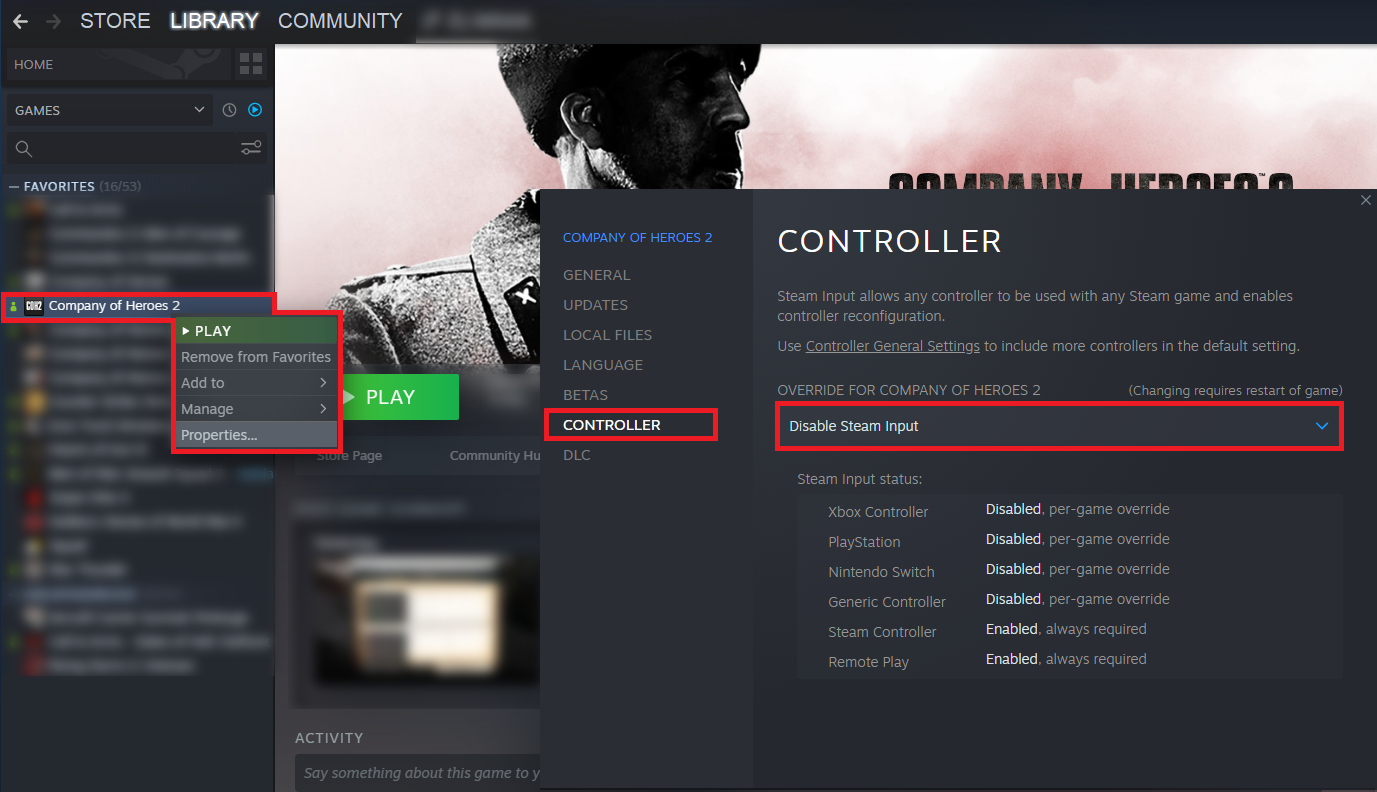
Open the Steam client. Navigate to "Library." Find and click on Company of Heroes 2. On the client game page, on the right side of the screen, click on "Manage" (A gear icon) and then select "Properties" from the list.
On the new window, under the "Controller" tab, from the "OVERRIDE FOR COMPANY OF HEROES 2," select "Disable Steam input". Then close the window and launch the game.
-- B. I can't use the 64bit version. How do I run the game on 32bit version?
Open your Steam client, then click on the "Library" tab. Find the game from the list and right-click on it. From the opened list, select "Properties." A new window appears.
Hover your mouse to the left side of the properties window, and then click on the "Beta" tab from the list there.
Now, on the right side, click on the bar below "Select the beta you would like to opt into," then select "Lagacy_32bit - Old 32bit version of COH2."
Close the window. The game files will be updated automatically through Steam. Then try to launch the game.
-- C. My game didn't update to 64bit live version automatically. How can I get it?
Open your Steam client, then click on the "Library" tab. Find the game from the list and right-click on it. From the opened list, select "Properties." A new window appears.
Hover your mouse to the left side of the properties window, and then click on the "Beta" tab from the list there.
Now, on the right side, click on the bar below "Select the beta you would like to opt into," then select "None."
Close the window. The game files will be updated automatically through Steam. Then try to launch the game.
-- D. The game update stuck at X%. How do I fix it?
- First of all, make sure, no other application is blocking the downloading process, such as the firewall or any other security software.
- Usually, it takes more time to finish the updating process on the hard drives if you are using them. If you have an SSD, try to move the game there.
- Make sure to have free space on your storage drive.
After all, if you see no disk or network activity on the "Task Manager" or "Resource monitor," then open your "Steam Client."
Hover your mouse over the top-left of the Steam client, and click on "Steam." From the opened list select "Settings."
From the list on the left side of the opened window, select "Downloads." On the bottom of the window, click on "Clear Download Cache."
Press ok and wait until the Steam client restarts. Login into the Steam client and try to update your game again.
P.S. There are still some minor issues with the Steam client. This might help you to fix those issues.
-- E. Workshop or other content creation tools does not work properly. What should I do?
There are still several bugs present on the x64 bit version, such as:
- Exporting map causes bugsplat in-game.
- Adjusting building damage causes bugsplat.
- Selecting a new tool after using the measurement tool leads to an "Encountered an improper argument" error, thus forcing the user to restart the Worldbuilder.
- The main title image (TGA file) is missing after uploading an item on the Steam workshop
Due to the currest condition, it's reccomended to use the "Lagacy_32bit - Old 32bit version of COH2" temporarily.
Note:
The hotfix solved the missing "archive.exe" issue.
-- F. Versions compatibility and supported features
Note:
If the "64bit-Xbox Game Pass (PC)" version users join a "64bit-Steam" version host using a workshop custom item on their match sessions settings, once the host start the match, their game leads to crash due to the fact that the Steam workshop is not available on the Microsoft Xbox game pass platform games.
-- G. Leaderboard and player card do not load in game. How to fix it?
- Make sure Company of Heroes 2 is closed
- Open the Steam client
- On the top left corner, click on "Steam," then click on"Setting" from the list.
- From the list of tabs on the left side, open "Web Browser." Then, click on "Delete web browser catch" and "Delete all browser cookies."All done, now launch the game.
Credits to Sturmpanther - Fixing Leaderboard / Playercard[www.coh2.org]post on COH2.ORG.
-- H. How to watch old replays after an update?
Due to the game updates, old replays become unavailable in the game since they are no longer compatible with the current version of the game. This method assists you in watching the old replays.
Note: With this method, the game may become unstable, replays may not play and finish properly, or the replay result may differ.
Method explanation:
- Go to the Steam game library on the Steam client, then
- Right-click on Company of Heroes 2, and select "Properties" from the list.
- On the new window, in the bottom of "General" tab, enter –allowIncompatibleReplays (No space and including the dash) as the "Launch options."
- Close the window, and then launch the game
Other COH2 guides
Author
The guide was written by Amin
All rights are reserved for the author. Any Use/Copy/Share without mentioning the source and author is prohibited.
Please consider liking, sharing, favoriting, and awarding this guide if you found it helpful.
Regards
- How to increase FPS?★ 5 (1.2k)43k views1.1k ♥4 minUpdated Jun 20, 2015
- COH2 Console cheats/commands★ 4 (181)23k views412 ♥2 min
- Руководство по всем юнитам и постройкам Company of Heroes 2★ 5 (1.1k)23k views1.2k ♥77 minRussianUpdated Dec 15, 2024
- How to use and apply military strategy in COH2 (All factions/commanders) #REVISED EDITION# BASICS & EARLY GAME★ 5 (521)21k views742 ♥9 minDutchUpdated Jul 13, 2015
- Все, что вы хотели знать об этой игре, но боялись спросить★ 5 (331)13k views390 ♥14 minRussianUpdated Dec 10, 2021
- Compilation of broken achievements & solutions★ 5 (288)13k views471 ♥2 minUpdated Aug 8, 2022



- Upgrading to PremiumTeam Fortress 2★ 5 (20k)1441k views11k ♥6 minUpdated May 11, 2022
- No More Room in Hell Official ManualNo More Room in Hell★ 5 (2.8k)569k views2.1k ♥29 minUpdated Apr 22, 2019
- NMRiH Community Hosting GuidesNo More Room in Hell★ 5 (526)351k views653 ♥1 minUpdated Aug 10, 2022
- How to 'Git Gud' Soon™MORDHAU★ 5 (2k)318k views3k ♥68 minUpdated Nov 16, 2024
- Лучшие кооперативные игры SteamPAYDAY 2★ 5 (1.5k)315k views2.1k ♥56 minRussianUpdated Apr 27, 2025
- Desert Eagle Heat Treated | Blue GemCounter-Strike 2★ 5 (1.6k)292k views1.5k ♥2 minUpdated Jan 16





This guide was created by its original author on the Steam Community. Are you the author and want it removed? Request removal.