Character / Building Save File & Map Migration
Adding a new Map Mod to your *current* save
If you want to keep your base and everything you've built, but simply add a new town or territory
(like Raven Creek or Eerie Country) to the existing world:
- Identify the Coordinates: Every map mod occupies specific "cells" (e.g., 30x40). Find out which cells the new mod uses.
- The "Visited Chunk" Problem: If your character has already driven through or even been near the area where the new map is
supposed to be, the game has already generated "vanilla" forest/road there. The new map will not appear. - The Fix (Chunk Deletion):
* **Back up your save first!**
* Navigate to your save folder: `C:\Users\YourName\Zomboid\Saves\Sandbox\YourSaveName`.
* You need to delete the `map_X_Y.bin` files that correspond to the new map's coordinates.
* **Warning:** If you delete a chunk where you have a base or a vehicle, it will be gone forever. - Update `map.bin`:** You will need to add the new map's name to the `mods=` line in your `map.bin` file (usually done
through the "Load" menu in-game by clicking "More..." and then "Choose Mods").
Migrating your character to a *fresh* Save File
This is often the best choice for a years-old save with many kills. Over time, save files become "bloated" with data about every single item you've moved and every drop of blood you've spilled. Migrating your character to a fresh world will reset the performance and ensure the new map mods load perfectly.
The "map_p.bin" Method (The Cleanest Way):
- Prepare Character: In your old save, put everything you absolutely cannot live without into the character's main inventory (backpack and pockets). Anything in boxes or on the ground will be left behind.
- Save and Exit: Quit the game.
- Create the New World: Start a "New Game" with the same mods (plus the new maps you want). Choose your sandbox settings (don't forget your day length and Zombie settings!).
- Spawn and Save: Create a "dummy" character, spawn in, and immediately quit to the main menu.
- The Swap:
* Go to your **Old Save** folder: `...\Zomboid\Saves\Sandbox\OldSave`.
* Copy the file named `map_p.bin`. This file contains the character's stats, skills, traits, and their
entire inventory.
* Go to your **New Save** folder: `...\Zomboid\Saves\Sandbox\NewSave`.
* Paste Character’s `map_p.bin` here, overwriting the dummy character's file. - The Result: When you load the New Save, you will be playing as your character. You will spawn at the exact coordinates where the dummy character was, but you will have all your years of experience, your kill count, and your gear.
Important Considerations for Your Character
from a mod that isn't active in the new save, the game might throw an error or they might spawn naked.
* The Kill Count: The `map_p.bin` stores the "Zombie Kills" statistic. However, some mods track kills separately.
If you use a specific mod for your kill count tracking, that data might be stored in a different file (like `map_t.bin` or a
mod-specific ini file).
* Vehicle Migration: If you want to bring your favorite armored vehicle, you’ll need a mod like "Vehicle Saver"
or "Easy Config Chuck", as vehicles are tied to the world data (`map_X_Y.bin`), not the player data.
My recommendation? With many kills, your character has likely seen a lot of "data bloat." I would recommend Option 2. It gives them a fresh start in a brand new world with the new maps fully integrated, while keeping the legend of their stats, skills and base alive.
Exporting Player-Built Structures
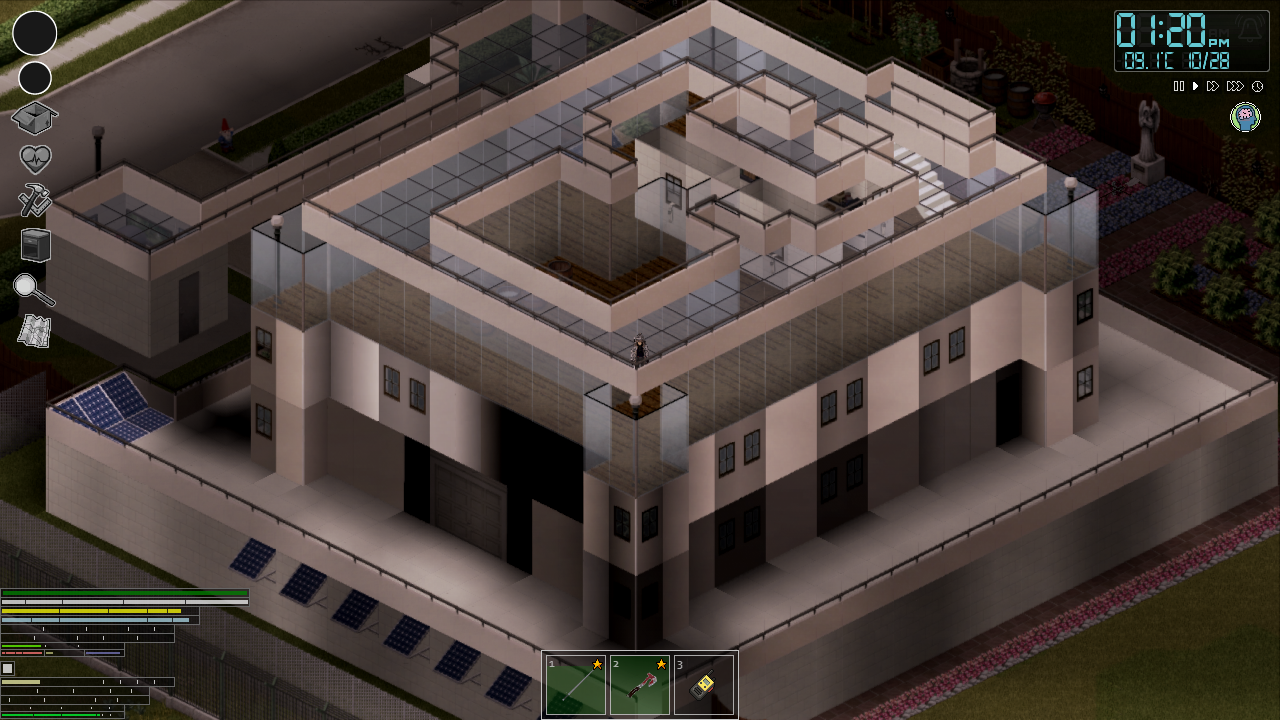
Exporting player-built structures is the "Holy Grail" of Project Zomboid save management. Unlike your character who lives in a single file, (map_p.bin), their survivor complex is woven into the very fabric of the world's coordinate system.
However, there are two ways to achieve this.
Method 1
The "Chunk Surgical Strike" (Best for keeping the base in a new world)
If your base / complex is located in an area that doesn't conflict with the new maps you want to add, you can literally "cut and paste" that piece of the world into a new save.
- Identify the Map Files: Project Zomboid saves the world in `map_X_Y.bin` files. Each file represents a 10x10 tile area (a "chunk").
- Find your Coordinates: Use the [Map Project coordinate tool](https://map.projectzomboid.com/) to find the exact X and Y coordinates of your base.
- Calculate the File Names: If your base is at 10000, 5000, you divide by 10 to find the file: `map_1000_500.bin`.
- The Export:
* Create your New Save with all the new maps and mods.
* Find the `map_X_Y.bin` files in your Old Save that cover the entire footprint of your base.
* Copy those files.
* Paste them into the **New Save** folder, overwriting the "fresh" wilderness files. - The Result: When your character arrives at those coordinates in the new world, their base will be sitting there exactly as they left it, even if the surrounding forest has changed.
Method 2
The "Building Menu" Mod (The Modern Way)
Since you are already dealing with a years-old save, manual file manipulation is risky. There is a mod specifically designed for this called "Building Menu".
- Install the Mod: Add it to your current save.
- "Blueprinting": This mod allows you to select a region (your base) and save it as a "blueprint" file.
- Export/Import:
* The mod saves the data to your `Zomboid/Lua/` folder.
* Start your new save.
* Use the mod's interface to "paste" the blueprint. - Pros: It doesn't care about coordinates. You can move your base from the lake to a city in a new map mod.
- Cons: It can be resource-heavy for massive complexes, and some custom mod-tiles (like your fine art or special furniture) might occasionally fail to copy if the mod IDs have changed.
A Critical Warning for Your Character's Legacy: "The World Bin"
When you move building files or blueprints, you are moving the visual structure. However, "container" data (what is inside your crates, fridges, and gun lockers) is often stored in the `map_meta.bin` or `map_t.bin` files.
* If you use Method 1, your loot usually stays inside the crates because you moved the whole chunk.
* If you use Method 2, you are often just moving the "walls and floors," and your crates might be empty.
My Recommendation for Your Character:
Given that they have many kills and many years of history, your `map_meta.bin` (which tracks every dead body and blood splatter) is
likely massive.
I suggest Method 1 (Surgical Chunk Swap) but with a twist:
- Pack Character’s most prized possessions onto their person.
- Identify the exact 5-10 `map_X_Y.bin` files that cover the base.
- Move those files into a fresh save.
This keeps their home and history intact while purging the millions of "invisible" data points (like the location of every shell casing they'e ever fired) that are slowing down your years-old save file.
- Modding Policy★ 5 (397)133k views208 ♥9 minUpdated Nov 8, 2022
- 80 tips and tricks for Project Zomboid (If you have over 100 hours in this game some of these will probably be new to you too)★ 5 (1.6k)82k views3.1k ♥28 minUpdated Aug 29, 2021
- Топ 100 лучших модов на "project zomboid"★ 5 (415)68k views1.1k ♥10 minRussianUpdated Jul 28, 2024
- [B41] Лучшие места для базы★ 5 (477)61k views1.3k ♥6 minRussianUpdated Nov 30, 2025
- Первая помощь ❤★ 5 (628)49k views1.4k ♥5 minRussianUpdated Jan 20, 2025
- The Basics of Base Building★ 5 (704)48k views1.5k ♥17 minUpdated Dec 24, 2021





- Upgrading to PremiumTeam Fortress 2★ 5 (20k)1441k views11k ♥6 minUpdated May 11, 2022
- No More Room in Hell Official ManualNo More Room in Hell★ 5 (2.8k)569k views2.1k ♥29 minUpdated Apr 22, 2019
- NMRiH Community Hosting GuidesNo More Room in Hell★ 5 (526)351k views653 ♥1 minUpdated Aug 10, 2022
- ULTIMATE GUIDE FOR GAME DEV TYCOONGame Dev Tycoon★ 5 (5.8k)326k views10k ♥4 minUpdated 23 Jan, 2014
- How to 'Git Gud' Soon™MORDHAU★ 5 (2k)318k views3k ♥68 minUpdated Nov 16, 2024
- Лучшие кооперативные игры SteamPAYDAY 2★ 5 (1.5k)315k views2.1k ♥56 minRussianUpdated Apr 27, 2025






This guide was created by its original author on the Steam Community. Are you the author and want it removed? Request removal.