RDR2: 2026 Ultra-Clarity, Optimization & Anti-Blur Guide
🛠️ Step 1: The NVIDIA App DLSS Override
1.Open the NVIDIA App and go to the Graphics tab.
2.Select Red Dead Redemption 2.
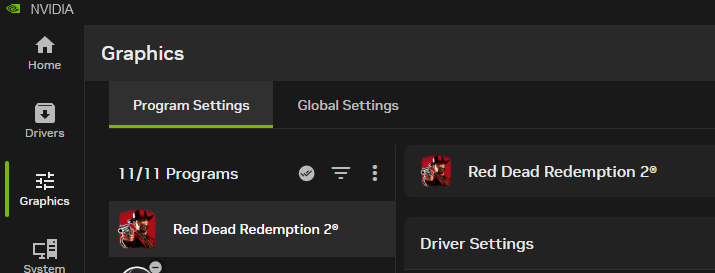
3.Scroll Down to driver setting & Find DLSS Override - Model Preset and set it to Recommended.
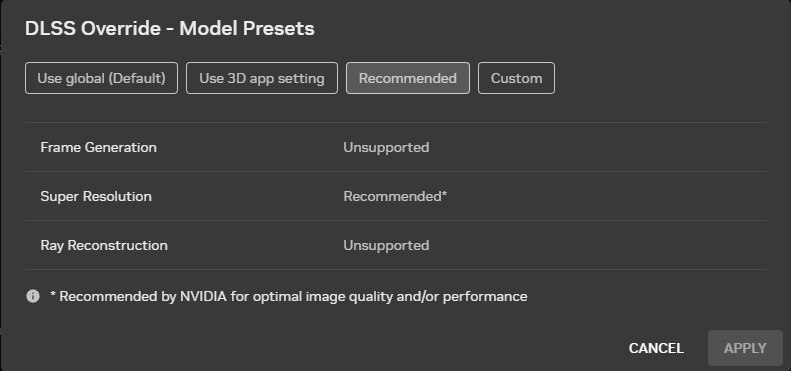 Why?
Why?- RTX 20 & 30: Preset K: These cards lack native FP8 support. Preset K ( the 2026 "Recommended" for these cards ) provides the best anti-ghosting without the 30% FPS drop found in Presets M or L.
- RTX 40 & 50: Preset M, These cards have FP8 hardware. They can run the heaviest "Transformer 2" models (DLSS 4.5) for near-perfect image quality.
4. DLSS Override - Super Resolution: set it to Custom: 80%.
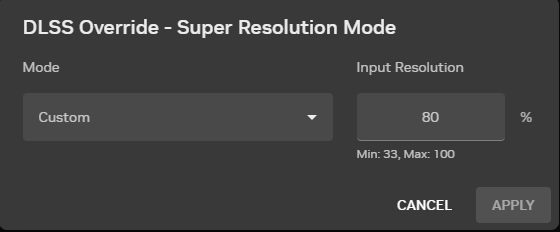 Why "Custom 80%"?
- In the standard game, "DLSS Quality" renders at 66% of your resolution (which looks blurry at 1080p).
- The Problem: Native 100% has no FPS boost; 66% Quality is too blurry.
- The Solution: Setting it to 80% renders the game at a higher internal resolution than "Quality" mode but still lower than "Native."
- The Result: You get a significant FPS boost compared to native 1080p, but the image is much sharper than standard DLSS because the AI has more pixels to work with.
🖥️ Step 2: Permanent Fullscreen Fix
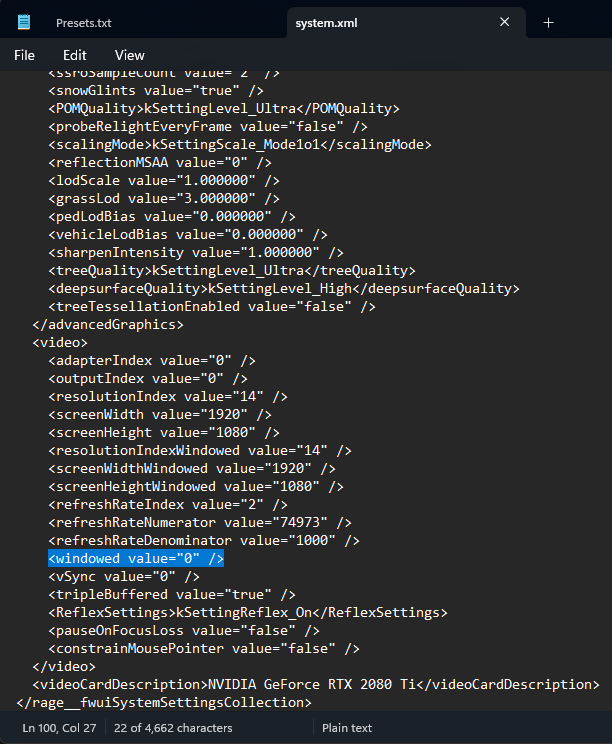
1. Go to Documents \ Rockstar Games \ Red Dead Redemption 2 \ Settings.
2. Right-click system.xml and select Edit (Notepad).
3. Find the line: <windowed value="1" /> (it might be 2).
4. Change it to: <windowed value="0" /> (0 = Fullscreen).
5. Save and close.
Pro Tip: Right-click system.xml → Properties → Check Read-only. This stops the Rockstar Launcher from ever changing it back.
📊 How to verify it worked:
2. Set the Statistics View it to DLSS
3. Click View All
4. If it says "SR Model OVR: Preset K" (or M), you have successfully modernised your game!
🛡️ Why this is NOT Bannable
1. No File Swapping: You are not replacing the nvngx_dlss.dll in the game folder. Rockstar's anti-cheat scans for modified files in the installation directory. Since you left those files alone, the "Integrity Check" passes 100% of the time.
2. Driver-Level Logic: The NVIDIA App override happens inside your NVIDIA Drivers, not the game files. Rockstar's anti-cheat scans for modified .dll or .rpf files in the Steam folder; it does not flag official NVIDIA driver features. To be more clear, the NVIDIA App works by telling the graphics card how to interpret the game's data. It is an official tool provided by NVIDIA. Anti-cheat software (like BattlEye or Rockstar’s internal tools) does not flag official GPU driver behavior.
If this guide helped you optimize your gameplay experience, please consider leaving a rating or an award.
- 100% Achievement Guide for Red Dead Redemption II (including 100% game completion and Red Dead Online)★ 5 (1.9k)61k views4.6k ♥16 minUpdated Apr 12, 2020
- Карты для поиска животных в Red Dead Redemption 2 +Легендарные животные★ 5 (1.2k)52k views3.7k ♥1 minRussianUpdated May 25, 2021
- Полный гайд по испытаниям (Сюжетный режим)★ 5 (1.2k)52k views3.3k ♥33 minRussianUpdated Jun 27, 2020
- Карты сокровищ и тайники★ 5 (1.1k)42k views3.1k ♥7 minRussianUpdated May 17, 2020
- Hunting, Fishing, Perfect Pelts, Legendaries★ 5 (1.5k)39k views3.6k ♥16 minBulgarianUpdated Nov 25, 2025
- Достижения | Коллекции | Рецепты | Советы★ 5 (2.3k)38k views5.2k ♥46 minRussianUpdated Jun 29


- Upgrading to PremiumTeam Fortress 2★ 5 (20k)1441k views11k ♥6 minUpdated May 11, 2022
- No More Room in Hell Official ManualNo More Room in Hell★ 5 (2.8k)569k views2.1k ♥29 minUpdated Apr 22, 2019
- NMRiH Community Hosting GuidesNo More Room in Hell★ 5 (526)351k views653 ♥1 minUpdated Aug 10, 2022
- Лучшие кооперативные игры SteamPAYDAY 2★ 5 (1.5k)315k views2.1k ♥56 minRussianUpdated Apr 27, 2025
- Desert Eagle Heat Treated | Blue GemCounter-Strike 2★ 5 (1.6k)292k views1.5k ♥2 minUpdated Jan 16
- Treasure Hunt Puzzle SolutionsTotal War: WARHAMMER II★ 5 (6.9k)281k views15k ♥3 minUpdated Aug 19, 2021






This guide was created by its original author on the Steam Community. Are you the author and want it removed? Request removal.