Remove film grain + superior sharpening
Guide Introduction
- Disable film grain through the config file
- Use either sharpening filters instead of the in-game one
AFidelityFX CAS
B. Nvidia Legacy Sharpen
Doing so will provide a clearer and truer visual fidelity experience.
Showcase (Film grain)
- Before and After slider[imgsli.com]
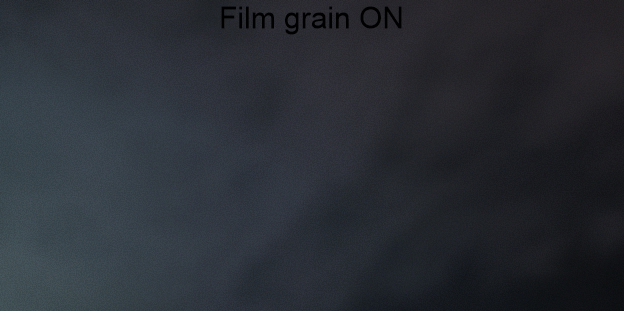
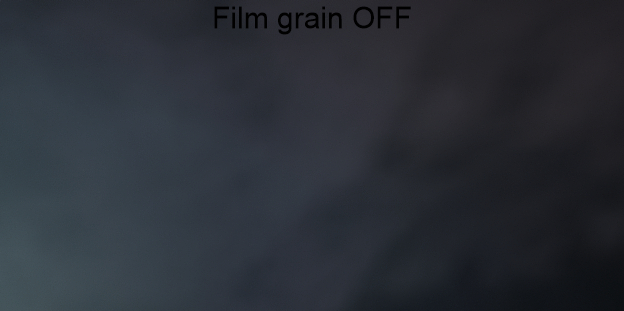
Even with film grain (display_noise_enabled) OFF
The game still exhibits a tiny layer of noise, although hardly noticeable.
Nevertheless huge improvement.
Showcase (Sharpening)
- Before and After slider[imgsli.com]
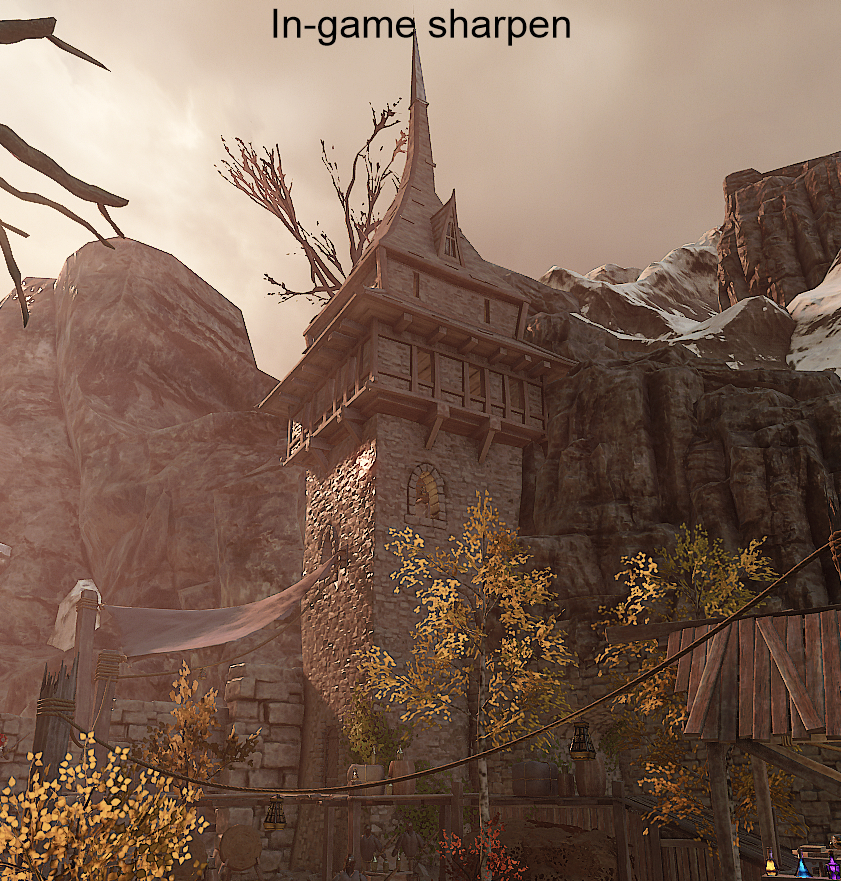
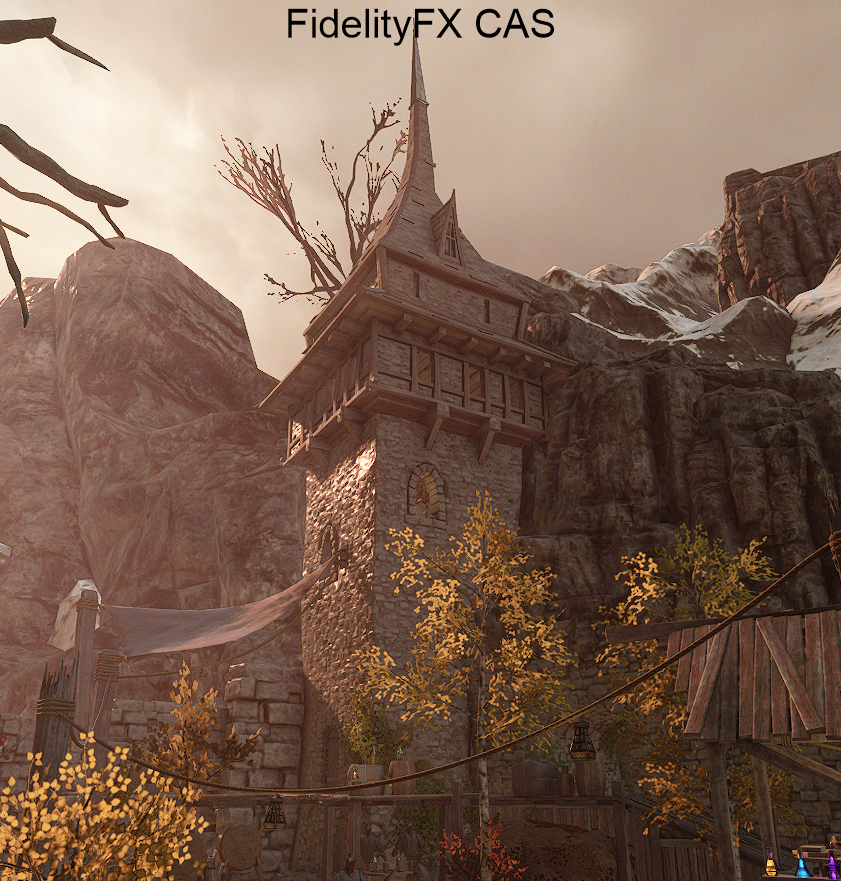 In-game sharpen
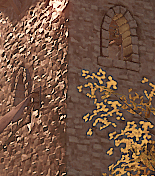 Dark outlines and halos around all edges.
Whether by art style or not, it's excessive to say the least. FidelityFX CAS
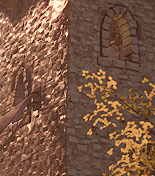 Lightweight and sharpens gracefully.
 Usually produces the best results with the least performance hit compared to other sharpening methods.
Nvidia legacy sharpen ?
Pretty much the same quality as FidelityFX CAS.
Just a tiny bit less refined and a tiny bit more taxing on performance.
-- Film Grain Removal --
- Head over to C:\Users\<username>\AppData\Roaming\Fatshark\Vermintide 2
- Locate and open user_settings.config through a text editor like Notepad or Notepad++
- Create a backup before proceeding, shouldn't be necessary
- Inside the config, press CTRL + F and search for display_noise_enabled
- Simply change it from display_noise_enabled = true to display_noise_enabled = false
- Save the text file and close it.


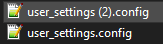

This will result in the film grain being more or less reduced by 80%
As mentioned above, there is a tiny layer that lingers and i have found no way of disabling it.
Sharpening A "FidelityFX CAS"
For AMD gpus:
You can natively enable FidelityFX CAS in your control panel
(It's called differently driver side as 'Radeon Image Sharpening' but it's the same)
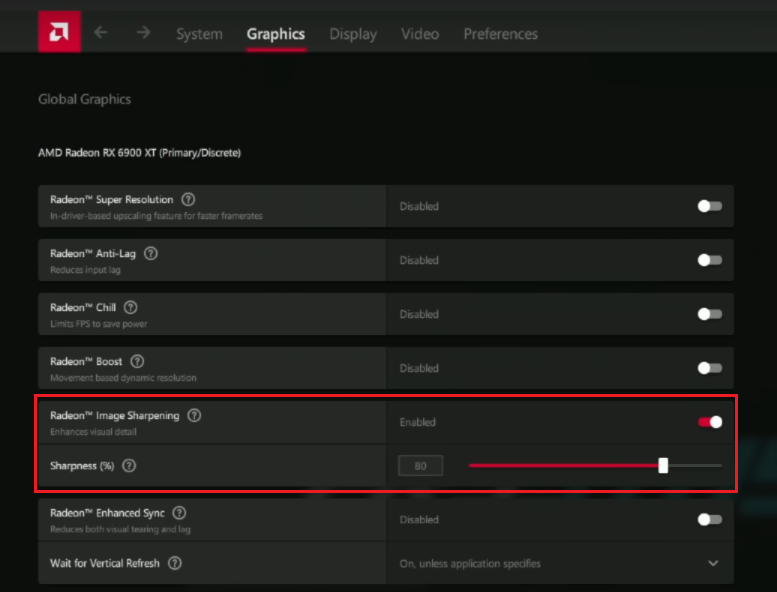
For Nvidia / Intel gpus:
Since AMD open sources their technology, we can also use FidelityFX CAS through Reshade

- Download Reshade through the official website[reshade.me]
- Run the Reshade setup tool
- Locate and select your appropriate Vermintide 2 .exe
For DX11 users:
Steam\steamapps\common\
Warhammer Vermintide 2\binaries\vermintide2.exeFor DX12 users:
Steam\steamapps\common\
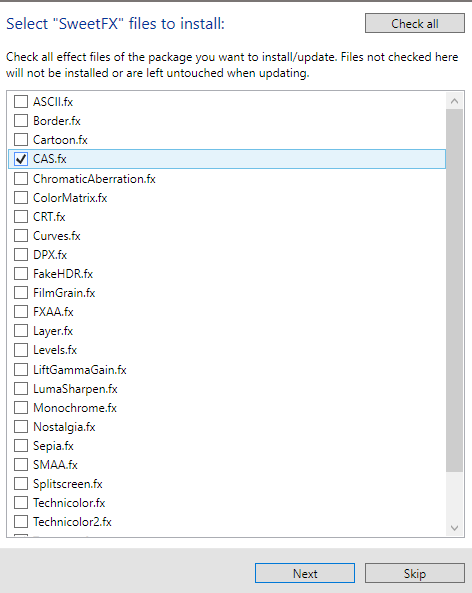
Warhammer Vermintide 2\binaries_dx12\vermintide2_dx12.exe - Proceed through the setup and make sure this repo is selected:
- Make sure CAS.fx is selected
- Finish and close the setup, that's it.
Once in-game, don't forget to disable the in-game sharpen.
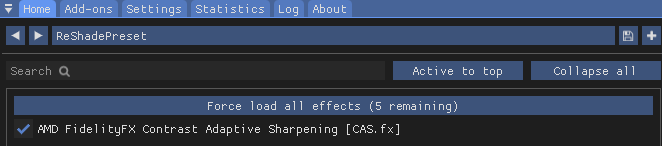
Then press HOME key and enable FidelityFX CAS:
Sharpness value here (contrast adaptation) by default is set too low for this game
I recommend bumping it up to 50% (0.500) or 80% (0.800)This mileage varies depending on several aspects such as AA, Display, resolution, preference, etc
- Uninstalling is easy, just run the setup again, select the .exe again and choose uninstall.



Sharpening B "Nvidia Legacy Sharpen"
So, you don't have an AMD GPU to use FidelityFX CAS natively, and...
You don't want to inject a post processing tool due to *insert reason here* ?
Here's your middle ground:

Nvidia Legacy Sharpen
Some time ago, far thinking people over at Nvidia decided that the NV control panel sharpening (which has been there for years) needed to be suddenly inexplicably hidden and replaced with.. Did you guess right ? A downscaling algorithm.
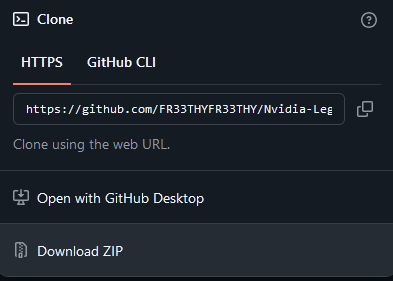
Here's how to get it back:- Head over to this repo, made by the FR33THY (check him out, you should.)
FR33THYFR33THY / Nvidia-Legacy-Sharpen [github.com] - Once there, click on the shiny big "CODE" logo
Then "Download ZIP"
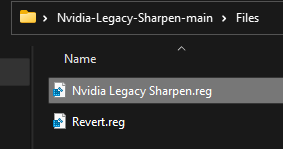
- Once downloaded, just extract the folder inside to anywhere, preferably desktop.
Then just locate and open the .reg file "Nvidia Legacy Sharpen" - Once you executed the .reg file you're basically done.
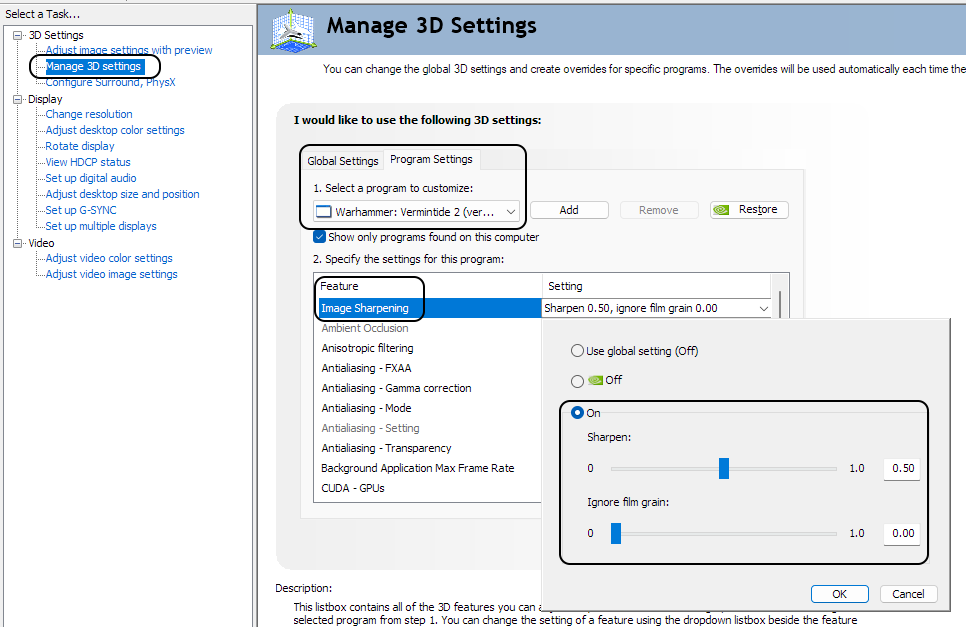
Now open your NV control panel, legacy sharpen will be there waiting.Go to Manage 3D Settings > Program Settings >
Simply locate your appropriate Vermintide 2 .exe locationFor DX11 users:
Steam\steamapps\common\
Warhammer Vermintide 2\binaries\vermintide2.exeFor DX12 users:
Steam\steamapps\common\
Warhammer Vermintide 2\binaries_dx12\vermintide2_dx12.exeNow in Image Sharpening, the default setting of 50% is a solid starting choice for blurry TAA games such as Vermintide 2. Otherwise, in non TAA scenarios, you shouldn't be needing to use more than 20-30%.
Of course mileages will vary depending on how big your display is, your resolution, and if there's any downscaling at play, personal taste, etc..
- Reverting back in any case is incredibly easy, just execute the "revert" .reg file.
Trivia, disclaimer and closing thoughts
These methods are safe and will not get you banned, but read the disclaimer below.
Disclaimer about Reshade, it's currently allowed in Vermintide 2:- This does not mean Reshade is safe everywhere else, here's a list[www.pcgamingwiki.com]
- Currently allowed does not mean indefinitely, murphy's law, there can come a day where the anti-cheat is updated to disallow it, and it may be done so without any warning.
- The legacy sharpen in rare odd cases can clash with the already piled up dx12 shader cache of the applied game. This can cause very obvious artifacts. I haven't experienced any, ever, but it's been reported. Either way should it happen, it's simply fixed by deleting / restarting the dx12 game's shader cache buildup.
- - -
Hopefully one day Fatshark adds a superior sharpening algorithm (like the one in Darktide) instead of the current cartoonish one, preferably with adjustable intensity.
And an option to fully disable all layers of film grain and noise while they are at it ¯\_(ツ)_/¯
- 【Updated to Patch 6.10】【All Careers】Legend Builds Collection★ 5 (2.6k)99k views7.6k ♥87 minUpdated Mar 10
- 【Updated to Patch 6.10】【Cataclysm Builds】Kruber all careers★ 5 (1.8k)60k views5.7k ♥33 minUpdated Mar 10
- 【Updated to Patch 6.11】Optimal Melee Weapon Combo★ 5 (1.9k)58k views5.2k ♥26 minUpdated Jun 11
- 【Updated to Patch 6.10】【Cataclysm Builds】Saltzpyre all careers★ 5 (1.7k)57k views5.6k ♥36 minUpdated Mar 10
- 【Updated to Patch 6.10】【Cataclysm Builds】Bardin all careers★ 5 (1.8k)57k views5.6k ♥33 minUpdated May 12
- 【Updated to Patch 6.10】【Cataclysm Builds】Sienna all careers★ 5 (1.7k)57k views5.4k ♥37 minUpdated Mar 10




- Upgrading to PremiumTeam Fortress 2★ 5 (20k)1441k views11k ♥6 minUpdated May 11, 2022
- No More Room in Hell Official ManualNo More Room in Hell★ 5 (2.8k)569k views2.1k ♥29 minUpdated Apr 22, 2019
- NMRiH Community Hosting GuidesNo More Room in Hell★ 5 (526)351k views653 ♥1 minUpdated Aug 10, 2022
- ULTIMATE GUIDE FOR GAME DEV TYCOONGame Dev Tycoon★ 5 (5.8k)326k views10k ♥4 minUpdated 23 Jan, 2014
- How to 'Git Gud' Soon™MORDHAU★ 5 (2k)318k views3k ♥68 minUpdated Nov 16, 2024
- Лучшие кооперативные игры SteamPAYDAY 2★ 5 (1.5k)315k views2.1k ♥56 minRussianUpdated Apr 27, 2025






This guide was created by its original author on the Steam Community. Are you the author and want it removed? Request removal.