Setting the Original PS1 Control Scheme on a 360 Controller
Introduction
360 Controller Issues with FFVII
The Original PS1 Controls > 360 Controls
Here is the full list of the original control scheme and the buttons they correspond to on a 360 controller. This is mostly here for reference since the changes you'll be making in the launcher menu are found in the next section.
REFERENCE: PS1 Button (360 Equivalent) - Functionality
Circle (B) – Field: Talk/Accept, Menu/Battle: Confirm
Cross (A) – Field: Run/Cancel, Menu/Battle – Cancel
Square (X) – Menu: Switches between Equip and Materia sub-menus, Battle: Hides the ATB gauge allowing you see the barrier spells cast on your characters.
Triangle (Y) – Field: Brings up menu, Menu: Remove Materia, Battle: Set action
Start (Start) – Toggle Map / Pause
Select (Back) – Displays exits and ladders. Toggles map on world map.
L1 (LB) – World Map: Camera Left, Menu: Items Scroll, Battle: Hold with R1 to escape.
R1 (RB) – World Map: Camera Right, Menu: Items Scroll, Battle: Hold with R1 to escape.
L2 (LT) – Changes camera type on the world map.
R2 (RT) – Field: Changes camera type on the world map, Battle: Toggles the selection arrows over character models.
Setting the Controls in the Launcher to Reflect the PS1 Controls.
To change the control bindings for a gamepad you need to open the settings menu in the game launcher. While it is possible to edit the keyboard controls in-game, the joystick configuration menu can only be found in the game launcher itself.
When you enter the joystick menu you'll be greeted with the defaults below. The buttons aren't labeled beyond "Button 1", "Button 2", etc. Not very helpful if you don't know what the PS1 controls are supposed to be, but we have a reference and can fix this.
PC Defaults:
Okay - Button 1
Cancel – Button 2
Menu – Button 3
Up – Left Stick Up
Left – LS Left
Right – LS Right
Down – LS Down
Start – Button 4
Switch – Button 5
Page Up – Button 6
Page Down – Button 7
Target – Button 8
Assist – Button 9
Camera – Button 10
As per the original controls reference in the previous section, the following configuration will give you the PS1 version controls on a 360 gamepad.
Okay – Button 2
Cancel – Button 1
Menu – Button 4
Up – LS Up
Left – LS Left
Right – LS Right
Down – LS Down
Start – Button 8
Switch – Button 3
Page Up – Button 5
Page Down – Button 6
Target – Button 10*
Assist – Button 7
Camera – Button 9*
* Again, you can't assign buttons to the Triggers due to how the 360 controller works with the out of the box Windows software. Target/Camera refer to PS1's R2 and L2. Your best bet is setting Camera to clicking in the Left Stick (Button 9) and Target to clicking in the Right Stick (Button 10).
Aren't These Controls Strange?
My suggestion to those who want the controls mostly the same but with a few modern tweaks is to change these two buttons. You can also swap around the functionality of the 360's X button if you prefer.
The PS1 - 360 - PC Button reference
Below are all of the button equivalents as they apply to the guide. Unlike the previous section at the start of the guide, this does not list the button functionality.
PS1 Button - 360 Button - PC config menu button
Circle - (B) - Button 1
Cross (A) - Button 2
Square - (X) - Button 3
Triangle - (Y) - Button 4
Start - (Start) - Button 8
Select - (Back) - Button 7
L1 - (LB) - Button 5
R1 - (RB) - Button 6
L2 - (LS click) - Button 9
R2 - (RS click) - Button 10
Help! I just started up the game and my controller isn't working!
This guide assumes you're using a 360 pad, so if you're using another brand you may need to configure outside of the game in order for it to be recognized.
If nothing works at all, you probably need to configure your controller in Windows. But before you do that, make sure you aren't falling into the following pitfall:
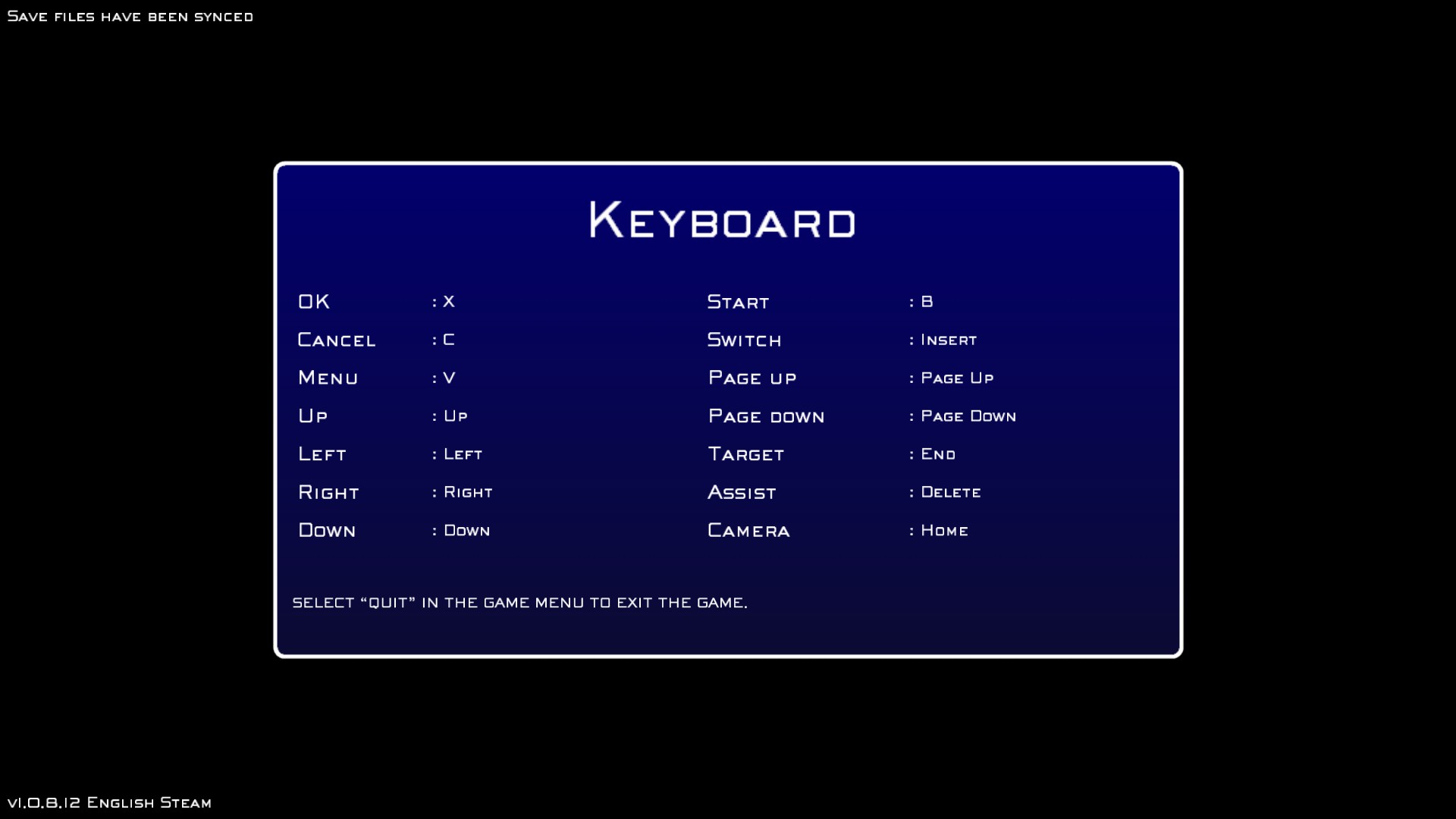
This is the first screen you see after booting the game from the launcher and IT DOES NOT HAVE CONTROLLER SUPPORT.
Yeah, it's pretty silly and gives the impression that your gamepad isn't working. You must press "X" on the keyboard to bypass this screen before the game will recognize your 360 controller.
If you don't have controller support once you're on the title screen, then you have a Windows issue and will need to configure the controller there.
- Graphical Overhaul★ 5 (1k)90k views1.6k ♥3 minUpdated 27 May, 2014
- Final Fantasy 7 Full Guide★ 5 (2.7k)51k views7k ♥137 minUpdated 10 Jul, 2018
- XBox 360 Controller Fix★ 5 (775)48k views1.2k ♥7 minUpdated 17 Feb, 2023
- Final Fantasy VII General and Technical FAQ★ 5 (362)42k views333 ♥6 minUpdated 19 Jun, 2015
- Permanent Missable Content related to Achievements★ 5 (1.3k)39k views3.3k ♥15 minUpdated 3 Mar, 2019
- Remaster your FF7 - Essential Modding Guide★ 5 (623)38k views1.7k ♥23 minUpdated 24 Feb



- Upgrading to PremiumTeam Fortress 2★ 5 (20k)1441k views11k ♥6 minUpdated May 11, 2022
- No More Room in Hell Official ManualNo More Room in Hell★ 5 (2.8k)569k views2.1k ♥29 minUpdated Apr 22, 2019
- NMRiH Community Hosting GuidesNo More Room in Hell★ 5 (526)351k views653 ♥1 minUpdated Aug 10, 2022
- ULTIMATE GUIDE FOR GAME DEV TYCOONGame Dev Tycoon★ 5 (5.8k)326k views10k ♥4 minUpdated 23 Jan, 2014
- How to 'Git Gud' Soon™MORDHAU★ 5 (2k)318k views3k ♥68 minUpdated Nov 16, 2024
- Лучшие кооперативные игры SteamPAYDAY 2★ 5 (1.5k)315k views2.1k ♥56 minRussianUpdated Apr 27, 2025






This guide was created by its original author on the Steam Community. Are you the author and want it removed? Request removal.