Enemy and Item Randomizer on Linux
Requirements
Download and install Proton-GE following their instructions on Git[github.com].
In short: Download the newest release and unpack the tarball (.tar file) into ~/.steam/steam/compatibilitytools.d/
Install it using your package manager. It will differ depending on the Linux OS you're using.
For me that is:
sudo pacman -Syu protontricks
Additional instructions can be found on their website[protontricks.com].
Matt's DS1 Enemy Randomizer[www.nexusmods.com]
Dark Souls Item Randomizer[www.nexusmods.com]
Preparation
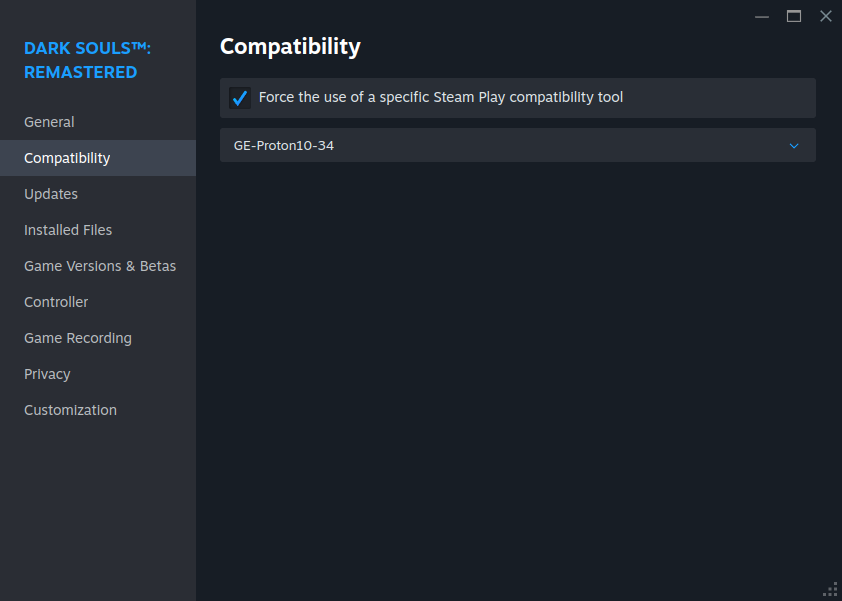
1.3 Start the game. A new prefix with the same number should've been created in ~/.steam/steam/steamapps/compatdata/ this time with the correct Proton version.
To do that we use the following command in a terminal:
protontricks 570940 dotnet8
It opens a .NET installer window. Just click through it. I had to do it exactly twice to work. The Terminal should not print anything anymore when it succeeded. You can check if the installation was successful by listing all installed "programs" with the following command:
protontricks 570940 list-installed
You now installed .NET 8 in the prefix 570940 which we previously initialized with protontricks. That means things that run in this prefix can use .NET 8.
Installing the Mods
Place the DarkSoulsItemRandomizer.exe in the root directory of the game.
Place the whole folder DS1EnemyRandomizer in the root directory.
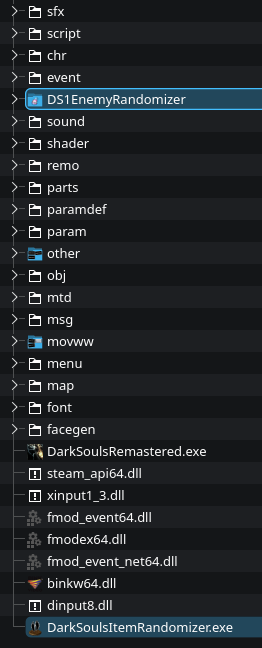
Then use the following command to open the item randomizer:
protontricks-launch --appid 570940 DarkSoulsItemRandomizer.exe
That launches the specified .exe in the specified prefix.
Select the settings as you wish and select Scramble Items & Export to GameParam.For further information on the setting check their NexusMods page.
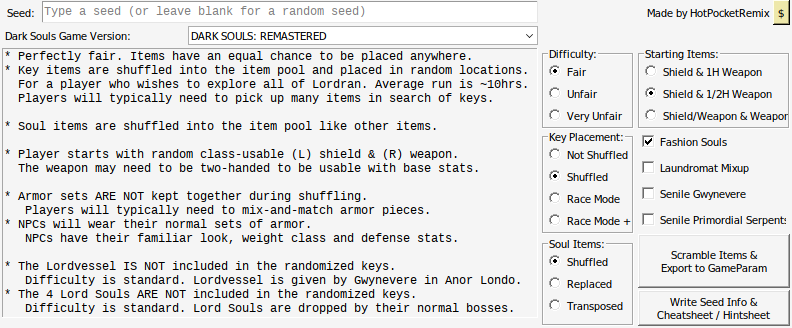
Then do the same with the enemy randomizer but navigate into that folder first with the follwing command:
cd DS1EnemyRandomizer/
open the .exe by using the following command:
protontricks-launch --appid 570940 DS1EnemyRandomizer.exe
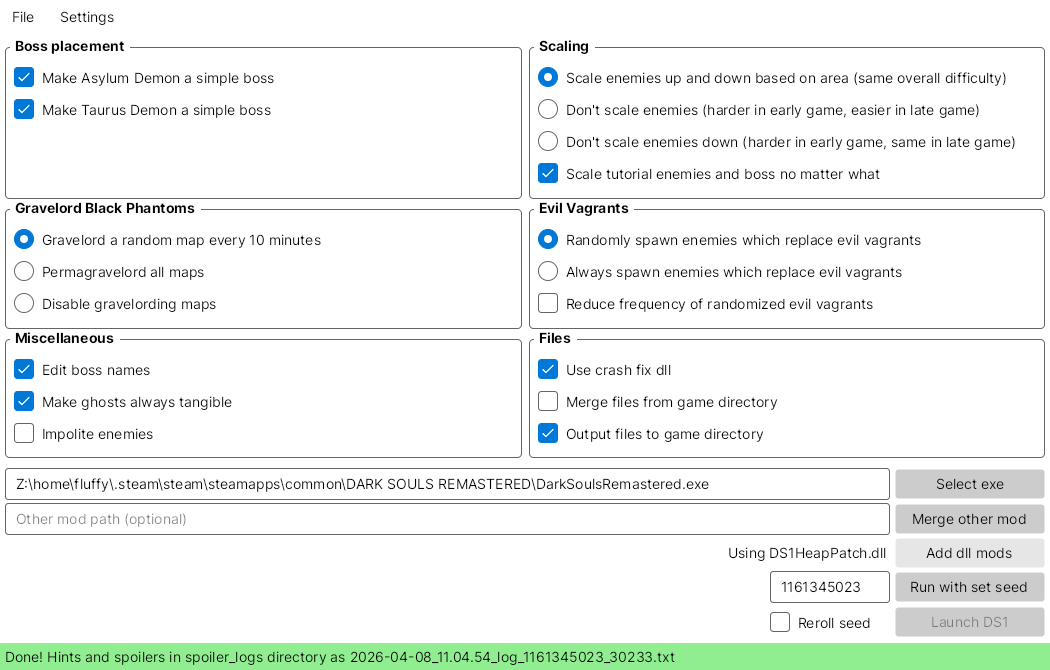
This one is a bit more complicated. You need to first select the .exe. Click Select exe. The Z:\ directory is the proton way to list your Linux files or rather make them accessible to a prefix. You want to navigate to the folder that opens when you click browse local files in steam. The file picker however does not show hidden filders (starting with .). You can enter the path manually though to enter hidden folder.
Z:\home\fluffy\.steam\steam\steamapps\common\DARK SOULS REMASTERED\Replace "fluffy" with your user!
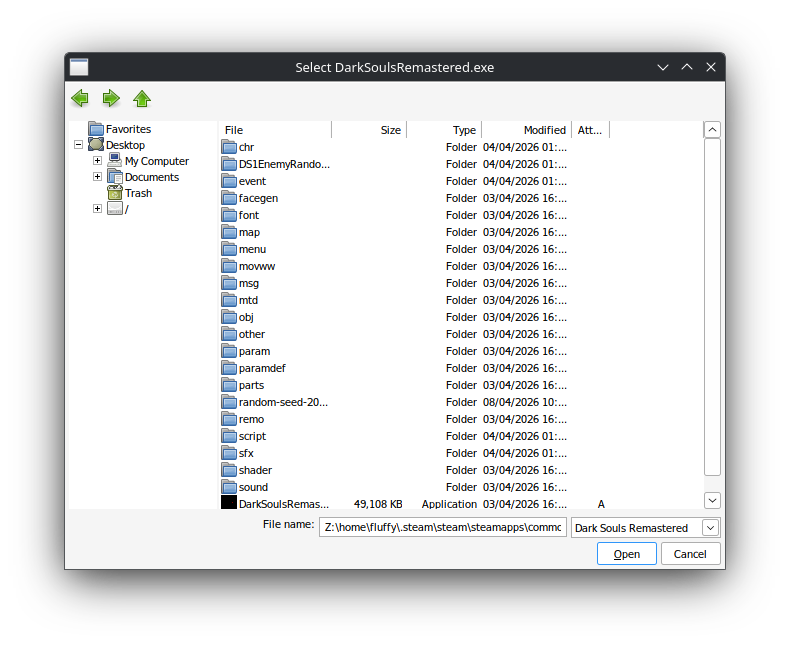
Select the .exe and click Open. Then as before, select the setting as you with and then hit Randomize!
For further information here also check their NexusMods page.
Play!
You should play offline to prevent getting banned as mentioned on the mod authers NexusMods pages!
To check if either randomizers worked, just launch the game normally through steam and start a new character. If you randomized the loadouts with the item randomizer it should be immediately visible if that one worked. As soon as you step out of your prison cell the first few enemies standing there should also be randomized.
Enjoy!
- DARK SOULS: REMASTERED 100% Achievement Guide★ 5 (2k)53k views4.5k ♥95 minUpdated 12 Dec, 2020
- 100% Achievement Guide: Dark Souls - Remastered★ 5 (2k)53k views5.5k ♥183 minUpdated 8 May
- Прохождение Dark Souls★ 5 (1k)40k views2.6k ♥66 minRussianUpdated 16 Jan, 2022
- Dark Souls NPC Questlines in Order★ 5 (864)31k views2.2k ♥11 minUpdated 18 Sep, 2023
- Пошаговое получение 100% достижений в DARK SOULS™: REMASTERED★ 5 (1.3k)26k views3k ♥19 minRussianUpdated 26 Nov, 2023
- DARK SOULS™: maps★ 5 (206)25k views541 ♥1 min



- Upgrading to PremiumTeam Fortress 2★ 5 (20k)1441k views11k ♥6 minUpdated May 11, 2022
- No More Room in Hell Official ManualNo More Room in Hell★ 5 (2.8k)569k views2.1k ♥29 minUpdated Apr 22, 2019
- NMRiH Community Hosting GuidesNo More Room in Hell★ 5 (526)351k views653 ♥1 minUpdated Aug 10, 2022
- ULTIMATE GUIDE FOR GAME DEV TYCOONGame Dev Tycoon★ 5 (5.8k)326k views10k ♥4 minUpdated 23 Jan, 2014
- How to 'Git Gud' Soon™MORDHAU★ 5 (2k)318k views3k ♥68 minUpdated Nov 16, 2024
- Лучшие кооперативные игры SteamPAYDAY 2★ 5 (1.5k)315k views2.1k ♥56 minRussianUpdated Apr 27, 2025






This guide was created by its original author on the Steam Community. Are you the author and want it removed? Request removal.