Headtracking with a webcam or phone
Prerequisites
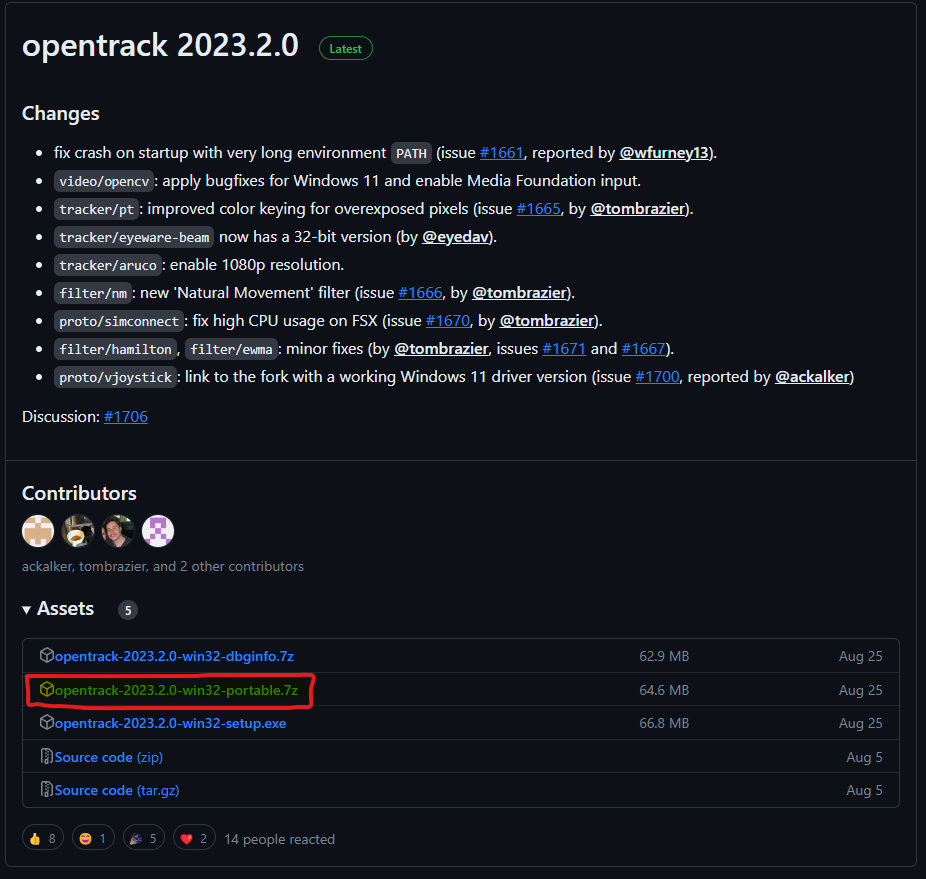
- OpenTrack software
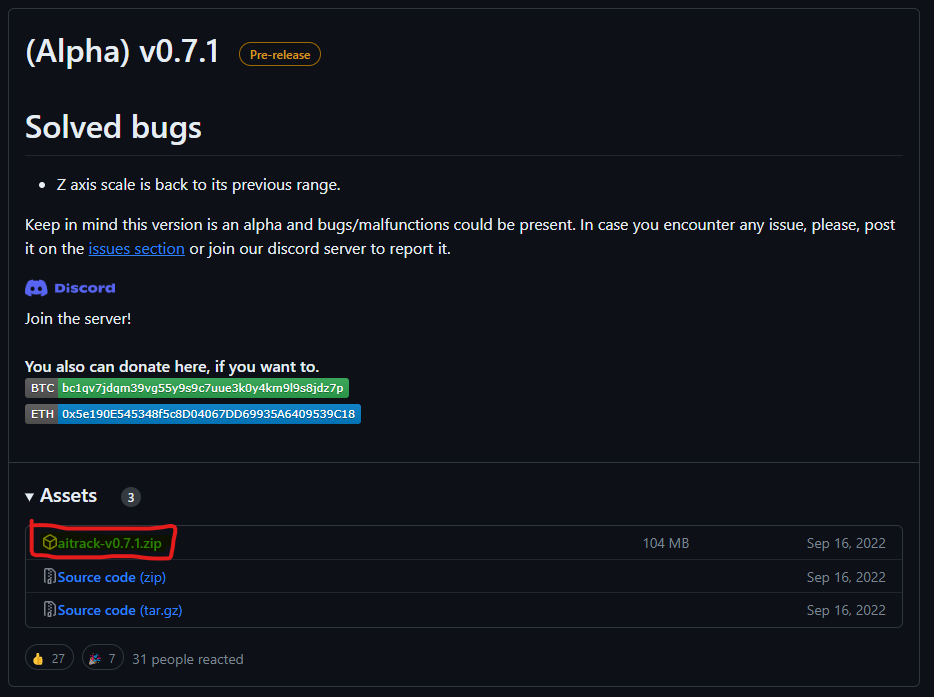
- AITrack software
No camera? No problem, you can also use your Android phone as a camera, scroll below for details.
Setting up AITrack
- Download and install AITrack from the official repository at https://github.com/AIRLegend/aitrack/releases (Releases->Assets).
- Launch AITrack and go to the Settings tab.
- In the camera settings, select your webcam from the dropdown.
- Adjust other settings like Model sensitivity and Model scale according to your preference. These settings determine how sensitive the software is to your head movements and the scale of the 3D model used.
- Go back to the Main tab and click Start. You should see a camera feed with the software tracking your face.
Setting up OpenTrack
- Download and install OpenTrack from the official source at https://github.com/opentrack/opentrack/releases (Releases->Assets).
- Launch OpenTrack.
- For Input, select UDP and set the port (default is 4242 for AITrack).
- For Output, choose the protocol that's compatible with the game you're playing. For ATS use the freetrack 2.0 Enhanced option.
- Optional - for Filter, select Accela.
- Optional - click the Options (gear icon) and navigate to the Output tab. Ensure the Yaw, Pitch, and Roll axes are mapped correctly. Adjust other settings if necessary.
Connecting AITrack with OpenTrack
- In AITrack, ensure that the Output is set to send data to the same UDP port as OpenTrack's input (this is already preset by default)).
- Click Start in AITrack to start head tracking.
- In OpenTrack, click the Start button. OpenTrack should now receive data from AITrack.
Testing
- Move your head to see if the octopus icon in OpenTrack replicates your movements. This indicates that AITrack's data is being properly received and processed by OpenTrack.
- Start ATS, drive a truck, and see if the in-game camera corresponds to your head movements.
Calibration and fine-tuning
- If the head tracking feels too sensitive or sluggish, you can adjust the settings in both AITrack and OpenTrack.
- In OpenTrack, you can modify the Filter settings to smoothen out any jitters.
- In AITrack, tweaking the Model sensitivity and Model scale can enhance tracking accuracy.
Video guide
Using a phone instead of a webcam
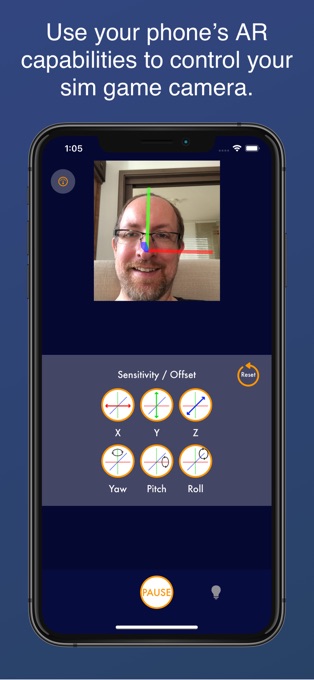
Instead of using a webcam, you can install an app compatible with OpenTrack from Google PlayStore or Apple App Store. The downside is slight latency, as you're now relying on your WiFi connection.
I use the SmoothTrack app (unfortunately it does cost about $10, which is arguably a high price); there are many other apps like this, but I like this one. Let me know in the comments if there's a better option, especially if it's free.
These instructions are applicable to other phone apps, they all work roughly the same.
Getting it to work is similar to what I wrote above, except for AITrack - we won't be using that.
- Make sure your PC and Android/iOS phone are on the same WiFi network
- Download SmoothTrack or a similar app
- Make sure OpenTrack is running
- Get the IP address of your PC: hit the Windows button, type cmd and ENTER, then ipconfig and ENTER. Look for a WiFi or Ethernet connection, the IP address is likely to be something like 192.168.x.x - write it down
- Launch SmoothTrack on your phone, and edit the IP address - put in the IP address of your PC
- Hit Start
If it didn't work, make sure the Port (usually 4242) is the same as in OpenTrack.
Using Neuralnet instead of AITrack
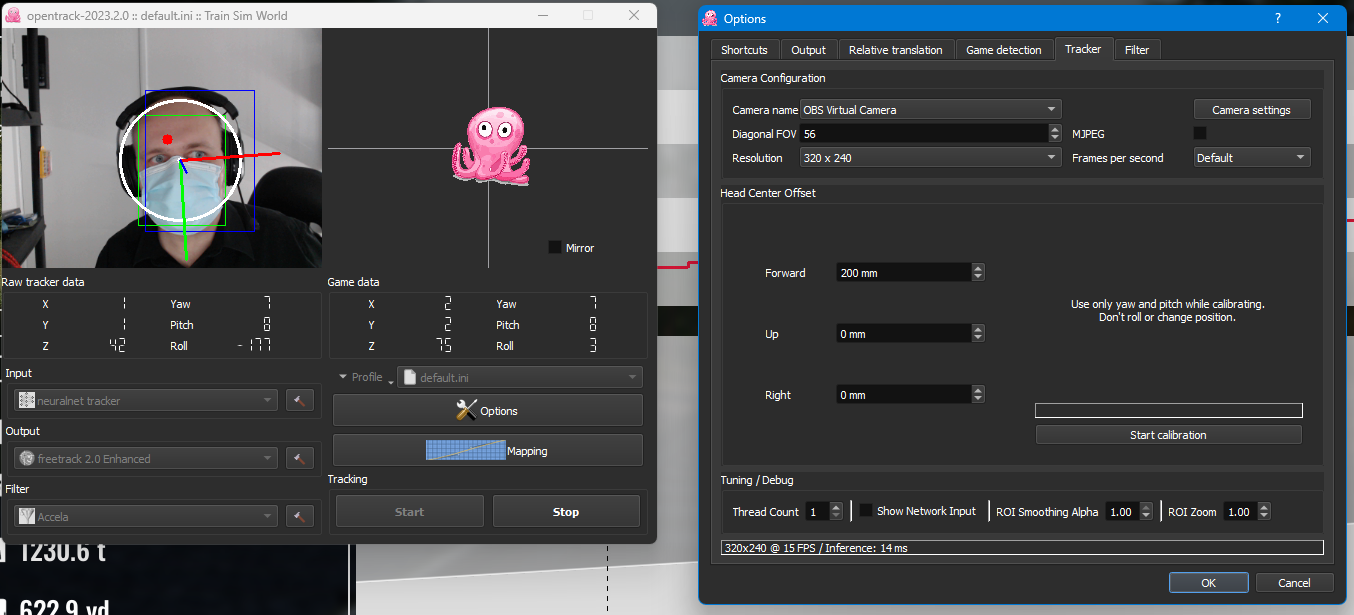
Many users report that the AI-based head tracking in OpenTrack is superior to AITrack. To enable Neuralnet, set the input in OpenTrack to neuralnet tracker .
Make sure AITrack is closed and click on Start in OpenTrack. Align your camera and chair, and explore the options (the tool icon next to Input dropdown).
Disabling Tracking
- Stop ATS
- Open Windows Explorer
- In the address bar, type %HOMEPATH%\Documents\American Truck Simulator
- You should now see a config.cfg file
- Copy and paste the file to create a backup copy
- Right click on config.ini, and select Open With... then click Notepad
- Find the line uset g_trackir "1"
- Change the 1 to 0
- Save the file
That's it! Tracking should now be disabled. Props to @Frd for the tip.
- Hidden and unmarked roads - USA - WEST - updated 2026/02/20★ 5 (1.3k)38k views1.9k ♥73 minUpdated Feb 19
- The American Truckers Guide to everything!★ 5 (960)34k views1.5k ♥53 minUpdated Aug 16, 2020
- American Truck Simulator 100% Achievement-Guide [ENG]★ 5 (704)15k views1.3k ♥8 minUpdated May 16
- Все достижения American Truck Simulator + все DLC [100% Achievement-Guide] [upd: 15.05.26]★ 5 (1.2k)14k views1.7k ♥42 minRussianUpdated Jul 12
- ATS | Cheat-codes | ENG★ 4 (106)13k views183 ♥3 minUpdated 2 Jan, 2025
- Texas 100% Achievement-Guide [ENG]★ 5 (443)12k views595 ♥7 minUpdated May 16




- Upgrading to PremiumTeam Fortress 2★ 5 (20k)1441k views11k ♥6 minUpdated May 11, 2022
- No More Room in Hell Official ManualNo More Room in Hell★ 5 (2.8k)569k views2.1k ♥29 minUpdated Apr 22, 2019
- NMRiH Community Hosting GuidesNo More Room in Hell★ 5 (526)351k views653 ♥1 minUpdated Aug 10, 2022
- ULTIMATE GUIDE FOR GAME DEV TYCOONGame Dev Tycoon★ 5 (5.8k)326k views10k ♥4 minUpdated 23 Jan, 2014
- How to 'Git Gud' Soon™MORDHAU★ 5 (2k)318k views3k ♥68 minUpdated Nov 16, 2024
- Лучшие кооперативные игры SteamPAYDAY 2★ 5 (1.5k)315k views2.1k ♥56 minRussianUpdated Apr 27, 2025






This guide was created by its original author on the Steam Community. Are you the author and want it removed? Request removal.