Logitech Wheel Fix - G27 / G29 / G920 / G923
Introduction
If you want to support me, please leave a like and hit the "follow" button here or you can award me some points, either way is appreciated.
So I recently got back into Euro and American Truck Simulator and bought a new G923, but I quickly realised that my auto centering wasnt working as it should, it then took me 5+ hours to figure out what the problem was.
So if you have force feedback / auto centering issues, I might be able to help. All you have to do is follow my instructions and copy all my settings, you can always adjust the settings to your liking later on when your wheel is working.

Logitech G HUB
You'll first have to download Logitech G HUB to make sure your wheel is working correctly on your pc. You can download G HUB Here[www.logitechg.com] (Keep in mind that only Win10 supports G HUB.)
For G27 users and older, G HUB does not support the G27, as its a discontinued model, so you will have to get the Logitech Gaming Software instead. You can download Logitech Gaming Software Here[driverslogi.com]
Now I'm not sure if the method I use in this guide will work for you or not when using Logitech Gaming Software instead of G HUB, so I'll recommend you to first try Logitech Gaming Software on its own with default settings and see if that works and if not, then try follow the method in the guide.
Once G HUB is installed and setup, you should see your wheel there.
Click on your wheel and turn it around to make sure that it is detecting it all correctly.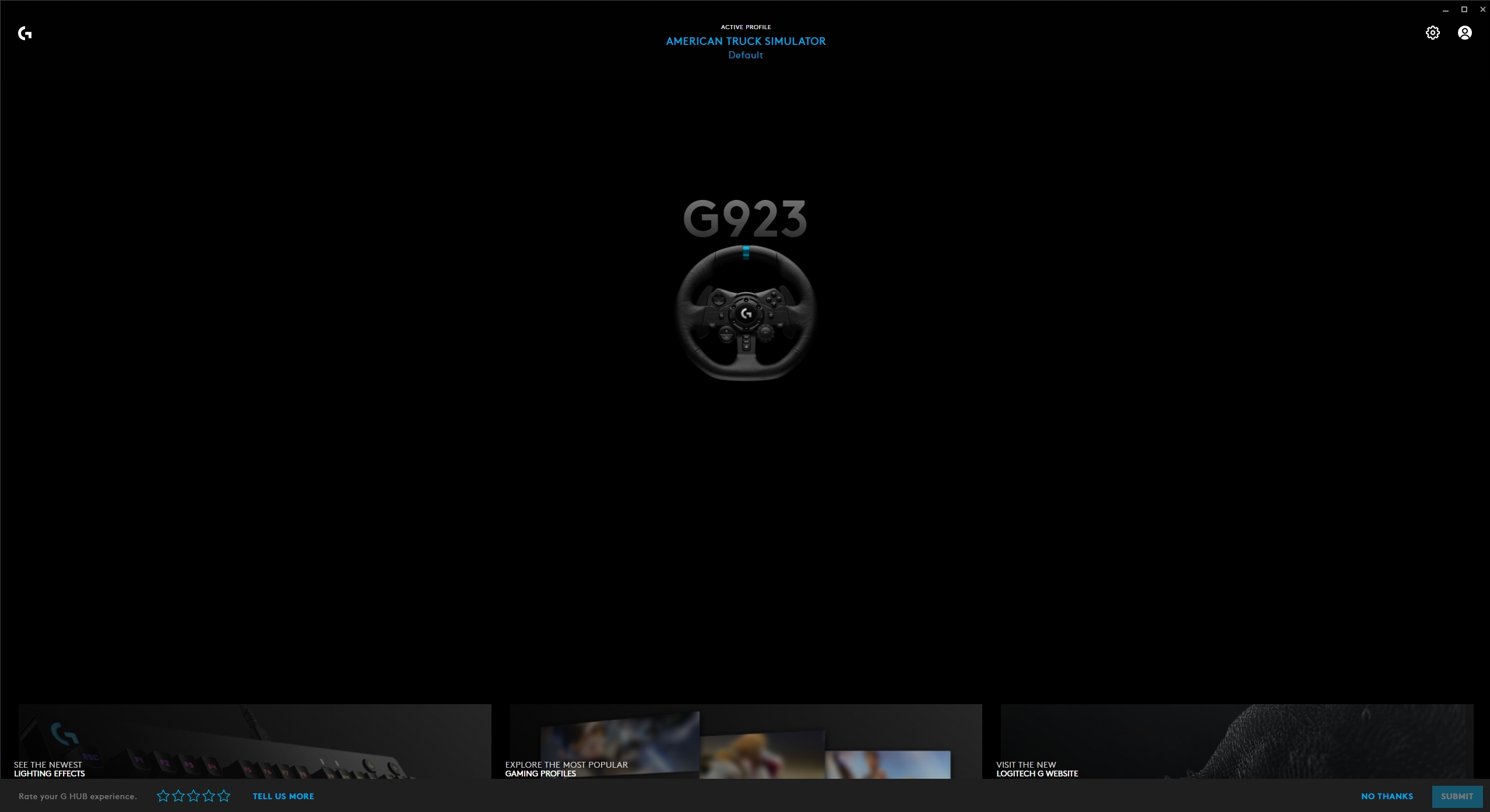
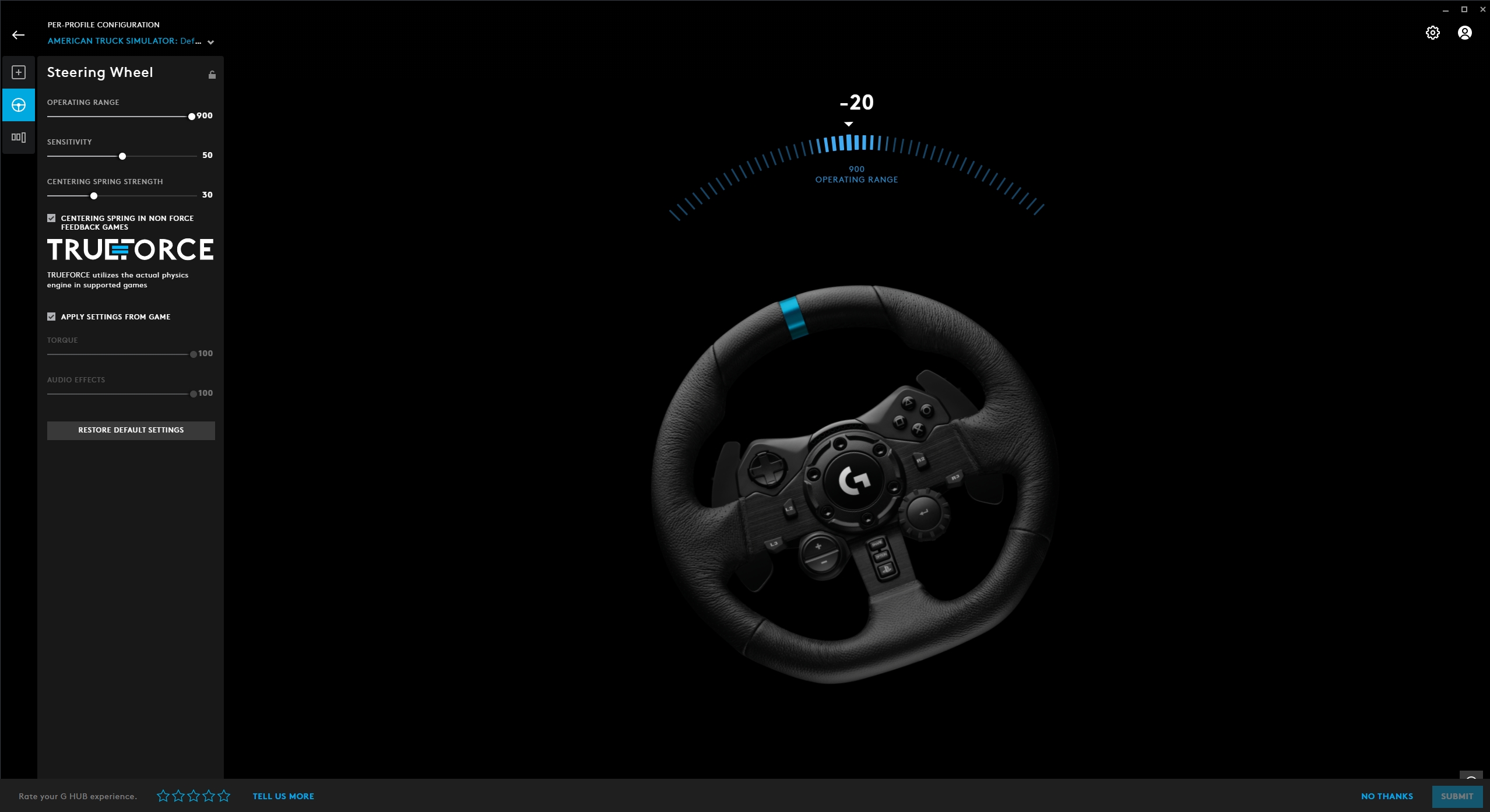
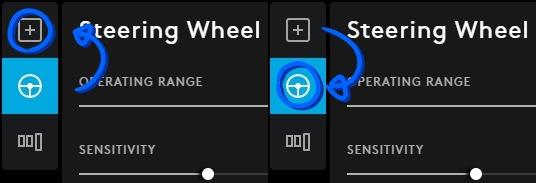
If your wheel does not look like its responding, try click on the little ▢+ logo in the top left, and then click back on the little steering wheel symbol, check image below for reference.
Ingame Control Settings
(remember to keep G HUB open in the background).
(you do not have to play with my settings, your wheel may not be similar to mine, so adjust them to your own liking, this is purely for demonstration purposes, to make sure your wheel is responding)
If its the first time you launch the game with your wheel, the game will most likely ask you if you need help setting it all up using the ingame wizard, you can do this if you want but it isnt needed.
- If you decided to go through the wizard, go through the first steps till you get to the control options.
- If you decided to skip the wizard, go to options/settings and click on controls.
- It would be smart to choose simple automatic for now, just to make sure that this is gonna work for you, you can always change it back to manual after.
- It is also really important that you turn off force feedback ingame! This is actually the reason that the auto centering wont work most of the time, because G HUB and the game is interfering with each other.
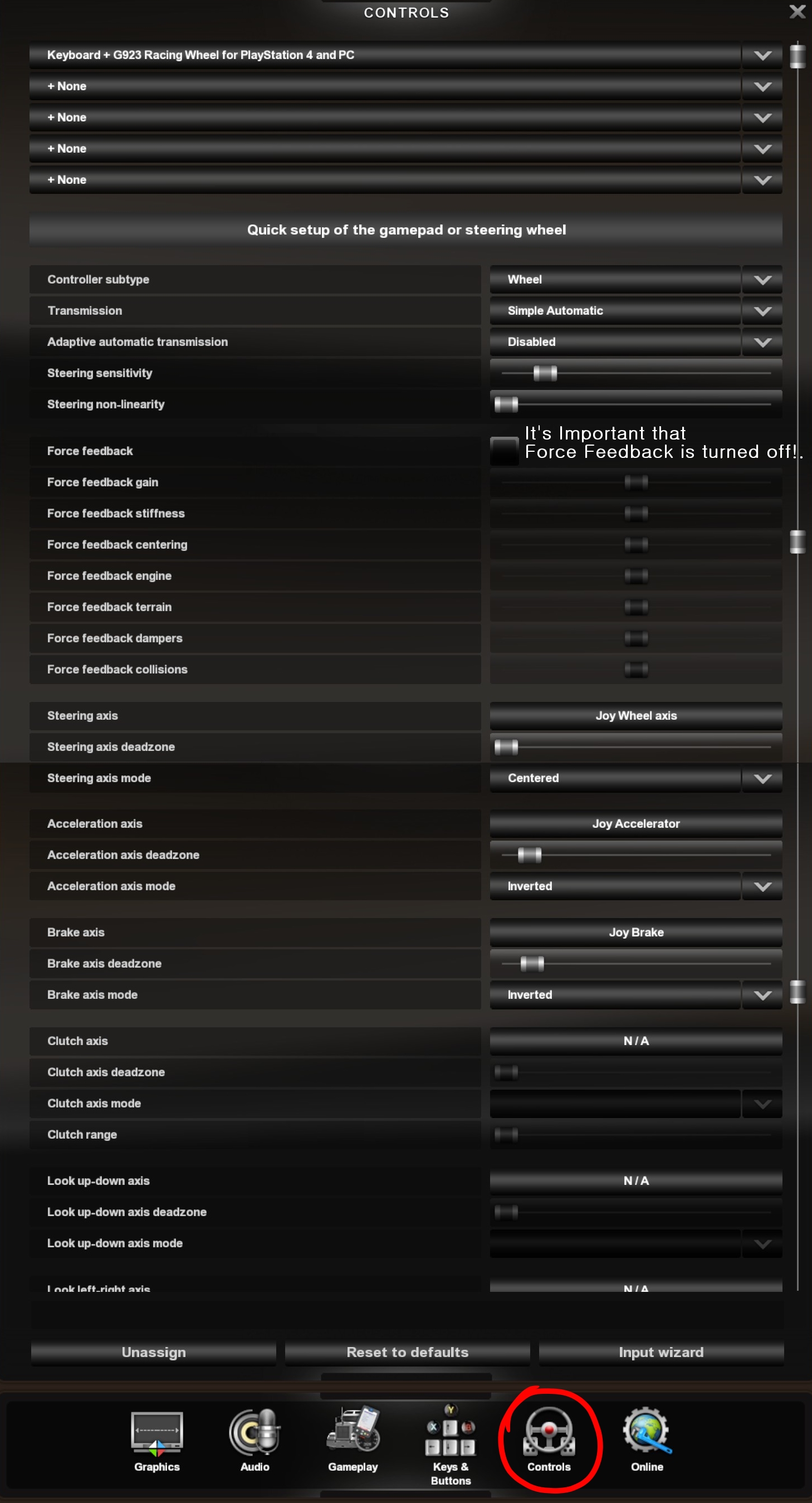
Remember to restart your game after you applied the new settings!
Closure
If it didnt, leave a comment with your problem and maybe I can help you some other way, or maybe some other people will see your comment who can.
- Hidden and unmarked roads - USA - WEST - updated 2026/02/20★ 5 (1.3k)38k views1.9k ♥73 minUpdated Feb 19
- The American Truckers Guide to everything!★ 5 (960)34k views1.5k ♥53 minUpdated Aug 16, 2020
- American Truck Simulator 100% Achievement-Guide [ENG]★ 5 (704)15k views1.3k ♥8 minUpdated May 16
- Все достижения American Truck Simulator + все DLC [100% Achievement-Guide] [upd: 15.05.26]★ 5 (1.2k)14k views1.7k ♥42 minRussianUpdated Jul 12
- ATS | Cheat-codes | ENG★ 4 (106)13k views183 ♥3 minUpdated 2 Jan, 2025
- Texas 100% Achievement-Guide [ENG]★ 5 (443)12k views595 ♥7 minUpdated May 16


- Upgrading to PremiumTeam Fortress 2★ 5 (20k)1441k views11k ♥6 minUpdated May 11, 2022
- No More Room in Hell Official ManualNo More Room in Hell★ 5 (2.8k)569k views2.1k ♥29 minUpdated Apr 22, 2019
- NMRiH Community Hosting GuidesNo More Room in Hell★ 5 (526)351k views653 ♥1 minUpdated Aug 10, 2022
- ULTIMATE GUIDE FOR GAME DEV TYCOONGame Dev Tycoon★ 5 (5.8k)326k views10k ♥4 minUpdated 23 Jan, 2014
- How to 'Git Gud' Soon™MORDHAU★ 5 (2k)318k views3k ♥68 minUpdated Nov 16, 2024
- Лучшие кооперативные игры SteamPAYDAY 2★ 5 (1.5k)315k views2.1k ♥56 minRussianUpdated Apr 27, 2025






This guide was created by its original author on the Steam Community. Are you the author and want it removed? Request removal.