How to Add Custom Logo to Ruda's Trucks [1.57+]
After Downloading from his Website
First thing is first, make sure you have WinRAR and PaintNET installed. Once you have those installed, go to his website and download your truck of choice. Once the file downloads, open it up. This is what you'll see.
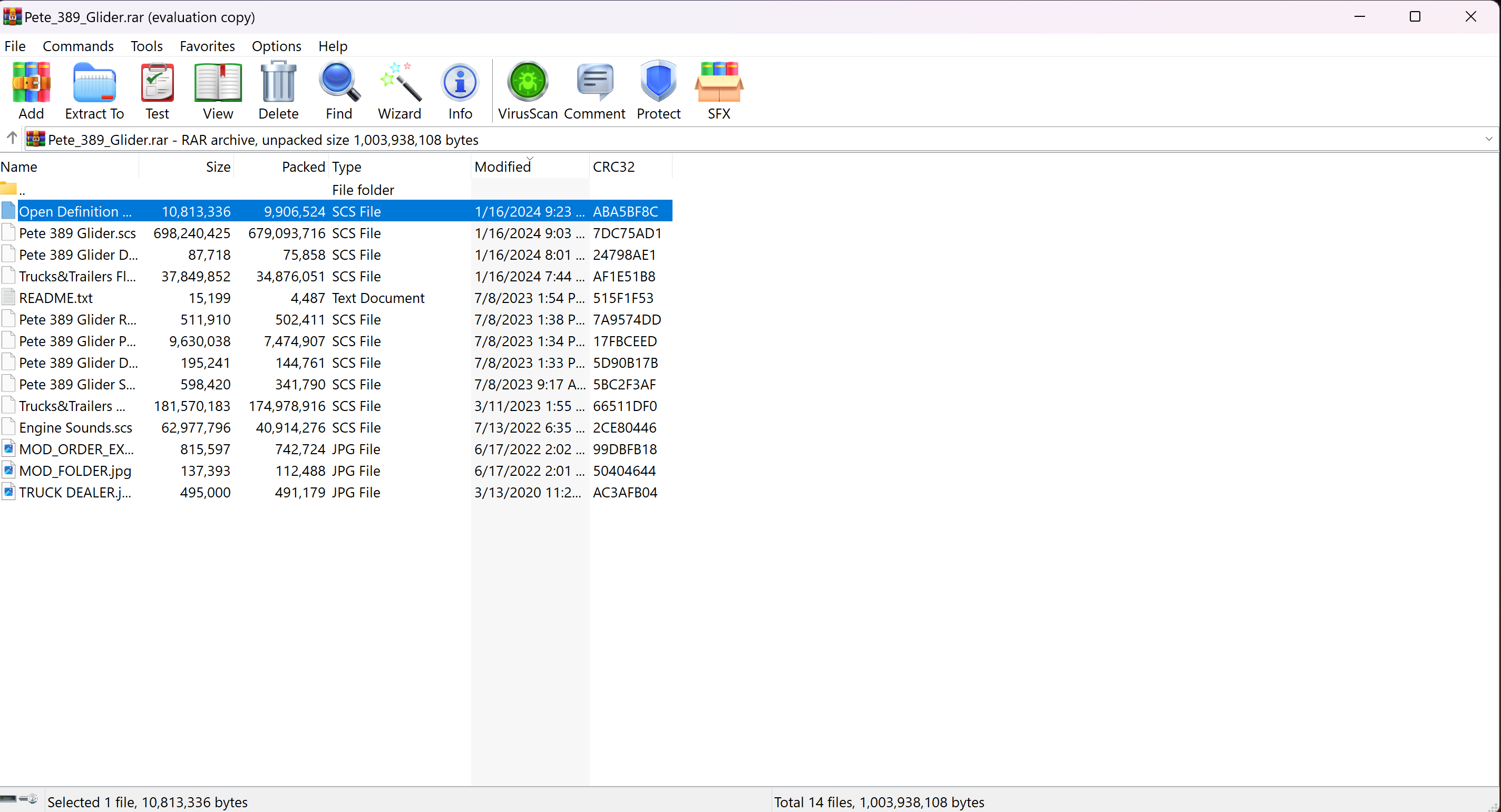
Open the Open Definition File
Next, you'll want to open the Open Definition File that is highlighted in the previous picture. Once you do so, your screen should look like this :
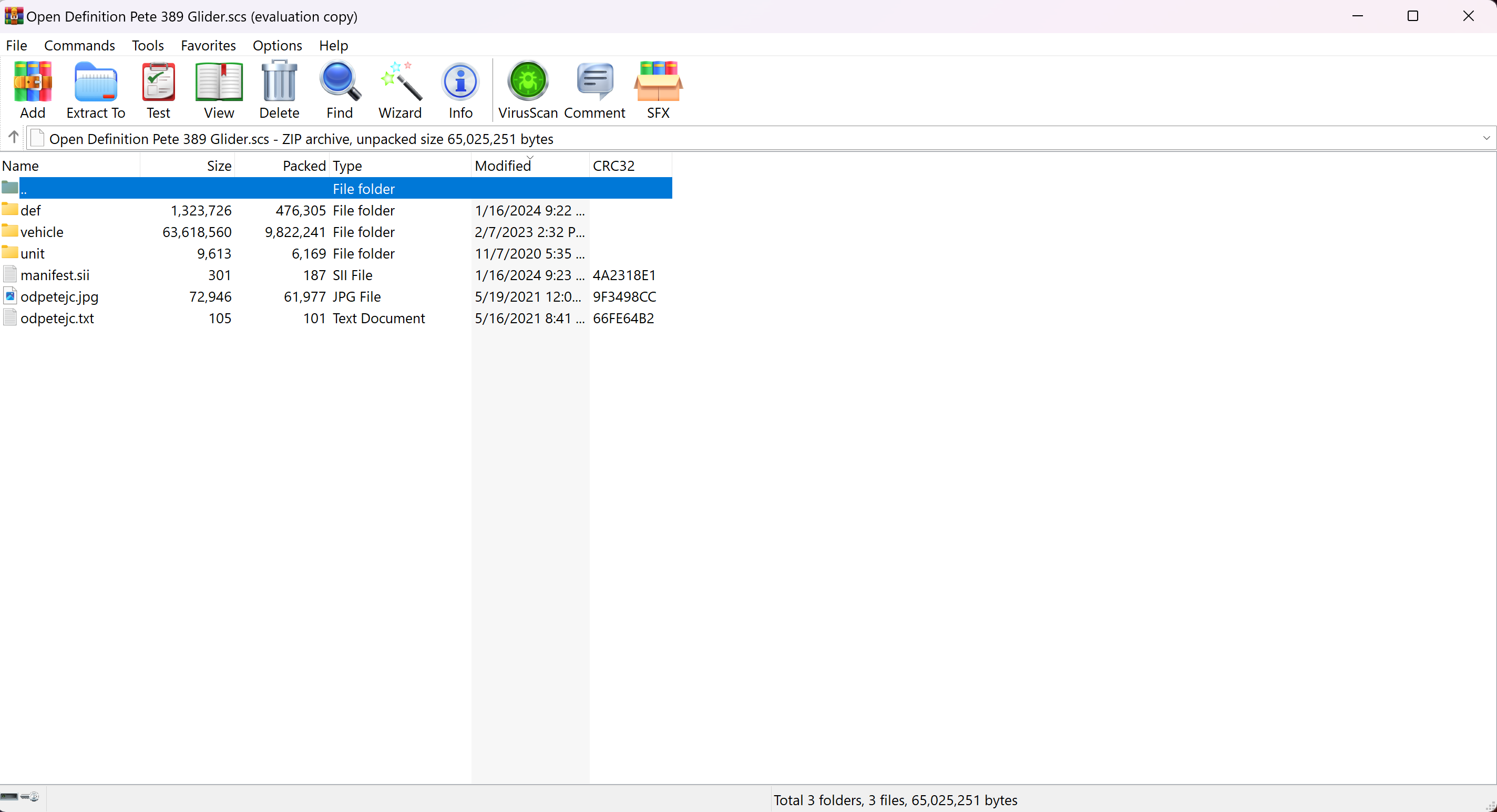 Next, open these folders in order!!
vehicle/truck/upgrade/petejc/companylogo
Once you do so, you should see the .dds files that you can change in PaintNET pictured below for example.
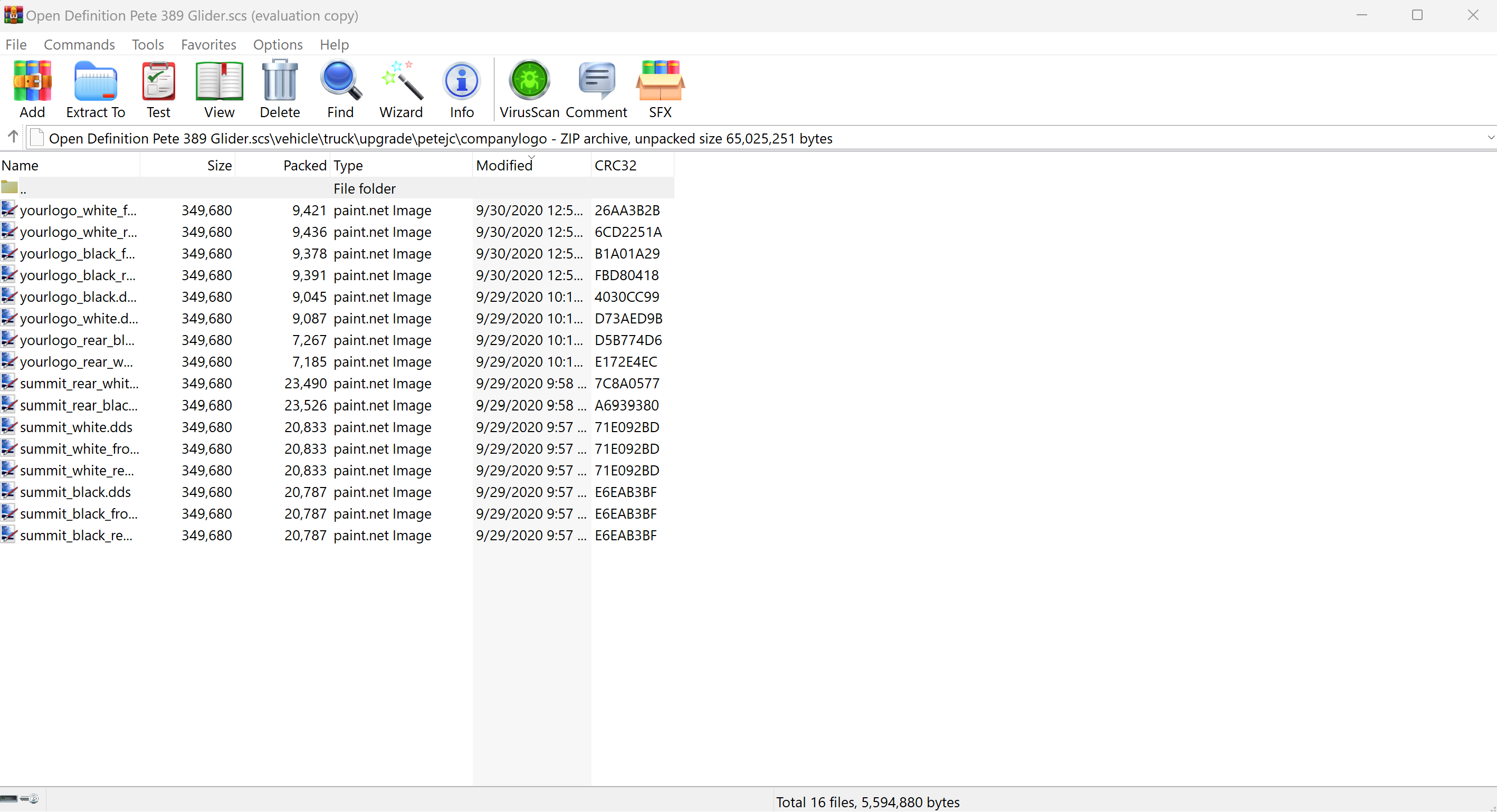
Next, open these folders in order!!vehicle/truck/upgrade/petejc/companylogo
Once you do so, you should see the .dds files that you can change in PaintNET pictured below for example.
Opening the DDS File in PaintNET
Click on whichever "yourlogo" file you would like. There is black and white options along with different parts such as front steps and rear steps. Just choose one that fits your preference. For this purpose, I'll be using the yourlogo_white_front_steps. Double click on it and should open in PaintNET.
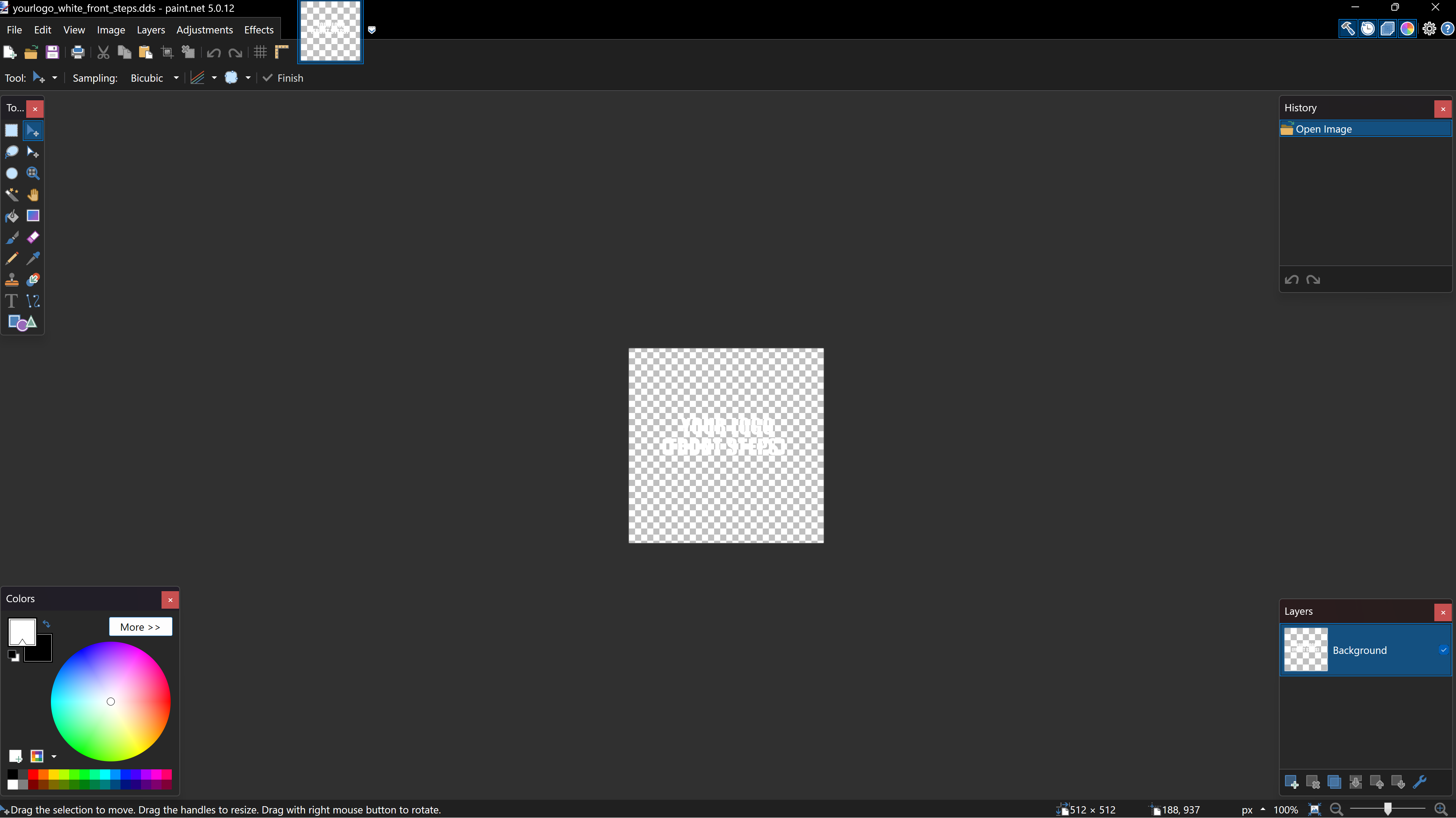
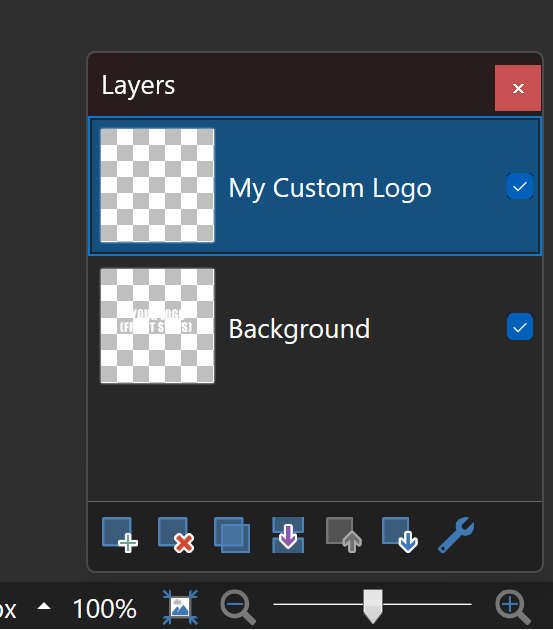 Now go to File/Open and find your custom logo. It'll open in another tab so you'll want to click on your logo and click the CUT button, and paste into the yourlogo_white_front_steps file.
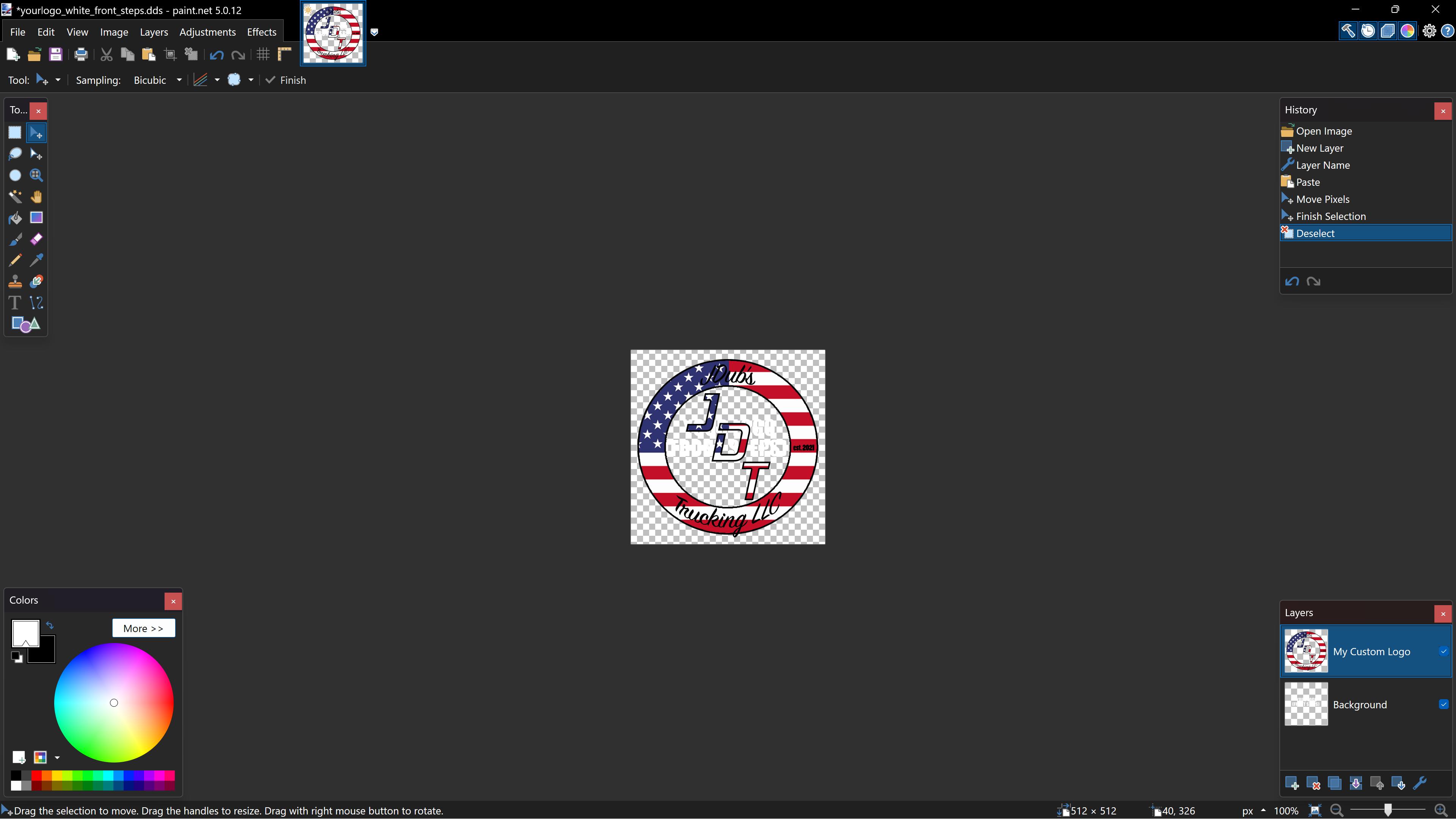
Now that is completed, make a new layer in the bottom right for your logo placement.
Now go to File/Open and find your custom logo. It'll open in another tab so you'll want to click on your logo and click the CUT button, and paste into the yourlogo_white_front_steps file.
Size your logo to fit the square. DESELECT THE BACKGROUND LAYER!! That way ONLY your logo is showing and not the text underneath.
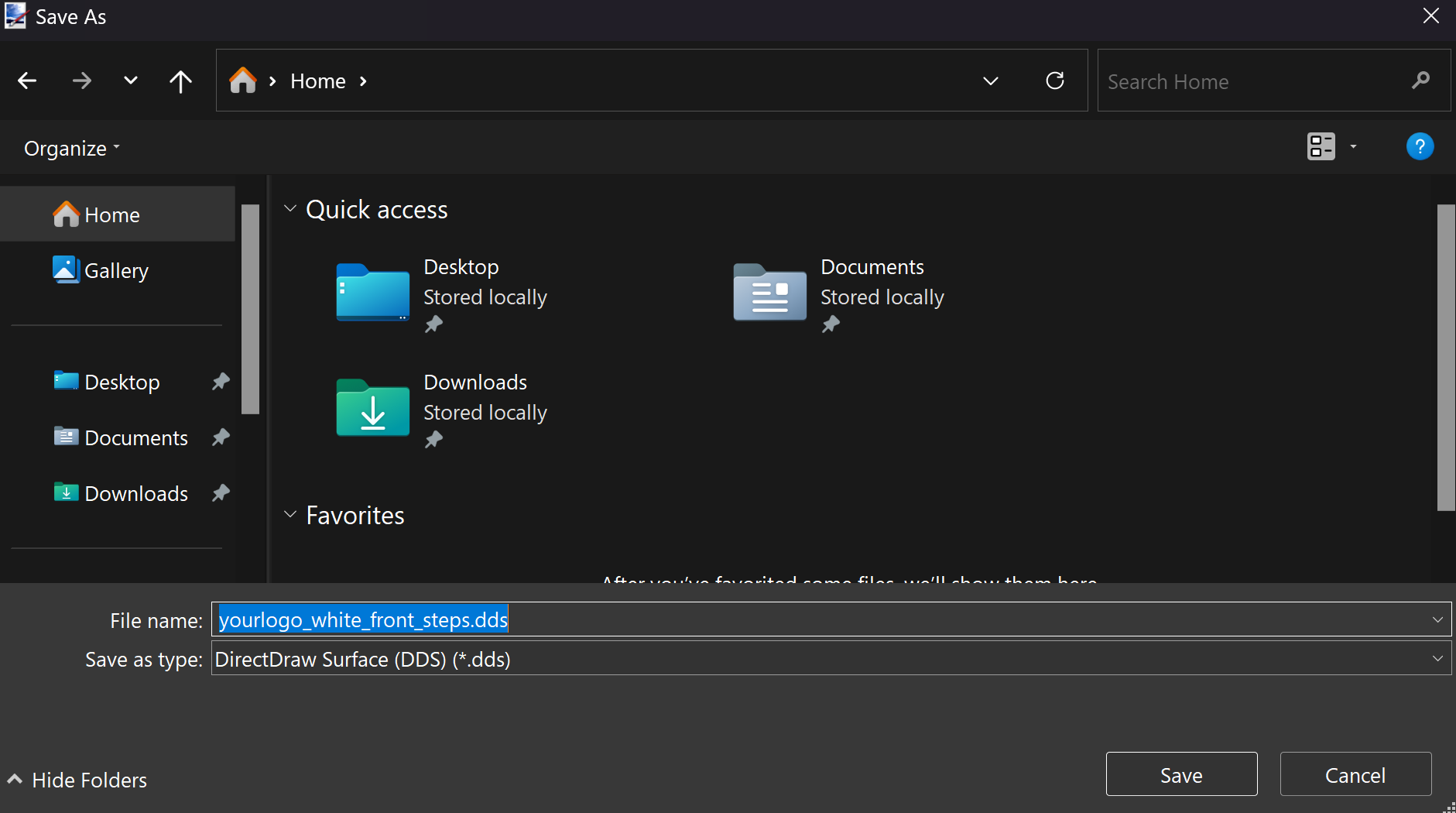
Hit File/Save As and save your file EXACTLY like pictured below:Putting Your DDS File in the Open Definition File
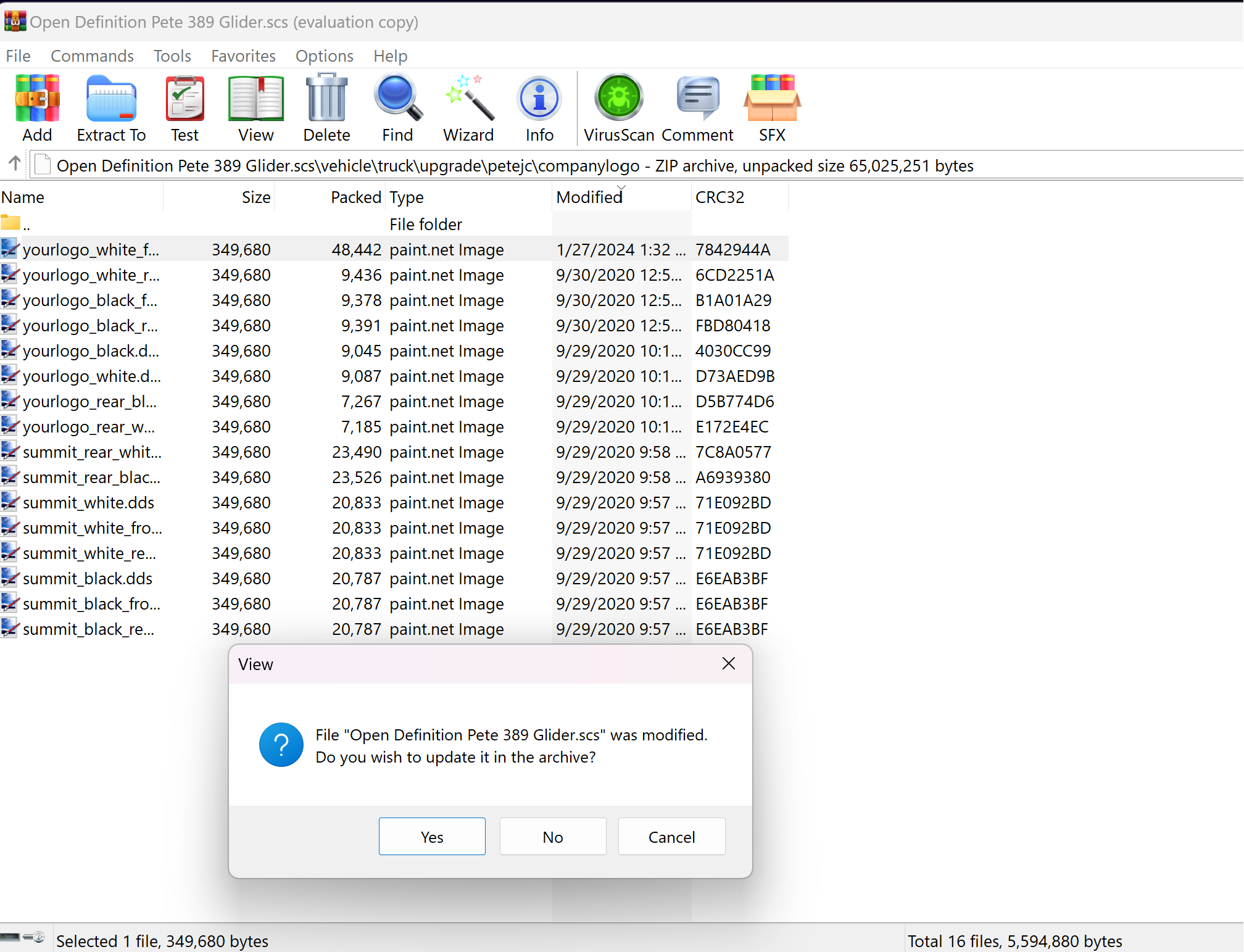
Once you saved your file wherever in your desired location, drag and drop it into the Open Definition File you opened at the beginning of this guide. It'll ask you for permission to change the file, hit yes.
Putting your Open Definition File in Game
Now that you have your logo in the Open Definition, put the Open Definition file in your mods folder. I usually put my SCS files on my desktop first, then navigate to Documents\American Truck Simulator\mod where I would then drag my SCS files in my mod folder. Now go in game and activate your mods in your mod manager and BE SURE to load them in the PROPER ORDER!!
Here you can see the Open Def file is ABOVE the truck.
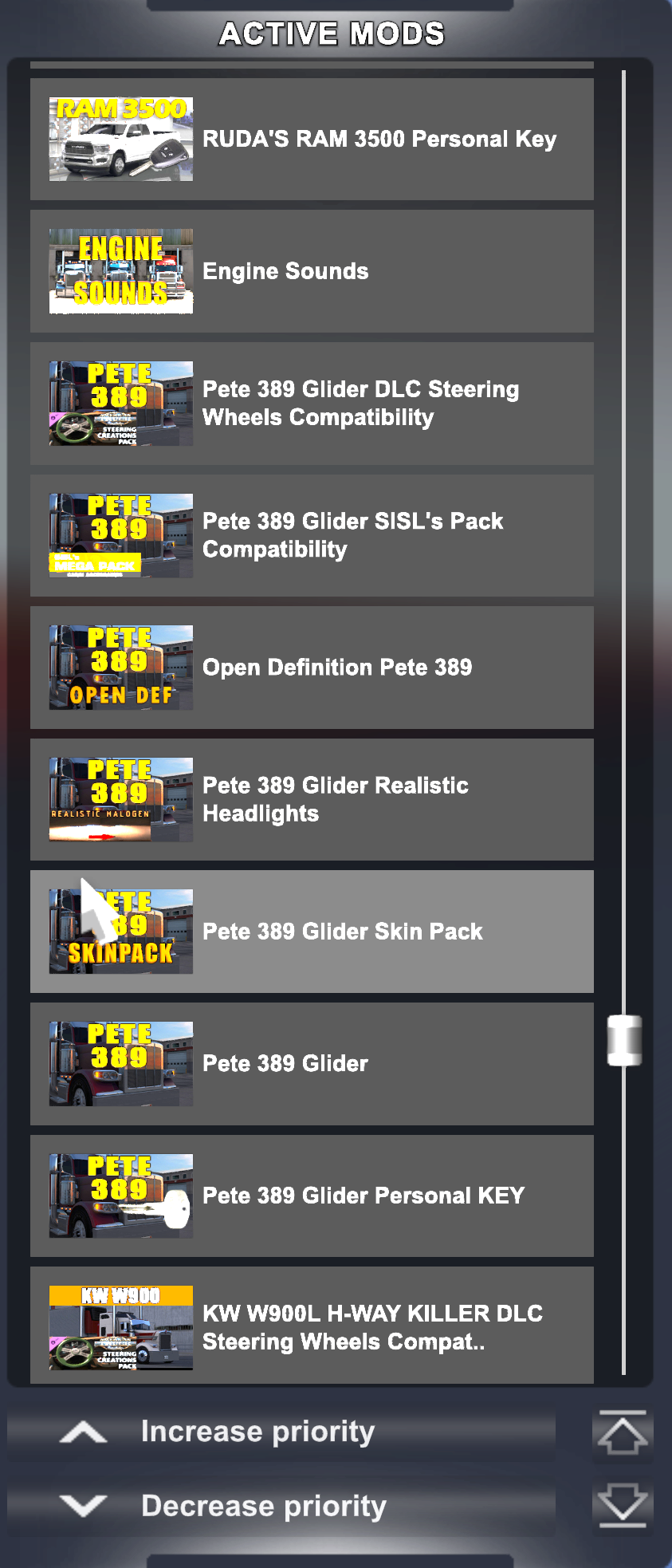
Here you can see the Open Def file is ABOVE the truck.
All Done!
If all steps were completed, you should now be able to go into your truck customization and select the part you created your logo for and find it under whichever “yourlogo” you’ve chosen in the beginning.
More American Truck Simulator guides
- Hidden and unmarked roads - USA - WEST - updated 2026/02/20★ 5 (1.3k)38k views1.9k ♥73 minUpdated Feb 19
- The American Truckers Guide to everything!★ 5 (960)34k views1.5k ♥53 minUpdated Aug 16, 2020
- American Truck Simulator 100% Achievement-Guide [ENG]★ 5 (704)15k views1.3k ♥8 minUpdated May 16
- Все достижения American Truck Simulator + все DLC [100% Achievement-Guide] [upd: 15.05.26]★ 5 (1.2k)14k views1.7k ♥42 minRussianUpdated Jul 12
- ATS | Cheat-codes | ENG★ 4 (106)13k views183 ♥3 minUpdated 2 Jan, 2025
- Texas 100% Achievement-Guide [ENG]★ 5 (443)12k views595 ♥7 minUpdated May 16


🔥 Popular guides
- Upgrading to PremiumTeam Fortress 2★ 5 (20k)1441k views11k ♥6 minUpdated May 11, 2022
- No More Room in Hell Official ManualNo More Room in Hell★ 5 (2.8k)569k views2.1k ♥29 minUpdated Apr 22, 2019
- NMRiH Community Hosting GuidesNo More Room in Hell★ 5 (526)351k views653 ♥1 minUpdated Aug 10, 2022
- ULTIMATE GUIDE FOR GAME DEV TYCOONGame Dev Tycoon★ 5 (5.8k)326k views10k ♥4 minUpdated 23 Jan, 2014
- How to 'Git Gud' Soon™MORDHAU★ 5 (2k)318k views3k ♥68 minUpdated Nov 16, 2024
- Лучшие кооперативные игры SteamPAYDAY 2★ 5 (1.5k)315k views2.1k ♥56 minRussianUpdated Apr 27, 2025






This guide was created by its original author on the Steam Community. Are you the author and want it removed? Request removal.