How to enable Motion Blur
Enabling Motion Blur
To start, you want to find your config files, this is located in
C:\Users\USERNAME\AppData\Local\SummerCamp\Saved\Config\WindowsNoEditor
Replace USERNAME with your PC Account's Username
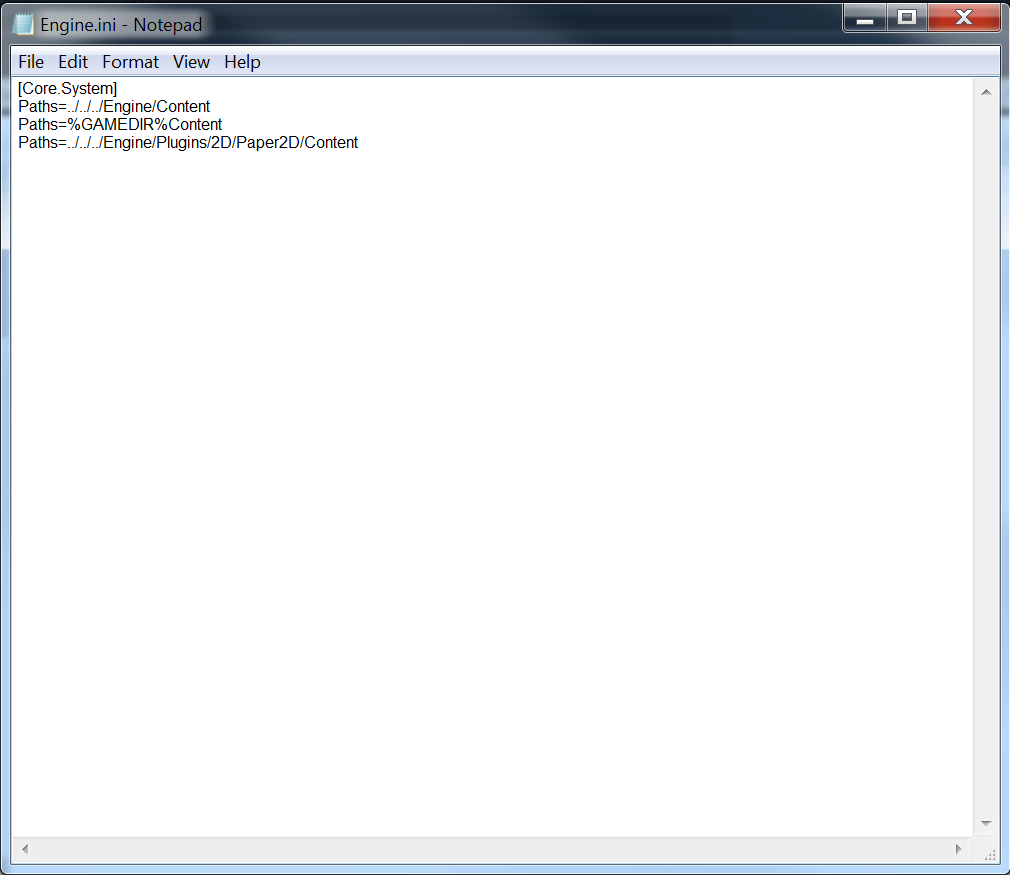
Then you want to copy this:
[/script/engine.renderersettings]
r.DefaultFeature.MotionBlur=True
and paste it at the end of the file with one line of space between the old and new text so it looks like this
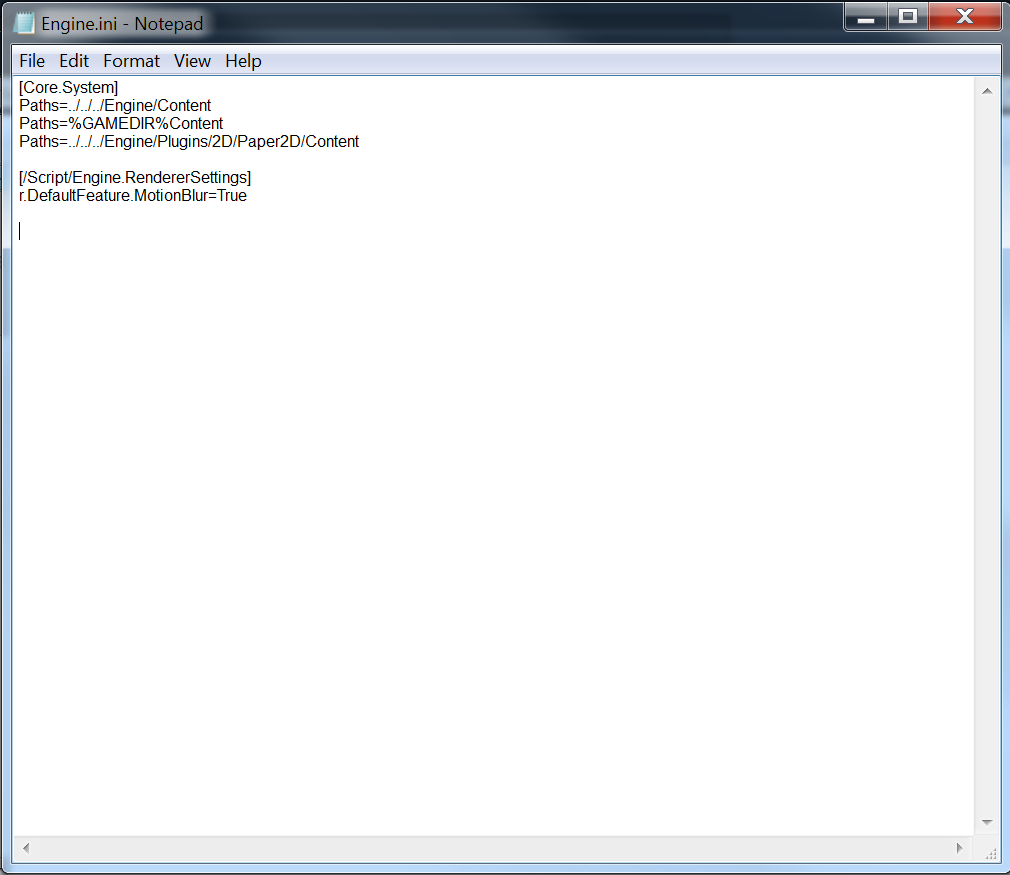
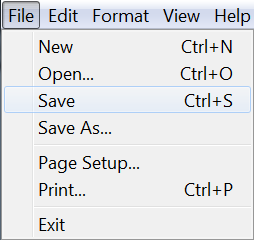 Once that's done, click File, Save, then close the program and open the game. Motion blur should now be enabled.
The Real Question
More Friday the 13th: The Game guides
- Как выжить, если Джейсон уже спалил.★ 5 (334)22k views218 ♥8 minBulgarianUpdated 14 Oct, 2017
- How to play online in 2026 [FIX]★ 5 (238)22k views403 ♥1 minUpdated 11 Jan
- Jason's Cabin Locations (Pinehurst updated)★ 5 (568)20k views793 ♥3 minUpdated 13 May, 2022
- [FIX] How to play on Friday the 13th in 2025 | Как играть в пятницу 13 в 2025★ 4 (74)13k views177 ♥1 minRussianUpdated 14 Mar, 2025
- Complete Level Unlocks List★ 5 (234)12k views285 ♥4 minUpdated 14 Jun, 2018
- How To Play As Chad★ 5 (305)12k views140 ♥1 minUpdated 9 Jan, 2018






🔥 Popular guides
- Upgrading to PremiumTeam Fortress 2★ 5 (20k)1441k views11k ♥6 minUpdated May 11, 2022
- No More Room in Hell Official ManualNo More Room in Hell★ 5 (2.8k)569k views2.1k ♥29 minUpdated Apr 22, 2019
- NMRiH Community Hosting GuidesNo More Room in Hell★ 5 (526)351k views653 ♥1 minUpdated Aug 10, 2022
- ULTIMATE GUIDE FOR GAME DEV TYCOONGame Dev Tycoon★ 5 (5.8k)326k views10k ♥4 minUpdated 23 Jan, 2014
- How to 'Git Gud' Soon™MORDHAU★ 5 (2k)318k views3k ♥68 minUpdated Nov 16, 2024
- Лучшие кооперативные игры SteamPAYDAY 2★ 5 (1.5k)315k views2.1k ♥56 minRussianUpdated Apr 27, 2025






This guide was created by its original author on the Steam Community. Are you the author and want it removed? Request removal.