Crahes on launch? Set Launcher to "Windows 7 compatibility mode".
Step 1 out of 1
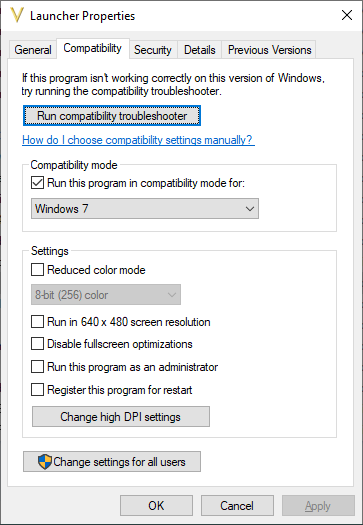 Let's say you're in the same position I was, you installed Civ V and it wouldn't launch. A brief flash on a black screen and the process closes itself without any error notifications.
Let's also pretend you've already tried:
- Launching DX9 version
- Launching DX11 version
- Changing launch options in the Steam game properties
- Running Steam as administrator
- Checking and unchecking all of the DLC to redownload them
- Deleting all the files of 2k launcher
- Launching either with compatibility options turned on
- Launching either with administrator priviledges
- Launching either through the "Launcher.exe" in your game directory
- Reinstalling DirectX
- Reinstalling C++ Runtime
- Removing all documents folder and reinstalling the game
- Verifying game cache
- Removing intro movies
- Forcing the game to launch in windowed mode by editing the config file
- Reinstalling your GPU drivers
Let's also hypothesize in this purely fictional scenario, that you're now planning to use a virtual machine or dig up an old laptop with the ol' reliable Windows 7 still installed on it.
In reality, all you had to was follow my damn instructions, CJ:
- Go to the game directory (C:\Program Files (x86)\Steam\steamapps\common\Sid Meier's Civilization V by default).
- Locate "Launcher.exe" -> right-click -> "Properties" -> "Compatibility" tab -> Check the "Run this program in compatibility mode for:" box -> select "Windows 7" from the dropdown menu.
- Click "OK"
Congratulations, if your situation was similar to mine, you should be able to launch the game normally now in both DirectX modes.
- Real Populations★ 5 (1.2k)79k views1.2k ♥2 minBulgarianUpdated Aug 31, 2017
- Civ-specific tricks, secrets and clarifications (BNW)★ 5 (1k)53k views2.2k ♥96 minUpdated Jun 30, 2019
- Zigzagzigal's Civ Summaries (BNW)★ 5 (1.5k)49k views3.9k ♥134 minUpdated Jun 30, 2019
- Who to Trust and Who to Avoid in Civ V★ 5 (570)41k views802 ♥12 minUpdated Jul 8, 2016
- How to win the Korea Scenario as Korea on Deity in 16 turns★ 5 (532)41k views828 ♥15 minUpdated Apr 1, 2016
- Civilization V Achievement guide★ 5 (2.4k)39k views4.2k ♥134 minUpdated Jun 13, 2014




- Upgrading to PremiumTeam Fortress 2★ 5 (20k)1441k views11k ♥6 minUpdated May 11, 2022
- No More Room in Hell Official ManualNo More Room in Hell★ 5 (2.8k)569k views2.1k ♥29 minUpdated Apr 22, 2019
- NMRiH Community Hosting GuidesNo More Room in Hell★ 5 (526)351k views653 ♥1 minUpdated Aug 10, 2022
- Лучшие кооперативные игры SteamPAYDAY 2★ 5 (1.5k)315k views2.1k ♥56 minRussianUpdated Apr 27, 2025
- Desert Eagle Heat Treated | Blue GemCounter-Strike 2★ 5 (1.6k)292k views1.5k ♥2 minUpdated Jan 16
- Treasure Hunt Puzzle SolutionsTotal War: WARHAMMER II★ 5 (6.9k)281k views15k ♥3 minUpdated Aug 19, 2021






This guide was created by its original author on the Steam Community. Are you the author and want it removed? Request removal.