DOOM GRAPHICS OPTIMIZATION GUIDE - 2025
Official Game Requirements and My Specs
Minimum
OS: 64bit: Windows 7 or higher
CPU: Intel Core i5-2400 or AMD FX-8320
RAM: 8 GB RAM
HDD: 55 GB
VGA: NVIDIA GeForce GTX 670 2GB or AMD Radeon HD 7870 2GB
Recommended
OS: 64bit: Windows 7 or higher
CPU: Intel Core i7-3770 or AMD FX-8350
RAM: 8 GB RAM
HDD: 55 GB
VGA: NVIDIA GeForce GTX 970 or AMD Radeon R9 290
These are the game requirements if you have anything less than the minimum requirement the game will not run properly.
Here are my specs:
OS: Windows 11
CPU: Intel(R) Core(TM) i5-10300H CPU @ 2.50GHz, 2496 Mhz, 12 Cores
RAM: 16GB
VRAM: 4GB
GPU: GTX 1650 Ti (Laptop Version)
And yes, I am using a gaming laptop and it is very loud.
On my computer, DOOM with the optimized settings runs at 120 fps for most parts but during heavy fighting parts it can go down to 80 fps.
Video (Display Settings)
Window Mode
Fullscreen gives you better performance compared to windowed and borderless but if you wanna do something in the background like watch a youtube video or something that requires you to leave the game tab and go to a different tab I would use borderless because it makes it easier to switch tabs.
Resolution
If you use all of the optimized settings and you still are getting very bad performance turn the resolution lower to 1600x900 or until it is playable.
Vertical Sync
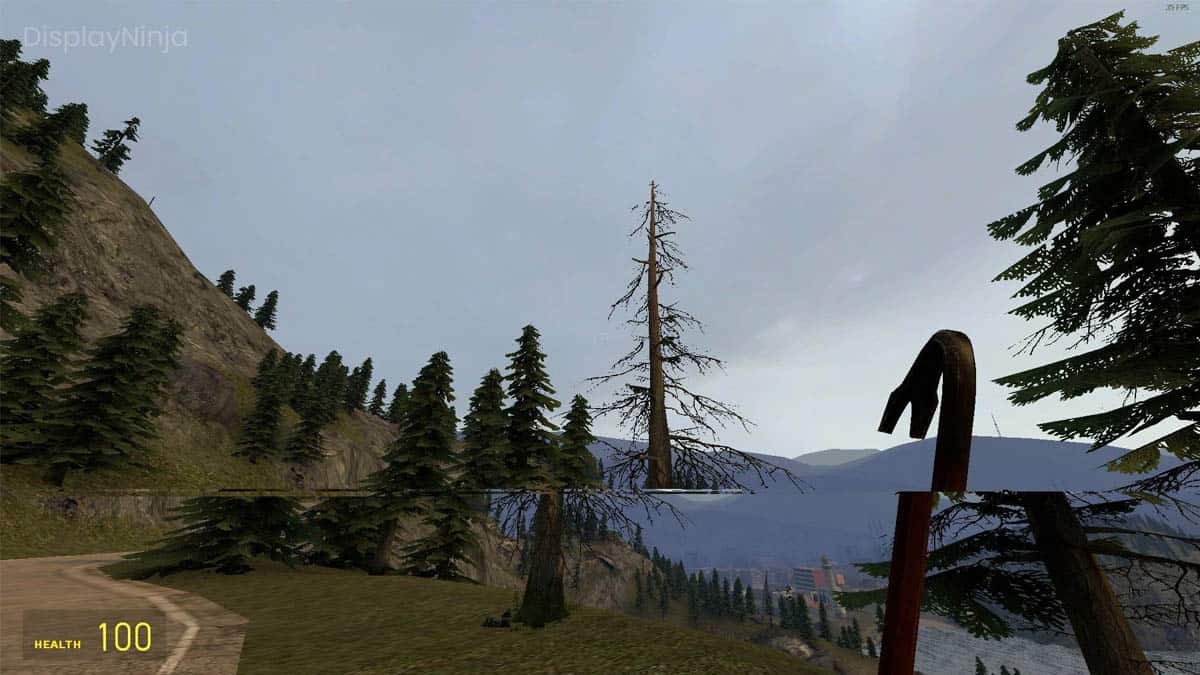
My recommendation is to Turn off Vertical Sync
It does not help in this game. V-Sync is a method of stopping screen tearing which makes the screen split in half making the game look less smooth. The thing is this game is so well optimized that unless you have the worst PC on earth I'm sure you won't need it. Also if you use V-Sync it will cap the fps at 60 so use it only there is insane screen tearing.
Anti-Aliasing
Anti-Aliasing is a method of smoothing the jagged edges on models so they appear smooth and realistic. All of them work good but I think TSAAA is the best one.
Colorblind, Gamma, Motion Blur, Chromatic Aberration, and FOV
All of these are completely preference:
Colorblind - The name is pretty self-explanatory
Gamma - Used to adjust image brightness
Motion Blur - Blurs fast motions to emulate real movement
Chromatic Aberration - Simulates chromatic lens defect
FOV - Makes your peripheral vision larger or smaller (I use FOV 100)
Advanced (Graphic Settings)
Graphics API
Vulkan is usually better than OpenGL especially on AMD systems. But for some systems OpenGl is better so I would test both just to make sure you aren't losing any fps.
Resolution Scale
If you still have bad performance after changing the settings you can lower this to get more fps.
Lights Quality
This affects how lights look but they isn't much performance loss from LOW to ULTRA. I would leave it at HIGH but if you have a lot of spare fps at the end change it to ULTRA.
Shadows Quality
It has a very small affect on performance from LOW to ULTRA. Additionally if you have a really good GPU that has over 5G of VRAM you can set it to NIGHTMARE.
Player Self-Shadow
Directional Occlusion Quality
Directional Occlusion Quality is basically just Ambient Occlusion which adds shading under objects to make it look more realistic. Without Directional Occlusion Quality the game will look very unrealistic.
Decal Quality
There is barely any effect on performance from LOW to ULTRA. This setting effects blood splatters which makes having this setting on ULTRA very important.
Decal Filtering
This makes the textures have more depth and look more realistic. This has very little impact on performance.
Virtual Texturing Page Size - VERY IMPORTANT
This setting affects how fast textures loaded in.
For lower amounts of VRAM (2GB - 4GB) the difference from LOW to ULTRA is massive.
If you have 4GB or anything lower set it to LOW or MEDIUM.
If you have anything higher set to HIGH or ULTRA if you have a lot of VRAM
Reflections Quality
This affects the reflections on glossy metal surfaces. You can see the difference from OFF to ULTRA especially on the guns. The fps loss is very small so I recommend maxing it out.
Particles Quality
This affects the particles on explosions, gunshots, smoke, and fire. Small impact on performance.
Motion Blur Quality
This setting only matters if you have motion blur on so don't worry about it if you turned motion blur off. Their is no impact on performance from LOW to HIGH.
Depth of Field, Depth of Field Antialiasing, HDR Bloom, Lens Flare, Lens Dirt
All of these are completely preference:
Depth of Field - When an object is close to your face it blurs everything far in the distance. This effect is only noticeable in gun / item pickup animations so leave it on unless you don't like the effect
Depth of Field Antialiasing - Makes Depth of Field look more smooth so leave it on as there is no effect on performance
HDR Bloom - Makes light bloom more and there is no loss in fps so leave it on
Lens Flare - When there is a strong light it makes the game more realistic but simulating a flare effect, leave it on as there is not performance loss
Lens Dirt - Adds a dirty lens effect, I don't like it but test if you like it on or off.
Rendering Mode
Sharpening Amount
Film Grain
Opacity UI
Show Performance Metrics
HAVE FUN PLAYING THE GAME AND I HOPE THIS GUIDE HAS HELPED YOU!
- DOOM Written Guide/Walkthrough for all secrets on each mission including Doomguy locations.★ 5 (4.8k)101k views9.3k ♥45 minUpdated 22 May, 2025
- DOOM 100% Achievement Guide★ 5 (1.5k)65k views2.8k ♥19 minUpdated 30 Nov, 2023
- Все секреты★ 5 (2.8k)54k views4.8k ♥14 minRussianUpdated 6 Jan, 2022
- DOOM Secrets & Collectibles★ 5 (1.2k)49k views2.1k ♥4 minUpdated 4 Dec, 2022
- Secret Doom Classic Level Locations + Easter Eggs★ 5 (1.5k)47k views2.1k ♥13 minUpdated 29 Jan, 2021
- Как уменьшит объем игры(лайфхак)?★ 5 (729)44k views343 ♥1 minRussianUpdated 25 May, 2017



- Upgrading to PremiumTeam Fortress 2★ 5 (20k)1441k views11k ♥6 minUpdated May 11, 2022
- No More Room in Hell Official ManualNo More Room in Hell★ 5 (2.8k)569k views2.1k ♥29 minUpdated Apr 22, 2019
- NMRiH Community Hosting GuidesNo More Room in Hell★ 5 (526)351k views653 ♥1 minUpdated Aug 10, 2022
- ULTIMATE GUIDE FOR GAME DEV TYCOONGame Dev Tycoon★ 5 (5.8k)326k views10k ♥4 minUpdated 23 Jan, 2014
- How to 'Git Gud' Soon™MORDHAU★ 5 (2k)318k views3k ♥68 minUpdated Nov 16, 2024
- Лучшие кооперативные игры SteamPAYDAY 2★ 5 (1.5k)315k views2.1k ♥56 minRussianUpdated Apr 27, 2025






This guide was created by its original author on the Steam Community. Are you the author and want it removed? Request removal.