How to Disable Gyro Aiming (PlayStation and possibly Nintendo Switch Pro Controllers)
First
Click the Controller Icon from your DOOM 2016 Library Page

Next
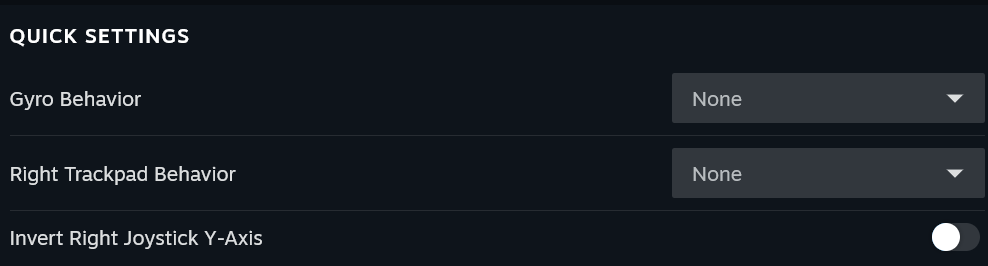
Under "Quick Settings" look for "Gyro Behavior" and "Right Trackpad Behavior" when you find them click the drop down bar and select the top option that says "None" for both.
Lastly
Either hit Circle on your PS4-PS5 Controller or "A" on your Nintendo Switch Pro Controller or click the back button on the bottom left of the window with your mouse to go back (I believe this saves it When i clicked the red X at the top right of the controller window it didn't save for me)
Launch your Game and move your controller to see if it worked.
Was that so hard 15% of the PC Gaming Community? To be helpful to people who don't know how to disable an option? "JuST uSe MoUSe and KEybOarD!" Just shut the ♥♥♥♥ up, if you like Mouse and Keyboard that is totally fine, but leave people who like using controllers alone, I personally can play both Mouse and Keyboard and Controller... but sometimes I just want to ♥♥♥♥♥♥♥ relax, kick back, and play a game with my Controller. I hope this helped people out who are either playing this for the first time or gave up and decided not to play the game. To those of you who read this, Happy Gaming. Now if they had a mod to replace the inputs or just had PlayStation buttons support to begin with that would be fantastic, but unfortunately no such luck.
More DOOM guides
- DOOM Written Guide/Walkthrough for all secrets on each mission including Doomguy locations.★ 5 (4.8k)101k views9.3k ♥45 minUpdated 22 May, 2025
- DOOM 100% Achievement Guide★ 5 (1.5k)65k views2.8k ♥19 minUpdated 30 Nov, 2023
- Все секреты★ 5 (2.8k)54k views4.8k ♥14 minRussianUpdated 6 Jan, 2022
- DOOM Secrets & Collectibles★ 5 (1.2k)49k views2.1k ♥4 minUpdated 4 Dec, 2022
- Secret Doom Classic Level Locations + Easter Eggs★ 5 (1.5k)47k views2.1k ♥13 minUpdated 29 Jan, 2021
- Как уменьшит объем игры(лайфхак)?★ 5 (729)44k views343 ♥1 minRussianUpdated 25 May, 2017



🔥 Popular guides
- Upgrading to PremiumTeam Fortress 2★ 5 (20k)1441k views11k ♥6 minUpdated May 11, 2022
- No More Room in Hell Official ManualNo More Room in Hell★ 5 (2.8k)569k views2.1k ♥29 minUpdated Apr 22, 2019
- NMRiH Community Hosting GuidesNo More Room in Hell★ 5 (526)351k views653 ♥1 minUpdated Aug 10, 2022
- ULTIMATE GUIDE FOR GAME DEV TYCOONGame Dev Tycoon★ 5 (5.8k)326k views10k ♥4 minUpdated 23 Jan, 2014
- How to 'Git Gud' Soon™MORDHAU★ 5 (2k)318k views3k ♥68 minUpdated Nov 16, 2024
- Лучшие кооперативные игры SteamPAYDAY 2★ 5 (1.5k)315k views2.1k ♥56 minRussianUpdated Apr 27, 2025






This guide was created by its original author on the Steam Community. Are you the author and want it removed? Request removal.