Fix New Vegas: Just 3 Mods
Introduction – The Goal of This Guide
The objective of this guide is very simple: to enable anyone, regardless of their experience with mods, to stabilize the game in just a few minutes.
We will use three modifications that are the gold standard for stability, but without unnecessary complexity. For two of them, we will employ Vortex, a free program that acts as an intelligent manager, handling the heavy lifting so you don't have to fiddle with complicated folders. For the third, you will only need to drag and drop a single file into place. You don't need to be a computer expert—this guide is perfect for both veterans and newcomers alike.
We will use three modifications that are the gold standard for stability, but without unnecessary complexity. For two of them, we will employ Vortex, a free program that acts as an intelligent manager, handling the heavy lifting so you don't have to fiddle with complicated folders. For the third, you will only need to drag and drop a single file into place. You don't need to be a computer expert—this guide is perfect for both veterans and newcomers alike.
Important Disclaimer
Why These Mods and Not Others?
More advanced tools exist within the community, such as the JIP LN NVSE Plugin, which offer even deeper control and additional fixes. However, my experience with them has taught me two things:
They require a much more complex installation and configuration process, moving away from the "simplicity" I aim for here.
They can introduce compatibility issues, particularly with animations and certain aspects of the game, if your version of Fallout: New Vegas is not the English one.
Given that not all players have the English version, and since the goal is maximum compatibility and ease of use, I have opted for the most tested, reliable, and universal combination I have found in my 2,700 hours of trial and error.
A Sincere Thank You
Last, but certainly not least, I would like to express my deepest gratitude to the creators of these mods: Yukichigai, Roy Batty, LuthienAnarion, Queue, and everyone who has maintained and translated their work.
More advanced tools exist within the community, such as the JIP LN NVSE Plugin, which offer even deeper control and additional fixes. However, my experience with them has taught me two things:
They require a much more complex installation and configuration process, moving away from the "simplicity" I aim for here.
They can introduce compatibility issues, particularly with animations and certain aspects of the game, if your version of Fallout: New Vegas is not the English one.
Given that not all players have the English version, and since the goal is maximum compatibility and ease of use, I have opted for the most tested, reliable, and universal combination I have found in my 2,700 hours of trial and error.
A Sincere Thank You
Last, but certainly not least, I would like to express my deepest gratitude to the creators of these mods: Yukichigai, Roy Batty, LuthienAnarion, Queue, and everyone who has maintained and translated their work.
Nexus Account & Vortex
Before we dive into fixing the game, we need two things: a place to get the mods and a tool to manage them properly.
Let's go step by step.
1. Create Your Nexus Mods Account
To download anything from Nexus, you need an account. It's completely free.
The Link: Click the following link to go directly to the official site: https://www.nexusmods.com/
Registration: Once there, look for the "Register" button in the top-right corner. Click it.
Fill in Your Details: It will ask for a username, an email address, and a password. Fill them in carefully.
Verification: You will receive an email to verify your account (check your spam folder just in case). Click the link they send you, and that's it! You now have your pass to access all the mods.
2. Download and Install Vortex
Vortex is the program that will make our lives easy. It will handle installing and organizing the mods for us, so we don't have to touch the game's files manually (and thus avoid messing anything up).
The Direct Link: Use this link to go directly to the Vortex download page: https://www.nexusmods.com/about/vortex/
Download: On that page, you'll see a large green button that says "Download Vortex" . Click it.
Note: The page might ask you to log in with the account you just created. This is normal; just enter your username and password.
Installation: Once the file is downloaded (usually in your "Downloads" folder), double-click it to run it.
Next, Next, Next...: A typical Windows installer will appear. Don't worry, just click "Next," accept the terms, and click "Next" again until you see "Install." Leave everything at default settings, as recommended.
Finish: When the installation finishes, check the box that says "Run Vortex" and click "Finish." The program will open automatically.
Let's go step by step.
1. Create Your Nexus Mods Account
To download anything from Nexus, you need an account. It's completely free.
The Link: Click the following link to go directly to the official site: https://www.nexusmods.com/
Registration: Once there, look for the "Register" button in the top-right corner. Click it.
Fill in Your Details: It will ask for a username, an email address, and a password. Fill them in carefully.
Verification: You will receive an email to verify your account (check your spam folder just in case). Click the link they send you, and that's it! You now have your pass to access all the mods.
2. Download and Install Vortex
Vortex is the program that will make our lives easy. It will handle installing and organizing the mods for us, so we don't have to touch the game's files manually (and thus avoid messing anything up).
The Direct Link: Use this link to go directly to the Vortex download page: https://www.nexusmods.com/about/vortex/
Download: On that page, you'll see a large green button that says "Download Vortex" . Click it.
Note: The page might ask you to log in with the account you just created. This is normal; just enter your username and password.
Installation: Once the file is downloaded (usually in your "Downloads" folder), double-click it to run it.
Next, Next, Next...: A typical Windows installer will appear. Don't worry, just click "Next," accept the terms, and click "Next" again until you see "Install." Leave everything at default settings, as recommended.
Finish: When the installation finishes, check the box that says "Run Vortex" and click "Finish." The program will open automatically.
NVAC - New Vegas Anti Crash
This mod works silently in the background, catching errors and preventing the game from closing unexpectedly. It is especially useful in the most unstable areas of the DLCs.
What Are We Going to Do?
Just one super simple thing: tell Vortex to download and install it for us. It does the rest automatically.
Let's Get to Work:
Keep Vortex open. As mentioned earlier, it's important that Vortex is running throughout this entire process so that the automatic download works on the first try.
Go to the mod page: https://www.nexusmods.com/newvegas/mods/53635
Go to the "Files" tab. It's right below the mod title, as usual.
Download with the manager. Look for the first file in the list (the main one; it's usually the one with the most downloads). You'll see a button that says "Mod Manager Download." Click it.
Choose the slow option. A small window will appear with two options: "Slow download" and "Fast download." Click on "Slow download." This is the free option and works perfectly; it just takes a few seconds longer. The fast option is for premium users.
Accept in Vortex. Automatically, your browser will hand the file over to Vortex. You'll see a notification appear in Vortex, and the mod will begin downloading and installing itself. You won't have to touch anything.
Verify that it is enabled. Go to the "Mods" tab in Vortex. Look for "NVAC" in the list. Make sure the button is blue or green (depending on the version), indicating that it is "Enabled." If it isn't, click to activate it.
What Are We Going to Do?
Just one super simple thing: tell Vortex to download and install it for us. It does the rest automatically.
Let's Get to Work:
Keep Vortex open. As mentioned earlier, it's important that Vortex is running throughout this entire process so that the automatic download works on the first try.
Go to the mod page: https://www.nexusmods.com/newvegas/mods/53635
Go to the "Files" tab. It's right below the mod title, as usual.
Download with the manager. Look for the first file in the list (the main one; it's usually the one with the most downloads). You'll see a button that says "Mod Manager Download." Click it.
Choose the slow option. A small window will appear with two options: "Slow download" and "Fast download." Click on "Slow download." This is the free option and works perfectly; it just takes a few seconds longer. The fast option is for premium users.
Accept in Vortex. Automatically, your browser will hand the file over to Vortex. You'll see a notification appear in Vortex, and the mod will begin downloading and installing itself. You won't have to touch anything.
Verify that it is enabled. Go to the "Mods" tab in Vortex. Look for "NVAC" in the list. Make sure the button is blue or green (depending on the version), indicating that it is "Enabled." If it isn't, click to activate it.
YUP - Yukichigai Unofficial Patch
This mod is the most important one on the list.
What Are We Going to Do?
Go to the mod page.
Choose the correct version based on your game (language) and your DLCs.
Download and install it with Vortex.
(Only in one specific case) Make a small adjustment in Vortex.
Let's Get to Work:
Go to the mod page. Click this link to go directly there: https://www.nexusmods.com/newvegas/mods/51664?tab=files
Go to the "Files" tab. It's right below the mod title.
Choose your version. There are two large sections here. To keep it simple, follow this rule:
Option A (The most common): You own the Fallout: New Vegas Ultimate Edition (which includes all DLCs) or you purchased all the DLCs separately. Then go to the first section, MAIN FILES.
Look for the file that matches the language of your game. For example: YUP - Base Game + All DLCs - **Spanish**.
Click "Mod Manager Download" so Vortex grabs it automatically.
Option B: You are missing at least one of the 5 major DLCs (Dead Money, Honest Hearts, Old World Blues, Lonesome Road, or Gun Runners' Arsenal). Then go to the second section, OPTIONAL FILES.
Look for the version in your language, for example: YUP - **Spanish** - Individual Files.
Click "Mod Manager Download".
Important: Once it downloads and installs in Vortex, we will proceed to the next step to deactivate the parts you don't own.
Automatic installation in Vortex. If you clicked "Mod Manager Download," Vortex will open automatically (or prompt you) and start downloading the mod. You'll see a notification. Then, go to the "Mods" tab in Vortex, find "YUP," and click the "Install" button if it didn't install itself. When it finishes, the button will change to "Enable." Click it to activate the mod. Done!
Only for those who chose Option B (those who don't have all DLCs): Now we will tell the game which parts of YUP to use and which to ignore.
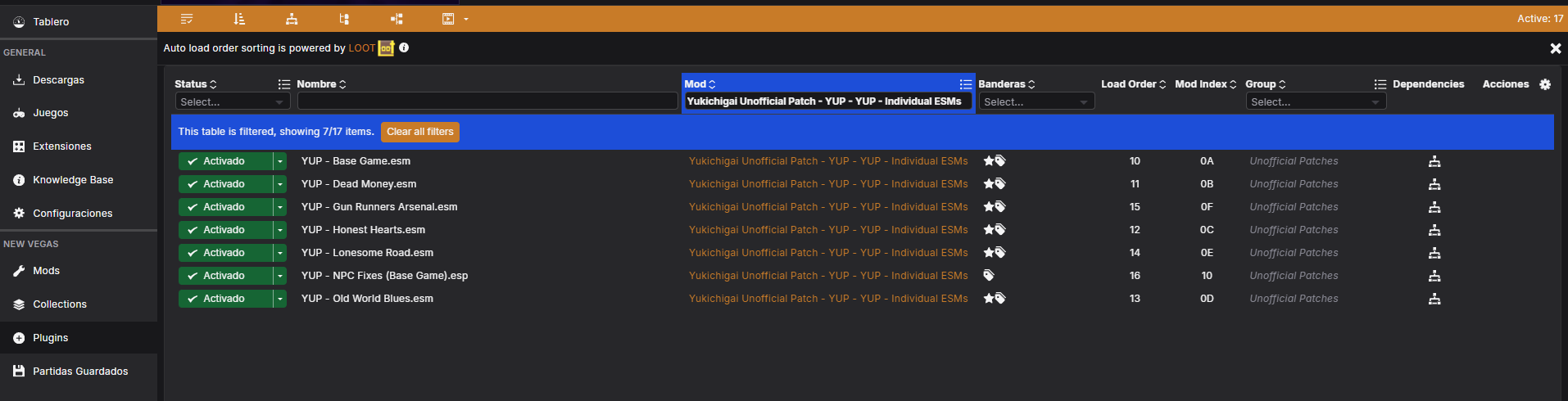
In Vortex, go to the "Plugins" tab.
Look for all the files that start with "YUP." You will see several: YUP - Base Game.esm, YUP - Dead Money.esm, YUP - Honest Hearts.esm, etc.
Disable (click the circle/checkbox icon so it turns gray) the .esm files for the DLCs that you do not have installed in your game.
Leave ONLY the ones you do have enabled.
As the mod's description states: "There are two versions of YUP available for download: one for users with all five of the main DLCs... and one for users who lack at least one of the five main DLC." This step simply applies that logic within Vortex.
What Are We Going to Do?
Go to the mod page.
Choose the correct version based on your game (language) and your DLCs.
Download and install it with Vortex.
(Only in one specific case) Make a small adjustment in Vortex.
Let's Get to Work:
Go to the mod page. Click this link to go directly there: https://www.nexusmods.com/newvegas/mods/51664?tab=files
Go to the "Files" tab. It's right below the mod title.
Choose your version. There are two large sections here. To keep it simple, follow this rule:
Option A (The most common): You own the Fallout: New Vegas Ultimate Edition (which includes all DLCs) or you purchased all the DLCs separately. Then go to the first section, MAIN FILES.
Look for the file that matches the language of your game. For example: YUP - Base Game + All DLCs - **Spanish**.
Click "Mod Manager Download" so Vortex grabs it automatically.
Option B: You are missing at least one of the 5 major DLCs (Dead Money, Honest Hearts, Old World Blues, Lonesome Road, or Gun Runners' Arsenal). Then go to the second section, OPTIONAL FILES.
Look for the version in your language, for example: YUP - **Spanish** - Individual Files.
Click "Mod Manager Download".
Important: Once it downloads and installs in Vortex, we will proceed to the next step to deactivate the parts you don't own.
Automatic installation in Vortex. If you clicked "Mod Manager Download," Vortex will open automatically (or prompt you) and start downloading the mod. You'll see a notification. Then, go to the "Mods" tab in Vortex, find "YUP," and click the "Install" button if it didn't install itself. When it finishes, the button will change to "Enable." Click it to activate the mod. Done!
Only for those who chose Option B (those who don't have all DLCs): Now we will tell the game which parts of YUP to use and which to ignore.
In Vortex, go to the "Plugins" tab.
Look for all the files that start with "YUP." You will see several: YUP - Base Game.esm, YUP - Dead Money.esm, YUP - Honest Hearts.esm, etc.
Disable (click the circle/checkbox icon so it turns gray) the .esm files for the DLCs that you do not have installed in your game.
Leave ONLY the ones you do have enabled.
As the mod's description states: "There are two versions of YUP available for download: one for users with all five of the main DLCs... and one for users who lack at least one of the five main DLC." This step simply applies that logic within Vortex.
4GB Patcher
This is the only step in the entire guide that we will do "manually." This small program is essential: it tells Fallout: New Vegas that it can use more memory than a 32-bit game normally allows, which drastically reduces crashes, especially in large areas like the DLCs.
What Are We Going to Do?
Download the file.
Extract it.
Copy a file to the game folder.
Run it once.
Let's Get to Work:
Go to the mod page: https://www.nexusmods.com/newvegas/mods/62552?tab=files
Download the file. Go to the "Files" tab. In the "Main Files" section, click the "Manual Download" button. A .zip or .7z file will be downloaded.
Extract the contents. Locate the downloaded file (usually in your "Downloads" folder), right-click it, and select "Extract here" or "Extract to FNV-4GB-Patcher..." . Use programs like WinRAR or 7-Zip if your version of Windows doesn't do it by default.
Locate your game folder. You need to know where Fallout: New Vegas is installed.
Steam: Go to your Library, right-click on Fallout: New Vegas -> Manage -> Browse local files. The correct folder will open.
Copy the file. Inside the folder you extracted in step 3, find the file named FNV 4GB Patcher.exe . Copy it (Ctrl+C).
Paste and run. Go to your game folder (from step 4) and paste the file (Ctrl+V). Now, double-click the FNV 4GB Patcher.exe you just pasted. It is important to run it as Administrator (right-click -> "Run as administrator").
Done! A black window (command line) will open with some text. Press any key on your keyboard. The window will close. That's it. Your game is now patched.
Supporting Video: Here is a very short video that shows these exact steps, in case you'd like to see it:
What Are We Going to Do?
Download the file.
Extract it.
Copy a file to the game folder.
Run it once.
Let's Get to Work:
Go to the mod page: https://www.nexusmods.com/newvegas/mods/62552?tab=files
Download the file. Go to the "Files" tab. In the "Main Files" section, click the "Manual Download" button. A .zip or .7z file will be downloaded.
Extract the contents. Locate the downloaded file (usually in your "Downloads" folder), right-click it, and select "Extract here" or "Extract to FNV-4GB-Patcher..." . Use programs like WinRAR or 7-Zip if your version of Windows doesn't do it by default.
Locate your game folder. You need to know where Fallout: New Vegas is installed.
Steam: Go to your Library, right-click on Fallout: New Vegas -> Manage -> Browse local files. The correct folder will open.
Copy the file. Inside the folder you extracted in step 3, find the file named FNV 4GB Patcher.exe . Copy it (Ctrl+C).
Paste and run. Go to your game folder (from step 4) and paste the file (Ctrl+V). Now, double-click the FNV 4GB Patcher.exe you just pasted. It is important to run it as Administrator (right-click -> "Run as administrator").
Done! A black window (command line) will open with some text. Press any key on your keyboard. The window will close. That's it. Your game is now patched.
Supporting Video: Here is a very short video that shows these exact steps, in case you'd like to see it:
A Veteran's Conclusions
Fallout: New Vegas is not just a game; it is a testament to how narrative, choices with real weight, and a well-constructed world can create an unforgettable experience. My Steam profile, with over 2,700 hours accumulated on PC since 2016, is living proof of that love for the Mojave.
Throughout these years, I have had the privilege of observing and participating in the incredible evolution of the modding community that has kept this title alive. I have experimented with the game in every imaginable way: from physics-breaking craziness to genuine works of art in the form of mods, always through the inevitable method of trial and error. I have watched the landscape of guides and tutorials grow and diversify.
And that is where the very reason for this simple guide lies. During all this time, I missed having a clear and accessible resource that would allow a player to simply play the game in its purest state. Almost all existing guides, while very valuable in their own right, focus on transforming the experience: cutting-edge graphics, renewed animations, new combat systems... All of that is fine for a second or third playthrough, but it often buries what truly made this work a gem: its original essence, its raw atmosphere, and its unmistakable personality.
That is why the goal of this guide has always been the most basic and, at the same time, the most fundamental: to lay the foundation so that anyone can enjoy Fallout: New Vegas as it was conceived, but without the technical problems that hindered that vision. Only stability. Only smoothness. Nothing more.
I sincerely hope that these three simple steps have been useful to you and, above all, that they allow you to lose yourself in the Mojave Wasteland with the peace of mind that comes from knowing the game won't stand in your way. May you enjoy every dialogue, every difficult decision, every dusty corner, and every stray bullet.
The Wasteland awaits you, Courier.
Throughout these years, I have had the privilege of observing and participating in the incredible evolution of the modding community that has kept this title alive. I have experimented with the game in every imaginable way: from physics-breaking craziness to genuine works of art in the form of mods, always through the inevitable method of trial and error. I have watched the landscape of guides and tutorials grow and diversify.
And that is where the very reason for this simple guide lies. During all this time, I missed having a clear and accessible resource that would allow a player to simply play the game in its purest state. Almost all existing guides, while very valuable in their own right, focus on transforming the experience: cutting-edge graphics, renewed animations, new combat systems... All of that is fine for a second or third playthrough, but it often buries what truly made this work a gem: its original essence, its raw atmosphere, and its unmistakable personality.
That is why the goal of this guide has always been the most basic and, at the same time, the most fundamental: to lay the foundation so that anyone can enjoy Fallout: New Vegas as it was conceived, but without the technical problems that hindered that vision. Only stability. Only smoothness. Nothing more.
I sincerely hope that these three simple steps have been useful to you and, above all, that they allow you to lose yourself in the Mojave Wasteland with the peace of mind that comes from knowing the game won't stand in your way. May you enjoy every dialogue, every difficult decision, every dusty corner, and every stray bullet.
The Wasteland awaits you, Courier.
More Fallout: New Vegas guides
- Simple Guide to Setting up New Vegas in 2026★ 5 (2.9k)122k views8k ♥9 minUpdated May 6
- New Vegas 2024 Essential Modding Guide★ 5 (1.4k)112k views3.9k ♥37 minUpdated Jan 19
- Fallout:NV Console Command List / Weapons / Armor / NPC's and World Objects★ 5 (948)67k views2.4k ♥33 minUpdated Aug 6, 2025
- 100% Achievement Guide: Fallout - New Vegas★ 5 (1.5k)37k views4.6k ♥98 minUpdated May 9
- Interactive Map★ 5 (614)27k views957 ♥1 minBulgarianUpdated Jan 30
- Complete Achievement Guide (Includes DLC)★ 5 (808)23k views2.1k ♥26 minUpdated Aug 5, 2025


This guide was created by its original author on the Steam Community. Are you the author and want it removed? Request removal.