How To Fix Missing msvcr110.dll Error
Steps to get the game running
1. Open File Explorer(Folder Icon), navigate to the drive that has your OS installed which for me is the C drive and then open the folder labeled Windows.
2. At the top right of File Explorer, search for msvcr110.dll and then press enter.
3. When the msvcr110.dll file shows up, copy it and then paste it onto your desktop.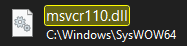
4. At the top right of File Explorer, search for msvcp110.dll and then press enter.
5. When the msvcp110.dll file shows up, copy it and then paste it onto your desktop.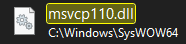
6. Open Steam, go to your game library, locate Metal Gear Solid V: The Phantom Pain, right click it and choose Properties.
7. With the properties open, click Local Files and then click Browse.
8. File Explorer will open and display the MGS_TPP folder. Select both msvcr110.dll and msvcp110.dll from your desktop and then place them in the MGS_TPP folder.
9. Close File Explorer.
10. Download Visual C++ Redistributable for Visual Studio 2012 by going to the link provided below. You will need to download the correct 32bit/64bit version for your computer.
https://www.microsoft.com/en-us/download/details.aspx?id=30679
11. After you have downloaded Visual C++ Redistributable for Visual Studio 2012, try playing Metal Gear Solid V: The Phantom Pain and it should work.
These are the steps I took that got the game running for me. If it worked for you, please let me know by leaving a comment on this guide and a star rating. If you have any questions, please feel free to leave a comment on the guide as well and I will help the best I can.
- The Water Pistol: A serious guide about a "joke" weapon★ 5 (919)78k views802 ♥6 minUpdated Nov 4, 2019
- Mods I use to make this game good★ 5 (506)47k views1.3k ♥1 minUpdated Oct 31, 2023
- Advanced Game Mechanics★ 5 (1.5k)45k views2.1k ♥12 minUpdated Oct 1, 2021
- Guide to S Ranking Missions★ 5 (1.3k)35k views2.7k ♥43 minUpdated May 10, 2016
- Recommended Mods for Custom Missions, Side Ops and Beyond★ 5 (866)32k views1.8k ♥10 minUpdated Sep 1, 2022
- Metal Gear: Хронология и запуск всех частей на ПК★ 5 (734)30k views1.9k ♥7 minRussianUpdated Mar 6, 2022




- Upgrading to PremiumTeam Fortress 2★ 5 (20k)1441k views11k ♥6 minUpdated May 11, 2022
- No More Room in Hell Official ManualNo More Room in Hell★ 5 (2.8k)569k views2.1k ♥29 minUpdated Apr 22, 2019
- NMRiH Community Hosting GuidesNo More Room in Hell★ 5 (526)351k views653 ♥1 minUpdated Aug 10, 2022
- ULTIMATE GUIDE FOR GAME DEV TYCOONGame Dev Tycoon★ 5 (5.8k)326k views10k ♥4 minUpdated 23 Jan, 2014
- How to 'Git Gud' Soon™MORDHAU★ 5 (2k)318k views3k ♥68 minUpdated Nov 16, 2024
- Лучшие кооперативные игры SteamPAYDAY 2★ 5 (1.5k)315k views2.1k ♥56 minRussianUpdated Apr 27, 2025






This guide was created by its original author on the Steam Community. Are you the author and want it removed? Request removal.