How to Fix the "Fatal Error" issue at Start Up Guide
The Steps
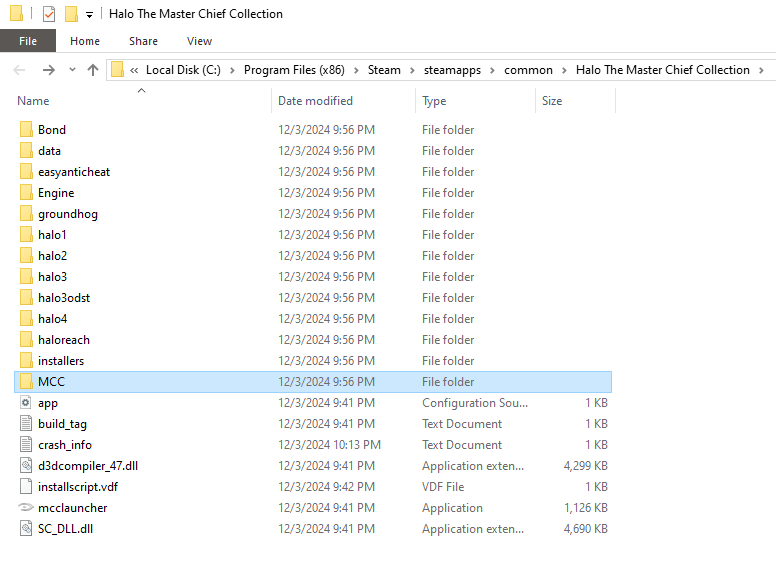
- Open your local files for Halo: The Master Chief Collection. Click on "MCC". The file directory is shown in this image.
- Click on "Content".
- Click on "Movies".
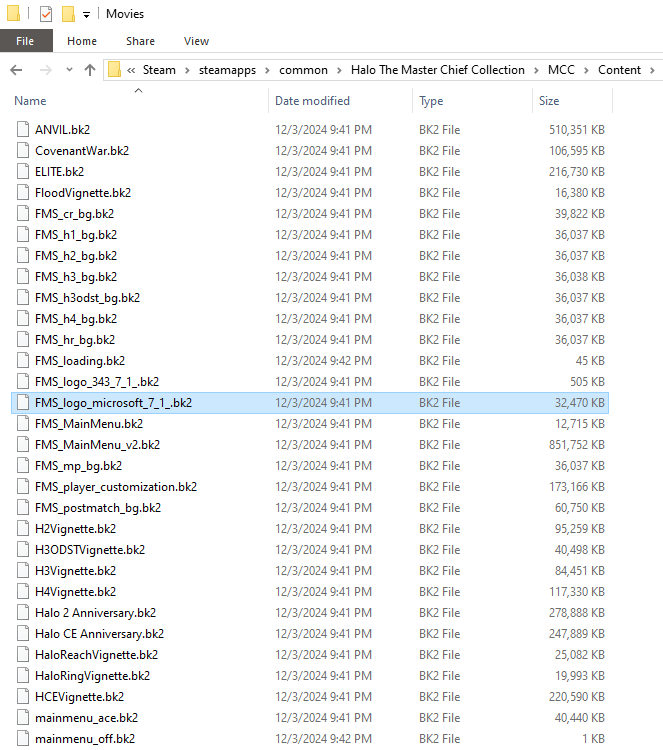
- Look for the file that has "FMS_logo_Microsoft_7_1_.bk2" and delete it. Shown highlighted here.
- Exit out and restart your computer
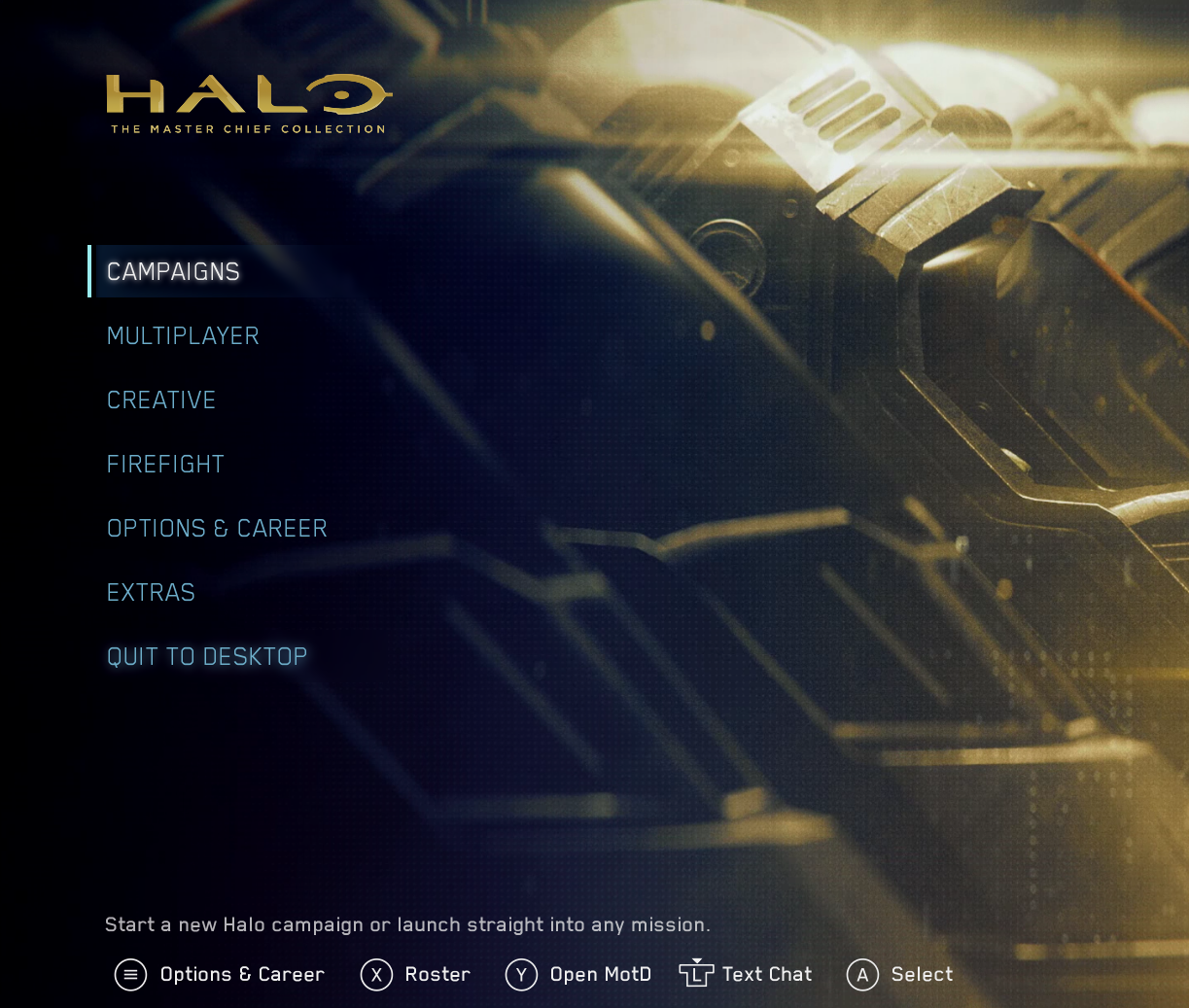
- Open the game like you normally would and the problem should be fixed! You should be able to see the menu screen and bypass the screen that shows the logo where the error appears.
Conclusion
Make sure to restart your computer after you delete your file! Otherwise the fatal error will still show up again. Also, you can also click on the alternative option to open the game with anti-cheat disabled, but you will miss out on store options to get cosmetics and sort.
Hope this helps!
Hope this helps!
More Halo: The Master Chief Collection guides
- Halo Reach: Collectibles★ 5 (1.2k)33k views2.3k ♥9 minUpdated Jul 4, 2021
- Halo: Reach - Full Achievement Guide★ 5 (823)28k views1.7k ♥12 minUpdated May 9, 2025
- MCC - Master Achievement Guide (Complete)★ 5 (479)19k views1.2k ♥5 minUpdated Aug 8, 2020
- Halo Combat Evolved: Collectibles★ 5 (1k)17k views2k ♥8 minUpdated Nov 20, 2020
- Halo: Combat Evolved - Full Achievement Guide★ 5 (504)16k views1.1k ♥7 minUpdated Jun 2, 2022
- Golden Moa Location Guide★ 5 (476)13k views878 ♥13 minUpdated 28 Nov, 2021




🔥 Popular guides
- Upgrading to PremiumTeam Fortress 2★ 5 (20k)1441k views11k ♥6 minUpdated May 11, 2022
- No More Room in Hell Official ManualNo More Room in Hell★ 5 (2.8k)569k views2.1k ♥29 minUpdated Apr 22, 2019
- NMRiH Community Hosting GuidesNo More Room in Hell★ 5 (526)351k views653 ♥1 minUpdated Aug 10, 2022
- ULTIMATE GUIDE FOR GAME DEV TYCOONGame Dev Tycoon★ 5 (5.8k)326k views10k ♥4 minUpdated 23 Jan, 2014
- How to 'Git Gud' Soon™MORDHAU★ 5 (2k)318k views3k ♥68 minUpdated Nov 16, 2024
- Лучшие кооперативные игры SteamPAYDAY 2★ 5 (1.5k)315k views2.1k ♥56 minRussianUpdated Apr 27, 2025






This guide was created by its original author on the Steam Community. Are you the author and want it removed? Request removal.