Recommended keyboard bindings
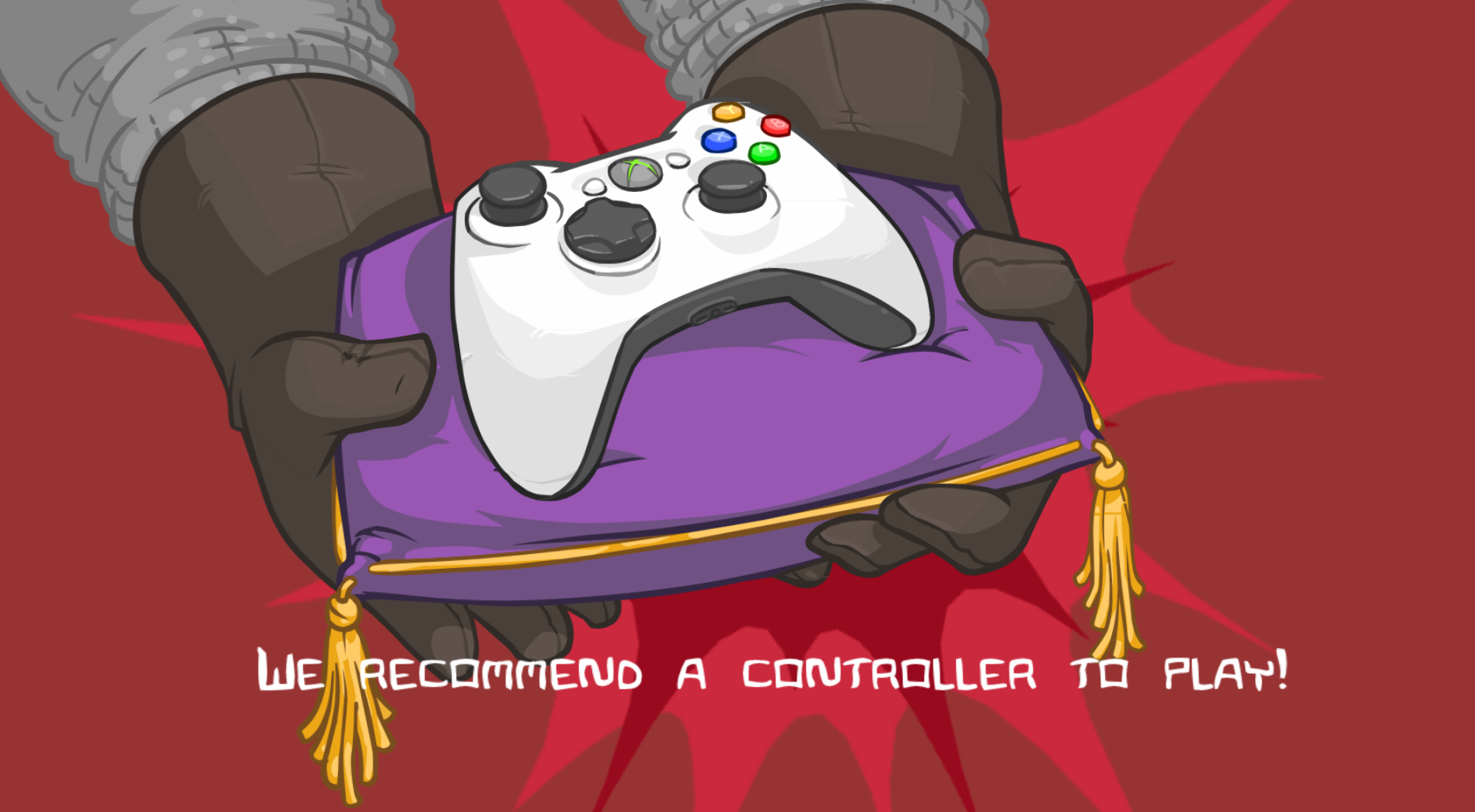
Recommend a controller
Before going further, Castle Crashers is an Xbox 360 console port and therefore it works loads better if you have a controller to use! The configuration that is assigned to the controller makes the game a lot more enjoyable as you can be a lot quicker with the buttons being very close together.
Keyboard settings menu
First of all, to find these settings you must head over to the keyboard settings menu, it can be found using the below steps:
- Main Menu
- Help & Options
- Settings
- Keyboard Settings
My recommendations
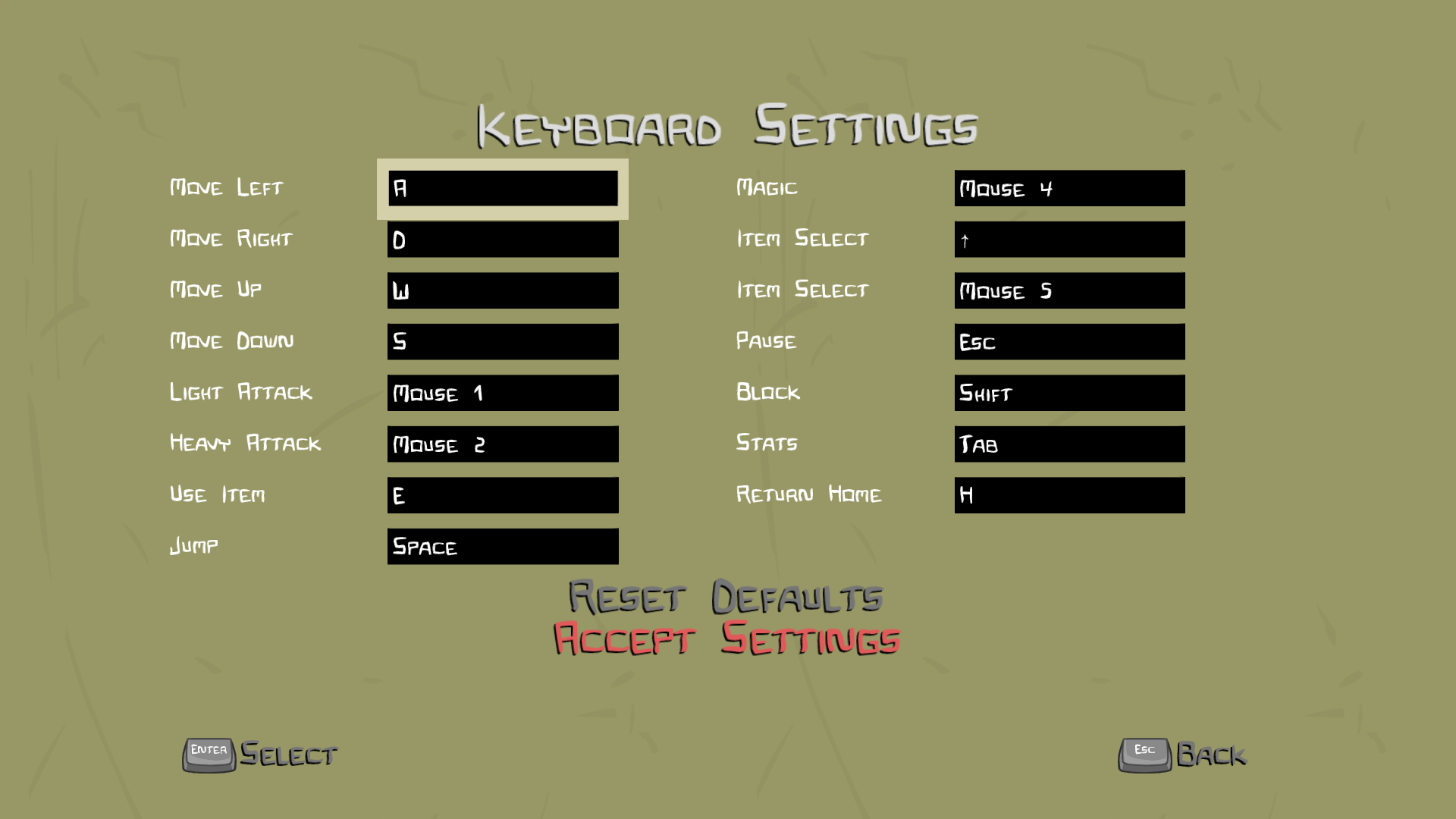
With the image below you can take a look at my configuration and recommendations. For my particular setup, I have buttons on the side of my mouse that allow me to put settings closer to where my fingers lay.
 Notes:
- The game doesn't automatically put attacks on the mouse but this is much better when you use the navigation features on W, A, S, D.
- If you're unsure, Mouse 4 and Mouse 5 refer to the bindings I've placed on the side of my mouse. Item Select is on the Up arrow key solely because there's no real reason to use it as you don't carry that many items in the inventory and just using Item Select on the Mouse key is enough to navigate through items. If you don't have any mouse keys, I'd recommend just putting Magic on the ALT key.
- For block I've put this on Shift as it sits fine with your pinky whilst you use other actions like Jump. I did try it out with ALT but I found it awkward at times during the game!
More Castle Crashers guides
- How to unlock all characters in Castle Crashers★ 5 (815)51k views1.5k ♥2 minUpdated Apr 18, 2021
- The Ultimate Guide To Castle Crashers★ 5 (1.2k)50k views2.3k ♥79 minUpdated Jul 6, 2024
- The Complete Animal Orbs Guide★ 5 (1.4k)39k views2.4k ♥7 minUpdated Sep 24, 2020
- Character Unlock Guide★ 5 (753)39k views1.3k ♥2 minUpdated Aug 8, 2025
- Castle Crashers - персонажи★ 5 (1.2k)37k views1.6k ♥4 minRussianUpdated Oct 1, 2018
- How to Unlock All Castle Crashers Characters★ 5 (861)34k views1.4k ♥1 minUpdated Aug 11, 2025


🔥 Popular guides
- Upgrading to PremiumTeam Fortress 2★ 5 (20k)1441k views11k ♥6 minUpdated May 11, 2022
- No More Room in Hell Official ManualNo More Room in Hell★ 5 (2.8k)569k views2.1k ♥29 minUpdated Apr 22, 2019
- NMRiH Community Hosting GuidesNo More Room in Hell★ 5 (526)351k views653 ♥1 minUpdated Aug 10, 2022
- ULTIMATE GUIDE FOR GAME DEV TYCOONGame Dev Tycoon★ 5 (5.8k)326k views10k ♥4 minUpdated 23 Jan, 2014
- How to 'Git Gud' Soon™MORDHAU★ 5 (2k)318k views3k ♥68 minUpdated Nov 16, 2024
- Лучшие кооперативные игры SteamPAYDAY 2★ 5 (1.5k)315k views2.1k ♥56 minRussianUpdated Apr 27, 2025






This guide was created by its original author on the Steam Community. Are you the author and want it removed? Request removal.