Direct Snapmap and Multiplayer Shortcuts in your Steam Library
Adding Doom twice more in your Steam Library
In left bottom corner of steam interface choose "Add a game..." and there "Add a Non-Steam Game..."
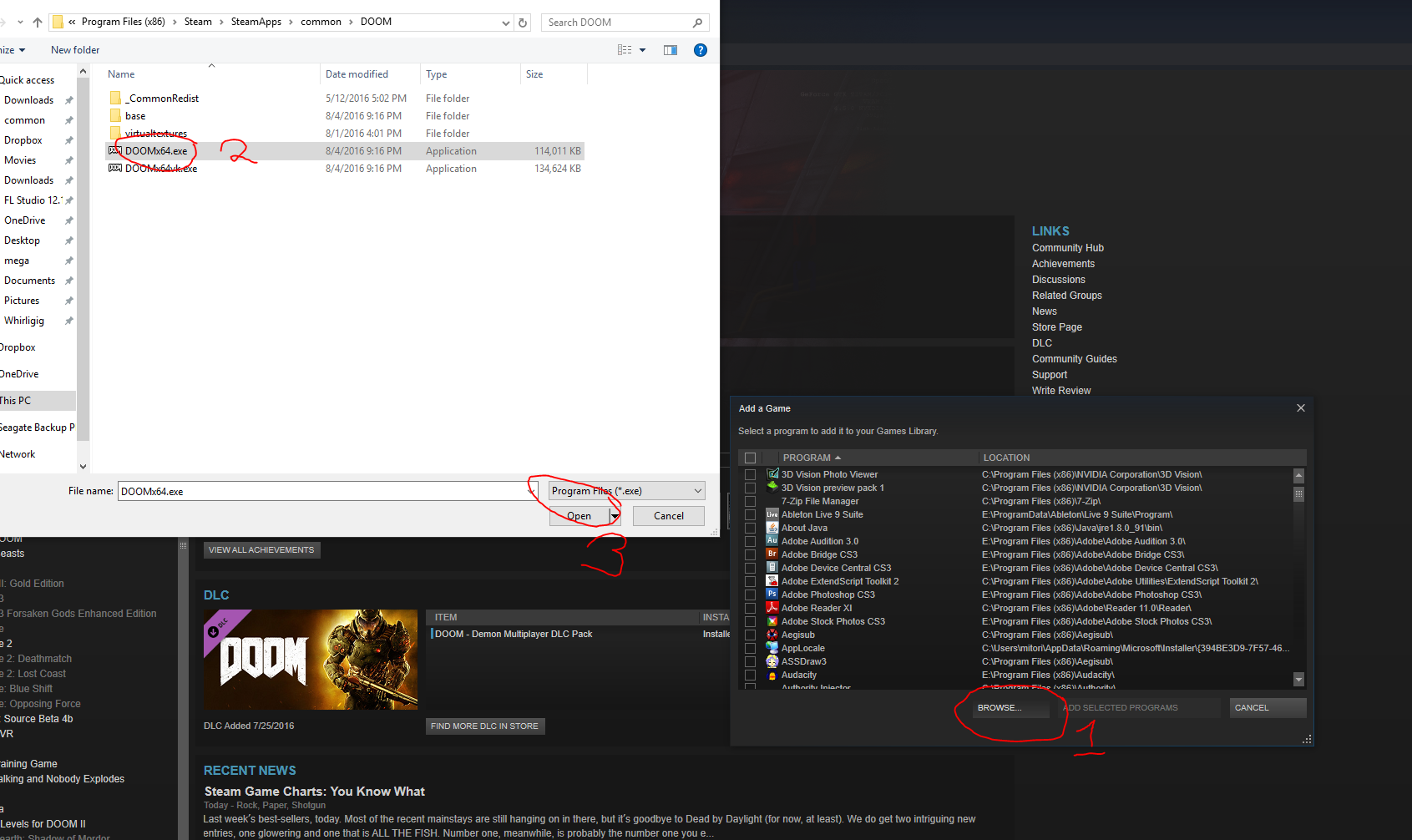
Navigate to where Doom is installed, usually it's C:\Program Files (x86)\Steam\SteamApps\common or C:\Program Files\Steam\SteamApps\common on 32-bit machines.
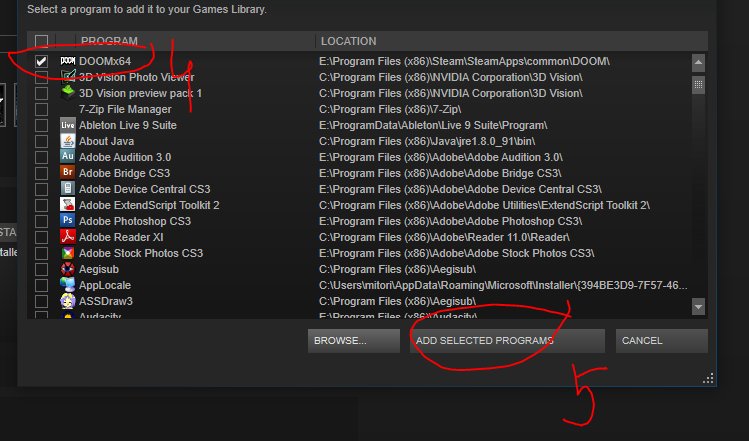
You should now see Doom in your library once again.
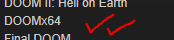
Repeat the process once more to get two copies of the shortcut.
Add launch options and rename the shortcuts
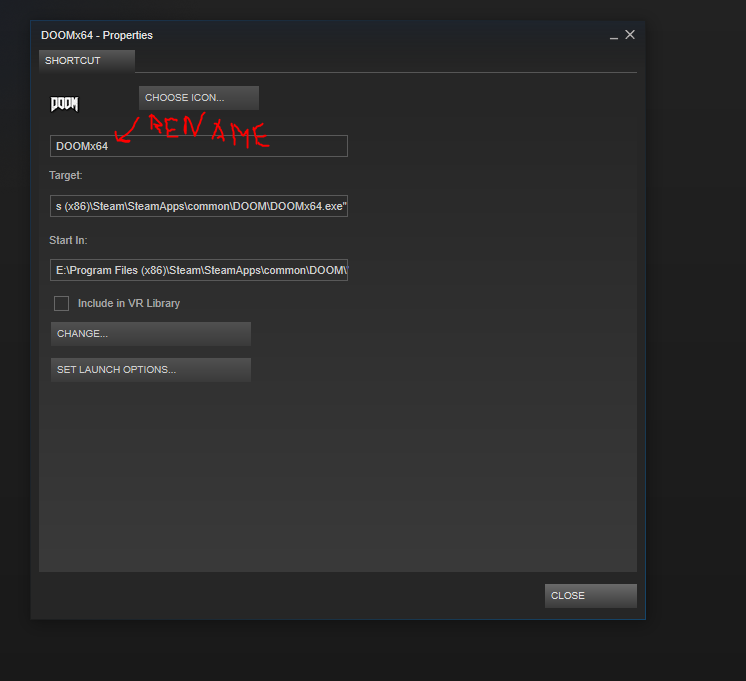
Change the name of the shortcut to whatever you want to recognise what it is. In my case I named it Doom Snapmap and Doom Multiplayer so that it would sort itself alphabetically closer to the original Doom Shortcut (which launches the Campaign).
Then add the launch option in the line "Target:"
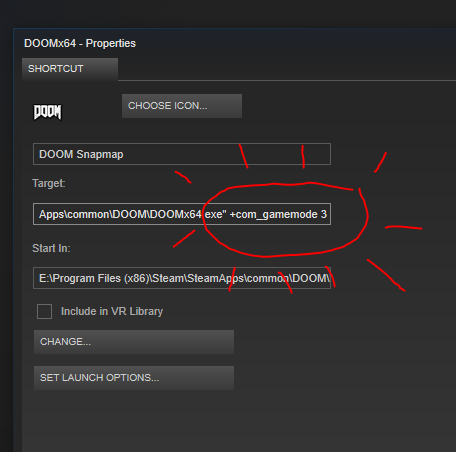
This one will launch the game directly into the chosen gamemode.
+com_gamemode 3 for Snapmap
+com_gamemode 2 for Multiplayer
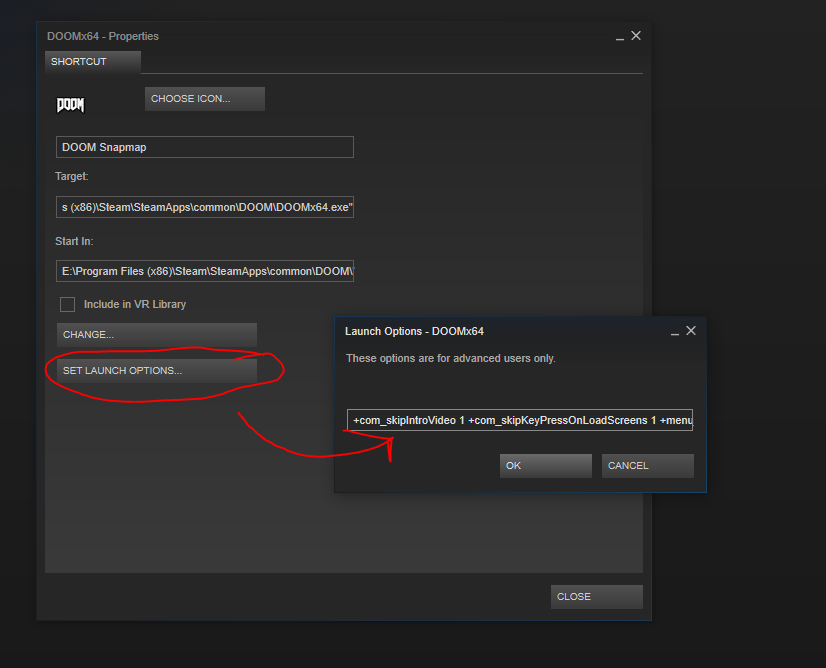
These are widely used:
+com_skipIntroVideo 1 +com_skipKeyPressOnLoadScreens 1 +menu_advanced_AllowAllSettings 1 +set m_smooth 0
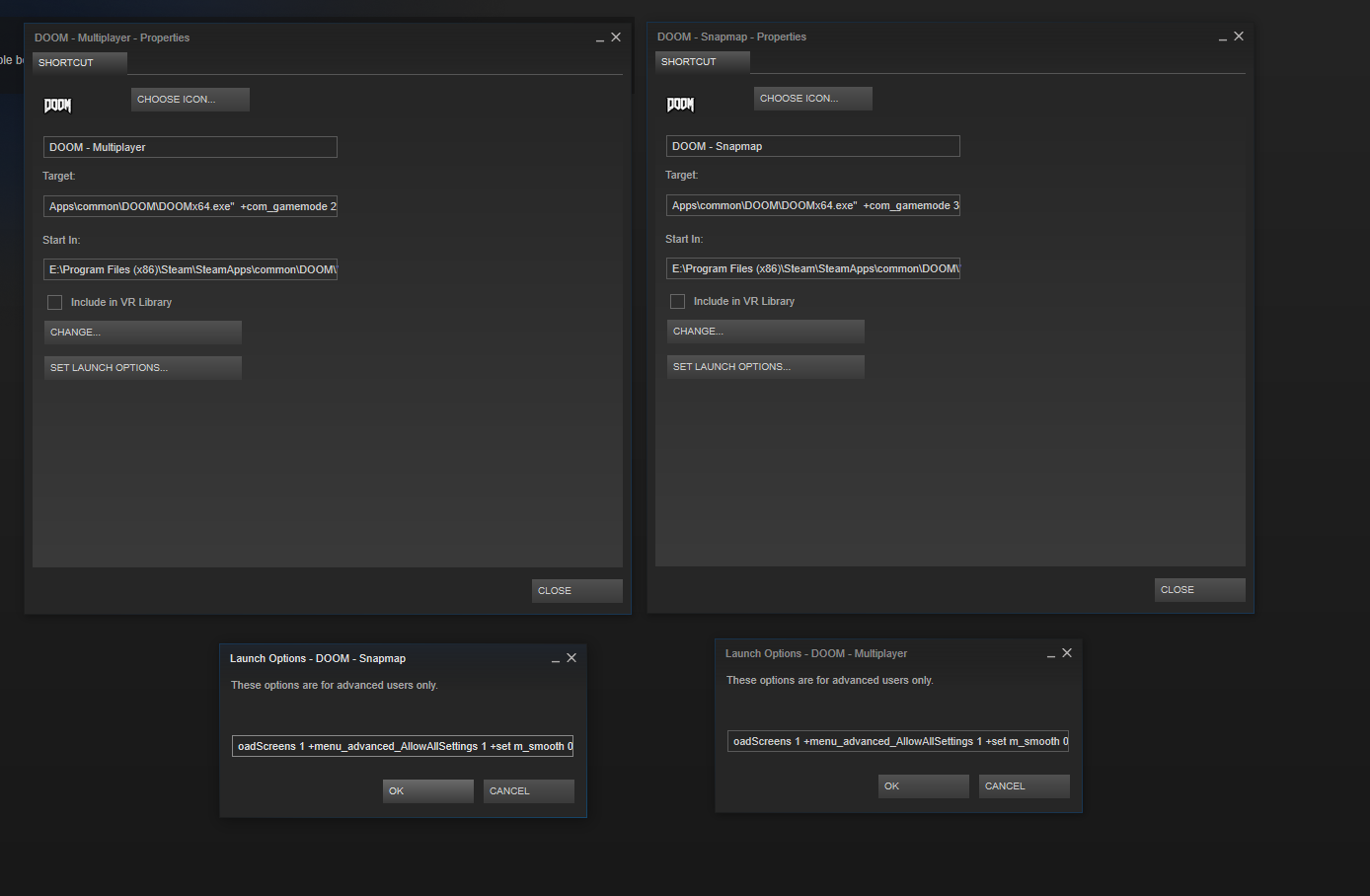
The Result
- DOOM Written Guide/Walkthrough for all secrets on each mission including Doomguy locations.★ 5 (4.8k)101k views9.3k ♥45 minUpdated 22 May, 2025
- DOOM 100% Achievement Guide★ 5 (1.5k)65k views2.8k ♥19 minUpdated 30 Nov, 2023
- Все секреты★ 5 (2.8k)54k views4.8k ♥14 minRussianUpdated 6 Jan, 2022
- DOOM Secrets & Collectibles★ 5 (1.2k)49k views2.1k ♥4 minUpdated 4 Dec, 2022
- Secret Doom Classic Level Locations + Easter Eggs★ 5 (1.5k)47k views2.1k ♥13 minUpdated 29 Jan, 2021
- Как уменьшит объем игры(лайфхак)?★ 5 (729)44k views343 ♥1 minRussianUpdated 25 May, 2017



- Upgrading to PremiumTeam Fortress 2★ 5 (20k)1441k views11k ♥6 minUpdated May 11, 2022
- No More Room in Hell Official ManualNo More Room in Hell★ 5 (2.8k)569k views2.1k ♥29 minUpdated Apr 22, 2019
- NMRiH Community Hosting GuidesNo More Room in Hell★ 5 (526)351k views653 ♥1 minUpdated Aug 10, 2022
- ULTIMATE GUIDE FOR GAME DEV TYCOONGame Dev Tycoon★ 5 (5.8k)326k views10k ♥4 minUpdated 23 Jan, 2014
- How to 'Git Gud' Soon™MORDHAU★ 5 (2k)318k views3k ♥68 minUpdated Nov 16, 2024
- Лучшие кооперативные игры SteamPAYDAY 2★ 5 (1.5k)315k views2.1k ♥56 minRussianUpdated Apr 27, 2025






This guide was created by its original author on the Steam Community. Are you the author and want it removed? Request removal.