Maps Not Showing Up In Map Selection?
Make sure...
That you have subscribed to the map via the green "Subscribe" button on the map's page. Once in game, make sure you click "Mods" on the menu screen. From there enable the map and then click "Next".
If you don't know, modded maps will appear under the "Additional Maps" category after clicking on the map type button in the game setup. If they don't appear, then go to the next step for some possible fixes.
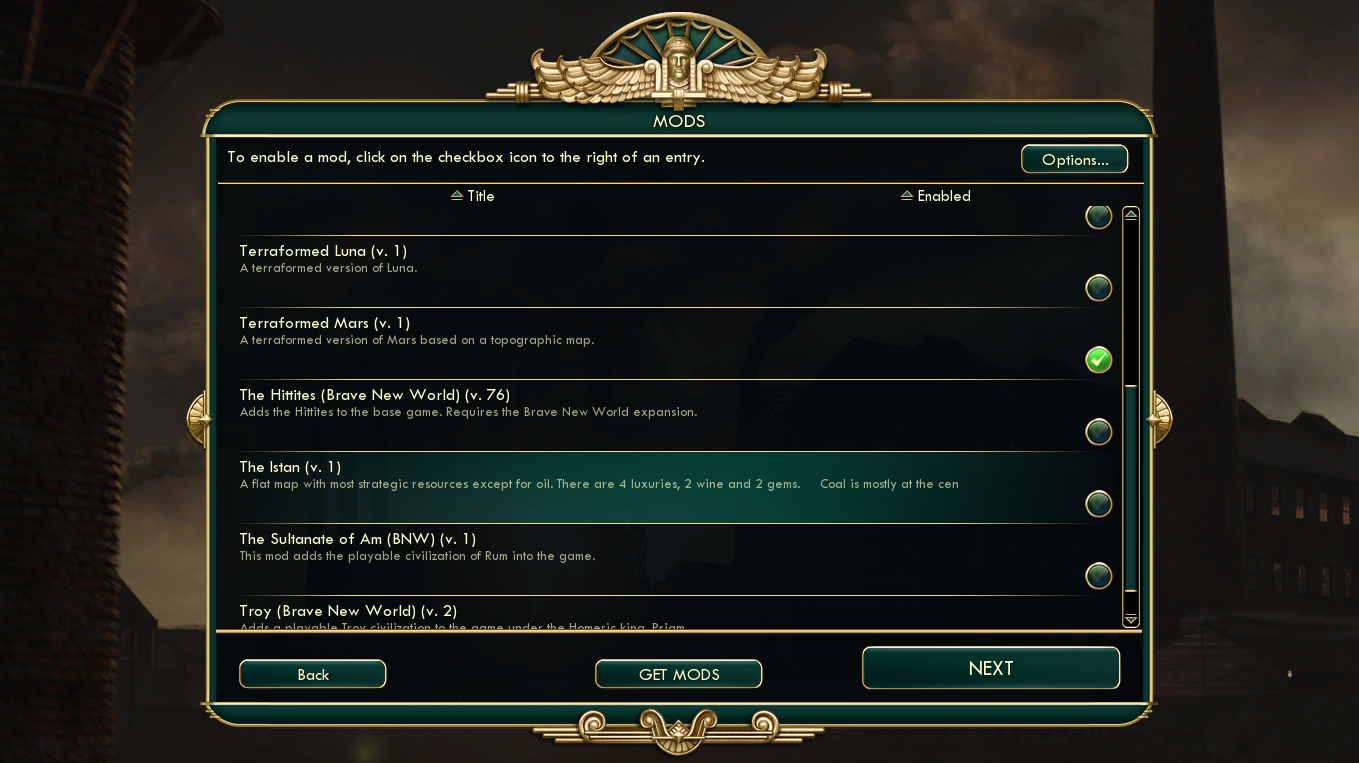
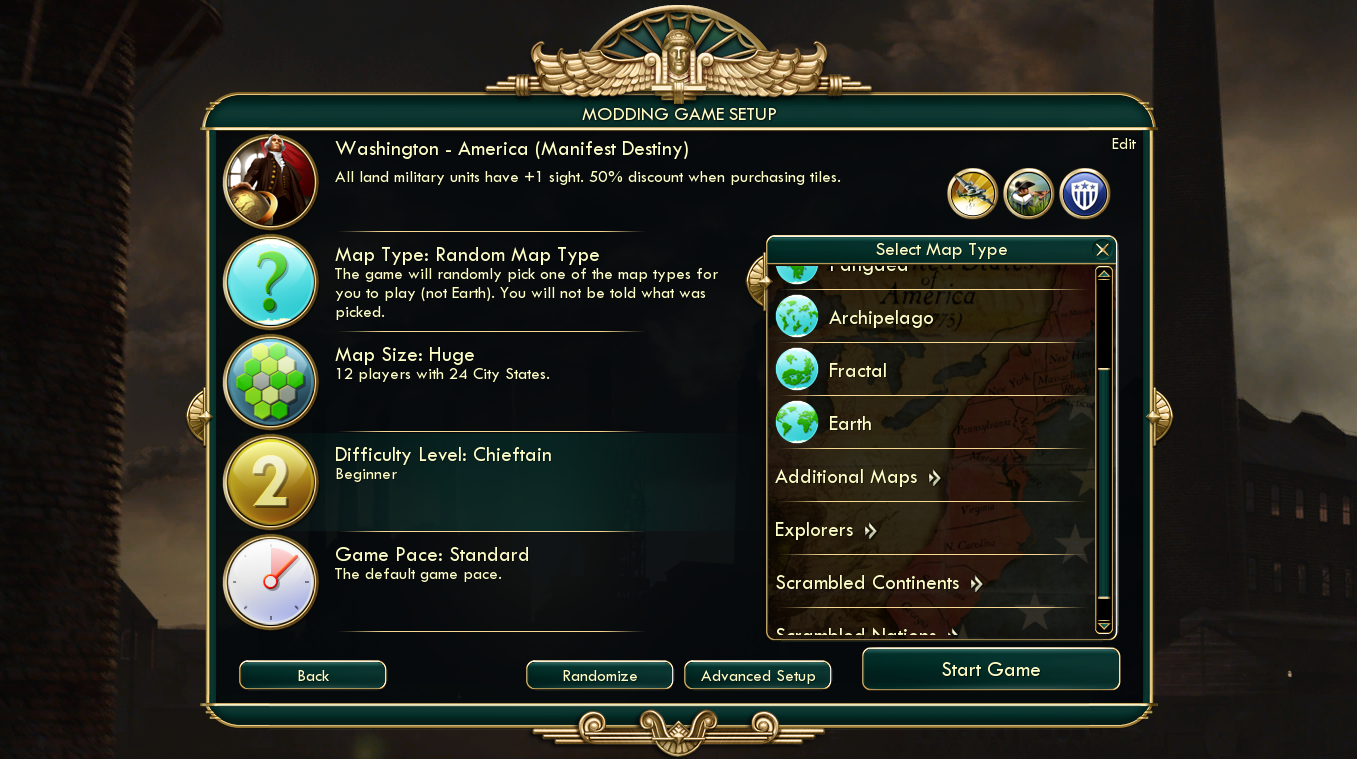
Option #2 is the simplest.
Maps Not Showing Up?
For this, I know of two options. If you have more (especially for other platfroms that are not Windows), please say so in the comments of this guide.
Find the folder for the mod in question and open it. You'll be greeted by two files. I am using my own mod (Terraformed Mars) as an example:
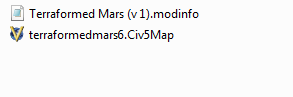
Open the "MOD.modinfo" file with any text editing software such as Notepad. You'll see something like this:
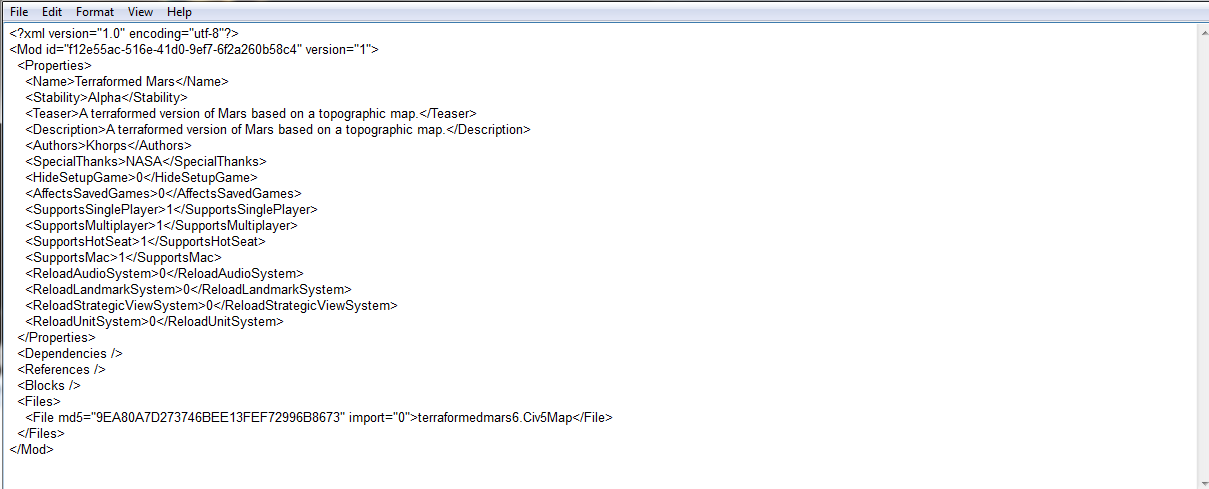
At the bottom, make a new line after the "</Files>" and insert this:
So it'll look something like this:
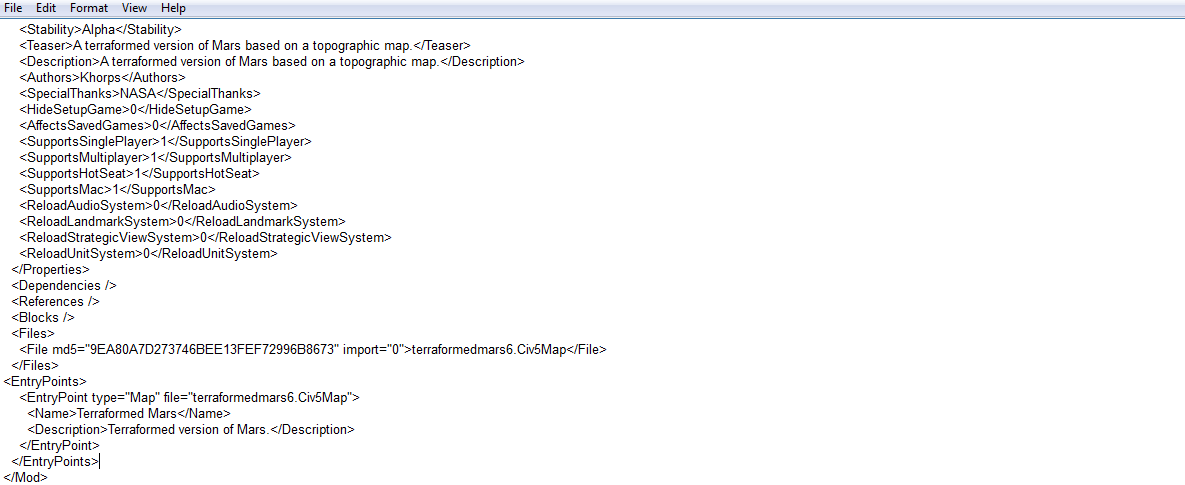
Now save the file and enable the mod in Civilization 5 and it should appear.
Find the folder for mod in question and open it. You'll be greeted by two files. I am using my own mod (Terraformed Mars) as an example:
Copy the .Civ5Map file and go back to your "Sid Meier's Civilization 5" folder. Then go to the "Maps" folder. In there, paste the .Civ5Map file. Now you don't even have to enable the mod for it to appear in the singleplayer game setup.
Tips For Mappers
To prevent maps not showing up in map selection, follow these steps when uploading the map to the workshop.
In Modbuddy, before building the mod solution, right click the mod in the solution explorer and click on "Properties".
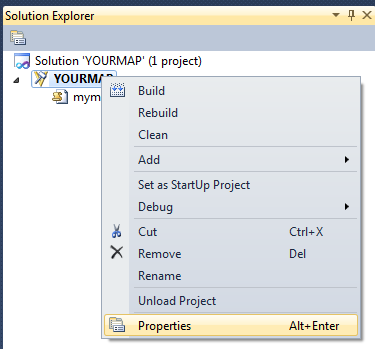
You should be presented with something like this:
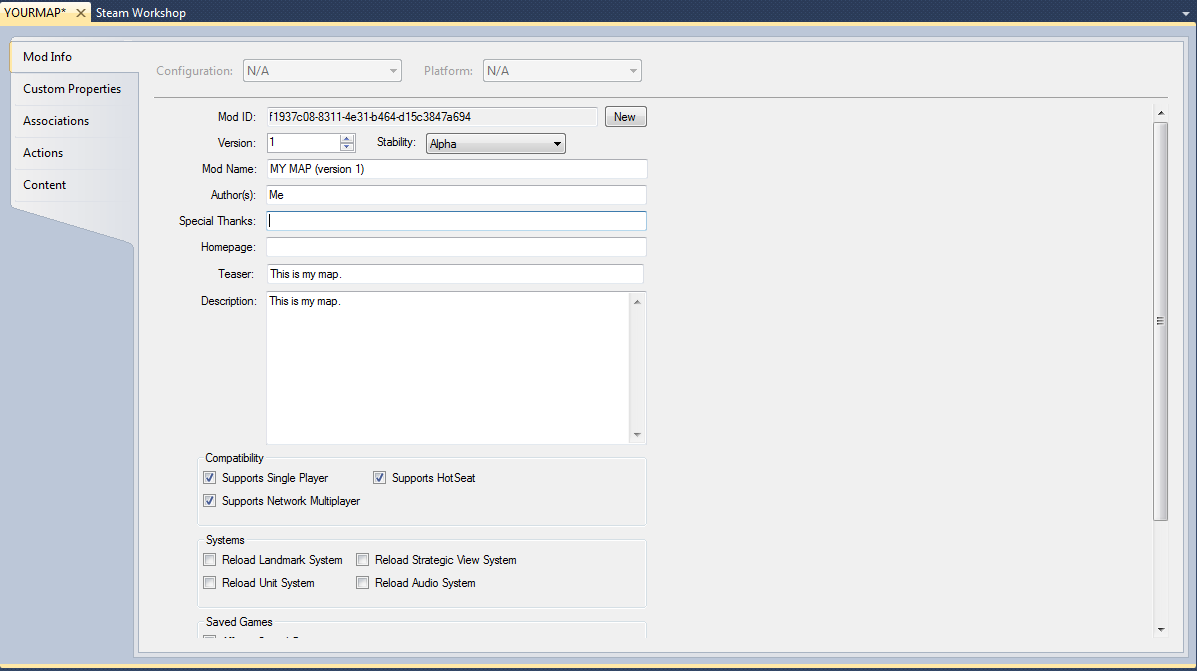
Near the top Left, click on the "Content" tab.
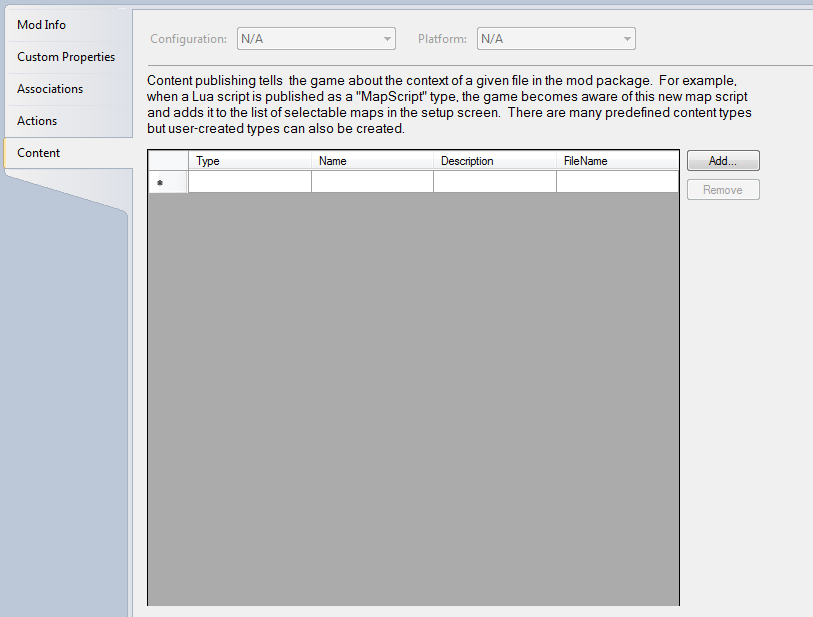
Now, click on "Add..." and a small window called "Add Content" will open with Type, Name, Description and File spaces. Fill them out.
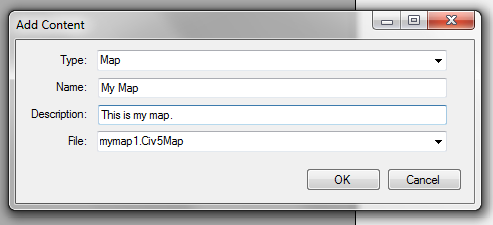
Click "OK" and now you can build the solution and upload the map.
- Real Populations★ 5 (1.2k)79k views1.2k ♥2 minBulgarianUpdated Aug 31, 2017
- Civ-specific tricks, secrets and clarifications (BNW)★ 5 (1k)53k views2.2k ♥96 minUpdated Jun 30, 2019
- Zigzagzigal's Civ Summaries (BNW)★ 5 (1.5k)49k views3.9k ♥134 minUpdated Jun 30, 2019
- Who to Trust and Who to Avoid in Civ V★ 5 (570)41k views802 ♥12 minUpdated Jul 8, 2016
- How to win the Korea Scenario as Korea on Deity in 16 turns★ 5 (532)41k views828 ♥15 minUpdated Apr 1, 2016
- Civilization V Achievement guide★ 5 (2.4k)39k views4.2k ♥134 minUpdated Jun 13, 2014




- Upgrading to PremiumTeam Fortress 2★ 5 (20k)1441k views11k ♥6 minUpdated May 11, 2022
- No More Room in Hell Official ManualNo More Room in Hell★ 5 (2.8k)569k views2.1k ♥29 minUpdated Apr 22, 2019
- NMRiH Community Hosting GuidesNo More Room in Hell★ 5 (526)351k views653 ♥1 minUpdated Aug 10, 2022
- Лучшие кооперативные игры SteamPAYDAY 2★ 5 (1.5k)315k views2.1k ♥56 minRussianUpdated Apr 27, 2025
- Desert Eagle Heat Treated | Blue GemCounter-Strike 2★ 5 (1.6k)292k views1.5k ♥2 minUpdated Jan 16
- Treasure Hunt Puzzle SolutionsTotal War: WARHAMMER II★ 5 (6.9k)281k views15k ♥3 minUpdated Aug 19, 2021






This guide was created by its original author on the Steam Community. Are you the author and want it removed? Request removal.