Quake Owner's Manual
Read Me First
Hey folks. I'm putting this generic update on all my Quake guides here on Steam, just as an FYI:
I haven't maintained these guides in a while. Family stuff, etc., you know how it goes. Not a lot of game time, and what I do have goes into things other than guide-writing these days.
Since Quake is a classic game, a lot of the stuff in these guides doesn't need to change. Modern "Quake engines" like Quakespasm, Mark V, FTE, and ezQuake are still being developed though, and so the features and behaviors of the newest versions of these engines may be somewhat different than what these guides describe now.
I had some guides errata posted on the forum a while back, which might be interesting, although that's getting stale now too.
A more up-to-date thing that might be useful/helpful for some of you is the Quake Singleplayer Starter Pack[neogeographica.com]. That's a more focussed set of tools/docs that doesn't try to cover Every Quake Thing; it's just about getting a good modern singleplayer setup going as fast as possible. So I can more easily poke at it occasionally to keep it up-to-date.
In any case, thanks for the comments and other feedback over the years. Sorry I'm not engaging with it these days, but that's life. Maybe someday I'll have the time and motivation to rewrite this stuff, but in the meantime there's plenty of other good resources out there. Happy Quaking!
What to Read
Forum questions about Quake configuration have covered a lot of different ground in the past, so there's a lot of different topics to cover.
If you're not familiar with the available varieties of Quake engines -- or even what "Quake engines" means -- then you might want to take a look at this other guide first: http://steamcommunity.com/sharedfiles/filedetails/?id=118401000
When you see a reference to ezQuake, FTE, Fodquake, DarkPlaces, QuakeSpasm, Fitzquake Mark V, DirectQ, Engoo, qbism Super8, ProQuake, or Qrack... all those odd words are names of other programs that can be used to play Quake. Read the Quake Engines guide if you want to learn more about them.
As for this guide, we lead off with a necessary warning about Windows issues and then go straight to a quickstart... an efficient way to start Quaking. If you're new to Quake then you should probably just follow the quickstart, and come back to the rest of the guide later as a reference if you have problems.
The next few sections get into general descriptions of how the Quake menus, config file, console, and command line work. If you're familiar with those ideas then you could skim or skip those sections.
The middle sections, from "Mouselook" through "Limits", describe how to deal with some of the more fundamental bits of Quake configuration that aren't always easily handled through the menus.
The sections near the end contain cut-and-paste-able examples of command lines and config files for each Quake engine. But keep in mind that these examples are tuned specifically for my own tastes. You may want to do something different!
Finally the "More Info" section is a link dump in case you're not tired of reading about Quake.
Special Folders in Windows
In versions of Windows after Windows XP, some folders like "Program Files" and "Program Files (x86)" are treated specially. The contents of these folders have some protection against files being written inside them (or inside their subfolders).
Some older programs won't work if installed under these special folders. Some other programs work but have changed behavior.
Personally I don't install games under these folders, especially not old games. My Steam installation is under "C:\Games", for example.
So the rest of the information in this guide was observed and tested with Quake installations outside of those special folders. If you have your Quake installation under a special folder, it might be perfectly fine. But I can't guarantee that it will behave the same way as mine.
Quick Start
If you want to jump right in and start Quaking with minimum effort, this section is for you.
First you should get a modern Quake engine. The basic idea is that you will download a new Quake executable. There may be some other files or folders along with it, but at a minimum you're getting a program that you will run to play Quake.
When you run this program, it will look for an "id1" folder in some location. Usually, at least on Windows systems, it will expect the "id1" folder to be placed right next to the Quake engine program. (But consult the docs for your Quake engine if you want to be sure.) So create the "id1" folder if it doesn't yet exist.
Quake requires two files inside the "id1" folder: "pak0.pak" and "pak1.pak". You can get those two pak files from your Steam copy of Quake, or any other Quake installation. Once you have moved or copied those files into your "id1" folder you can start playing.
Below are my recommendations for popular, full-featured, menu-driven modern Quake engines that require a minimum of unintuitive tomfoolery to configure. There are other fine choices though! I don't want to start a holy war, just to give folks a quick way to get started. Please read the Quake Engines guide if you want the complete picture.
The Quake Engines guide also describes how you can launch a modern Quake engine through the Steam UI (and why you might want to).For QuakeWorld, the ezQuake[ezquake.sourceforge.net] engine is a good choice.
(Note that the non-Windows versions of ezQuake are not as well maintained as the Windows version. If you intend to play QuakeWorld on OS X or Linux, then you will probably need to check the Quake Engines guide to find some other engine that fits your needs.)
If you want to get ezQuake along with a collection of new textures, HUDs, etc. then you can use the nQuake[www.nquake.com] package. See the ezQuake section of the Quake Engines guide for more details.
When you're using ezQuake you can set up just about everything through the menus. It's probably worth taking a look at the "Display" sections later in this guide if you want to get everything just right though.
On the other hand if you are checking out NetQuake multiplayer instead of QuakeWorld, then give ProQuake[quakeone.com] a go. If you're playing on Windows, you may want to use the ProQuake installer for Steam Quake owners[quakeone.com].You can treat the rest of this guide as a reference for when you want to learn more. It will be especially useful for some of the other Quake engines, and double-especially if you are trying to get the original Quake engines to behave.
GLQuake Version Issues
The version of GLQuake distributed with Steam (0.95) is not the latest version for some reason, and it is a bit crashy. It also does not understand some of the options described in the "Display" section of this guide.
You can get a more recent version of GLQuake (0.97) from the official id software FTP site and elsewhere. This version is better, but still doesn't support FOV changes.- Windows: ftp:/ftp.idsoftware.com/idstuff/unsup/glq1114.exe
- Linux: ftp:/ftp.idsoftware.com/idstuff/unsup/unix/glquake-0.97-i386-unknown-linux2.0.tar.gz
Version 0.98 of GLQuake adds FOV support. It was never officially released, but the Windows version has been available around the web and used by Quake players since way back in the 20th century. So if you want an OpenGL renderer and don't want to use a modern Quake engine -- and you are using Windows -- then GLQuake 0.98 is the version I'd recommend. One link that is still working: http://www.quaketerminus.com/nqexes/glquake098alpha.zip
When you're installing any downloaded version of id's original GLQuake engine, do not enable any installer option that mentions a "3Dfx GL miniport". Similarly, discard any library file (like "opengl32.dll") that comes with the download. Those things are only useful if you're rocking a 3Dfx Voodoo graphics card from 1996. These days, all you need is the GLQuake executable. (I'm only speaking from experience with the Windows version; not sure about the Linux version.)
But you really should just use a modern Quake engine instead and avoid these worries altogether!
In-Game Menu
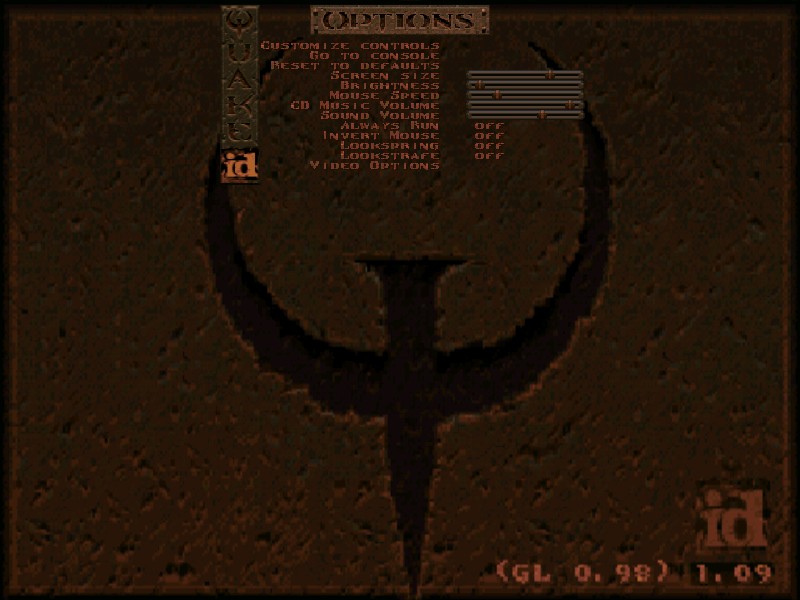
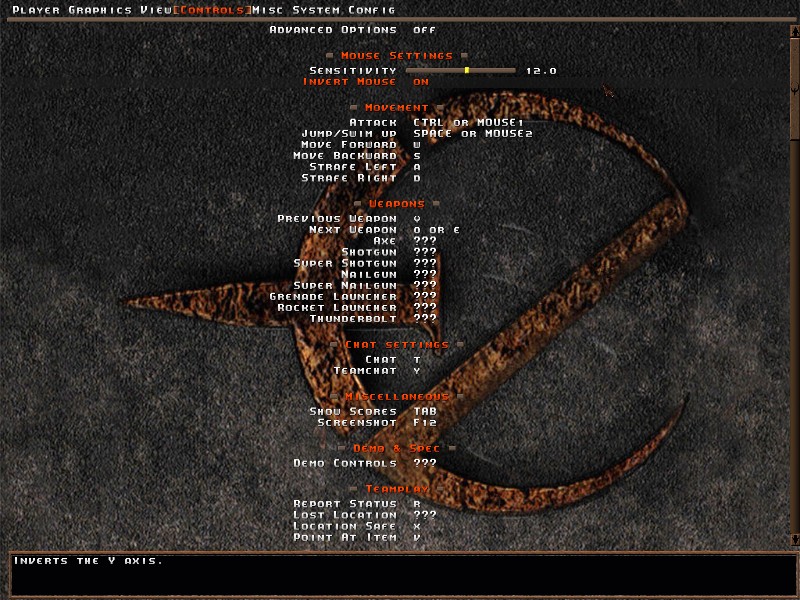
At a minimum you want to enable the "Always Run" option, and you may also want to "Invert Mouse" if you swing that way. Set up your movement keys, etc.
Unlike other Quake engines, the Qrack engine doesn't have any keys bound by default, if you start it up in a "clean" install. When you first run Qrack it will try to import any existing Quake settings, including key bindings. If it can't do this import then you'll have more work than usual to do in the menus.
(Specifically, it attempts to import settings from the "config.cfg" file in the "id1" folder; see the section below about "The Config File".)
Modern Quake engines can have a ton of menu options. It can be a little intimidating, since some of the mega-menus are obviously aimed at people who are already familiar with Quake, but it's worth looking through everything.
In ezQuake you can also enable an option to "Auto Save on Quit" which makes it unnecessary to explicitly save your settings. At first it might seem like a no-brainer to turn this on. But it can be nice to be able to freely experiment with settings, while knowing that if you totally screw things up you can just quit the game and everything will revert. If you're using the nQuake package[www.nquake.com], this setting might or might not be enabled (depending on which version of nQuake you installed), so you should check to see whether it is set the way you want.
You'll almost certainly want to adjust settings beyond those provided in the in-game menus, so that's what the rest of the guide will be about. Before we get to talking about those specific settings, we'll first cover how you can really get under the hood to reach them.
The Config File
- If you run Quake (WinQuake) or GLQuake, configuration will be stored in a file named "config.cfg" in the "id1" folder of your Quake installation. (This is the only config file that will be saved in the Steam Cloud when launching through Steam.)
- If you run QuakeWorld or GLQuakeWorld, configuration will be stored in a file named "config.cfg" in the "qw" folder of your Quake installation.
- Engoo: "id1\config.cfg" (for original Quake settings) and also "id1\config.rc" (for Engoo-specific settings)
- Qrack: "qrack\config.cfg"
- qbism Super8: "super8\super8.cfg"
- ezQuake: "ezQuake\configs\config.cfg"
- FTE: "fte.cfg" somewhere under your user directory; on Windows for example this config file is stored in "My Games\FTE QuakeWorld\fte" under your personal documents folder
- Fodquake: "default.cfg" somewhere under your user directory; on Windows for example this config file is stored in "Fodquake\fodquake\configs" under your personal documents folder
A mod or missionpack consists of additional files that are placed in their own subfolder, parallel to "id1" and "qw". When you want to play the mod/missionpack in singleplayer, you use a command-line option to select that folder, according to the instructions in the mod's readme file. (Command-line options are covered in another section below.) negke's guide to custom maps/mods discusses that: http://steamcommunity.com/sharedfiles/filedetails/?id=166554615
We'll ignore QuakeWorld, GLQuakeWorld, and Fodquake for this section; those engines don't support singleplayer.
For ezQuake and FTE, playing a mod doesn't affect the location of the config file -- probably because even though these engines have some singleplayer support, they are primarily aimed at QuakeWorld multiplayer.
For all other Quake engines, when you play a mod your configuration will be stored in that folder. If no config file exists there, then it will first be copied over from its original location. So when you first start up a mod, you should see your familiar configuration.
While running a mod, you may want to make changes specific to that mod, such as binding a key to a new weapon. Any changes you make to your configuration while using a particular mod will only affect the config file in that folder.
The Console
The console also allows you to execute some commands. A command isn't necessarily setting a value that you can read back, but it does something to change the state of the game. One of the simpler commands, for example, is "quit" to exit the game.
(Note that lots of documents will just use the term "console commands" to refer to both the variables and the commands.)
How you access the console depends on the current state of the game. Some modern Quake engines will dump you directly into the console when they start up, and you have to press ESC to get the main menu. Or vice-versa. Most of the time however you will be seeing the "attract reel" demo on startup, or playing a game, or maybe watching a game recording. In these situations you have to press the "console key" to open the console. (And press the same key to close it again.)
The console key is on the upper left of your keyboard. On US keyboards this is the key that has the backtick "`" and tilde "~" characters on it. On some international keyboards it may be the caret "^" key. In any case it should be that key in the upper left, below the ESC key and left of the number keys.
Instead, if you want to get to the console when you are in-game with the Qrack engine, you will need to press ESC to get the main menu, choose "Options", then choose "Go To Console". Once you're done, press ESC to close the console.
The image below shows an open console while the "attract reel" is running in GLQuake. The prompt and cursor at the bottom of the box is where you can type in settings and commands; the rest of the box shows a history of messages from the engine, and of what you have typed (in this image, nothing yet).
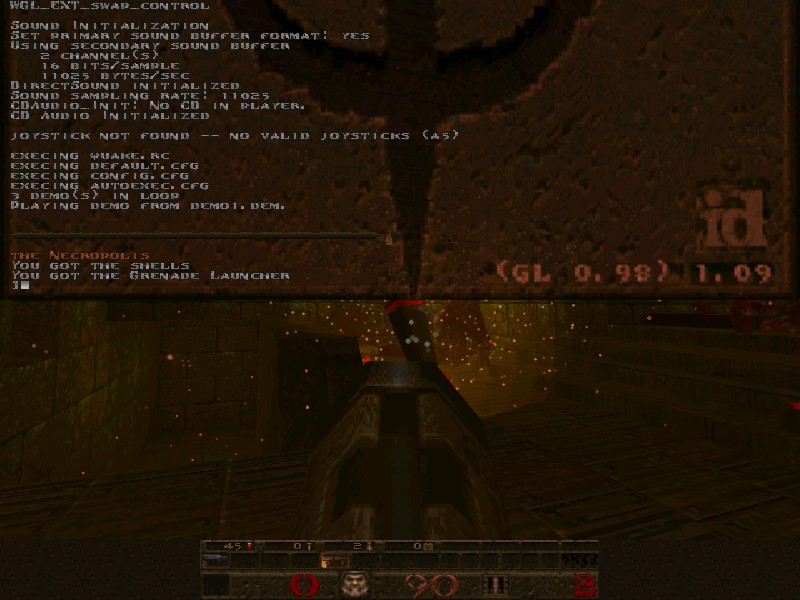
The available console variables and commands differ between Quake engines, but many of the most important ones are the same. For modern engines, the final authority is the documentation that you downloaded with the engine or that is online at the engine's website. For the original Quake engines you can dig up the necessary info by searching the web for Quake console information (and almost all of that will still apply to modern engines).
As an example of some of that original documentation, see the "Console Commands" section of the Quake Info Pool[www.inside3d.com], or the "Console Commands List" section of this archived info from PlanetQuake[www.quakewiki.net].Most of the settings covered in this guide are described in terms of console variables. Some of the modern Quake engines -- the ones with really extensive menus -- will have menu options that handle some of these settings too. To keep things as straightforward as possible, for now I'm just going to cover the console variables. (I might add notes about the menu options in various engines later, if I can think of a way to do that without making this guide longer and messier.)
The bottom line is that if you come across a menu option that has the same effect as one of these console variables, feel free to use it.
Saving Console Changes
In this guide I'll try to be clear about which will be saved and which won't; but if you're ever unsure then it's easy enough just to check -- restart Quake and use the console to check the value of that variable. Or quit Quake and use a text editor to search for the name of that variable in your config file.
As a rule of thumb, modern QuakeWorld engines (ezQuake, Fodquake, FTE) should save every setting in the config file. (They may not save automatically though! See the info box in the "In-Game Menu" section for details.)
With other Quake engines, some of your preferred settings may not get saved to your config file.Most Quake engines also have a handy feature that will save you the trouble of using the "exec" command. If there is a file named "autoexec.cfg", Quake will automatically execute that file on startup. So the usual way to deal with settings not saved in the config file is to put them into an autoexec.cfg file.
Once settings are in autoexec.cfg you can stop worrying about them; they will be automatically applied when Quake starts. If you ever want to change any of those settings, edit the autoexec.cfg file.
+exec autoexec.cfg
See the section on "The Command Line" below if you're not familiar with using command-line options.
So to sum up what we've got so far: modern QuakeWorld engines generally stash every setting in the config file. Other engines don't, but you can get around that using autoexec.cfg. That's sort of straightforward, but there's one major "gotcha" with autoexec.cfg: precedence.
If you have an autoexec.cfg file that is mysteriously not being used, probably the reason is that Quake found some other autoexec.cfg file to use instead.
If you have a simple Quake setup this is not going to be an issue, but if you start playing around with mods or juggling multiple configurations then it can bite you.
The rules are:
- Quake will look in "id1" first, then look in the "qw" folder if it is a QuakeWorld engine, then finally look in the folder indicated by the "-game" command-line option (if any).
- Within a given folder, Quake will look at loose/unpackaged files and then look inside ".pak" files (and ".pk3" files if the engine supports that).
- ".pak" or ".pk3" files are examined in alphabetical order.
As an example of how this can surprise you: if you use the nQuake package[www.nquake.com], you may not realize that it sets up a configuration using an autoexec.cfg file inside "nquake.pk3" in the "qw" folder. When you run a QuakeWorld engine while the nQuake content is present, any loose autoexec.cfg file in "id1" or "qw" is going to be ignored in favor of the autoexec.cfg that is inside "nquake.pk3".
While it might seem like you should disable this to tidy up your config file, it's probably best to have it enabled. Confusing stuff can happen otherwise.
For example, nQuake includes an extensive configuration that is loaded when you start up ezQuake (by virtue of the nQuake autoexec.cfg described above). If you want to change any of these options back to their default values in your own config, then you must have "Save Unchanged Options" enabled. Yeah it's a little counterintuitive.
The Command Line
It's possible to put more things after the program name in order to control its behavior; these things are called command-line options. Several kinds of behavior can only be forced using command-line options, rather than with console variables or config files. This is especially true for the original Quake engines.
If for example you want to make sure that Quake doesn't try to play music from the current CD in the drive, you can disable CD audio with a command-line option:Of course usually you don't start Quake from a command shell. Instead you usually launch it by clicking an icon or button. In these cases it might not be obvious how to send command-line options to the engine, but it's still possible as described in the sections below.
The available command-line options differ between Quake engines, but many of the most important ones are the same. For modern engines, the final authority is the documentation that you downloaded with the engine or that is online at the engine's website. For the original Quake engines you can dig up the necessary info by searching the web for Quake command line information (and much of that will still apply to modern engines).
As an example of some of that original documentation, see the "Startup Commands" section of the Quake Info Pool[www.inside3d.com], or the "Command Line Parameters" section of this archived info from PlanetQuake[www.quakewiki.net].
You can also use command-line options to execute console commands and set console variables, by preceding the console command or variable name with the "+" symbol. This isn't terribly useful for most settings -- usually you should instead just set them permanently in the config file or autoexec.cfg -- but some console commands can be useful on the command line. For example you could launch GLQuake directly into dm4 to practice your lava-diving with the command line- In the Steam client, go to your Library and find Quake in the list of installed games.
- Get the context menu for that Quake item (in Windows: right-click on it) and select Properties at the bottom of that menu. This opens the Properties dialog.
- The Properties dialog should appear with the General tab showing. Near the bottom of the General tab is a button labelled "Set launch options".
- Click the "Set launch options" button. This opens a Launch Options dialog with a text box.
- Type any command-line options you want into this text box, and click OK.
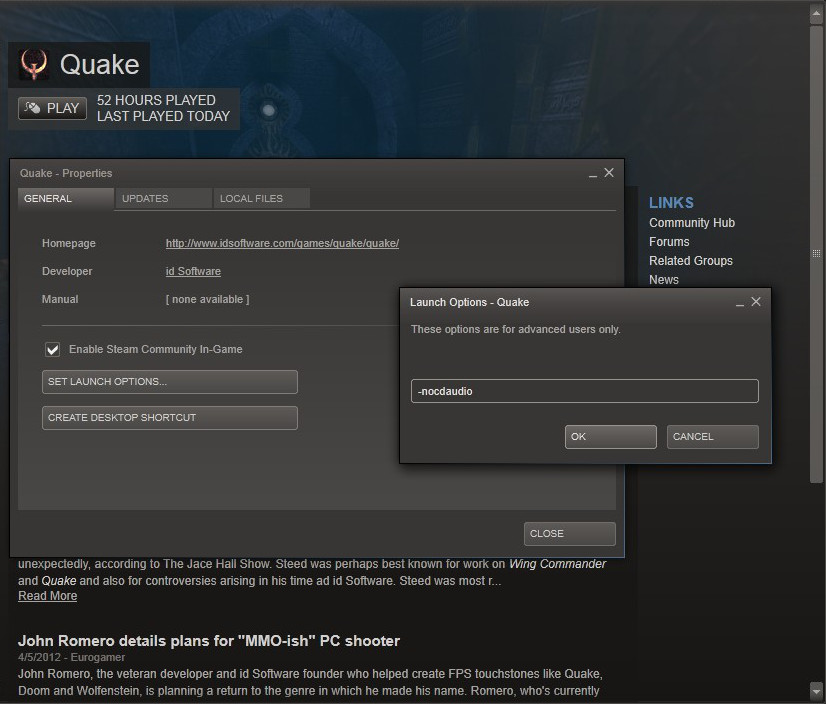 If you have not replaced the Quake programs that were downloaded by Steam, this is the only way to specify command-line options. If you try to start up of one those Quake programs from a shell or shortcut or whatever means outside of Steam, it will still launch through Steam, and Quake will use the options (or lack of options) defined here in Steam's "launch options" dialog.
- Find the executable for the Quake engine you want to launch.
- Right-click on it and drag to some open space (where you will be creating the shortcut).
- Release the right-click and a menu will pop up; choose "Create shortcuts here".
- Now you have a shortcut. Rename it if you like.
- Right-click on the shortcut and choose "Properties".
- The Properties dialog should appear with the Shortcut tab visible.
- In the Shortcut tab there is a textbox labelled "Target".
- Click inside the Target box and use arrow keys to move the cursor to the very end.
- At this spot you can add a space and then type any command-line options you want to use.
Now whenever you open/execute this shortcut, just as if it were a program, you will launch Quake with your desired set of command-line options.
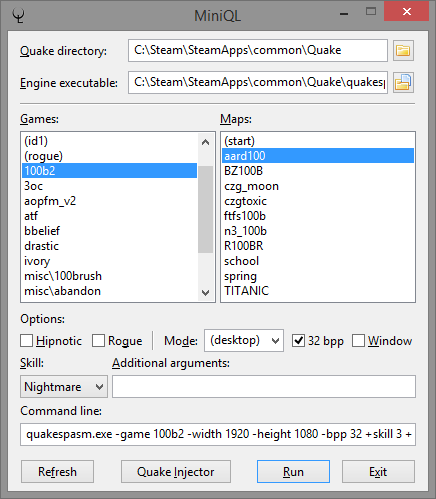 Another nice Quake launcher is Quake Injector[www.quaddicted.com], which works on Windows, OS X, and Linux. Quake Injector is dedicated to running singleplayer maps, and it can automatically download/install/launch SP maps from the vast Quaddicted map archive: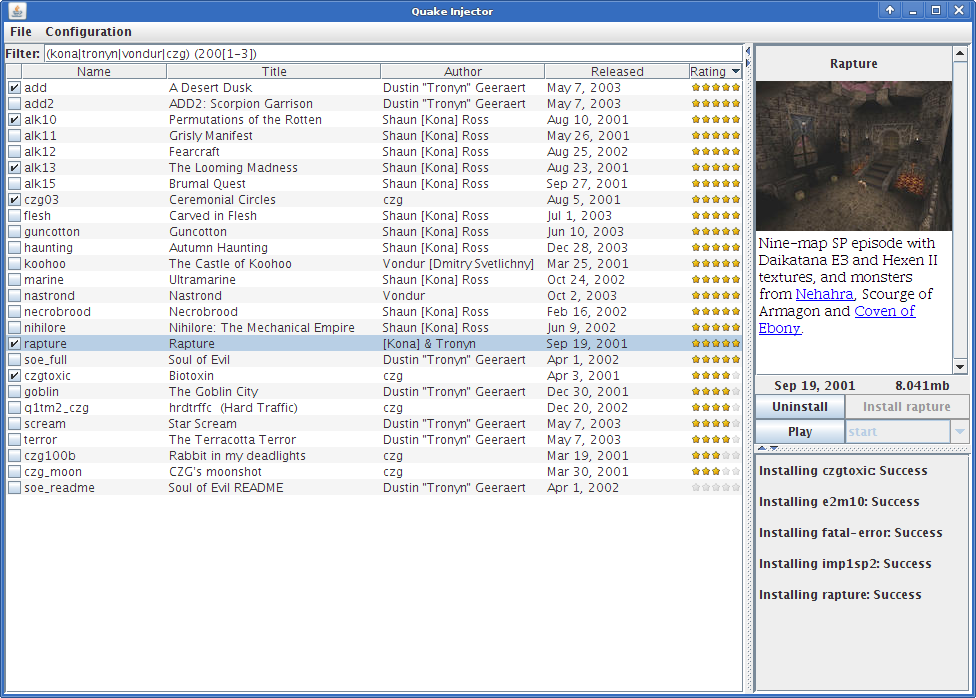
negke's guide to running singleplayer maps has more details about Quake Injector: http://steamcommunity.com/sharedfiles/filedetails/?id=166554615
And that's about it for talking about the general ways to muck about with Quake configuration. Now we'll cover some of the specifics.
Mouselook
The Engoo engine has a menu option to enable mouselook; this will set an "m_look" variable to 1 in Engoo's "config.rc" file. If you're used to dealing with other engines by putting "+mlook" in autoexec.cfg as above, this new setting might confuse you, because it essentially flips the sense of "+mlook". In Engoo you will have mouselook enabled if one of these is true: "m_look" is 1, or "+mlook" is active. If both or neither of those are true, then mouselook will be disabled.
Note that regardless of which engine you use, you do not want to enable "lookspring" or "lookstrafe". Those behaviors get in the way of mouselook.When "sv_aim" is set to 1 (or more) on a server, it will disable auto-aim for all clients.
QuakeWorld servers have an "sv_aim" value of 2 by default, but if for some weird reason you are playing on a QuakeWorld server that has some degree of autoaim enabled (using an "sv_aim" value less than 1), you can opt out of that with this setting in your own configuration:Different Quake engines also can provide different mouse feel.
Movement
These settings are saved in the config file.
Display
If you've taken a time machine back to the 90s so that you can play on a tiny screen using a 4:3 aspect ratio, then after you set your video resolution you don't have any other major display issues to worry about. If not, though, then you'll have a few other things to consider.
For one thing, when using a modern-sized monitor the statusbar display on the screen can be unnecessarily large. You may want to shrink it down.
And if you're using a widescreen resolution, you will want to have a properly-shaped statusbar (not "stretched") and a wider in-game field of view. Some engines will automatically take care of one or both of these issues for you, but in other cases you'll have to manually configure the display.The two pictures below illustrate the problem using GLQuake 0.98 with a widescreen resolution. This resolution has a 16x9 aspect ratio, instead of the 4:3 aspect ratio common in older Quake-era monitors. The top picture shows the view with a widescreen resolution but no other changes/fixes; you can see that the statusbar and weapon are stretched. If the console was open, you'd see that its text was stretched too. The bottom image shows the view after this stretchiness has been fixed through some additional configuration.
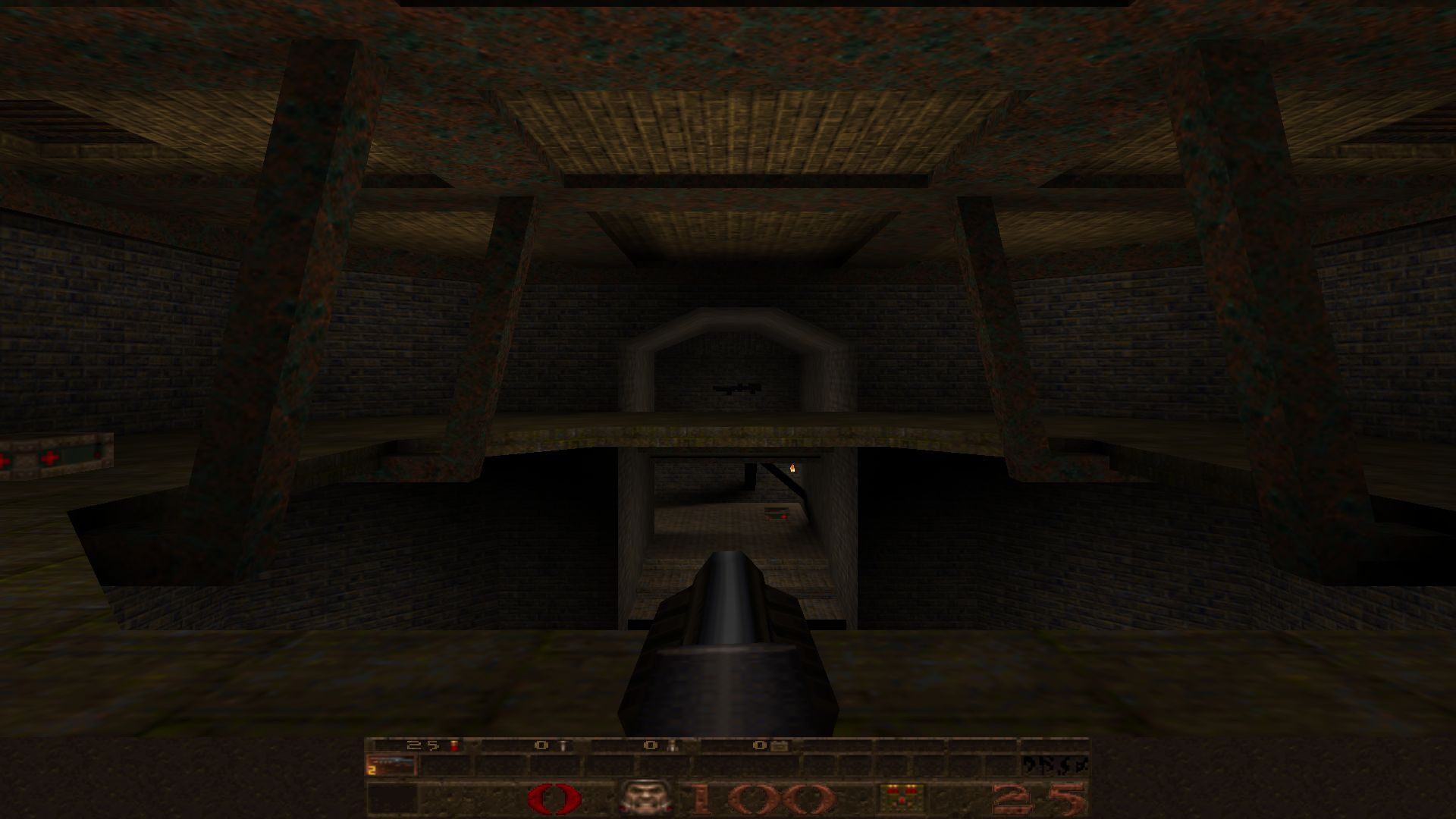
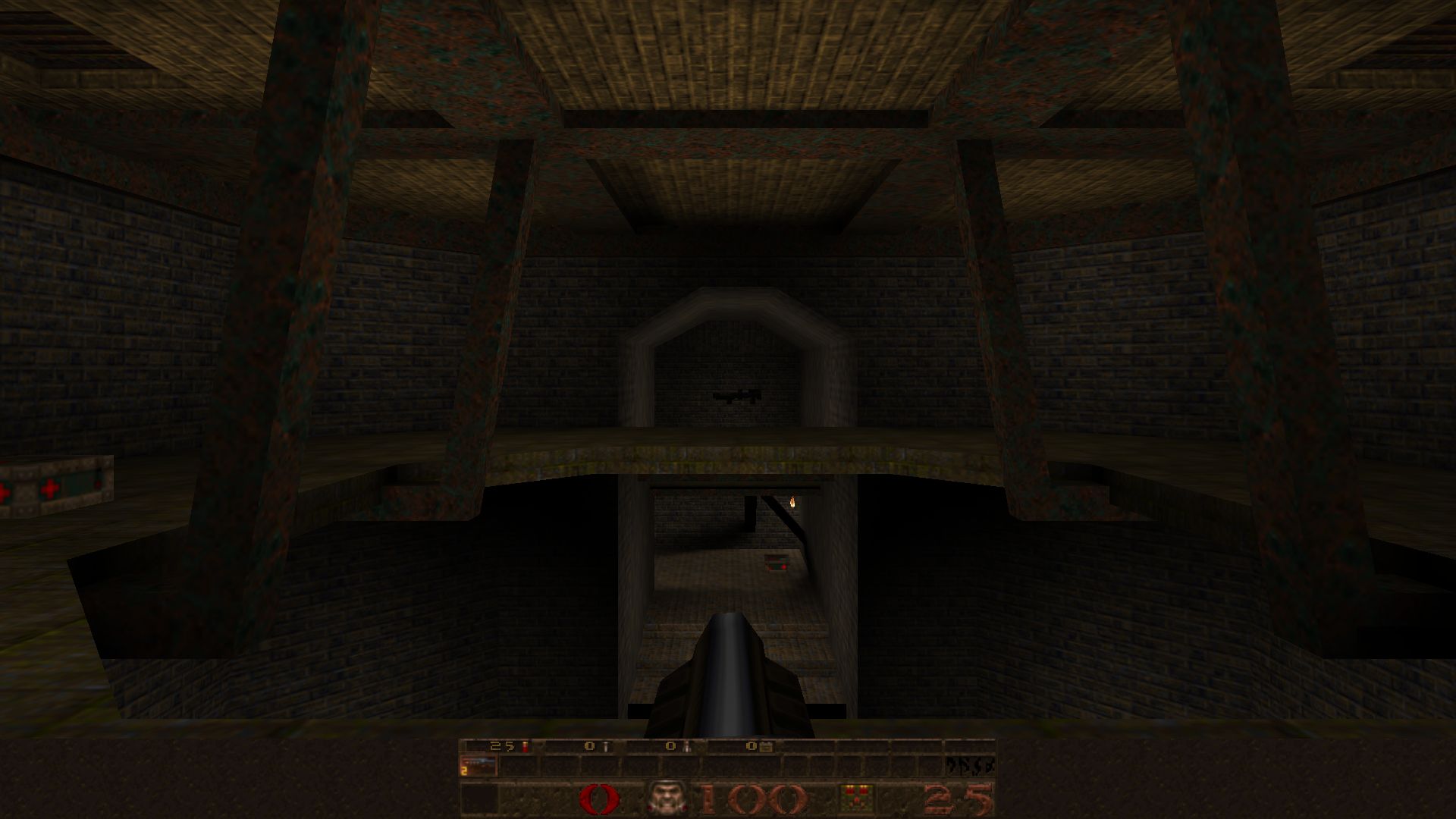
In the Quake engines that have this issue, it turns out that the shapes of all these HUD elements, as well as the overall size of the statusbar and the console text, are controlled by settings for the width and height of the console. Different engines specify console dimensions through different methods (which the sections below will describe), but the overall concept is the same:
- Larger console dimensions correspond to smaller statusbar and console text.
- Changing the ratio between console width and height will change the shape of the HUD elements.
A larger FOV can also just give you an advantage from seeing more, although if you increase it too much you get fisheye effects that can be disorienting and make it harder to aim. In the end the right setting is a matter of personal taste.
I use an FOV of 100 horizontal degrees for 16:10 resolutions, or 106 for 16:9, since these horizontal FOV settings result in approximately the same vertical FOV that I was used to on a 4:3 display. For example, the top image here uses a 90 degree FOV on a 4:3 display (like original Quake); the bottom image uses 106 FOV on a 16:9 display. Notice how in both images you can see the same amount of your surroundings vertically, and the 16:9 display shows more stuff to the left and right.
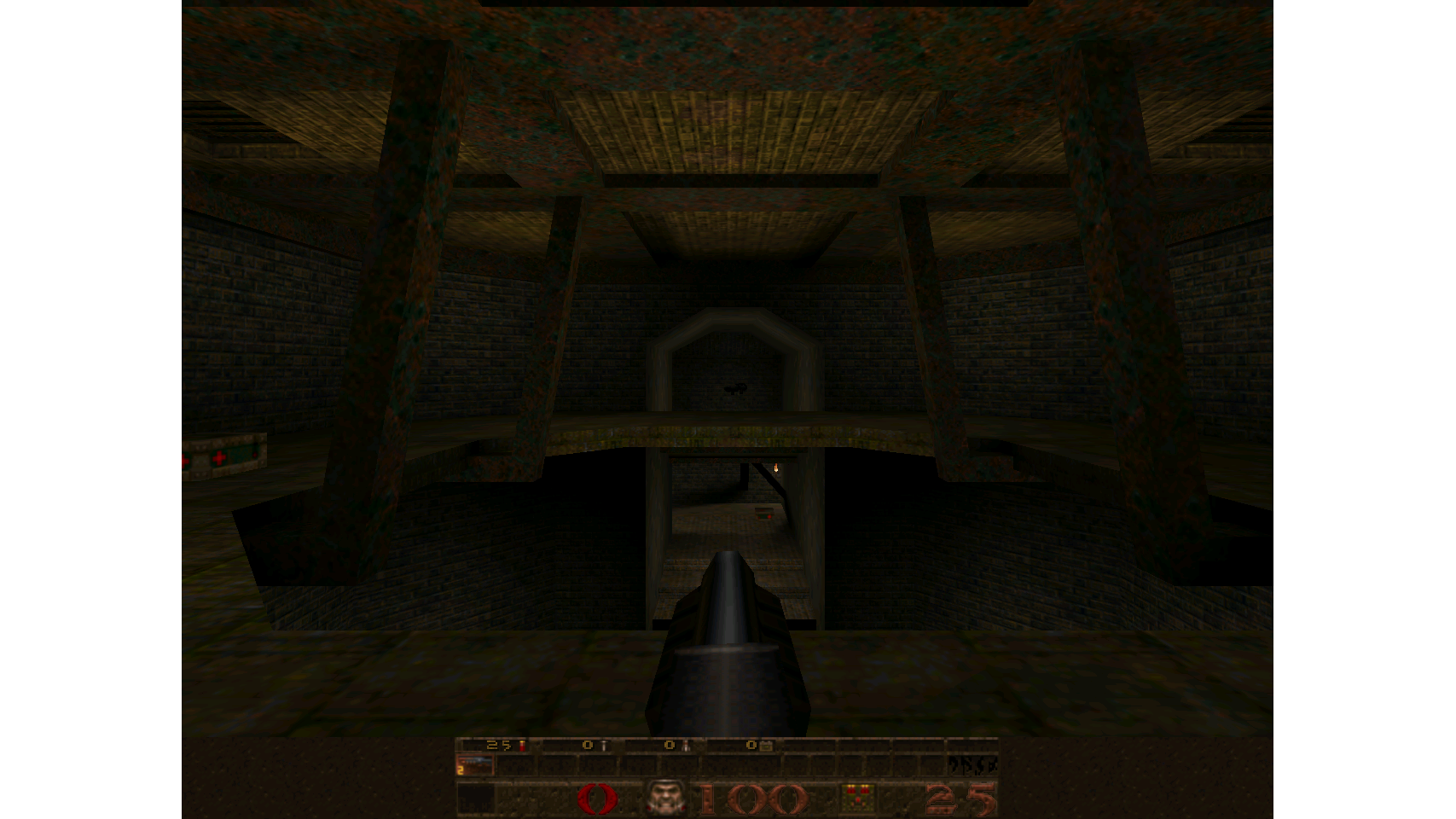
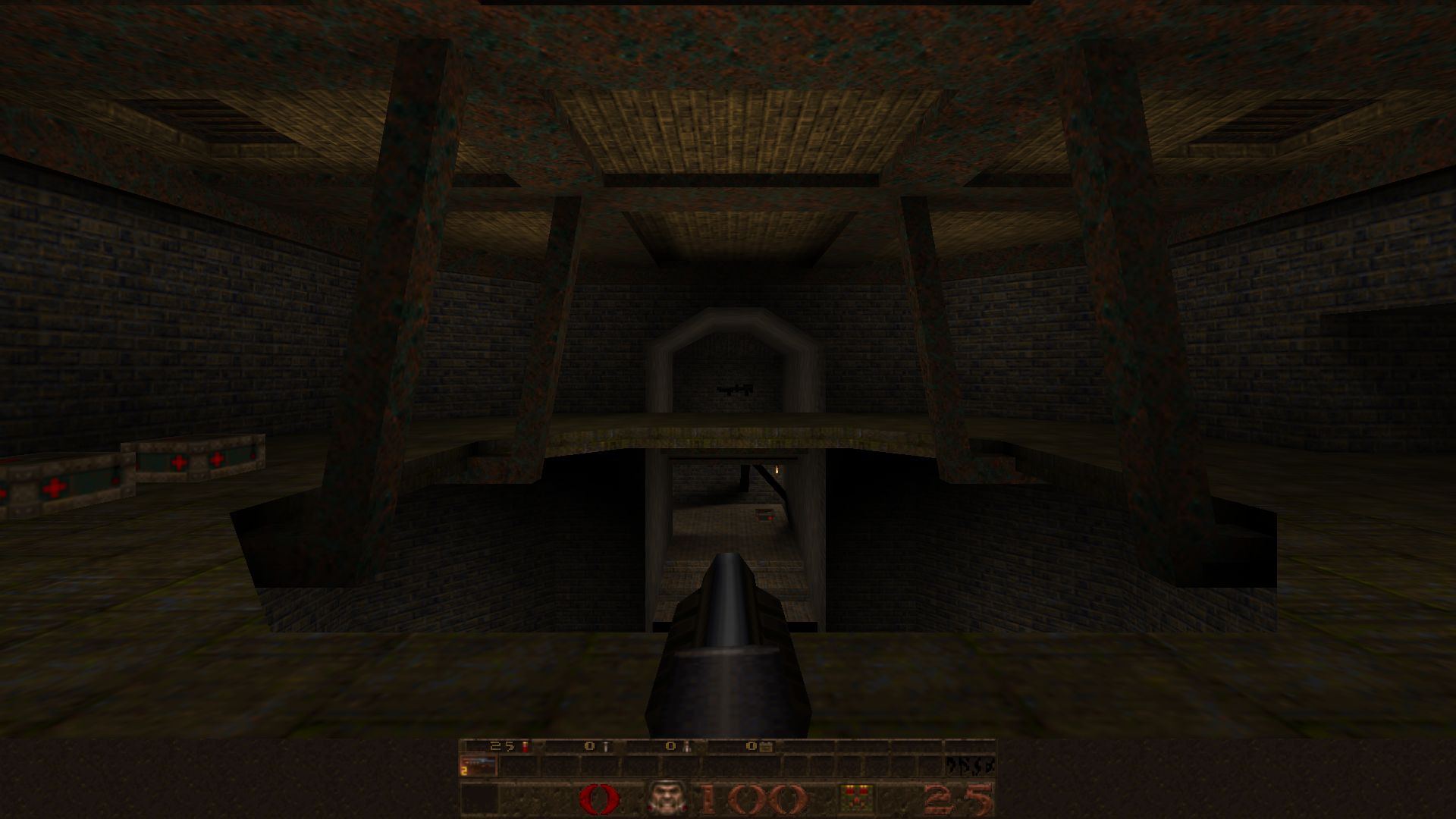
Some Quake engines will automatically adapt your FOV as you change resolutions. These engines support an "fov" console variable that specifies the desired horizontal FOV for a 4:3 aspect ratio, and the correct FOV for the aspect ratio of your current video resolution will be calculated based on that info.
For other Quake engines you will need to manually set your desired FOV. In these engines the "fov" console variable directly specifies the horizontal FOV, regardless of your video resolution.
Display: Resolution
If you're using Engoo, note that the current Engoo version as of this writing (2.77) has a bug where it will not remember your resolution, even if you choose a default resolution. You'll have to re-set your video resolution each time you start up Engoo.
Display: HUD
- The original GLQuake engine does not support "-conwidth" and "-conheight" unless you have downloaded GLQuake version 0.97 or 0.98. See the "GLQuake Version Issues" section.
- You may need to set these values after choosing a screen resolution using the in-game menu, in case that action resets them.
- The ezQuake engine has a menu option "Wide Aspect". When enabled, this option will decrease the console height so that the console aspect ratio is 16:10. When disabled, it will increase the console height. If you are not using a 16:10 display, or you want more direct control over the size/shape of HUD elements, you should leave the "Wide Aspect" option disabled and just set the "vid_conwidth"/"vid_conheight" values yourself.
- FTE defaults to values of 0 for "vid_conwidth" and "vid_conheight", which in this engine means "pick the correct aspect ratio". There is also a "vid_conautoscale" variable that can be set to 0 to pick a good scale, or set to some other number to change the scaling of HUD elements. Likely you will want to leave "vid_conwidth"/"vid_conheight" alone, and maybe adjust "vid_conautoscale". These values can also be changed through the "2D Mode" settings in the video options menu.
- Fodquake defaults to values of 0 for "vid_conwidth" and "vid_conheight", which in this engine means "pick the correct aspect ratio". If you want to change the size of the statusbar and console text then you can manually set different values for "vid_conwidth"/"vid_conheight".
- Qrack will automatically pick "vid_conwidth"/"vid_conheight" values of the correct aspect ratio when setting a video resolution. If you want to change the size of the statusbar and console text then you can manually set the "vid_conwidth"/"vid_conheight" values. These values can also be changed through the "Console Size" settings in the video options menu.
If you want to change the size of the console text, use the "scr_conscale" console variable.
If you want to change the size of the status bar, use the "scr_sbarscale" console variable. You may also want to try using the video options menu and/or the "scr_sbaralpha" console variable to affect the statusbar transparency. DirectQ has more menu options for statusbar styling.If you want to change the size of those things, change the "console width" setting in the Advanced Settings part of the options menu. (This option corresponds to the "vid_consize" console variable).
Display: FOV
- The value for "fov" may or may not be saved to the config file; if not, it needs to be placed in your autoexec.cfg file. See the examples at the end of this guide for engine-by-engine specifics.
- The original GLQuake engine does not support setting "fov" unless you have downloaded GLQuake version 0.98. See the "GLQuake Version Issues" section.
- The original non-GL versions of Quake (WinQuake) or QuakeWorld will only show your weapon on-screen when "fov" has its original value of 90.
- The ezQuake engine has a menu option "Wide Aspect". When enabled, this option will interpret the current "fov" value as your desired 4:3 FOV and then increase the "fov" value to be suitable for a 16:10 aspect ratio. When disabled, it will decrease the FOV. If you are not using a 16:10 display, or you want more direct control over the FOV, you should leave the "Wide Aspect" option disabled and just set the "fov" value yourself.
In practice this means that you can just leave "fov" set to a value of 90 in these engines and not worry about it. If you do want to make some adjustments to your FOV you can try increasing or decreasing the value of "fov", but keep in mind that you are not directly setting your field-of-view except in the case where you are using a 4:3 display.
Notes:- In Fitzquake Mark V revision 15, automatic FOV is broken... you'll need to set FOV manually. This is expected to be fixed in revision 16 when that is released.
- QuakeSpasm versions 0.85.8 and earlier do not have this auto-adjustment feature. For these older versions of QuakeSpasm, the "fov" variable has its original meaning, as in the majority of the other Quake engines described above.
- In QuakeSpasm version 0.85.9 and later, you can choose to disable auto-adjustment by setting "fov_adapt" to 0. When auto-adjustment is disabled, the "fov" variable again behaves as in the majority of the other Quake engines.
- In Engoo, you can choose to disable auto-adjustment by setting "scr_fov_adapt" to 0. When auto-adjustment is disabled, the "fov" variable again behaves as in the majority of the other Quake engines.
More HUD Tweaks
Modern Quake engines may support drawing different crosshair styles if you set "crosshair" to other nonzero values. They may also have support for crosshair choice in the in-game menus.
Color Depth
GLQuake originally supported using either 16-bit color or 32-bit color, since early graphics cards and drivers might perform poorly or not at all with 32-bit color.
These days however, if you're not using a software-renderer engine then 32-bit color is probably what you want. In fact your Quake engine and/or graphics card/driver may not even support 16-bit color, or will at least default to 32-bit color.
But if you want to make sure that 32-bit color is being used, it's not a bad idea to be explicit about that with a command-line option:Key Bindings
One of the most interesting things you can do with the console and config file is "key binding": controlling what happens when you press a specific key. Key bindings are saved to your config file.
Open the config file in a text editor and look at what is bound to the number keys, the keys that you usually use to select weapons. For most engines, as an example, you'll see this line partway down the file:In most engines you can use the "bindlist" console command to call up a display of which keys do what.
A good description of key binding is out of scope for this guide, but you may want to search out more details. Quake players have sometimes gone a little crazy setting up detailed and complex things to happen at the push of a button.
One specific thing that Steam users may want to pay attention to is the screenshot key. Search the config file for the "screenshot" command, and for most engines you'll see something like this:Oldschool Texturing
If you're interested in re-creating the original Quake appearance then you should read the page at quaddicted.com about differences between software rendered Quake and GLQuake[www.quaddicted.com].
One of the basic takeaways from that page is that you may want to change the texture filtering in Quake to make it more "pixel-y". The quaddicted.com page has several comparison shots, but here's another (click for large versions to best see the difference):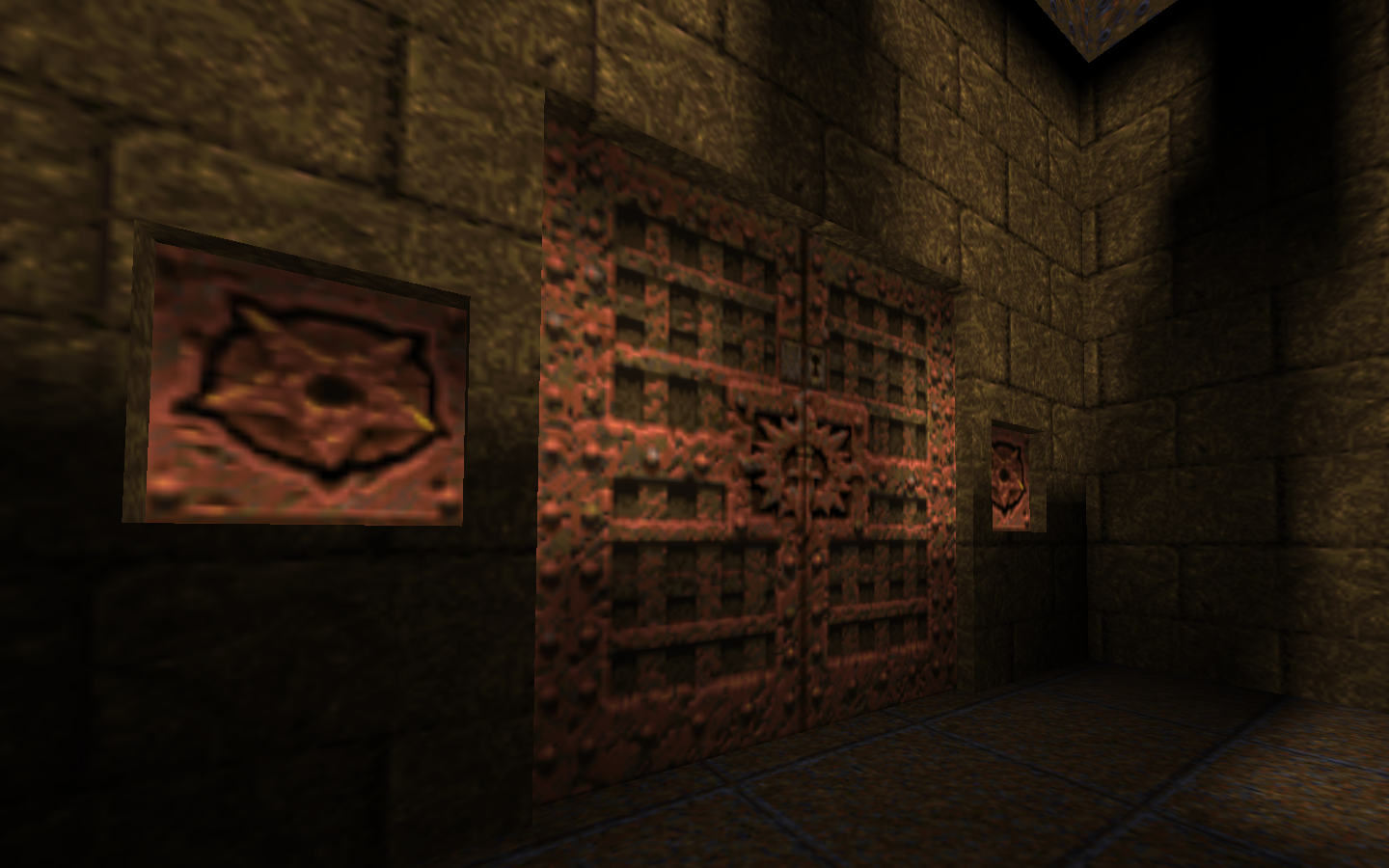
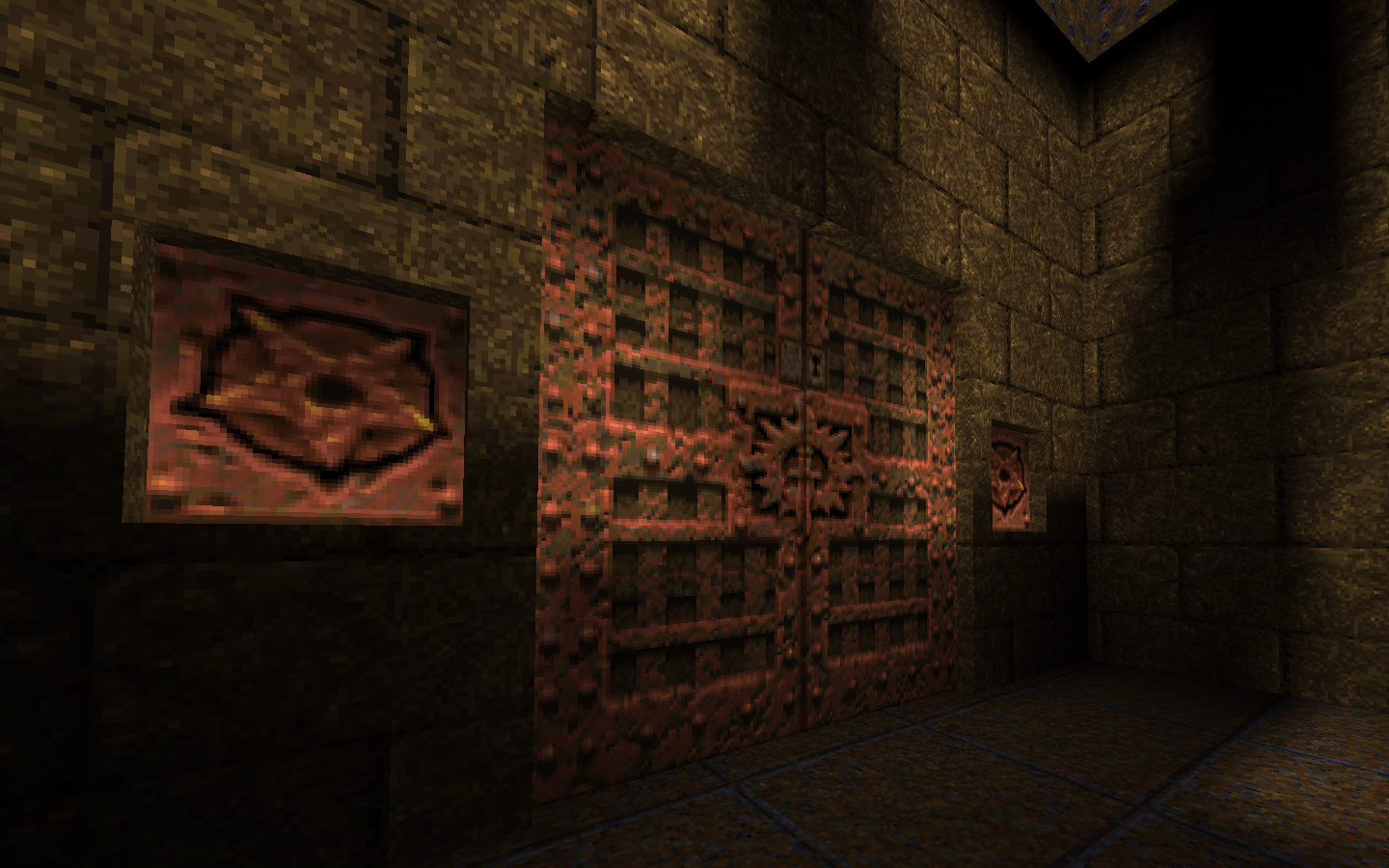
The left image is the familiar GLQuake filtered look; the right image is still an OpenGL renderer but its textures look more like the original software Quake. If you are using an engine with an OpenGL renderer then you can do this with a console variable:
This same console variable is also available in DirectQ and the Direct3D version of ProQuake, even though they use a Direct3D renderer. It also works when using the Direct3D mode of FTE.
Engoo has a somewhat similar option through the "r_filter" console variable, which can be used to enable or disable texture filtering. By default it is disabled, but some of Engoo's available graphics presets will enable it.
qbism Super8 specifically does not support GLQuake-ish texture filtering, so it's a non-issue there.
Sound
Compatibility
Most Quake engines don't significantly (or at all) change the behavior of Quake game objects.
DarkPlaces however is an exception; it makes quite a few changes. Most of these changes are intended to fix bugs, but sometimes fixes can have unintended consequences.
You can individually enable or disable those changes using special DarkPlaces console variables that begin with the prefix "sv_gameplayfix_". When one of those variables is set to 1, it enables a particular change/fix/feature; a value of 0 disables. Some of these may be enabled by default. The default values depend on which version of DarkPlaces you're using.
The DarkPlaces readme[icculus.org] lists what each of these variables controls, if you're curious.
A generally safe approach is to set all of the DarkPlaces "sv_gameplayfix_" variables to 0 except for "sv_gameplayfix_droptofloorstartsolid", which you probably want to have set to 1. If "sv_gameplayfix_droptofloorstartsolid" is set to 0 then some items may immediately fall through the floor and vanish when a level begins. Having a 0 value for that variable is the usual cause of maps appearing to have fewer items when played using DarkPlaces.
If you're using DarkPlaces with the above fix and you still have problems with missing or misbehaving objects, also try setting the "sv_gameplayfix_upwardvelocityclearsongroundflag" and
"sv_gameplayfix_setmodelrealbox" console variables to 1.
In any case, if you're having problems with a particular map then the first thing you should do is check the readme file that came with the map. The readme will usually indicate which Quake engines were used to build and test the map, and the most problem-free approach is to use one of those engines to play it.
It's worth mentioning that almost all custom singleplayer maps are tested against the QuakeSpasm engine or its predecessor Fitzquake. QuakeSpasm is a good bet for getting the intended behavior from a singleplayer map, unless the map's readme specifically says otherwise.
Limits
The original Quake engines, and to some extent modern engines as well, have hard limits on how much memory they can use for certain purposes.
Two of the primary limits can be manipulated using the "-zone" and "-heapsize" command-line options for most engines. Broadly speaking, "-zone" controls memory allocated to console scripts, and "-heapsize" the general memory pool used during gameplay. Both are expressed in kilobytes.
If you have a reasonable amount of RAM, then you can easily blow out both of these values large enough to be sufficient for just about any use of Quake, such as:In any case, if you download something like a map or mod to try out, be sure to check the readme file. It may contain requirements for these command-line options or for some console variables that control other limits.
Cutting to the Chase
Hopefully the above sections help to show what options are out there and how to change them, but to wrap things up I'll summarize what I use for running Quake in the next couple of sections.
Note that I don't use most of these engines very often. If you notice something that I'm doing wrong please let me know!
And keep in mind that the values shown below are specifically for the settings I personally like to use. If you use a different resolution, FOV, or whatever then the rest of the guide above should help you determine what values to use.
I usually set my mouse sensitivity and Y-invert through the console, but that's not shown below. I sometimes adjust the scale of HUD elements but those settings aren't shown below. I also "unbind F12" (the default screenshot key) to avoid a conflict with the Steam overlay screenshot key... if you launch Quake through Steam then you'll probably want to do the same, if not then not.
Command Line Examples
When using a software-renderer engine, I omit the "-bpp 32" option.
I don't bother with the "-zone" option since I don't have gigantic console scripts, and many of the modern Quake engines no longer use the "-zone" option anyway.
The "-dinput" option is irrelevant for DirectQ, and "-heapsize" is ignored by a few engines (FTE, Fodquake, DarkPlaces, DirectQ), but it doesn't hurt to specify them. So I'm lazy enough to just always use the same command line.For GLQuake/GLQuakeWorld I would use these for 1920x1080:
(Assuming version 0.98 for GLQuake; it's not worth putting up with earlier versions in my opinion.)
Console Settings Examples: Modern QuakeWorld
 ezQuake
  FTE
FTE  Fodquake
A quick way to get a bunch of settings into one of these engines is to put the settings all into some file in the "id1" folder, start up Quake, and then use the "exec" console command to read that file. For example if you have your settings in the file "foo.cfg", you can import those settings with the console command
Fodquake
A quick way to get a bunch of settings into one of these engines is to put the settings all into some file in the "id1" folder, start up Quake, and then use the "exec" console command to read that file. For example if you have your settings in the file "foo.cfg", you can import those settings with the console commandNext you should explicitly save the settings to your config file with this console command:
For ezQuake I would also include a setting of "fov 106" or "fov 100", respectively, to fix the field of view. For FTE or Fodquake I'd leave "fov" at its default value of 90 since they internally take care of increasing the field of view for widescreen resolutions.
You can also experiment with different values (or menu choices) for the "crosshair" variable.
Console Settings Examples: Other Modern Quake
For all other modern Quake engines, some of the settings may be automatically saved to your config, and some may not be. One way to deal with this is just to put them all into your autoexec.cfg file so that they get set every time Quake launches.
Of course this means that some settings will end up both in your config file and in autoexec.cfg. If you think that could lead to some confusion, then you can pare down your autoexec.cfg file -- delete any lines that contain settings covered by the config file. It's up to you how you want to handle that.
So generally speaking these are the settings that I like:I could get away with just throwing all of these settings into autoexec.cfg. Some are redundant or unnecessary for some modern Quake engines. And for DarkPlaces and Qrack I'd also want to fix "vid_conwidth" and "vid_conheight". But that's the general idea.
If you want specifics about which of those settings are needed for which engines, and which are saved to the config, then I've captured below the way it looked to me when I tested each engine. DarkPlaces
These settings will be saved to the config file:
DarkPlaces
These settings will be saved to the config file:You can also experiment with different values for the "crosshair" variable.
This setting is not saved in the config file (must be in autoexec.cfg): QuakeSpasm
These settings will be saved to the config file:
QuakeSpasm
These settings will be saved to the config file:I'd leave "fov" at its default value of 90 since QuakeSpasm 0.85.9 and later versions internally take care of increasing the field of view for widescreen resolutions. If you do need to change "fov" then you must put it in autoexec.cfg.
 Fitzquake Mark V
These settings will be saved to the config file:
Fitzquake Mark V
These settings will be saved to the config file:These settings are not saved in the config file (must be in autoexec.cfg):
 DirectQ
These settings will be saved to the config file:
DirectQ
These settings will be saved to the config file:These settings are not saved in the config file (must be in autoexec.cfg):
 Engoo
These settings will be saved to the config file:
Engoo
These settings will be saved to the config file:These settings are not saved in the config file (must be in autoexec.cfg):
 qbism Super8
These settings will be saved to the "super8.cfg" config file:
qbism Super8
These settings will be saved to the "super8.cfg" config file:These settings are not saved in the config file (must be in autoexec.cfg):
 ProQuake
These settings will be saved to the config file:
ProQuake
These settings will be saved to the config file: Qrack
These settings will be saved to the config file:
Qrack
These settings will be saved to the config file:Console Settings Examples: Original Quake
The original engines are consistent in saving "cl_backspeed", "cl_forwardspeed", "crosshair", and (in the QuakeWorld case) "noaim" to the config file. Anything else among the settings below must be placed in autoexec.cfg if you want them to take effect every time you play.
For the original (non-GL) Quake and QuakeWorld engines, widescreen is not supported, so I wouldn't change the FOV. These settings would be useful for Quake:And these for QuakeWorld:
For GLQuake I would use these settings (the "fov" setting only works with GLQuake 0.98):
Note About Steam Screenshots


More Info
- Quake Info Pool[www.inside3d.com]
- archived info from PlanetQuake[www.quakewiki.net]
- https://www.quaddicted.com/
- http://quakeone.com/
- http://www.quakeworld.nu/
- http://quakewiki.org/ (focus on mapping, modding, and engine coding)
- http://www.quakewiki.net/ (focus on archiving old Quake pages)
- QuakeWorld wiki[wiki.quakeworld.nu]
- func_msgboard[www.celephais.net]
Revision History 'n Stuff
The latest stable version of each engine was:
- ezQuake: version 2.2 from Dec 2013
- FTE: "latest build" from Apr 2015
- Fodquake: version 0.3 from Mar 2012
- DarkPlaces: build 20140513 from May 2014
- QuakeSpasm: version 0.90.0 from Oct 2014
- Fitzquake Mark V: revision 15 from Jul 2014
- DirectQ: version 1.9.0 from Feb 2012
- Engoo: version 2.77 from Dec 2013
- qbism Super8: version 235 from Feb 2015
- ProQuake: version 4.93 from Oct 2012
- Qrack: version 2.011.3467 from Aug 2011
2015
- May 03: updates for latest FTE build, notably in the Display sections
- Mar 20: Steam Cloud also saves your config
- Mar 20: changed "Missionpacks and Mods" section to be not-misleading about missionpacks
- Mar 20: additional DarkPlaces compatibility fixes
- Mar 20: cleanup to be clear that "-bpp 32" doesn't apply to SW renderer
- Mar 05: checked qbism Super8 version 235
- Feb 04: updated Quick Start recommendations
- Feb 04: checked qbism Super8 version 231
- Oct 20: checked QuakeSpasm version 0.90.0; sv_aim is now 1 by default there
- Jul 30: note that auto-FOV is broken in Fitzquake Mark V revision 15
- Jul 26: mention that changing FOV in WinQuake/QuakeWorld hides the gun model
- Jul 16: linked to the Troubleshooting guide
- Jul 14: added "Color Depth" section
- Jul 14: added info about statusbar/console sizing for ProQuake
- Jul 14: checked DarkPlaces build 20140513 and qbism Super8 version 194
- Jul 14: checked Fitzquake Mark V revision 15; now has mouselook by default
- Jul 14: added launcher info in "The Command Line" section
- May 13: added "Compatibility" section
- May 03: moved config-location info from Engines guide to Owner's Manual guide
- May 03: checked new versions of qbism Super8 and DarkPlaces; moved DarkPlaces to the "auto FOV" engines
- Apr 19: added info about the qbism Super8 engine
- Apr 17: added info about the Engoo engine
- Apr 16: rewrite of display configuration info
- Apr 03: a few more words about command-line options when using Steam's Quake engines
- Sep 21: edited GLQuake Version Issues to remove some possible confusion
- Aug 10: added link to GLQuake 0.98
- Aug 10: added link to negke's guide for playing third-party maps/mods
- Jul 14: fixes in reaction to the changes in Steam Guide markup behavior
- Jun 16: some changes to the Quick Start, particularly including the link to QuakeSpasm installer for Steam users
- Jun 02: fixed description of Fitzquake Mark V's handling of FOV
- Jun 02: added link to new Quake wiki
- Jun 02: changed Quake HD link to ModDB page
- Apr 13: checked Fitzquake Mark V revision 9 and QuakeSpasm version 0.85.9; updated info on QuakeSpasm FOV
- Mar 27: in the Quick Start, added a warning about the non-Windows versions of ezQuake
- Mar 17: just fiddling with the console examples section: fixing Fodquake FOV, moving "unbind f12" out of the examples
- Mar 10: checked Fitzquake Mark V revision 8 and DarkPlaces build 20130304
- Feb 21: describing how Fodquake handles FOV
- Feb 19: added a warning against enabling "lookspring" or "lookstrafe"
- Feb 12: added "Quick Start" section
- Feb 12: more details about autoexec.cfg, precedence, and related nQuake stuff
- Feb 09: moved GLQuake version warnings to the top of the guide
- Feb 02: added info about console vars for mouse invert and always run
- Feb 02: added a warning about special folders in Windows
- Feb 02: "Auto Save on Quit" enabled if ezQuake installed using nQuake
- Jan 19: more about "sv_aim" and "noaim" variables
- Jan 16: changes to the "Widescreen" section: bigger images, more FOV discussion, more ezQuake discussion
- Jan 16: added a note about Qrack behavior in the "In-Game Menu" section
- Jan 15: correction for the ProQuake info in the "Oldschool Texturing" section
- Jan 15: added info on mods/missionpacks to the "Config File" section
- Quake Soundtrack Solutions★ 5 (822)34k views1.1k ♥15 minUpdated 2 Apr, 2020
- How I play Quake in the Current Year (2023 update: Use Ironwail or Quakespasm-Spiked instead of Quakespasm)★ 5 (903)23k views1.3k ♥8 minUpdated 12 Nov, 2023
- List of Quake 1 clones on the Steam store★ 5 (459)20k views858 ♥2 minUpdated 20 May
- Quake Achievements★ 5 (1k)16k views1.5k ♥29 minUpdated 4 Nov, 2025
- Quake Secrets★ 5 (1.1k)14k views1.8k ♥39 minUpdated 23 Feb
- Quakespasm: How to activate CHUNKY MODE★ 5 (303)9.6k views357 ♥2 minUpdated 23 Sep, 2023





- Upgrading to PremiumTeam Fortress 2★ 5 (20k)1441k views11k ♥6 minUpdated May 11, 2022
- No More Room in Hell Official ManualNo More Room in Hell★ 5 (2.8k)569k views2.1k ♥29 minUpdated Apr 22, 2019
- NMRiH Community Hosting GuidesNo More Room in Hell★ 5 (526)351k views653 ♥1 minUpdated Aug 10, 2022
- How to 'Git Gud' Soon™MORDHAU★ 5 (2k)318k views3k ♥68 minUpdated Nov 16, 2024
- Лучшие кооперативные игры SteamPAYDAY 2★ 5 (1.5k)315k views2.1k ♥56 minRussianUpdated Apr 27, 2025
- Desert Eagle Heat Treated | Blue GemCounter-Strike 2★ 5 (1.6k)293k views1.5k ♥2 minUpdated Jan 16





This guide was created by its original author on the Steam Community. Are you the author and want it removed? Request removal.