Graphics Settings Guide - As seen on Squad News
Graphics
Graphics Settings Guide
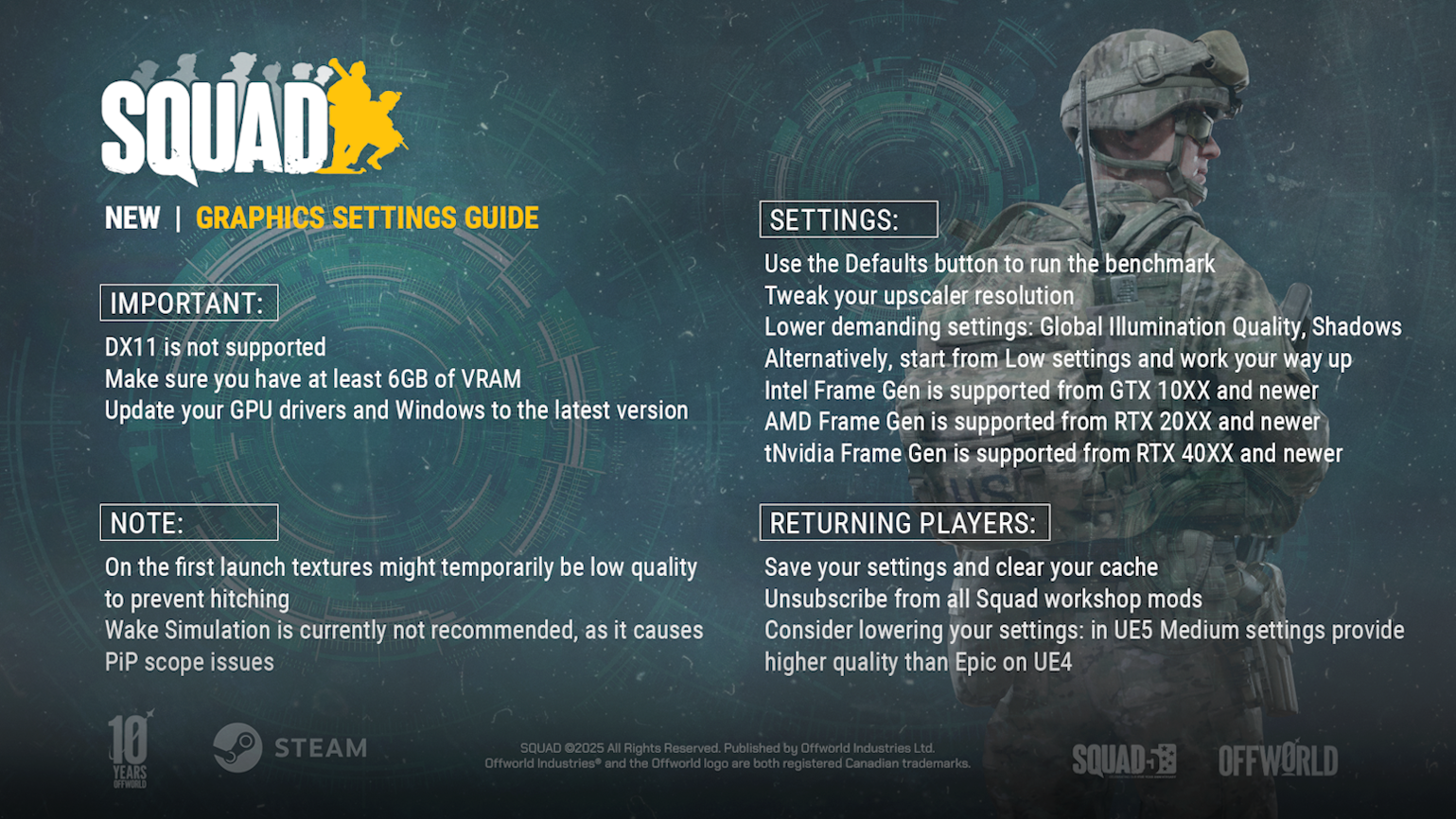
Note, please keep these in mind with Update 9.0:- DX11 is not supported.
- Make sure you have at least 6GB of VRAM.
- Update your GPU drivers and Windows to the latest version.
SETTINGS
We strongly recommend that you tweak your graphics settings after updating to Update 9.0, as our upgrade from UE4 to UE5 has changed how those settings work. Visually, the “Medium” setting in UE5 provides higher quality than the “Epic” setting on UE4. The "High" and "Epic" settings on UE5 fully utilize the power of the modern GPU generation and are not recommended for previous GPU generations.
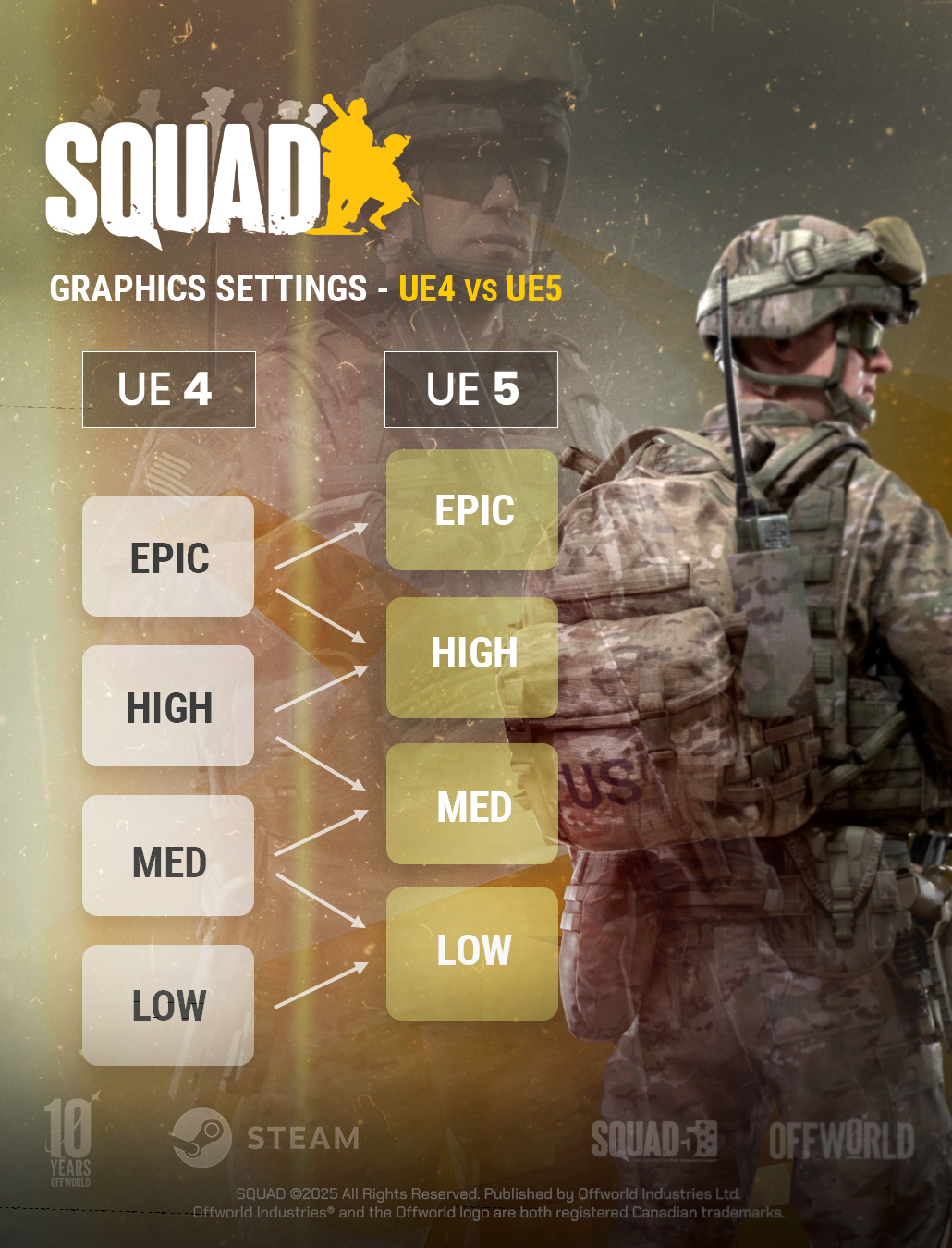
- Use the Defaults button to run the benchmark.
- Tweak your upscaler resolution.
- Lower demanding settings such as Global Illumination Quality and Shadows.
- Alternatively, start from Low settings and work your way up.
- If you are using Frame Gen, please keep these in mind:
- Intel Frame Gen is supported from GTX 10XX and newer.
- AMD Frame Gen is supported from RTX 20XX and newer.
- Nvidia Frame Gen is supported from RTX 40XX and newer.
NOTE - Intel Frame Gen is supported from GTX 10XX and newer.
- On the first launch, textures might temporarily be low quality to prevent hitching.
- Wake Simulation is currently not recommended, as it causes PiP scope issues.
RETURNING PLAYERS
- Save your settings and clear your cache.
- Unsubscribe from all Squad workshop mods.
- Consider lowering your settings: in UE5, Medium settings provide higher quality than Epic on UE4.
DISCLAIMER
I do not own the contents, image and words, it was taken from a developer news that was published in steam.
All credits goes to: Offworld.
All credits goes to: Offworld.
More Squad guides
- Подробный гайд для новичков★ 5 (764)61k views1.1k ♥20 minRussianUpdated 28 Sep, 2023
- Squad Leader 101★ 5 (884)29k views1.5k ♥60 minUpdated 22 Jul
- Как убрать мыло на экране | 100% Способ★ 4 (113)26k views355 ♥3 minRussianUpdated 1 May, 2023
- SQUAD - raising FPS together! / SQUAD - поднимаем FPS вместе!★ 3 (31)19k views75 ♥4 minUpdated 8 Jan, 2024
- Руководство по пилотированию вертолётов★ 5 (199)18k views446 ♥32 minRussianUpdated 20 Feb, 2022
- [Squad v10.5] [EN/РУ] / Where to shoot to penetrate? / Куда стрелять чтобы пробить?★ 5 (220)15k views606 ♥1 minUpdated 17 Jun




🔥 Popular guides
- Upgrading to PremiumTeam Fortress 2★ 5 (20k)1441k views11k ♥6 minUpdated May 11, 2022
- No More Room in Hell Official ManualNo More Room in Hell★ 5 (2.8k)569k views2.1k ♥29 minUpdated Apr 22, 2019
- NMRiH Community Hosting GuidesNo More Room in Hell★ 5 (526)351k views653 ♥1 minUpdated Aug 10, 2022
- ULTIMATE GUIDE FOR GAME DEV TYCOONGame Dev Tycoon★ 5 (5.8k)326k views10k ♥4 minUpdated 23 Jan, 2014
- How to 'Git Gud' Soon™MORDHAU★ 5 (2k)318k views3k ♥68 minUpdated Nov 16, 2024
- Лучшие кооперативные игры SteamPAYDAY 2★ 5 (1.5k)315k views2.1k ♥56 minRussianUpdated Apr 27, 2025






This guide was created by its original author on the Steam Community. Are you the author and want it removed? Request removal.