How to Play Even When the Host Is Offline
What You Need
Creating Save
1. Close Project Zomboid
Exit Project Zomboid completely after creating a save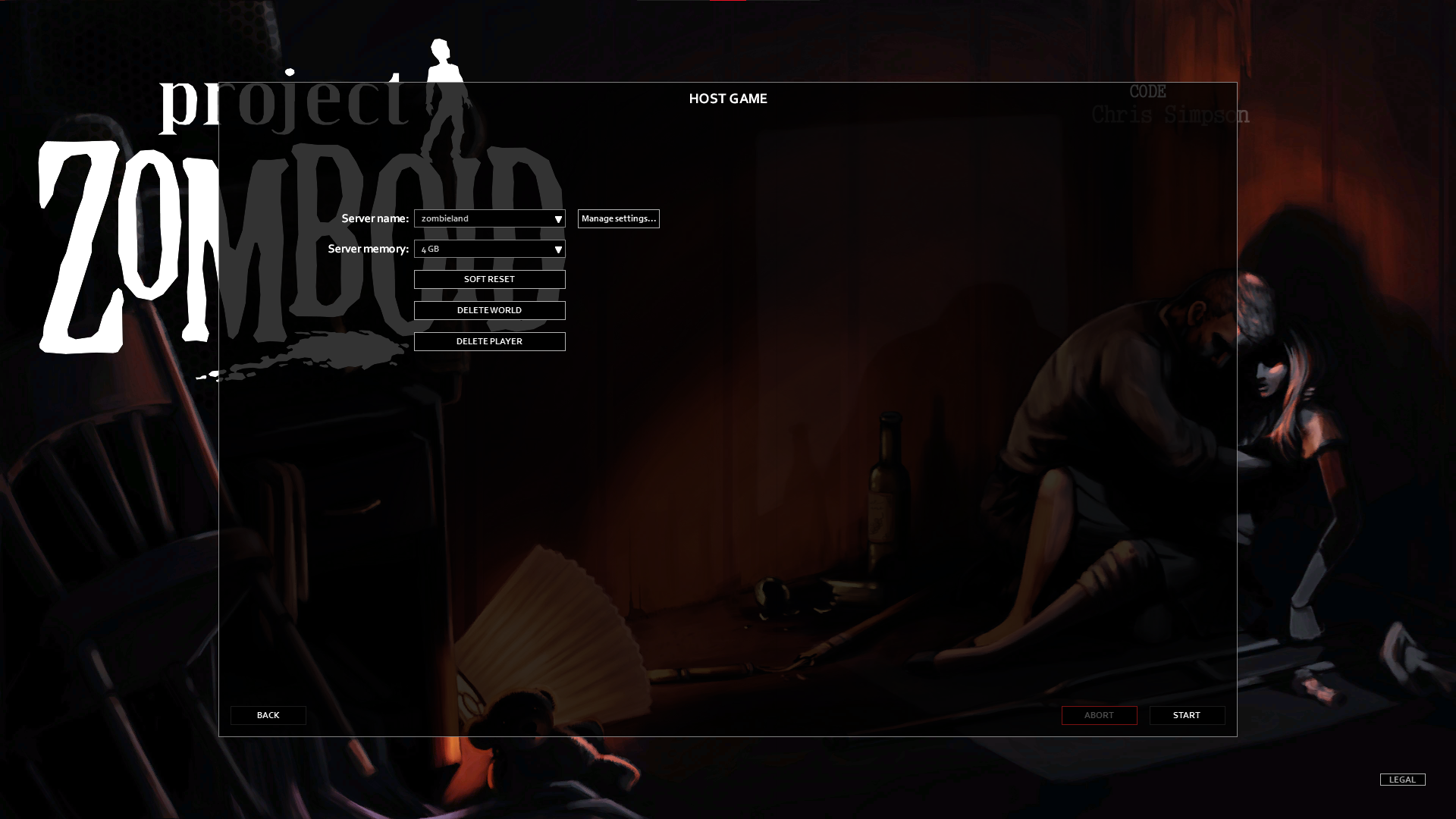
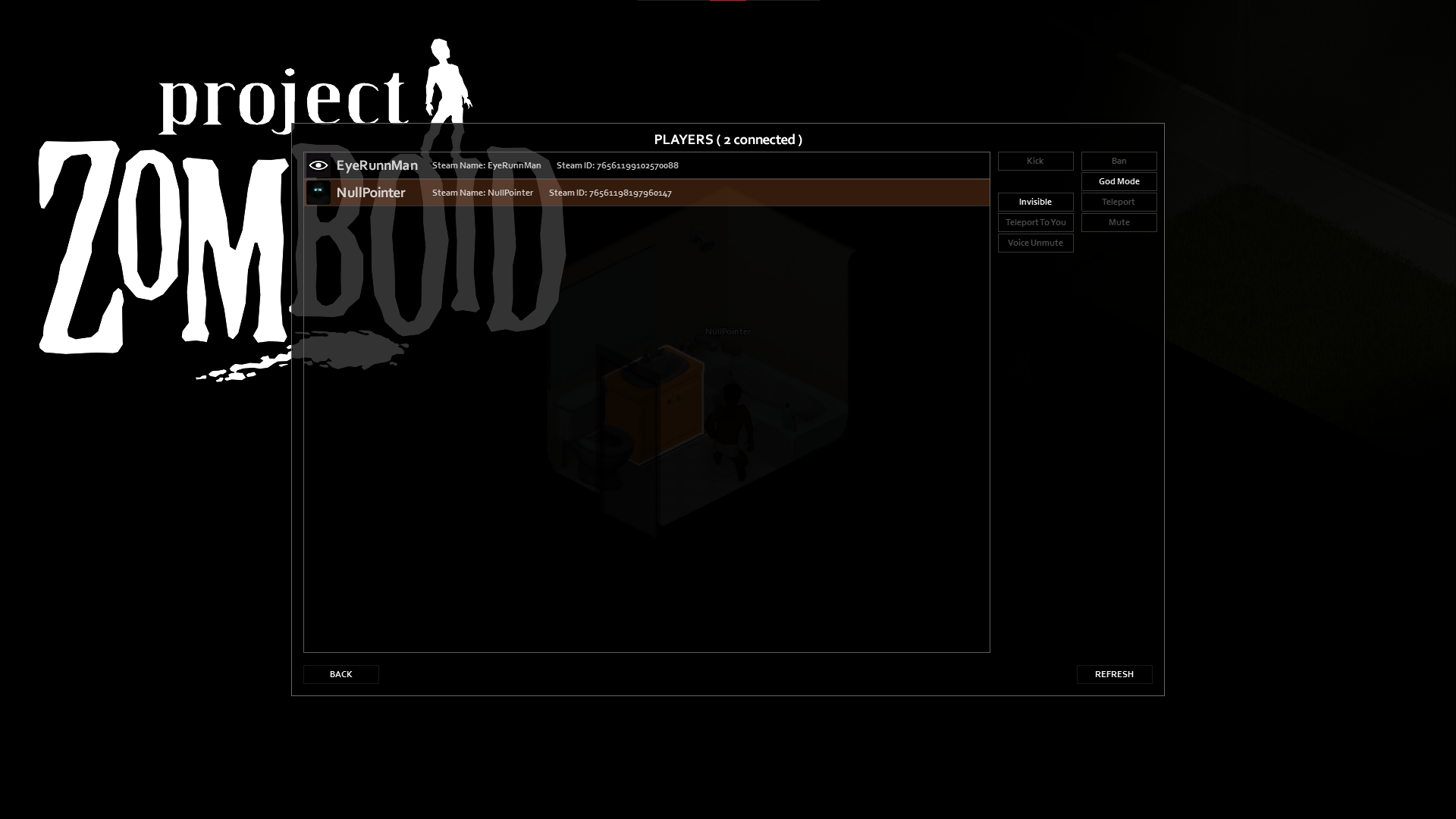
2. Open SaveSync
Launch SaveSync from Steam Library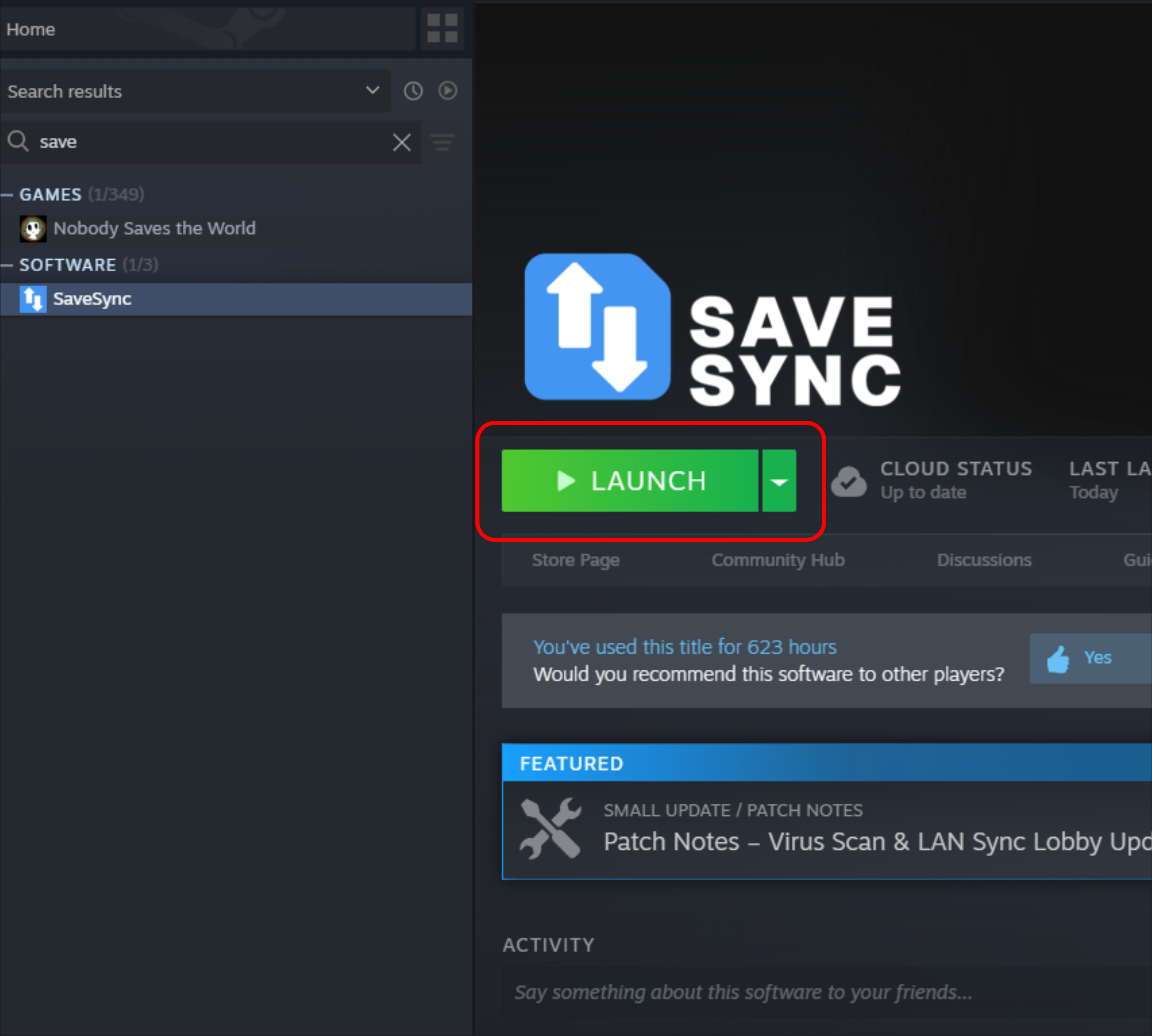
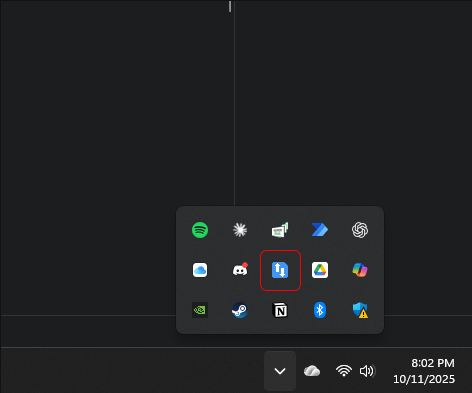
Or click the SaveSync icon in your system tray if its already running
3. SaveSync Main Window
You'll see the home screen with your games list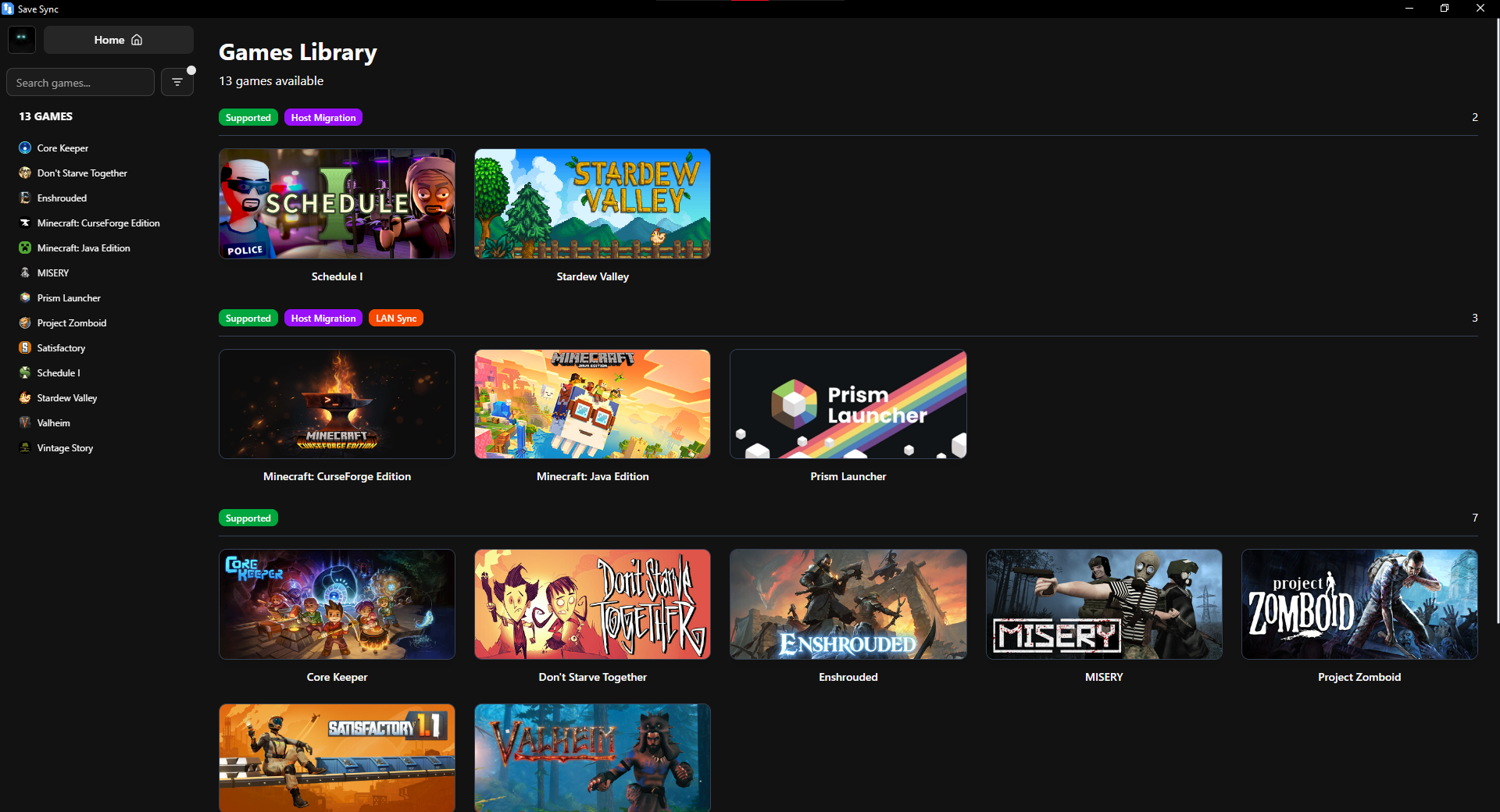
4. Select Project Zomboid
Click on Project Zomboid from the list on the left. You'll see Project Zomboid's save management page5. Create New Save
Click "+ New Save" button (top right)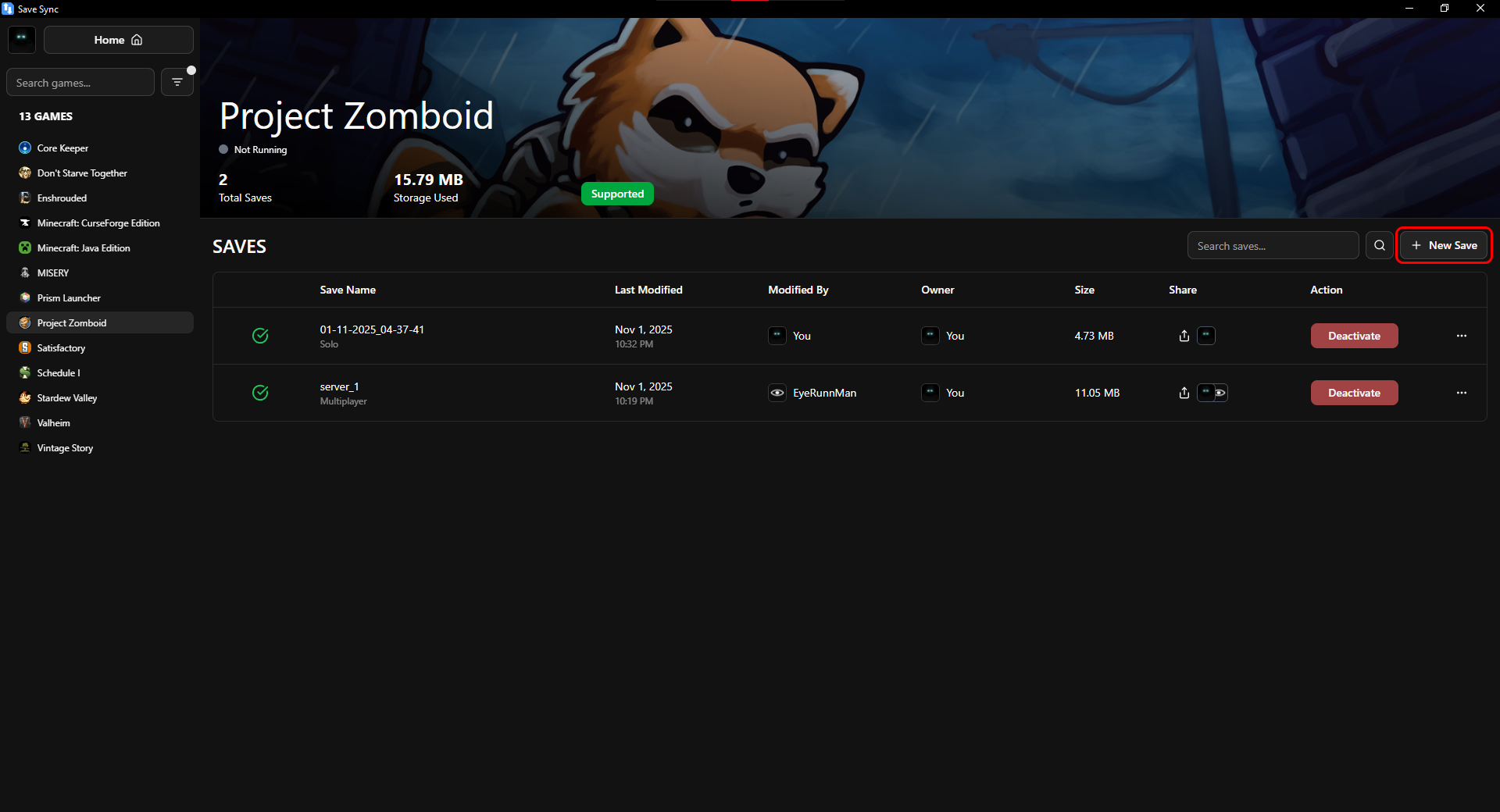
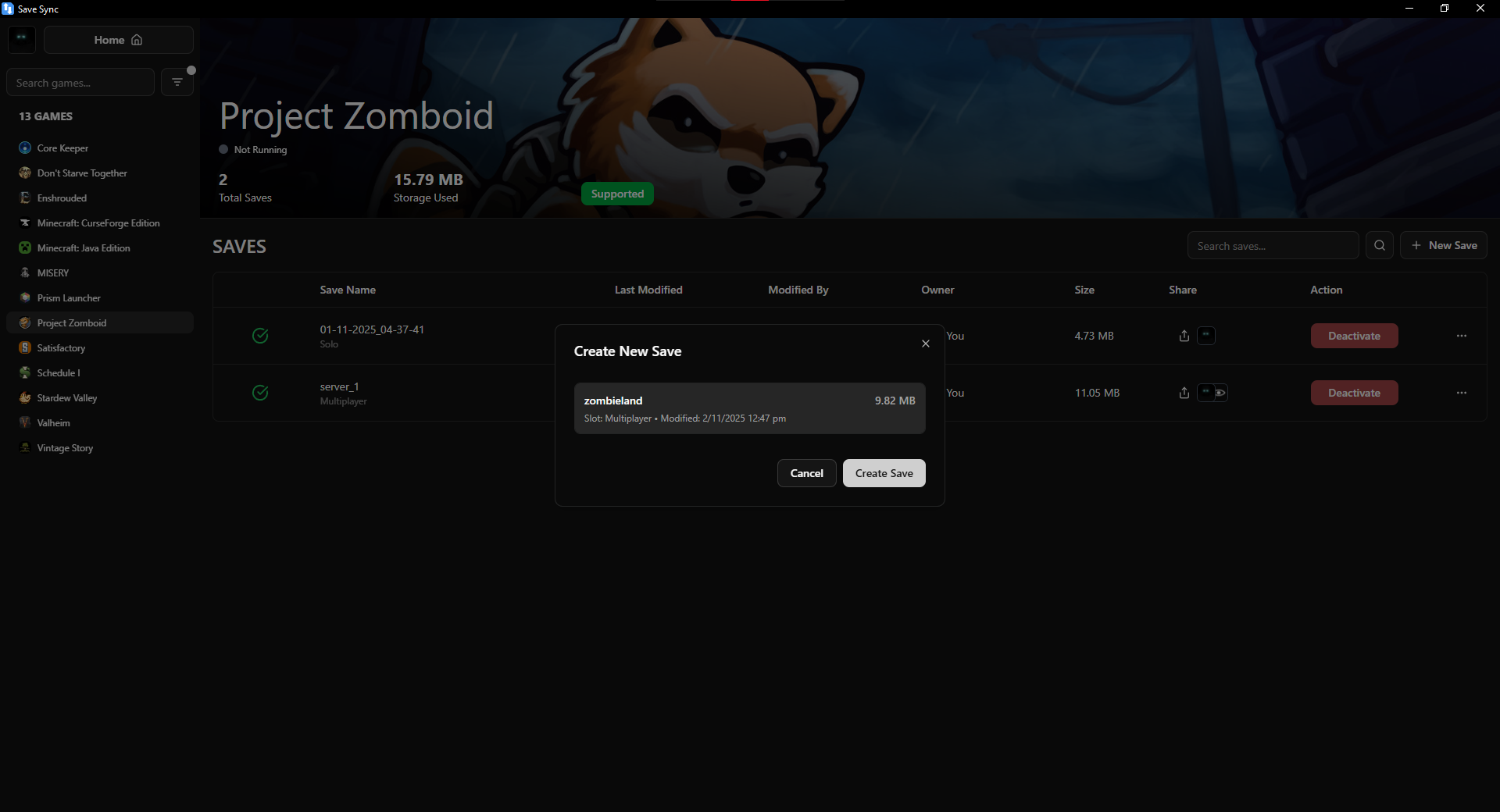
6. Select Save Slot
- A dialog appears with available save slots
- Select your save slot from the list
- Click "Create Save"
7. Wait for Sync
- The save will start syncing
- Wait for it to complete (green checkmark)
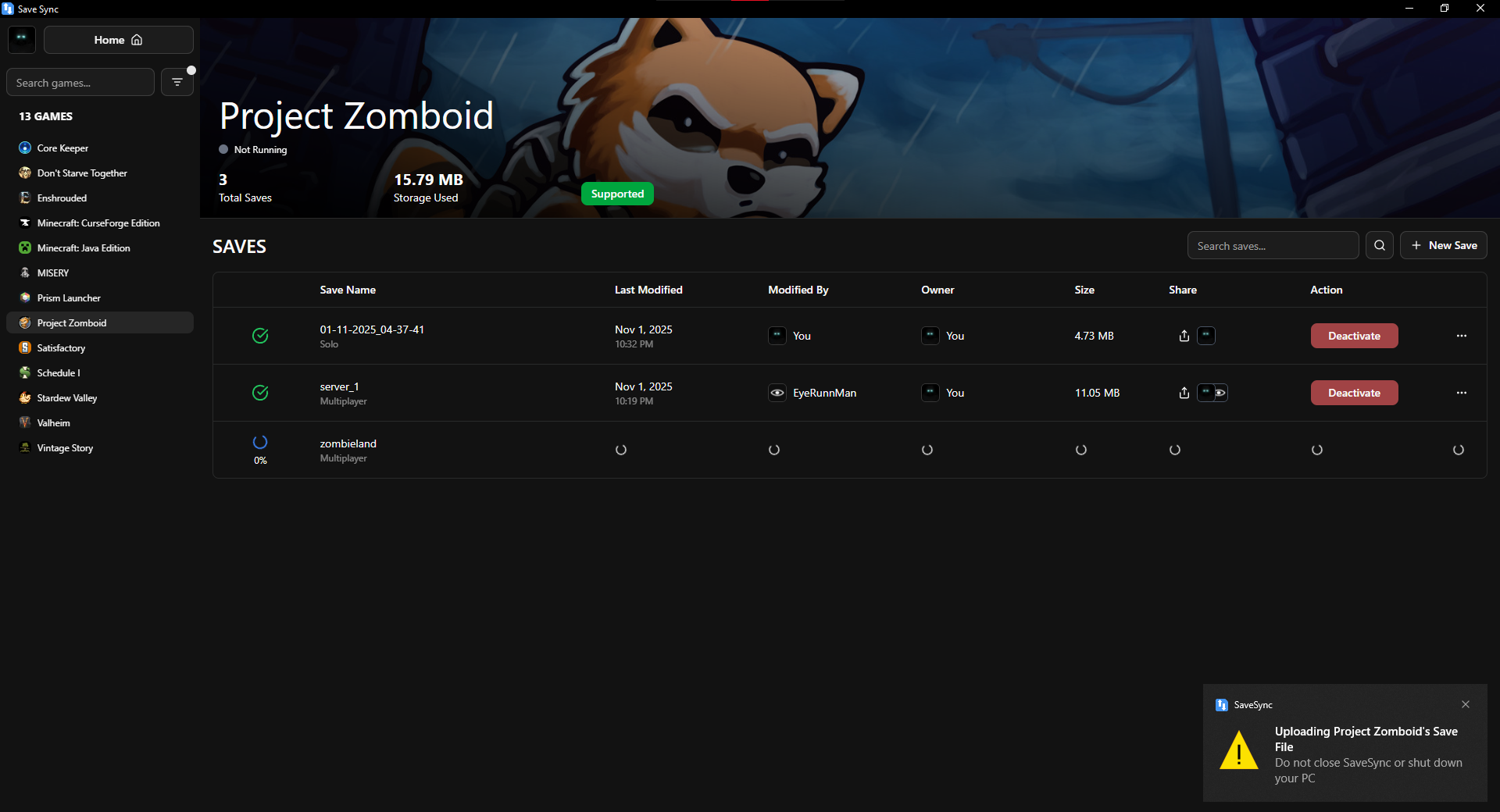
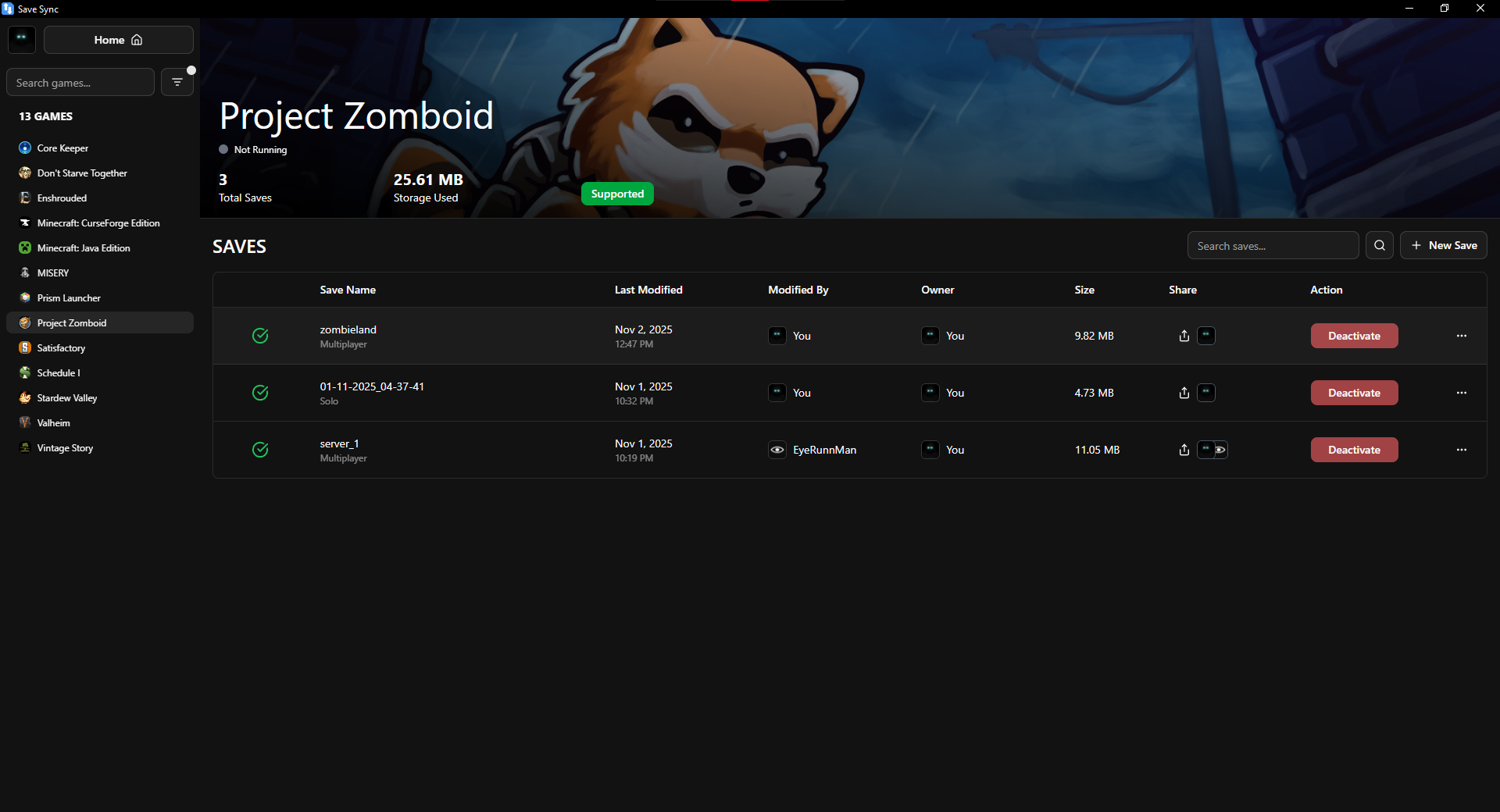
Now the save will sync automatically
Share with Friends
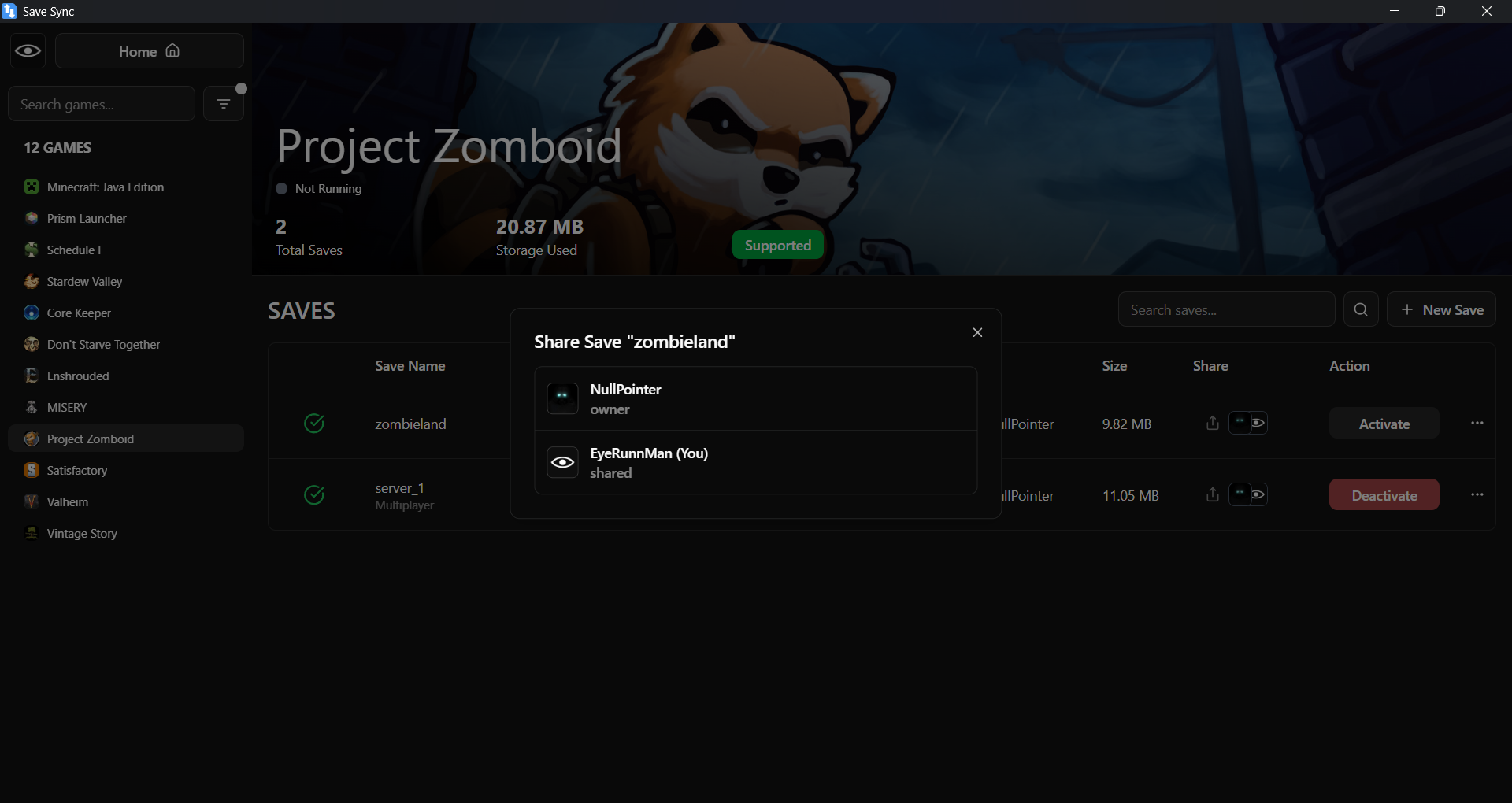
1. Share Icon
Click the share icon on your save row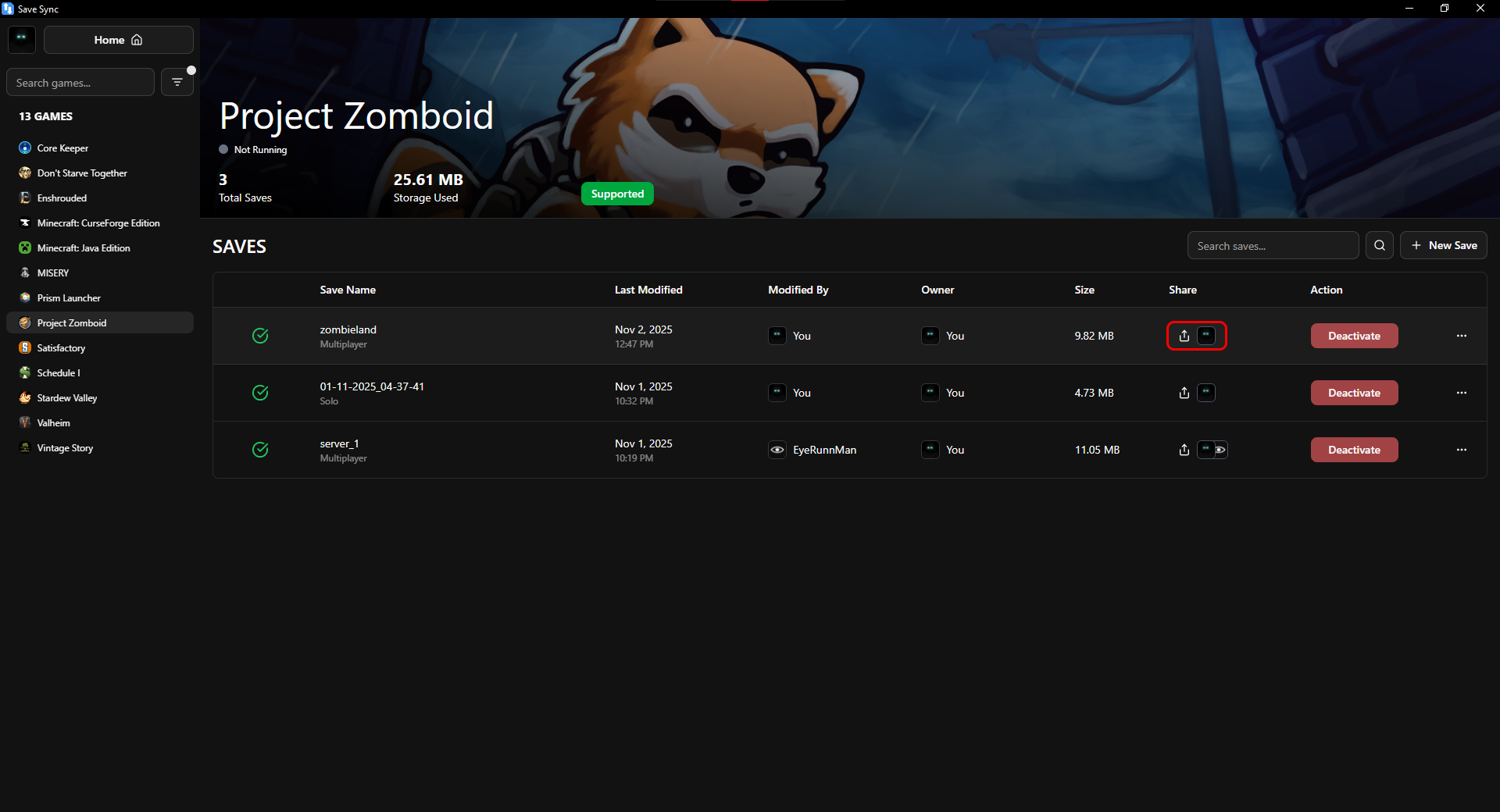
2. Share Dialog
- Search for your friend's Steam username
- Click on your friend from the search results
- Click "Share" button
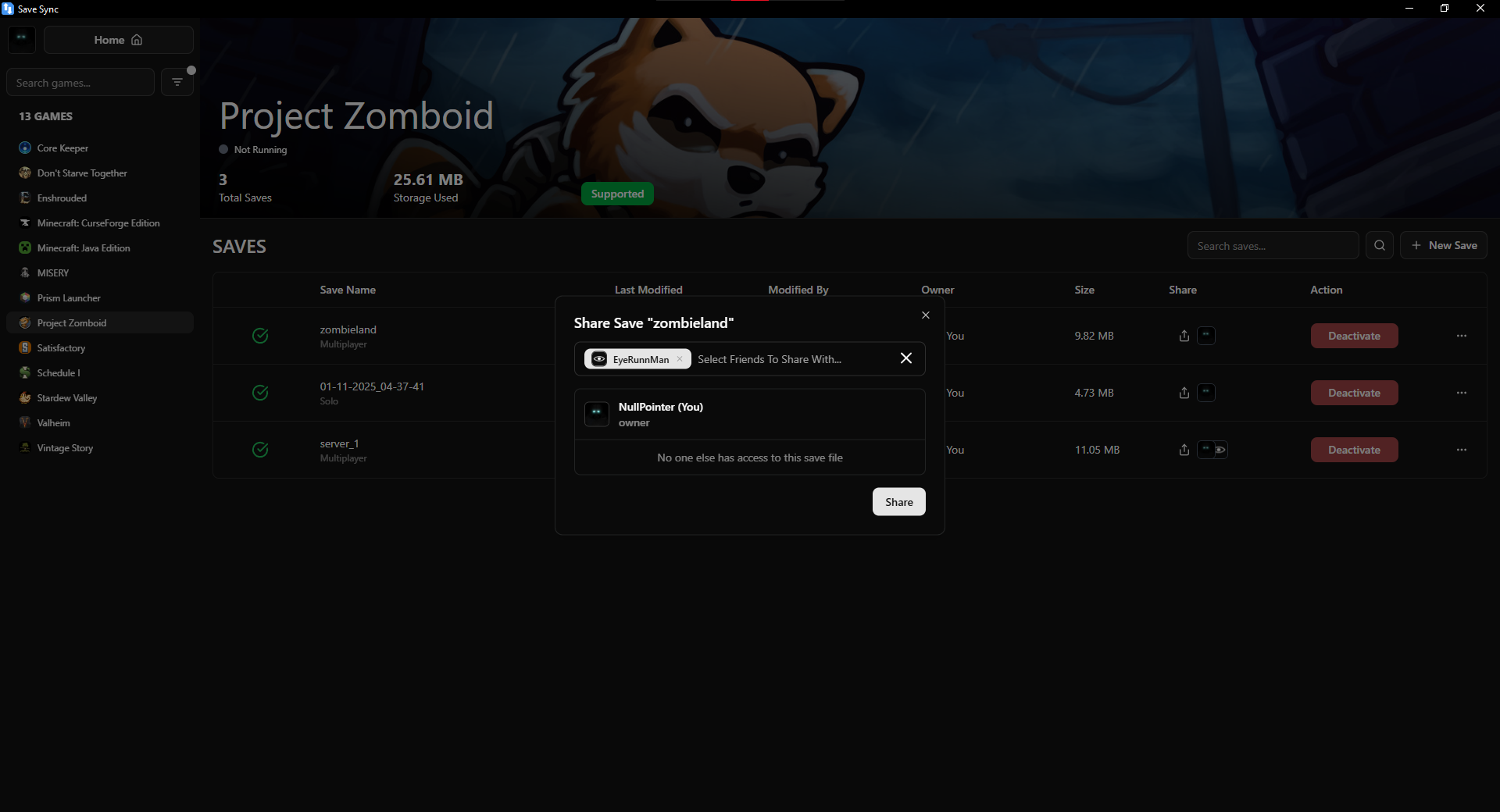
3. Share Complete
Your friend now appears in the shared list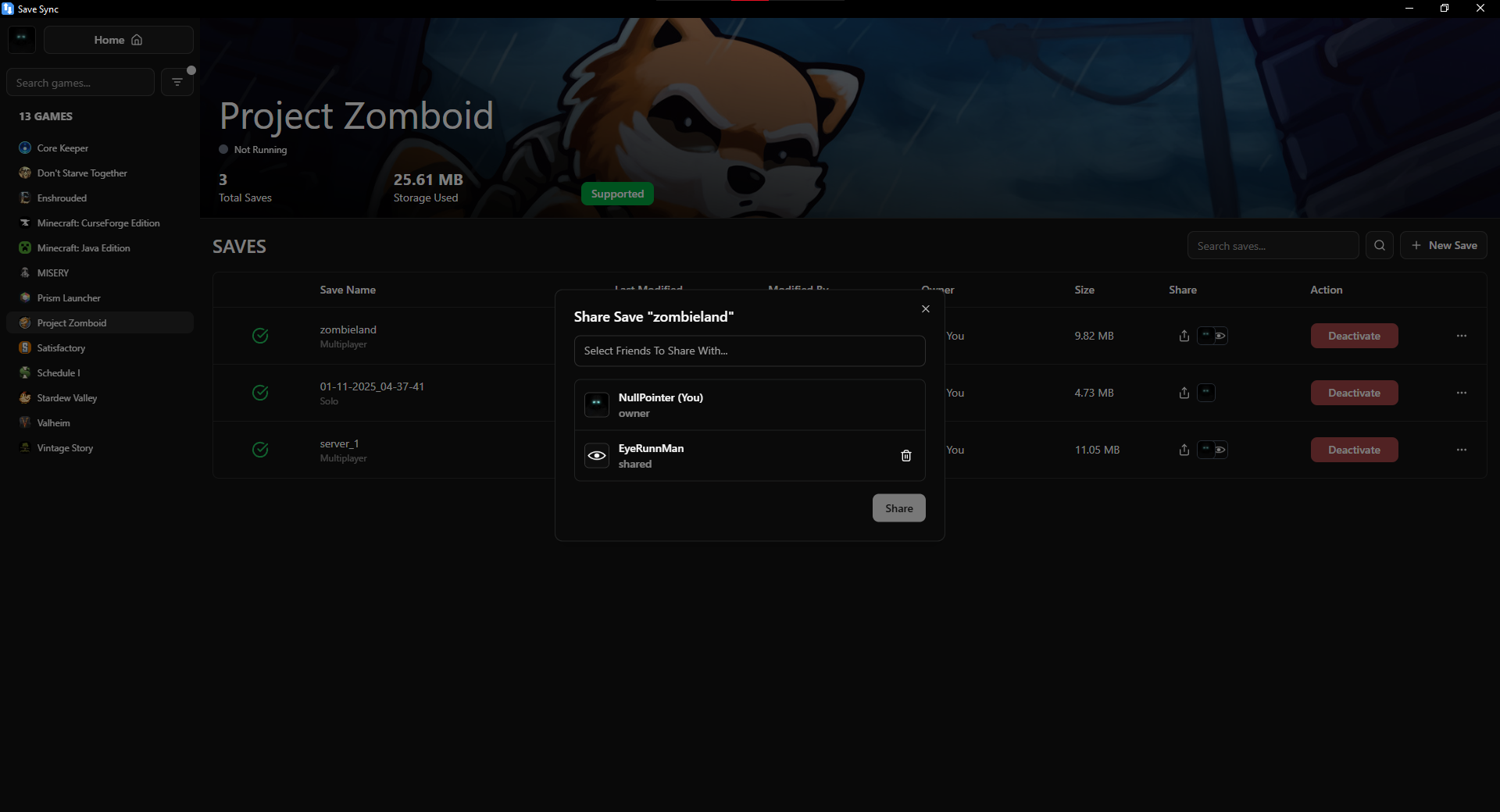
How Your Friend Accesses the Save
1. Friend Opens SaveSync
They launch SaveSync from Steam or system tray2. Shared Save Visible
- They'll see the shared save in their game list
- It shows as shared by you
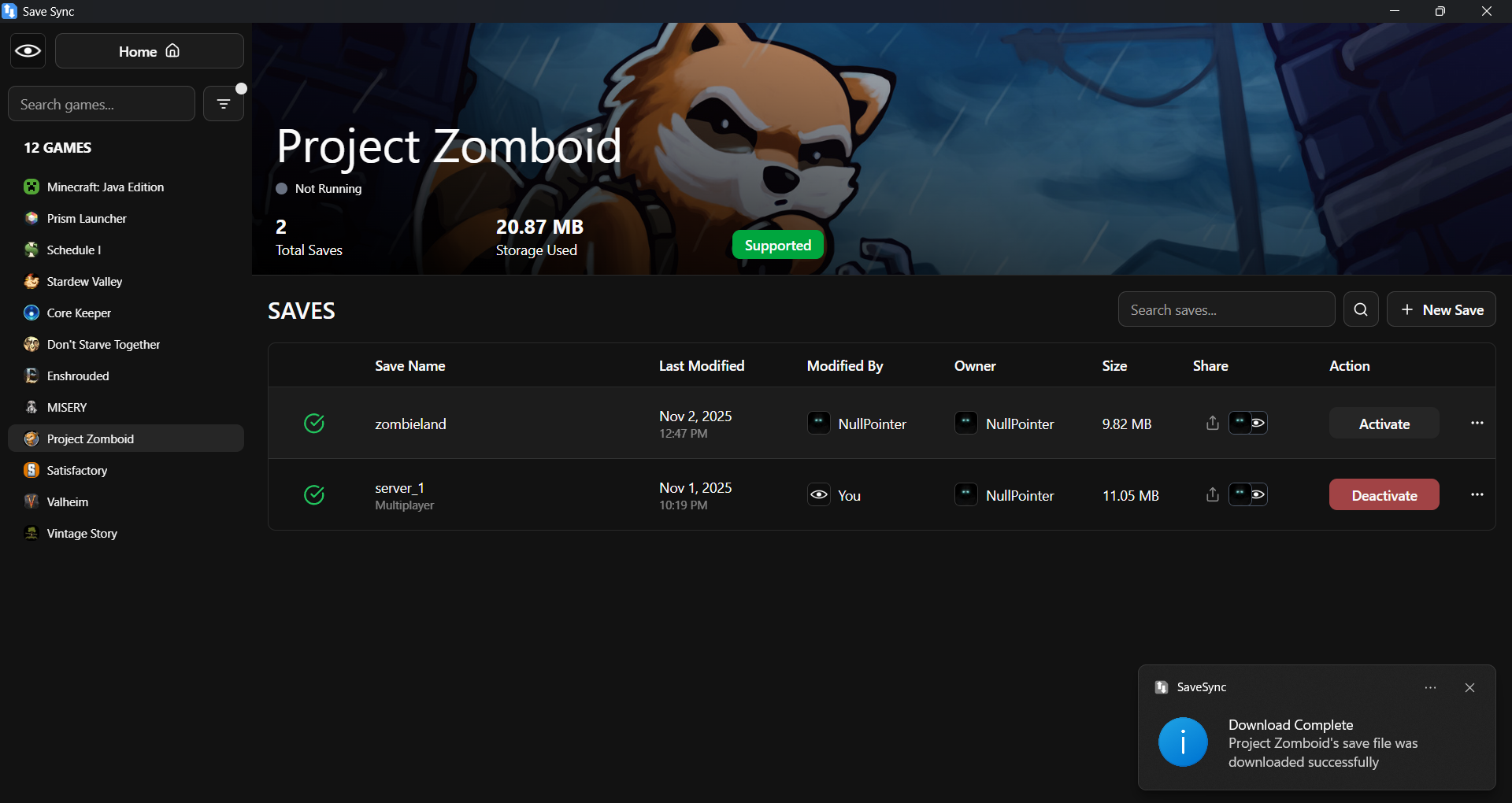
3. Friend Clicks Activate
Click "Activate" on the shared save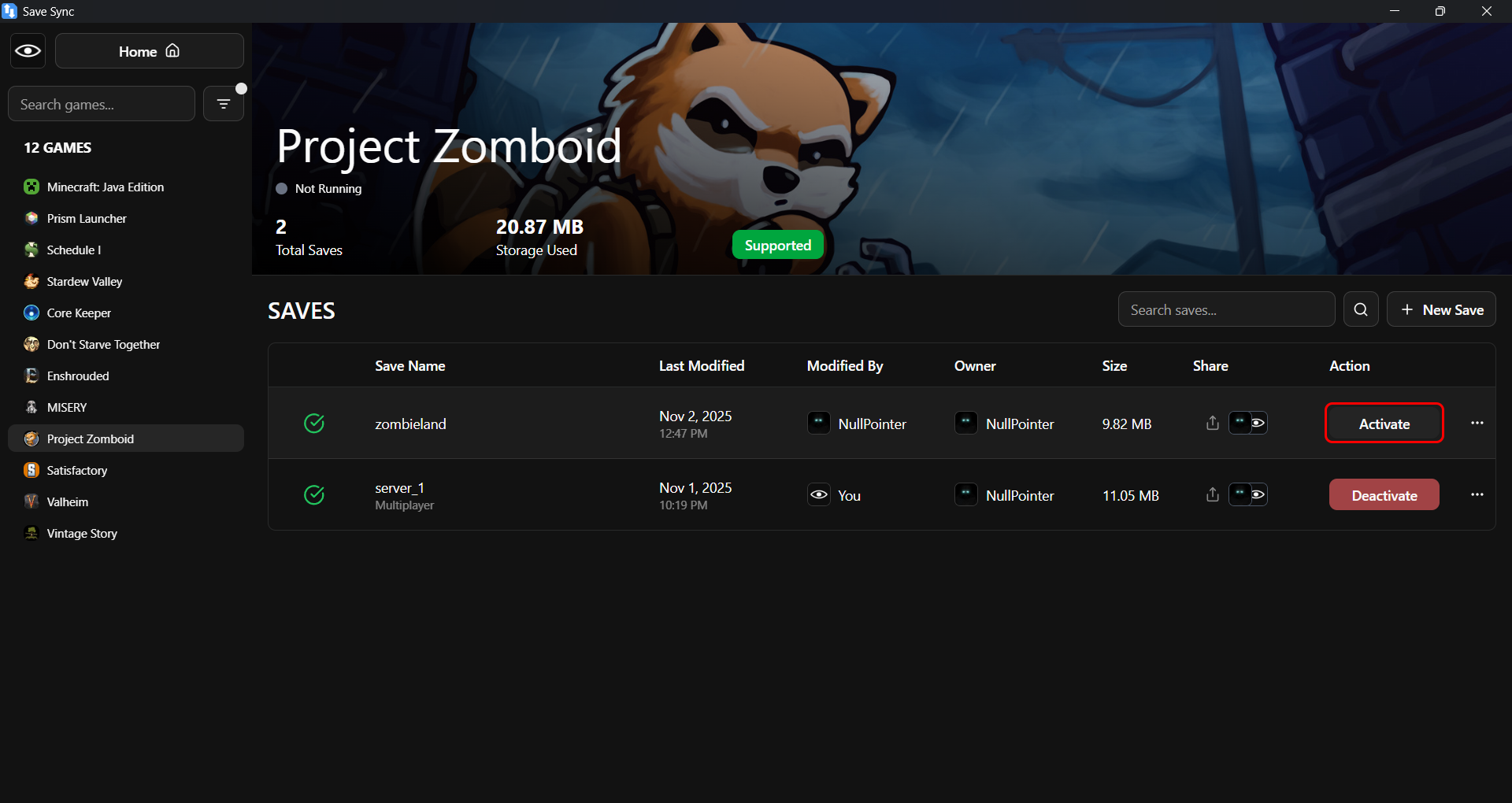
4. Save Activated
The save is now ready to use, and your friend can host it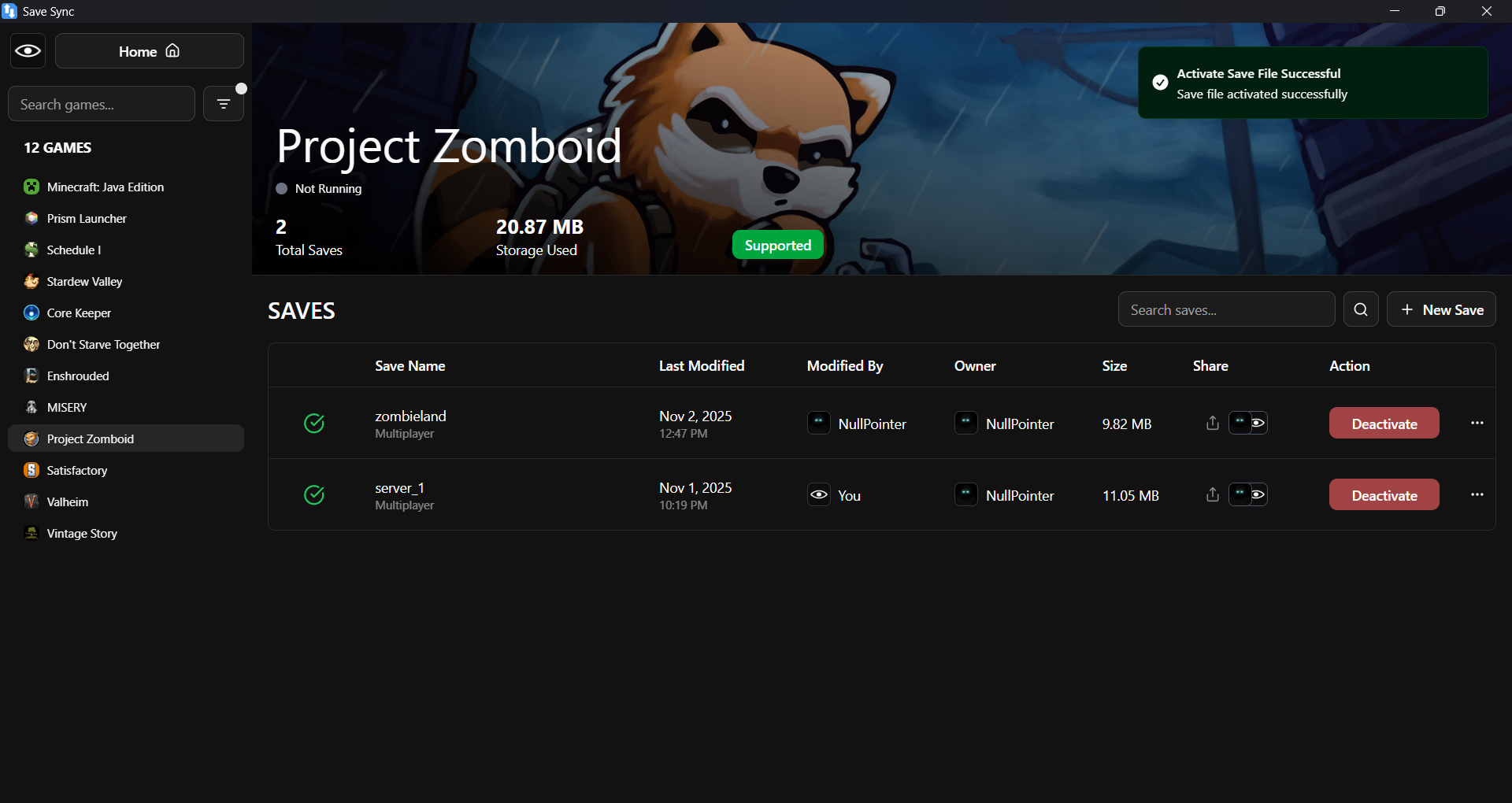
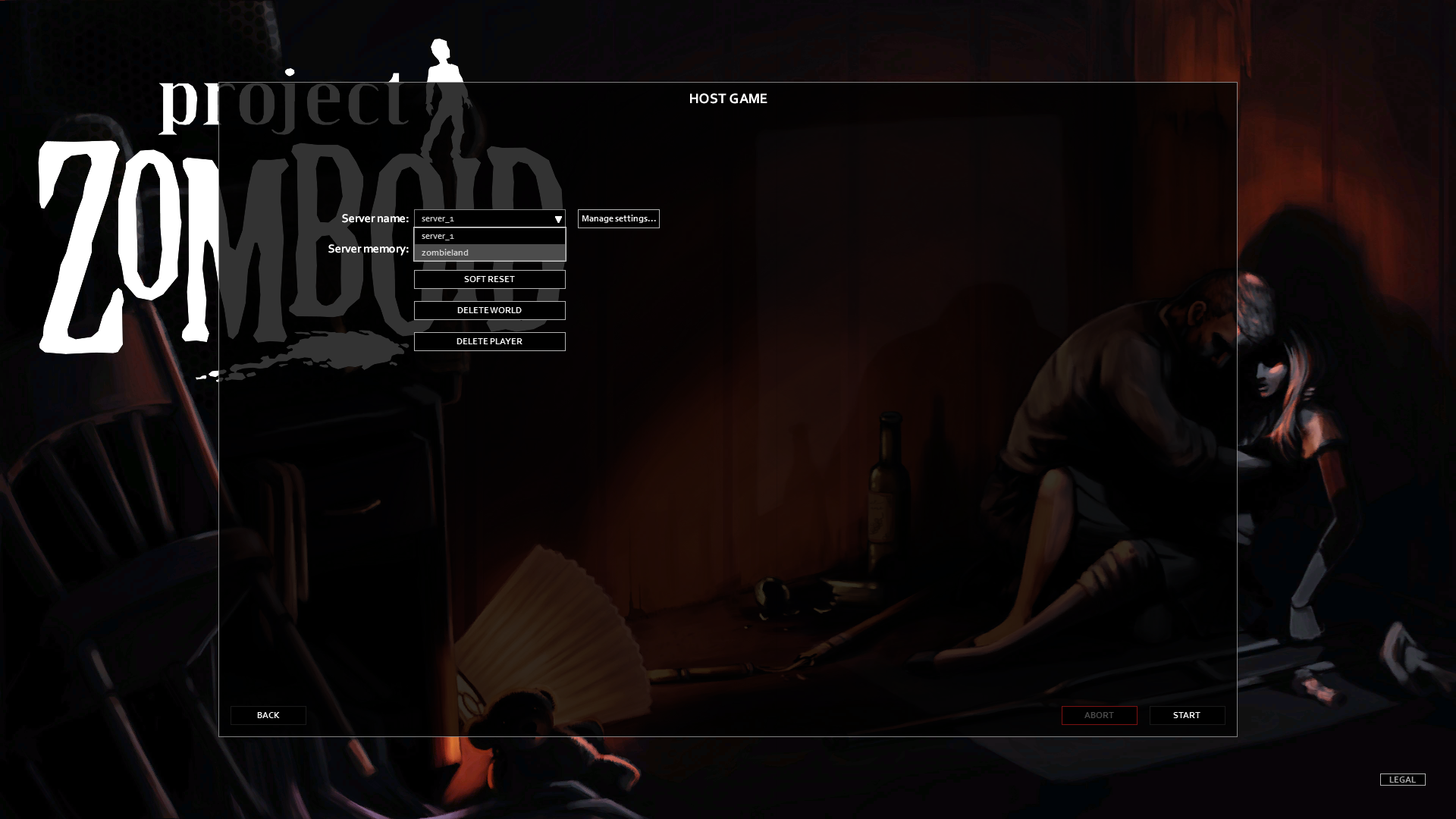
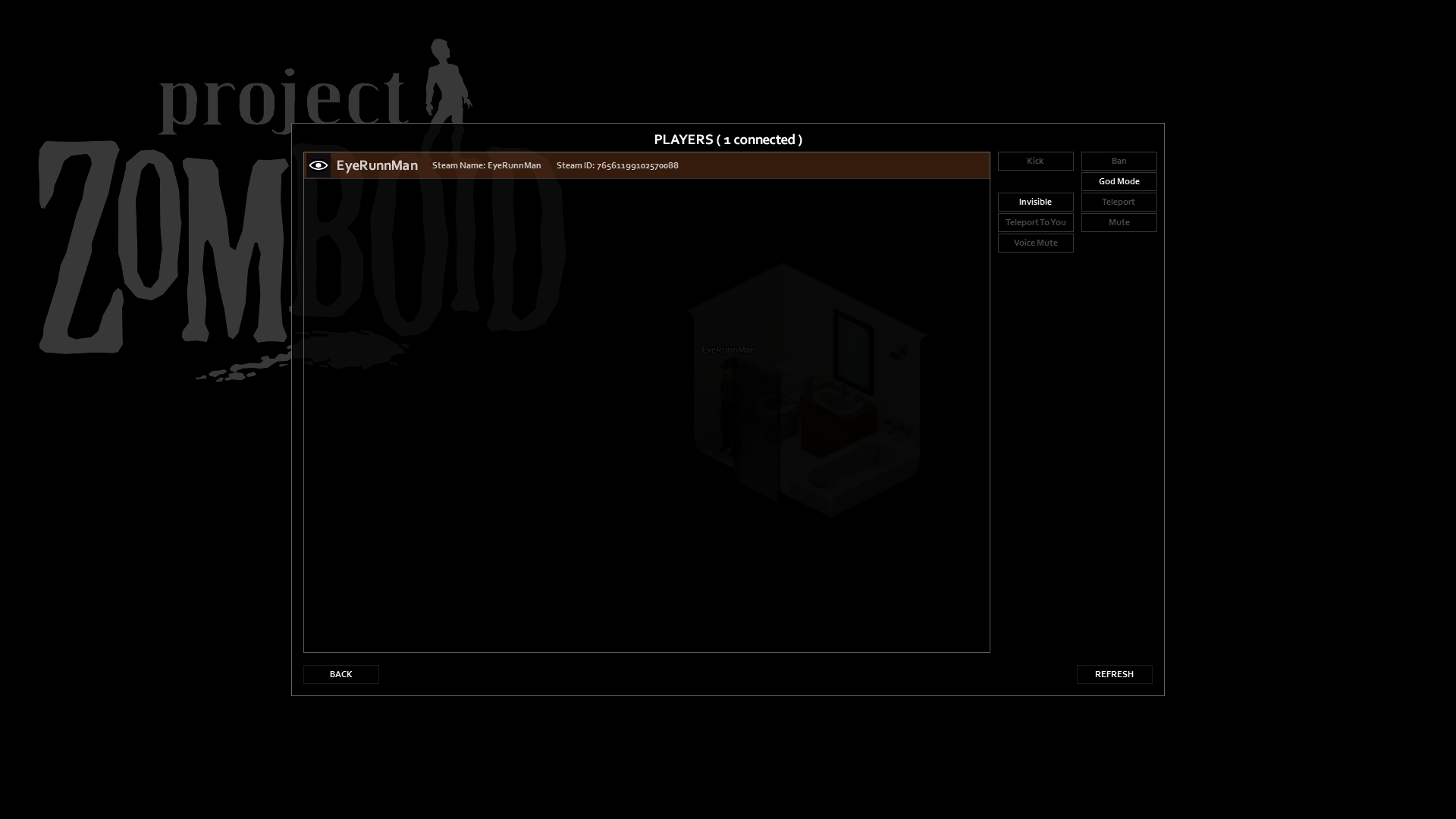
Note
- If you open SaveSync with the same Steam account on another PC, your saves will automatically sync, similar to Steam Cloud
- Linux and Steam Deck support are coming soon
- Save file conflict handling will also be added soon
Support
- Steam Community Hub
- savesync.games[www.savesync.games]
- Discord[discord.gg]
More Project Zomboid guides
- Modding Policy★ 5 (397)133k views208 ♥9 minUpdated Nov 8, 2022
- 80 tips and tricks for Project Zomboid (If you have over 100 hours in this game some of these will probably be new to you too)★ 5 (1.6k)82k views3.1k ♥28 minUpdated Aug 29, 2021
- Топ 100 лучших модов на "project zomboid"★ 5 (415)68k views1.1k ♥10 minRussianUpdated Jul 28, 2024
- [B41] Лучшие места для базы★ 5 (477)61k views1.3k ♥6 minRussianUpdated Nov 30, 2025
- Первая помощь ❤★ 5 (628)49k views1.4k ♥5 minRussianUpdated Jan 20, 2025
- The Basics of Base Building★ 5 (704)48k views1.5k ♥17 minUpdated Dec 24, 2021





🔥 Popular guides
- Upgrading to PremiumTeam Fortress 2★ 5 (20k)1441k views11k ♥6 minUpdated May 11, 2022
- No More Room in Hell Official ManualNo More Room in Hell★ 5 (2.8k)569k views2.1k ♥29 minUpdated Apr 22, 2019
- NMRiH Community Hosting GuidesNo More Room in Hell★ 5 (526)351k views653 ♥1 minUpdated Aug 10, 2022
- ULTIMATE GUIDE FOR GAME DEV TYCOONGame Dev Tycoon★ 5 (5.8k)326k views10k ♥4 minUpdated 23 Jan, 2014
- How to 'Git Gud' Soon™MORDHAU★ 5 (2k)318k views3k ♥68 minUpdated Nov 16, 2024
- Лучшие кооперативные игры SteamPAYDAY 2★ 5 (1.5k)315k views2.1k ♥56 minRussianUpdated Apr 27, 2025






This guide was created by its original author on the Steam Community. Are you the author and want it removed? Request removal.