Squad Fixes & Troubleshooting

Troubleshooting
- Update GPU drivers
- Disable all workshop mods (Steam/Squad/Properties/Workshop/Uncheck)
- Validate game files (Steam/Squad/Properties/Installed Files/Verify integrity)
- Have a minimum of 20GB of Storage free on Squads Drive
- Clear Cache, this can be done by pressing Windows Key ⊞ + R, Type %localappdata%, delete the SquadGame folder.
- SFC Scan, this can be done by opening Command Prompt as Admin, then typing sfc /scannow. If files are found to be corrupted type, DISM /online /cleanup-image /restorehealth. After done, restart PC.
Fixes
Unknown file version
Validate game files as a file is corrupted (Steam/Squad/Properties/Installed Files/Verify integrity) 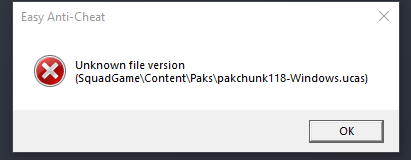
Radeon GPU Launch Error
Roll back to driver version 25.9.1AMD Radeon Software > Performace tab > Driver & Software > Rollback Driver > Restart Computer
Or
Find driver version 25.9.1, click download.
Radeon Drivers [www.amd.com]

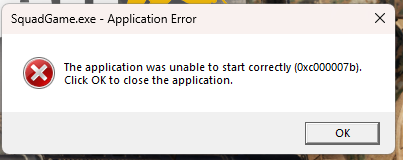
Unable to Start Game Correctly
Download the latest Visual C++ -> RestartMicrosoft Visual C++ Downloads [learn.microsoft.com]
Unabale to skip intro
Common fix: disable all workshop mods (Steam/Squad/Properties/Workshop/Uncheck)
Fully turn off the startup movie.
(Not recommended for some cases, as the game will still not launch)
Open Steam > Squad Properties > Installed Files > Click Browse > SquadGame\Content\Movies > Delete "welcome_to_squad.MP4"
Bugged Curser
Unplug any joystick, controller or USB devices than can cause issues.Crash Fixes
Game keeps crashing
- Update GPU drivers
Nvidia APP > Drivers > Download > Restart Computer
Radeon APP > Download > Restart Computer - Validate game files (Steam/Squad/Properties/Installed Files/Verify integrity)
- Clear Cache, this can be done by pressing Windows Key ⊞ + R, Type %localappdata%, delete the SquadGame folder.
Performance Fixes
Audio Fixes
No Audio Input Option
Clear Cache, this can be done by pressing Windows Key ⊞ + R, Type %localappdata%, and deleting the SquadGame folder.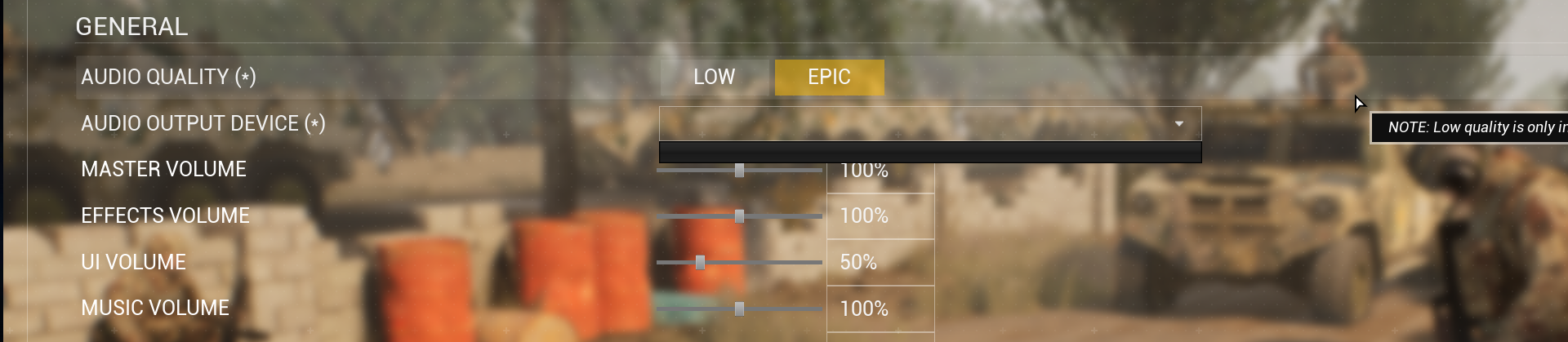
No Input Device
Turn off "Audio enhancements" in WindowsWindows 11 - Settings > System > Sound > Properties > Change Device Default Effects -> Off

Network & Connection Fixes
No Servers Showing Or Infiniate loading
Put "Maximum Ping" up in server filters and double-check what's on/off.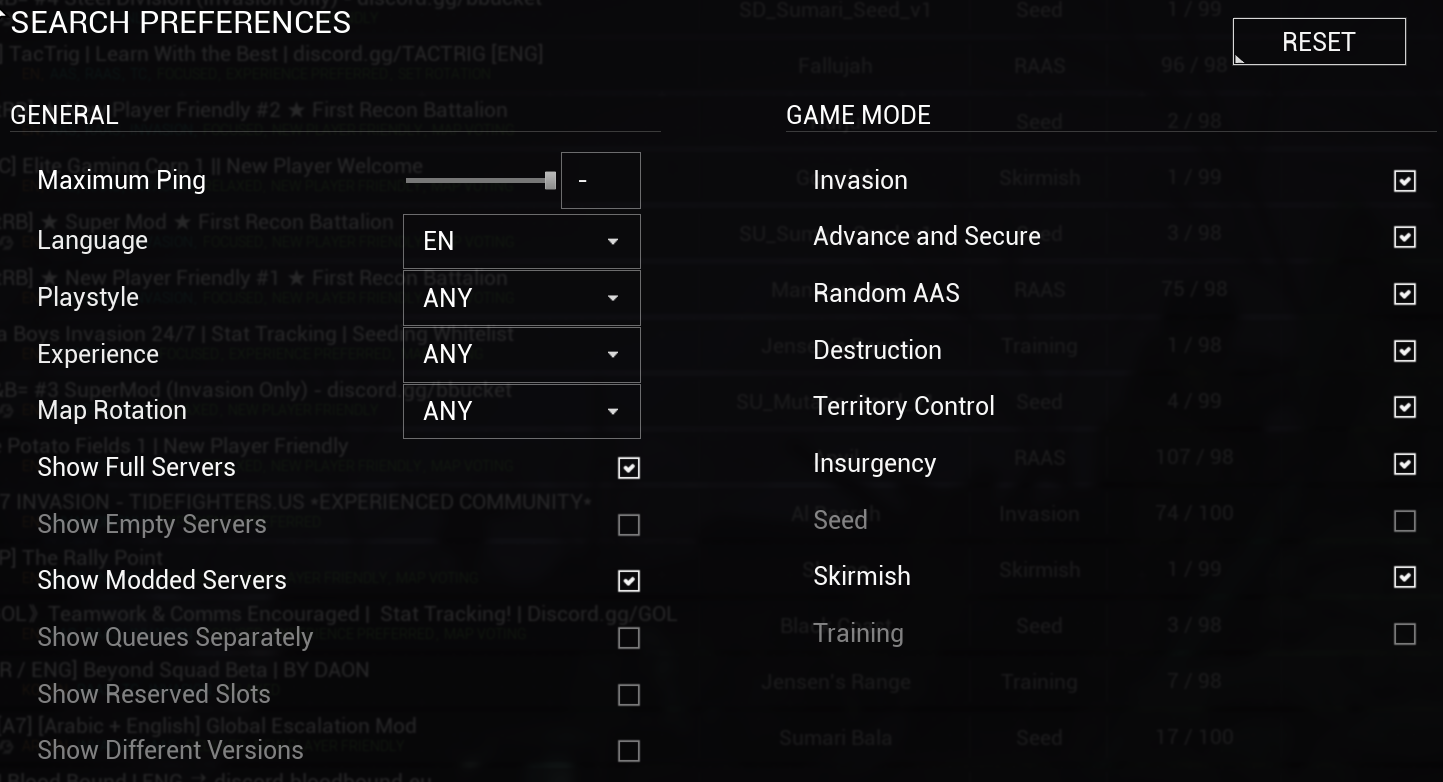
Anti Cheat Integrity Check Failed
EOS connection is blocked or down.Turn off VPN and check firewall
Check EOS status here[status.epicgames.com]
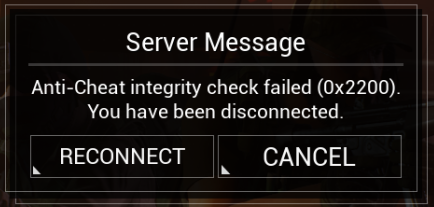
Steam Offline
Visual Fixes
Black Around Scope
Turn off wake simulation. Settings > Graphics > Wake Simulation
Low Quality Textures
Can be due to low amount of GPU VRAM.Lower texture quality and use upscaling
Last resort option if you have under 4GB of VRAM, turn on uncap texture pool.
Squad > Settings > Graphics > Texures > Uncap Texture Poolsize Please keep in mind Squad has new system requirements
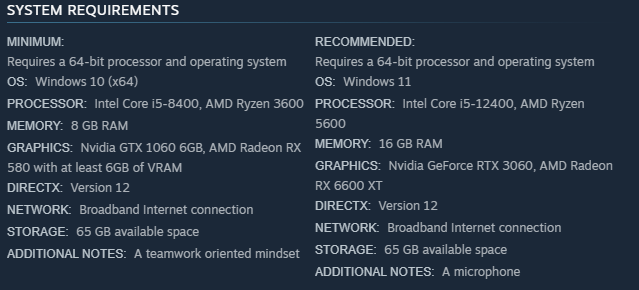
Issue not listed or more support needed?
More Squad guides
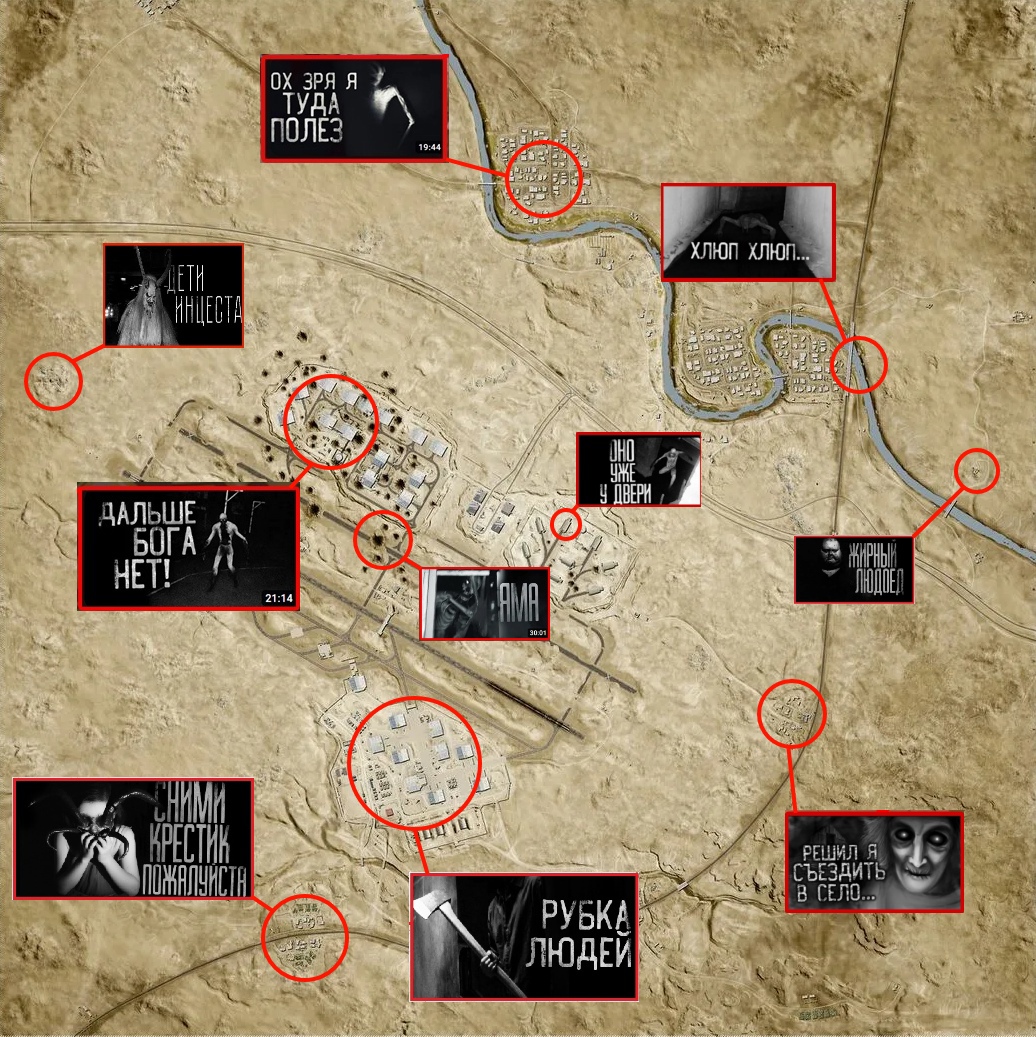
- Подробный гайд для новичков★ 5 (764)61k views1.1k ♥20 minRussianUpdated 28 Sep, 2023
- Squad Leader 101★ 5 (884)29k views1.5k ♥60 minUpdated 22 Jul
- Как убрать мыло на экране | 100% Способ★ 4 (113)26k views355 ♥3 minRussianUpdated 1 May, 2023
- SQUAD - raising FPS together! / SQUAD - поднимаем FPS вместе!★ 3 (31)19k views75 ♥4 minUpdated 8 Jan, 2024
- Руководство по пилотированию вертолётов★ 5 (199)18k views446 ♥32 minRussianUpdated 20 Feb, 2022
- [Squad v10.5] [EN/РУ] / Where to shoot to penetrate? / Куда стрелять чтобы пробить?★ 5 (220)15k views606 ♥1 minUpdated 17 Jun




🔥 Popular guides
- Upgrading to PremiumTeam Fortress 2★ 5 (20k)1441k views11k ♥6 minUpdated May 11, 2022
- No More Room in Hell Official ManualNo More Room in Hell★ 5 (2.8k)569k views2.1k ♥29 minUpdated Apr 22, 2019
- NMRiH Community Hosting GuidesNo More Room in Hell★ 5 (526)351k views653 ♥1 minUpdated Aug 10, 2022
- ULTIMATE GUIDE FOR GAME DEV TYCOONGame Dev Tycoon★ 5 (5.8k)326k views10k ♥4 minUpdated 23 Jan, 2014
- How to 'Git Gud' Soon™MORDHAU★ 5 (2k)318k views3k ♥68 minUpdated Nov 16, 2024
- Лучшие кооперативные игры SteamPAYDAY 2★ 5 (1.5k)315k views2.1k ♥56 minRussianUpdated Apr 27, 2025






This guide was created by its original author on the Steam Community. Are you the author and want it removed? Request removal.