Linux Modding Guide and High Framerates
Why another guide?
Many of the guides I have seen to install mods have involved external launchers like Lutris in combination with outdated mod loaders that barely work and are difficult to install onto a Linux system.
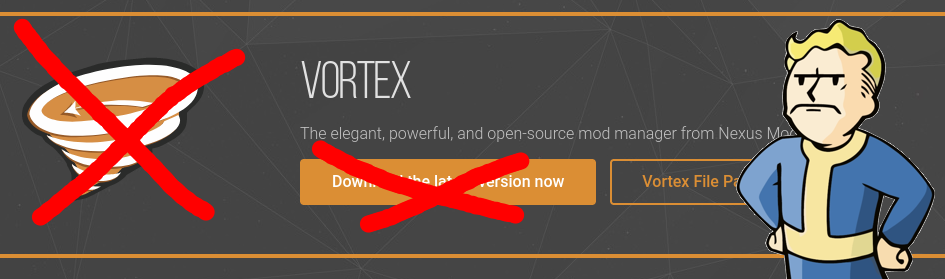
This replaces the need for setting up a modloader under Linux by simply overriding DLLs and functions directly with the Fallout New Vegas Script Extender when launching from Steam.
This replaces the need for setting up a modloader under Linux by simply overriding DLLs and functions directly with the Fallout New Vegas Script Extender when launching from Steam.
Installing New Vegas Script Extender
As of right now, the latest version of NVSE from their Github[github.com] includes a few files: the Data folder, a .pdb file, and 4 .dll files with the prefix nvse_*. These will all have to be moved into the root of the Fallout New Vegas folder.
You can get to this folder by right clicking the game in your Steam library, going to Properties, Installed Files on the new window, and clicking Browse.
Wine, and by extension Proton will by default load its own libraries (including dlls) before ever trying to load dlls in the root of a game's folder. This is why doing the previous step alone will not load NVSE. In order to load these DLLs, we must add an environment variable to New Vegas through Steam.
Navigate again to Fallout New Vegas > Properties > General, and you will see a blank text box that says "Launch Options". In this field, you will copy and paste what is below:
This will force Fallout New Vegas to acknowledge the new DLLs, as well as d2dx9_38.dll, which will be used when installing the heap replacer.
You can get to this folder by right clicking the game in your Steam library, going to Properties, Installed Files on the new window, and clicking Browse.
Wine, and by extension Proton will by default load its own libraries (including dlls) before ever trying to load dlls in the root of a game's folder. This is why doing the previous step alone will not load NVSE. In order to load these DLLs, we must add an environment variable to New Vegas through Steam.
Navigate again to Fallout New Vegas > Properties > General, and you will see a blank text box that says "Launch Options". In this field, you will copy and paste what is below:
WINEDLLOVERRIDES="nvse_1_4.dll=n,b;nvse_editor_1_4.dll=n,b;nvse_steam_loader.dll=n,b;d3dx9_38.dll=n,b" %command%
This will force Fallout New Vegas to acknowledge the new DLLs, as well as d2dx9_38.dll, which will be used when installing the heap replacer.
Installing NVSE on Epic Games / Heroic [Skip if using Steam]
The official NVSE website says that the Epic Games version is not compatible, but this isn't entirely true due to a mod on Nexus Mods called Epic Games Patcher.[www.nexusmods.com]
This will allow you to downgrade your game's exe to one compatible with NVSE and thus other mods.
Doing this will remove compatibility for gaining achievements on the Epic services, however.
This patcher will also install the 4GB patch, so it can be skipped later in this guide when you see it.
To recap the instructions on the Nexus page, you must:
This will allow you to downgrade your game's exe to one compatible with NVSE and thus other mods.
Doing this will remove compatibility for gaining achievements on the Epic services, however.
This patcher will also install the 4GB patch, so it can be skipped later in this guide when you see it.
To recap the instructions on the Nexus page, you must:
- Download the latest release from Nexus
- Unpack the archive to the Fallout New Vegas English folder inside of the Fallout New Vegas root (do not extract to root)
- Use Wine to run Patcher.exe (if Wine does not work directly, add it as an additional game within Heroic and run it with Proton)
- If you do not see a terminal box pop up to tell you patching has completed, wait for a new file called FalloutNV.exe.old (or something along those lines) to show up next to the newly patched version
Installing the 4GB Patch
Fallout New Vegas is a 32bit game, and thus has access to address only 4GB of memory. Since 2 was always reserved for the OS (Windows XP, Vista) the game only ever addressed 2GB. This patch allows it to use more memory for a more stable experience.
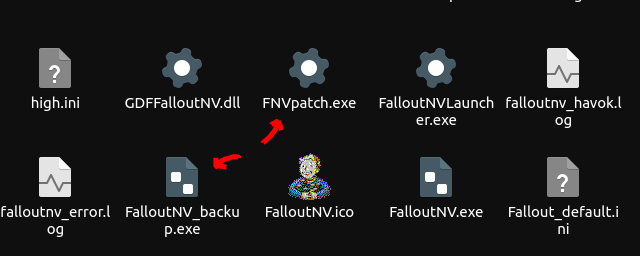
The 4GB Patcher can be found on its Nexus' Mod Page[www.nexusmods.com], and has to be installed by moving FNVpatch.exe next to the DLLs and FalloutNV.exe and running it by using Wine. If using Wine directly does not work for whatever reason, you can add it as a non-Steam game and forcing it to use Proton and launching it. Once the game is patched, you no longer need that exe. You will know the game is patched when you see a new file called FalloutNV_backup.exe show up in your file manager next to the newly patched one.
The 4GB Patcher can be found on its Nexus' Mod Page[www.nexusmods.com], and has to be installed by moving FNVpatch.exe next to the DLLs and FalloutNV.exe and running it by using Wine. If using Wine directly does not work for whatever reason, you can add it as a non-Steam game and forcing it to use Proton and launching it. Once the game is patched, you no longer need that exe. You will know the game is patched when you see a new file called FalloutNV_backup.exe show up in your file manager next to the newly patched one.
Installing New Vegas Heap Replacer
As the Nexus page for this mod [www.nexusmods.com] describes, "This library will replace the in-game heap with a faster, more optimized version. It should decrease load times, remove some stutter and slightly improve frame rate."
This mod injects itself using a DLL as well, but if you followed my instructions on installing NVSE, you should already be loading this DLL. All you have to do from here is download the latest release of this mod, extract it to the root of Fallout New Vegas (or Fallout New Vegas English on Epic) so the Data files merge and d3dx9_38.dll is placed next to the other nvse_*.dll files.
This mod injects itself using a DLL as well, but if you followed my instructions on installing NVSE, you should already be loading this DLL. All you have to do from here is download the latest release of this mod, extract it to the root of Fallout New Vegas (or Fallout New Vegas English on Epic) so the Data files merge and d3dx9_38.dll is placed next to the other nvse_*.dll files.
Installing New Vegas Tick Fix
Once you have NVSE installed, installing additional plugins like New Vegas Tick Fix[www.nexusmods.com] becomes pretty easy.
This will fix issues when running the game in general, but especially at high framerates when it comes to issues like certain behaviors being too slow or too fast.
Simply download the latest release and extract the NVSE folder containing a Plugins folder to Fallout New Vegas > Data (or Fallout New Vegas English > Data for Epic) and make sure the folders are still structured correctly.
NVSE will automatically load this when the game starts.
This will fix issues when running the game in general, but especially at high framerates when it comes to issues like certain behaviors being too slow or too fast.
Simply download the latest release and extract the NVSE folder containing a Plugins folder to Fallout New Vegas > Data (or Fallout New Vegas English > Data for Epic) and make sure the folders are still structured correctly.
NVSE will automatically load this when the game starts.
Fixing alt-tab with Borderless Fullscreen
This game is all kinds of messed up when you attempt to alt-tab. This mod again at Nexus[www.nexusmods.com] fixes that.
Much like NVTF, this contains an NVSE folder. Merge this with your existing one and make sure there are no inconsistent capitalized folders (this mod uses a folder called plugins as opposed to Plugins).
Make sure they merge correctly.
Much like NVTF, this contains an NVSE folder. Merge this with your existing one and make sure there are no inconsistent capitalized folders (this mod uses a folder called plugins as opposed to Plugins).
Make sure they merge correctly.
Installing additional plugins
Much like the last two, additional plugins utilizing the New Vegas Script Extender will go in the
falloutnewvegas/data/NVSE
folder, either merging with the existing one or being inserted into that folder if they do not provide their own.
Forcing a higher FPS
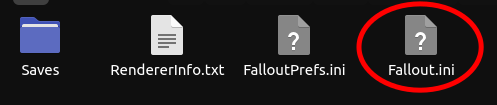
New Vegas' launcher is silly and really likes overriding your personal Fallout.ini. Because of this, we will be modifying two files.
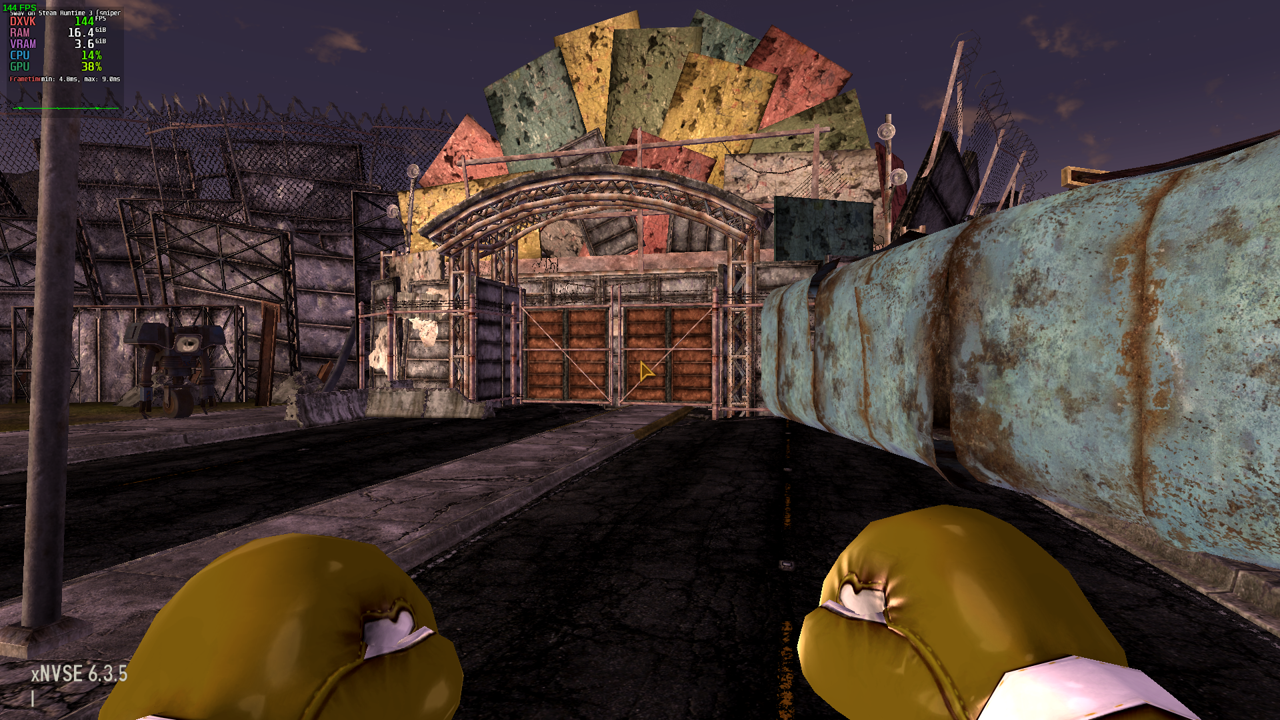
Within where the game is located, you will find Fallout_default.ini. Within that file, you will find the [HAVOK] section, and within that you will find "fMaxTime=0.0166". This is what dictates the FPS cap. By default, 0.0166 means 60 fps. As others have usefully pointed out, here is a small chart of what these values entail:
Also change iPresentInterval=1 to =0.
In addition, you may have to change the local version yourself as well.
On Steam, compatdata is where Windows files are held for individual games.
We will need to navigate to the individual settings by navigating up the directory tree where New Vegas is installed, until you see the folders "common" "downloading" and "compatdata" within "steamapps".
Navigate within compatdata and click on the folder named "22380". This is the app ID of New Vegas. Then navigate to pfx > drive_c > users > steamuser > Documents > My Games > FalloutNV > Fallout.ini. Make the same modification to fMaxTime within this file as well.
Within where the game is located, you will find Fallout_default.ini. Within that file, you will find the [HAVOK] section, and within that you will find "fMaxTime=0.0166". This is what dictates the FPS cap. By default, 0.0166 means 60 fps. As others have usefully pointed out, here is a small chart of what these values entail:
- fMaxTime=0.0333 - 30fps
- fMaxTime=0.0133 - 75fps
- fMaxTime=0.0111 - 90fps
- fMaxTime=0.0083 - 120fps
- fMaxTime=0.0069 - 144fps
- fMaxTime=0.0042 - 240fps+
Also change iPresentInterval=1 to =0.
In addition, you may have to change the local version yourself as well.
On Steam, compatdata is where Windows files are held for individual games.
We will need to navigate to the individual settings by navigating up the directory tree where New Vegas is installed, until you see the folders "common" "downloading" and "compatdata" within "steamapps".
Navigate within compatdata and click on the folder named "22380". This is the app ID of New Vegas. Then navigate to pfx > drive_c > users > steamuser > Documents > My Games > FalloutNV > Fallout.ini. Make the same modification to fMaxTime within this file as well.
Fixing the radio cutting in and out
Please refer to this guide by gaming elliptical.
https://steamcommunity.com/sharedfiles/filedetails/?id=2904062471&searchtext=linux
https://steamcommunity.com/sharedfiles/filedetails/?id=2904062471&searchtext=linux
Bypassing the launcher
This is by far the easiest section once all the other steps are done.
Navigate back into Fallout New Vegas' root and rename FalloutNVLauncher.exe to anything else you want. Just remember what that is so you don't accidentally delete it.
Then, rename FalloutNV.exe to FalloutNVLauncher.exe and attempt to launch through Steam.
This will instantly put you into the game's menus rather than the launcher with the loud .wav file.
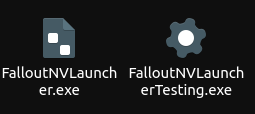
Navigate back into Fallout New Vegas' root and rename FalloutNVLauncher.exe to anything else you want. Just remember what that is so you don't accidentally delete it.
Then, rename FalloutNV.exe to FalloutNVLauncher.exe and attempt to launch through Steam.
This will instantly put you into the game's menus rather than the launcher with the loud .wav file.
Conclusion and Awareness
I may not be the first one to come up with this method, but I could not find it laid out in an organized way like this.
If this was useful to you, please tell others about this method, help me make the Epic Games version work the best it can by getting DXVK working, or even rewrite the guide entirely and upload it as your own.
Hopefully this will help some avoid the headache of modloaders on this accursed platform.
If this was useful to you, please tell others about this method, help me make the Epic Games version work the best it can by getting DXVK working, or even rewrite the guide entirely and upload it as your own.
Hopefully this will help some avoid the headache of modloaders on this accursed platform.
More Fallout: New Vegas guides
- Simple Guide to Setting up New Vegas in 2026★ 5 (2.9k)122k views8k ♥9 minUpdated May 6
- New Vegas 2024 Essential Modding Guide★ 5 (1.4k)112k views3.9k ♥37 minUpdated Jan 19
- Fallout:NV Console Command List / Weapons / Armor / NPC's and World Objects★ 5 (948)67k views2.4k ♥33 minUpdated Aug 6, 2025
- 100% Achievement Guide: Fallout - New Vegas★ 5 (1.5k)37k views4.6k ♥98 minUpdated May 9
- Interactive Map★ 5 (614)27k views957 ♥1 minBulgarianUpdated Jan 30
- Complete Achievement Guide (Includes DLC)★ 5 (808)23k views2.1k ♥26 minUpdated Aug 5, 2025





This guide was created by its original author on the Steam Community. Are you the author and want it removed? Request removal.